
SKYWARD Employee Access Attendance Standards Gradebook GOALS Post
SKYWARD Employee Access Attendance Standards Gradebook
GOALS • • • Post Daily Attendance for classes Look up student information Enter and score Events, Skills and Subjects Set Gradebook Display Preferences Run Student and Class Reports
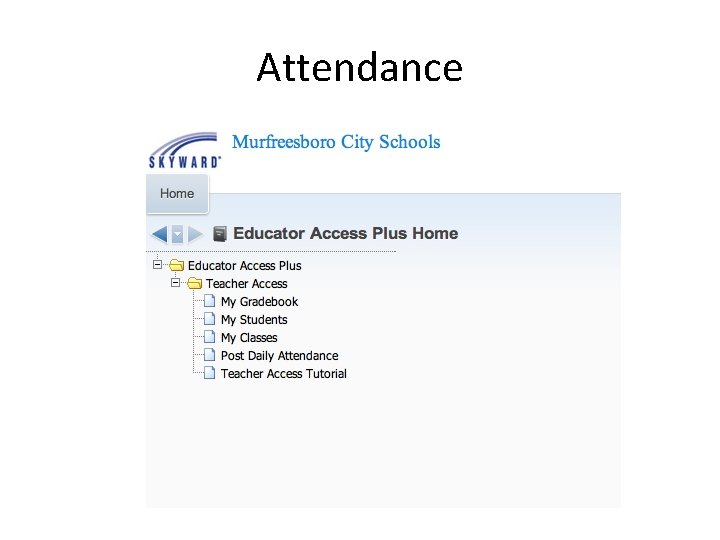
Attendance
Take Attendance • • By Name Click on Homeroom Class Mark Attendance Submit c o D Sky
Why Standards—Based? • Ensures that there is more consistency of expectations from teacher to teacher. • Helps teachers and students focus on the standards from the very beginning of the year
Why Standards—Based ? • Better Communication with Parents – Parents will learn exactly how their students are doing based on the standards • Kindergarten has been using a Standards —Based reporting system for two years
What are the Expectations? • Grades K-2 – Enter Events/Assignments for all subjects – Enter Work Habits and report card marks by the end of the quarter – All quarter marks will show on Parent Access this year
What are the Expectations? • Special Area Teachers – Enter report card marks by the end of the 9 weeks. – All quarter marks will be on Parent Access this year
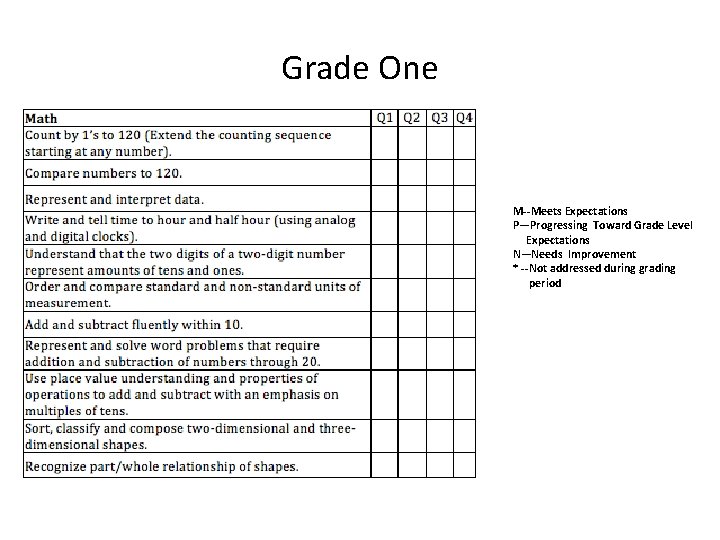
Grade One M--Meets Expectations P—Progressing Toward Grade Level Expectations N—Needs Improvement * --Not addressed during grading period
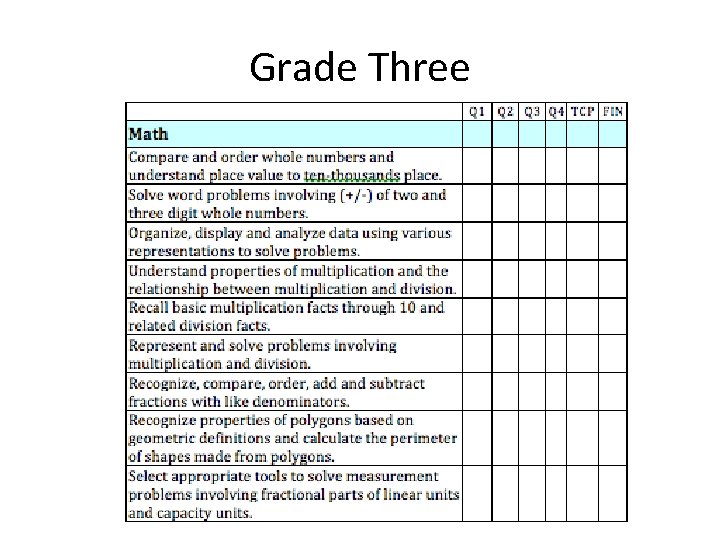
Grade Three
K-2 Grading Scale and Event Grading • Gradebook does not calculate grades in K-2 • Enter Events and link to skills – Determine if students demonstrate • Meeting Grade Level Expectations • Progressing Toward Grade Level Expectations • Needs Improvement • At the end of the 9 weeks look at evidence to determine final mark • Manually enter a Skill Grade for the quarter (will not average letters)
Why Not Average? • An average does not accurately reflect if a student has mastered the content • Look across the grading period and determine TRENDS for each skill
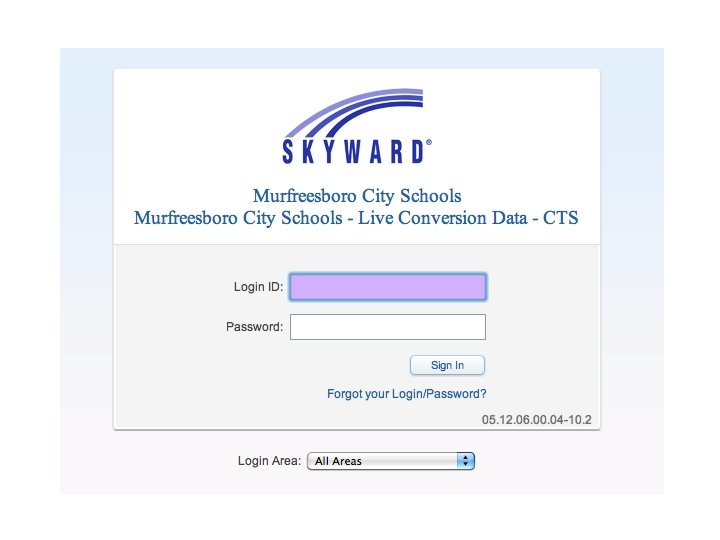
Login Screen • User Name: 5 -3 -3 – Five Letters of Last Name – Three Letters of First Name – Three Zeros • Password: password
Getting Started • Gradebook Selection Screen – Select a Class to Enter Grades/Events – Work Habits- Entered in main gradebook
Adding an Event • • • Choose Subject Choose Skill Date Assign Marks for Event Scoring Codes (ABS, EXC, or MIS)
Quick Scoring -double click on event -score entry -panel options on right side
Cloning Assignments • From your Gradebook • From another teacher’s gradebook
Cloning from another teacher’s Gradebook (Must be within the same school and grade level) • • Events/List Events Clone from existing gradebook Select different teacher Type in teacher’s last name, click Search Double click teacher’s name Check the class, click next Choose the Event/Assignment, click next Click Finish
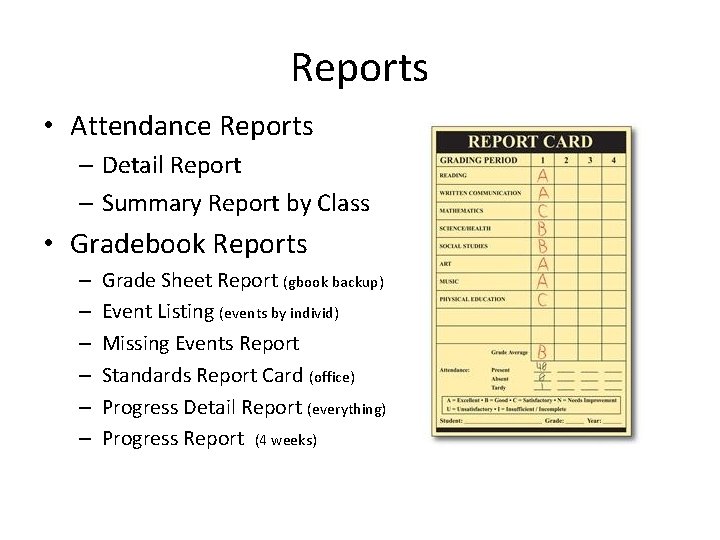
Reports • Attendance Reports – Detail Report – Summary Report by Class • Gradebook Reports – – – Grade Sheet Report (gbook backup) Event Listing (events by individ) Missing Events Report Standards Report Card (office) Progress Detail Report (everything) Progress Report (4 weeks)
Progress Reports • The Progress Report you are required to print and send home at the 4 week mark pulls grades from your gradebook. • You must consistently have grades for a progress report to be effective. (District expectation is once a week. ) • Administrators, stakeholders, and other personnel rely on your gradebook for information and other important data.
Display Options Tab • • Student Display Event Display Grade Period Display Modify Gradesheet Sequence Restore Deleted Events Student Groups ( Don’t Do This!!) View Backups Event Comment Bank
Student Information • Click on Name • Click on Icon
For more information… • http: //trentcheeves. com • http: //mickybrooks. com
- Slides: 24