
Sketchify Tutorial Defining Interaction and Logic in Sketchify

- Slides: 38
Sketchify Tutorial Defining Interaction and Logic in Sketchify sketchify. sf. net Željko Obrenović z. obrenovic@tue. nl
Events and Actions • Event – what happens • Action – what to do when something happens • Logic – connecting actions with events
Defining Interaction in Sketchify • Events – Mouse Events, Keyboard Events, Regions Overlap and Interaction, Variable Events • Actions – Sketch Transition, Variable Actions, Timer Actions, Macro Actions • Connecting Actions and Events – Drag-and-drop – Templates and Formulas
Defining Interaction in Sketchify • Events – Mouse Events, Keyboard Events, Regions Overlap and Interaction, Variable Events • Actions – Sketch Transition, Variable Actions, Timer Actions, Macro Actions • Connecting Actions and Events – Drag-and-drop – Direct Specifying
Events • • • Mouse Events Keyboard Events Sketch Events Variable Events Region Overlap Events
Mouse Events • Mouse Events are captured by Active Regions • Two Types of Mouse Events – Continuous motions – Discrete Mouse Events
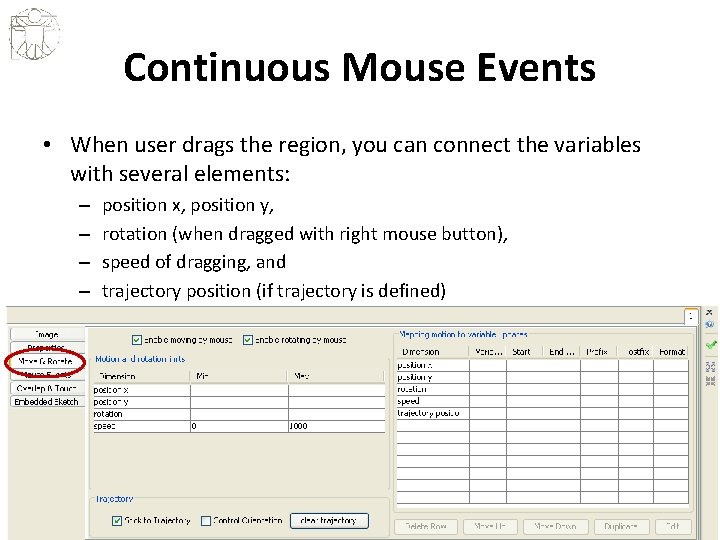
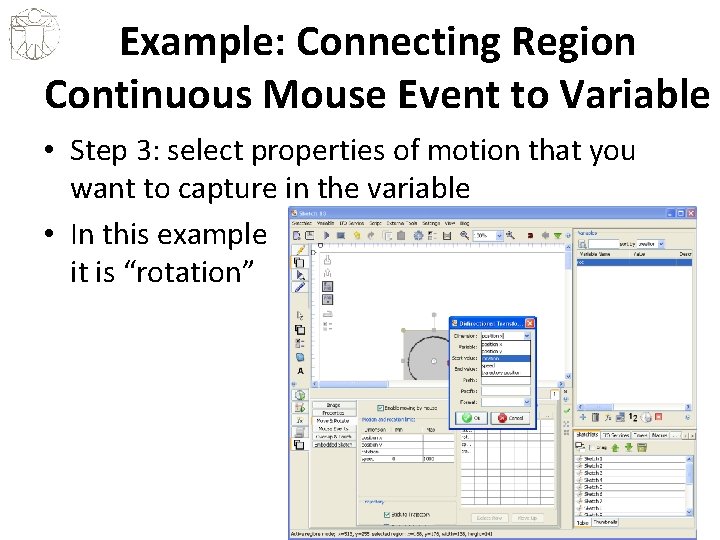
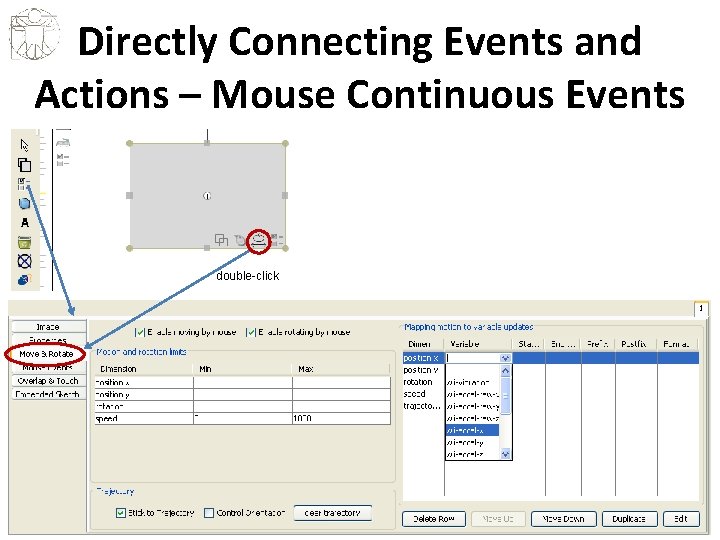
Continuous Mouse Events • When user drags the region, you can connect the variables with several elements: – – position x, position y, rotation (when dragged with right mouse button), speed of dragging, and trajectory position (if trajectory is defined)
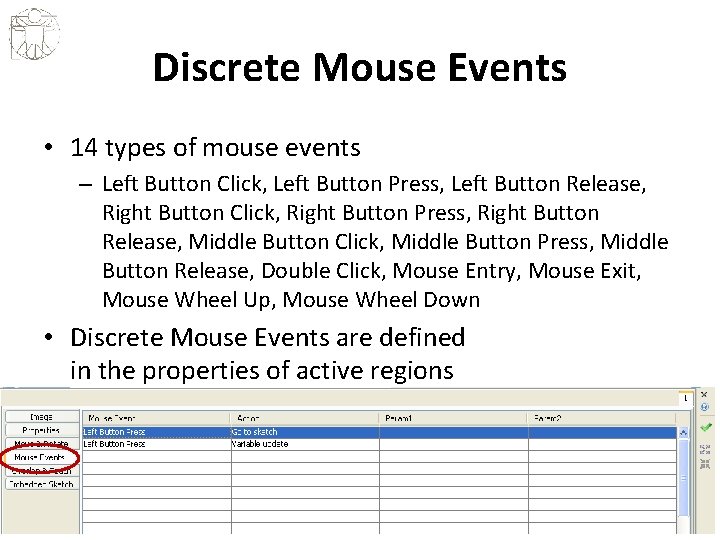
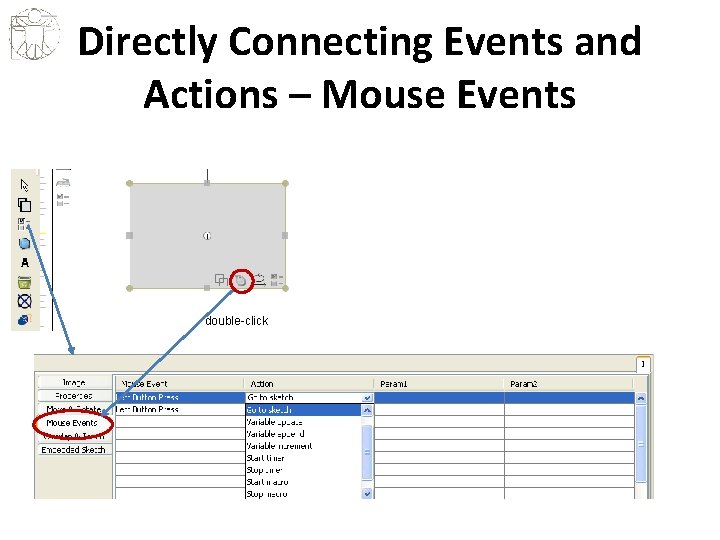
Discrete Mouse Events • 14 types of mouse events – Left Button Click, Left Button Press, Left Button Release, Right Button Click, Right Button Press, Right Button Release, Middle Button Click, Middle Button Press, Middle Button Release, Double Click, Mouse Entry, Mouse Exit, Mouse Wheel Up, Mouse Wheel Down • Discrete Mouse Events are defined in the properties of active regions
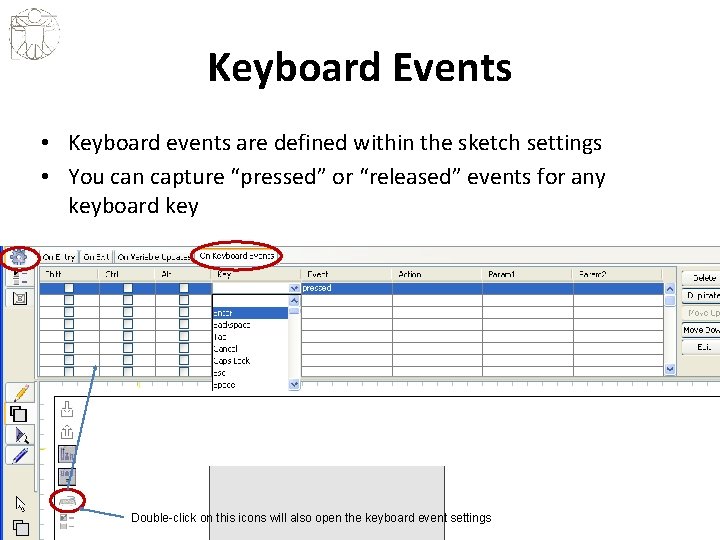
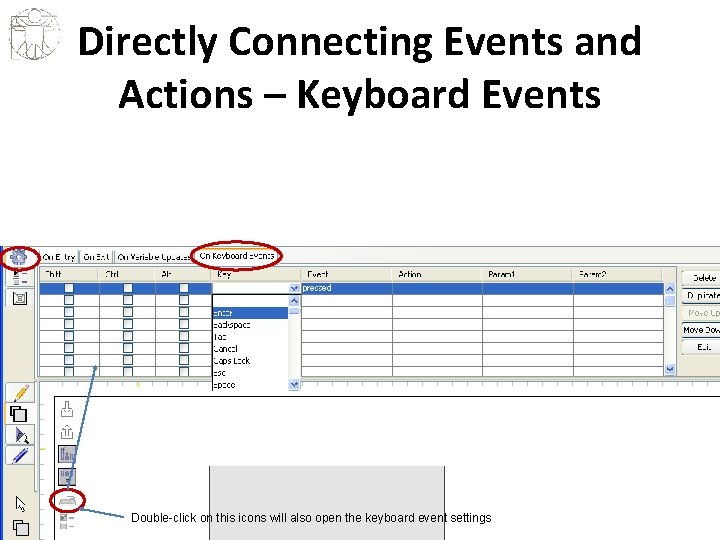
Keyboard Events • Keyboard events are defined within the sketch settings • You can capture “pressed” or “released” events for any keyboard key Double-click on this icons will also open the keyboard event settings
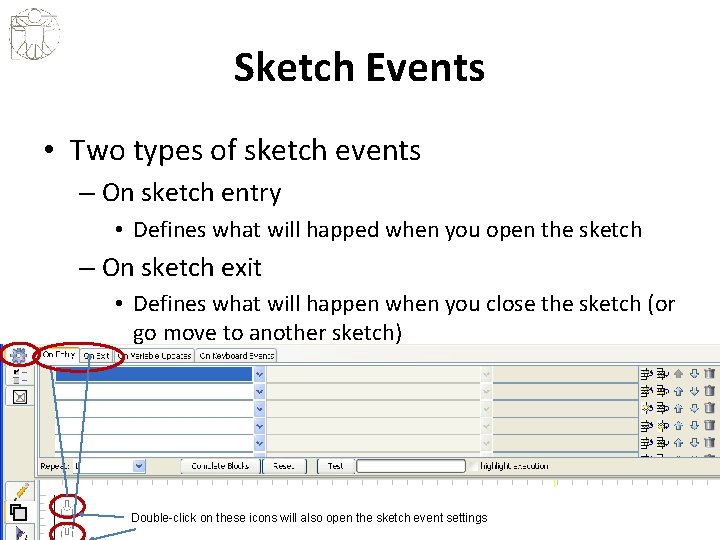
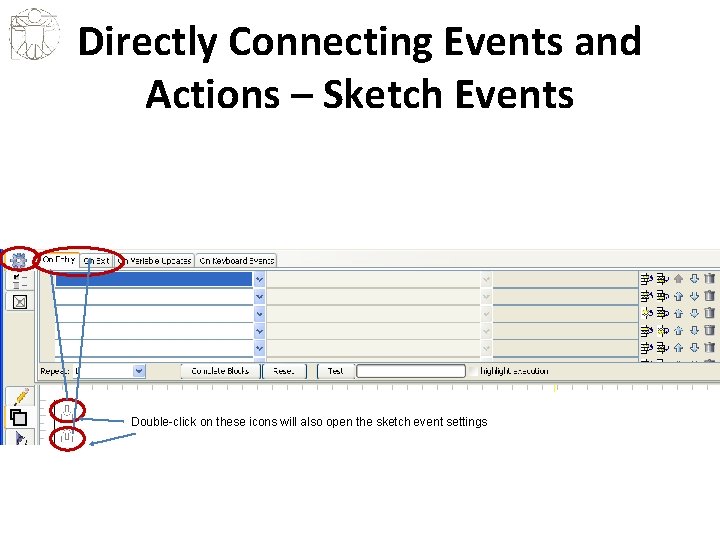
Sketch Events • Two types of sketch events – On sketch entry • Defines what will happed when you open the sketch – On sketch exit • Defines what will happen when you close the sketch (or go move to another sketch) Double-click on these icons will also open the sketch event settings
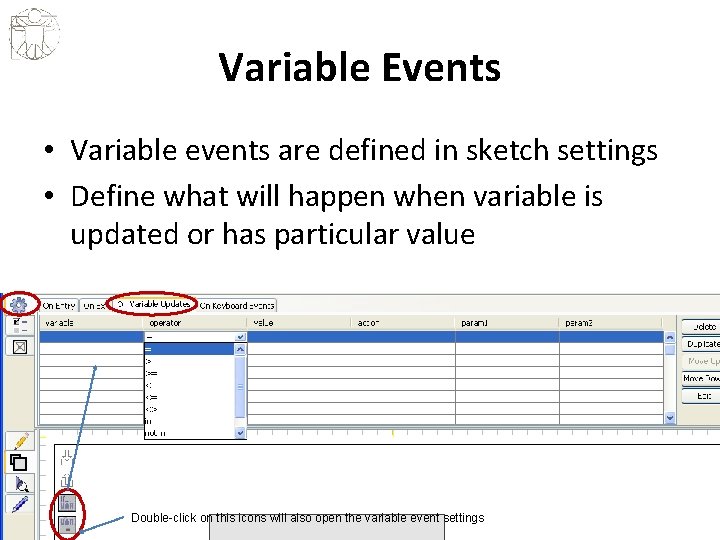
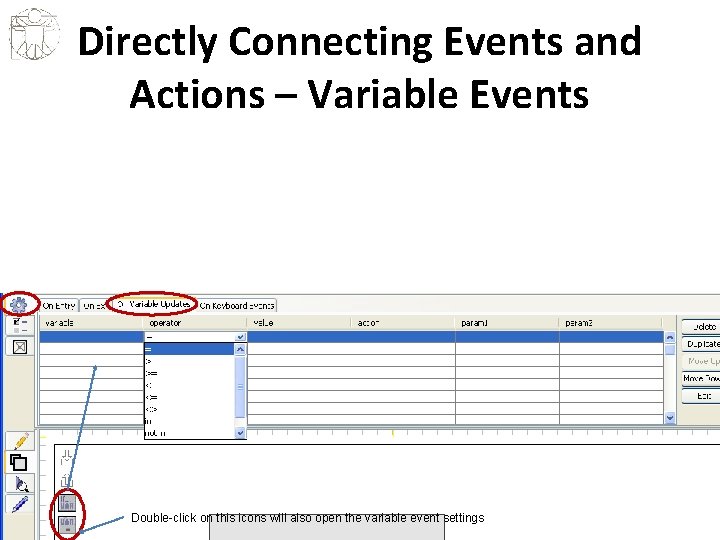
Variable Events • Variable events are defined in sketch settings • Define what will happen when variable is updated or has particular value Double-click on this icons will also open the variable event settings
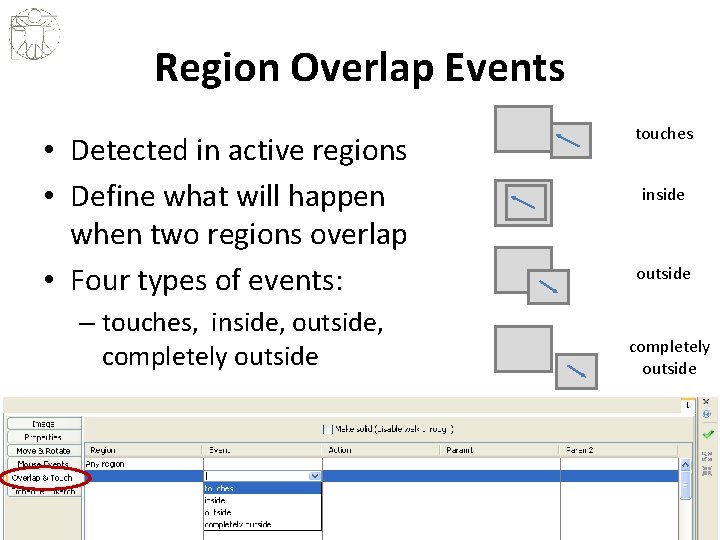
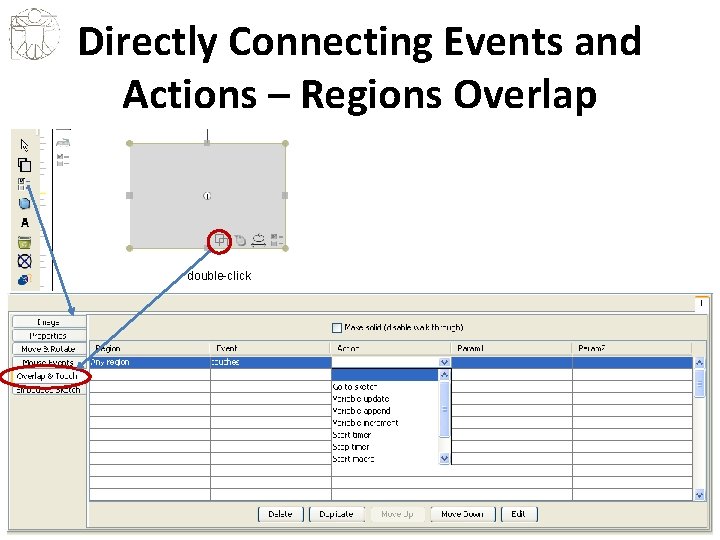
Region Overlap Events • Detected in active regions • Define what will happen when two regions overlap • Four types of events: – touches, inside, outside, completely outside touches inside outside completely outside
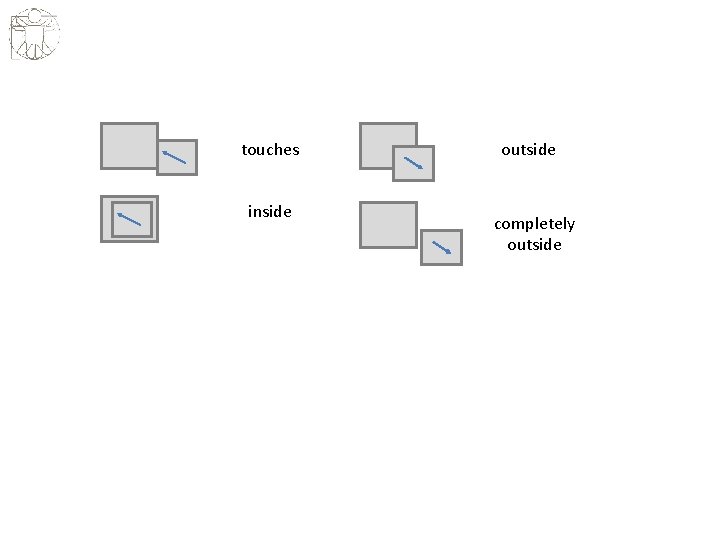
touches inside outside completely outside
Defining Interaction in Sketchify • Events – Mouse Events, Keyboard Events, Regions Overlap and Interaction, Variable Events • Actions – Sketch Transition, Variable Actions, Timer Actions, Macro Actions • Connecting Actions and Events – Drag-and-drop – Direct Specifying
Actions • • Sketch Transitions Variable Actions Timer Actions Macro Actions
Sketch Transitions • Actions that causes that current sketch is closed and new one open • In interface defined as “Go To Sketch” <sketch-name> • When this actions occurs: – On exit events occurs on the old sketch – On entry sketch events occurs on the
Variable Actions • Three types of variables actions – Variable update – sets the variable to given value – Variable increment – increments current value of the variable for a given number • For example, if variable has the value “ 122”, increment with “ 12” will result in change of variable value to “ 134” • Variable has to contain number, otherwise nothing happens – Variable append – appends given string to the existing content of the variables • For example, if variable has the value “abc”, append of “de” will result in change of variable value to “abcde”
Timer Action • Two types of timer actions – Start timer – Stop timer
Macro Actions • Two types of macro actions – Start macro – Stop macro
Defining Interaction in Sketchify • Events – Mouse Events, Keyboard Events, Regions Overlap and Interaction, Variable Events • Actions – Sketch Transition, Variable Actions, Timer Actions, Macro Actions • Connecting Actions and Events – Drag-and-drop – Direct Specifying
Events and Actions • Event – what happens • Action – what to do when something happens • Logic – connecting actions with events
Connecting Actions and Events • Drag-and-drop support – Drag variable, sketch, timer or macro to connect it with various events • Specify directly
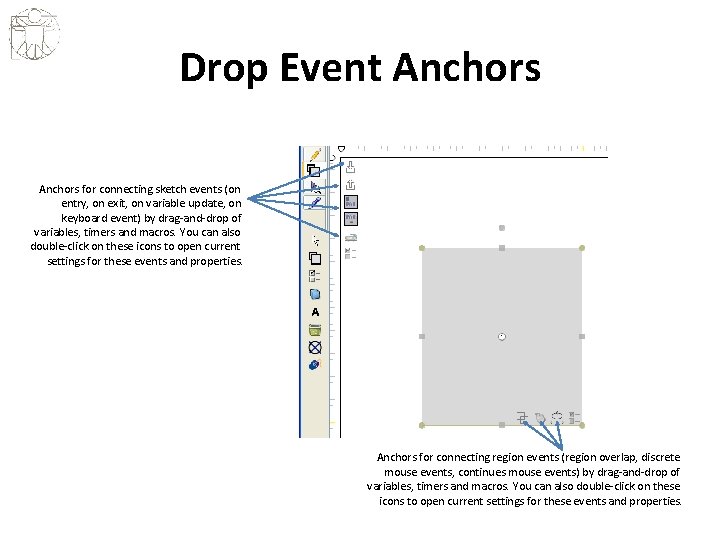
Drop Event Anchors for connecting sketch events (on entry, on exit, on variable update, on keyboard event) by drag-and-drop of variables, timers and macros. You can also double-click on these icons to open current settings for these events and properties. Anchors for connecting region events (region overlap, discrete mouse events, continues mouse events) by drag-and-drop of variables, timers and macros. You can also double-click on these icons to open current settings for these events and properties.
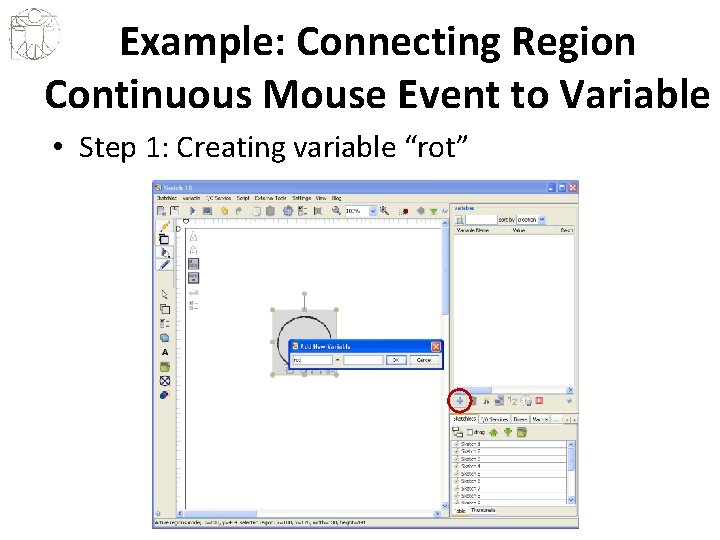
Example: Connecting Region Continuous Mouse Event to Variable • Step 1: Creating variable “rot”
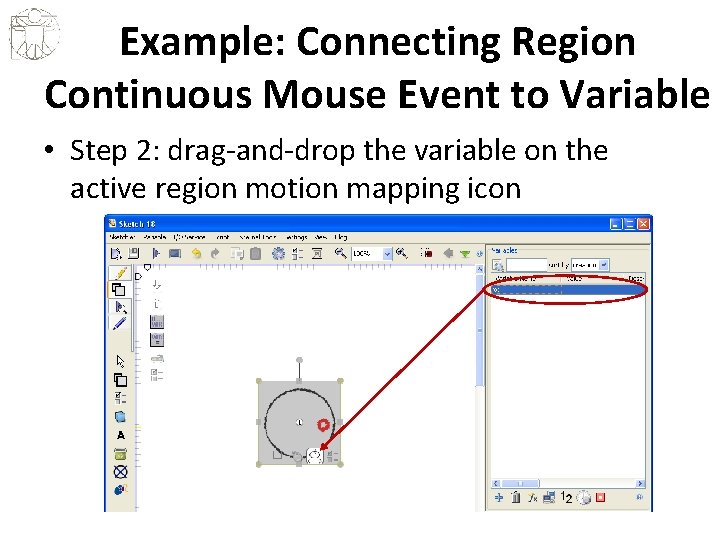
Example: Connecting Region Continuous Mouse Event to Variable • Step 2: drag-and-drop the variable on the active region motion mapping icon
Example: Connecting Region Continuous Mouse Event to Variable • Step 3: select properties of motion that you want to capture in the variable • In this example it is “rotation”
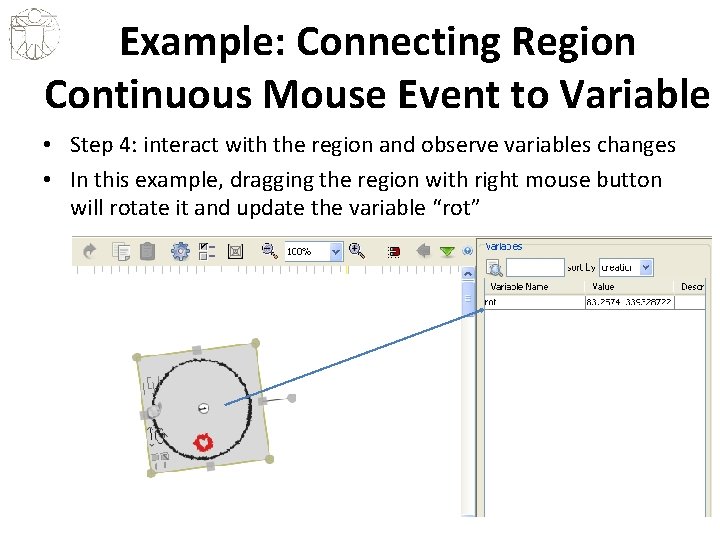
Example: Connecting Region Continuous Mouse Event to Variable • Step 4: interact with the region and observe variables changes • In this example, dragging the region with right mouse button will rotate it and update the variable “rot”
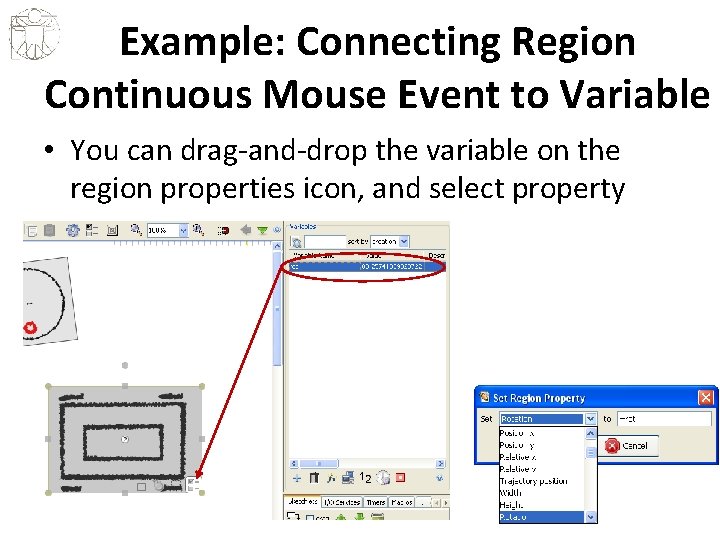
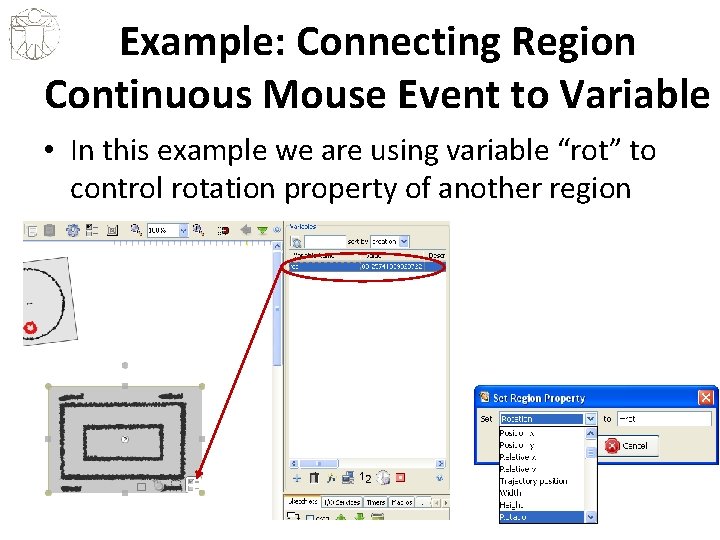
Example: Connecting Region Continuous Mouse Event to Variable • You can drag-and-drop the variable on the region properties icon, and select property
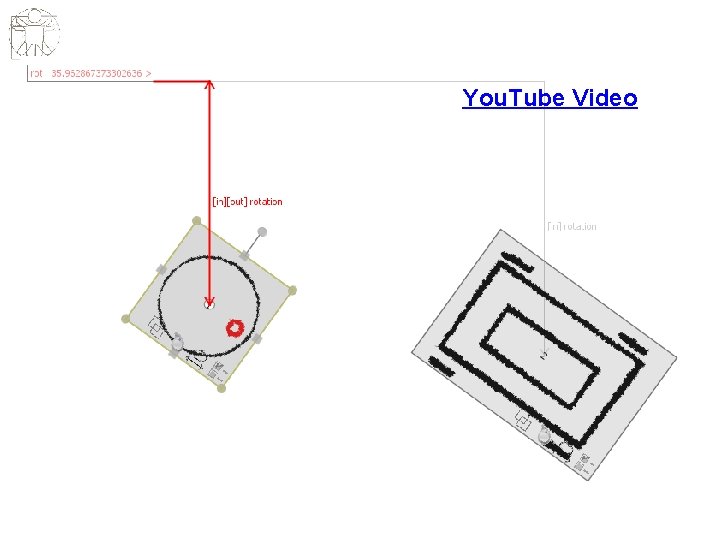
Example: Connecting Region Continuous Mouse Event to Variable • In this example we are using variable “rot” to control rotation property of another region
You. Tube Video
More Examples • Sketch Transitions Based on Mouse Events – You. Tube Video
Directly Connecting Events and Actions • For each event, you can directly open its settings, and there select actions
Directly Connecting Events and Actions – Mouse Events double-click
Directly Connecting Events and Actions – Mouse Continuous Events double-click
Directly Connecting Events and Actions – Regions Overlap double-click
Directly Connecting Events and Actions – Sketch Events Double-click on these icons will also open the sketch event settings
Directly Connecting Events and Actions – Variable Events Double-click on this icons will also open the variable event settings
Directly Connecting Events and Actions – Keyboard Events Double-click on this icons will also open the keyboard event settings