
Six Page Declassification Template This template can be
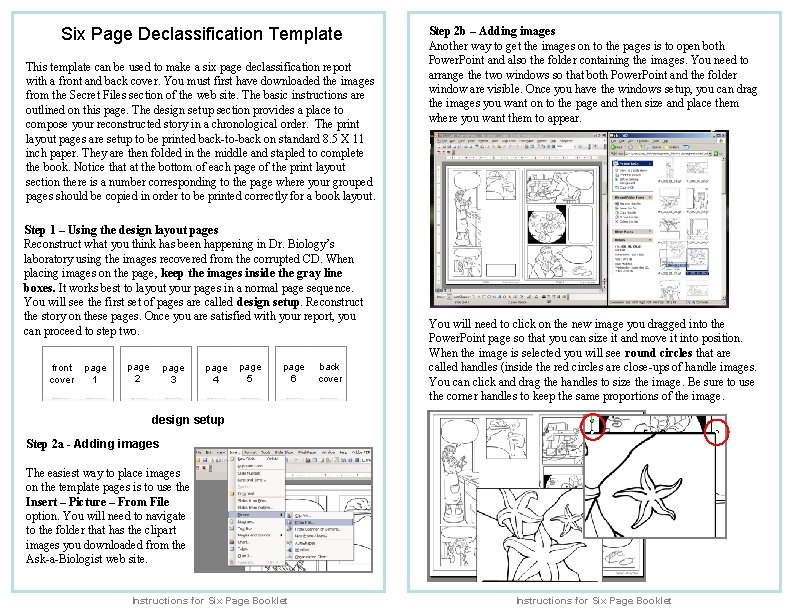
Six Page Declassification Template This template can be used to make a six page declassification report with a front and back cover. You must first have downloaded the images from the Secret Files section of the web site. The basic instructions are outlined on this page. The design setup section provides a place to compose your reconstructed story in a chronological order. The print layout pages are setup to be printed back-to-back on standard 8. 5 X 11 inch paper. They are then folded in the middle and stapled to complete the book. Notice that at the bottom of each page of the print layout section there is a number corresponding to the page where your grouped pages should be copied in order to be printed correctly for a book layout. Step 1 – Using the design layout pages Reconstruct what you think has been happening in Dr. Biology’s laboratory using the images recovered from the corrupted CD. When placing images on the page, keep the images inside the gray line boxes. It works best to layout your pages in a normal page sequence. You will see the first set of pages are called design setup. Reconstruct the story on these pages. Once you are satisfied with your report, you can proceed to step two. front cover page 1 page 2 page 3 page 4 page 5 page 6 back cover Step 2 b – Adding images Another way to get the images on to the pages is to open both Power. Point and also the folder containing the images. You need to arrange the two windows so that both Power. Point and the folder window are visible. Once you have the windows setup, you can drag the images you want on to the page and then size and place them where you want them to appear. You will need to click on the new image you dragged into the Power. Point page so that you can size it and move it into position. When the image is selected you will see round circles that are called handles (inside the red circles are close-ups of handle images. You can click and drag the handles to size the image. Be sure to use the corner handles to keep the same proportions of the image. design setup Step 2 a - Adding images The easiest way to place images on the template pages is to use the Insert – Picture – From File option. You will need to navigate to the folder that has the clipart images you downloaded from the Ask-a-Biologist web site. Instructions for Six Page Booklet
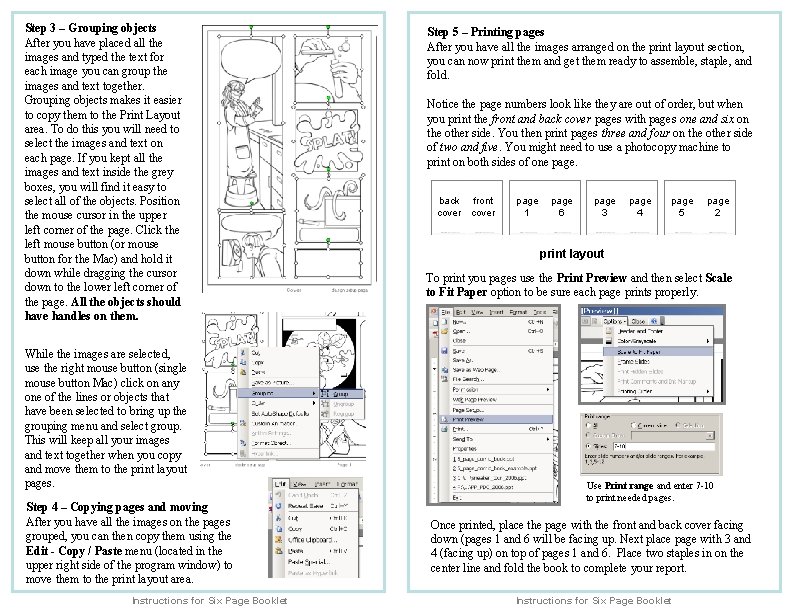
Step 3 – Grouping objects After you have placed all the images and typed the text for each image you can group the images and text together. Grouping objects makes it easier to copy them to the Print Layout area. To do this you will need to select the images and text on each page. If you kept all the images and text inside the grey boxes, you will find it easy to select all of the objects. Position the mouse cursor in the upper left corner of the page. Click the left mouse button (or mouse button for the Mac) and hold it down while dragging the cursor down to the lower left corner of the page. All the objects should have handles on them. While the images are selected, use the right mouse button (single mouse button Mac) click on any one of the lines or objects that have been selected to bring up the grouping menu and select group. This will keep all your images and text together when you copy and move them to the print layout pages. Step 4 – Copying pages and moving After you have all the images on the pages grouped, you can then copy them using the Edit - Copy / Paste menu (located in the upper right side of the program window) to move them to the print layout area. Instructions for Six Page Booklet Step 5 – Printing pages After you have all the images arranged on the print layout section, you can now print them and get them ready to assemble, staple, and fold. Notice the page numbers look like they are out of order, but when you print the front and back cover pages with pages one and six on the other side. You then print pages three and four on the other side of two and five. You might need to use a photocopy machine to print on both sides of one page. back front cover page 1 page 6 page 3 page 4 page 5 page 2 print layout To print you pages use the Print Preview and then select Scale to Fit Paper option to be sure each page prints properly. Use Print range and enter 7 -10 to print needed pages. Once printed, place the page with the front and back cover facing down (pages 1 and 6 will be facing up. Next place page with 3 and 4 (facing up) on top of pages 1 and 6. Place two staples in on the center line and fold the book to complete your report. Instructions for Six Page Booklet
Cover design setup page Page 1 design setup page
Page 2 design setup page Page 3 design setup page
Page 4 design setup page Page 5 design setup page
Page 6 design setup page Back Cover design setup page
Back Cover Print layout - remove this before printing Front Cover
Page 1 Print layout - remove this before printing Page 6
Page 3 Print layout - remove this before printing Page 4
Page 5 Print layout - remove this before printing Page 2
- Slides: 10