
Sitecore Basic Training Drexels fullfeatured web content management
Sitecore Basic Training Drexel’s full-featured web content management system (CMS) Web Support Information Resources & Technology (IRT)
Topics • • • What is Sitecore? Login/Change Password Content Editor (editing text) Media Library (uploading images/PDFs) Save and Approve for Publication Additional Resources/Training Live Demo Q&A Contact Info/Support
What is Sitecore? • Content Management System (CMS) • Reuse of information • Can be used in most commonly used browsers: Internet Explorer (IE), Firefox, Chrome, Safari, and Opera.
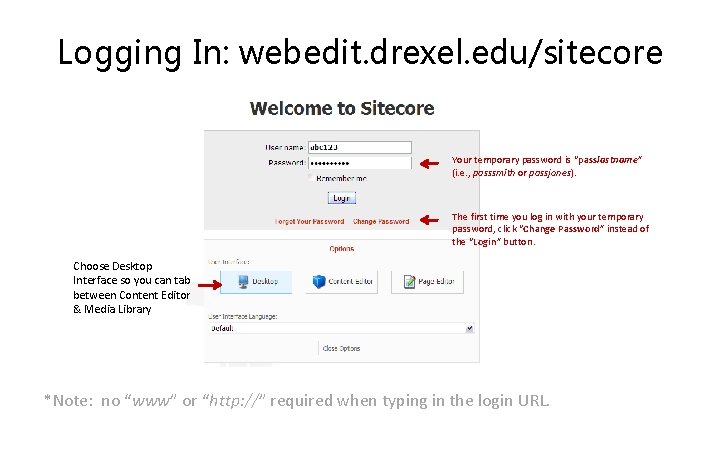
Logging In: webedit. drexel. edu/sitecore Your temporary password is “passlastname” (i. e. , passsmith or passjones). The first time you log in with your temporary password, click “Change Password” instead of the “Login” button. Choose Desktop Interface so you can tab between Content Editor & Media Library *Note: no “www” or “http: //” required when typing in the login URL.
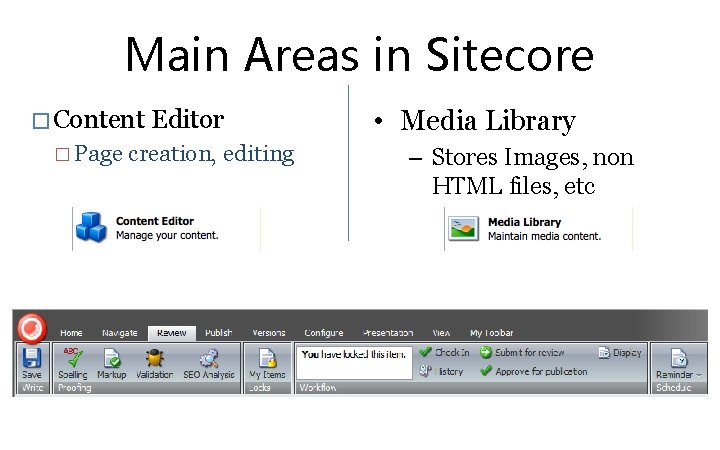
Main Areas in Sitecore � Content � Page Editor creation, editing • Media Library – Stores Images, non HTML files, etc
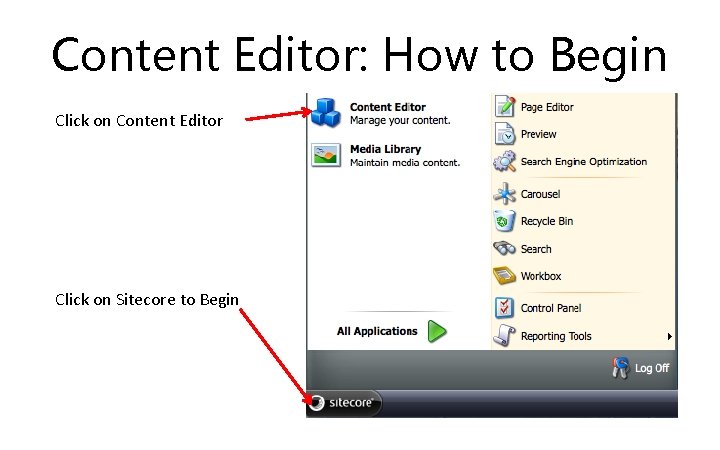
Content Editor: How to Begin Click on Content Editor Click on Sitecore to Begin
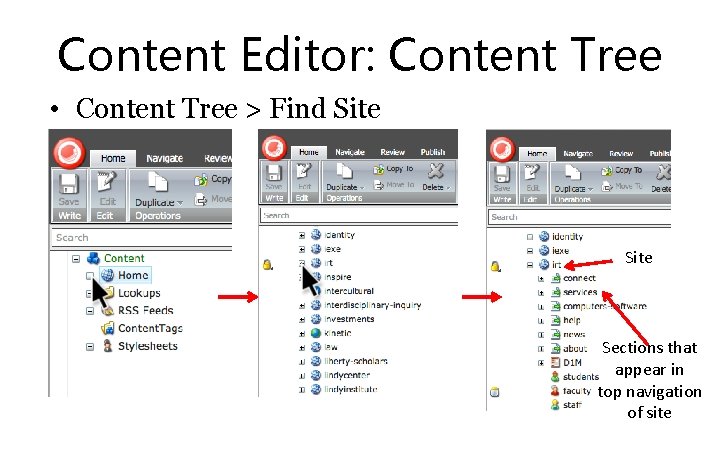
Content Editor: Content Tree • Content Tree > Find Site Sections that appear in top navigation of site
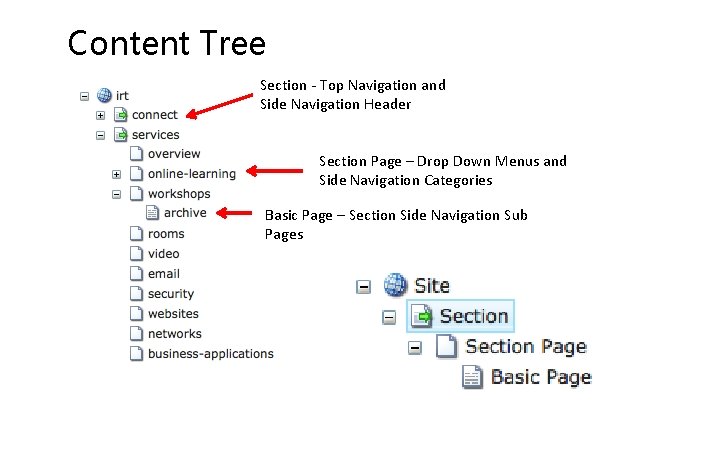
Content Tree Section - Top Navigation and Side Navigation Header Section Page – Drop Down Menus and Side Navigation Categories Basic Page – Section Side Navigation Sub Pages
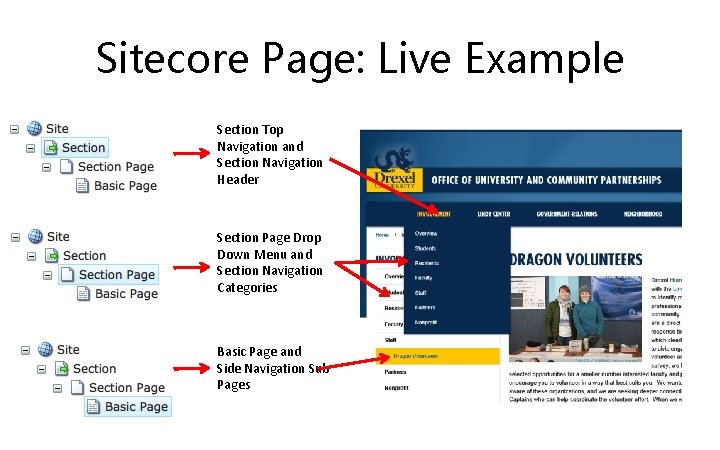
Sitecore Page: Live Example Section Top Navigation and Section Navigation Header Section Page Drop Down Menu and Section Navigation Categories Basic Page and Side Navigation Sub Pages
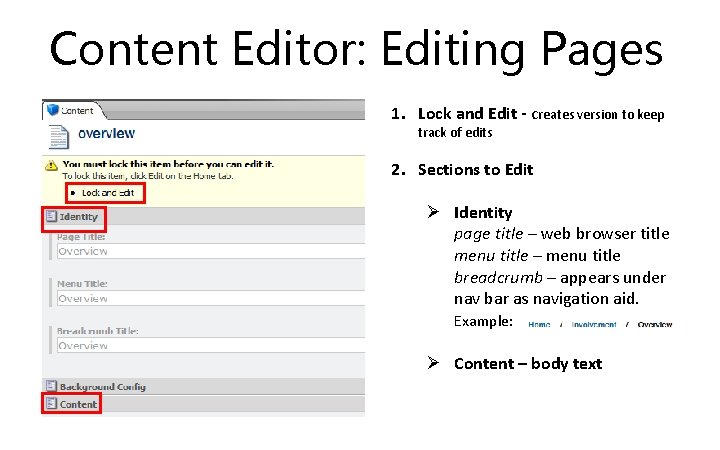
Content Editor: Editing Pages 1. Lock and Edit - creates version to keep track of edits 2. Sections to Edit Ø Identity page title – web browser title menu title – menu title breadcrumb – appears under nav bar as navigation aid. Example: Ø Content – body text
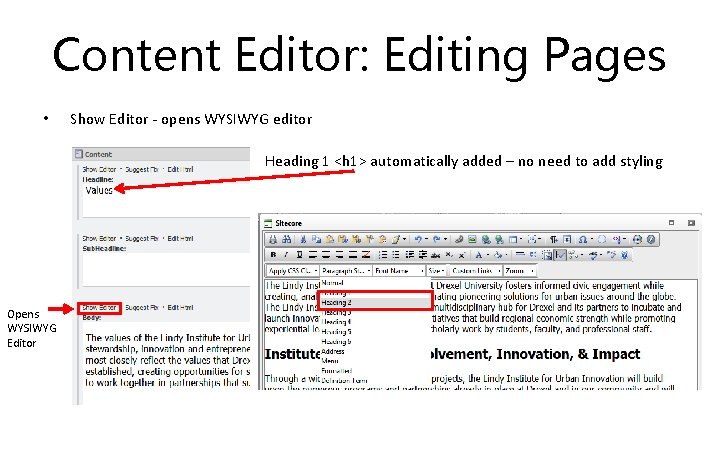
Content Editor: Editing Pages • Show Editor - opens WYSIWYG editor Heading 1 <h 1> automatically added – no need to add styling Opens WYSIWYG Editor
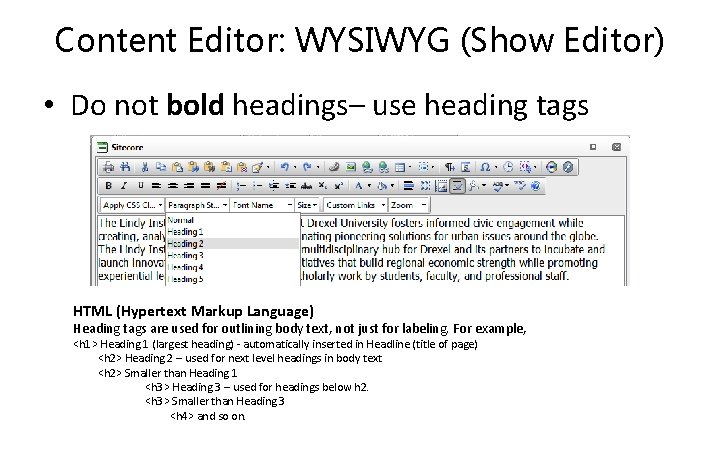
Content Editor: WYSIWYG (Show Editor) • Do not bold headings– use heading tags HTML (Hypertext Markup Language) Heading tags are used for outlining body text, not just for labeling. For example, <h 1> Heading 1 (largest heading) - automatically inserted in Headline (title of page) <h 2> Heading 2 – used for next level headings in body text <h 2> Smaller than Heading 1 <h 3> Heading 3 – used for headings below h 2. <h 3> Smaller than Heading 3 <h 4> and so on.
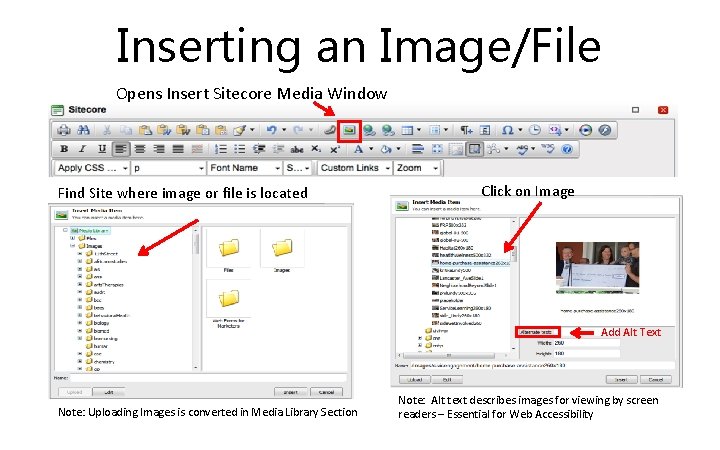
Inserting an Image/File Opens Insert Sitecore Media Window Find Site where image or file is located Click on Image Add Alt Text Note: Uploading Images is converted in Media Library Section Note: Alt text describes images for viewing by screen readers – Essential for Web Accessibility
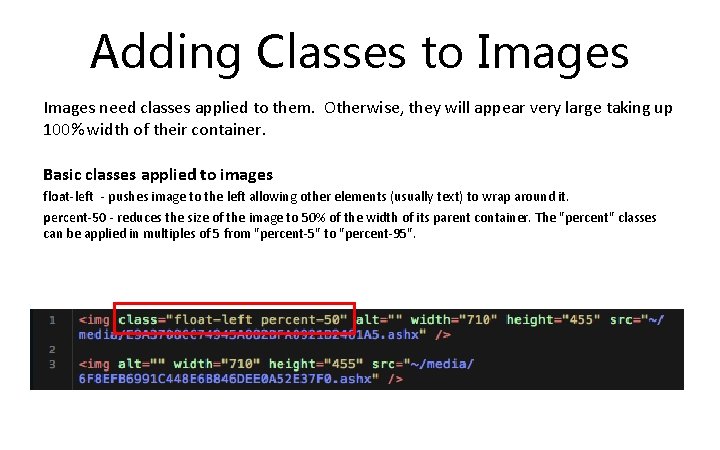
Adding Classes to Images need classes applied to them. Otherwise, they will appear very large taking up 100% width of their container. Basic classes applied to images float-left - pushes image to the left allowing other elements (usually text) to wrap around it. percent-50 - reduces the size of the image to 50% of the width of its parent container. The "percent" classes can be applied in multiples of 5 from "percent-5" to "percent-95".
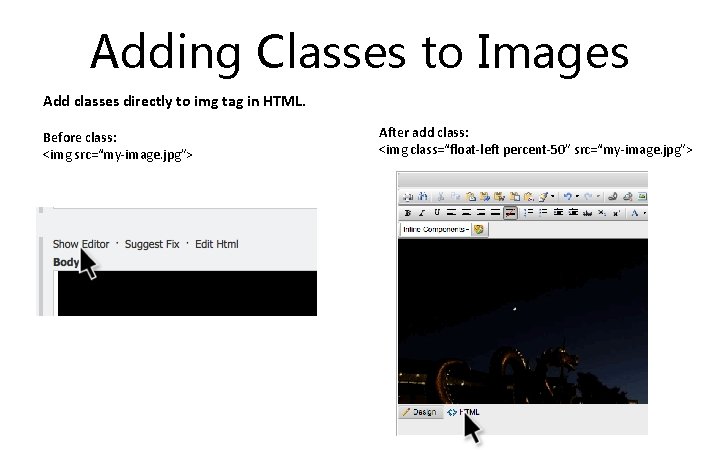
Adding Classes to Images Add classes directly to img tag in HTML. Before class: <img src=“my-image. jpg”> After add class: <img class=“float-left percent-50” src=“my-image. jpg”>
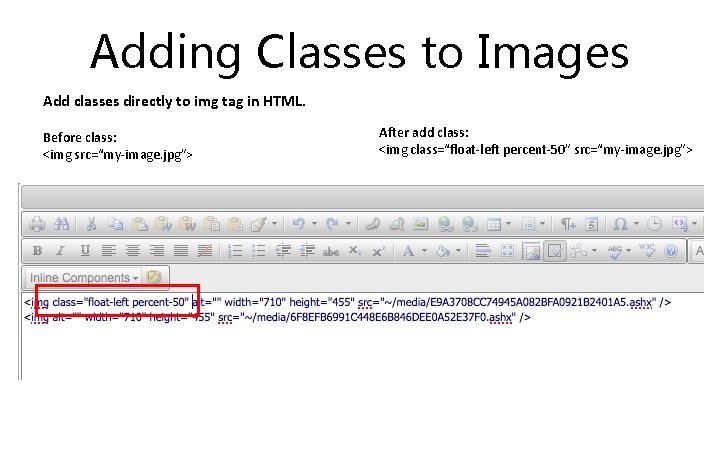
Adding Classes to Images Add classes directly to img tag in HTML. Before class: <img src=“my-image. jpg”> After add class: <img class=“float-left percent-50” src=“my-image. jpg”>
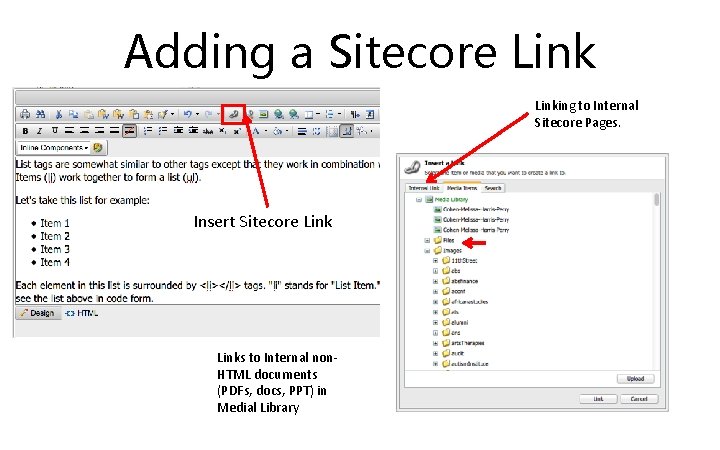
Adding a Sitecore Linking to Internal Sitecore Pages. Insert Sitecore Links to Internal non. HTML documents (PDFs, docs, PPT) in Medial Library
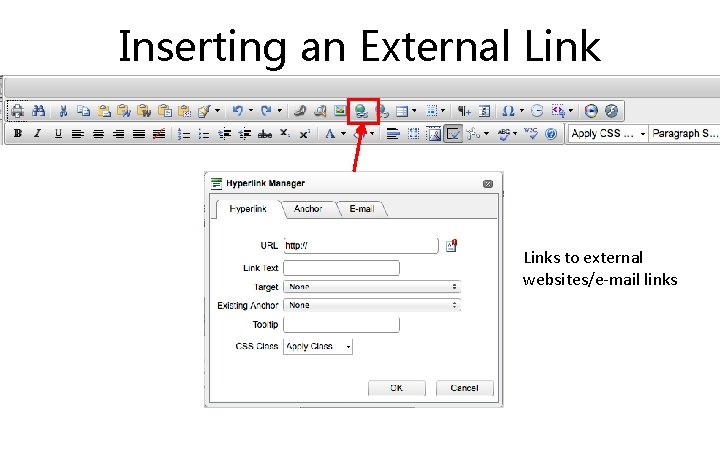
Inserting an External Links to external websites/e-mail links
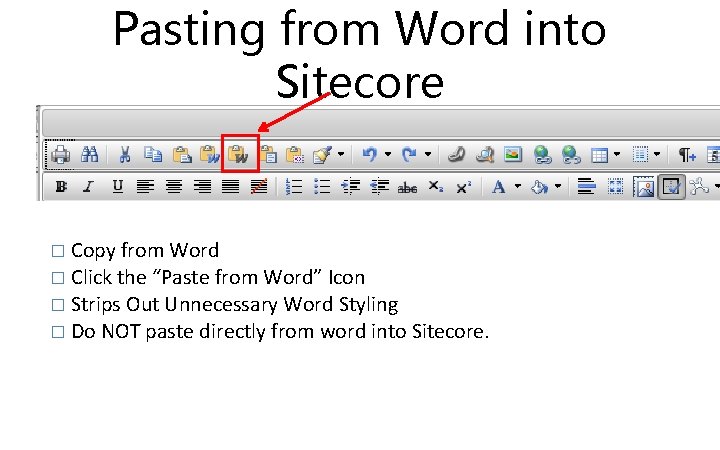
Pasting from Word into Sitecore � Copy from Word � Click the “Paste from Word” Icon � Strips Out Unnecessary Word Styling � Do NOT paste directly from word into Sitecore.
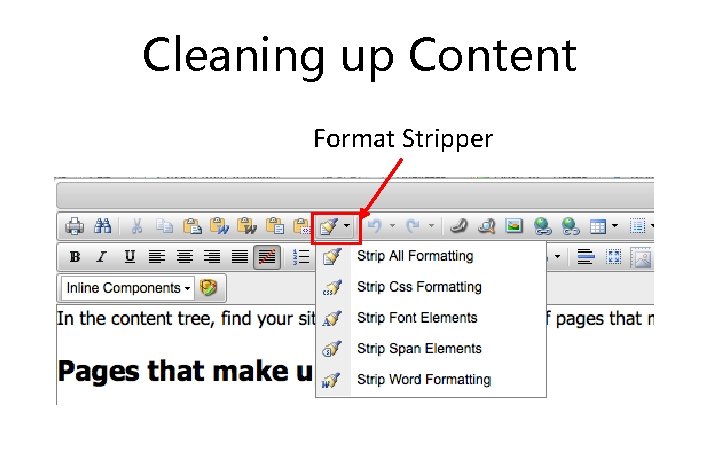
Cleaning up Content Format Stripper
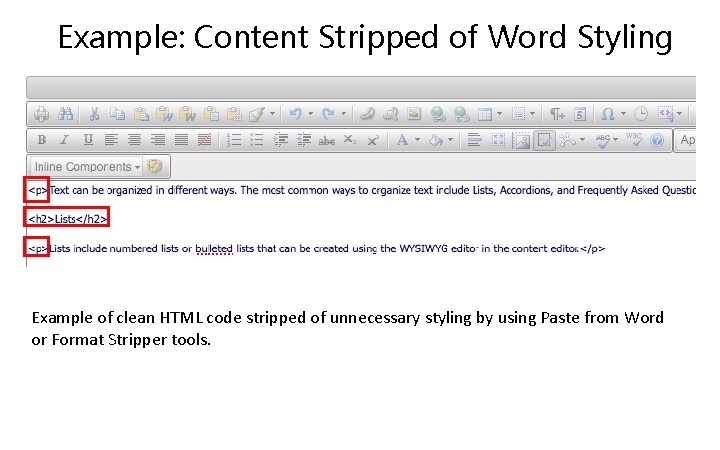
Example: Content Stripped of Word Styling Example of clean HTML code stripped of unnecessary styling by using Paste from Word or Format Stripper tools.
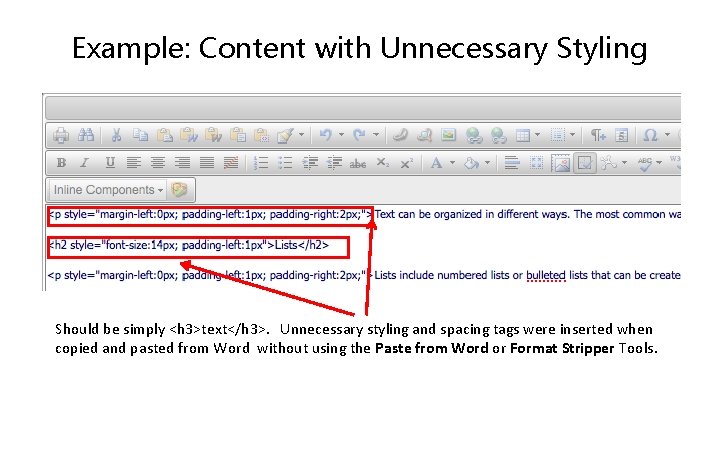
Example: Content with Unnecessary Styling Should be simply <h 3>text</h 3>. Unnecessary styling and spacing tags were inserted when copied and pasted from Word without using the Paste from Word or Format Stripper Tools.
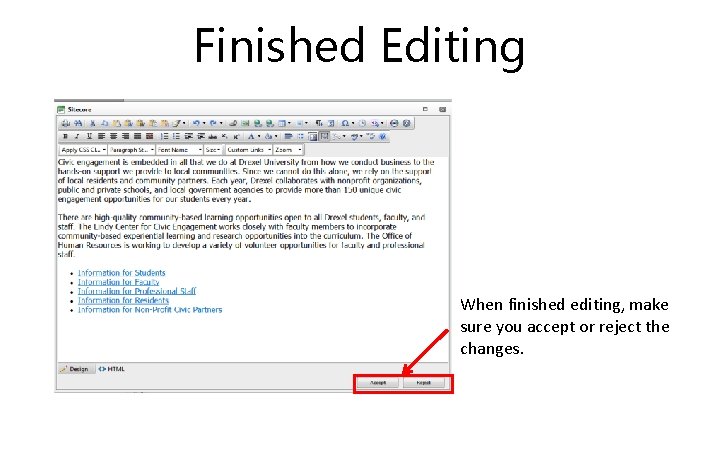
Finished Editing When finished editing, make sure you accept or reject the changes.
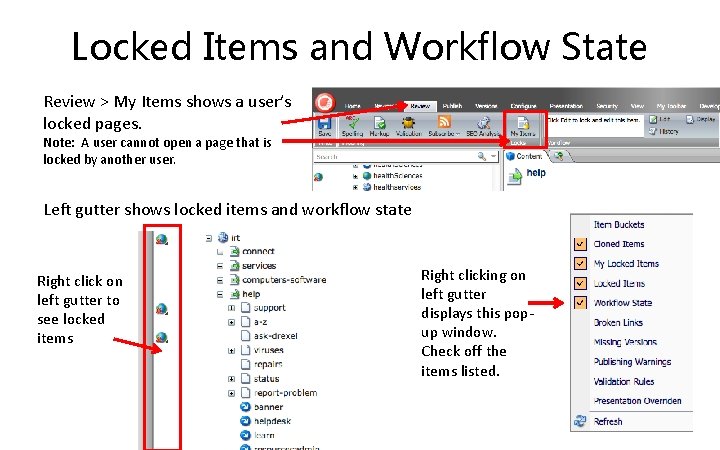
Locked Items and Workflow State Review > My Items shows a user’s locked pages. Note: A user cannot open a page that is locked by another user. Left gutter shows locked items and workflow state Right click on left gutter to see locked items Right clicking on left gutter displays this popup window. Check off the items listed.
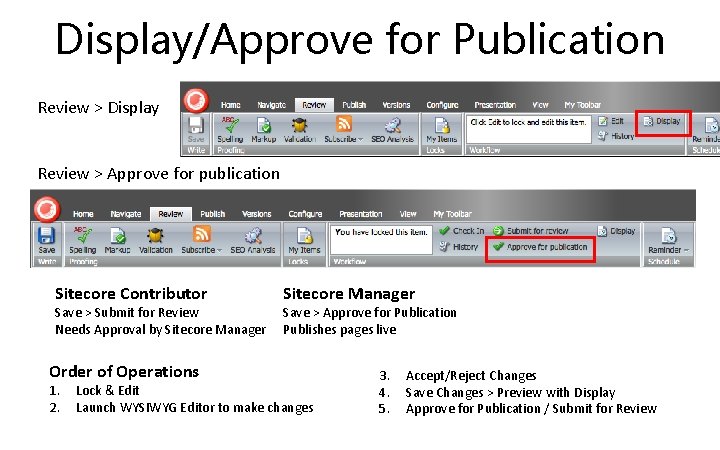
Display/Approve for Publication Review > Display Review > Approve for publication Sitecore Contributor Save > Submit for Review Needs Approval by Sitecore Manager Order of Operations 1. 2. Sitecore Manager Save > Approve for Publication Publishes pages live Lock & Edit Launch WYSIWYG Editor to make changes 3. 4. 5. Accept/Reject Changes Save Changes > Preview with Display Approve for Publication / Submit for Review
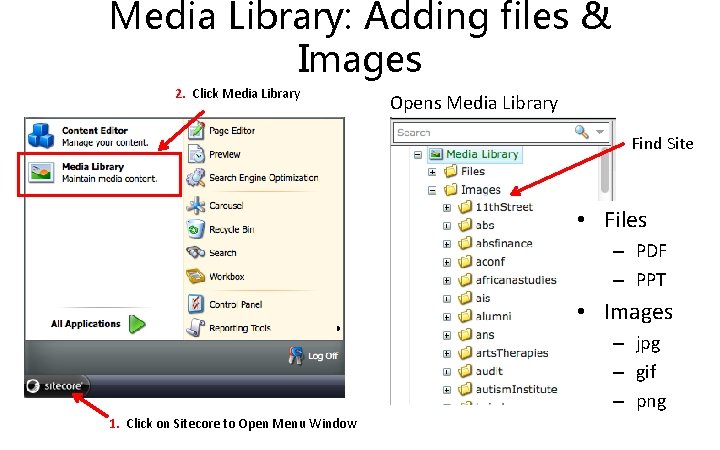
Media Library: Adding files & Images 2. Click Media Library Opens Media Library Find Site • Files – PDF – PPT • Images – jpg – gif – png 1. Click on Sitecore to Open Menu Window
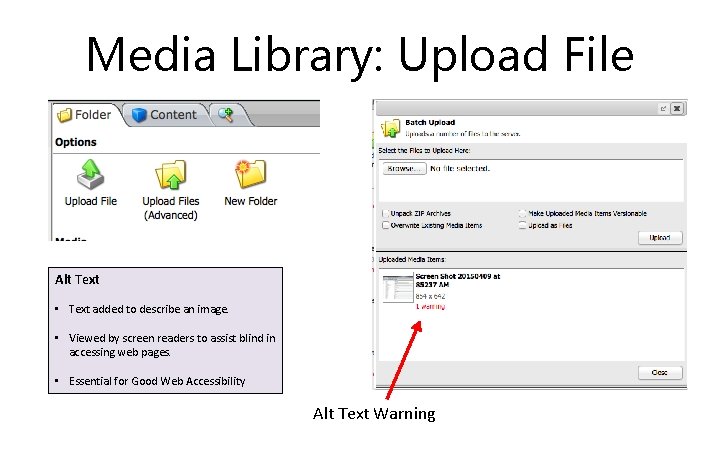
Media Library: Upload File Alt Text • Text added to describe an image. • Viewed by screen readers to assist blind in accessing web pages. • Essential for Good Web Accessibility Alt Text Warning
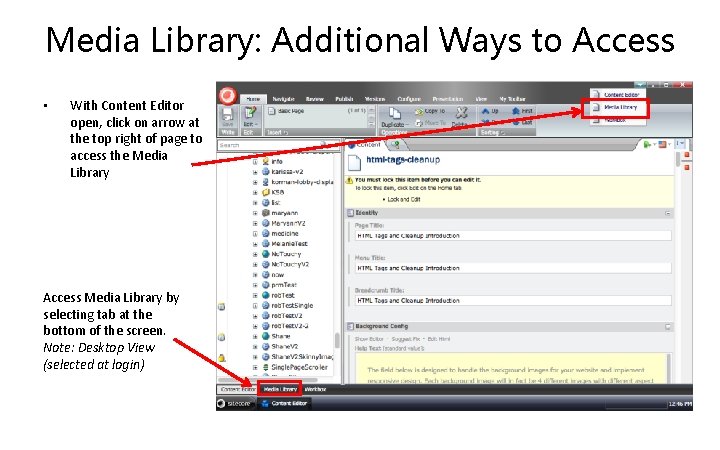
Media Library: Additional Ways to Access • With Content Editor open, click on arrow at the top right of page to access the Media Library Access Media Library by selecting tab at the bottom of the screen. Note: Desktop View (selected at login)
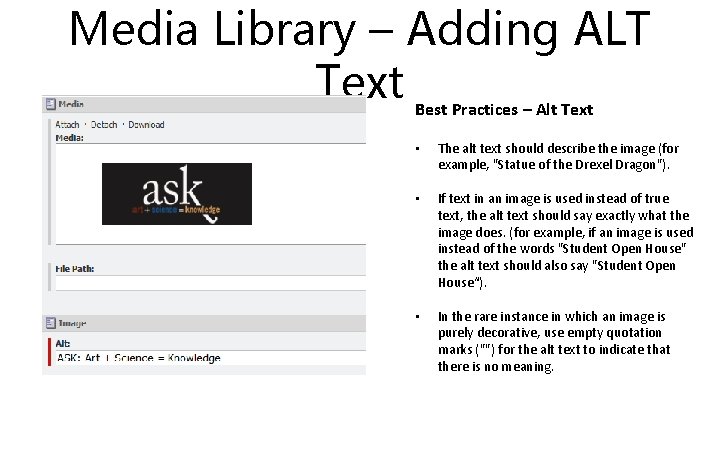
Media Library – Adding ALT Text Best Practices – Alt Text • The alt text should describe the image (for example, "Statue of the Drexel Dragon"). • If text in an image is used instead of true text, the alt text should say exactly what the image does. (for example, if an image is used instead of the words "Student Open House" the alt text should also say "Student Open House“). • In the rare instance in which an image is purely decorative, use empty quotation marks ("") for the alt text to indicate that there is no meaning.
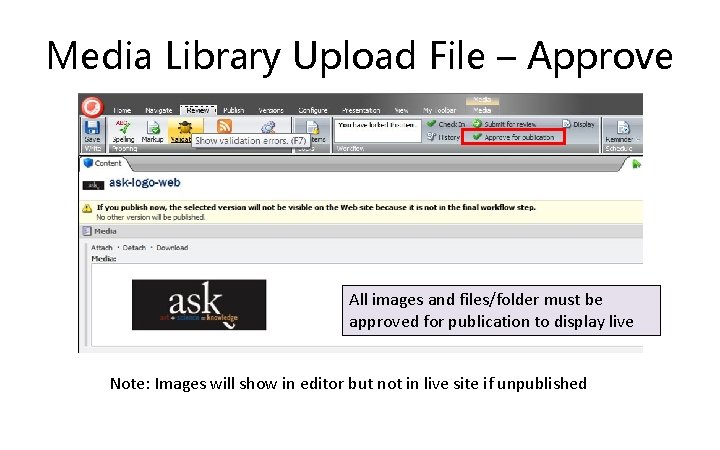
Media Library Upload File – Approve All images and files/folder must be approved for publication to display live Note: Images will show in editor but not in live site if unpublished
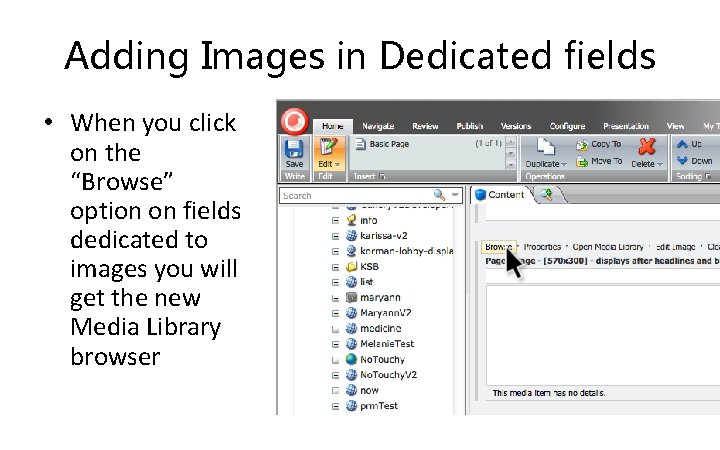
Adding Images in Dedicated fields • When you click on the “Browse” option on fields dedicated to images you will get the new Media Library browser
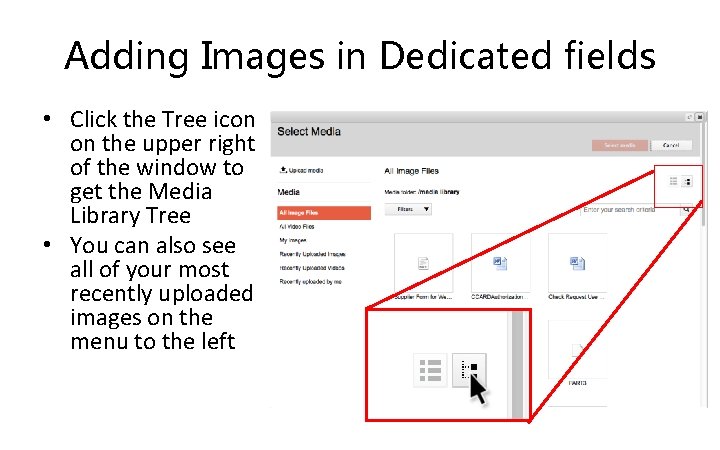
Adding Images in Dedicated fields • Click the Tree icon on the upper right of the window to get the Media Library Tree • You can also see all of your most recently uploaded images on the menu to the left
Additional Resources • Workshops/Training – www. drexel. edu/irt/help/workshops/ Sitecore Basics/Refresher Web Content (HTML & Dreamweaver) Share. Point University Calendar Graphics (Basic Image Editing) Additional Resources Ø www. drexel. edu/irt/web/departmental/sitecore/ Ø http: //webedit. drexel. edu/gallery. V 2

Contact Information Web Support Team Information Resources & Technology (IRT) websupport@drexel. edu 215 -895 -0202 http: //drexel. edu/irt/sitecore/
- Slides: 34