
Simple Graphics Guide An Introduction to Scanning and




- Slides: 22
Simple Graphics Guide An Introduction to Scanning and Storing Photographs and Graphics Bryn Jones Aug 2002 bjones@nd. edu. au
Key Points 4 Pixels and pixel depth 4 Resolution 4 File types 4 File sizes 4 Compression of graphics files
Pixels 4 The computer stores and displays pixels, or picture elements. 4 A pixel is the smallest addressable part of the computer screen. 4 A pixel is stored as a binary code representing a colour. 4 The code for a pixel can have between 1 and 32 bits of binary code.
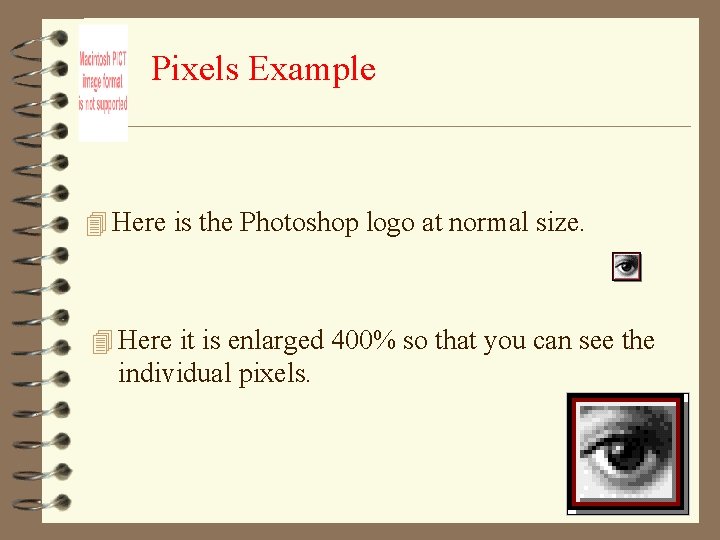
Pixels Example 4 Here is the Photoshop logo at normal size. 4 Here it is enlarged 400% so that you can see the individual pixels.
Pixel Depth 4 Pixel Depth describes the number of bits used to store each pixel. 4 The greater the pixel depth, the more colours a pixel can have. 4 Colour graphics vary in realism depending on resolution and pixel depth. 4 The greater the pixel depth, the bigger the file.
Examples of Pixel Depth Monochrome 4 Monochrome graphics have one-bit pixel depth. (pure black or pure white)
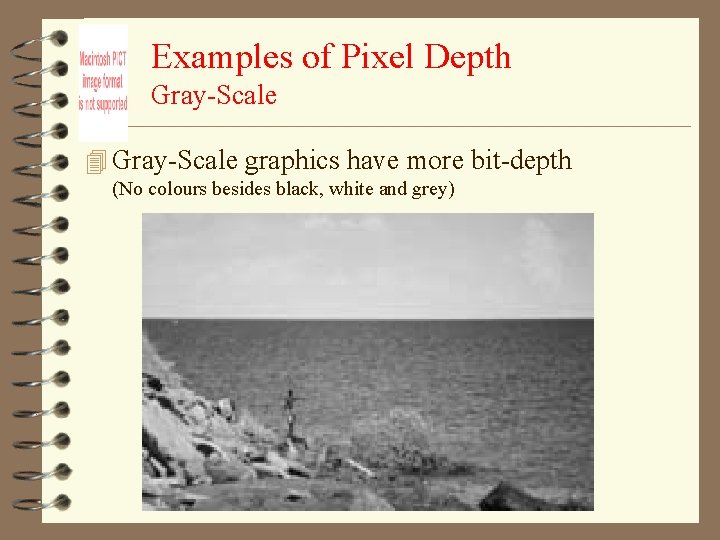
Examples of Pixel Depth Gray-Scale 4 Gray-Scale graphics have more bit-depth (No colours besides black, white and grey)
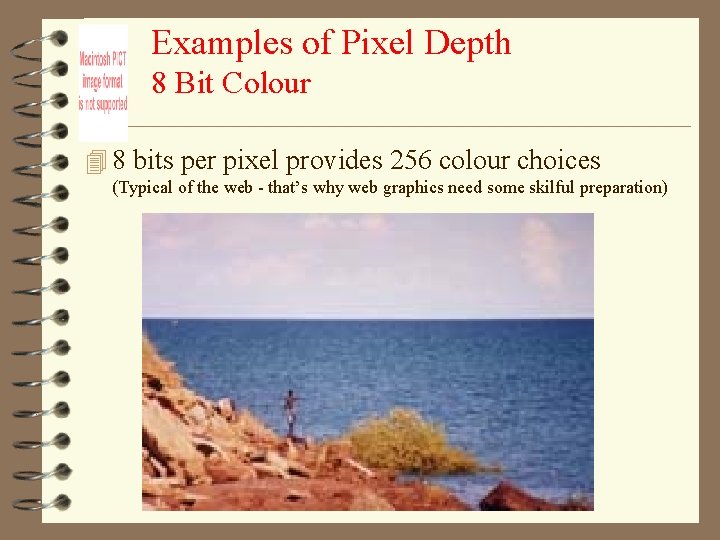
Examples of Pixel Depth 8 Bit Colour 4 8 bits per pixel provides 256 colour choices (Typical of the web - that’s why web graphics need some skilful preparation)
Examples of Pixel Depth 4 24 or 32 bits per pixel provides thousands or millions of colour choices. (Typical of graphics and games software)
Resolution 4 Resolution refers to the density of dots on the screen or printed image and directly affects quality 4 The higher the resolution, the less jagged the image. 4 Resolution is measured in DPI (Dots per Inch) 4 (The printing industry is largely unmetricated and still uses inches because printing measures such as the Point (1 72 nd of an inch) do not easily convert to metric units. ) 4 The higher the resolution, the better the potential output.
Typical Resolutions 4 Screens generally operate at around 72 -100 dpi 4 Printed images range from 300 to 2400 dpi 4 Resolution affects the file size of an image. 4 The higher the resolution, the bigger the file. 4 The visible resolution is limited to the maximum possible on the output device (screen or printer). 4 No matter how high the resolution of a photograph, it will show at the resolution of your screen or printer.
File Types 4 There are many kinds of graphics file formats and this is a specialised area and a bit complicated. 4 Examples : bmp GIF JPEG TIFF PICT Raw 4 For most applications involving photographic images, use the JPEG file format (Joint Photographic Experts Group) 4 For graphics or paint type files use GIFs (Graphical Interchange Format)
JPEG 4 The JPEG format can be used by most applications and all browsers 4 It has very good compression algorithms 4 It stores a good quality image in a remarkably small file with little or no loss of quality 4 JPEG offers 10 quality levels with correspondingly smaller files and greater losses in quality
GIF 4 You should choose a GIF format instead of JPEG when – You have a graphic with only a few colours such as a logo or icon – You want to create an image with some transparent parts for a web page – You want the smallest possible file size with totally lossless compression – You want to combine a few images together into an animation – You want to save text as a graphic
File Sizes 4 A little knowledge is a dangerous thing! 4 With a little knowledge, you can create files that are so large they are almost unusable 4 With a bit more knowledge you can store the same image in a file that is a fraction of the size 4 With little or no loss of quality 4 You MUST understand this if you are going to use graphics effectively
Example (without compression) 4 A standard postcard is 6 in by 4 in in 8 bit colour (256 colours), the following is true 4 At a resolution of 100 dpi the image is 600 by 400 dots so comprises 240, 000 pixels. Each pixel is 1 byte so that’s – 240000 bytes (240 KB) 4 At a resolution of 300 dpi it becomes 1800 by 1200 dots – 2160 KB (2 MB) That means it is now 9 times as big! 4 At a resolution of 600 dpi it becomes 3600 by 2400 dots – 8640 KB (8 MB) - Now 36 times as big! 4 And on screen you can’t see any difference! 4 Note - for 32 bit colour (millions of colours) the file sizes are 4 times bigger again!
Compression 4 The previous example is for uncompressed files and 4 4 ignores the fact that some file formats compress the data using very clever algorithms. With a good compression system, file sizes can be significantly reduced with little or no loss of quality. JPEG has compression built in at 10 quality levels but is a “lossy” algorithm. (Some data is gone forever when you compress) GIF compresses files with a “lossless” algorithm and so no quality is lost. When a file has a large number of colours, a GIF will generally create a much larger file than a JPEG
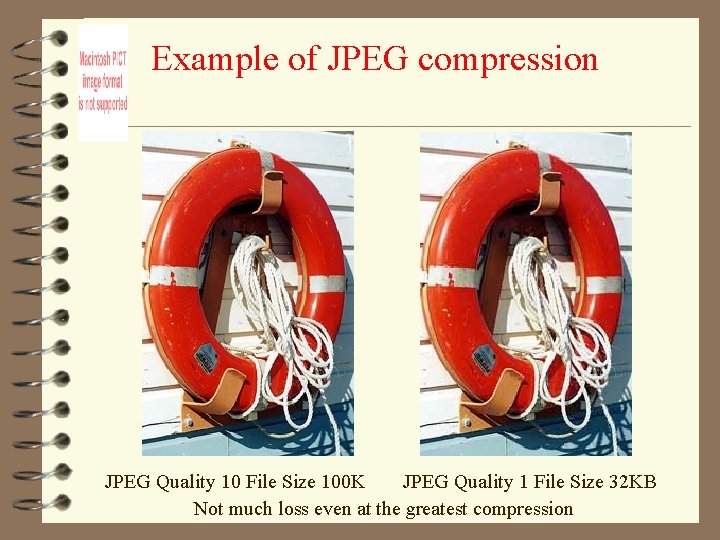
Example of JPEG compression JPEG Quality 10 File Size 100 K JPEG Quality 1 File Size 32 KB Not much loss even at the greatest compression
A Simple Rule of Thumb 4 For use in any screen based application such as Power. Point or the internet, a 72 to 100 dpi medium quality JPEG 4 will usually suffice 4 UNLESS – you plan to crop a part of the image, enlarge it and then use it at the larger size. 4 Then – you would increase the original scanning resolution accordingly
Printing 4 Even for images that will eventually be printed, there is little point scanning beyond 150 dpi unless you are producing a very high quality glossy colour magazine (in which case you would use 300 dpi. ) 4 If you want to enlarge an image then you would scan at correspondingly higher resolution. 4 If necessary, a low resolution image can be reduced in print size to effectively give a higher resolution image on paper – e. g. if you halve the size of a 150 dpi image you have a 300 dpi image. – Laser printers rated as 600 dpi only use 100 dpi in a graphic.
Scanning Steps 4 Make sure the scanner glass is clean 4 Put your photo or graphic on the scanner bed. 4 Open Photoshop (or some other bit mapped graphics programme) 4 Choose File / Import/ Twain / Acquire (or something similar) 4 Ask for a prescan (or if it is automatic, wait for the prescan to finish) 4 Crop the area that you want to scan properly 4 Check the settings - use 100 dpi for most purposes 4 Press SCAN 4 Save the image as JPEG then choose medium quality 4 Experiment with the same scan at different resolutions and file types if you want to understand this better
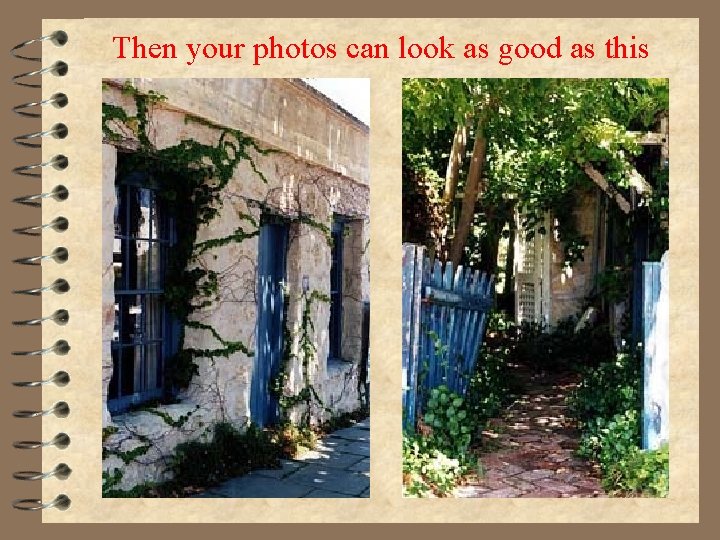
Then your photos can look as good as this