
Signing up for NHSmail During the current Covid19

- Slides: 2
Signing up for NHSmail During the current Covid-19 pandemic, secure communication between health and social care services is more important than ever. To support this we are now able to fast track roll out of NHSmail to the care sector, without the need to complete the Data Security and Protection Toolkit at this time. If you’d like to get set up, follow the steps below: You will receive a phone call or an email from your local team, asking if you would like to set up NHSmail. 1 Either over the phone, or by filling in the word document they share with you, please tell us: 2 If this was over the phone, you don’t need to do anything else yet! If this was over email, please attach the word document to an email, and send it either to care. registration@nhs. net or back to your local team. - The name of your care site - The name of your town - Your ODS Code (you will get help to find this!) - Details for two people that you would like to create NHSmail accounts for. This must include a personal email address for at least the mailbox owner and a personal mobile number for each person. 3 You will receive an email letting you know that your request for an NHSmail account is being completed! 4 Let your local contact know if you need support! If you need to add any more information to your form, you will get an email asking you to do this. In the next day or so, you will receive an email from NHSmail welcoming you to your new account, as well as a text message with your password. Each provider will have 1 shared mailbox, and 2 user accounts. 5 6 Your local support teams will be in touch about webinars available every day to make sure you have the help you need to get up and running quickly! Now you can start using NHSmail and Microsoft Teams
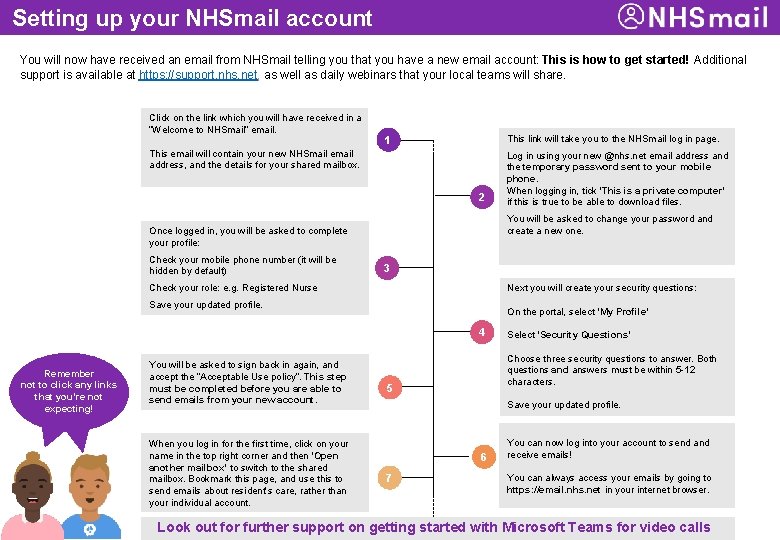
Setting up your NHSmail account You will now have received an email from NHSmail telling you that you have a new email account: This is how to get started! Additional support is available at https: //support. nhs. net, as well as daily webinars that your local teams will share. Click on the link which you will have received in a “Welcome to NHSmail” email. This link will take you to the NHSmail log in page. 1 This email will contain your new NHSmail email address, and the details for your shared mailbox. 2 You will be asked to change your password and create a new one. Once logged in, you will be asked to complete your profile: Check your mobile phone number (it will be hidden by default) 3 Check your role: e. g. Registered Nurse Next you will create your security questions: Save your updated profile. On the portal, select ‘My Profile’ 4 Remember not to click any links that you’re not expecting! You will be asked to sign back in again, and accept the “Acceptable Use policy”. This step must be completed before you are able to send emails from your new account. You can now log into your account to send and receive emails. When you log in for the first time, click on your name in the top right corner and then ‘Open another mailbox’ to switch to the shared mailbox. Bookmark this page, and use this to send emails about resident’s care, rather than your individual account. Log in using your new @nhs. net email address and the temporary password sent to your mobile phone. When logging in, tick ‘This is a private computer’ if this is true to be able to download files. Select ‘Security Questions’ Choose three security questions to answer. Both questions and answers must be within 5 -12 characters. 5 Save your updated profile. 6 7 You can now log into your account to send and receive emails! You can always access your emails by going to https: //email. nhs. net in your internet browser. Look out for further support on getting started with Microsoft Teams for video calls