
Shell scripts part 1 Cs 302 Shell scripts
![Echo command � echo [OPTION] [STRING] � The option -n means : do not](https://slidetodoc.com/presentation_image_h2/81ec45a5b9e6e9ade4f59e502f064ae6/image-5.jpg "Echo command � echo [OPTION] [STRING] � The option -n means : do not")
- Slides: 17
Shell scripts – part 1 Cs 302
Shell scripts �What is Shell Script? “Shell Script is series of command written in plain text file. “ �Why to Write Shell Script? Shell script can take input from user, file and output them on screen. Ø Useful to create our own commands. Ø Save lots of time. Ø System Administration part can be also automated. Ø
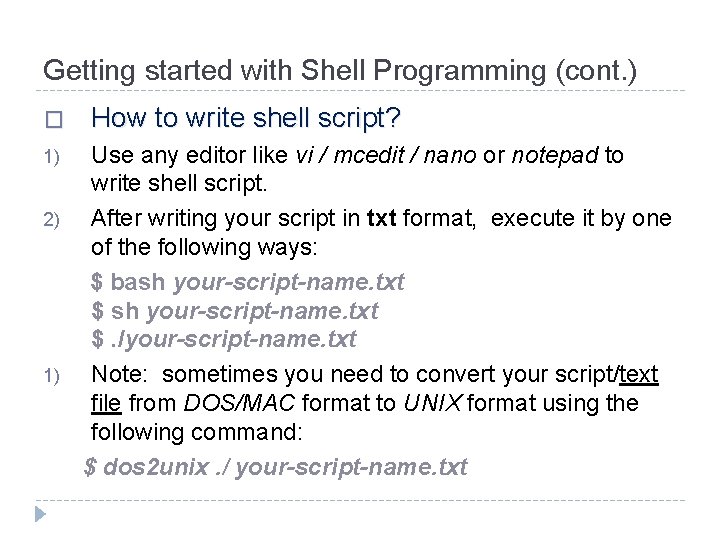
Getting started with Shell Programming (cont. ) � 1) 2) 1) How to write shell script? Use any editor like vi / mcedit / nano or notepad to write shell script. After writing your script in txt format, execute it by one of the following ways: $ bash your-script-name. txt $. /your-script-name. txt Note: sometimes you need to convert your script/text file from DOS/MAC format to UNIX format using the following command: $ dos 2 unix. / your-script-name. txt
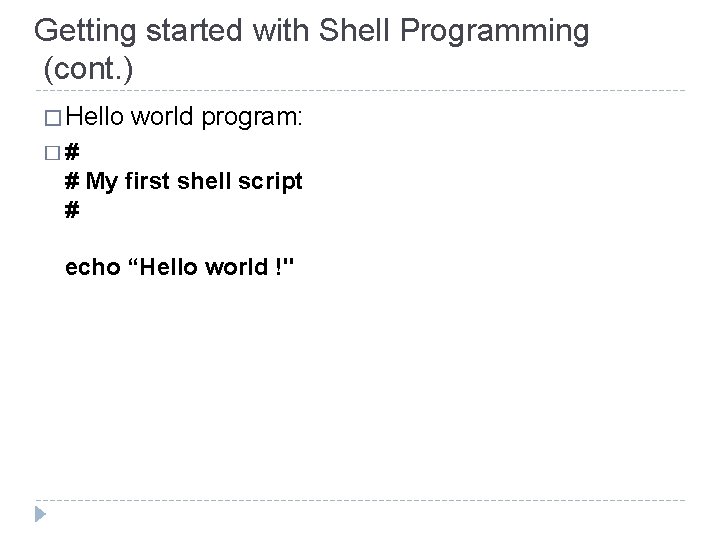
Getting started with Shell Programming (cont. ) � Hello world program: �# # My first shell script # echo “Hello world !"
Echo command � echo [OPTION] [STRING] � The option -n means : do not output the trailing newline � The option -e means Enable interpretation of the following backslash escaped characters in the strings: b backspace n new line t horizontal tab
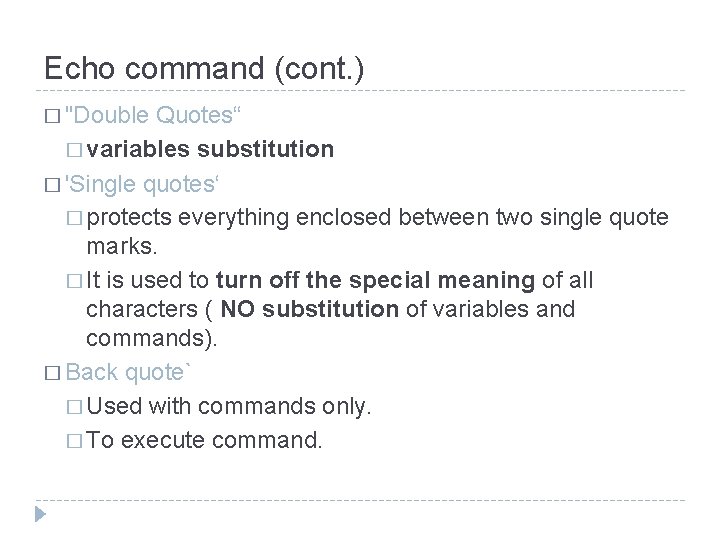
Echo command (cont. ) � "Double Quotes“ � variables substitution � 'Single quotes‘ � protects everything enclosed between two single quote marks. � It is used to turn off the special meaning of all characters ( NO substitution of variables and commands). � Back quote` � Used with commands only. � To execute command.
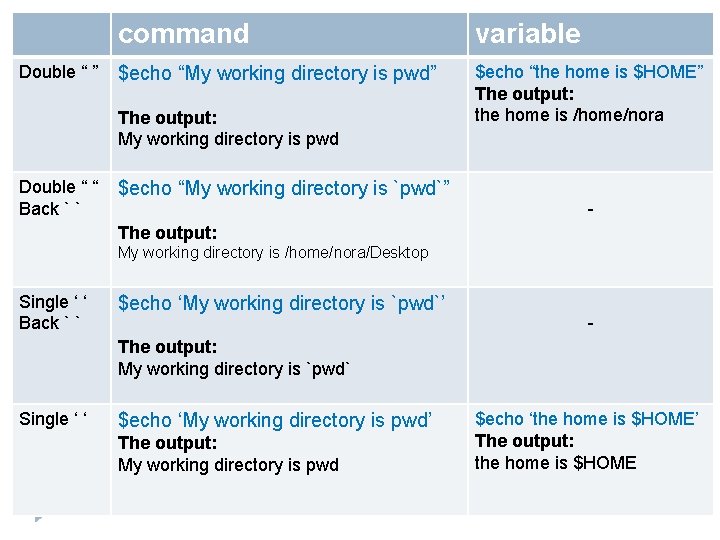
Double “ ” command variable $echo “My working directory is pwd” $echo “the home is $HOME” The output: the home is /home/nora The output: My working directory is pwd Double “ “ Back ` ` $echo “My working directory is `pwd`” - The output: My working directory is /home/nora/Desktop Single ‘ ‘ Back ` ` $echo ‘My working directory is `pwd`’ - The output: My working directory is `pwd` Single ‘ ‘ $echo ‘My working directory is pwd’ The output: My working directory is pwd $echo ‘the home is $HOME’ The output: the home is $HOME
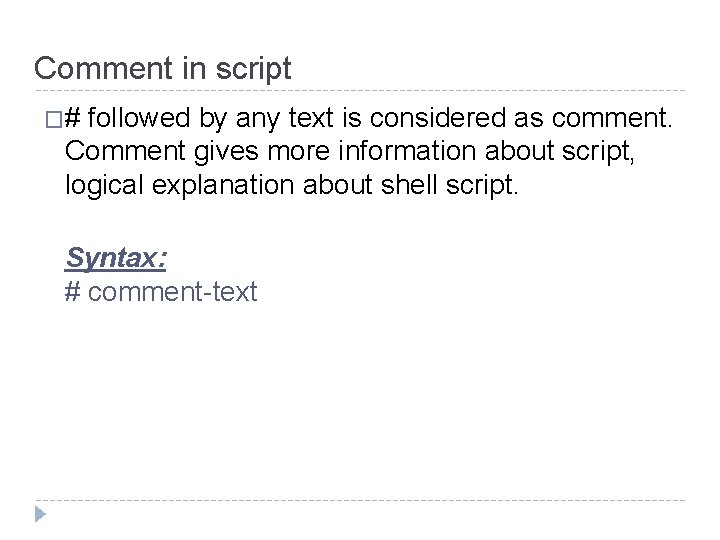
Comment in script �# followed by any text is considered as comment. Comment gives more information about script, logical explanation about shell script. Syntax: # comment-text
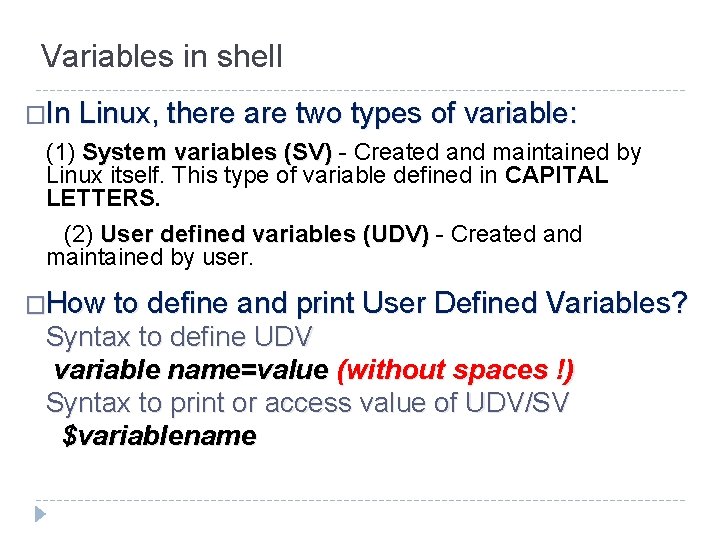
Variables in shell �In Linux, there are two types of variable: (1) System variables (SV) - Created and maintained by Linux itself. This type of variable defined in CAPITAL LETTERS. (2) User defined variables (UDV) - Created and maintained by user. �How to define and print User Defined Variables? Syntax to define UDV variable name=value (without spaces !) Syntax to print or access value of UDV/SV $variablename
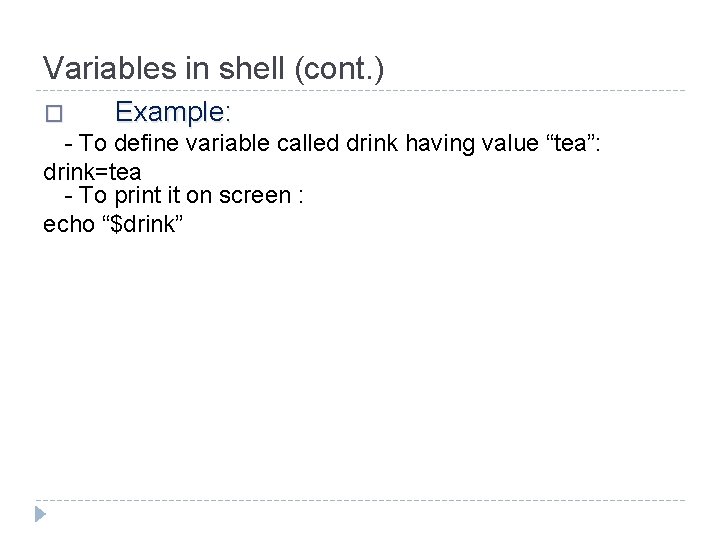
Variables in shell (cont. ) � Example: - To define variable called drink having value “tea”: drink=tea - To print it on screen : echo “$drink”
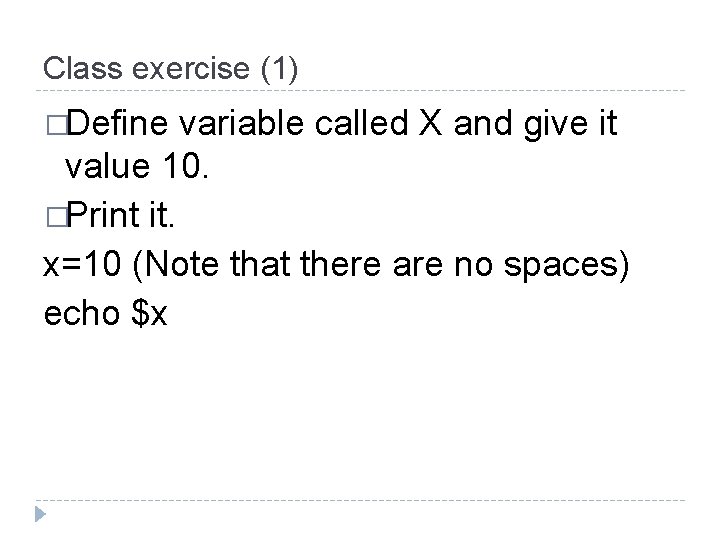
Class exercise (1) �Define variable called X and give it value 10. �Print it. x=10 (Note that there are no spaces) echo $x
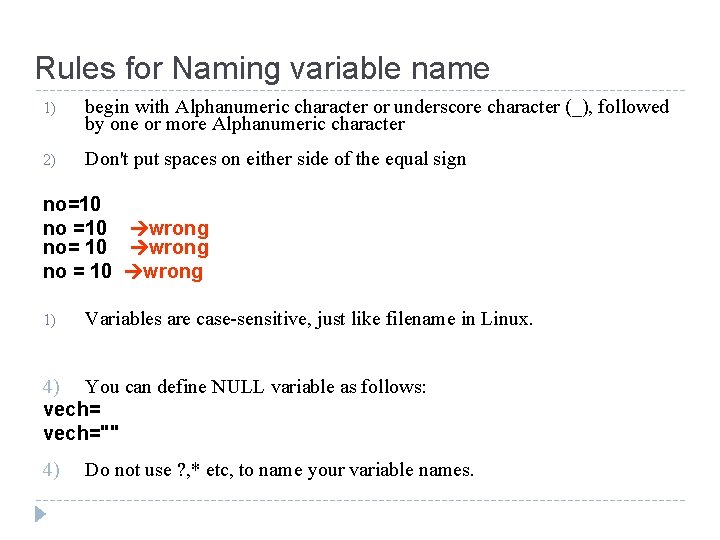
Rules for Naming variable name 1) begin with Alphanumeric character or underscore character (_), followed by one or more Alphanumeric character 2) Don't put spaces on either side of the equal sign no=10 no =10 wrong no= 10 wrong no = 10 wrong 1) Variables are case-sensitive, just like filename in Linux. 4) You can define NULL variable as follows: vech="" 4) Do not use ? , * etc, to name your variable names.
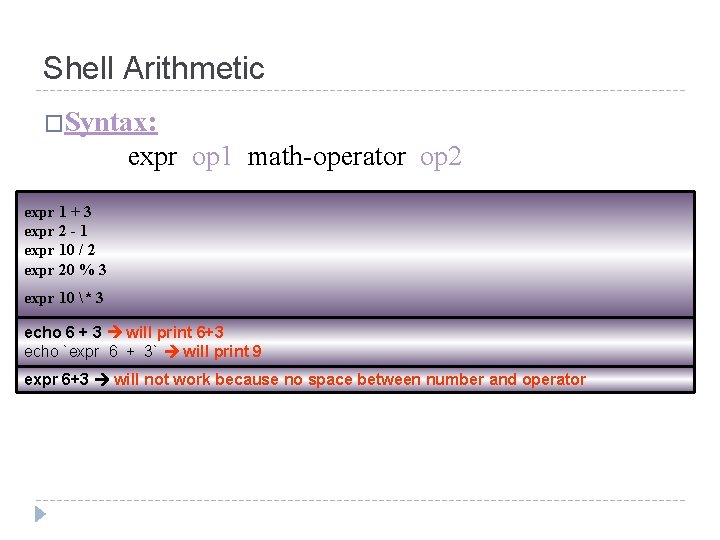
Shell Arithmetic �Syntax: expr op 1 math-operator op 2 expr 1 + 3 expr 2 - 1 expr 10 / 2 expr 20 % 3 expr 10 * 3 echo 6 + 3 will print 6+3 echo `expr 6 + 3` will print 9 expr 6+3 will not work because no space between number and operator
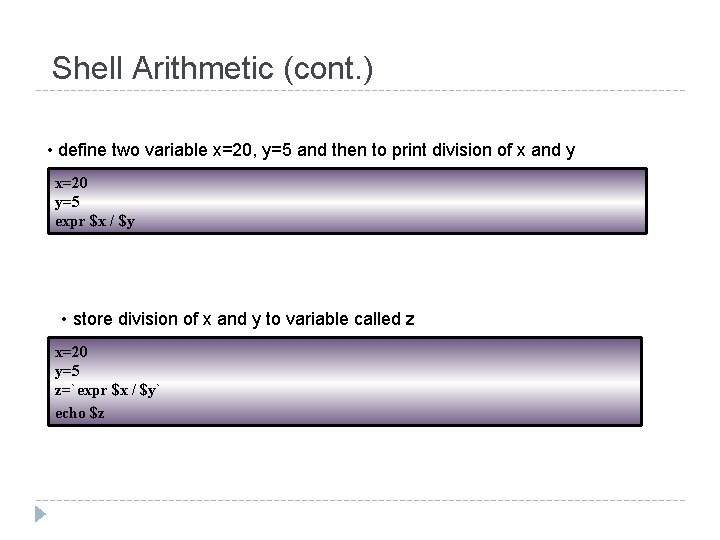
Shell Arithmetic (cont. ) • define two variable x=20, y=5 and then to print division of x and y x=20 y=5 expr $x / $y • store division of x and y to variable called z x=20 y=5 z=`expr $x / $y` echo $z
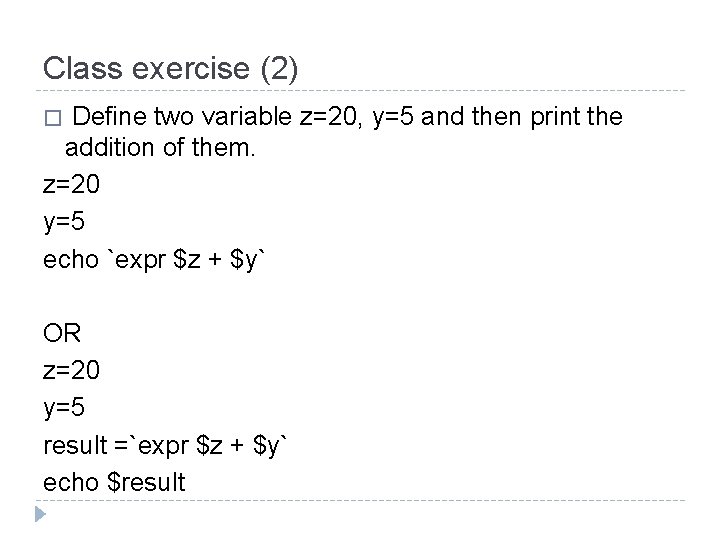
Class exercise (2) Define two variable z=20, y=5 and then print the addition of them. z=20 y=5 echo `expr $z + $y` � OR z=20 y=5 result =`expr $z + $y` echo $result
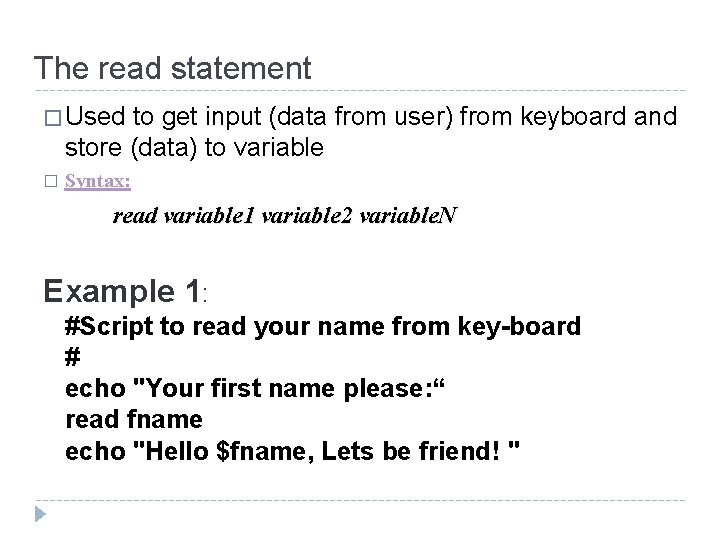
The read statement � Used to get input (data from user) from keyboard and store (data) to variable � Syntax: read variable 1 variable 2 variable. N Example 1: #Script to read your name from key-board # echo "Your first name please: “ read fname echo "Hello $fname, Lets be friend! "
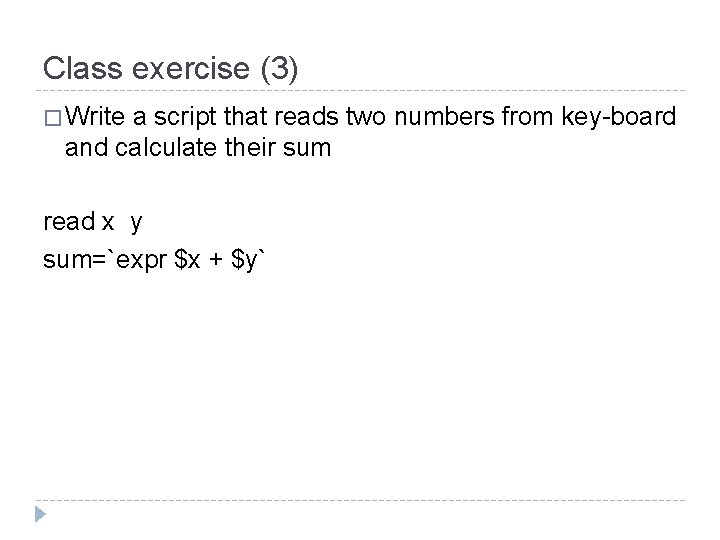
Class exercise (3) � Write a script that reads two numbers from key-board and calculate their sum read x y sum=`expr $x + $y`