
Shell Scripts Computer Center CS NCTU Shell Scripts

![Computer Center, CS, NCTU 20 if-then-else Structure if [ test conditions ] ; then](https://slidetodoc.com/presentation_image_h2/50b63f1a969d8c6d7b5758cee09b26c9/image-20.jpg "Computer Center, CS, NCTU 20 if-then-else Structure if [ test conditions ] ; then")
![Computer Center, CS, NCTU 24 While Loop while […] while (…) do action end](https://slidetodoc.com/presentation_image_h2/50b63f1a969d8c6d7b5758cee09b26c9/image-24.jpg "Computer Center, CS, NCTU 24 While Loop while […] while (…) do action end")
![Computer Center, CS, NCTU 25 Until Loop until […] do action done month=1 until](https://slidetodoc.com/presentation_image_h2/50b63f1a969d8c6d7b5758cee09b26c9/image-25.jpg "Computer Center, CS, NCTU 25 Until Loop until […] do action done month=1 until")
![Computer Center, CS, NCTU Check Machine Alive (2) #!/bin/sh # [Usage] is. Alive. sh](https://slidetodoc.com/presentation_image_h2/50b63f1a969d8c6d7b5758cee09b26c9/image-41.jpg "Computer Center, CS, NCTU Check Machine Alive (2) #!/bin/sh # [Usage] is. Alive. sh")

![Computer Center, CS, NCTU Regular Expression (5) • [+-]{0, 1}[0 -9]* Ø Match any](https://slidetodoc.com/presentation_image_h2/50b63f1a969d8c6d7b5758cee09b26c9/image-47.jpg "Computer Center, CS, NCTU Regular Expression (5) • [+-]{0, 1}[0 -9]* Ø Match any")
![Computer Center, CS, NCTU 51 sed – substitution (1) q substitution • Syntax [address]](https://slidetodoc.com/presentation_image_h2/50b63f1a969d8c6d7b5758cee09b26c9/image-51.jpg "Computer Center, CS, NCTU 51 sed – substitution (1) q substitution • Syntax [address]")
![Computer Center, CS, NCTU 53 sed – delete q delete • Syntax: [address]d q](https://slidetodoc.com/presentation_image_h2/50b63f1a969d8c6d7b5758cee09b26c9/image-53.jpg "Computer Center, CS, NCTU 53 sed – delete q delete • Syntax: [address]d q")
![Computer Center, CS, NCTU awk q awk(1) q Syntax • awk [-F fs] [](https://slidetodoc.com/presentation_image_h2/50b63f1a969d8c6d7b5758cee09b26c9/image-57.jpg "Computer Center, CS, NCTU awk q awk(1) q Syntax • awk [-F fs] [")
- Slides: 62
Shell Scripts
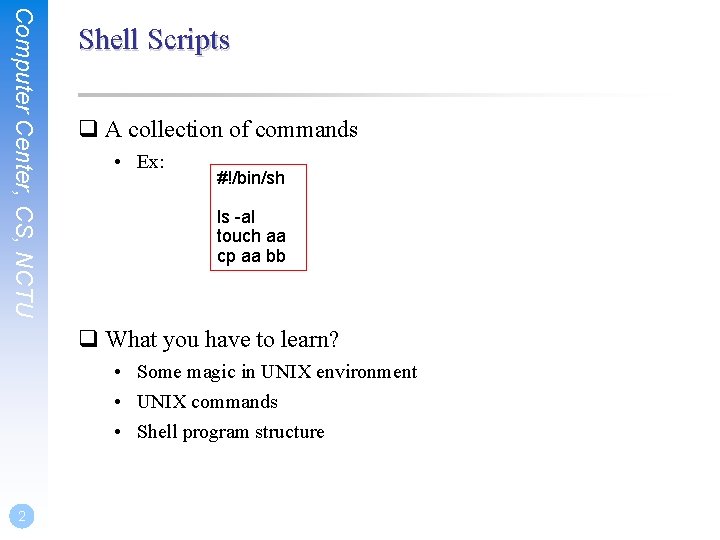
Computer Center, CS, NCTU Shell Scripts q A collection of commands • Ex: #!/bin/sh ls -al touch aa cp aa bb q What you have to learn? • Some magic in UNIX environment • UNIX commands • Shell program structure 2
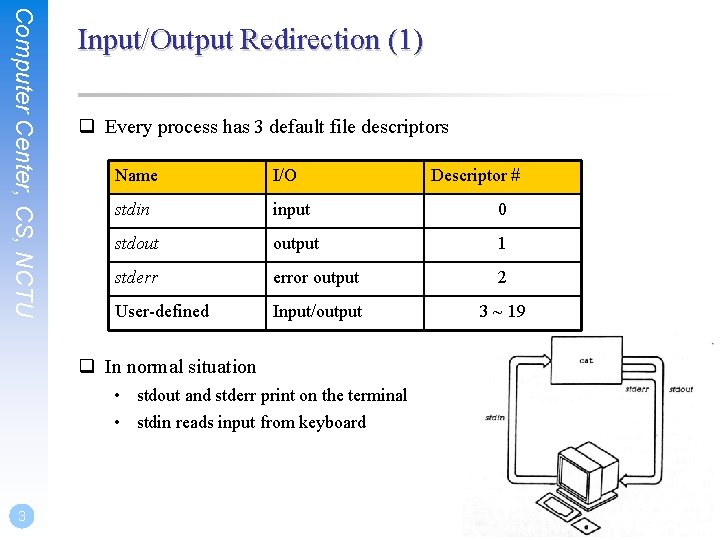
Computer Center, CS, NCTU Input/Output Redirection (1) q Every process has 3 default file descriptors Name I/O stdin input 0 stdout output 1 stderr error output 2 User-defined Input/output 3 ~ 19 q In normal situation • stdout and stderr print on the terminal • stdin reads input from keyboard 3 Descriptor #
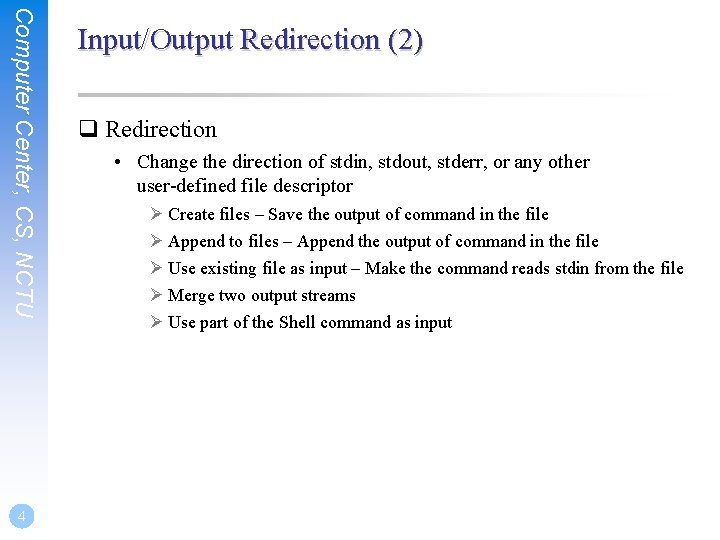
Computer Center, CS, NCTU 4 Input/Output Redirection (2) q Redirection • Change the direction of stdin, stdout, stderr, or any other user-defined file descriptor Ø Create files – Save the output of command in the file Ø Append to files – Append the output of command in the file Ø Use existing file as input – Make the command reads stdin from the file Ø Merge two output streams Ø Use part of the Shell command as input
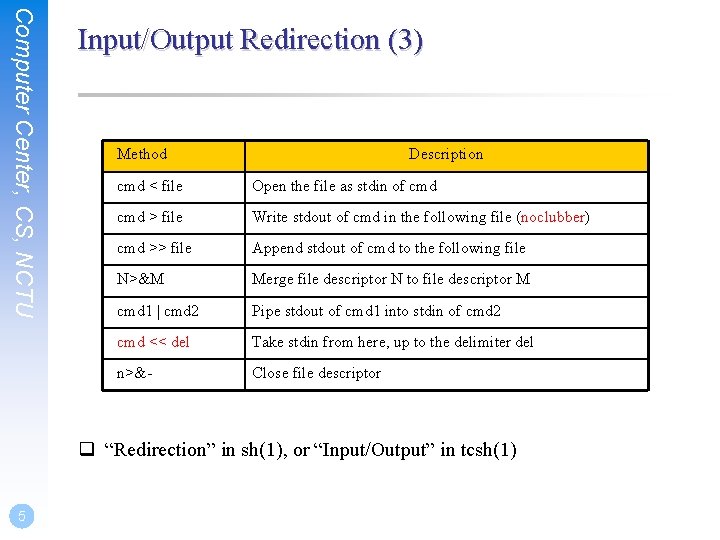
Computer Center, CS, NCTU Input/Output Redirection (3) Method Description cmd < file Open the file as stdin of cmd > file Write stdout of cmd in the following file (noclubber) cmd >> file Append stdout of cmd to the following file N>&M Merge file descriptor N to file descriptor M cmd 1 | cmd 2 Pipe stdout of cmd 1 into stdin of cmd 2 cmd << del Take stdin from here, up to the delimiter del n>&- Close file descriptor q “Redirection” in sh(1), or “Input/Output” in tcsh(1) 5
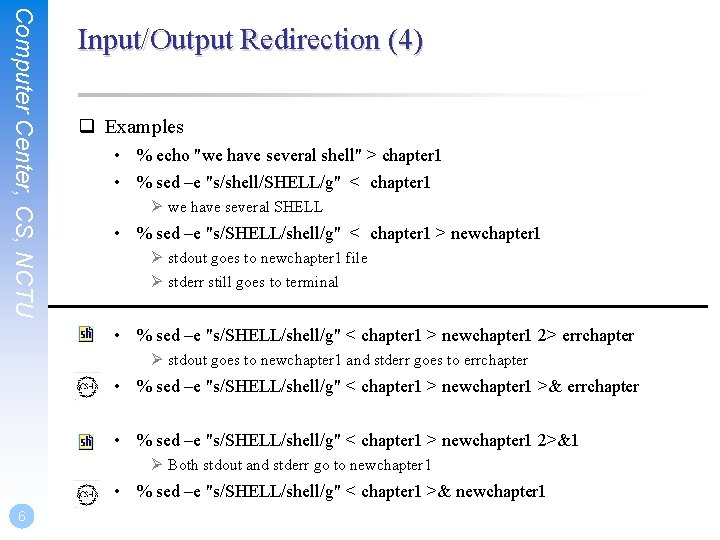
Computer Center, CS, NCTU Input/Output Redirection (4) q Examples • % echo "we have several shell" > chapter 1 • % sed –e "s/shell/SHELL/g" < chapter 1 Ø we have several SHELL • % sed –e "s/SHELL/shell/g" < chapter 1 > newchapter 1 Ø stdout goes to newchapter 1 file Ø stderr still goes to terminal • % sed –e "s/SHELL/shell/g" < chapter 1 > newchapter 1 2> errchapter Ø stdout goes to newchapter 1 and stderr goes to errchapter • % sed –e "s/SHELL/shell/g" < chapter 1 > newchapter 1 >& errchapter • % sed –e "s/SHELL/shell/g" < chapter 1 > newchapter 1 2>&1 Ø Both stdout and stderr go to newchapter 1 • % sed –e "s/SHELL/shell/g" < chapter 1 >& newchapter 1 6
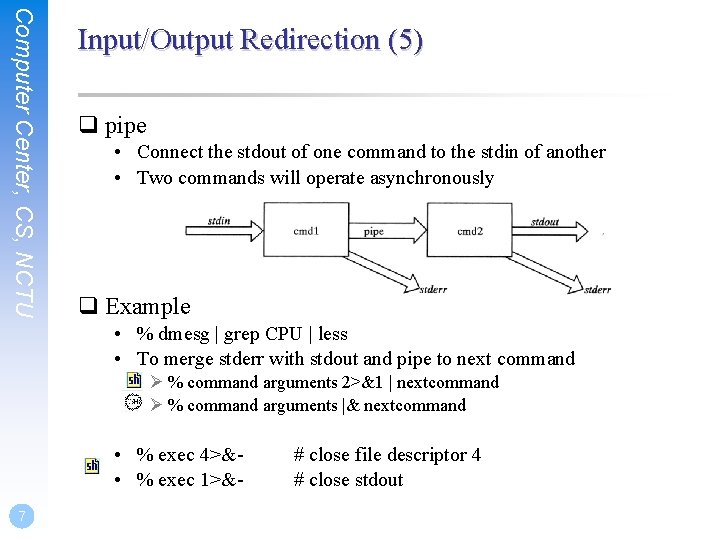
Computer Center, CS, NCTU Input/Output Redirection (5) q pipe • Connect the stdout of one command to the stdin of another • Two commands will operate asynchronously q Example • % dmesg | grep CPU | less • To merge stderr with stdout and pipe to next command Ø % command arguments 2>&1 | nextcommand Ø % command arguments |& nextcommand • % exec 4>& • % exec 1>&7 # close file descriptor 4 # close stdout
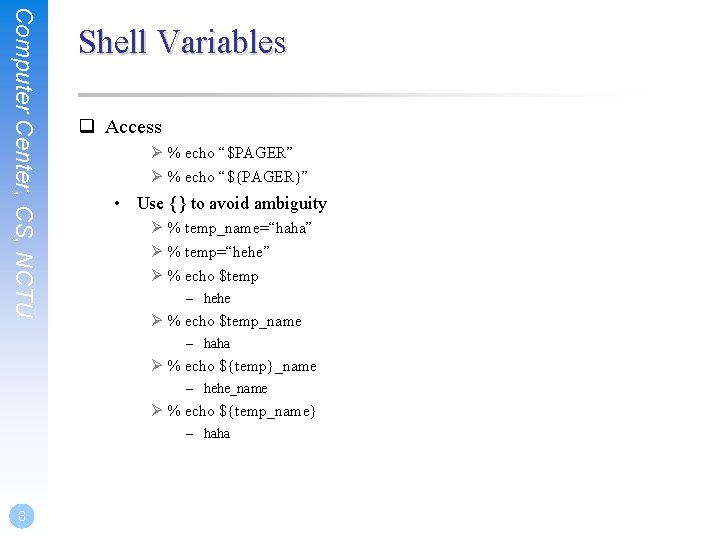
Computer Center, CS, NCTU Shell Variables q Access Ø % echo “$PAGER” Ø % echo “${PAGER}” • Use {} to avoid ambiguity Ø % temp_name=“haha” Ø % temp=“hehe” Ø % echo $temp – hehe Ø % echo $temp_name – haha Ø % echo ${temp}_name – hehe_name Ø % echo ${temp_name} – haha 8
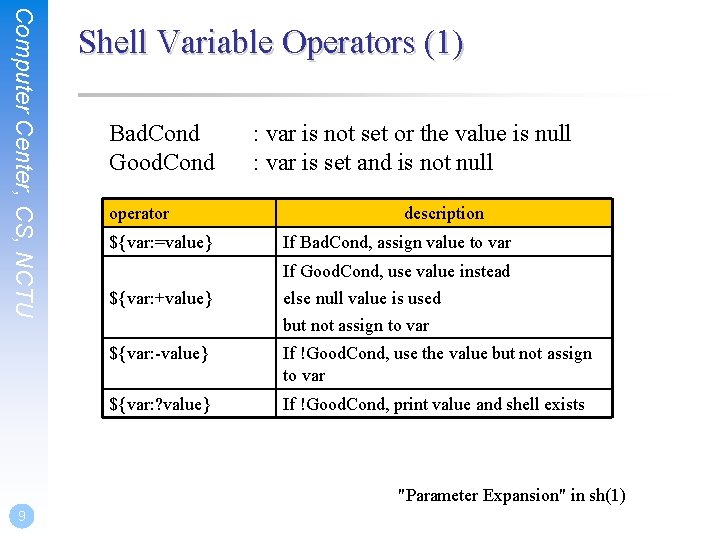
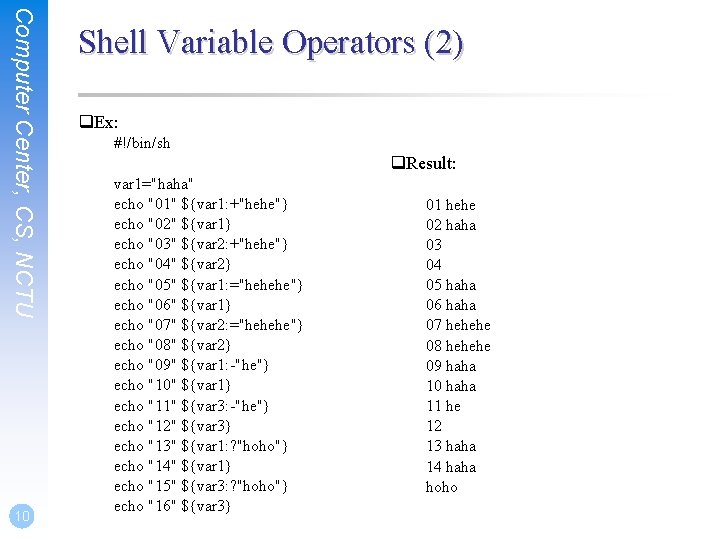
Computer Center, CS, NCTU Shell Variable Operators (1) Bad. Cond Good. Cond operator ${var: =value} : var is not set or the value is null : var is set and is not null description If Bad. Cond, assign value to var If Good. Cond, use value instead ${var: +value} else null value is used but not assign to var ${var: -value} If !Good. Cond, use the value but not assign to var ${var: ? value} If !Good. Cond, print value and shell exists "Parameter Expansion" in sh(1) 9
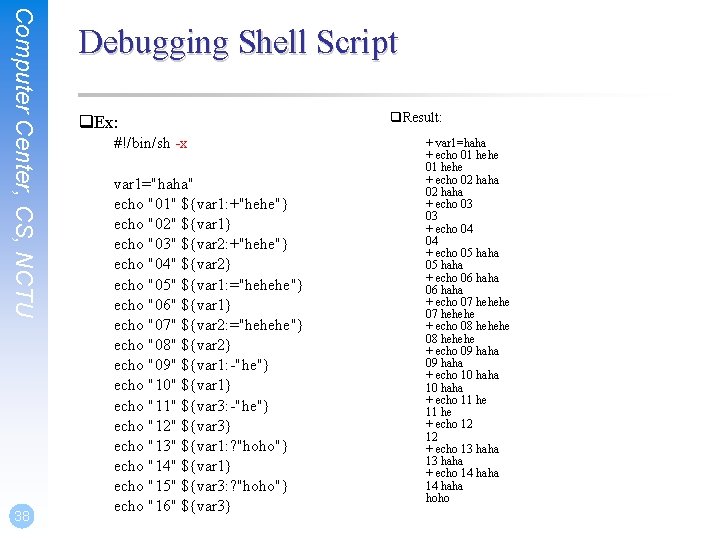
Computer Center, CS, NCTU 10 Shell Variable Operators (2) q. Ex: #!/bin/sh q. Result: var 1="haha" echo "01" ${var 1: +"hehe"} echo "02" ${var 1} echo "03" ${var 2: +"hehe"} echo "04" ${var 2} echo "05" ${var 1: ="hehehe"} echo "06" ${var 1} echo "07" ${var 2: ="hehehe"} echo "08" ${var 2} echo "09" ${var 1: -"he"} echo "10" ${var 1} echo "11" ${var 3: -"he"} echo "12" ${var 3} echo "13" ${var 1: ? "hoho"} echo "14" ${var 1} echo "15" ${var 3: ? "hoho"} echo "16" ${var 3} 01 hehe 02 haha 03 04 05 haha 06 haha 07 hehehe 08 hehehe 09 haha 10 haha 11 he 12 13 haha 14 haha hoho
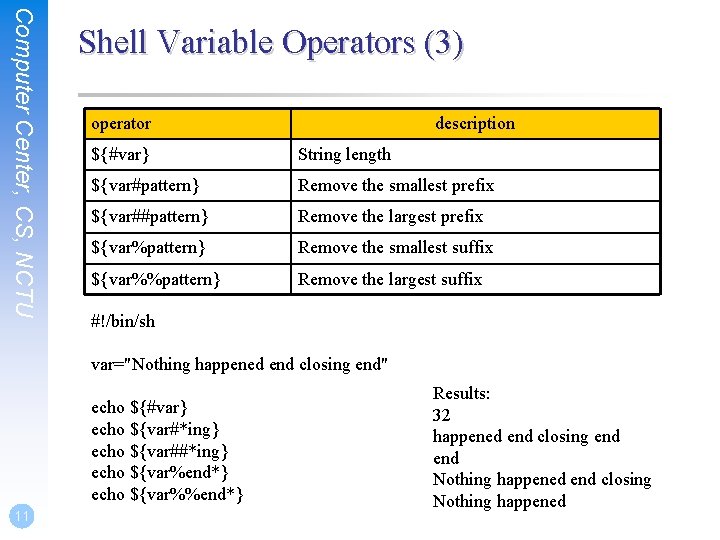
Computer Center, CS, NCTU Shell Variable Operators (3) operator description ${#var} String length ${var#pattern} Remove the smallest prefix ${var##pattern} Remove the largest prefix ${var%pattern} Remove the smallest suffix ${var%%pattern} Remove the largest suffix #!/bin/sh var="Nothing happened end closing end" echo ${#var} echo ${var#*ing} echo ${var##*ing} echo ${var%end*} echo ${var%%end*} 11 Results: 32 happened end closing end Nothing happened end closing Nothing happened
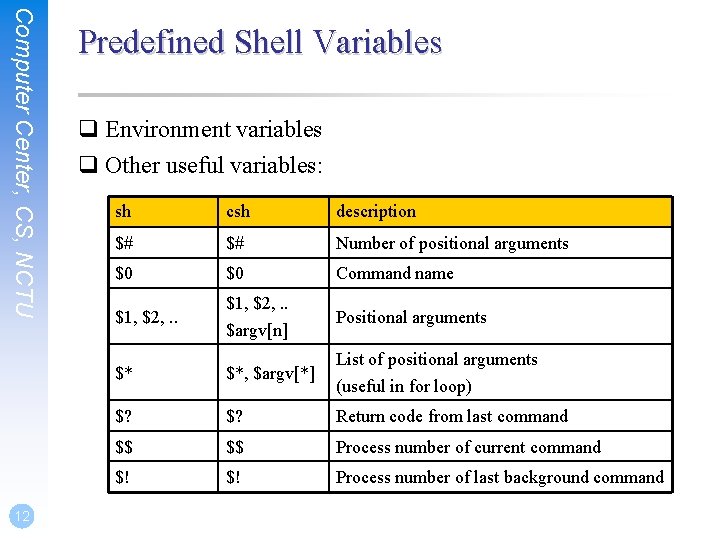
Computer Center, CS, NCTU 12 Predefined Shell Variables q Environment variables q Other useful variables: sh csh description $# $# Number of positional arguments $0 $0 Command name $1, $2, . . $argv[n] Positional arguments List of positional arguments $* $*, $argv[*] $? Return code from last command $$ $$ Process number of current command $! $! Process number of last background command (useful in for loop)
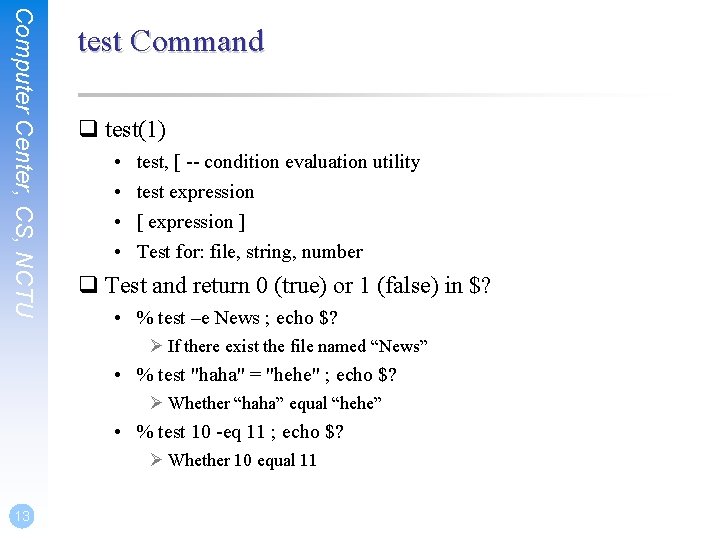
Computer Center, CS, NCTU test Command q test(1) • • test, [ -- condition evaluation utility test expression [ expression ] Test for: file, string, number q Test and return 0 (true) or 1 (false) in $? • % test –e News ; echo $? Ø If there exist the file named “News” • % test "haha" = "hehe" ; echo $? Ø Whether “haha” equal “hehe” • % test 10 -eq 11 ; echo $? Ø Whether 10 equal 11 13
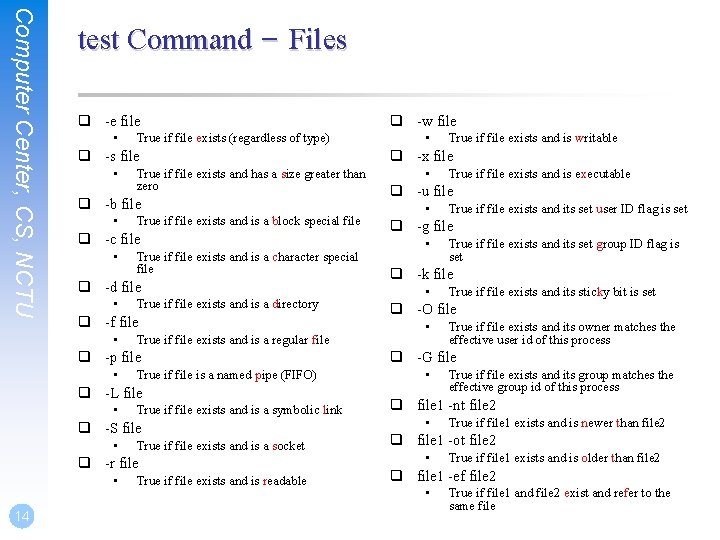
Computer Center, CS, NCTU test Command – Files q -e file • True if file exists (regardless of type) q -s file • True if file exists and has a size greater than zero q -b file • True if file exists and is a block special file q -c file • True if file exists and is a character special file q -d file • True if file exists and is a directory q -f file • True if file exists and is a regular file q -p file • True if file is a named pipe (FIFO) q -L file • True if file exists and is a symbolic link q -S file • True if file exists and is a socket q -r file • 14 True if file exists and is readable q -w file • True if file exists and is writable q -x file • True if file exists and is executable q -u file • True if file exists and its set user ID flag is set q -g file • True if file exists and its set group ID flag is set q -k file • True if file exists and its sticky bit is set q -O file • True if file exists and its owner matches the effective user id of this process q -G file • True if file exists and its group matches the effective group id of this process q file 1 -nt file 2 • True if file 1 exists and is newer than file 2 q file 1 -ot file 2 • True if file 1 exists and is older than file 2 q file 1 -ef file 2 • True if file 1 and file 2 exist and refer to the same file
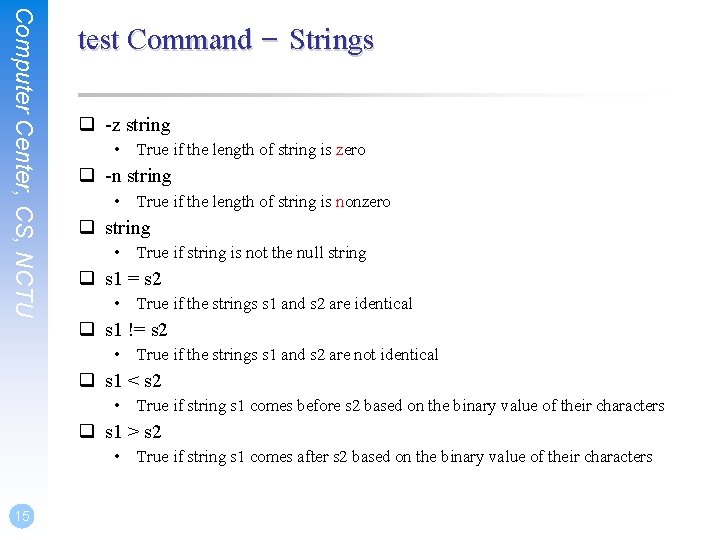
Computer Center, CS, NCTU test Command – Strings q -z string • True if the length of string is zero q -n string • True if the length of string is nonzero q string • True if string is not the null string q s 1 = s 2 • True if the strings s 1 and s 2 are identical q s 1 != s 2 • True if the strings s 1 and s 2 are not identical q s 1 < s 2 • True if string s 1 comes before s 2 based on the binary value of their characters q s 1 > s 2 • True if string s 1 comes after s 2 based on the binary value of their characters 15
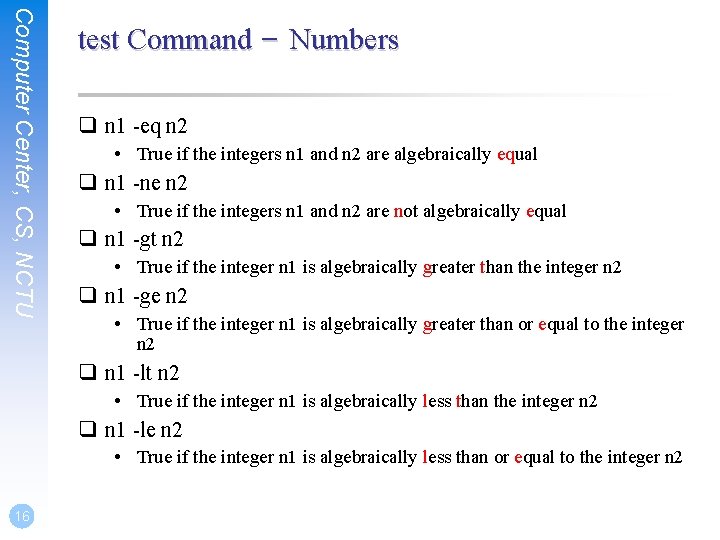
Computer Center, CS, NCTU test Command – Numbers q n 1 -eq n 2 • True if the integers n 1 and n 2 are algebraically equal q n 1 -ne n 2 • True if the integers n 1 and n 2 are not algebraically equal q n 1 -gt n 2 • True if the integer n 1 is algebraically greater than the integer n 2 q n 1 -ge n 2 • True if the integer n 1 is algebraically greater than or equal to the integer n 2 q n 1 -lt n 2 • True if the integer n 1 is algebraically less than the integer n 2 q n 1 -le n 2 • True if the integer n 1 is algebraically less than or equal to the integer n 2 16
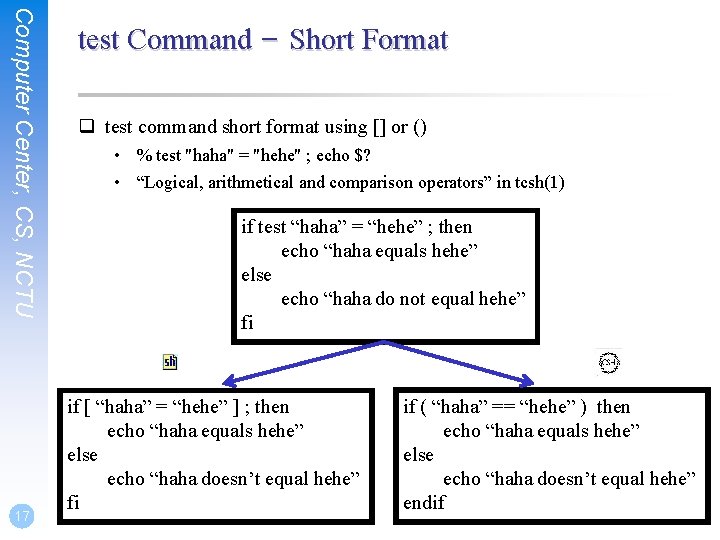
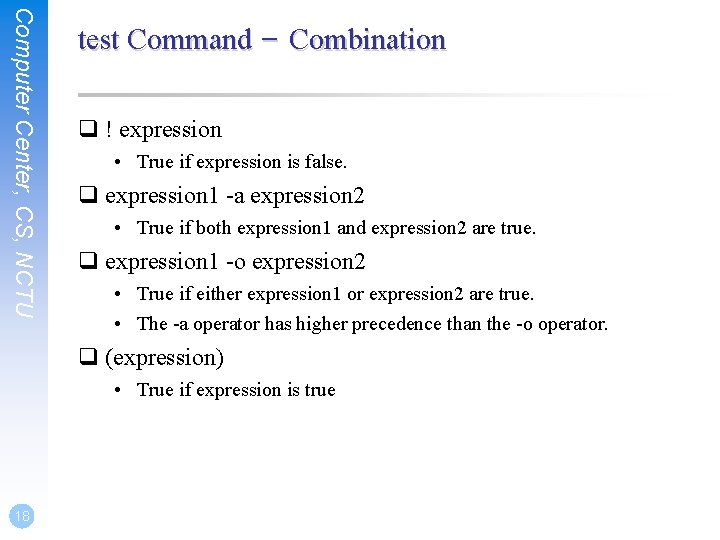
Computer Center, CS, NCTU 17 test Command – Short Format q test command short format using [] or () • % test "haha" = "hehe" ; echo $? • “Logical, arithmetical and comparison operators” in tcsh(1) if test “haha” = “hehe” ; then echo “haha equals hehe” else echo “haha do not equal hehe” fi if [ “haha” = “hehe” ] ; then echo “haha equals hehe” else echo “haha doesn’t equal hehe” fi if ( “haha” == “hehe” ) then echo “haha equals hehe” else echo “haha doesn’t equal hehe” endif
Computer Center, CS, NCTU test Command – Combination q ! expression • True if expression is false. q expression 1 -a expression 2 • True if both expression 1 and expression 2 are true. q expression 1 -o expression 2 • True if either expression 1 or expression 2 are true. • The -a operator has higher precedence than the -o operator. q (expression) • True if expression is true 18
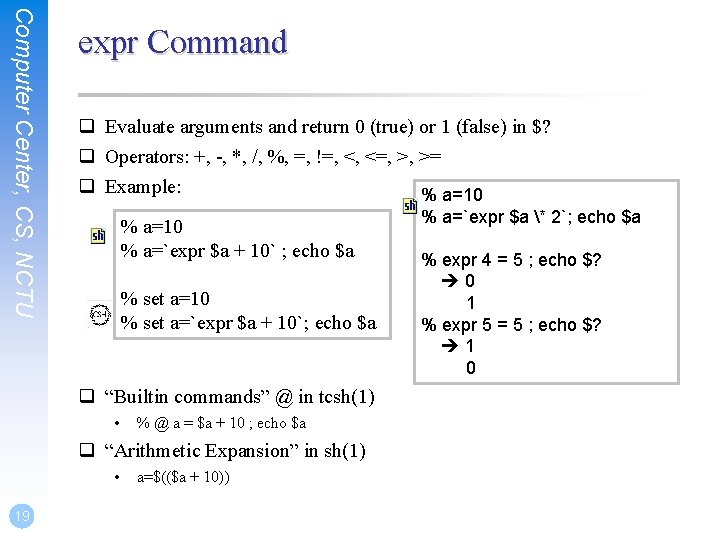
Computer Center, CS, NCTU expr Command q Evaluate arguments and return 0 (true) or 1 (false) in $? q Operators: +, -, *, /, %, =, !=, <, <=, >, >= q Example: % a=10 % a=`expr $a + 10` ; echo $a % set a=10 % set a=`expr $a + 10`; echo $a q “Builtin commands” @ in tcsh(1) • % @ a = $a + 10 ; echo $a q “Arithmetic Expansion” in sh(1) • 19 a=$(($a + 10)) % a=`expr $a * 2`; echo $a % expr 4 = 5 ; echo $? 0 1 % expr 5 = 5 ; echo $? 1 0
Computer Center, CS, NCTU 20 if-then-else Structure if [ test conditions ] ; then command-list elif command-list else command-list fi if ( test conditions ) then command-list else if command-list else command-list endif #!/bin/sh #!/bin/tcsh a=10 b=12 set a=10 set b=12 if [ $a != $b ] ; then echo "$a not equal $b" fi if ( $a != $b ) then echo "$a not equal $b" endif
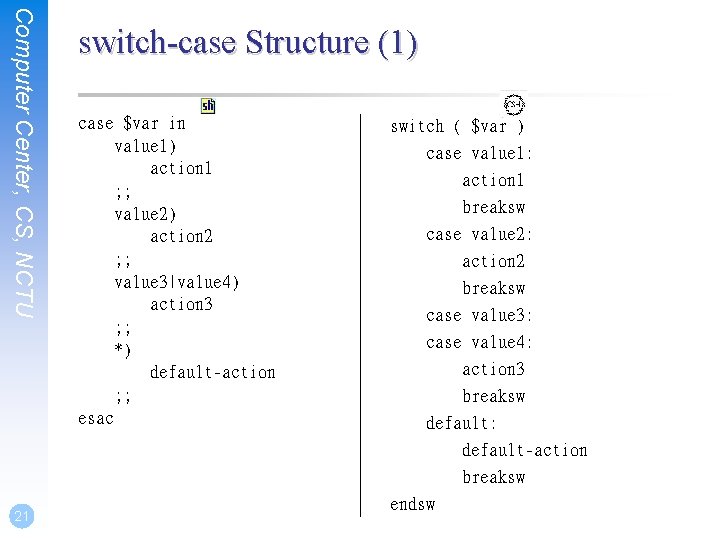
Computer Center, CS, NCTU 21 switch-case Structure (1) case $var in value 1) action 1 ; ; value 2) action 2 ; ; value 3|value 4) action 3 ; ; *) default-action ; ; esac switch ( $var ) case value 1: action 1 breaksw case value 2: action 2 breaksw case value 3: case value 4: action 3 breaksw default: default-action breaksw endsw
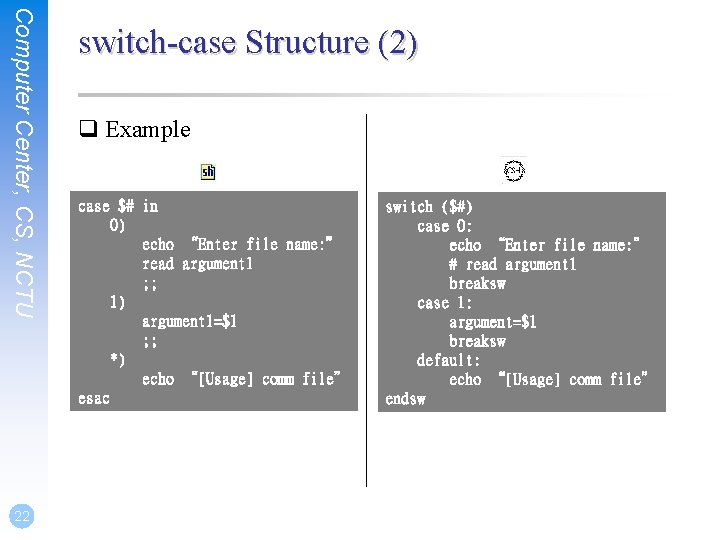
Computer Center, CS, NCTU 22 switch-case Structure (2) q Example case $# in 0) echo “Enter file name: ” read argument 1 ; ; 1) argument 1=$1 ; ; *) echo “[Usage] comm file” esac switch ($#) case 0: echo “Enter file name: ” # read argument 1 breaksw case 1: argument=$1 breaksw default: echo “[Usage] comm file” endsw
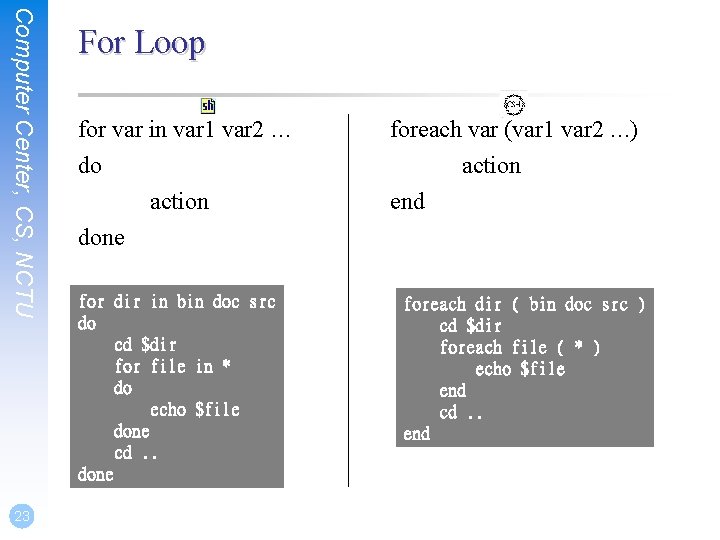
Computer Center, CS, NCTU 23 For Loop for var in var 1 var 2 … foreach var (var 1 var 2 …) do action end done for dir in bin doc src do cd $dir for file in * do echo $file done cd. . done foreach dir ( bin doc src ) cd $dir foreach file ( * ) echo $file end cd. . end
Computer Center, CS, NCTU 24 While Loop while […] while (…) do action end action done month=1 while [ ${month} –le 12 ] do echo $month=$(($month + 1)) done set month=1 while ( ${month} <= 12 ) echo $month @ month += 1 end
Computer Center, CS, NCTU 25 Until Loop until […] do action done month=1 until [ ${month} -gt 12 ] do echo $month=`expr $month + 1` done
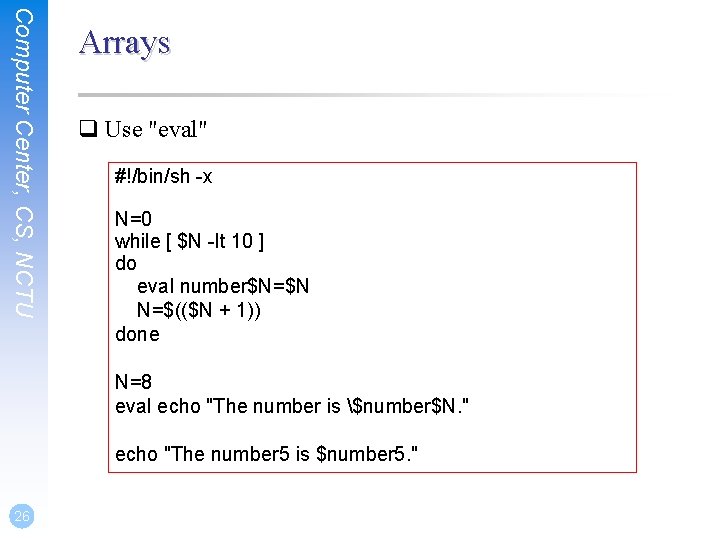
Computer Center, CS, NCTU Arrays q Use "eval" #!/bin/sh -x N=0 while [ $N -lt 10 ] do eval number$N=$N N=$(($N + 1)) done N=8 eval echo "The number is $number$N. " echo "The number 5 is $number 5. " 26
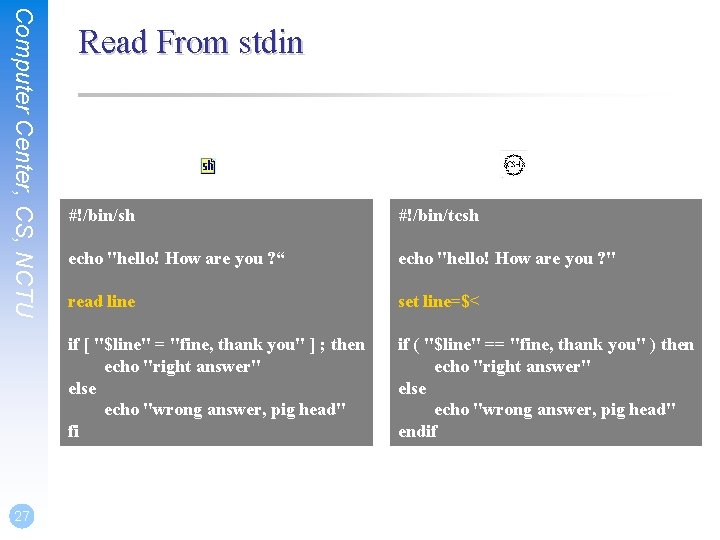
Computer Center, CS, NCTU 27 Read From stdin #!/bin/sh #!/bin/tcsh echo "hello! How are you ? “ echo "hello! How are you ? " read line set line=$< if [ "$line" = "fine, thank you" ] ; then echo "right answer" else echo "wrong answer, pig head" fi if ( "$line" == "fine, thank you" ) then echo "right answer" else echo "wrong answer, pig head" endif
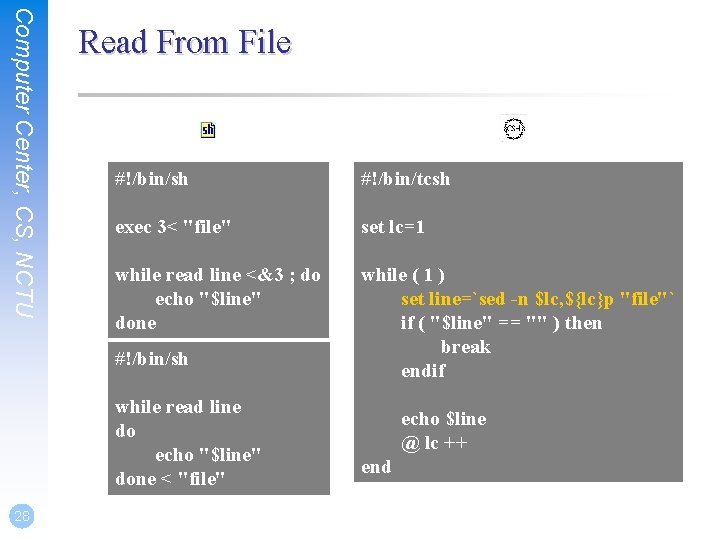
Computer Center, CS, NCTU Read From File #!/bin/sh #!/bin/tcsh exec 3< "file" set lc=1 while read line <&3 ; do echo "$line" done while ( 1 ) set line=`sed -n $lc, ${lc}p "file"` if ( "$line" == "" ) then break endif #!/bin/sh while read line do echo "$line" done < "file" 28 echo $line @ lc ++ end
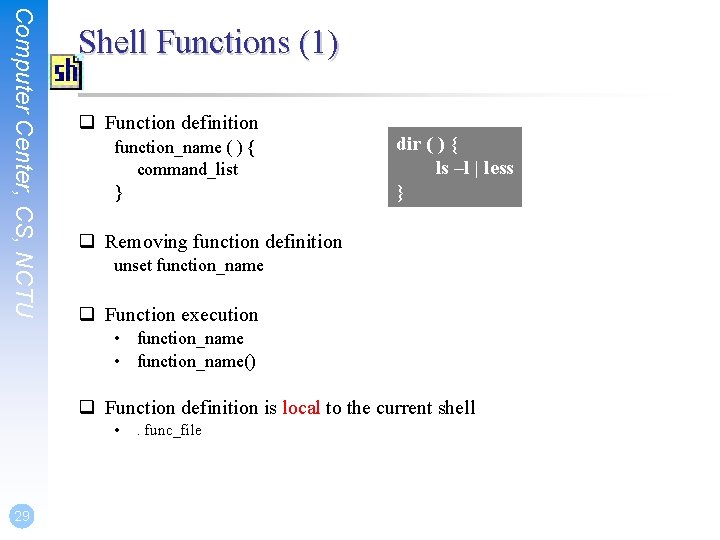
Computer Center, CS, NCTU Shell Functions (1) q Function definition function_name ( ) { command_list } dir ( ) { ls –l | less } q Removing function definition unset function_name q Function execution • function_name() q Function definition is local to the current shell • 29 . func_file
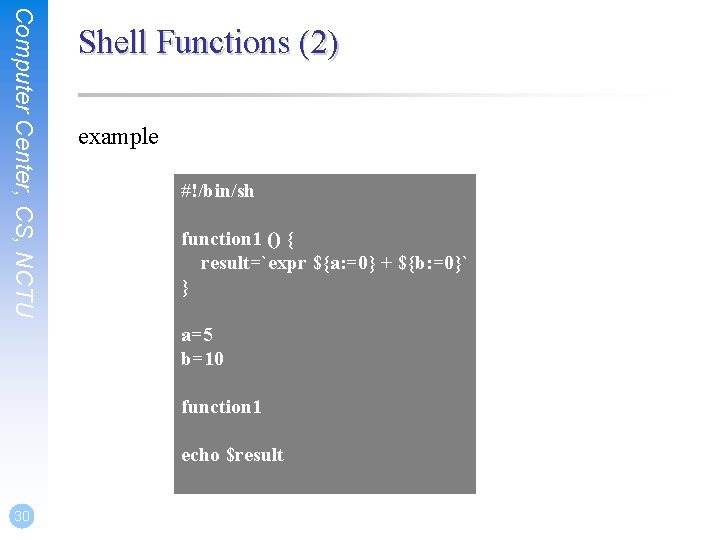
Computer Center, CS, NCTU Shell Functions (2) example #!/bin/sh function 1 () { result=`expr ${a: =0} + ${b: =0}` } a=5 b=10 function 1 echo $result 30
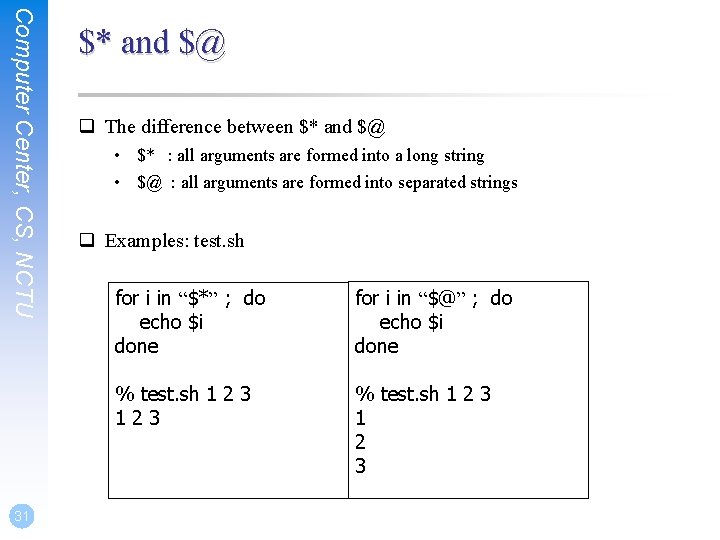
Computer Center, CS, NCTU 31 $* and $@ q The difference between $* and $@ • $* : all arguments are formed into a long string • $@ : all arguments are formed into separated strings q Examples: test. sh for i in “$*” ; do echo $i done for i in “$@” ; do echo $i done % test. sh 1 2 3 123 % test. sh 1 2 3
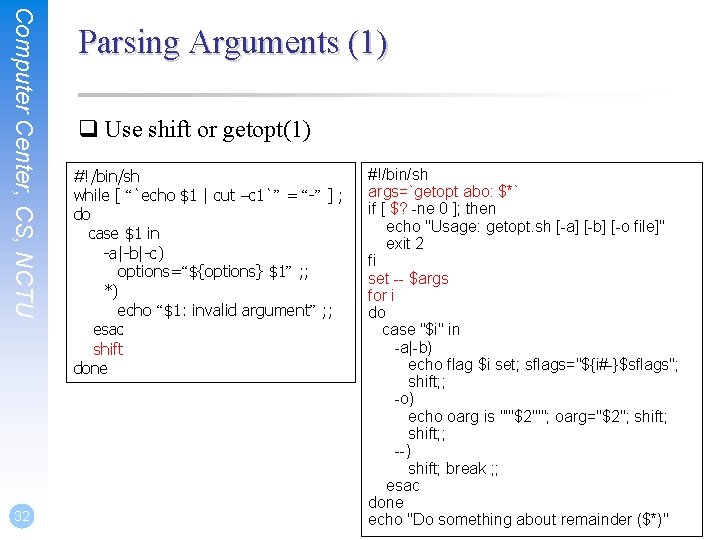
Computer Center, CS, NCTU 32 Parsing Arguments (1) q Use shift or getopt(1) #!/bin/sh while [ “`echo $1 | cut –c 1`” = “-” ] ; do case $1 in -a|-b|-c) options=“${options} $1” ; ; *) echo “$1: invalid argument” ; ; esac shift done #!/bin/sh args=`getopt abo: $*` if [ $? -ne 0 ]; then echo "Usage: getopt. sh [-a] [-b] [-o file]" exit 2 fi set -- $args for i do case "$i" in -a|-b) echo flag $i set; sflags="${i#-}$sflags"; shift; ; -o) echo oarg is "'"$2"'"; oarg="$2"; shift; ; --) shift; break ; ; esac done echo "Do something about remainder ($*)"
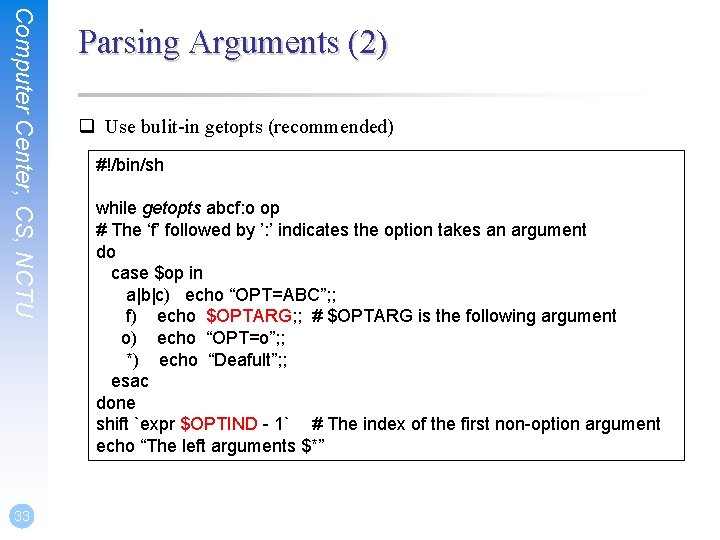
Computer Center, CS, NCTU 33 Parsing Arguments (2) q Use bulit-in getopts (recommended) #!/bin/sh while getopts abcf: o op # The ‘f’ followed by ’: ’ indicates the option takes an argument do case $op in a|b|c) echo “OPT=ABC”; ; f) echo $OPTARG; ; # $OPTARG is the following argument o) echo “OPT=o”; ; *) echo “Deafult”; ; esac done shift `expr $OPTIND - 1` # The index of the first non-option argument echo “The left arguments $*”
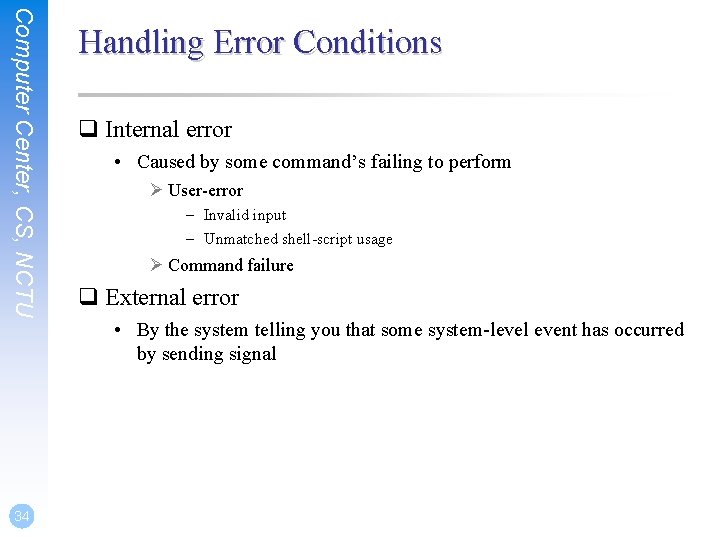
Computer Center, CS, NCTU 34 Handling Error Conditions q Internal error • Caused by some command’s failing to perform Ø User-error – Invalid input – Unmatched shell-script usage Ø Command failure q External error • By the system telling you that some system-level event has occurred by sending signal
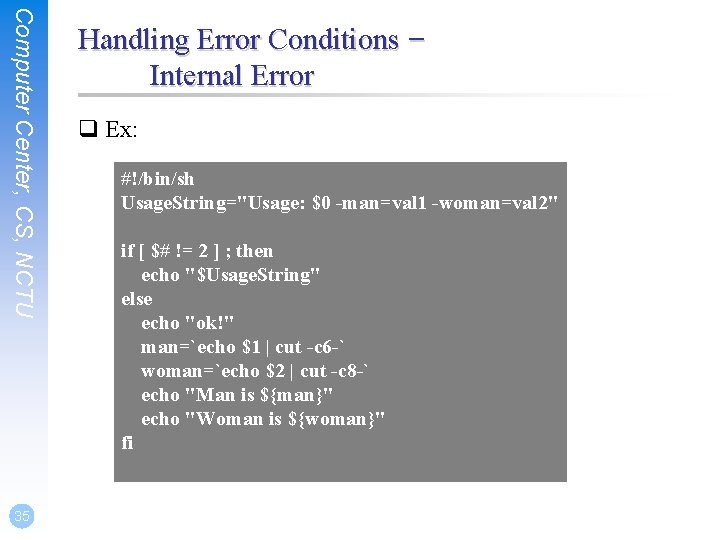
Computer Center, CS, NCTU 35 Handling Error Conditions – Internal Error q Ex: #!/bin/sh Usage. String="Usage: $0 -man=val 1 -woman=val 2" if [ $# != 2 ] ; then echo "$Usage. String" else echo "ok!" man=`echo $1 | cut -c 6 -` woman=`echo $2 | cut -c 8 -` echo "Man is ${man}" echo "Woman is ${woman}" fi
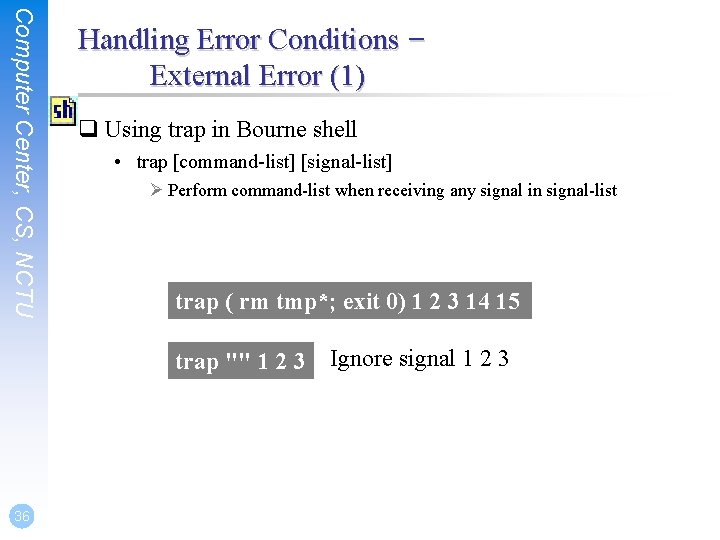
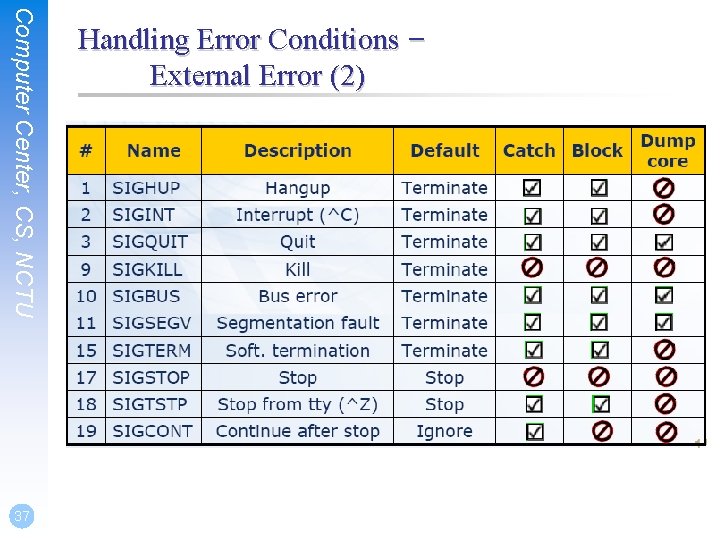
Computer Center, CS, NCTU Handling Error Conditions – External Error (1) q Using trap in Bourne shell • trap [command-list] [signal-list] Ø Perform command-list when receiving any signal in signal-list trap ( rm tmp*; exit 0) 1 2 3 14 15 trap "" 1 2 3 36 Ignore signal 1 2 3
Computer Center, CS, NCTU 37 Handling Error Conditions – External Error (2)
Computer Center, CS, NCTU 38 Debugging Shell Script q. Ex: #!/bin/sh -x var 1="haha" echo "01" ${var 1: +"hehe"} echo "02" ${var 1} echo "03" ${var 2: +"hehe"} echo "04" ${var 2} echo "05" ${var 1: ="hehehe"} echo "06" ${var 1} echo "07" ${var 2: ="hehehe"} echo "08" ${var 2} echo "09" ${var 1: -"he"} echo "10" ${var 1} echo "11" ${var 3: -"he"} echo "12" ${var 3} echo "13" ${var 1: ? "hoho"} echo "14" ${var 1} echo "15" ${var 3: ? "hoho"} echo "16" ${var 3} q. Result: + var 1=haha + echo 01 hehe + echo 02 haha + echo 03 03 + echo 04 04 + echo 05 haha + echo 06 haha + echo 07 hehehe + echo 08 hehehe + echo 09 haha + echo 10 haha + echo 11 he + echo 12 12 + echo 13 haha + echo 14 haha hoho
Shell Script Examples
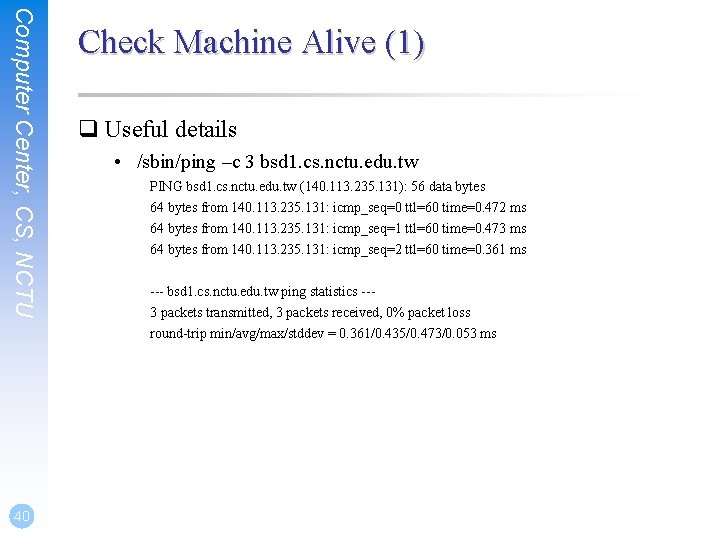
Computer Center, CS, NCTU 40 Check Machine Alive (1) q Useful details • /sbin/ping –c 3 bsd 1. cs. nctu. edu. tw PING bsd 1. cs. nctu. edu. tw (140. 113. 235. 131): 56 data bytes 64 bytes from 140. 113. 235. 131: icmp_seq=0 ttl=60 time=0. 472 ms 64 bytes from 140. 113. 235. 131: icmp_seq=1 ttl=60 time=0. 473 ms 64 bytes from 140. 113. 235. 131: icmp_seq=2 ttl=60 time=0. 361 ms --- bsd 1. cs. nctu. edu. tw ping statistics --3 packets transmitted, 3 packets received, 0% packet loss round-trip min/avg/max/stddev = 0. 361/0. 435/0. 473/0. 053 ms
Computer Center, CS, NCTU Check Machine Alive (2) #!/bin/sh # [Usage] is. Alive. sh ccbsd 1 Usage="[Usage] $0 host" temp="$1. ping" Admin="liuyh" count="20" if [ $# != 1 ] ; then echo $Usage else /sbin/ping -c ${count: =10} $1 | /usr/bin/grep 'transmitted' > $temp Lost=`awk –F" " '{print $7}' $temp | awk –F"%" '{print $1}' ` if [ ${Lost: =0} -ge 50 ] ; then mail –s "$1 failed" $Admin < $temp fi /bin/rm $temp 41 fi
Appendix A: Regular Expression
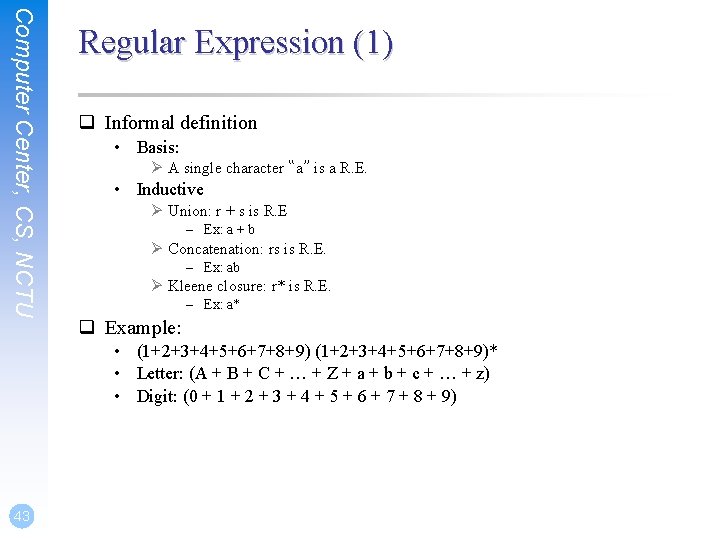
Computer Center, CS, NCTU Regular Expression (1) q Informal definition • Basis: Ø A single character “a” is a R. E. • Inductive Ø Union: r + s is R. E – Ex: a + b Ø Concatenation: rs is R. E. – Ex: ab Ø Kleene closure: r* is R. E. – Ex: a* q Example: • (1+2+3+4+5+6+7+8+9)* • Letter: (A + B + C + … + Z + a + b + c + … + z) • Digit: (0 + 1 + 2 + 3 + 4 + 5 + 6 + 7 + 8 + 9) 43
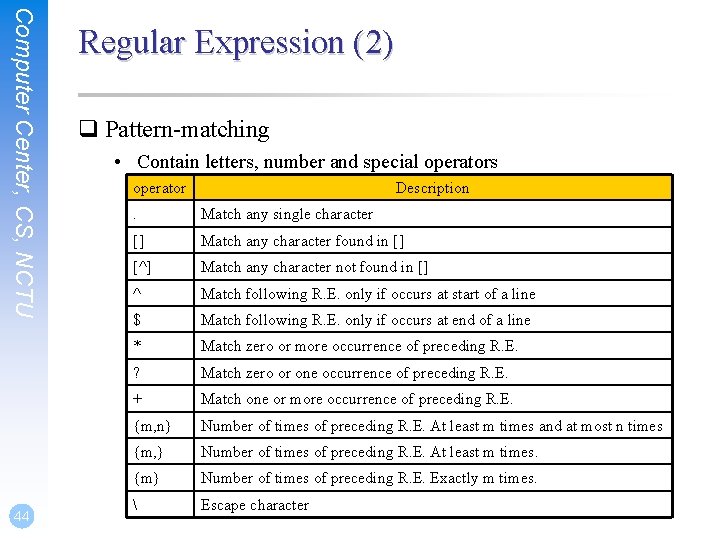
Computer Center, CS, NCTU 44 Regular Expression (2) q Pattern-matching • Contain letters, number and special operators operator Description . Match any single character [] Match any character found in [] [^] Match any character not found in [] ^ Match following R. E. only if occurs at start of a line $ Match following R. E. only if occurs at end of a line * Match zero or more occurrence of preceding R. E. ? Match zero or one occurrence of preceding R. E. + Match one or more occurrence of preceding R. E. {m, n} Number of times of preceding R. E. At least m times and at most n times {m, } Number of times of preceding R. E. At least m times. {m} Number of times of preceding R. E. Exactly m times. Escape character
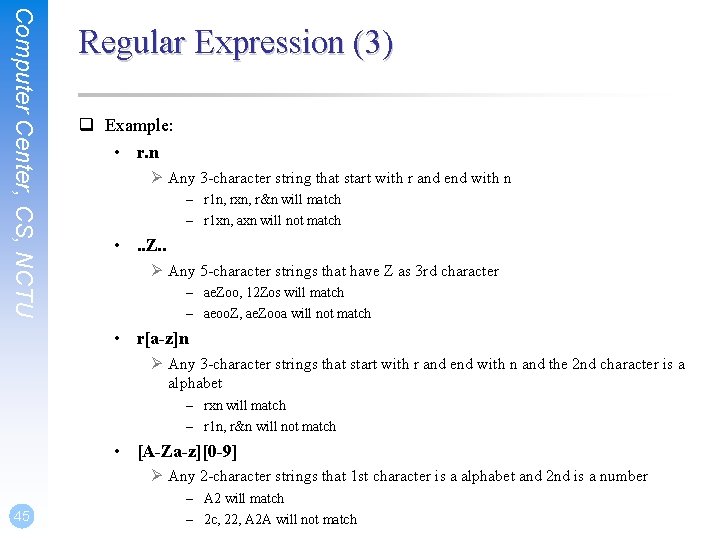
Computer Center, CS, NCTU Regular Expression (3) q Example: • r. n Ø Any 3 -character string that start with r and end with n – r 1 n, rxn, r&n will match – r 1 xn, axn will not match • . . Z. . Ø Any 5 -character strings that have Z as 3 rd character – ae. Zoo, 12 Zos will match – aeoo. Z, ae. Zooa will not match • r[a-z]n Ø Any 3 -character strings that start with r and end with n and the 2 nd character is a alphabet – rxn will match – r 1 n, r&n will not match • [A-Za-z][0 -9] Ø Any 2 -character strings that 1 st character is a alphabet and 2 nd is a number 45 – A 2 will match – 2 c, 22, A 2 A will not match
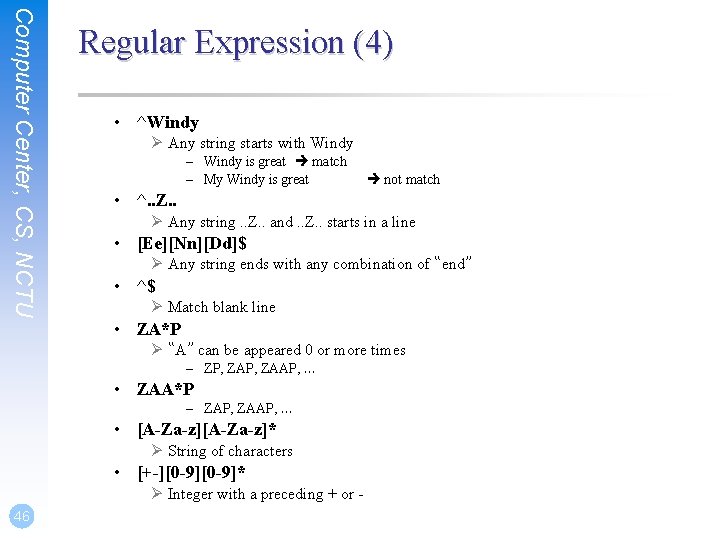
Computer Center, CS, NCTU Regular Expression (4) • ^Windy Ø Any string starts with Windy – Windy is great match – My Windy is great not match • ^. . Z. . Ø Any string. . Z. . and. . Z. . starts in a line • [Ee][Nn][Dd]$ Ø Any string ends with any combination of “end” • ^$ Ø Match blank line • ZA*P Ø “A” can be appeared 0 or more times – ZP, ZAAP, … • ZAA*P – ZAP, ZAAP, … • [A-Za-z]* Ø String of characters • [+-][0 -9]* Ø Integer with a preceding + or 46
Computer Center, CS, NCTU Regular Expression (5) • [+-]{0, 1}[0 -9]* Ø Match any legal integer expression • [+-]{0, 1}[0 -9]*. {0, 1}[0 -9]* Ø Match any real or integer decimal • [A-Z]{2}Z[0 -9]{2} Ø Two capital characters followed by Z followed by two numbers • “Shell Patterns” in sh(1) • “REGULAR EXPRESSIONS” in grep(1) • … 47
Appendix B: sed and awk
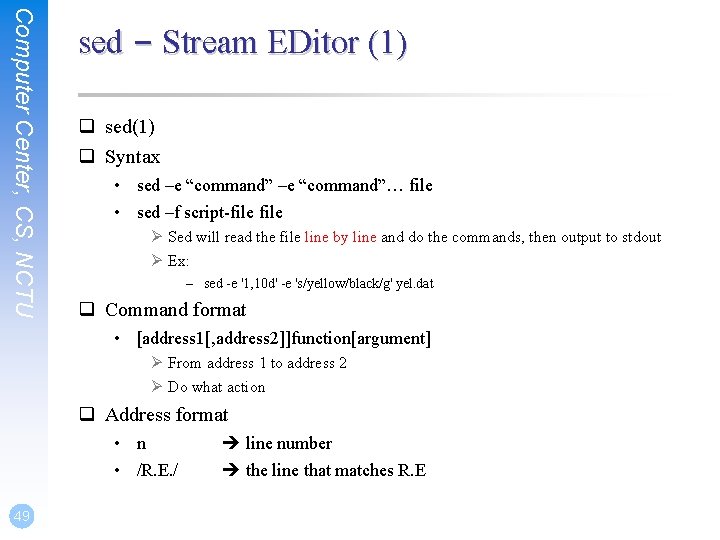
Computer Center, CS, NCTU sed – Stream EDitor (1) q sed(1) q Syntax • sed –e “command”… file • sed –f script-file Ø Sed will read the file line by line and do the commands, then output to stdout Ø Ex: – sed -e '1, 10 d' -e 's/yellow/black/g' yel. dat q Command format • [address 1[, address 2]]function[argument] Ø From address 1 to address 2 Ø Do what action q Address format • n • /R. E. / 49 line number the line that matches R. E
Computer Center, CS, NCTU 50 sed – Stream EDitor (2) • Example of address format Ø sed –e 10 d Ø sed –e /man/d Ø sed –e 10, 100 d Ø sed –e 10, /man/d – Delete line from line 10 to the line contain “man”
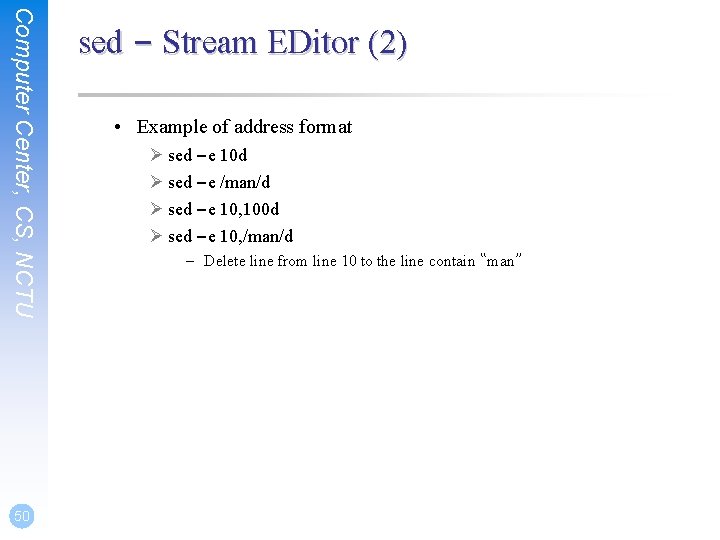
Computer Center, CS, NCTU 51 sed – substitution (1) q substitution • Syntax [address] s/pattern/replace/flags • Flags Ø N: Make the substitution only for the N'th occurrence Ø g: replace all matches Ø p: print the matched and replaced line Ø w: write the matched and replaced line to file
Computer Center, CS, NCTU 52 sed – substitution (2) q Ex: • • • sed –e ‘s/liuyh/LIUYH/2’ file sed –e ‘s/liuyh/LIUYH/g’ file sed –e ‘s/liuyh/LIUYH/p’ file sed –n –e ‘s/liuyh/LIUYH/p’ file sed –e ‘s/liuyh/LIUYH/w wfile’ file sed –i. bak –e ‘s/liuyh/LIUYH/g’ file File Content: I am jon I am john I am liuyh I am nothing
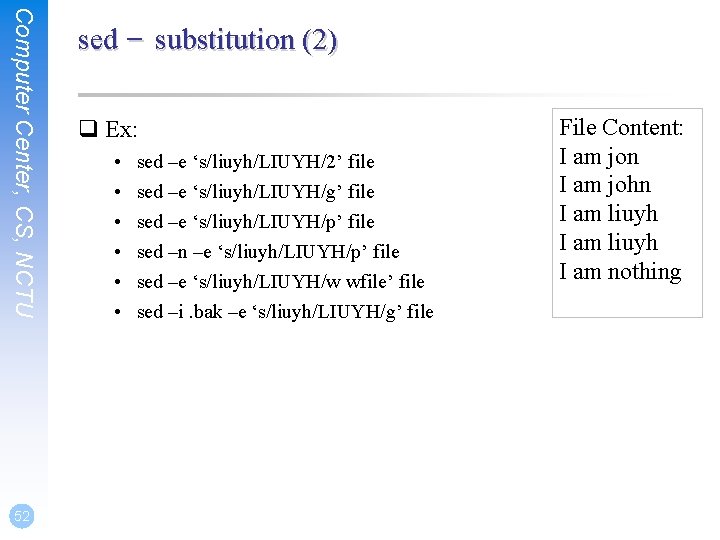
Computer Center, CS, NCTU 53 sed – delete q delete • Syntax: [address]d q Ex: • • sed –e 10 d sed –e /man/d sed –e 10, 100 d sed –e 10, /man/d
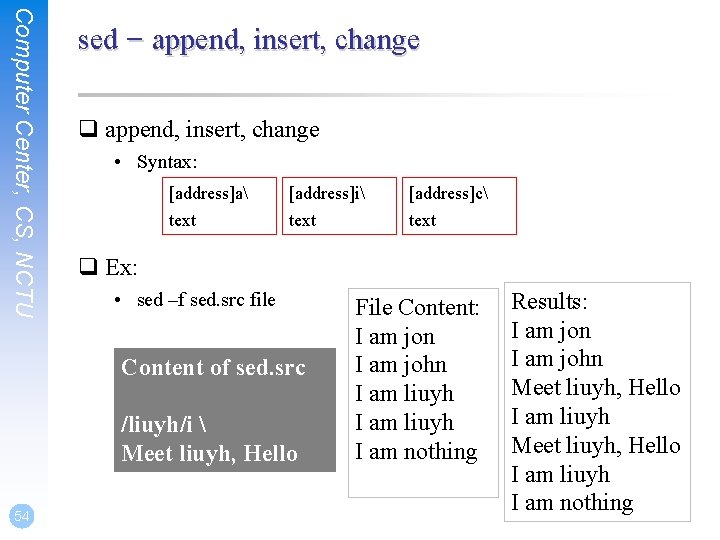
Computer Center, CS, NCTU sed – append, insert, change q append, insert, change • Syntax: [address]a [address]i [address]c text q Ex: • sed –f sed. src file Content of sed. src /liuyh/i Meet liuyh, Hello 54 File Content: I am jon I am john I am liuyh I am nothing Results: I am jon I am john Meet liuyh, Hello I am liuyh I am nothing
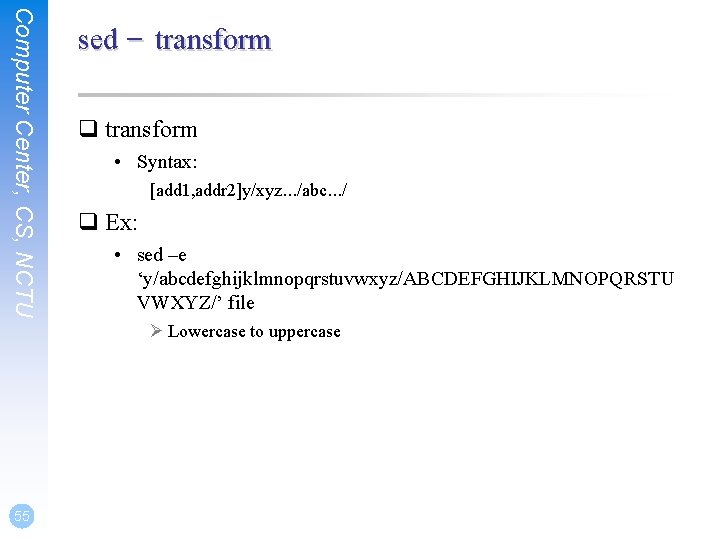
Computer Center, CS, NCTU sed – transform q transform • Syntax: [add 1, addr 2]y/xyz…/abc…/ q Ex: • sed –e ‘y/abcdefghijklmnopqrstuvwxyz/ABCDEFGHIJKLMNOPQRSTU VWXYZ/’ file Ø Lowercase to uppercase 55
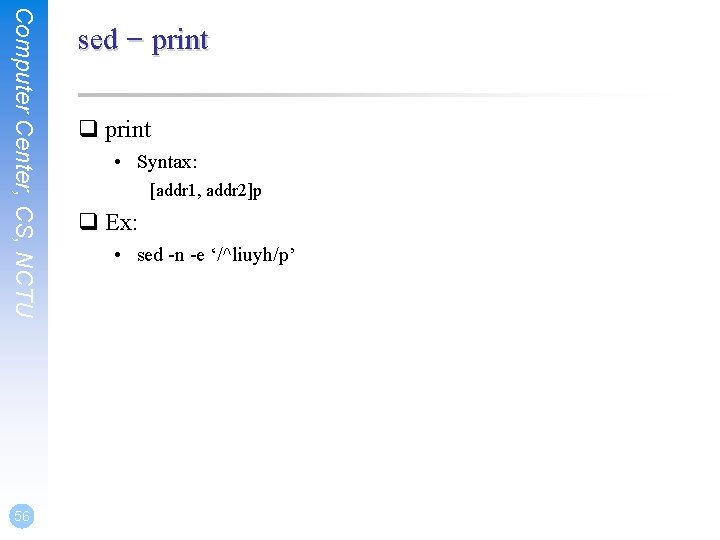
Computer Center, CS, NCTU 56 sed – print q print • Syntax: [addr 1, addr 2]p q Ex: • sed -n -e ‘/^liuyh/p’
Computer Center, CS, NCTU awk q awk(1) q Syntax • awk [-F fs] [ ‘awk_program’ | -f program_file] [data_file ……] Ø awk will read the file line by line and evaluate the pattern, then do the action if the test is true Ø Ex: – awk ‘{print “Hello World”}’ file – awk ‘/MA/ {print $1}’ list q Program structure • pattern 1 {action 1} pattern 2 {action 2} …… 57 Amy 32 0800995995 nctu. csie $4 $3 $1 $2
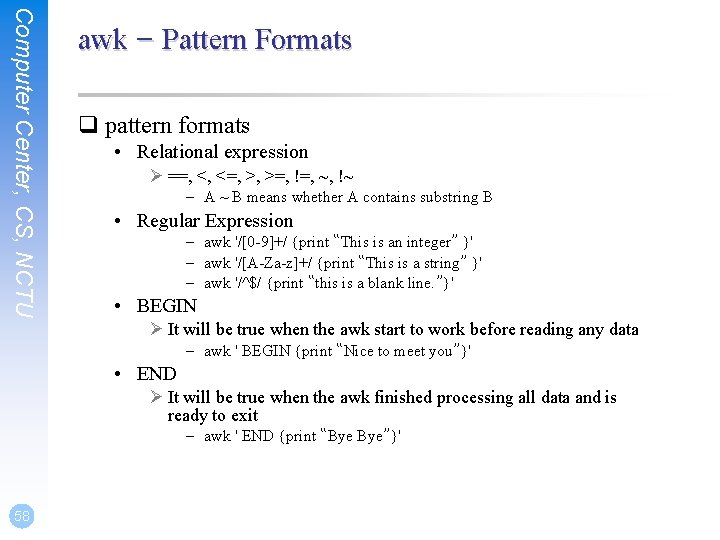
Computer Center, CS, NCTU awk – Pattern Formats q pattern formats • Relational expression Ø ==, <, <=, >, >=, !=, ~, !~ – A ~ B means whether A contains substring B • Regular Expression – awk '/[0 -9]+/ {print “This is an integer” }' – awk '/[A-Za-z]+/ {print “This is a string” }' – awk '/^$/ {print “this is a blank line. ”}' • BEGIN Ø It will be true when the awk start to work before reading any data – awk ' BEGIN {print “Nice to meet you”}' • END Ø It will be true when the awk finished processing all data and is ready to exit – awk ' END {print “Bye Bye”}' 58
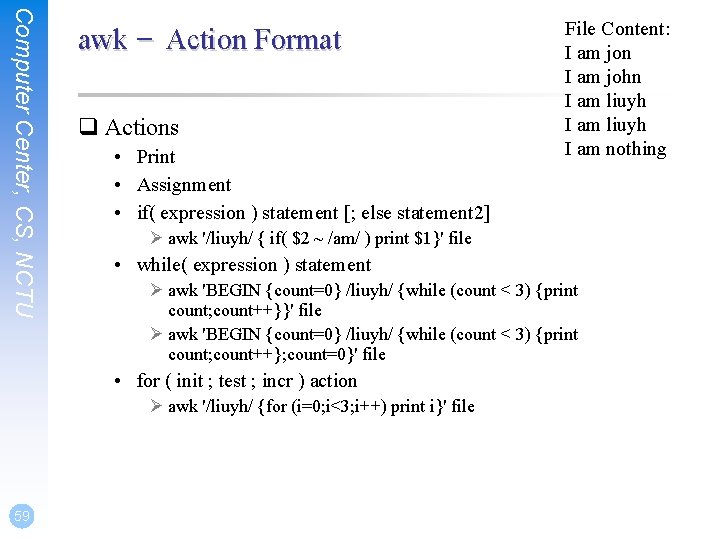
Computer Center, CS, NCTU awk – Action Format q Actions • Print • Assignment • if( expression ) statement [; else statement 2] Ø awk '/liuyh/ { if( $2 ~ /am/ ) print $1}' file • while( expression ) statement Ø awk 'BEGIN {count=0} /liuyh/ {while (count < 3) {print count; count++}}' file Ø awk 'BEGIN {count=0} /liuyh/ {while (count < 3) {print count; count++}; count=0}' file • for ( init ; test ; incr ) action Ø awk '/liuyh/ {for (i=0; i<3; i++) print i}' file 59 File Content: I am jon I am john I am liuyh I am nothing
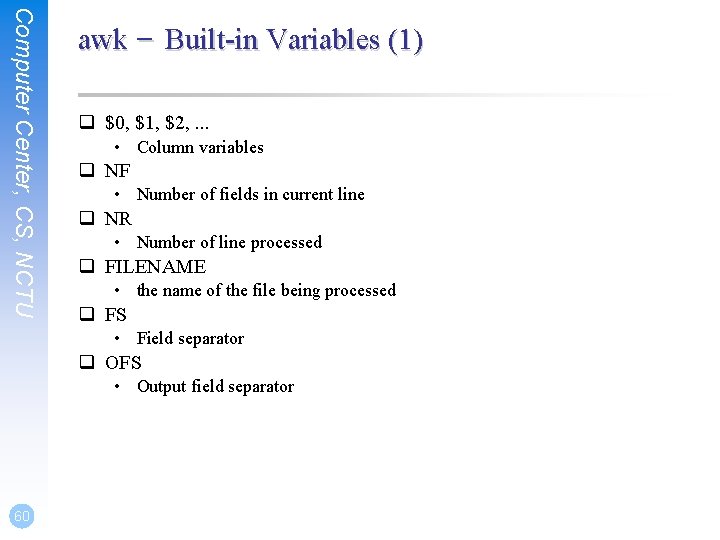
Computer Center, CS, NCTU awk – Built-in Variables (1) q $0, $1, $2, . . . • Column variables q NF • Number of fields in current line q NR • Number of line processed q FILENAME • the name of the file being processed q FS • Field separator q OFS • Output field separator 60
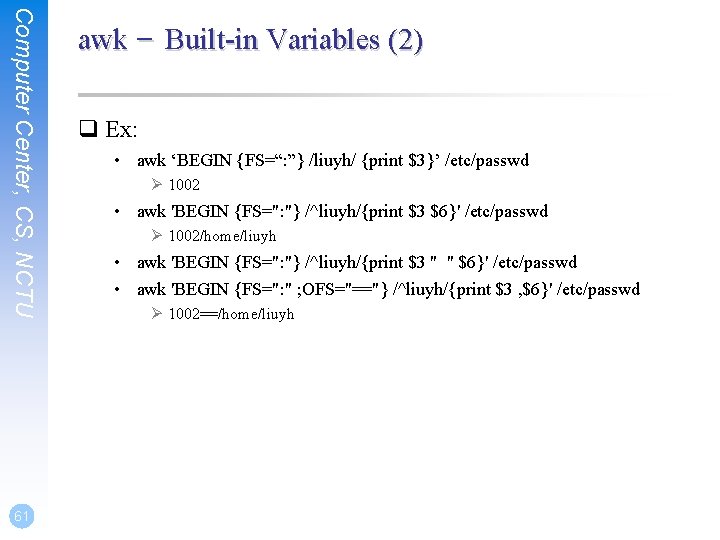
Computer Center, CS, NCTU 61 awk – Built-in Variables (2) q Ex: • awk ‘BEGIN {FS=“: ”} /liuyh/ {print $3}’ /etc/passwd Ø 1002 • awk 'BEGIN {FS=": "} /^liuyh/{print $3 $6}' /etc/passwd Ø 1002/home/liuyh • awk 'BEGIN {FS=": "} /^liuyh/{print $3 " " $6}' /etc/passwd • awk 'BEGIN {FS=": " ; OFS="=="} /^liuyh/{print $3 , $6}' /etc/passwd Ø 1002==/home/liuyh
Computer Center, CS, NCTU 62 awk – Reference q awk(1) is a powerful utility q Let us man awk q AWK Tutorial Guide • http: //lmgtfy. com/? q=awk+tutorial+guide