
Shell Scripting for Beginners Jeremy Mills School of

Shell Scripting for Beginners Jeremy Mills School of Molecular Sciences and The Biodesign Institute
What is a shell script and why do I care? Why do I care about shell scripts? • If you’re at these workshops, you’re going to be using some sort of *NIX operating system. • Shell scripts can massively simplify a lot of complex actions you’d normally spend time typing and re-typing. • Examples: Parsing large (numbers of) files, moving many files around dynamically, renaming many files, changing a specific thing within many files etc.
What is a shell script and why do I care? I’m convinced, so what are these things? Okay, • Basically a series of commands you already know or will know soon strung together in a file. • Think of it as printing out your history and committing everything you just did into a file that can be run again and again. • (with some modifications to make those actions more general)
Are there resources I can use? Certainly… All of these are pdfs…
Are there resources I can use? However, there’s no substitute for just trying to use shell scripts all the time when getting started. When really in trouble, Google is your friend. Be very specific in your search (difficult at first) and someone will have snarkily answered your question on stackoverflow. com

Useful scripting commands *I’ll be using the Bourne Again Shell (bash), but the examples will work in others as well (ksh, zsh). The majority of your scripts will contain relatively few total commands, you’ll just string them together in useful ways. Please check out Melissa’s terrific Unix notes file for more explanation on these things.
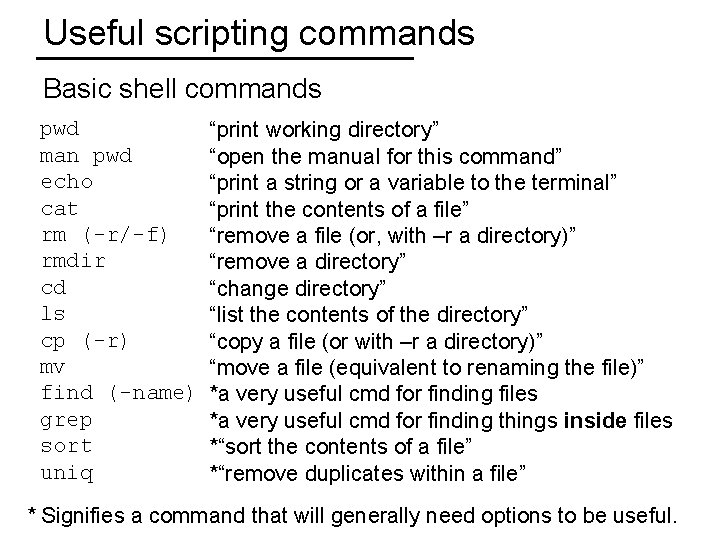
Useful scripting commands Basic shell commands pwd man pwd echo cat rm (-r/-f) rmdir cd ls cp (-r) mv find (-name) grep sort uniq “print working directory” “open the manual for this command” “print a string or a variable to the terminal” “print the contents of a file” “remove a file (or, with –r a directory)” “remove a directory” “change directory” “list the contents of the directory” “copy a file (or with –r a directory)” “move a file (equivalent to renaming the file)” *a very useful cmd for finding files *a very useful cmd for finding things inside files *“sort the contents of a file” *“remove duplicates within a file” * Signifies a command that will generally need options to be useful.
Scripting examples: Example 1: Writing a first shell script. As mentioned above, shell scripts are commands that are run from within a file. To generate these files correctly, one needs to use a text editor, but *NIX systems have many to choose from… e. g. vim, emacs, pico, nano And others that aren’t free, but may have better properties for a particular developer. e. g. sublime, atom
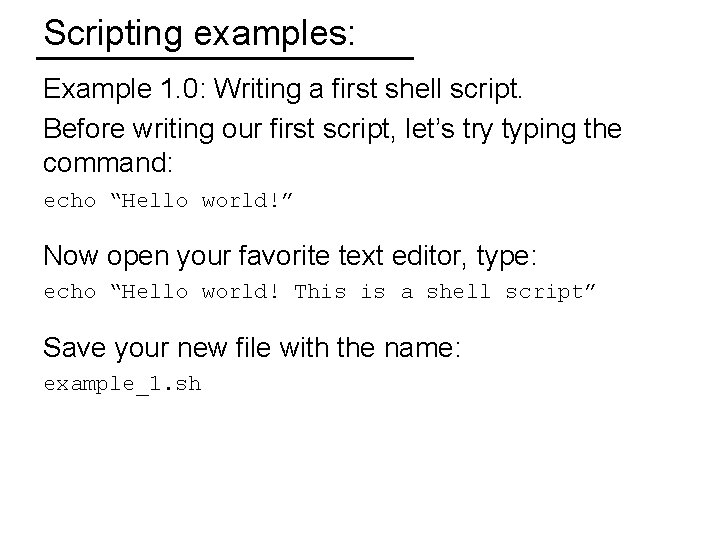
Scripting examples: Example 1. 0: Writing a first shell script. Before writing our first script, let’s try typing the command: echo “Hello world!” Now open your favorite text editor, type: echo “Hello world! This is a shell script” Save your new file with the name: example_1. sh
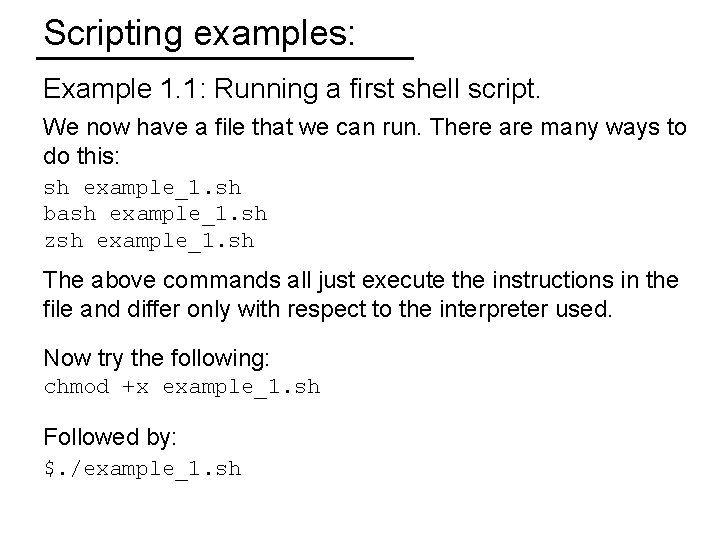
Scripting examples: Example 1. 1: Running a first shell script. We now have a file that we can run. There are many ways to do this: sh example_1. sh bash example_1. sh zsh example_1. sh The above commands all just execute the instructions in the file and differ only with respect to the interpreter used. Now try the following: chmod +x example_1. sh Followed by: $. /example_1. sh
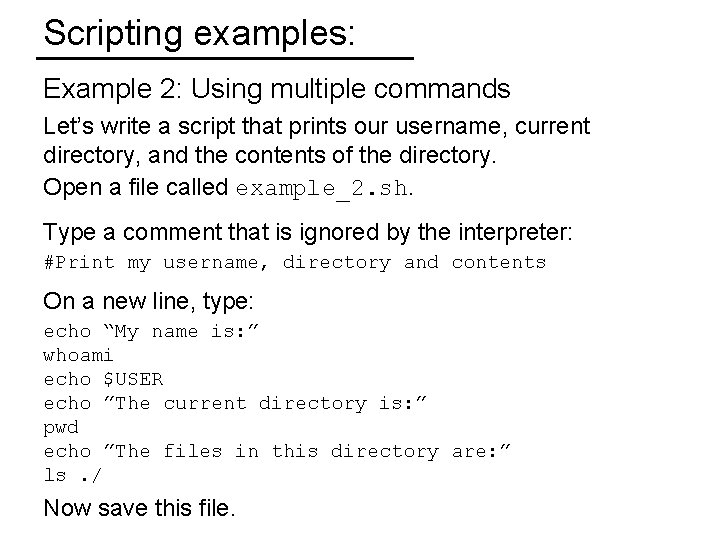
Scripting examples: Example 2: Using multiple commands Let’s write a script that prints our username, current directory, and the contents of the directory. Open a file called example_2. sh. Type a comment that is ignored by the interpreter: #Print my username, directory and contents On a new line, type: echo “My name is: ” whoami echo $USER echo ”The current directory is: ” pwd echo ”The files in this directory are: ” ls. / Now save this file.
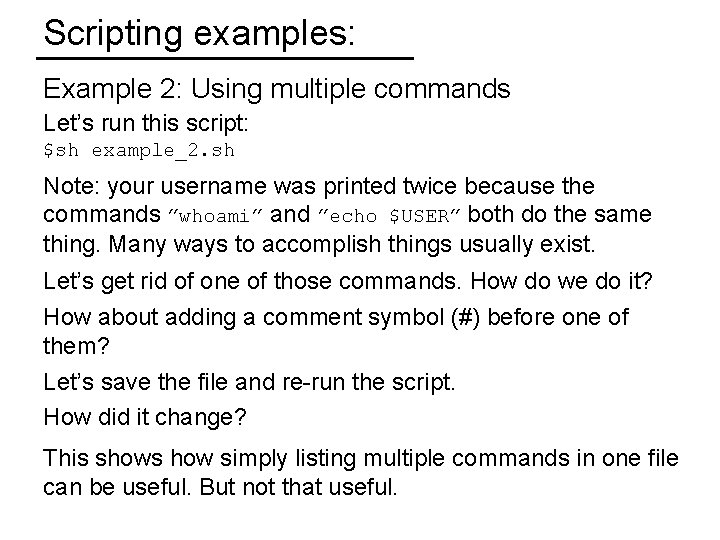
Scripting examples: Example 2: Using multiple commands Let’s run this script: $sh example_2. sh Note: your username was printed twice because the commands ”whoami” and ”echo $USER” both do the same thing. Many ways to accomplish things usually exist. Let’s get rid of one of those commands. How do we do it? How about adding a comment symbol (#) before one of them? Let’s save the file and re-run the script. How did it change? This shows how simply listing multiple commands in one file can be useful. But not that useful.
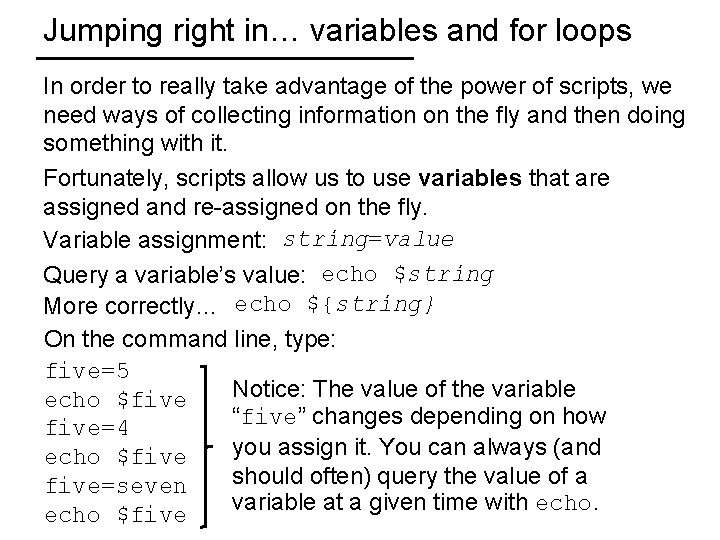
Jumping right in… variables and for loops In order to really take advantage of the power of scripts, we need ways of collecting information on the fly and then doing something with it. Fortunately, scripts allow us to use variables that are assigned and re-assigned on the fly. Variable assignment: string=value Query a variable’s value: echo $string More correctly… echo ${string} On the command line, type: five=5 Notice: The value of the variable echo $five “five” changes depending on how five=4 you assign it. You can always (and echo $five should often) query the value of a five=seven variable at a given time with echo $five
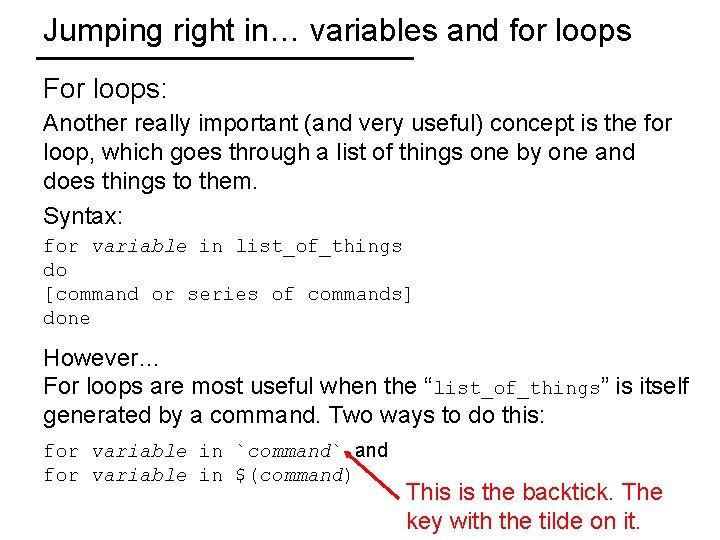
Jumping right in… variables and for loops For loops: Another really important (and very useful) concept is the for loop, which goes through a list of things one by one and does things to them. Syntax: for variable in list_of_things do [command or series of commands] done However… For loops are most useful when the “list_of_things” is itself generated by a command. Two ways to do this: for variable in `command` and for variable in $(command) This is the backtick. The key with the tilde on it.
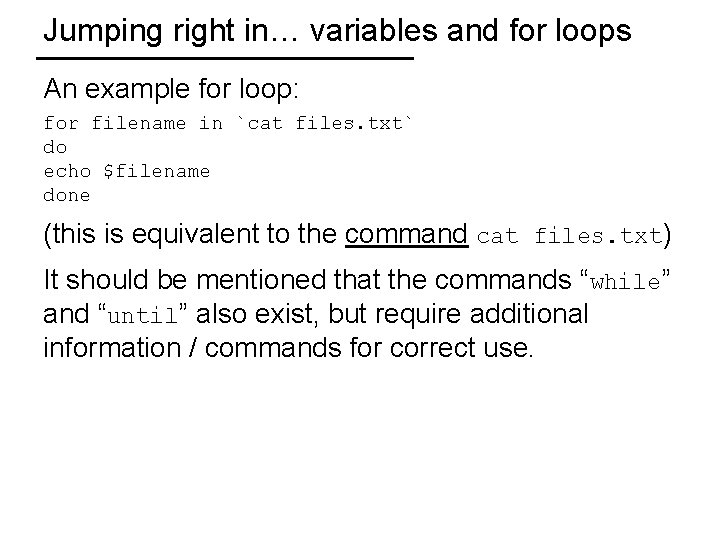
Jumping right in… variables and for loops An example for loop: for filename in `cat files. txt` do echo $filename done (this is equivalent to the command cat files. txt) It should be mentioned that the commands “while” and “until” also exist, but require additional information / commands for correct use.
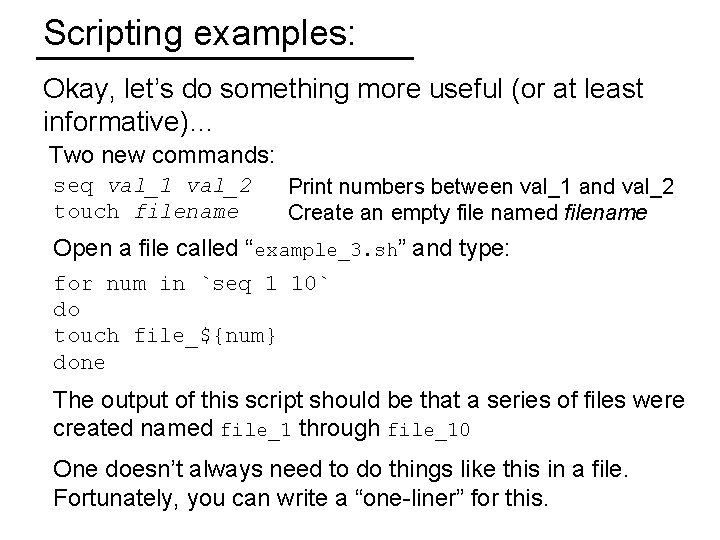
Scripting examples: Okay, let’s do something more useful (or at least informative)… Two new commands: seq val_1 val_2 touch filename Print numbers between val_1 and val_2 Create an empty file named filename Open a file called “example_3. sh” and type: for num in `seq 1 10` do touch file_${num} done The output of this script should be that a series of files were created named file_1 through file_10 One doesn’t always need to do things like this in a file. Fortunately, you can write a “one-liner” for this.
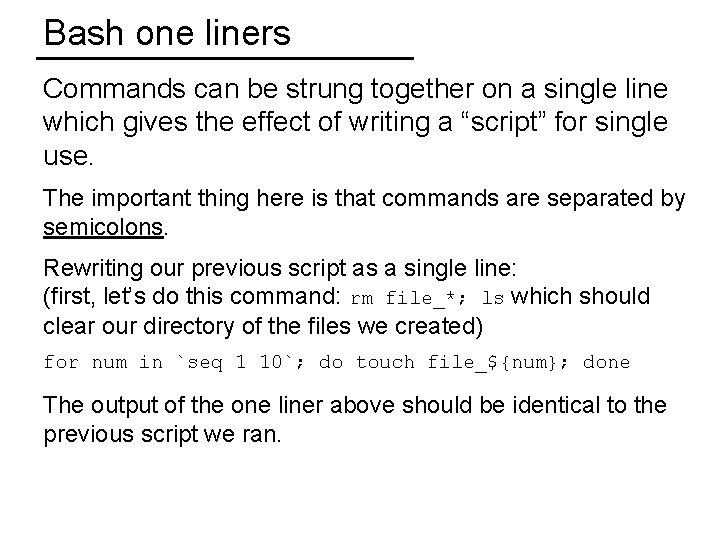
Bash one liners Commands can be strung together on a single line which gives the effect of writing a “script” for single use. The important thing here is that commands are separated by semicolons. Rewriting our previous script as a single line: (first, let’s do this command: rm file_*; ls which should clear our directory of the files we created) for num in `seq 1 10`; do touch file_${num}; done The output of the one liner above should be identical to the previous script we ran.
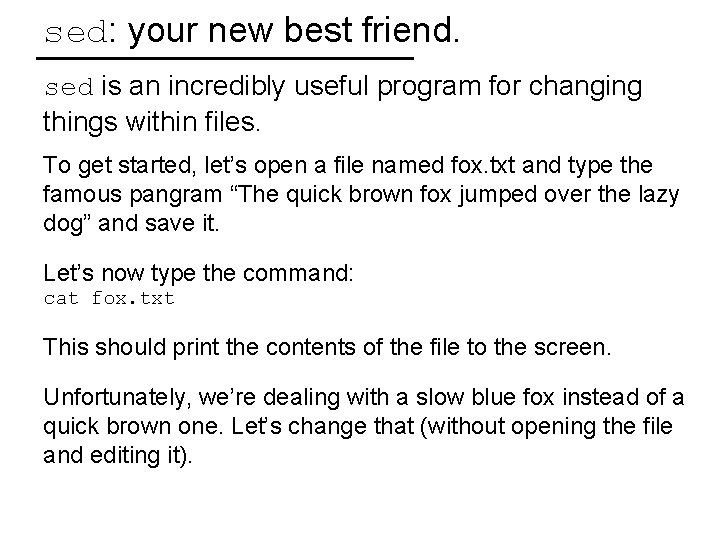
sed: your new best friend. sed is an incredibly useful program for changing things within files. To get started, let’s open a file named fox. txt and type the famous pangram “The quick brown fox jumped over the lazy dog” and save it. Let’s now type the command: cat fox. txt This should print the contents of the file to the screen. Unfortunately, we’re dealing with a slow blue fox instead of a quick brown one. Let’s change that (without opening the file and editing it).
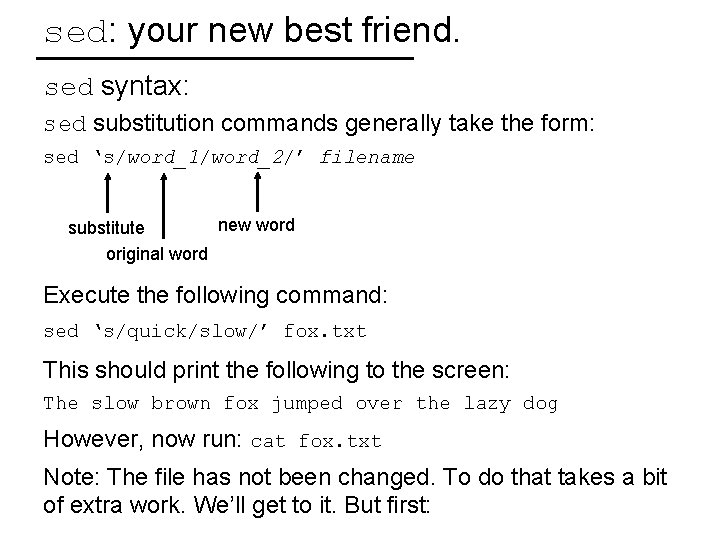
sed: your new best friend. sed syntax: sed substitution commands generally take the form: sed ‘s/word_1/word_2/’ filename new word substitute original word Execute the following command: sed ‘s/quick/slow/’ fox. txt This should print the following to the screen: The slow brown fox jumped over the lazy dog However, now run: cat fox. txt Note: The file has not been changed. To do that takes a bit of extra work. We’ll get to it. But first:
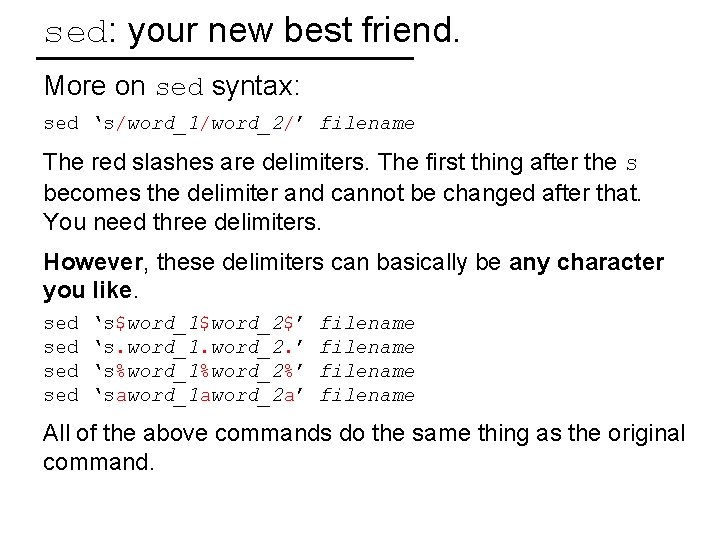
sed: your new best friend. More on sed syntax: sed ‘s/word_1/word_2/’ filename The red slashes are delimiters. The first thing after the s becomes the delimiter and cannot be changed after that. You need three delimiters. However, these delimiters can basically be any character you like. sed sed ‘s$word_1$word_2$’ ‘s. word_1. word_2. ’ ‘s%word_1%word_2%’ ‘saword_1 aword_2 a’ filename All of the above commands do the same thing as the original command.

sed: your new best friend. More on sed syntax: sed ‘s/word_1/word_2/’ filename Why is the forward slash a common convention? Quite likely because it’s easy to see. That’s also why you wouldn’t likely use a letter as a delimiter, even though you could. When should we consider using another delimiter? Generally important when changing things in full paths which contain many “/” characters.
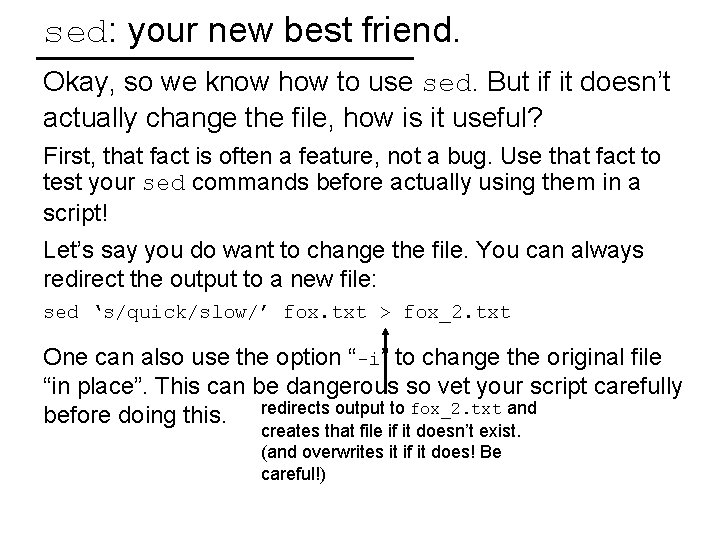
sed: your new best friend. Okay, so we know how to use sed. But if it doesn’t actually change the file, how is it useful? First, that fact is often a feature, not a bug. Use that fact to test your sed commands before actually using them in a script! Let’s say you do want to change the file. You can always redirect the output to a new file: sed ‘s/quick/slow/’ fox. txt > fox_2. txt One can also use the option “-i” to change the original file “in place”. This can be dangerous so vet your script carefully before doing this. redirects output to fox_2. txt and creates that file if it doesn’t exist. (and overwrites it if it does! Be careful!)
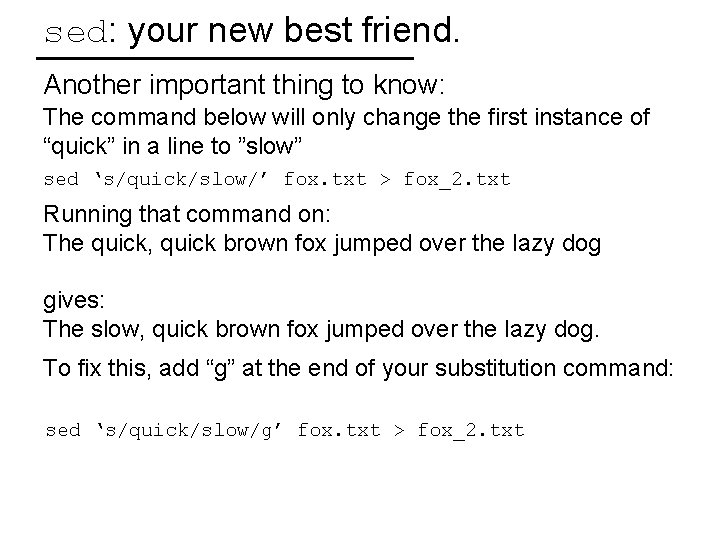
sed: your new best friend. Another important thing to know: The command below will only change the first instance of “quick” in a line to ”slow” sed ‘s/quick/slow/’ fox. txt > fox_2. txt Running that command on: The quick, quick brown fox jumped over the lazy dog gives: The slow, quick brown fox jumped over the lazy dog. To fix this, add “g” at the end of your substitution command: sed ‘s/quick/slow/g’ fox. txt > fox_2. txt
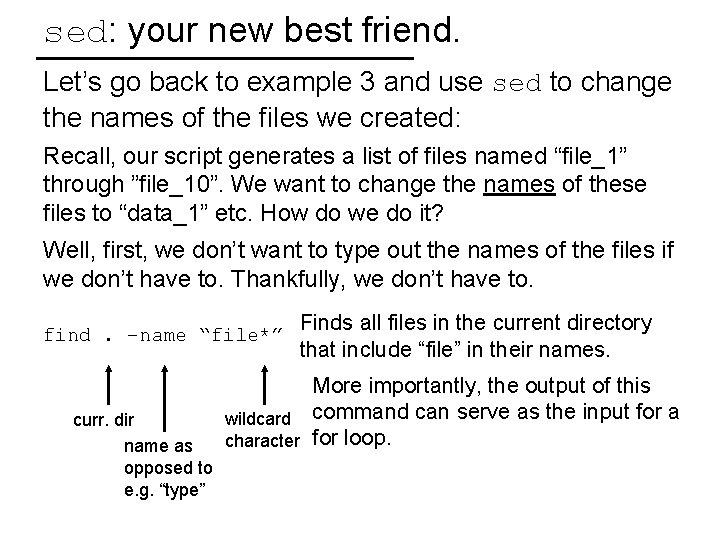
sed: your new best friend. Let’s go back to example 3 and use sed to change the names of the files we created: Recall, our script generates a list of files named “file_1” through ”file_10”. We want to change the names of these files to “data_1” etc. How do we do it? Well, first, we don’t want to type out the names of the files if we don’t have to. Thankfully, we don’t have to. find. –name “file*” curr. dir name as opposed to e. g. “type” Finds all files in the current directory that include “file” in their names. More importantly, the output of this wildcard command can serve as the input for a character for loop.
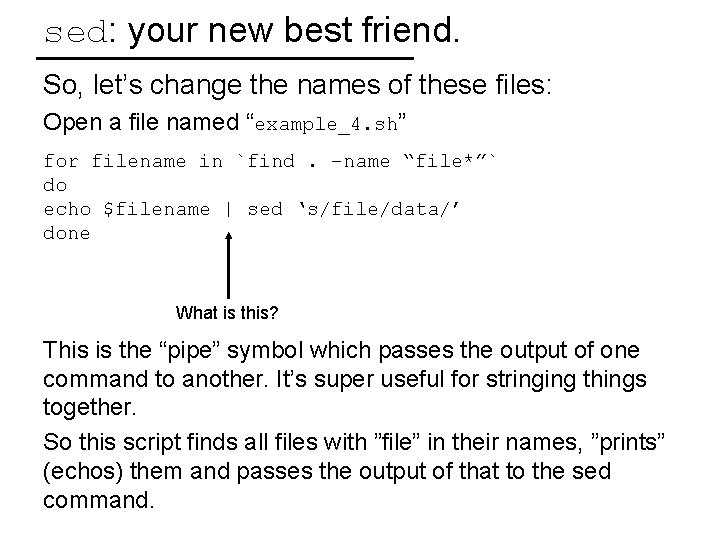
sed: your new best friend. So, let’s change the names of these files: Open a file named “example_4. sh” for filename in `find. –name “file*”` do echo $filename | sed ‘s/file/data/’ done What is this? This is the “pipe” symbol which passes the output of one command to another. It’s super useful for stringing things together. So this script finds all files with ”file” in their names, ”prints” (echos) them and passes the output of that to the sed command.
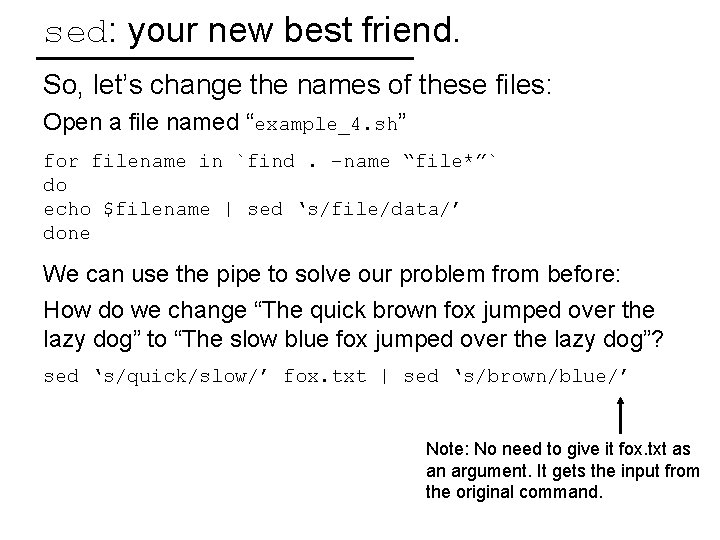
sed: your new best friend. So, let’s change the names of these files: Open a file named “example_4. sh” for filename in `find. –name “file*”` do echo $filename | sed ‘s/file/data/’ done We can use the pipe to solve our problem from before: How do we change “The quick brown fox jumped over the lazy dog” to “The slow blue fox jumped over the lazy dog”? sed ‘s/quick/slow/’ fox. txt | sed ‘s/brown/blue/’ Note: No need to give it fox. txt as an argument. It gets the input from the original command.
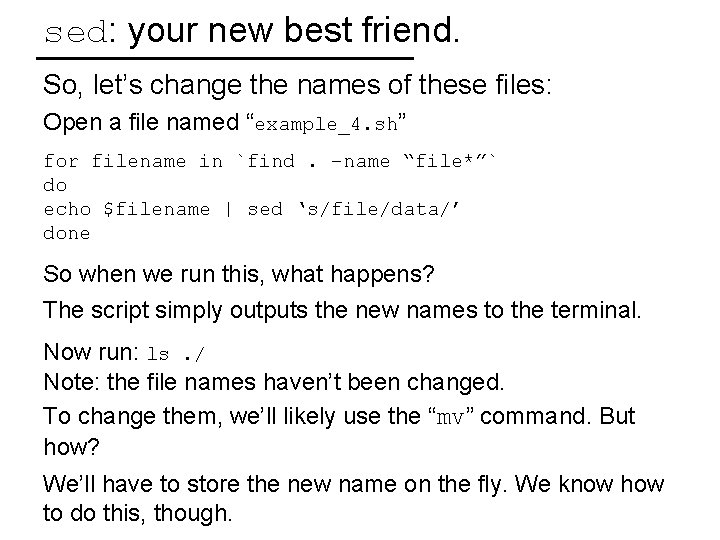
sed: your new best friend. So, let’s change the names of these files: Open a file named “example_4. sh” for filename in `find. –name “file*”` do echo $filename | sed ‘s/file/data/’ done So when we run this, what happens? The script simply outputs the new names to the terminal. Now run: ls. / Note: the file names haven’t been changed. To change them, we’ll likely use the “mv” command. But how? We’ll have to store the new name on the fly. We know how to do this, though.

sed: your new best friend. Let’s change the contents of example_4. sh: for filename in `find. –name “file*”` do newname=`echo $filename | sed ‘s/file/data/’` mv $filename $newname done What have we done here? We create a new variable, “$newname” that has as its value the output of the sed command. We can then move the value of the variable $filename to the value of the variable $newname. Note also the utility of the loop. The value of the $newname variable is maintained only until you iterate again at which time it’s replaced with a new value.
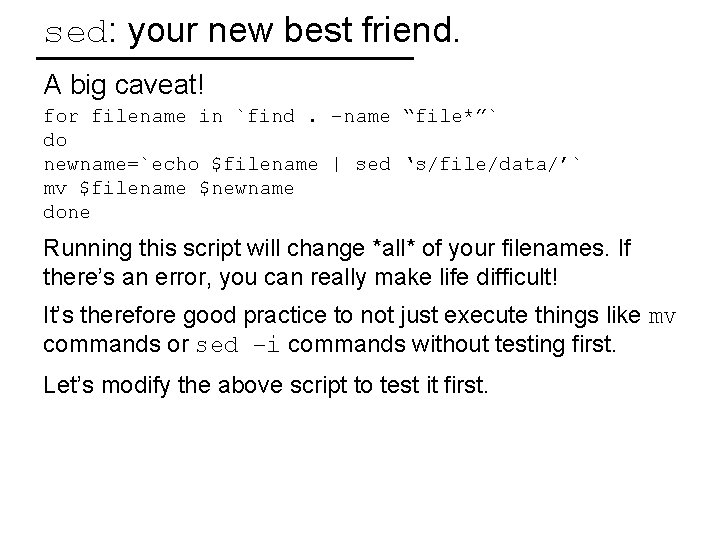
sed: your new best friend. A big caveat! for filename in `find. –name “file*”` do newname=`echo $filename | sed ‘s/file/data/’` mv $filename $newname done Running this script will change *all* of your filenames. If there’s an error, you can really make life difficult! It’s therefore good practice to not just execute things like mv commands or sed –i commands without testing first. Let’s modify the above script to test it first.
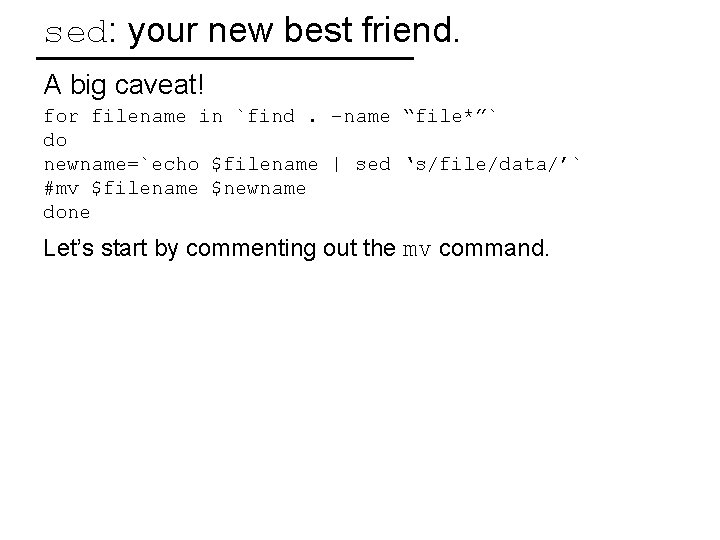
sed: your new best friend. A big caveat! for filename in `find. –name “file*”` do newname=`echo $filename | sed ‘s/file/data/’` #mv $filename $newname done Let’s start by commenting out the mv command.
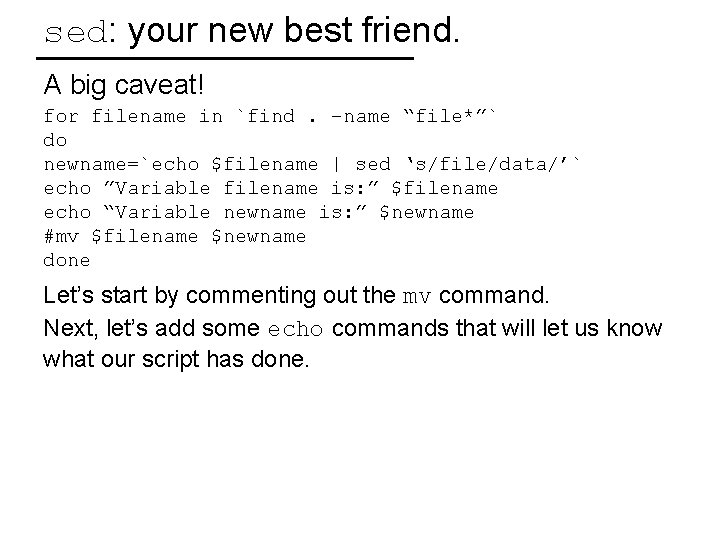
sed: your new best friend. A big caveat! for filename in `find. –name “file*”` do newname=`echo $filename | sed ‘s/file/data/’` echo ”Variable filename is: ” $filename echo “Variable newname is: ” $newname #mv $filename $newname done Let’s start by commenting out the mv command. Next, let’s add some echo commands that will let us know what our script has done.
![Another way to parse file names: A new command: cut –d_ -f[0 -9] string](http://slidetodoc.com/presentation_image_h2/da0a199e16c11fdbe0a1ec09555d2b71/image-32.jpg "Another way to parse file names: A new command: cut –d_ -f[0 -9] string")
Another way to parse file names: A new command: cut –d_ -f[0 -9] string Cuts a string into pieces delimiter e. g / _. etc… The field of interest We have a bunch of. pdb files in a directory called “data”. Their names are too long for our liking. Can we use the cut command variables to remove the redundant portion of the file name? e. g. can we change bpy_8_C 3_0010_0001. pdb to bpy_8_0001. pdb for all. pdb files? Yep.
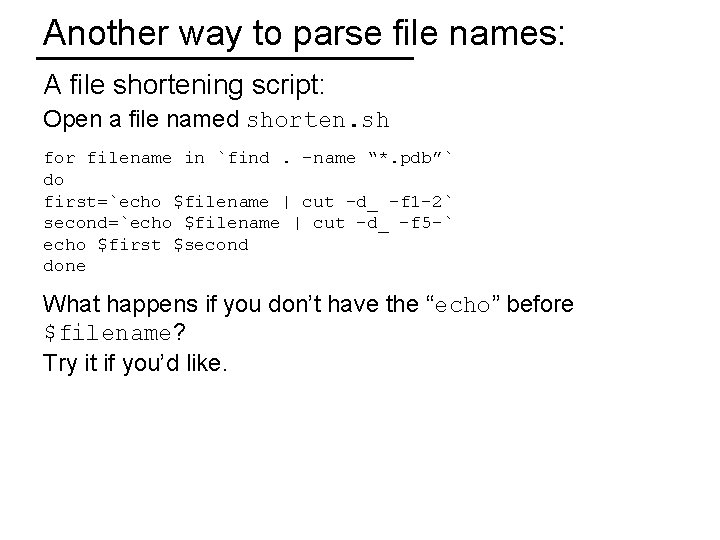
Another way to parse file names: A file shortening script: Open a file named shorten. sh for filename in `find. –name “*. pdb”` do first=`echo $filename | cut –d_ -f 1 -2` second=`echo $filename | cut –d_ -f 5 -` echo $first $second done What happens if you don’t have the “echo” before $filename? Try it if you’d like.
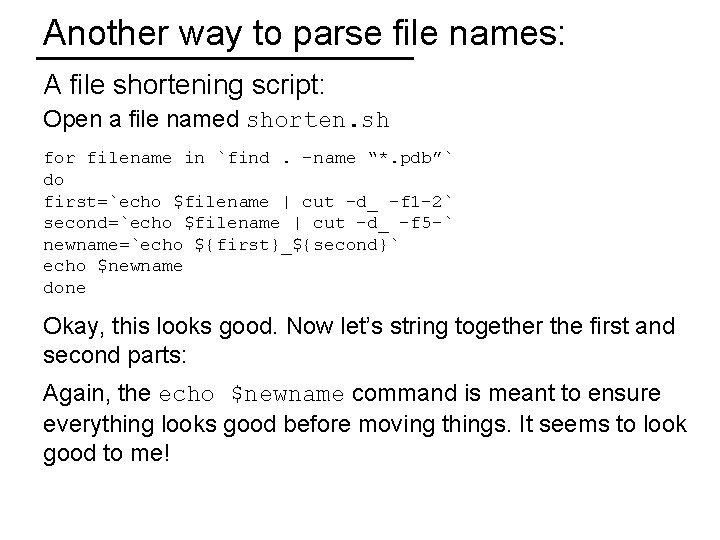
Another way to parse file names: A file shortening script: Open a file named shorten. sh for filename in `find. –name “*. pdb”` do first=`echo $filename | cut –d_ -f 1 -2` second=`echo $filename | cut –d_ -f 5 -` newname=`echo ${first}_${second}` echo $newname done Okay, this looks good. Now let’s string together the first and second parts: Again, the echo $newname command is meant to ensure everything looks good before moving things. It seems to look good to me!

Another way to parse file names: A file shortening script: Open a file named shorten. sh for filename in `find. –name “*. pdb”` do first=`echo $filename | cut –d_ -f 1 -2` second=`echo $filename | cut –d_ -f 5 -` newname=`echo ${first}_${second}` mv $filename $newname done I have replaced the “echo $newname” command with the mv command from above. This script will completely replace the filenames in the directory that fit the find criteria, but not change the contents of the files themselves.
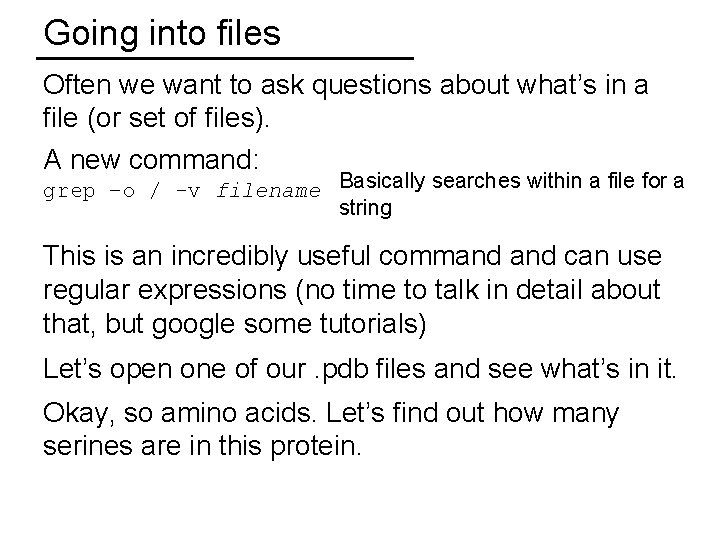
Going into files Often we want to ask questions about what’s in a file (or set of files). A new command: grep –o / -v filename Basically searches within a file for a string This is an incredibly useful command can use regular expressions (no time to talk in detail about that, but google some tutorials) Let’s open one of our. pdb files and see what’s in it. Okay, so amino acids. Let’s find out how many serines are in this protein.

Going into files Let’s try to grep for the string “SER” (case sensitive) grep SER bpy_8_0001. pdb Okay, it worked, but gave us way more than we wanted. What you’re grepping for can be put in double quotes to add specificity (i. e. SER with spaces): grep “ SER “ bpy_8_0001. pdb We still get too much… Let’s make it more specific: grep “ SER A “ bpy_8_0001. pdb Hey, that looks great! Only one chain. But which residues are the serine residues?
![Going into files A new command: awk [some command] Great for parsing files Melissa’s](http://slidetodoc.com/presentation_image_h2/da0a199e16c11fdbe0a1ec09555d2b71/image-38.jpg "Going into files A new command: awk [some command] Great for parsing files Melissa’s")
Going into files A new command: awk [some command] Great for parsing files Melissa’s student put together a really awesome tutorial: https: //github. com/mnievesc/Short-Awk-Tutorial We are going to use awk to parse this file by printing a particular column of interest, but need to start with our grep command first. Why? awk ‘{print $6}’ bpy_8_0001. pdb The awk command above would print all values in column 6. However, some of them are empty or contain information we don’t want. Instead, we use grep to first get just what we want: grep “ SER A “ bpy_8_0001. pdb | awk ‘{print $6}’
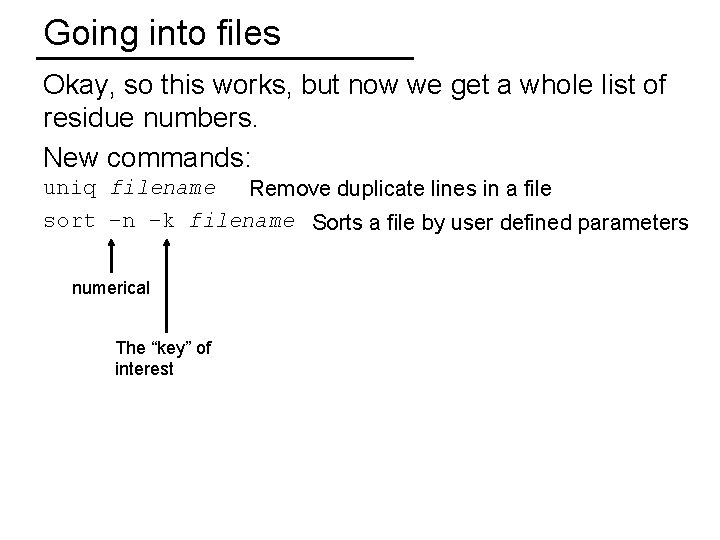
Going into files Okay, so this works, but now we get a whole list of residue numbers. New commands: uniq filename Remove duplicate lines in a file sort –n –k filename Sorts a file by user defined parameters numerical The “key” of interest

Going into files Okay, so this works, but now we get a whole list of residue numbers. New commands: uniq filename Remove duplicate lines in a file sort –n –k filename Sorts a file by user defined parameters head –[0 -9] filename Prints the first x lines of a file (default 10) to the terminal tail –[0 -9] filename Prints the last x lines of a file (default 10) to the terminal wc filename Word count a file. Gives a lot of useful information
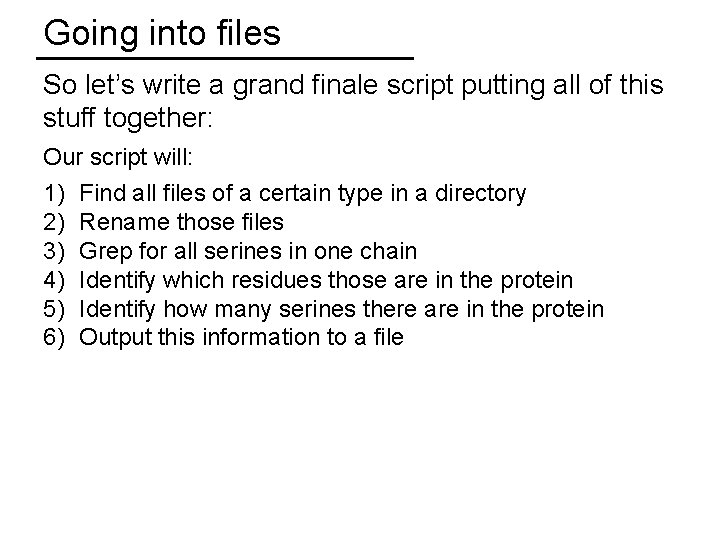
Going into files So let’s write a grand finale script putting all of this stuff together: Our script will: 1) 2) 3) 4) 5) 6) Find all files of a certain type in a directory Rename those files Grep for all serines in one chain Identify which residues those are in the protein Identify how many serines there are in the protein Output this information to a file
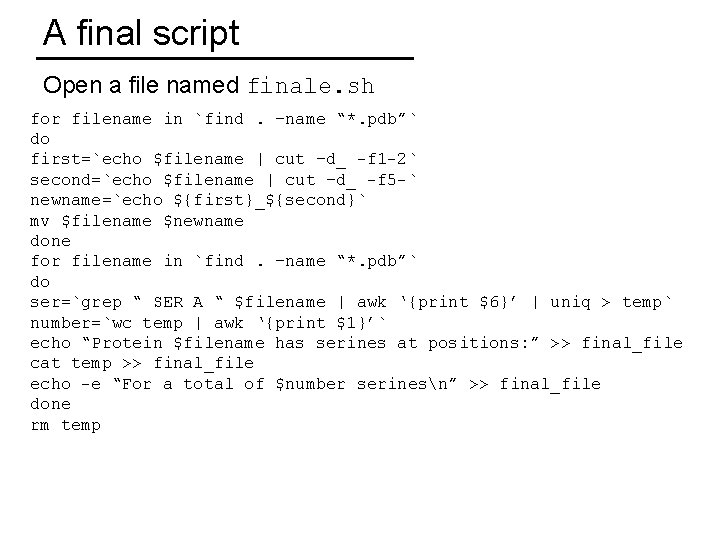
A final script Open a file named finale. sh for filename in `find. –name “*. pdb”` do first=`echo $filename | cut –d_ -f 1 -2` second=`echo $filename | cut –d_ -f 5 -` newname=`echo ${first}_${second}` mv $filename $newname done for filename in `find. –name “*. pdb”` do ser=`grep “ SER A “ $filename | awk ‘{print $6}’ | uniq > temp` number=`wc temp | awk ‘{print $1}’` echo “Protein $filename has serines at positions: ” >> final_file cat temp >> final_file echo -e “For a total of $number serinesn” >> final_file done rm temp
- Slides: 42