
Shell Script Reference Linux Shell Scripting Tutorial v
- Slides: 17
Shell Script Reference: Linux Shell Scripting Tutorial v 1. 05 r 3 A Beginner's handbook http: //www. freeos. com/guides/lsst/index. html
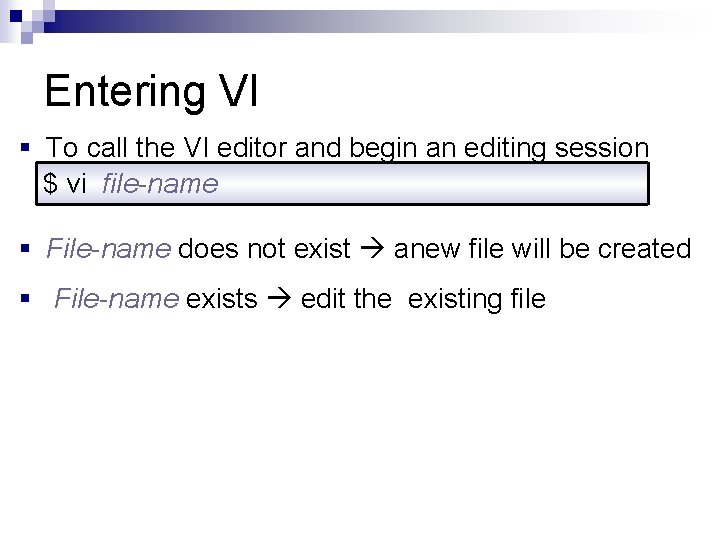
Entering VI § To call the VI editor and begin an editing session $ vi file-name § File-name does not exist anew file will be created § File-name exists edit the existing file
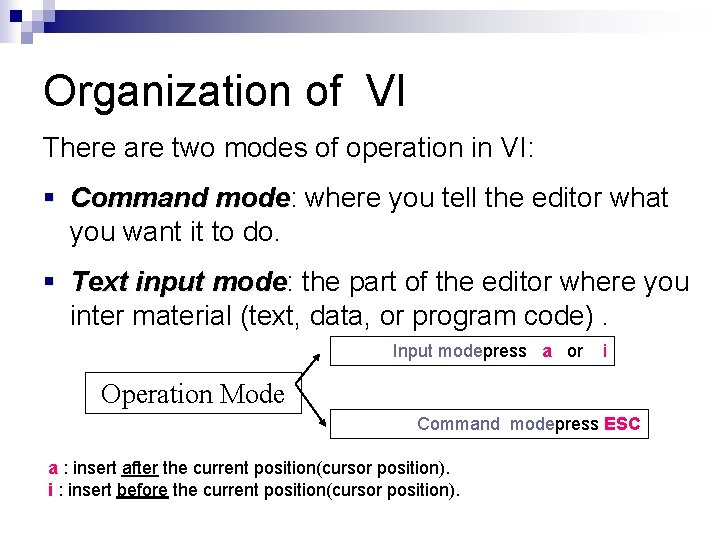
Organization of VI There are two modes of operation in VI: § Command mode: mode where you tell the editor what you want it to do. § Text input mode: mode the part of the editor where you inter material (text, data, or program code). Input modepress a or i Operation Mode Command modepress ESC a : insert after the current position(cursor position). i : insert before the current position(cursor position).
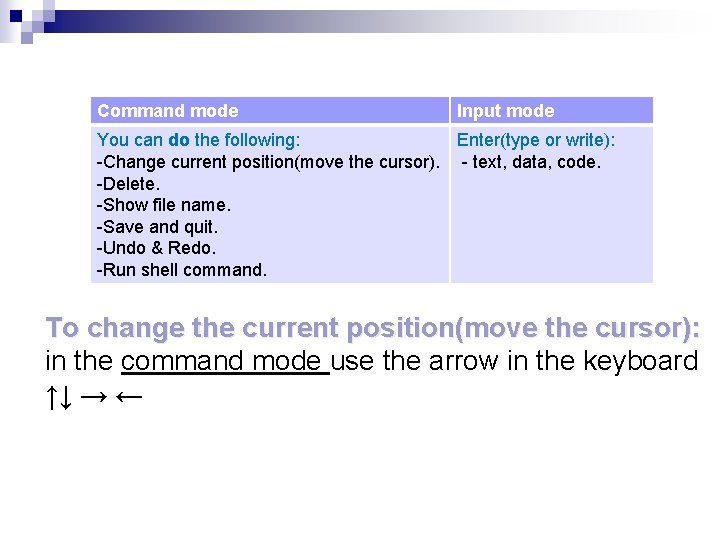
Command mode Input mode You can do the following: Enter(type or write): -Change current position(move the cursor). - text, data, code. -Delete. -Show file name. -Save and quit. -Undo & Redo. -Run shell command. To change the current position(move the cursor): in the command mode use the arrow in the keyboard ↑↓ → ←
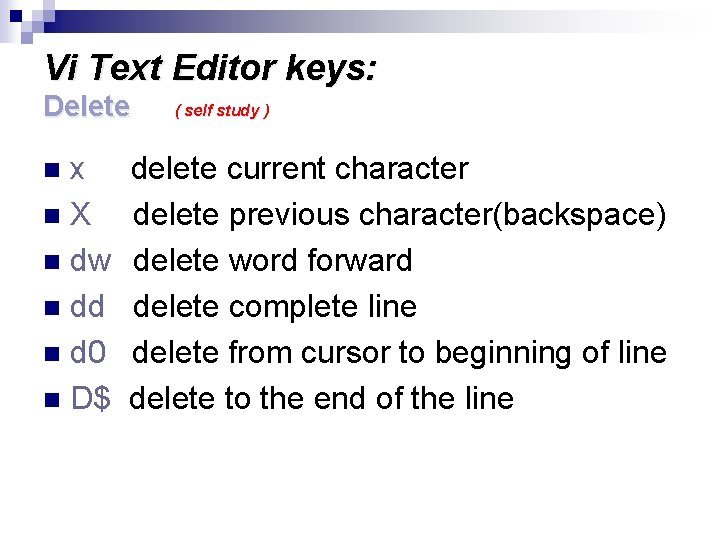
Vi Text Editor keys: Delete x n. X n dw n dd n d 0 n D$ n ( self study ) delete current character delete previous character(backspace) delete word forward delete complete line delete from cursor to beginning of line delete to the end of the line
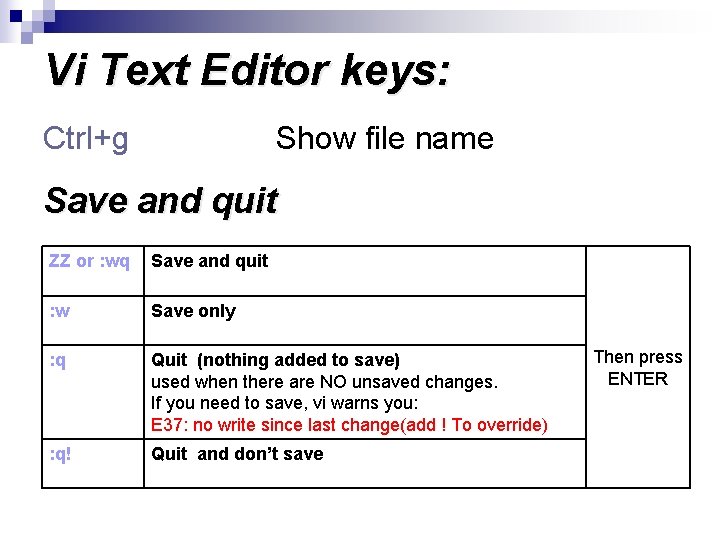
Vi Text Editor keys: Ctrl+g Show file name Save and quit ZZ or : wq Save and quit : w Save only : q Quit (nothing added to save) used when there are NO unsaved changes. If you need to save, vi warns you: E 37: no write since last change(add ! To override) : q! Quit and don’t save Then press ENTER
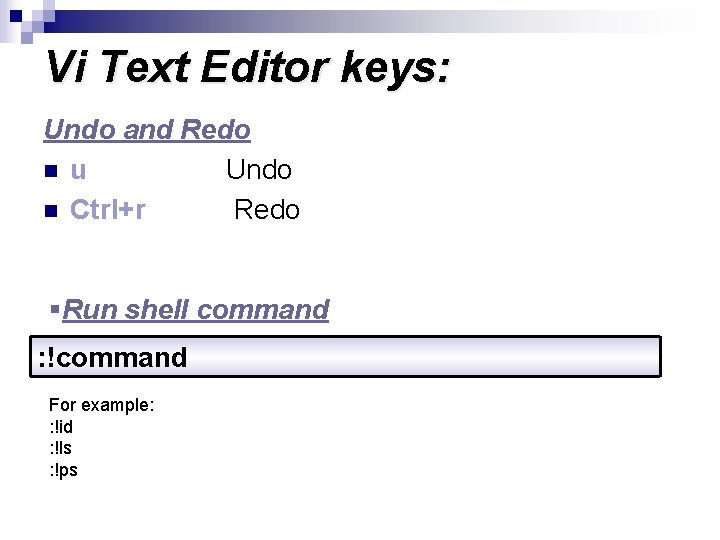
Vi Text Editor keys: Undo and Redo n u Undo n Ctrl+r Redo §Run shell command : !command For example: : !id : !ls : !ps
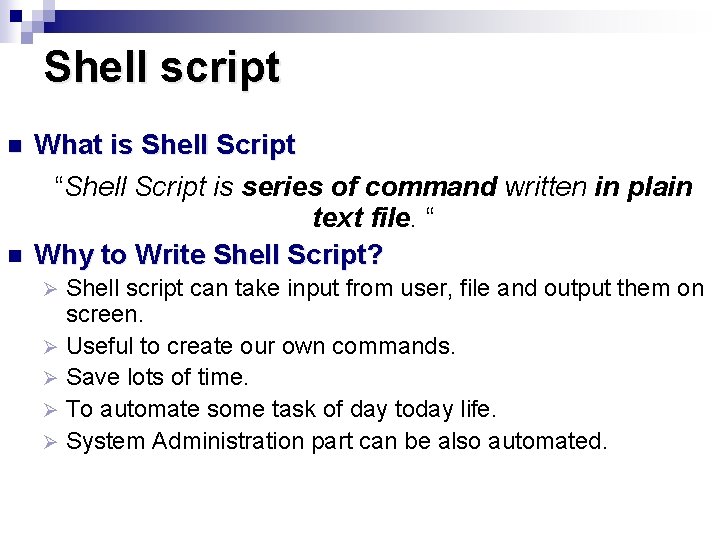
Shell script n n What is Shell Script “Shell Script is series of command written in plain text file. “ Why to Write Shell Script? Shell script can take input from user, file and output them on screen. Ø Useful to create our own commands. Ø Save lots of time. Ø To automate some task of day today life. Ø System Administration part can be also automated. Ø
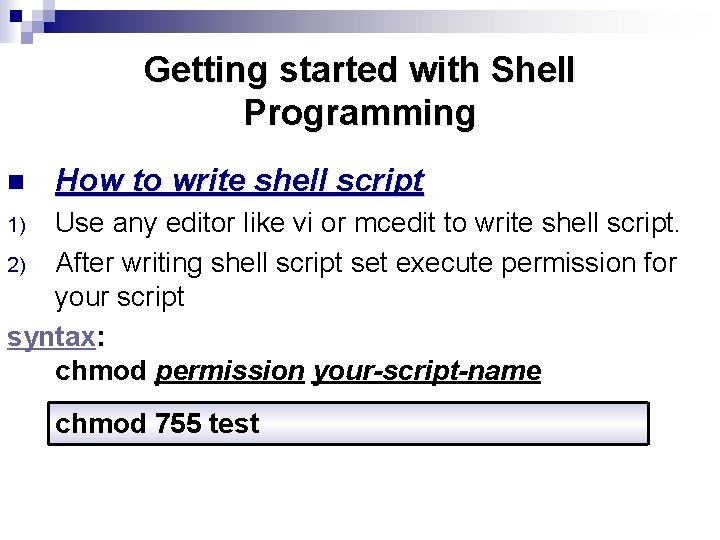
Getting started with Shell Programming n How to write shell script Use any editor like vi or mcedit to write shell script. 2) After writing shell script set execute permission for your script syntax: chmod permission your-script-name 1) chmod 755 test
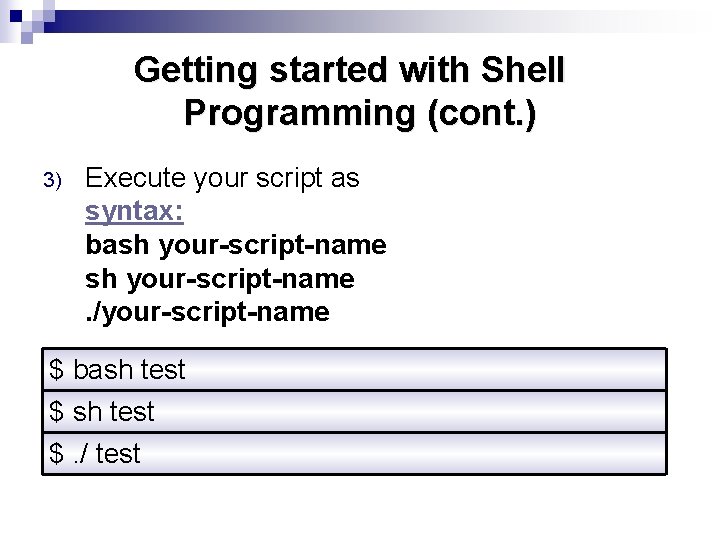
Getting started with Shell Programming (cont. ) 3) Execute your script as syntax: bash your-script-name. /your-script-name $ bash test $. / test
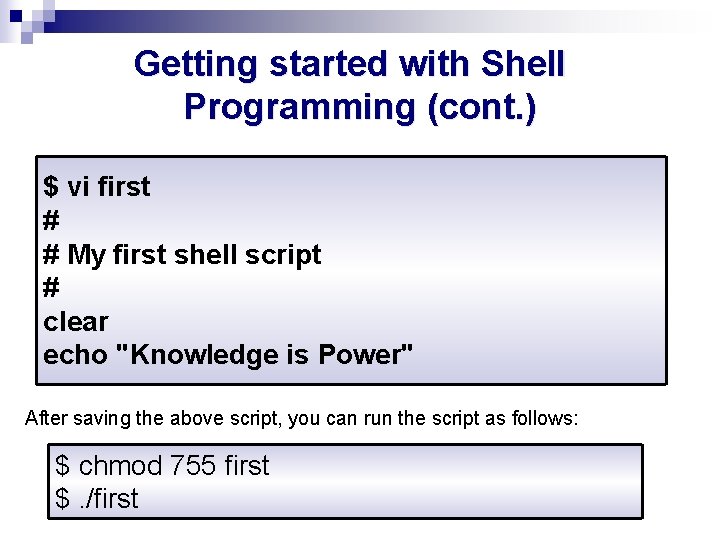
Getting started with Shell Programming (cont. ) $ vi first # # My first shell script # clear echo "Knowledge is Power" After saving the above script, you can run the script as follows: $ chmod 755 first $. /first
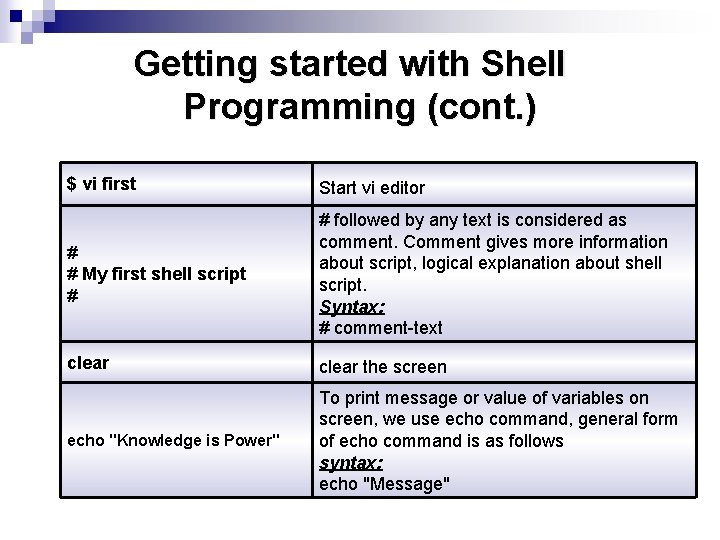
Getting started with Shell Programming (cont. ) $ vi first Start vi editor # # My first shell script # # followed by any text is considered as comment. Comment gives more information about script, logical explanation about shell script. Syntax: # comment-text clear the screen echo "Knowledge is Power" To print message or value of variables on screen, we use echo command, general form of echo command is as follows syntax: echo "Message"
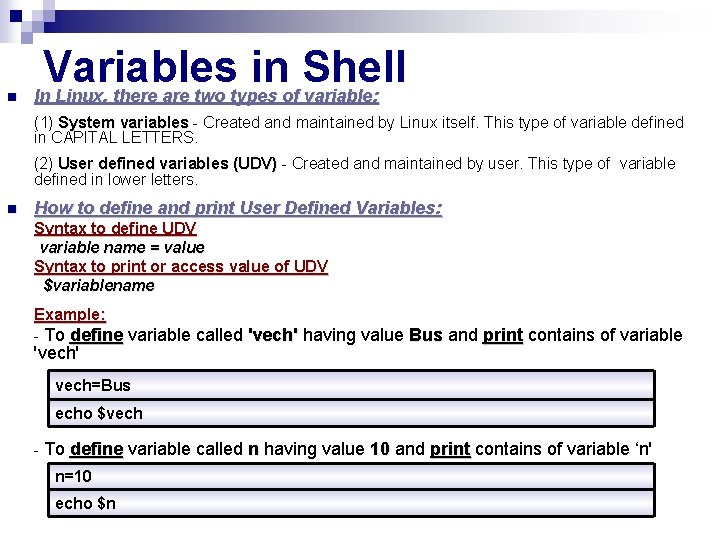
n Variables in Shell In Linux, there are two types of variable: (1) System variables - Created and maintained by Linux itself. This type of variable defined in CAPITAL LETTERS. (2) User defined variables (UDV) - Created and maintained by user. This type of variable defined in lower letters. n How to define and print User Defined Variables: Syntax to define UDV variable name = value Syntax to print or access value of UDV $variablename Example: - To define variable called 'vech' having value Bus and print contains of variable 'vech' vech=Bus echo $vech - To define variable called n having value 10 and print contains of variable ‘n' n=10 echo $n
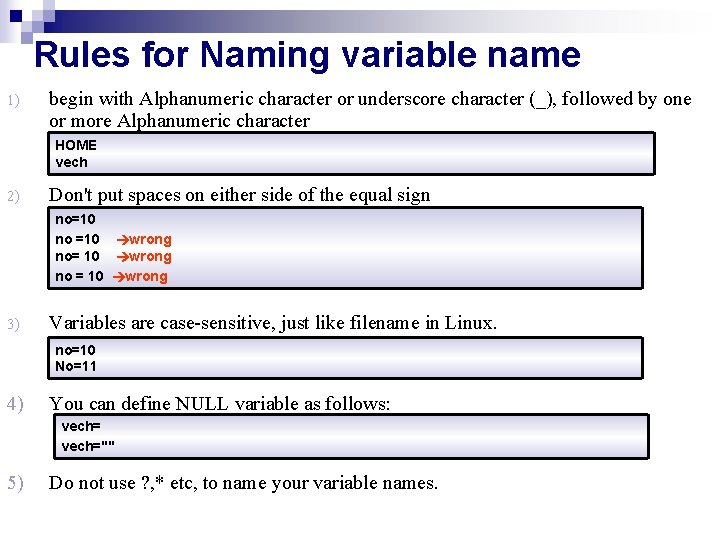
Rules for Naming variable name 1) begin with Alphanumeric character or underscore character (_), followed by one or more Alphanumeric character HOME vech 2) Don't put spaces on either side of the equal sign no=10 no =10 wrong no= 10 wrong no = 10 wrong 3) Variables are case-sensitive, just like filename in Linux. no=10 No=11 4) You can define NULL variable as follows: vech="" 5) Do not use ? , * etc, to name your variable names.
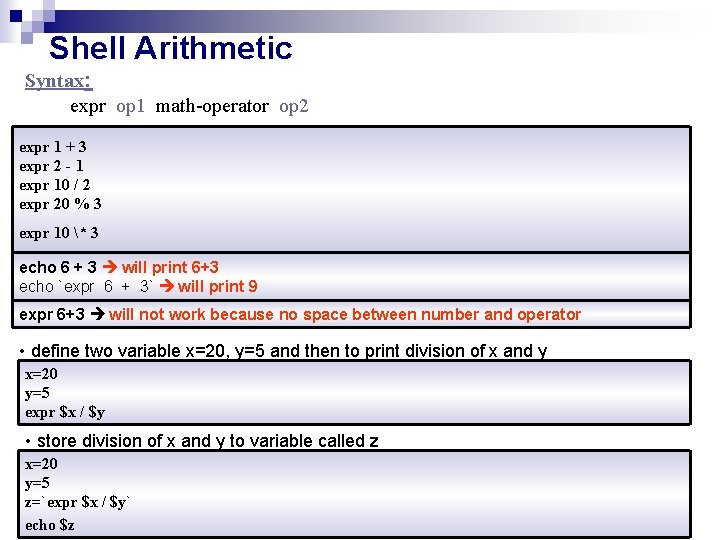
Shell Arithmetic Syntax: expr op 1 math-operator op 2 expr 1 + 3 expr 2 - 1 expr 10 / 2 expr 20 % 3 expr 10 * 3 echo 6 + 3 will print 6+3 echo `expr 6 + 3` will print 9 expr 6+3 will not work because no space between number and operator • define two variable x=20, y=5 and then to print division of x and y x=20 y=5 expr $x / $y • store division of x and y to variable called z x=20 y=5 z=`expr $x / $y` echo $z
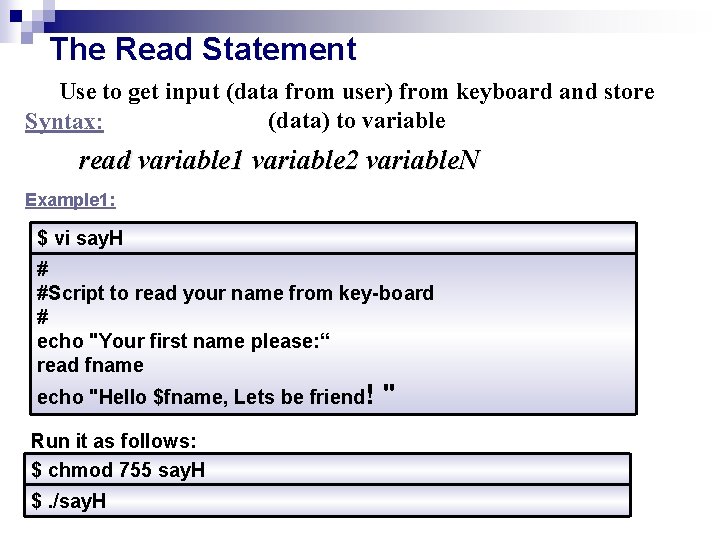
The Read Statement Use to get input (data from user) from keyboard and store (data) to variable Syntax: read variable 1 variable 2 variable. N Example 1: $ vi say. H # #Script to read your name from key-board # echo "Your first name please: “ read fname echo "Hello $fname, Lets be friend! Run it as follows: $ chmod 755 say. H $. /say. H "
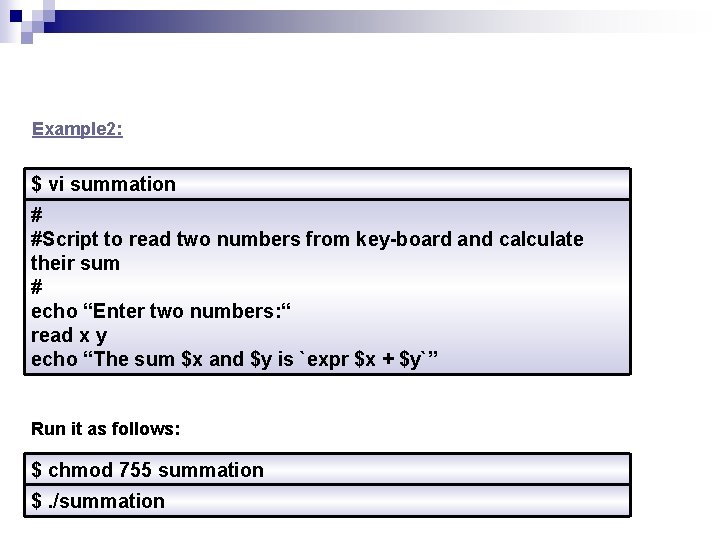
Example 2: $ vi summation # #Script to read two numbers from key-board and calculate their sum # echo “Enter two numbers: “ read x y echo “The sum $x and $y is `expr $x + $y`” Run it as follows: $ chmod 755 summation $. /summation