
Sharpen Images With The High Pass Filter In
- Slides: 7
Sharpen Images With The High Pass Filter In Photoshop
Aim: How do we Sharpen Images Using the High Pass Filter in PS? ● When you sharpen an image you are actually increasing the contrast between pixels. o It is an optical illusion.
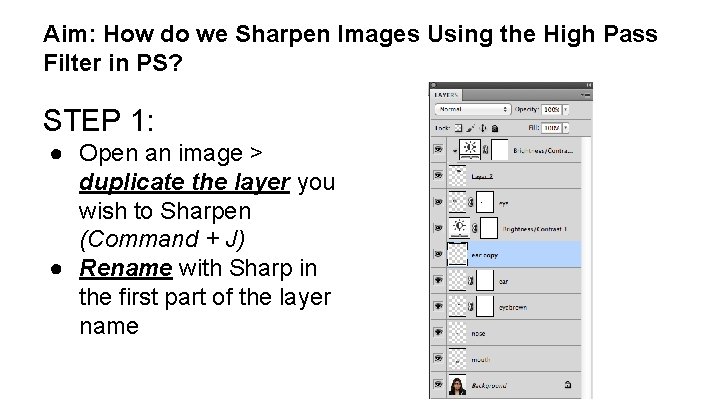
Aim: How do we Sharpen Images Using the High Pass Filter in PS? STEP 1: ● Open an image > duplicate the layer you wish to Sharpen (Command + J) ● Rename with Sharp in the first part of the layer name
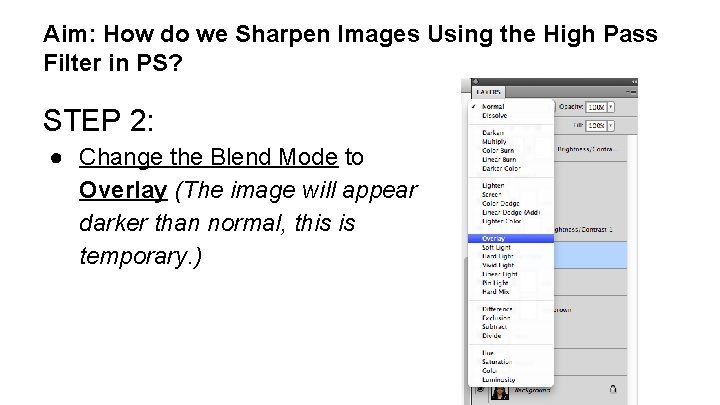
Aim: How do we Sharpen Images Using the High Pass Filter in PS? STEP 2: ● Change the Blend Mode to Overlay (The image will appear darker than normal, this is temporary. )
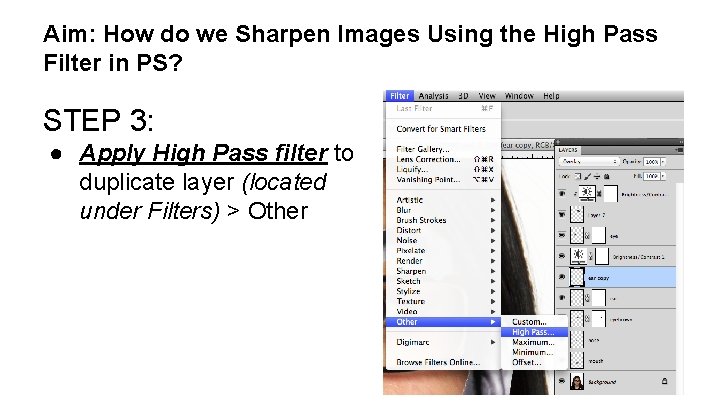
Aim: How do we Sharpen Images Using the High Pass Filter in PS? STEP 3: ● Apply High Pass filter to duplicate layer (located under Filters) > Other
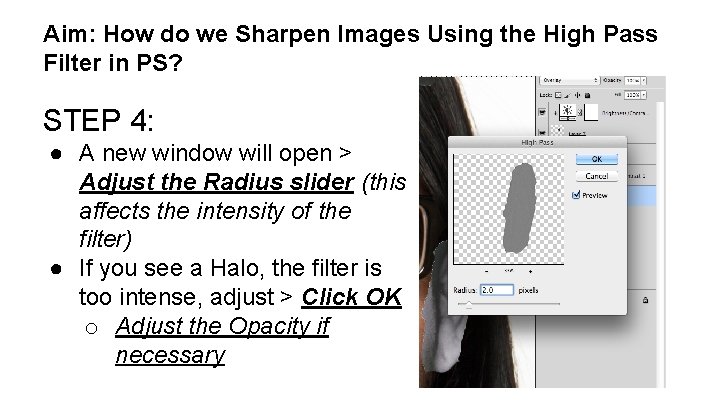
Aim: How do we Sharpen Images Using the High Pass Filter in PS? STEP 4: ● A new window will open > Adjust the Radius slider (this affects the intensity of the filter) ● If you see a Halo, the filter is too intense, adjust > Click OK o Adjust the Opacity if necessary
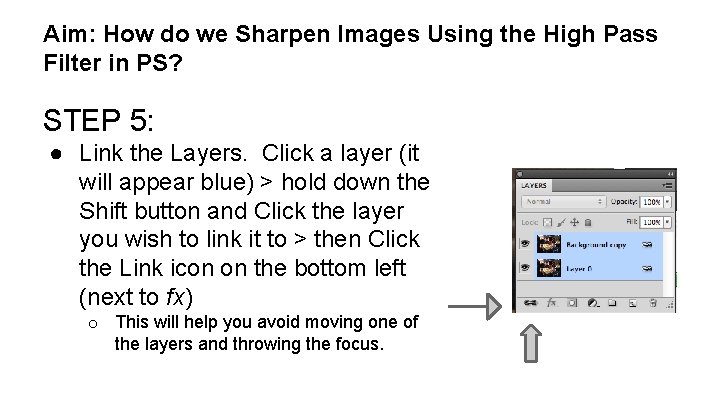
Aim: How do we Sharpen Images Using the High Pass Filter in PS? STEP 5: ● Link the Layers. Click a layer (it will appear blue) > hold down the Shift button and Click the layer you wish to link it to > then Click the Link icon on the bottom left (next to fx) o This will help you avoid moving one of the layers and throwing the focus.