
Shading BIS 101 Spring 2018 Shading Part 1
Shading BIS 101 Spring 2018

Shading Part 1 1) Open Microsoft Word 2) Type out your full name 3) Highlight your first name 4) Select the Shading Tool with the drop down arrow 5) Do NOT select the “Text Highlight Color” tool 6) Choose “More Colors…” 7) Make sure you are on the “Standard” tab 8) Select the green hexagon on the far left side of the palette 9) Click “OK” 4) 5) 7)

Shading Part 2 1) A few lines down, Type the word “Shading” 2) Highlight the word “Shading” AND the empty space following the word 3) Select the Shading Tool with the drop down arrow 4) Under “Recent Colors” choose the same green color from earlier 2) 4) Sample
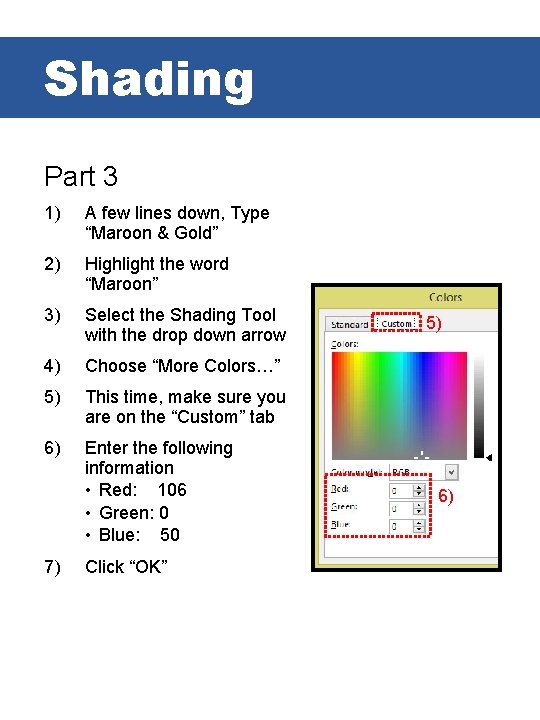
Shading Part 3 1) A few lines down, Type “Maroon & Gold” 2) Highlight the word “Maroon” 3) Select the Shading Tool with the drop down arrow 4) Choose “More Colors…” 5) This time, make sure you are on the “Custom” tab 6) Enter the following information • Red: 106 • Green: 0 • Blue: 50 7) Click “OK” 5) 6)
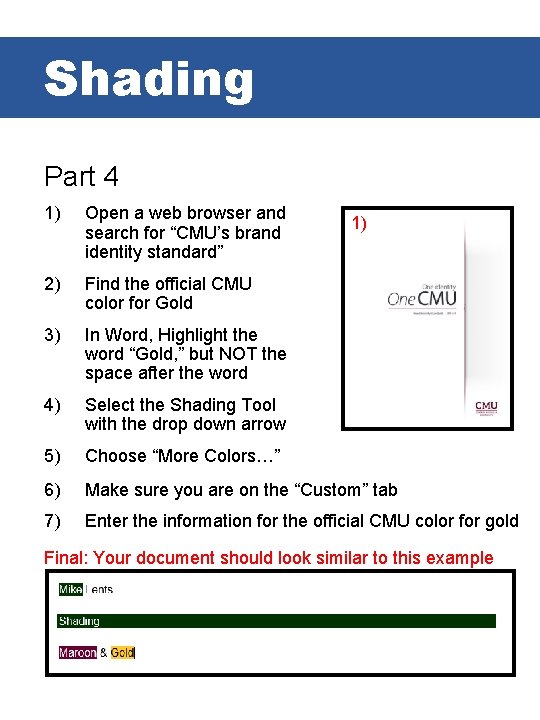
Shading Part 4 1) Open a web browser and search for “CMU’s brand identity standard” 2) Find the official CMU color for Gold 3) In Word, Highlight the word “Gold, ” but NOT the space after the word 4) Select the Shading Tool with the drop down arrow 5) Choose “More Colors…” 6) Make sure you are on the “Custom” tab 7) Enter the information for the official CMU color for gold 1) Final: Your document should look similar to this example
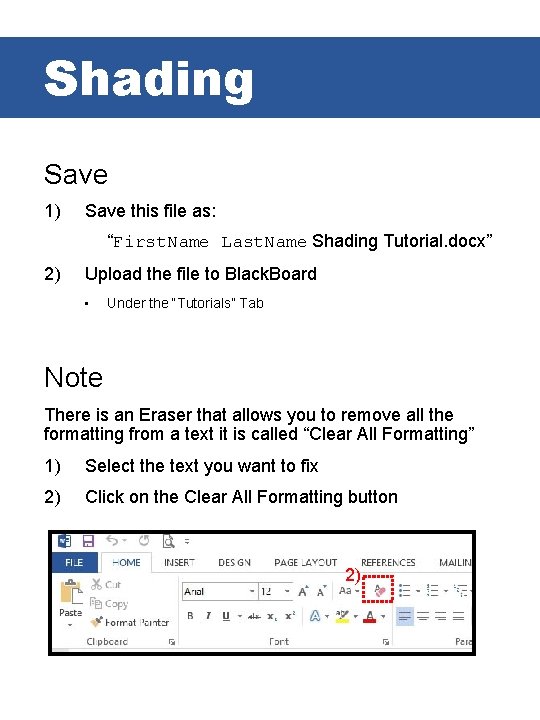
Shading Save 1) Save this file as: “First. Name Last. Name Shading Tutorial. docx” 2) Upload the file to Black. Board • Under the “Tutorials” Tab Note There is an Eraser that allows you to remove all the formatting from a text it is called “Clear All Formatting” 1) Select the text you want to fix 2) Click on the Clear All Formatting button 2)
- Slides: 6