
SFA eServices Guide for Food Import Inspections Booking
SFA e-Services Guide for Food Import Inspections Booking of Inspection Appointment and Viewing of Bookings/Results
Title Accessing e-Services

Accessing e-Services 1) https: //ifast. sfa. gov. sg/eserviceweb 2) Through SFA website (www. sfa. gov. sg) • Access Our Services e-Services Inspection & Laboratory e-Services
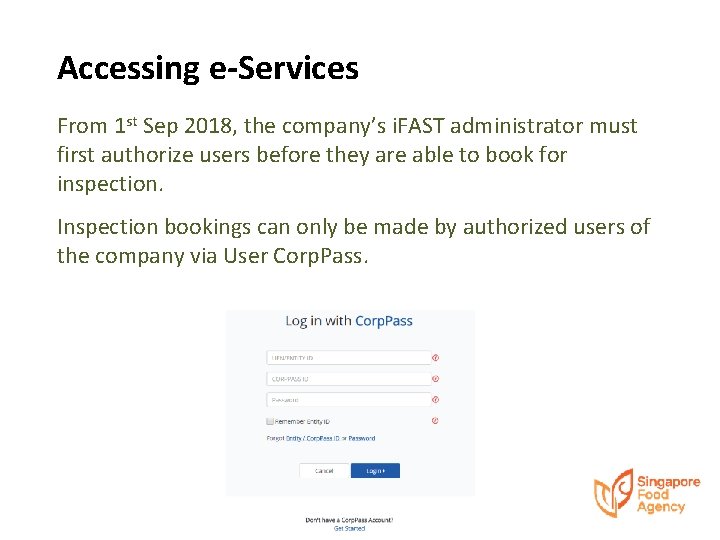
Accessing e-Services From 1 st Sep 2018, the company’s i. FAST administrator must first authorize users before they are able to book for inspection. Inspection bookings can only be made by authorized users of the company via User Corp. Pass.
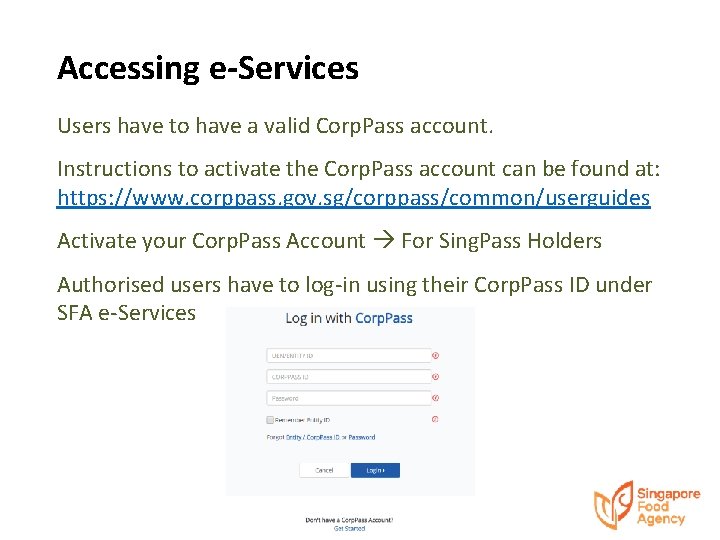
Accessing e-Services Users have to have a valid Corp. Pass account. Instructions to activate the Corp. Pass account can be found at: https: //www. corppass. gov. sg/corppass/common/userguides Activate your Corp. Pass Account For Sing. Pass Holders Authorised users have to log-in using their Corp. Pass ID under SFA e-Services
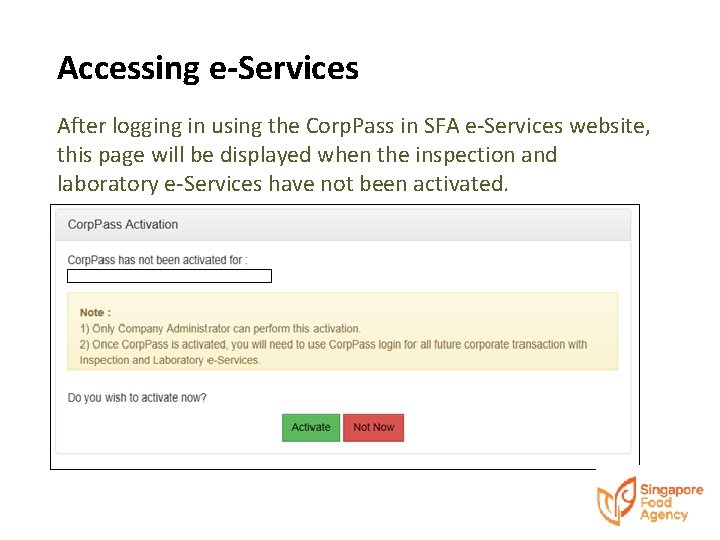
Accessing e-Services After logging in using the Corp. Pass in SFA e-Services website, this page will be displayed when the inspection and laboratory e-Services have not been activated.
Getting Started with Corp. Pass SFA Inspection and Laboratory e-Services have to be activated via Corp. Pass at https: //www. corppass. gov. sg Please refer to Corp. Pass guide for instructions on activation of SFA Inspection and Laboratory e-Services.
Title Checking of i. Fast Roles Assigned
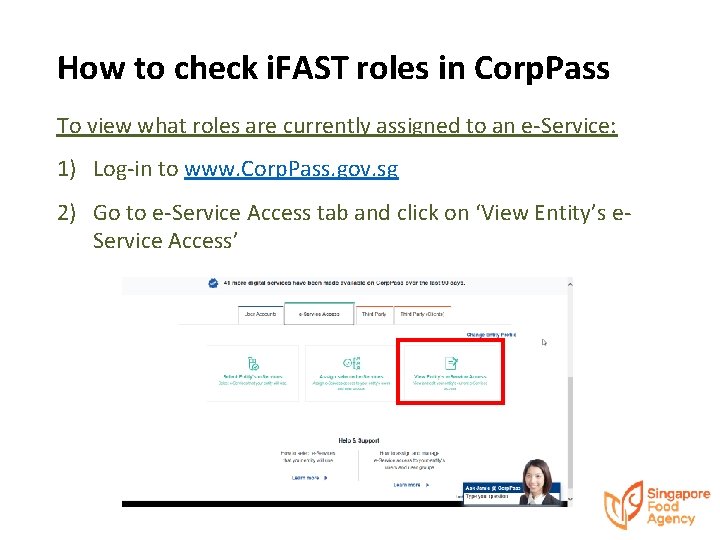
How to check i. FAST roles in Corp. Pass To view what roles are currently assigned to an e-Service: 1) Log-in to www. Corp. Pass. gov. sg 2) Go to e-Service Access tab and click on ‘View Entity’s e. Service Access’
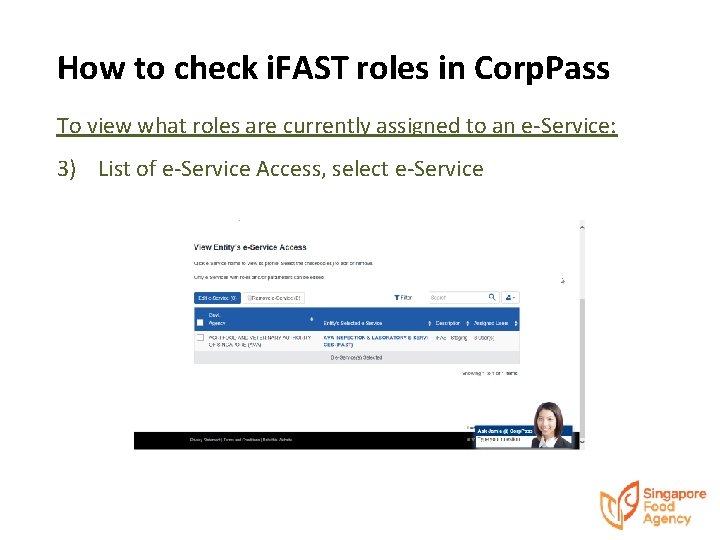
How to check i. FAST roles in Corp. Pass To view what roles are currently assigned to an e-Service: 3) List of e-Service Access, select e-Service
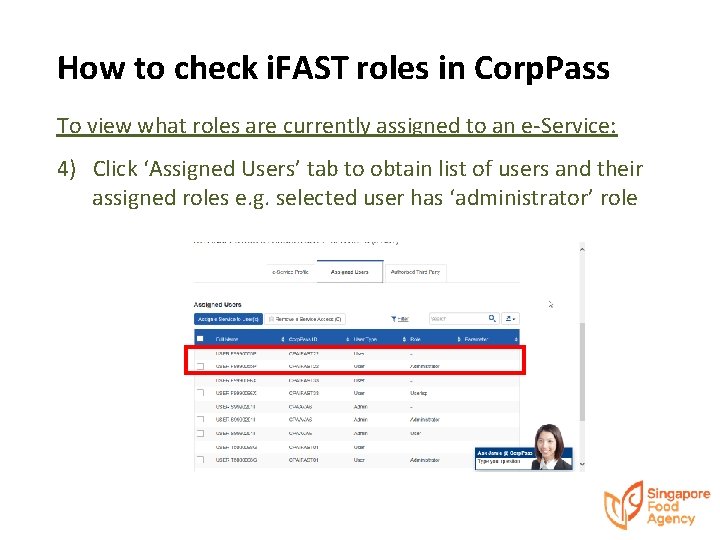
How to check i. FAST roles in Corp. Pass To view what roles are currently assigned to an e-Service: 4) Click ‘Assigned Users’ tab to obtain list of users and their assigned roles e. g. selected user has ‘administrator’ role
Title Assignment of roles
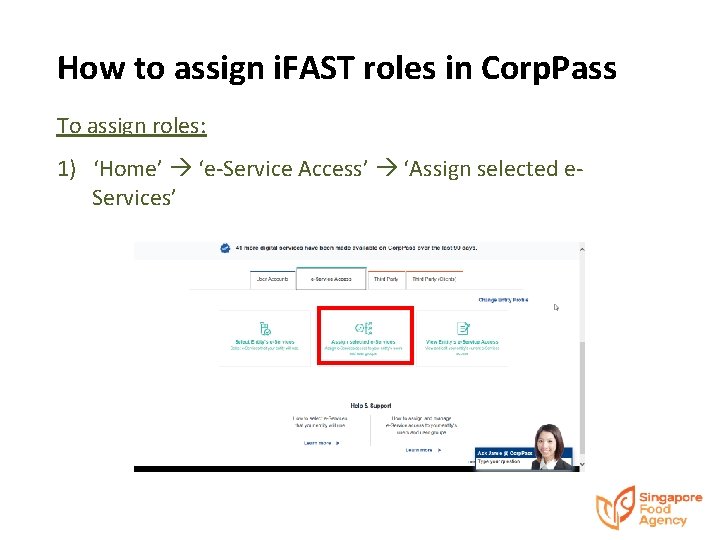
How to assign i. FAST roles in Corp. Pass To assign roles: 1) ‘Home’ ‘e-Service Access’ ‘Assign selected e. Services’
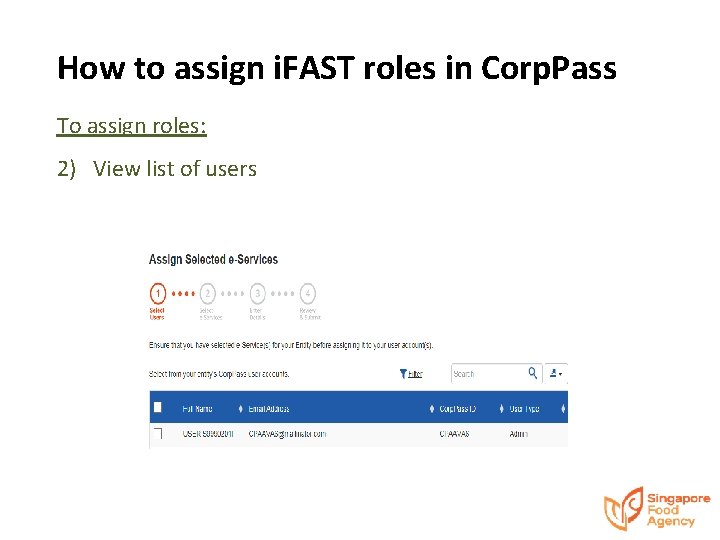
How to assign i. FAST roles in Corp. Pass To assign roles: 2) View list of users
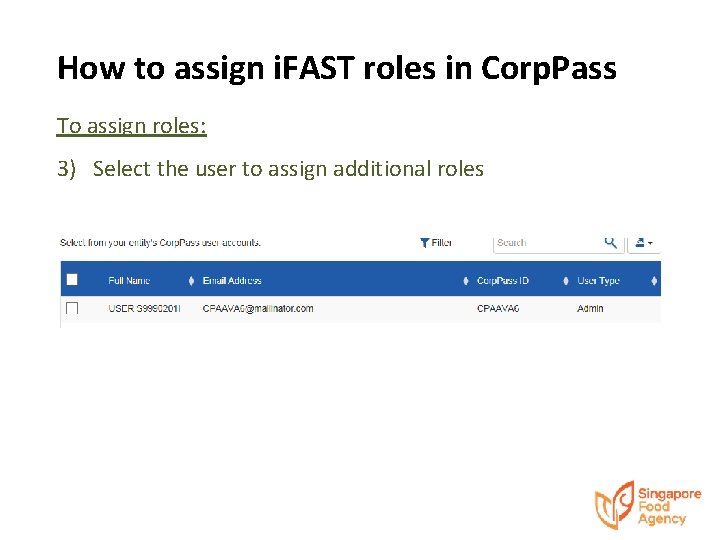
How to assign i. FAST roles in Corp. Pass To assign roles: 3) Select the user to assign additional roles
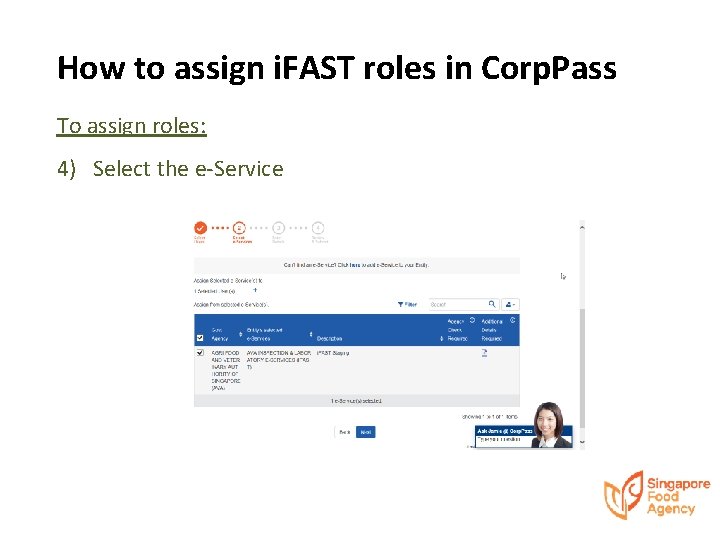
How to assign i. FAST roles in Corp. Pass To assign roles: 4) Select the e-Service
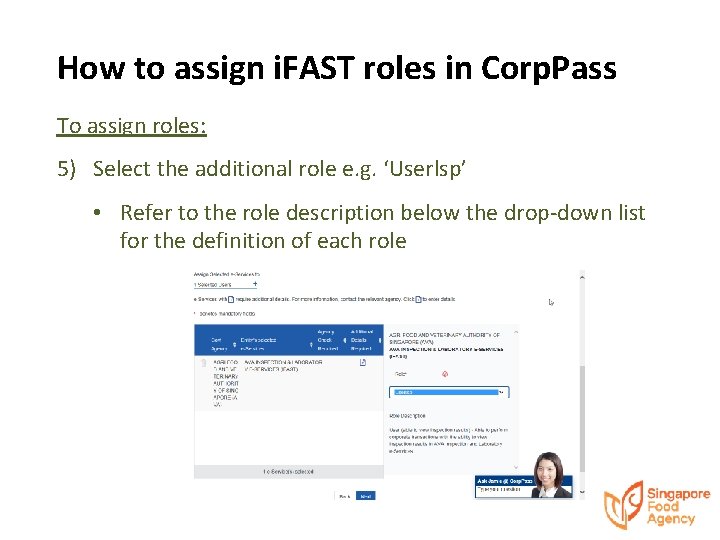
How to assign i. FAST roles in Corp. Pass To assign roles: 5) Select the additional role e. g. ‘Userlsp’ • Refer to the role description below the drop-down list for the definition of each role
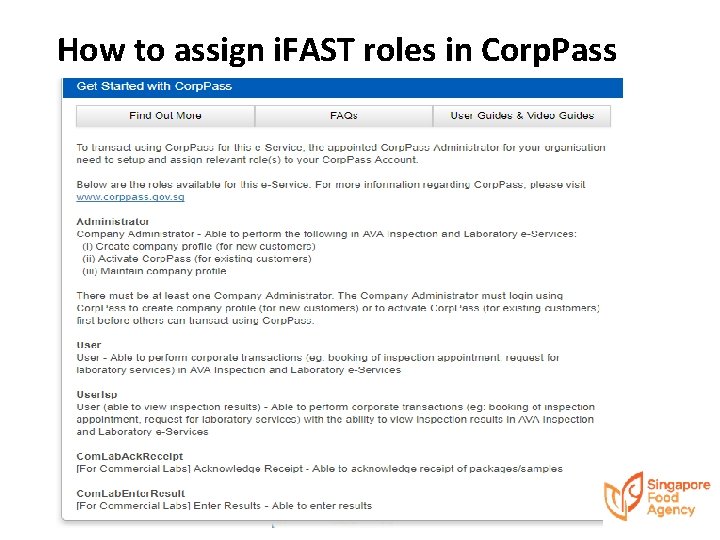
How to assign i. FAST roles in Corp. Pass
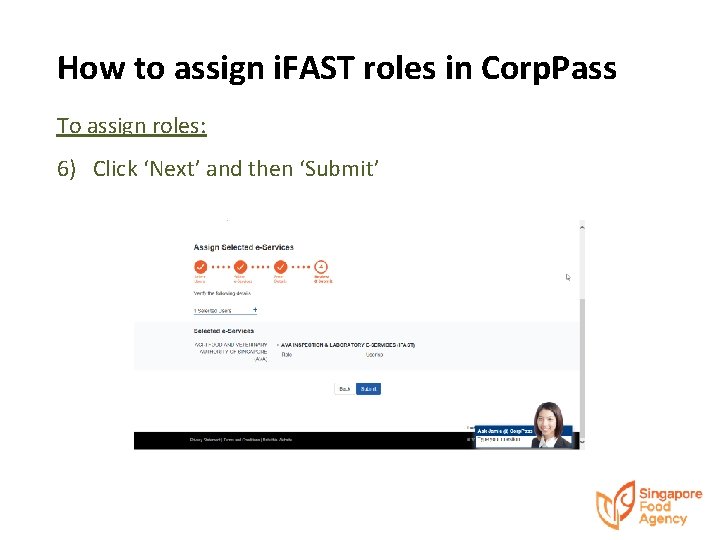
How to assign i. FAST roles in Corp. Pass To assign roles: 6) Click ‘Next’ and then ‘Submit’
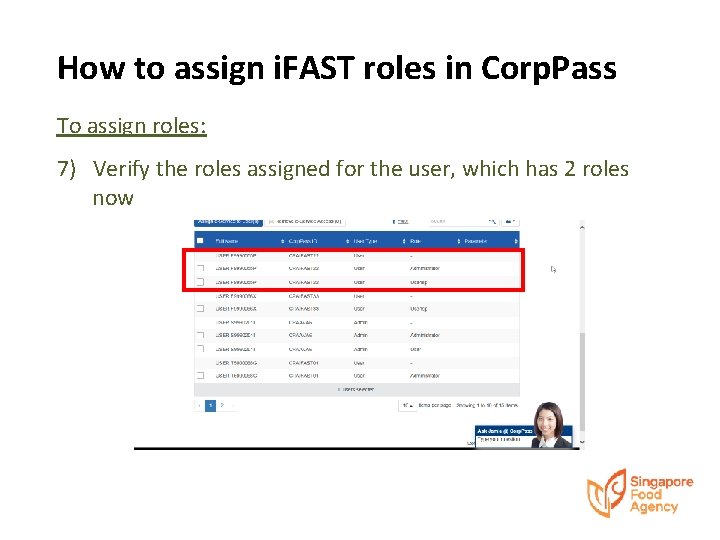
How to assign i. FAST roles in Corp. Pass To assign roles: 7) Verify the roles assigned for the user, which has 2 roles now
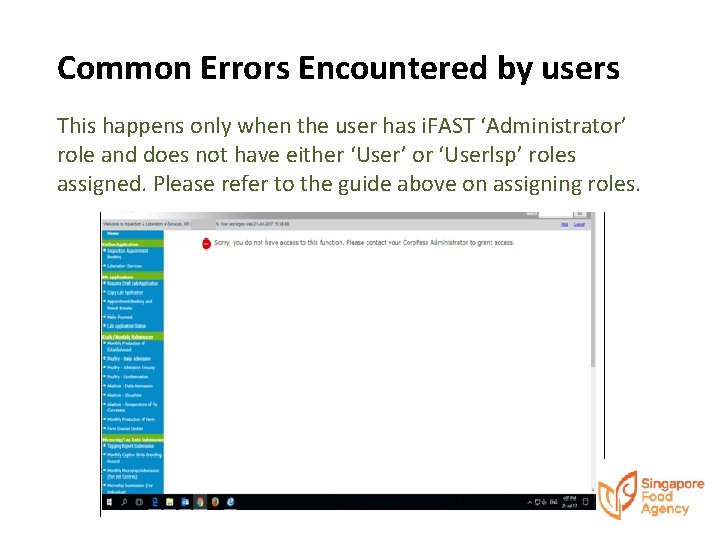
Common Errors Encountered by users This happens only when the user has i. FAST ‘Administrator’ role and does not have either ‘User’ or ‘Userlsp’ roles assigned. Please refer to the guide above on assigning roles.
Title • Lorem ipsum dolor sit amet, consectetuer adipiscing elit. Vivamus et magna. Fusce sed sem sed magna suscipit egestas. • Lorem ipsum dolor sit amet, consectetuer adipiscing Booking of Inspection Appointment elit. Vivamus et magna. Fusce sed sem sed magna suscipit egestas.
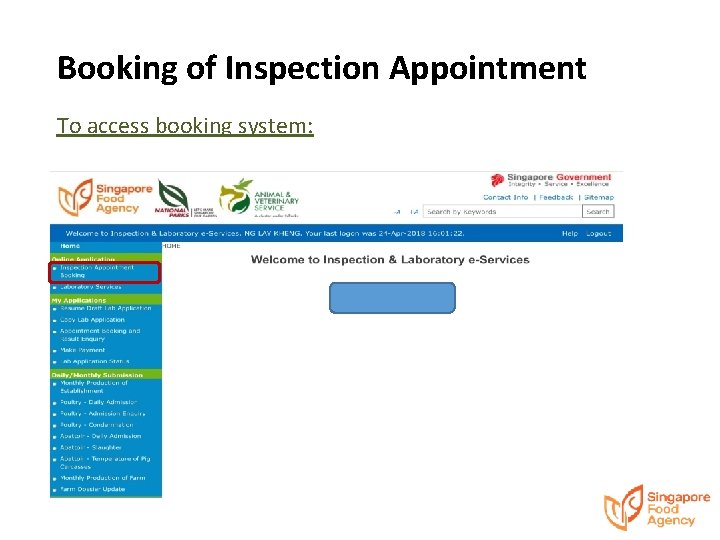
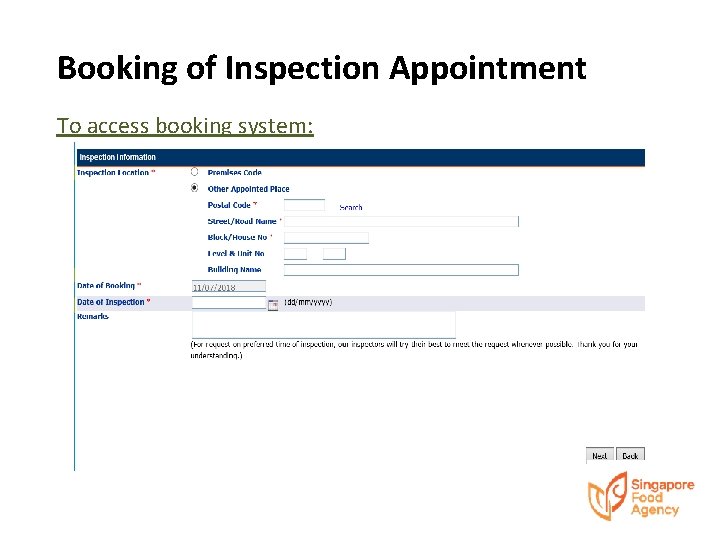
Booking of Inspection Appointment To access booking system:
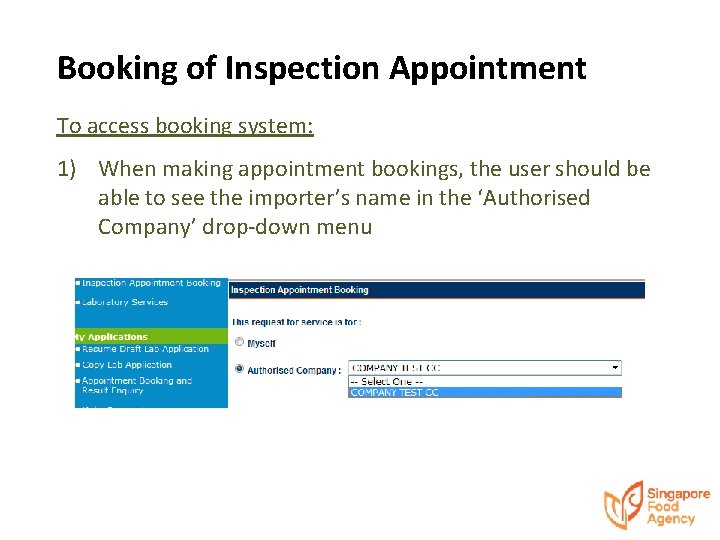
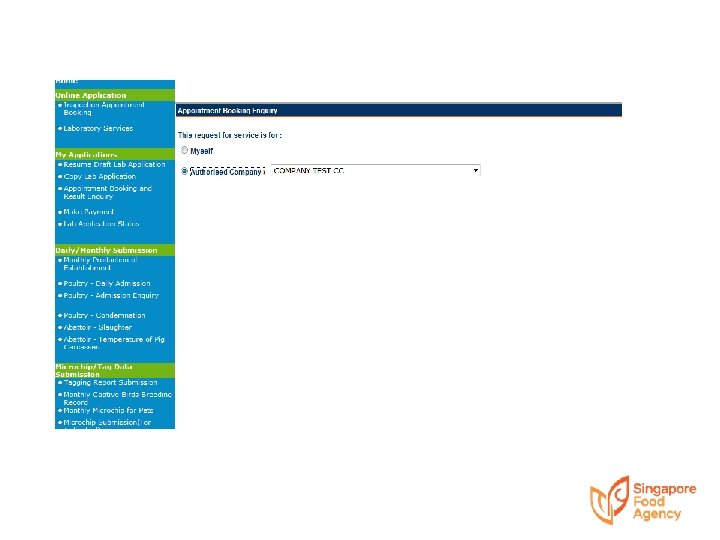
Booking of Inspection Appointment To access booking system: 1) When making appointment bookings, the user should be able to see the importer’s name in the ‘Authorised Company’ drop-down menu
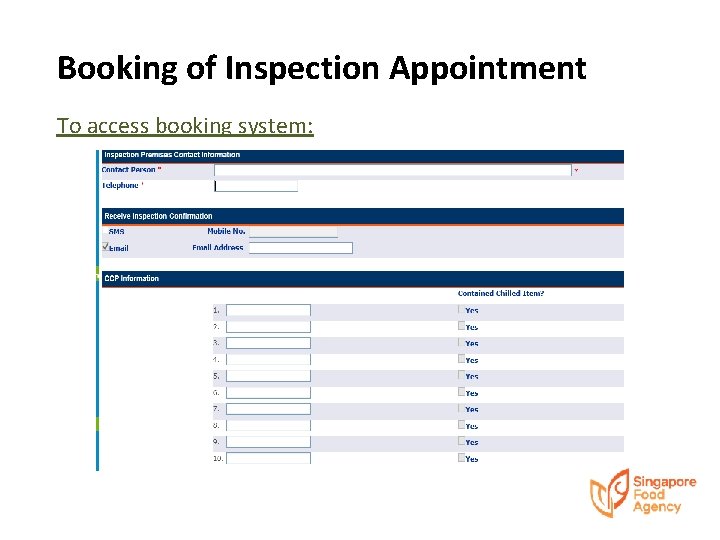
Booking of Inspection Appointment To access booking system:
Booking of Inspection Appointment To access booking system:
Important Notes The acknowledgement is not a confirmation of the appointment. It only states that the booking has been received After e-Services has processed your booking, you will receive an SMS/email (upon request) to confirm the appointment You may also use ‘Appointment Booking Enquiry’ to check the status of your booking
Title • Lorem ipsum dolor sit amet, consectetuer adipiscing elit. Vivamus et magna. Fusce sed sem sed magna suscipit egestas. • Lorem ipsum dolor sit amet, consectetuer adipiscing Result Enquiry elit. Vivamus et magna. Fusce sed sem sed magna suscipit egestas.
Important Notes Display of results • Pending Result is not released yet • Pass Inspection for this booking has passed • Fail Inspection for this booking has failed • ‘-’ (Dash) User is not authorised to view the results
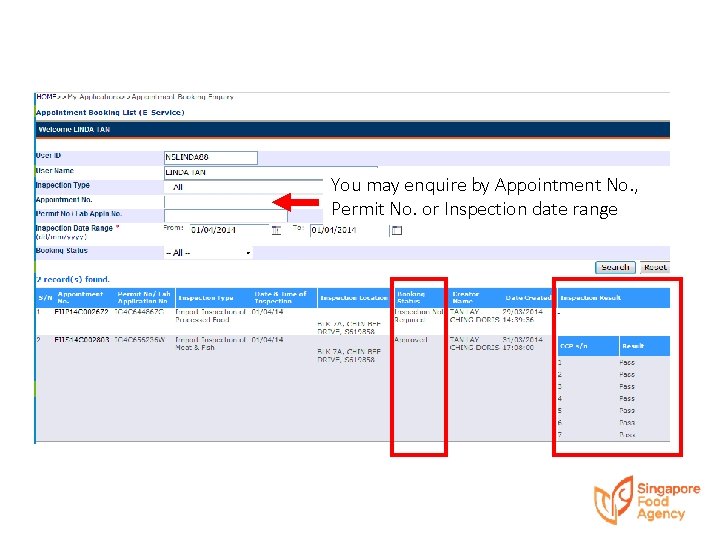
You may enquire by Appointment No. , Permit No. or Inspection date range
Title • Lorem ipsum dolor sit amet, consectetuer adipiscing elit. Vivamus et magna. Fusce sed sem sed magna suscipit egestas. • Booking Lorem ipsum. Workflow dolor sit amet, consectetuer adipiscing and Result Security elit. Vivamus et magna. Fusce sed sem sed magna suscipit egestas.
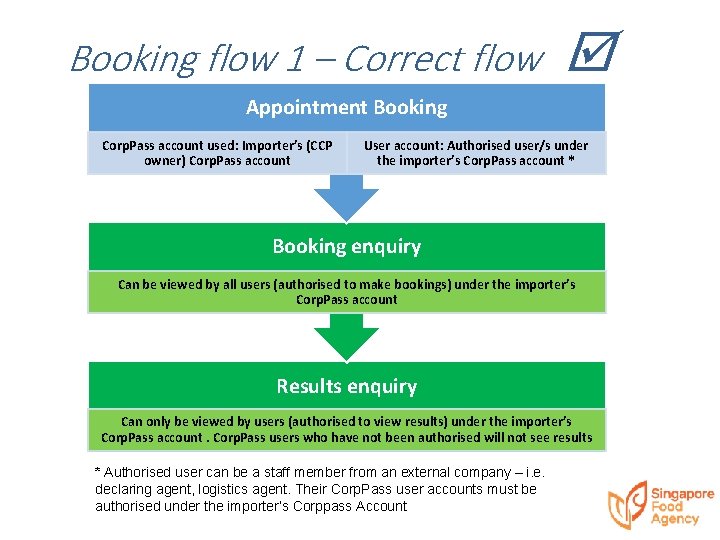
Booking flow 1 – Correct flow Appointment Booking Corp. Pass account used: Importer’s (CCP owner) Corp. Pass account User account: Authorised user/s under the importer’s Corp. Pass account * Booking enquiry Can be viewed by all users (authorised to make bookings) under the importer’s Corp. Pass account Results enquiry Can only be viewed by users (authorised to view results) under the importer’s Corp. Pass account. Corp. Pass users who have not been authorised will not see results * Authorised user can be a staff member from an external company – i. e. declaring agent, logistics agent. Their Corp. Pass user accounts must be authorised under the importer’s Corppass Account
Example 1 • CCP no. IG 1234567 X belongs to Importer A • Authorised user from Importer A books appointment. • Result is released • Result can be viewed by Importer A’s users who are authorised to view results
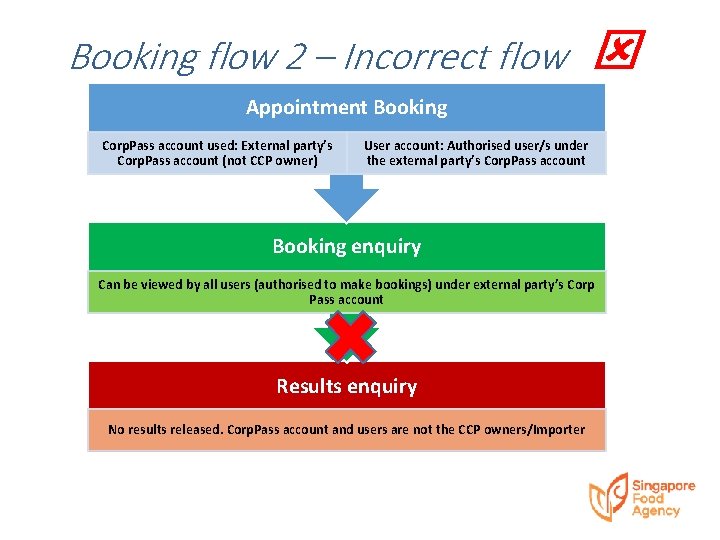
Booking flow 2 – Incorrect flow Appointment Booking Corp. Pass account used: External party’s Corp. Pass account (not CCP owner) User account: Authorised user/s under the external party’s Corp. Pass account Booking enquiry Can be viewed by all users (authorised to make bookings) under external party’s Corp Pass account Results enquiry No results released. Corp. Pass account and users are not the CCP owners/Importer
Example 2 • CCP no. IG 1234567 X belongs to Importer A • User X authorised under Logistics Corp. Pass A’s company account books appointment on behalf of Importer A • Result will not be released as Logistics Company A is not the owner of the CCP
- Slides: 36