
Setting up Your One Drive Account 1 In
- Slides: 21
Setting up Your One Drive Account
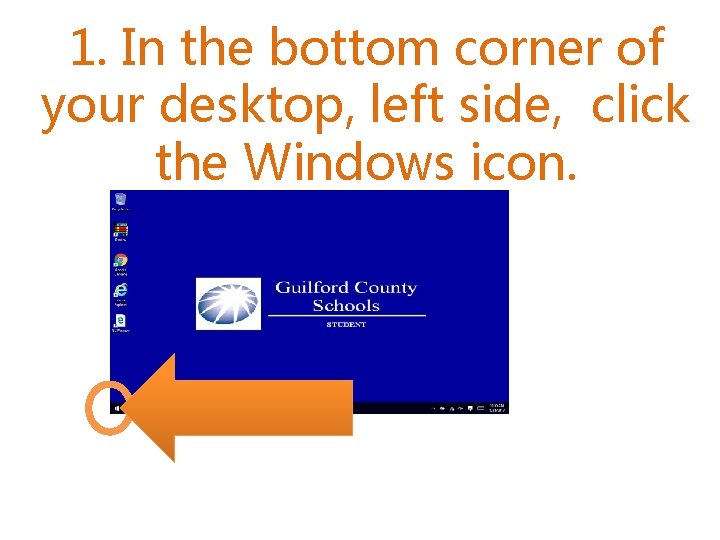
1. In the bottom corner of your desktop, left side, click the Windows icon.
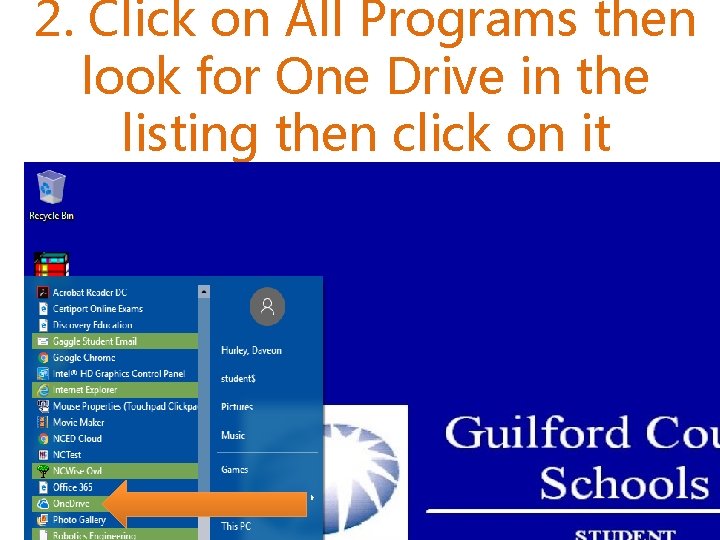
2. Click on All Programs then look for One Drive in the listing then click on it
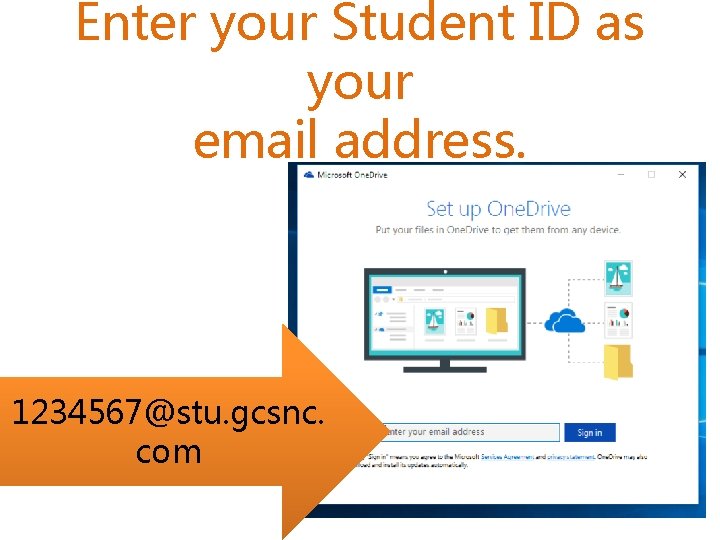
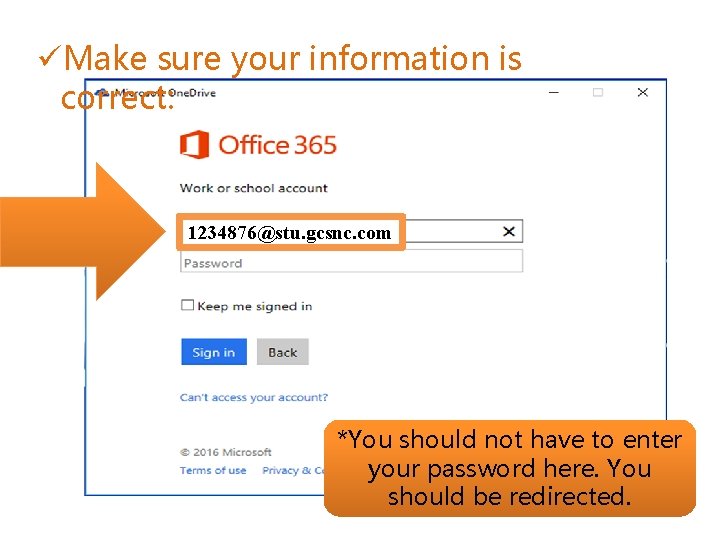
Enter your Student ID as your email address. 1234567@stu. gcsnc. com
üMake sure your information is correct: 1234876@stu. gcsnc. com *You should not have to enter your password here. You should be redirected.
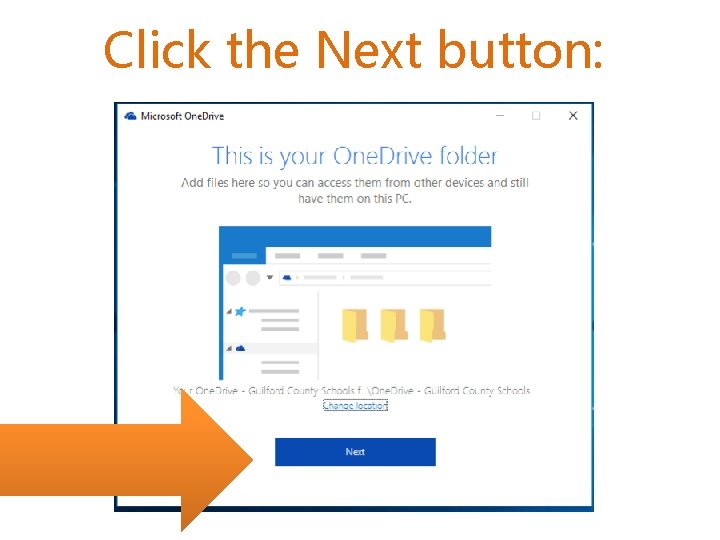
Click the Next button:
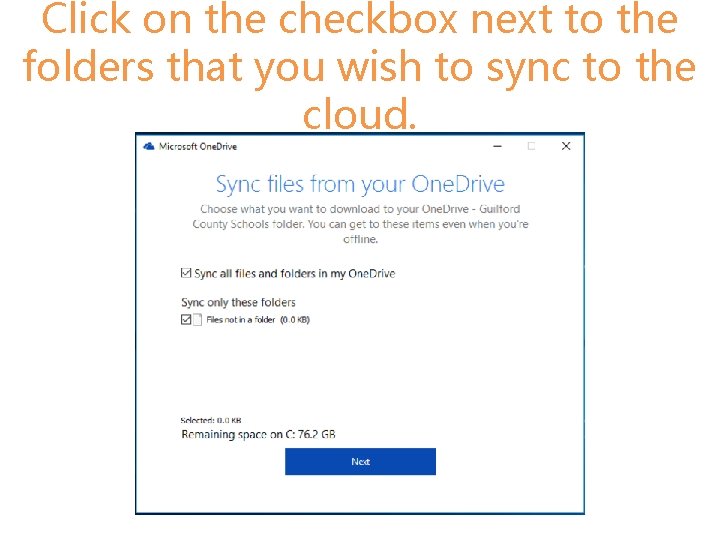
Click on the checkbox next to the folders that you wish to sync to the cloud.
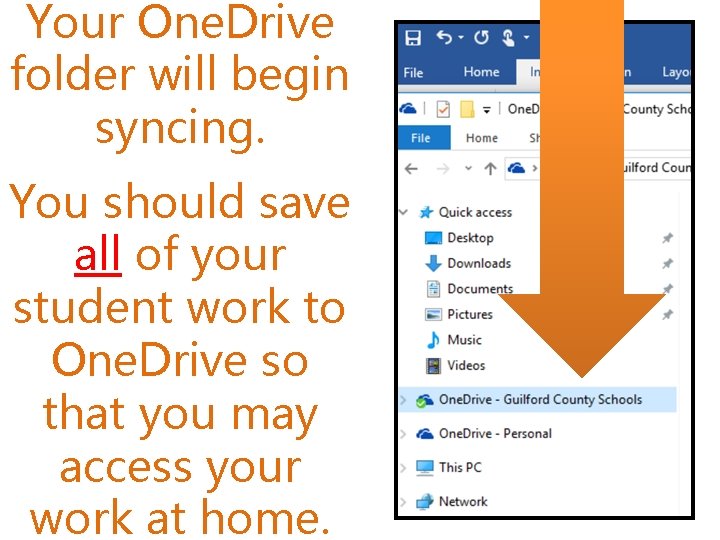
Your One. Drive folder will begin syncing. You should save all of your student work to One. Drive so that you may access your work at home.
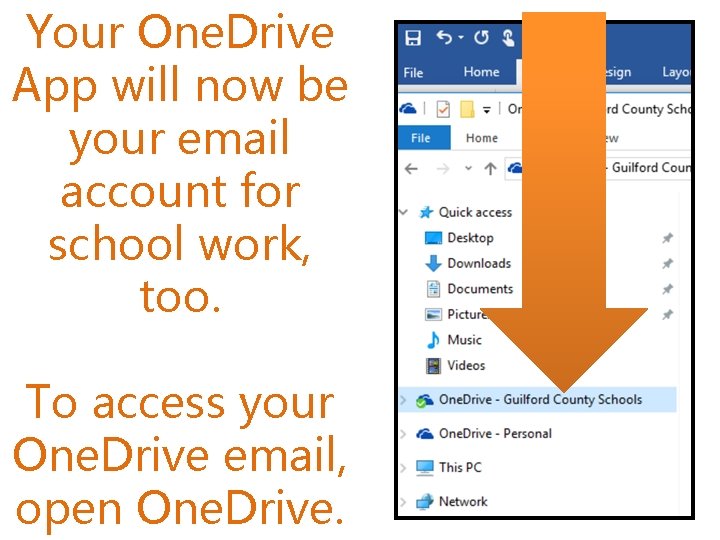
Your One. Drive App will now be your email account for school work, too. To access your One. Drive email, open One. Drive.
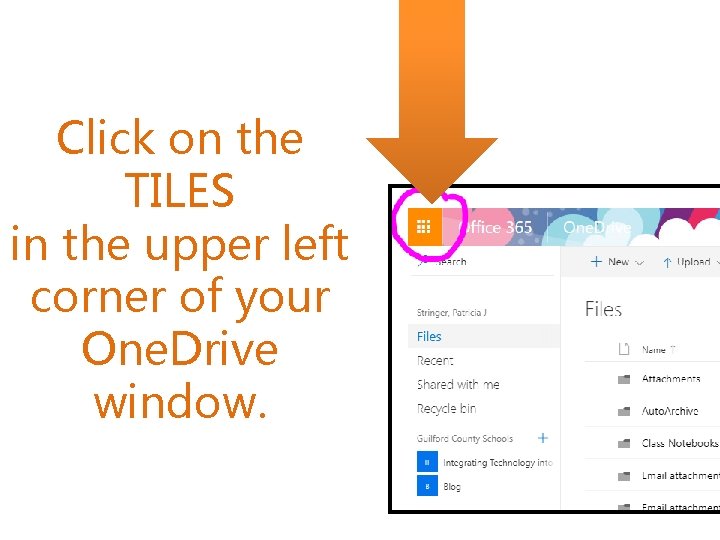
Click on the TILES in the upper left corner of your One. Drive window.
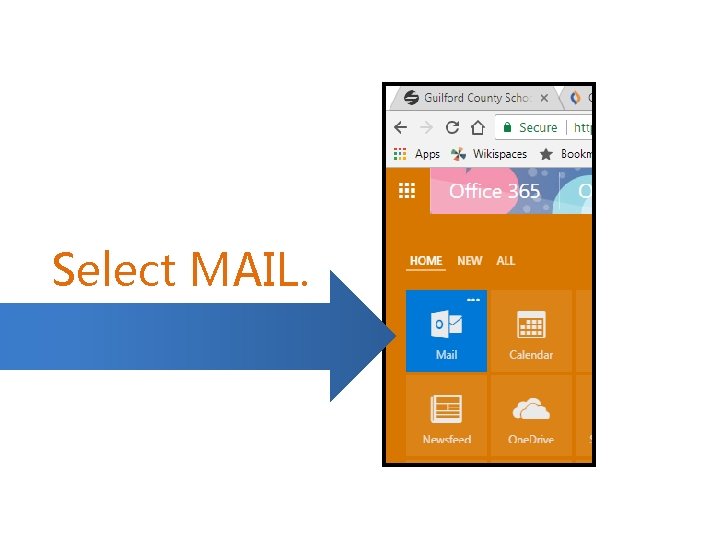
Select MAIL.
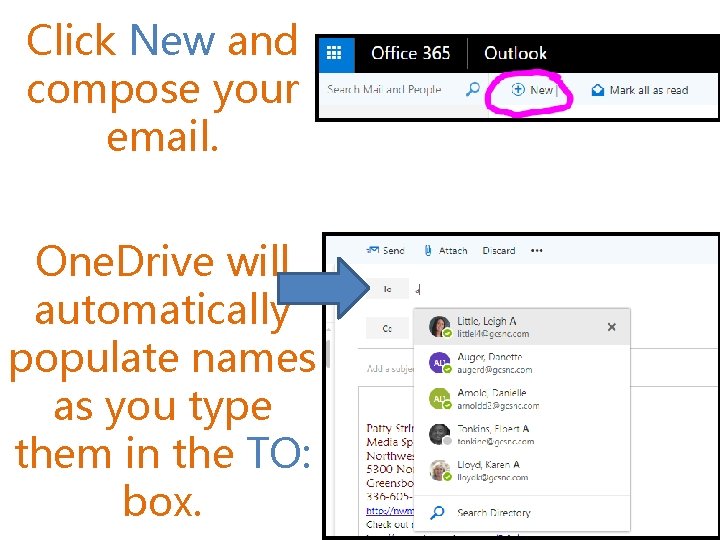
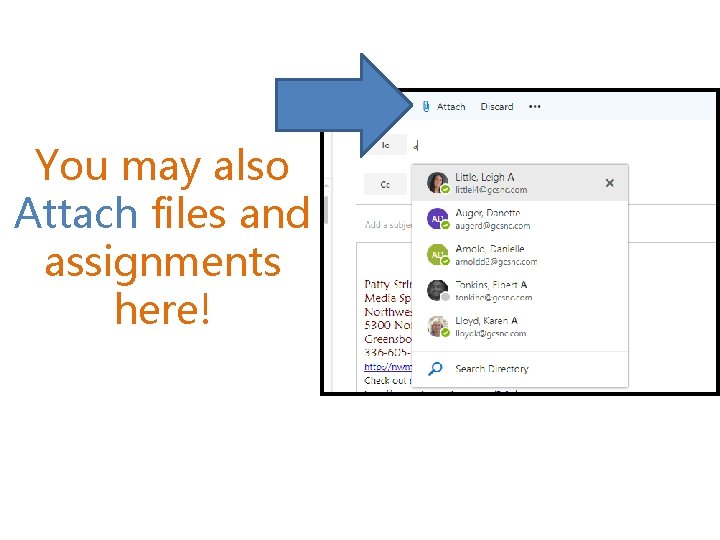
Click New and compose your email. One. Drive will automatically populate names as you type them in the TO: box.
You may also Attach files and assignments here!
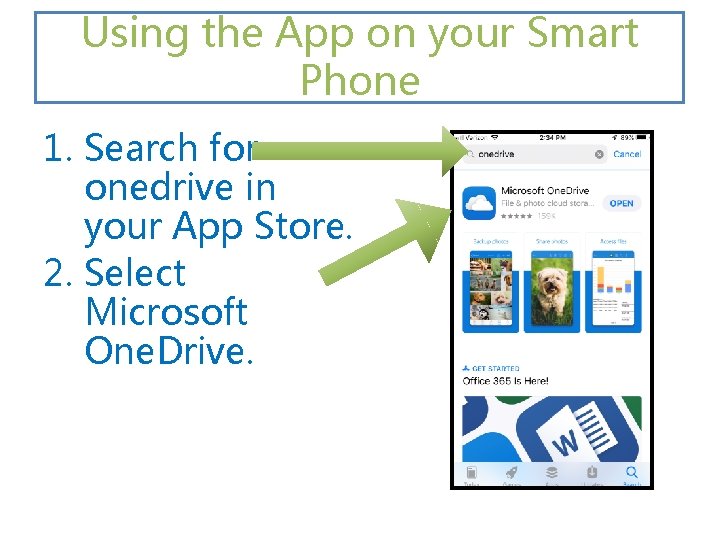
Using the App on your Smart Phone 1. Search for onedrive in your App Store. 2. Select Microsoft One. Drive.
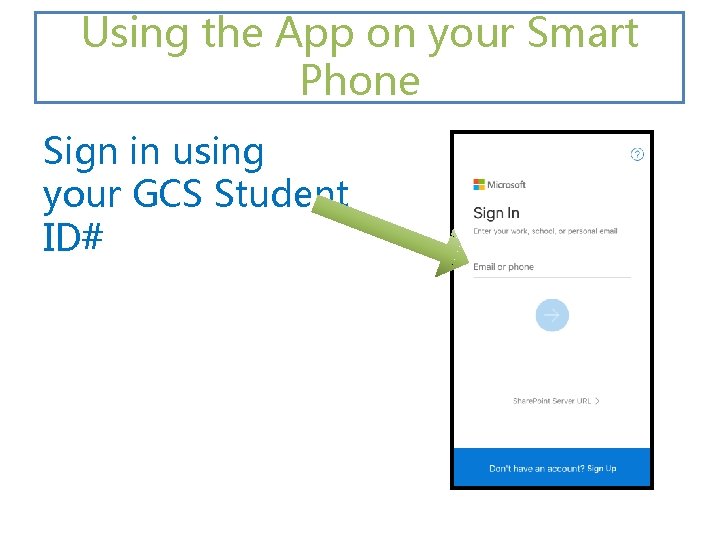
Using the App on your Smart Phone Sign in using your GCS Student ID#
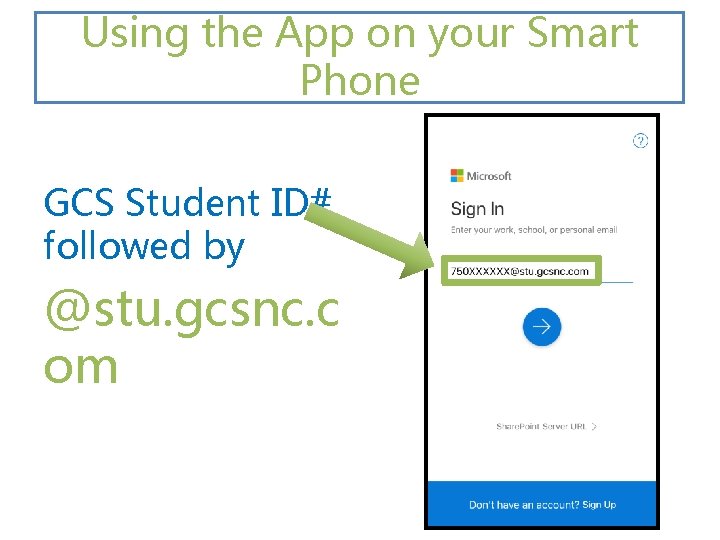
Using the App on your Smart Phone GCS Student ID# followed by @stu. gcsnc. c om
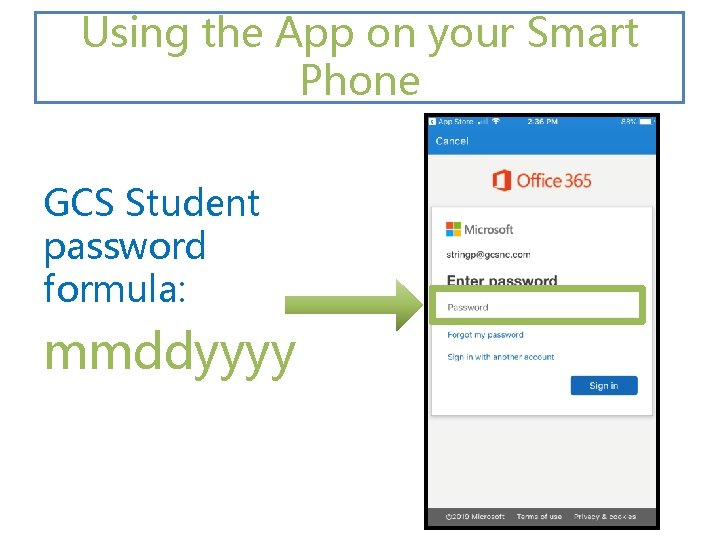
Using the App on your Smart Phone GCS Student password formula: mmddyyyy
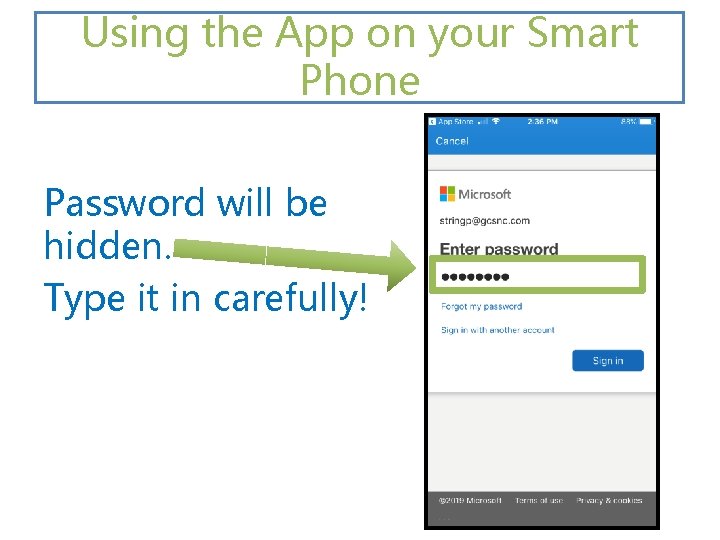
Using the App on your Smart Phone Password will be hidden. Type it in carefully!
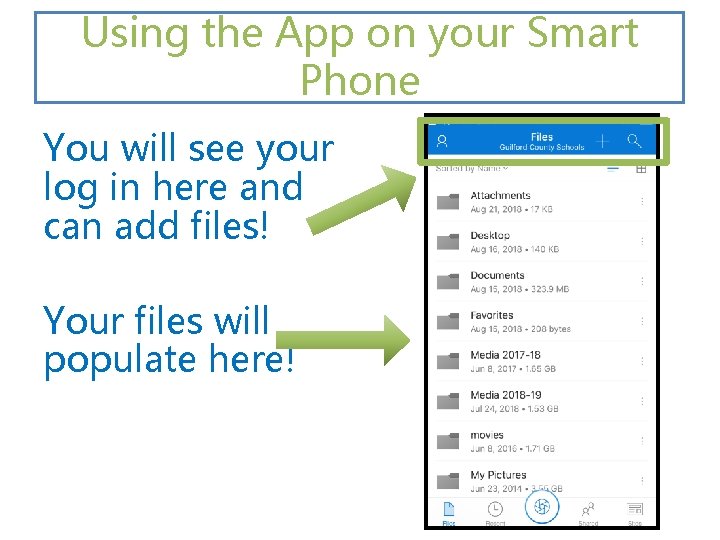
Using the App on your Smart Phone You will see your log in here and can add files! Your files will populate here!
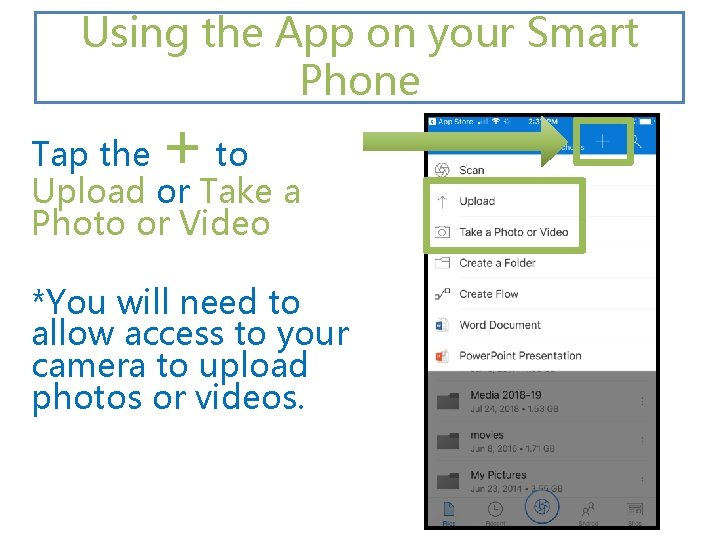
Using the App on your Smart Phone + Tap the to Upload or Take a Photo or Video *You will need to allow access to your camera to upload photos or videos.
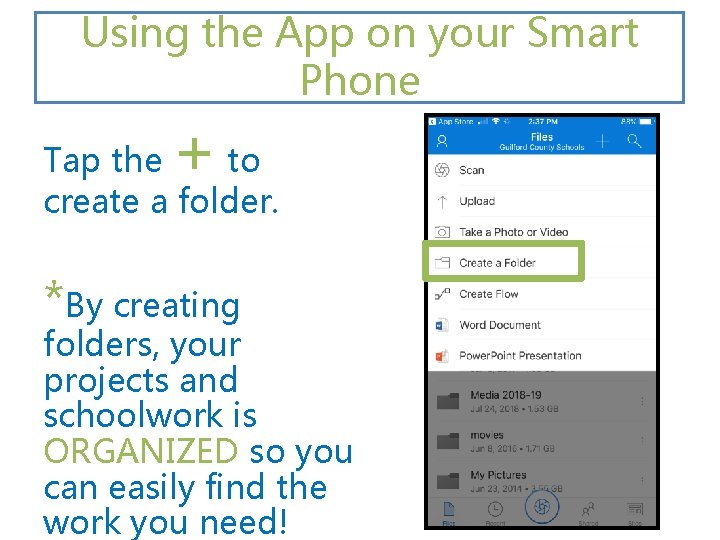
Using the App on your Smart Phone + Tap the to create a folder. *By creating folders, your projects and schoolwork is ORGANIZED so you can easily find the work you need!