
SETTING UP USING TOUCHCHAT HD WORDPOWER Learn more

- Slides: 32
SETTING UP & USING TOUCHCHAT HD WORDPOWER Learn more about Touch. Chat products at https: //touchchatapp. com/support/touchchat
LEARNING OBJECTIVES By the end of the training, you will be able to: • Identify individuals who would benefit from this app. • Set-up and personalize vocabulary. • Maximize use of app for phone communication.
TOUCHCHAT IN-ACTION Watch Movie Link to Touch. Chat App Training Videos
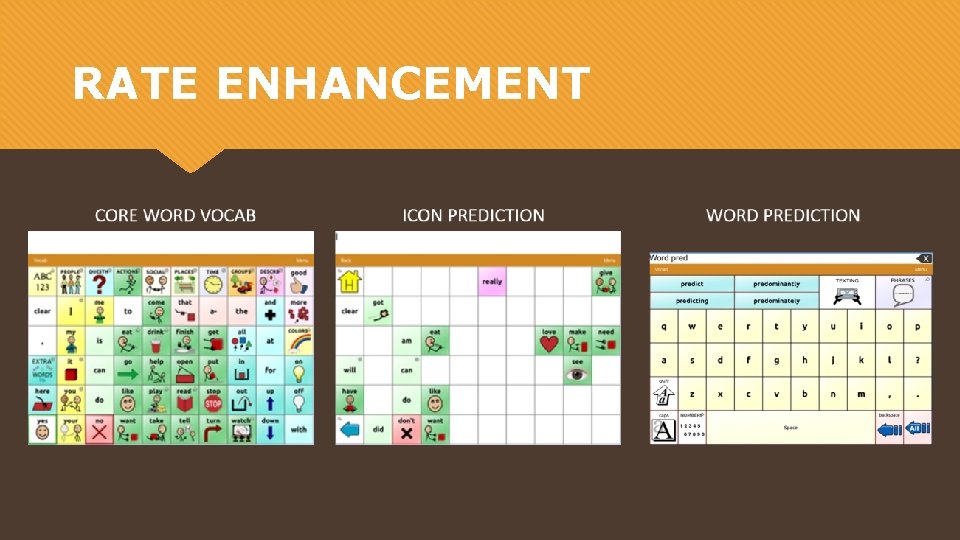
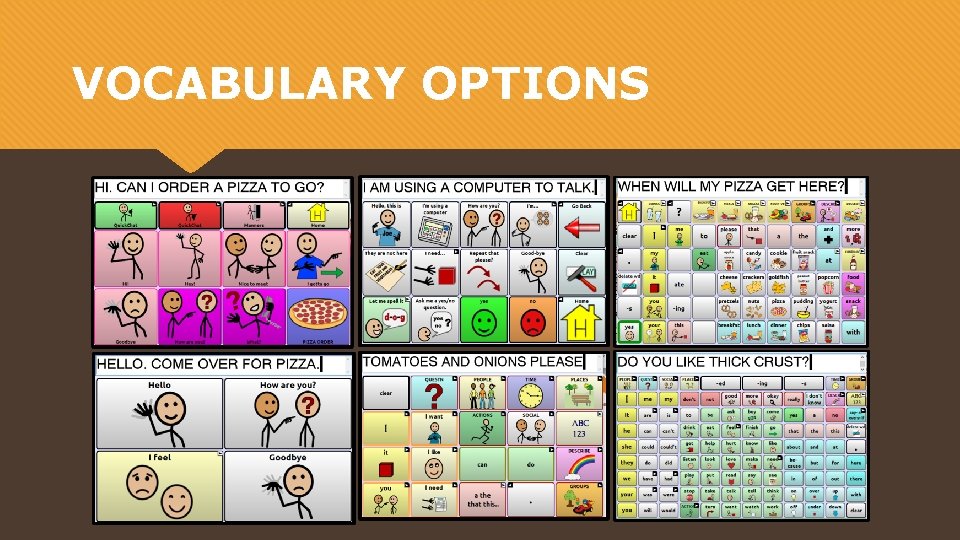
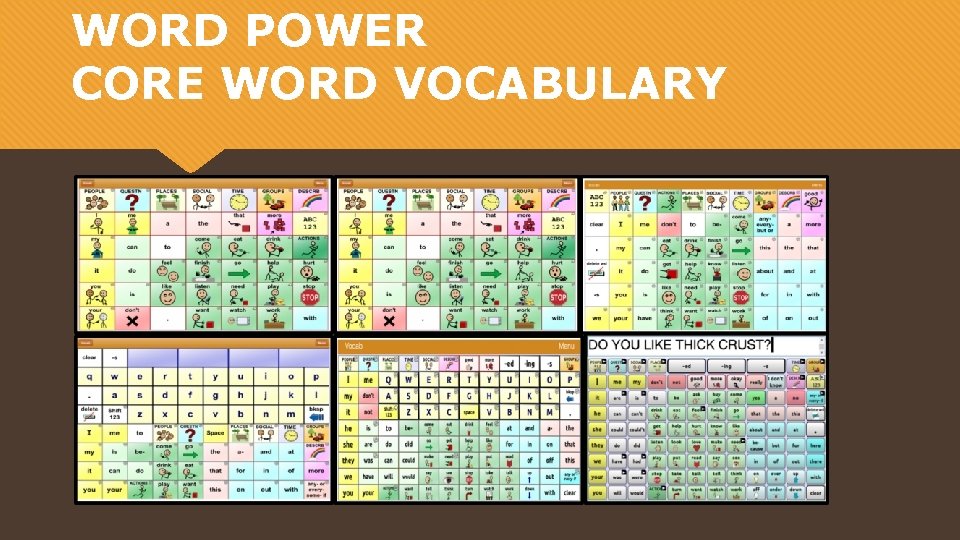
CONSIDERATIONS FOR SELECTION • Symbol supports for literacy needs • Large range of vocabulary layouts • Large core word vocabulary • Customization for language, vision and physical needs • Spanish vocabulary available
RATE ENHANCEMENT
VOCABULARY OPTIONS
WORD POWER CORE WORD VOCABULARY
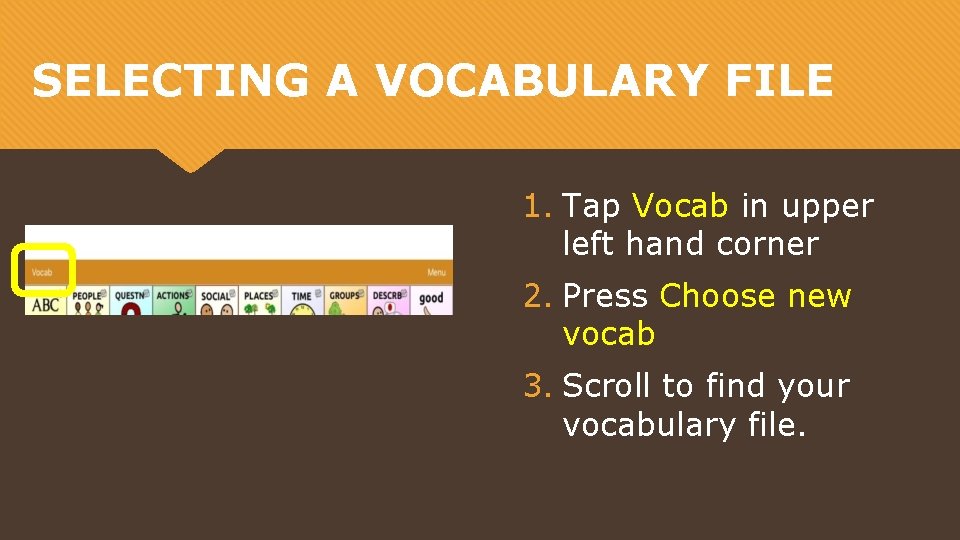
SELECTING A VOCABULARY FILE 1. Tap Vocab in upper left hand corner 2. Press Choose new vocab 3. Scroll to find your vocabulary file.
Let’s try out the vocabularies
STORING CUSTOM VOCABULARY In order to edit an original vocabulary file, a copy must be made first. 1. Go to the Vocab File listing by choosing Vocab and Choose New Vocab 2. Choose Menu 3. Choose Copy a Vocab 4. Choose the Vocab File to copy 5. Give it a Name and New Description 6. Choose Save
SOUND SETTINGS: CHANGING THE VOICE 1. From the app, Select Menu 2. Select Settings 3. In the Speech section, find Voice to select any of the available voices 4. Select Done
SOUND SETTINGS: TURNING BUTTON CLICKS ON AND OFF 1. From the app, Select Menu 2. Select Settings 3. In the Navigation section, find Button Click Sound. 4. To turn the button click off, slide the button to the left. 5. To turn the button click on, slide the button to the right. 6. Select Done
CHANGING YOUR TOUCH SETTINGS: ACTIVATE ON RELEASE 1. Tap Menu 2. Select Settings 3. Scroll until you find the Buttons section 4. Slide the button to the left to turn it off. 5. Slide the button to the right to turn it on. 6. Select Done
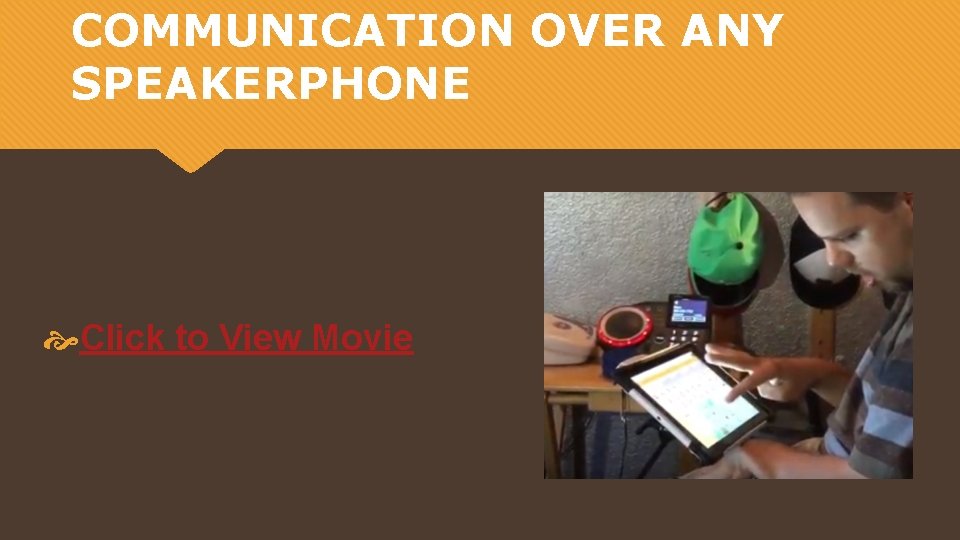
COMMUNICATION OVER ANY SPEAKERPHONE Click to View Movie
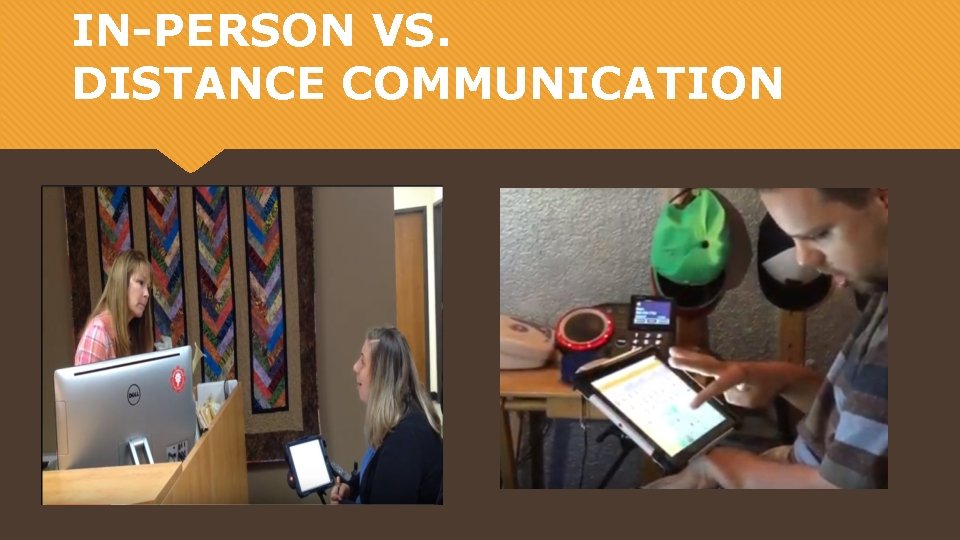
IN-PERSON VS. DISTANCE COMMUNICATION
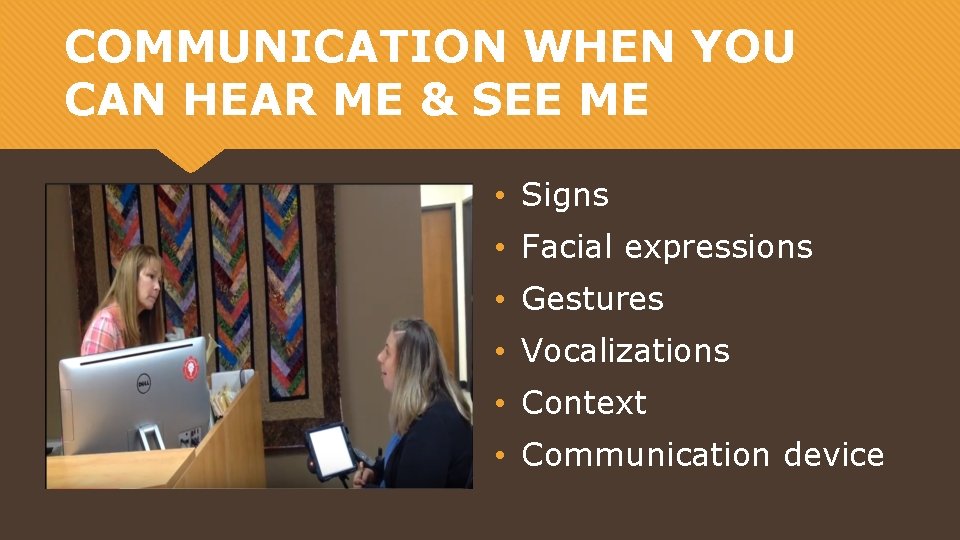
COMMUNICATION WHEN YOU CAN HEAR ME & SEE ME • Signs • Facial expressions • Gestures • Vocalizations • Context • Communication device
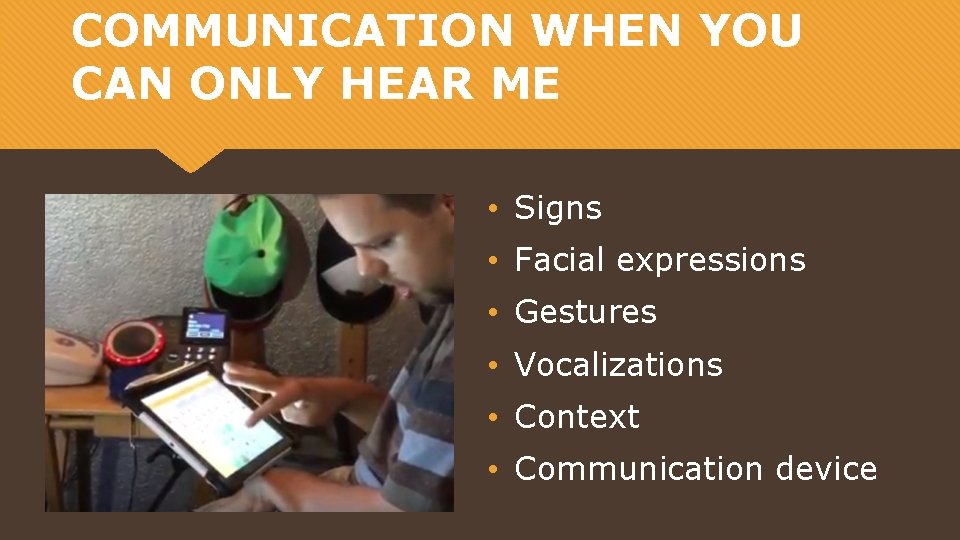
COMMUNICATION WHEN YOU CAN ONLY HEAR ME • Signs • Facial expressions • Gestures • Vocalizations • Context • Communication device
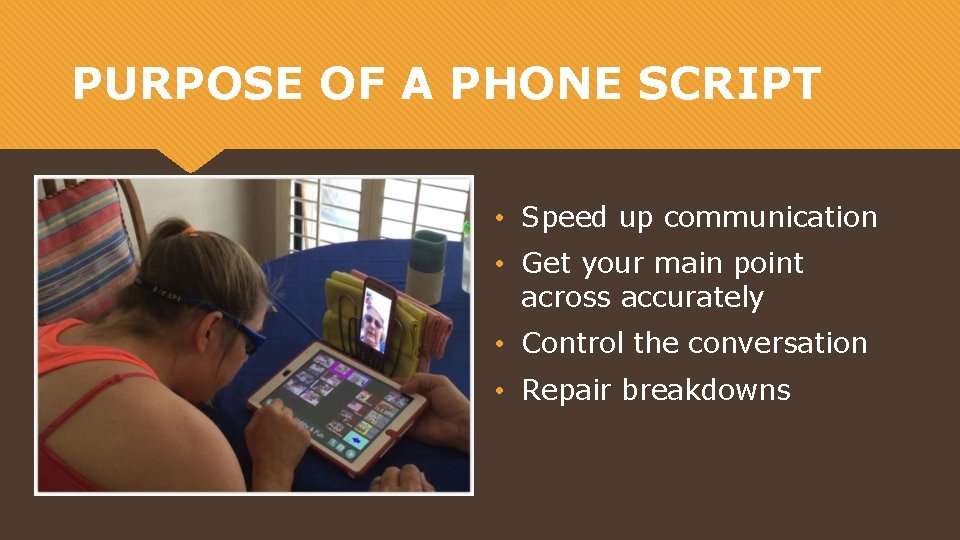
PURPOSE OF A PHONE SCRIPT • Speed up communication • Get your main point across accurately • Control the conversation • Repair breakdowns
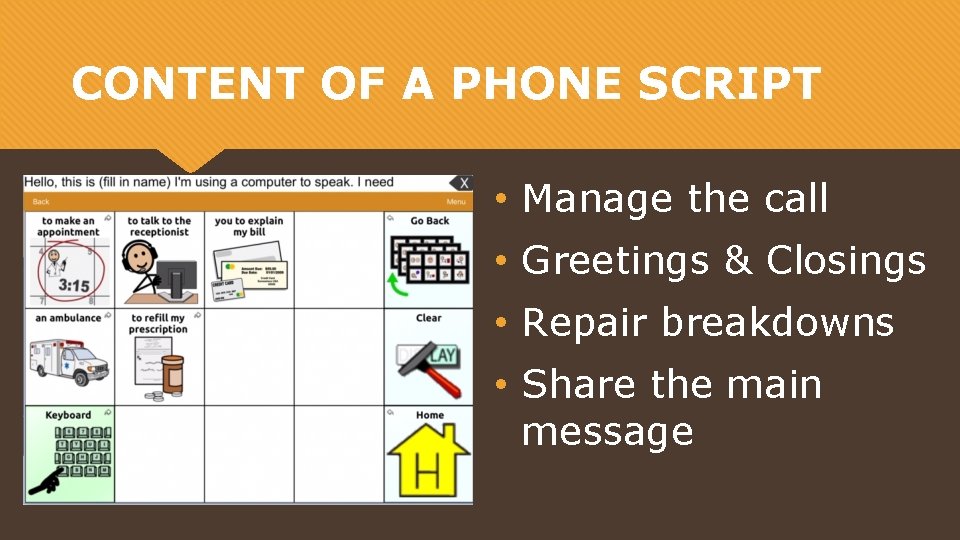
CONTENT OF A PHONE SCRIPT • Manage the call • Greetings & Closings • Repair breakdowns • Share the main message
EDITING A BUTTON 1. Go to the page where the button is located. Click to View Movie 2. Select Menu. 3. Select Edit Page. 4. Select the button to be edited. 5. Select Edit This Button.
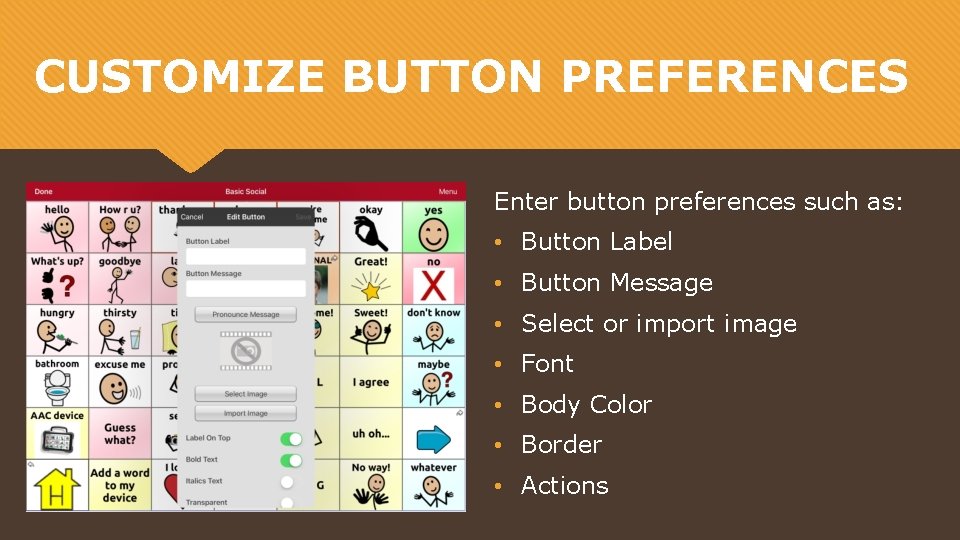
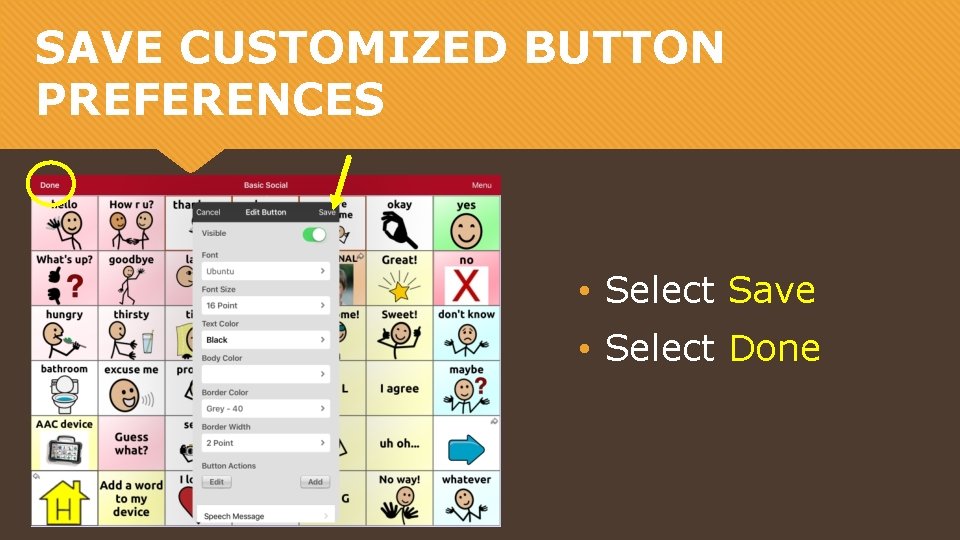
CUSTOMIZE BUTTON PREFERENCES Enter button preferences such as: • Button Label • Button Message • Select or import image • Font • Body Color • Border • Actions
SAVE CUSTOMIZED BUTTON PREFERENCES • Select Save • Select Done
BUTTON ACTIONS: NAVIGATE TO A DIFFERENT PAGE 1. Select Menu 2. Select Edit Page 3. Tap a button to edit 4. Select Edit This Button 5. Scroll down to Button Actions 6. Select Navigate 7. Choose Your Page 8. Select animation option 9. Select Save and Select Done
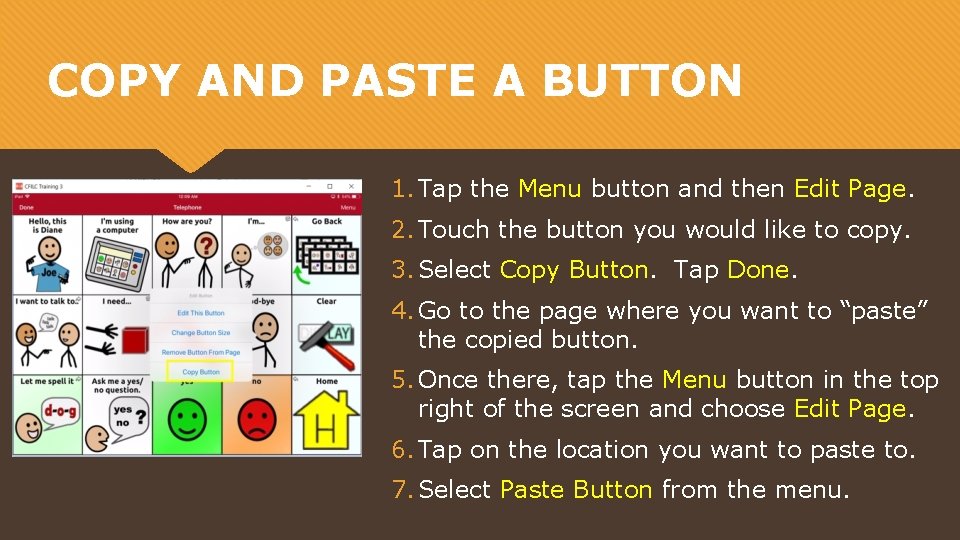
COPY AND PASTE A BUTTON 1. Tap the Menu button and then Edit Page. 2. Touch the button you would like to copy. 3. Select Copy Button. Tap Done. 4. Go to the page where you want to “paste” the copied button. 5. Once there, tap the Menu button in the top right of the screen and choose Edit Page. 6. Tap on the location you want to paste to. 7. Select Paste Button from the menu.
Lets Practice # 1 Word Power 42 Write this sentence: “I want to eat pizza with onions pepperoni sausage and extra mushrooms. DO NOT USE KEYBOARD!
Lets Practice # 2 – Word power 42 My Family go for a walk to the park tonight
Lets Practice # 3 Word Power 140 Write this sentence: “I wont eat tomatoes DO NOT USE KEYBOARD!
Lets Practice # 4 Word Power 140 Write this sentence: “I like to visit the river and camp” DO NOT USE KEYBOARD!
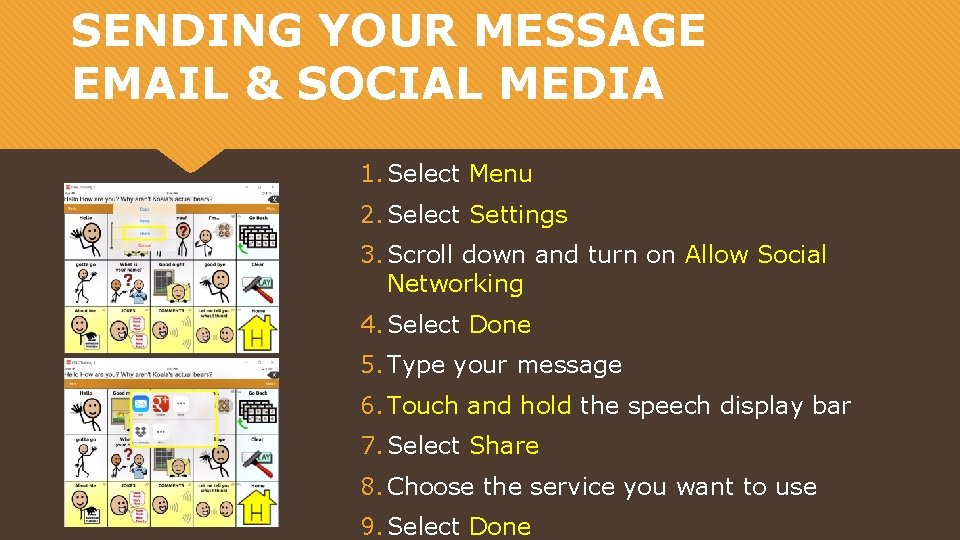
SENDING YOUR MESSAGE EMAIL & SOCIAL MEDIA 1. Select Menu 2. Select Settings 3. Scroll down and turn on Allow Social Networking 4. Select Done 5. Type your message 6. Touch and hold the speech display bar 7. Select Share 8. Choose the service you want to use 9. Select Done
Bilingual Options There are two ways of using Touch. Chat HD with languages. 1. The first option is make the voice speak a different language than the buttons by opening settings and changing the voice. 2. The second option is to open the list of vocabulary files, and scroll down to Spanish. Tap Spanish and it should open a listing of vocabulary files that can be used only in Spanish or in Spanish and English.
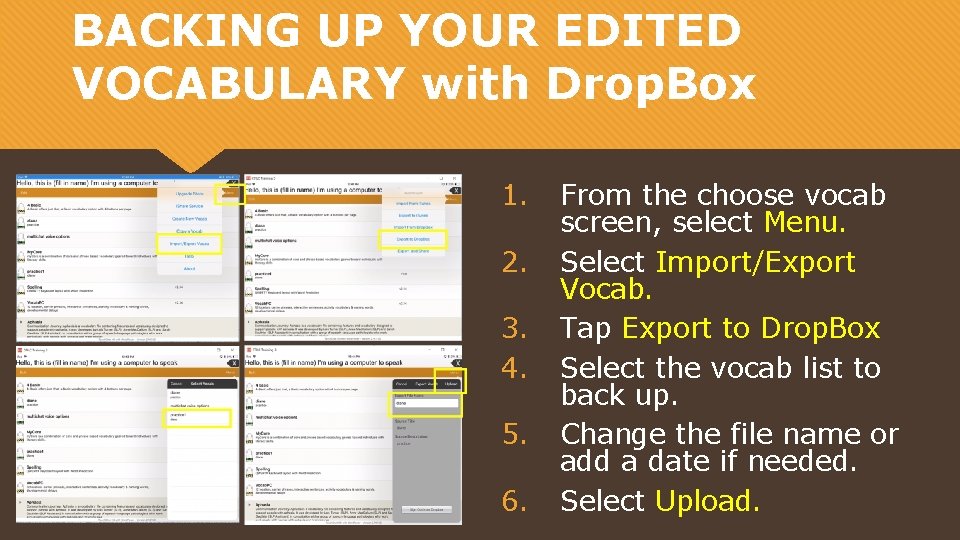
BACKING UP YOUR EDITED VOCABULARY with Drop. Box 1. 2. 3. 4. 5. 6. From the choose vocab screen, select Menu. Select Import/Export Vocab. Tap Export to Drop. Box Select the vocab list to back up. Change the file name or add a date if needed. Select Upload.
QUESTIONS? ? Visit the Touch. Chat website for the most recent training videos and technical support articles https: //touchchatapp. com/support/touchchat