
Setting up Turnitin Assignment Fitsum F Abebe fitsumunl

Setting up Turnitin Assignment Fitsum F. Abebe (fitsum@unl. edu)
Turnitin Learning Tools • It is mainly known for its anti-plagiarism checker inside of Canvas • The two types: • Learning Tools Interoperability (LTI) • Legacy API • The LTI version provides full support for the use of • Originality Check • Grade. Mark • Peer. Mark and • The API version provides only Originality Check and Grade. Mark. • The API Turnitin will be replaced by the new LTI.
How do teachers integrate and use Turnitin in Assignments? Steps: 1. Creating a Turnitin Assignment in Canvas 2. Adjusting Your Default Turnitin Assignment Settings 3. Evaluating Turnitin Assignment Submissions
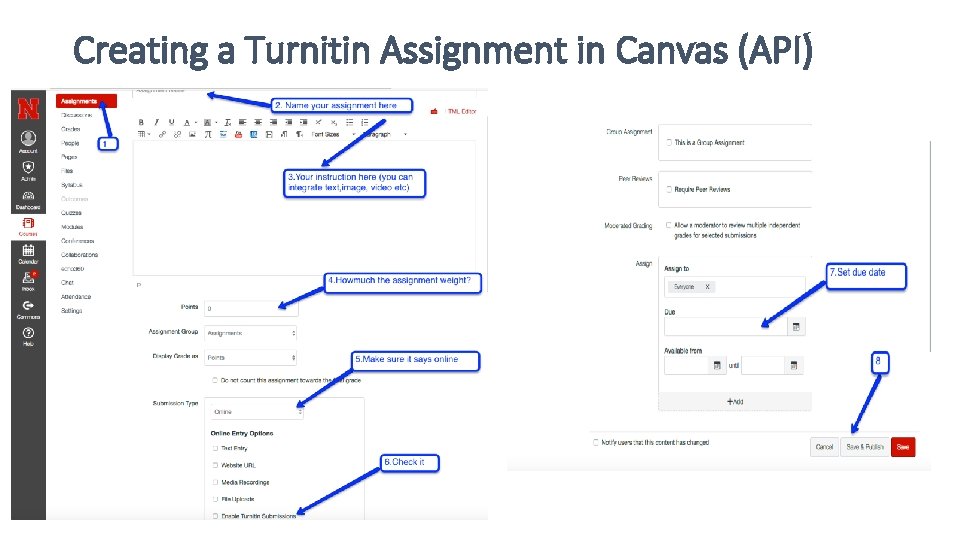
Creating a Turnitin Assignment in Canvas (API)
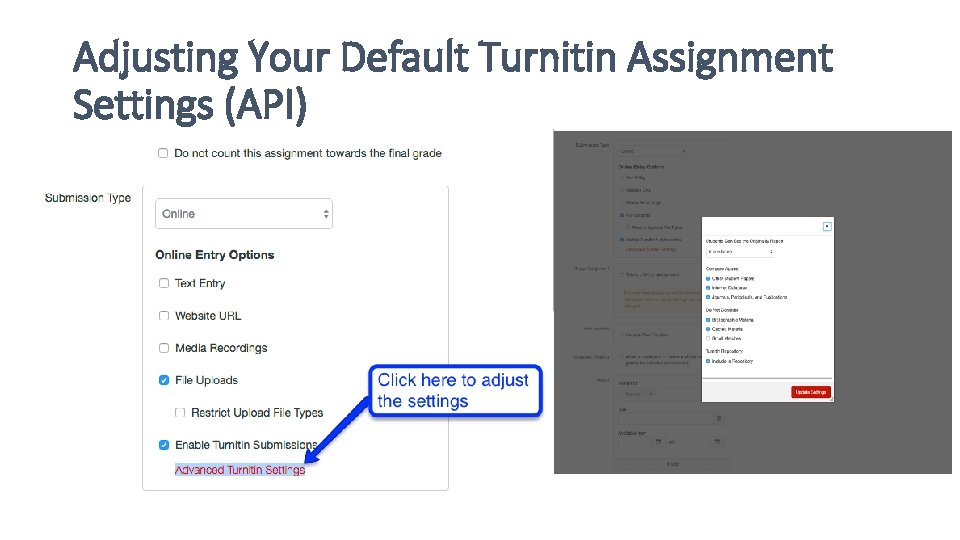
Adjusting Your Default Turnitin Assignment Settings (API)
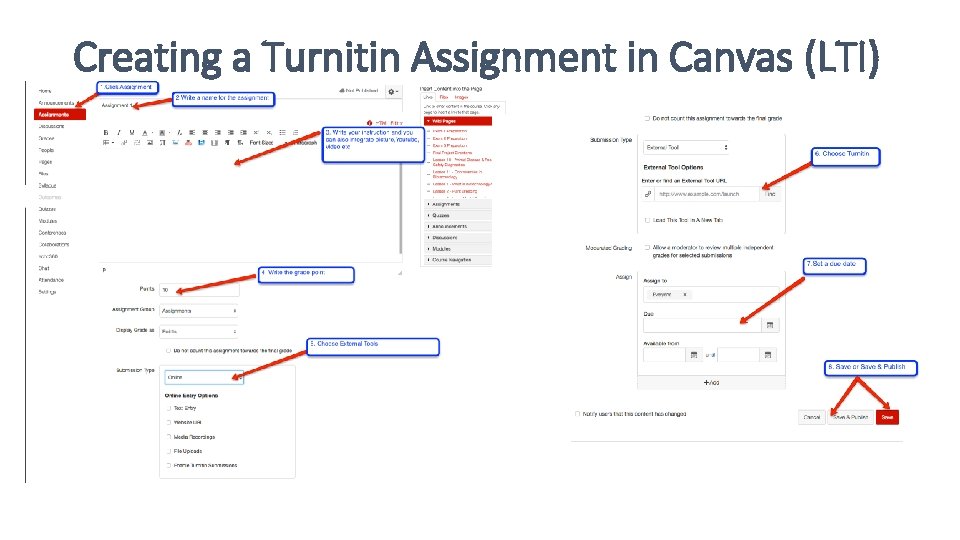
Creating a Turnitin Assignment in Canvas (LTI)
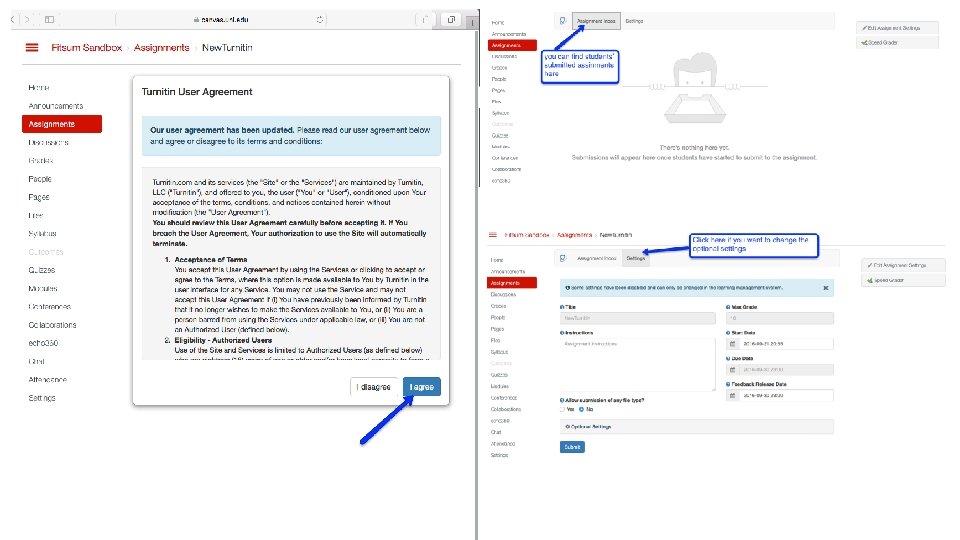
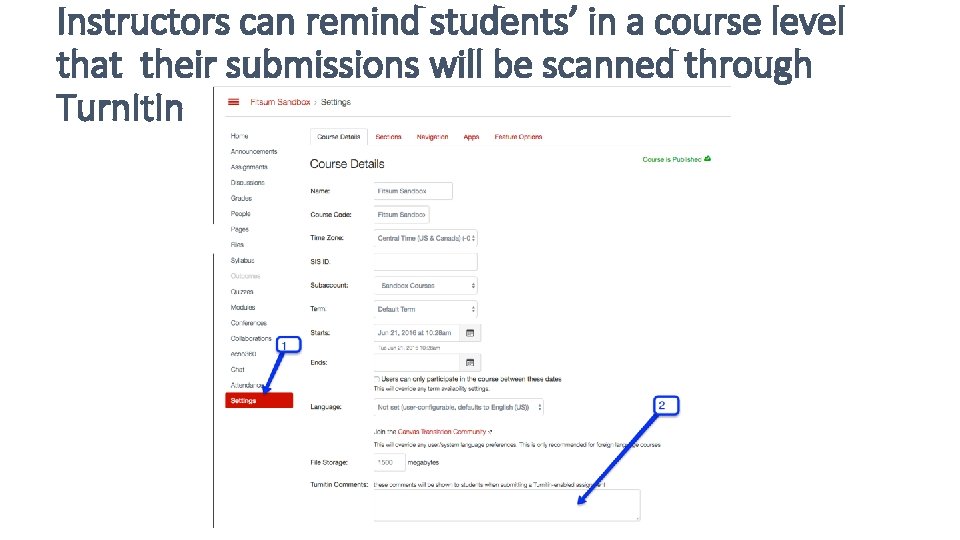
Instructors can remind students’ in a course level that their submissions will be scanned through Turn. It. In
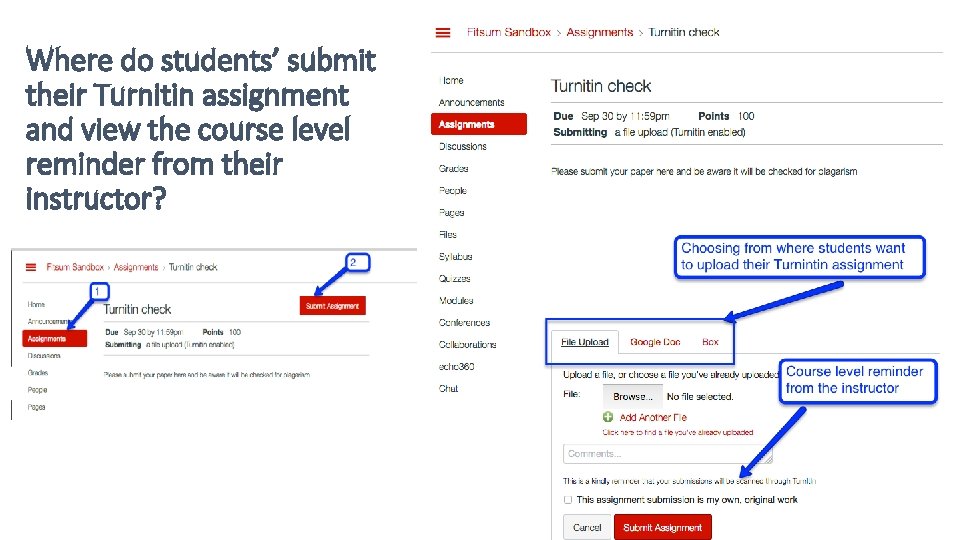
Where do students’ submit their Turnitin assignment and view the course level reminder from their instructor?
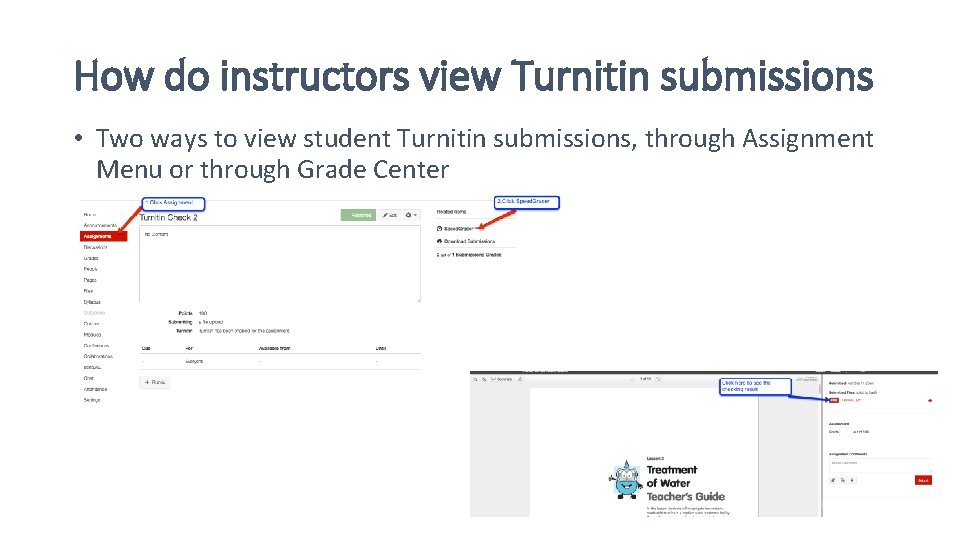
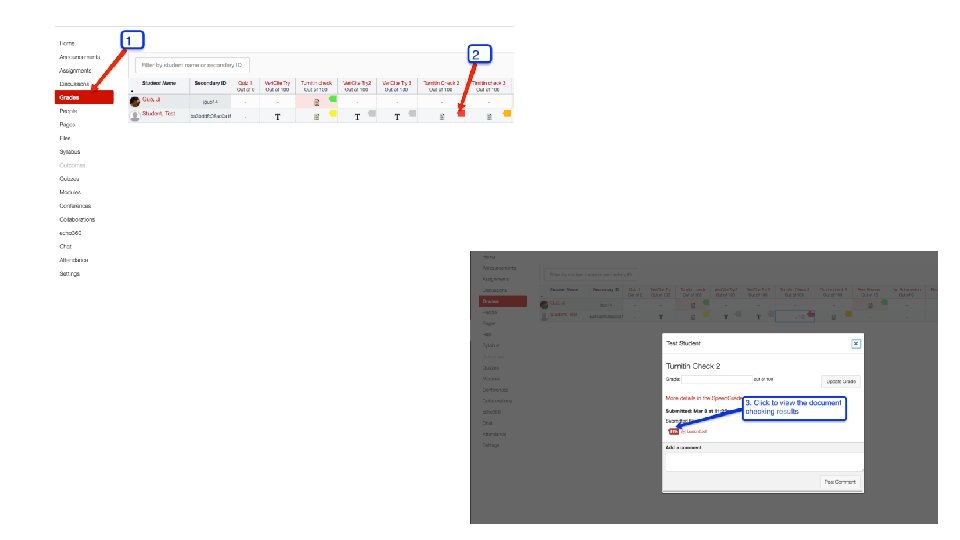
How do instructors view Turnitin submissions • Two ways to view student Turnitin submissions, through Assignment Menu or through Grade Center
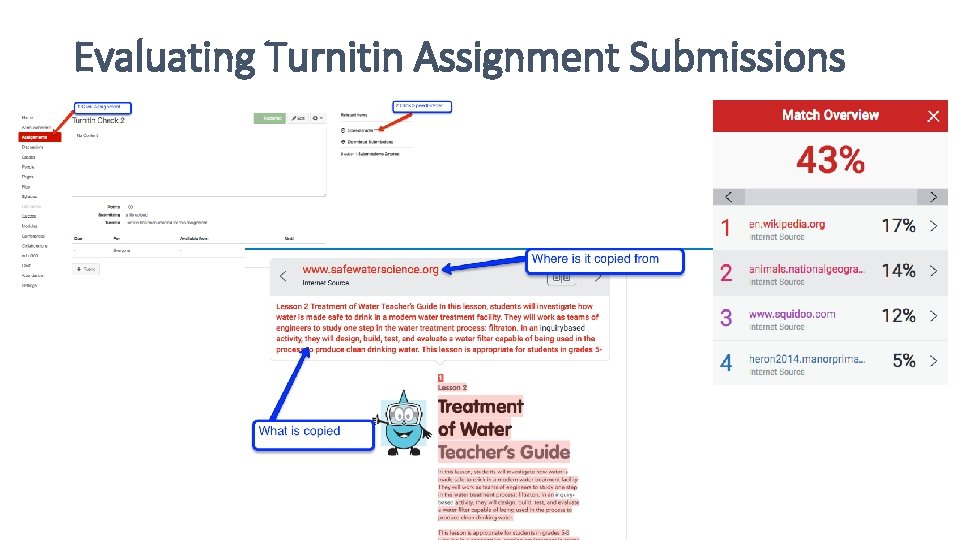
Evaluating Turnitin Assignment Submissions
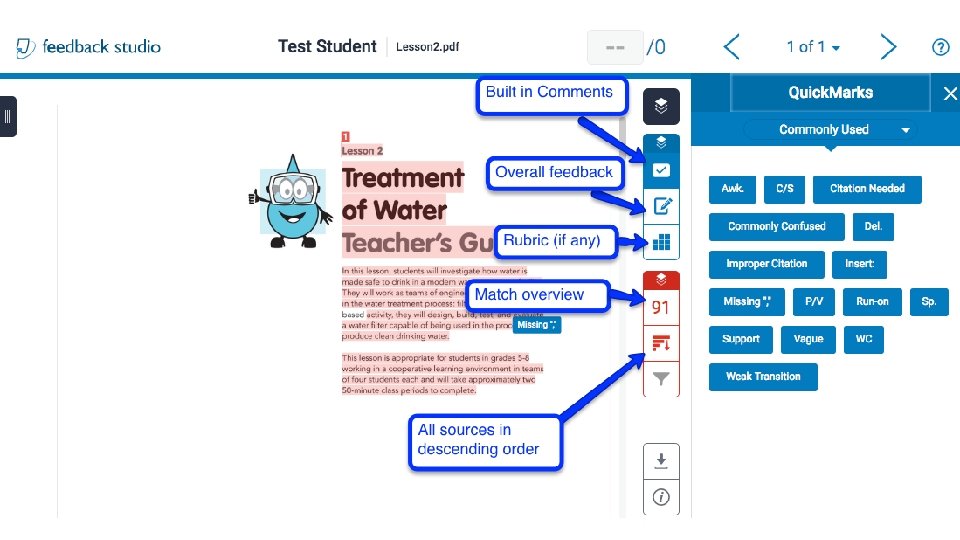
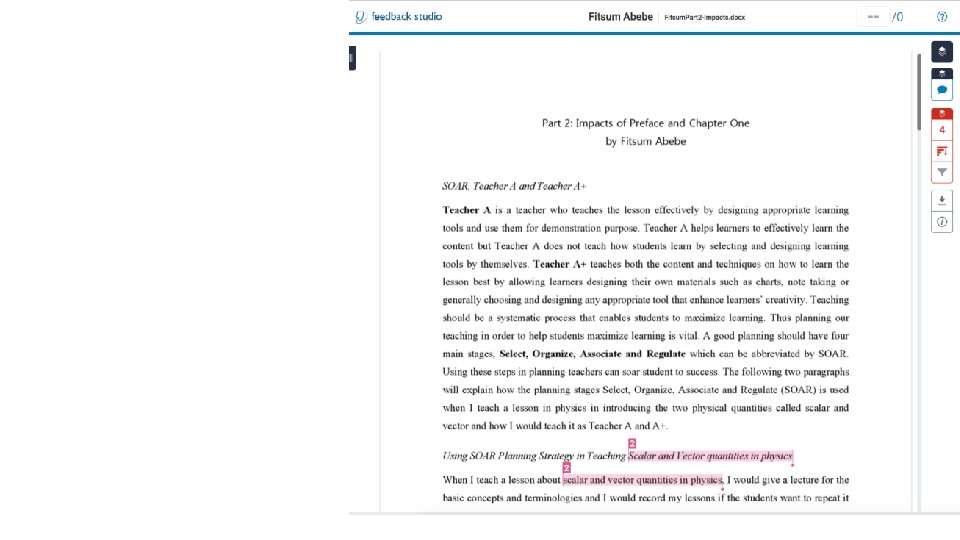
Grade Mark • Instructors are able to evaluate student work online as an alternative of Speed. Grader through Feedback Studio • Instructors can add: • comments within the body of the paper • point out grammar and punctuation mistakes • evaluate the paper against qualitative or quantitative rubrics • give grade which is automatically saved into Grade. Book • Feedback Studio has also functions: • give feedback in text and in audio • built in comments drag and drop
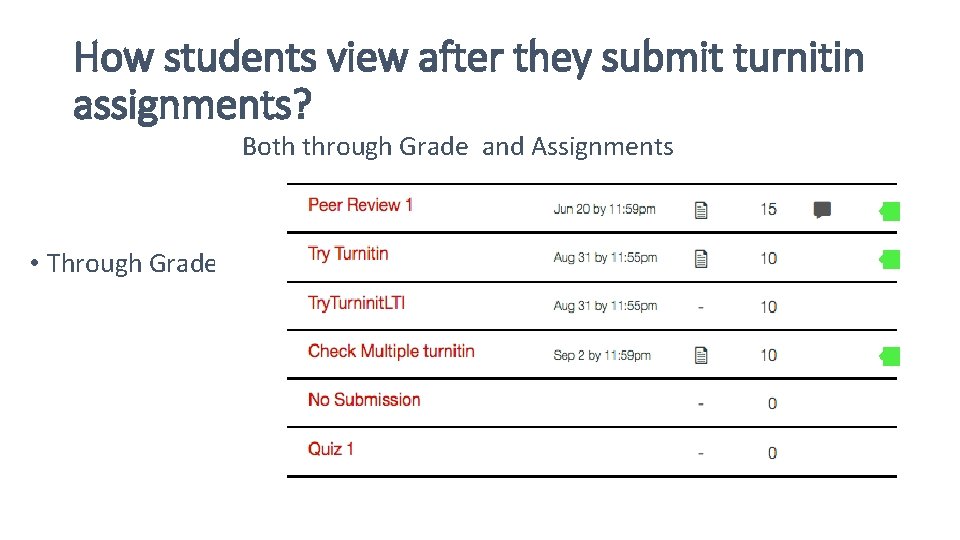
How students view after they submit turnitin assignments? Both through Grade and Assignments • Through Grade
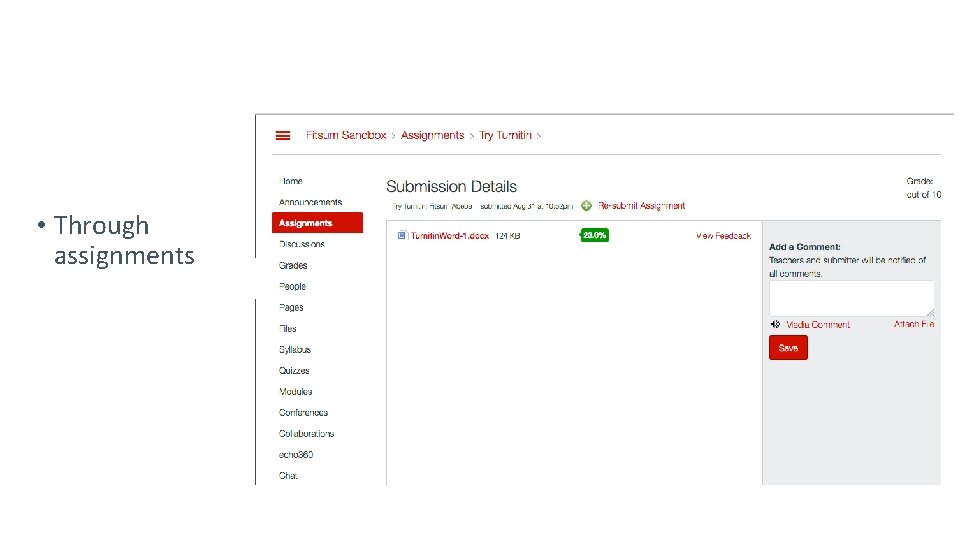
• Through assignments
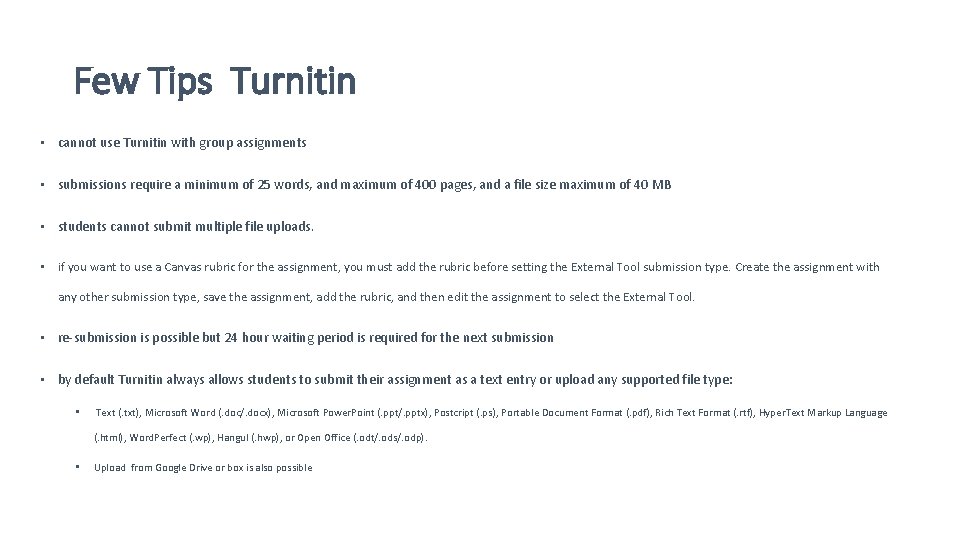
Few Tips Turnitin • cannot use Turnitin with group assignments • submissions require a minimum of 25 words, and maximum of 400 pages, and a file size maximum of 40 MB • students cannot submit multiple file uploads. • if you want to use a Canvas rubric for the assignment, you must add the rubric before setting the External Tool submission type. Create the assignment with any other submission type, save the assignment, add the rubric, and then edit the assignment to select the External Tool. • re-submission is possible but 24 hour waiting period is required for the next submission • by default Turnitin always allows students to submit their assignment as a text entry or upload any supported file type: • Text (. txt), Microsoft Word (. doc/. docx), Microsoft Power. Point (. ppt/. pptx), Postcript (. ps), Portable Document Format (. pdf), Rich Text Format (. rtf), Hyper. Text Markup Language (. html), Word. Perfect (. wp), Hangul (. hwp), or Open Office (. odt/. ods/. odp). • Upload from Google Drive or box is also possible
References and Resources Turnitin website https: //guides. turnitin. com/03_Integrations/Turnitin_Partner_Integrati ons/Canvas Blog and updates https: //community. canvaslms. com/groups/designers/blog/2015/04/18 /canvas-and-turnitin
- Slides: 19