
Setting up the PA system 280517 version Setup



- Slides: 27
Setting up the PA system (28/05/17 version) Setup the projector and laptop on the desk. Plug the windup extension cord into the wall mains plug on the stage. Plug in projector and computer.
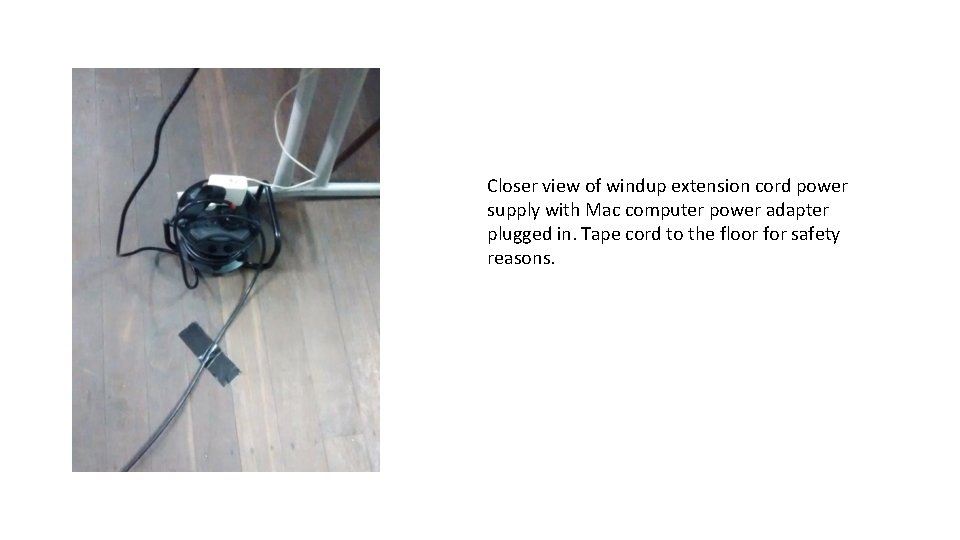
Closer view of windup extension cord power supply with Mac computer power adapter plugged in. Tape cord to the floor for safety reasons.
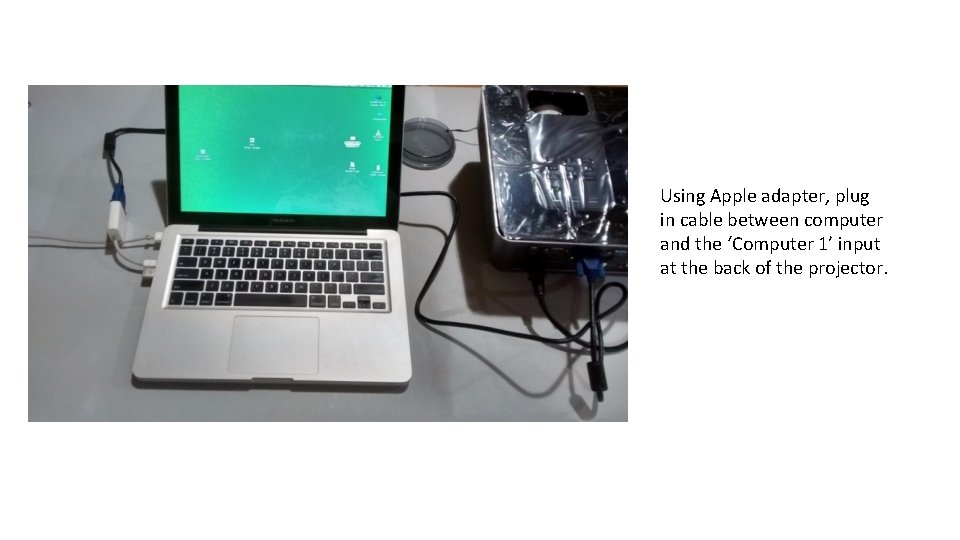
Using Apple adapter, plug in cable between computer and the ‘Computer 1’ input at the back of the projector.
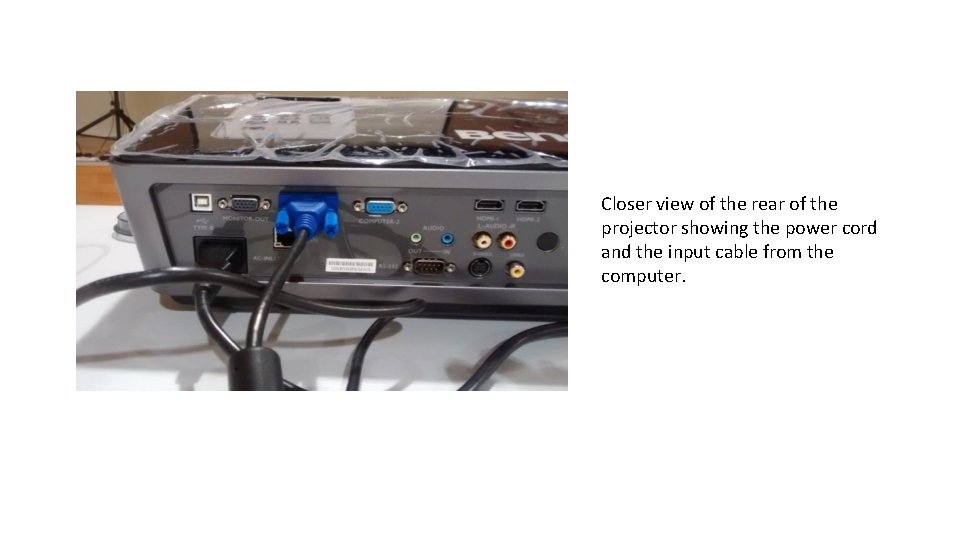
Closer view of the rear of the projector showing the power cord and the input cable from the computer.
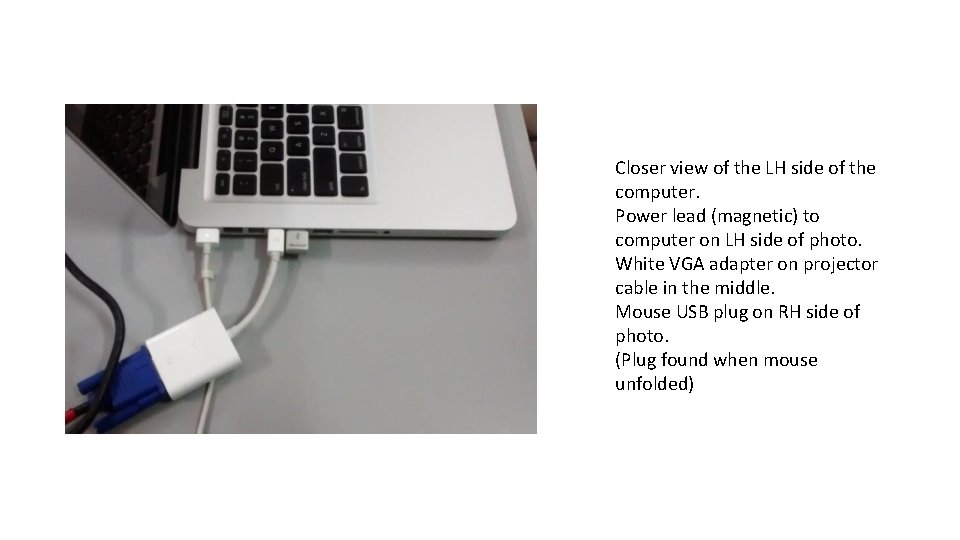
Closer view of the LH side of the computer. Power lead (magnetic) to computer on LH side of photo. White VGA adapter on projector cable in the middle. Mouse USB plug on RH side of photo. (Plug found when mouse unfolded)
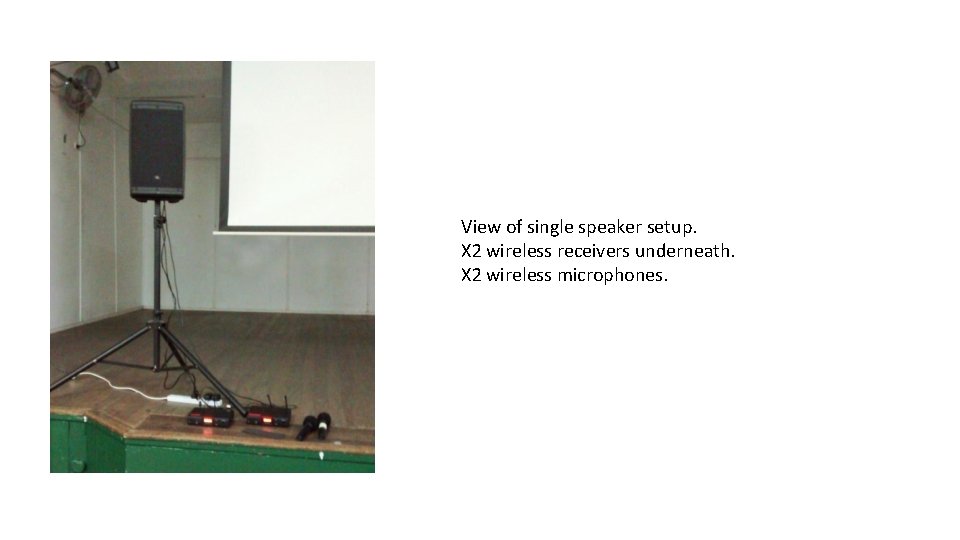
View of single speaker setup. X 2 wireless receivers underneath. X 2 wireless microphones.
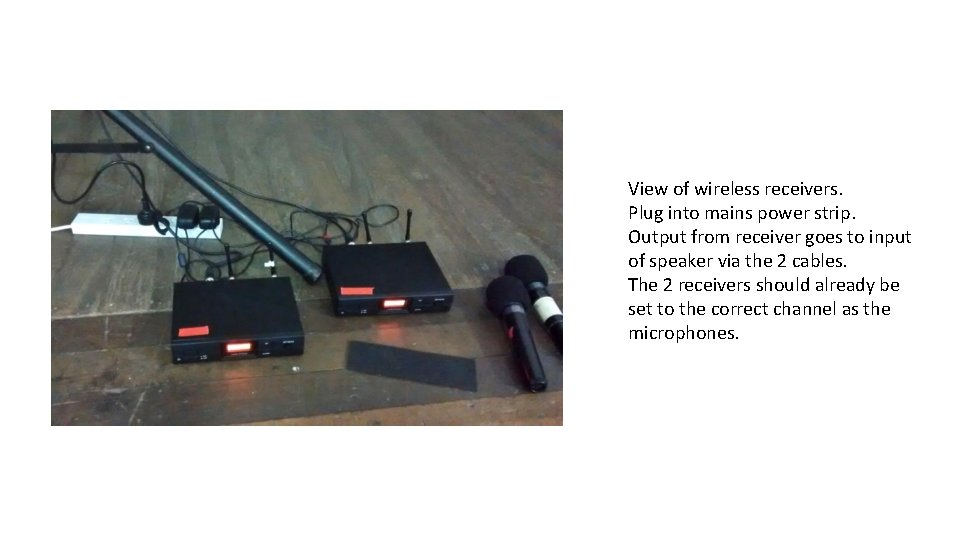
View of wireless receivers. Plug into mains power strip. Output from receiver goes to input of speaker via the 2 cables. The 2 receivers should already be set to the correct channel as the microphones.
Rear view of wireless receiver. Power plugs into RH side. Cable to speaker next to it.
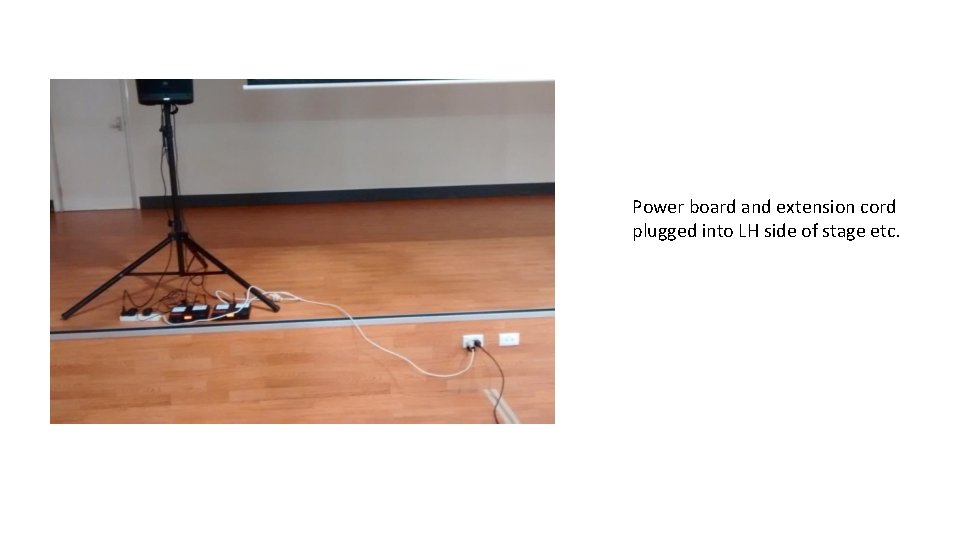
Power board and extension cord plugged into LH side of stage etc.
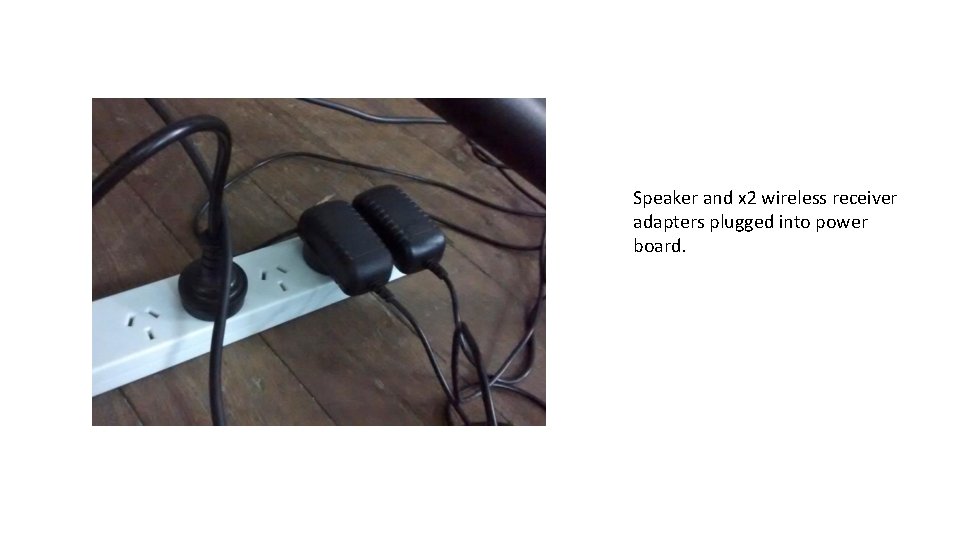
Speaker and x 2 wireless receiver adapters plugged into power board.
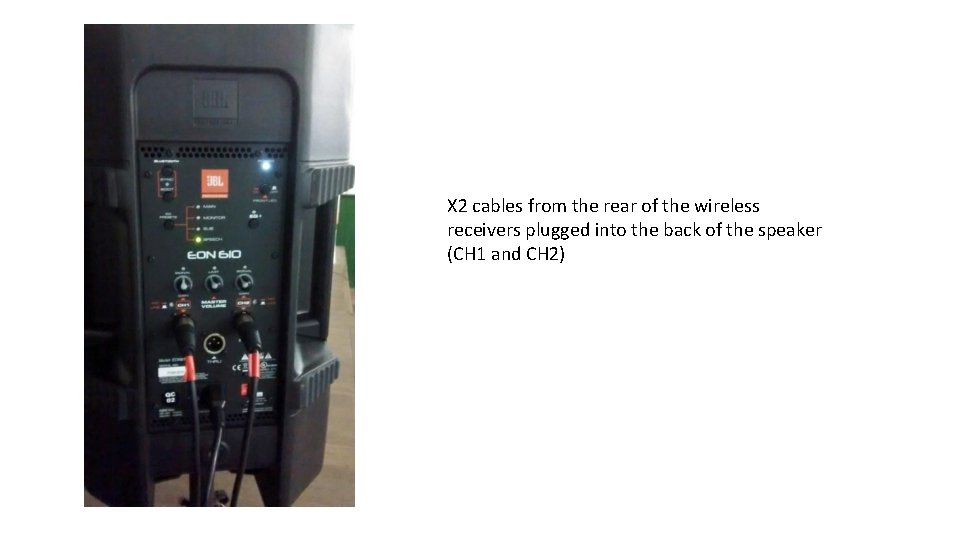
X 2 cables from the rear of the wireless receivers plugged into the back of the speaker (CH 1 and CH 2)
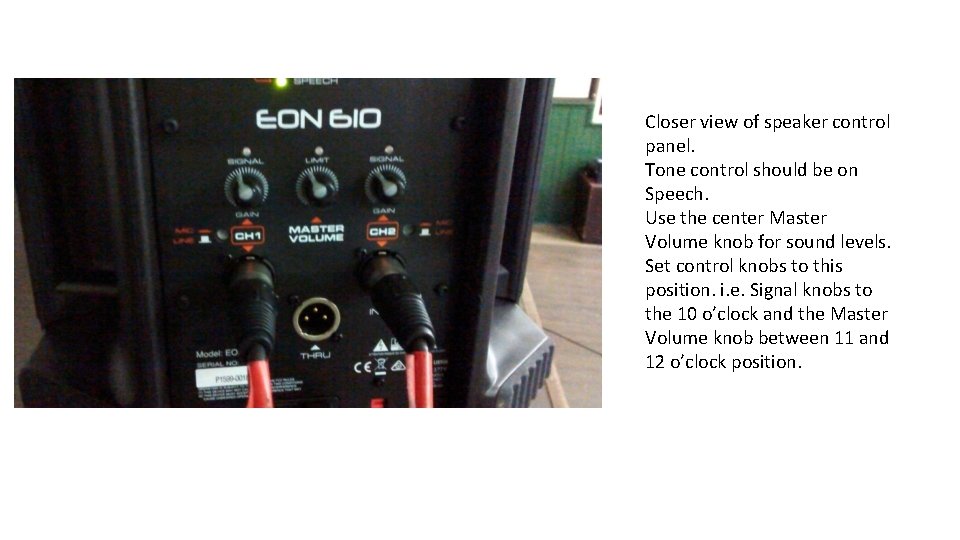
Closer view of speaker control panel. Tone control should be on Speech. Use the center Master Volume knob for sound levels. Set control knobs to this position. i. e. Signal knobs to the 10 o’clock and the Master Volume knob between 11 and 12 o’clock position.
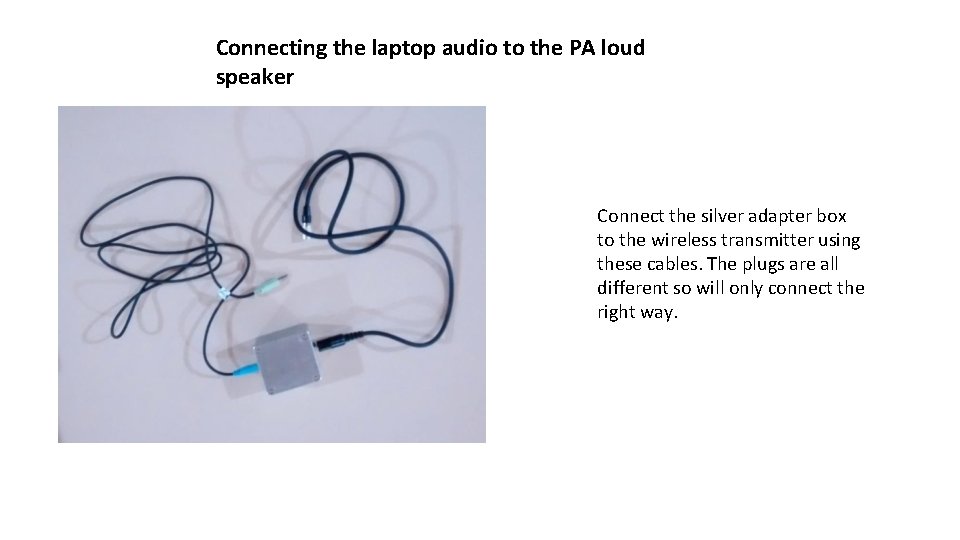
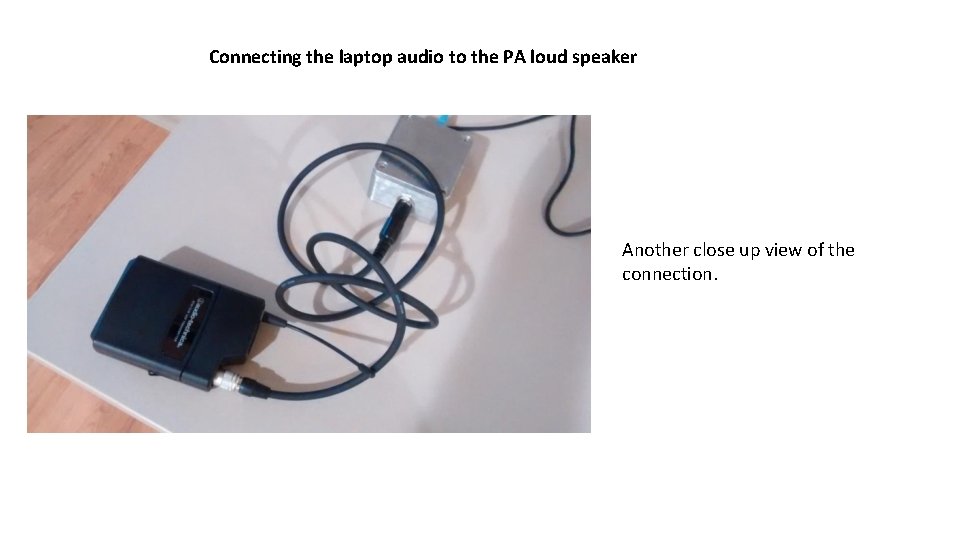
Connecting the laptop audio to the PA loud speaker Connect the silver adapter box to the wireless transmitter using these cables. The plugs are all different so will only connect the right way.
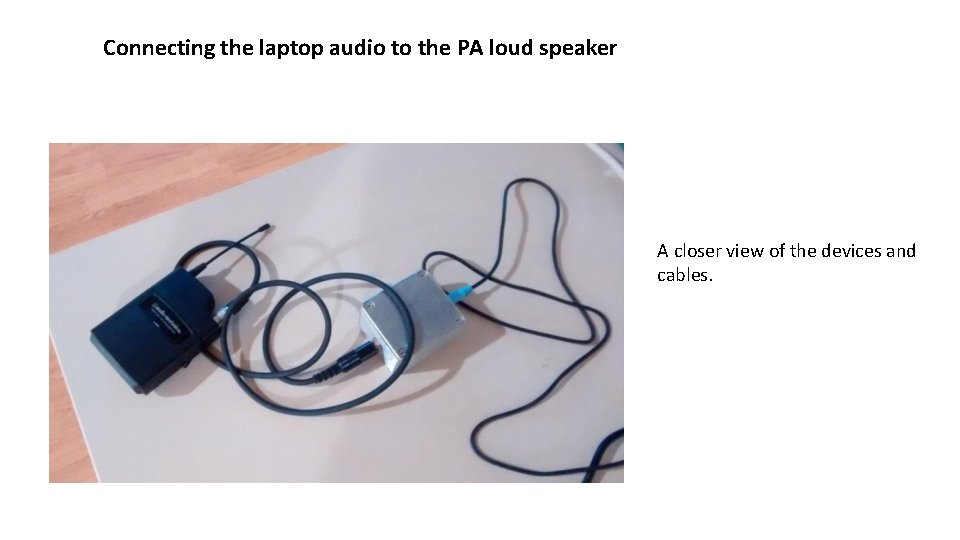
Connecting the laptop audio to the PA loud speaker A closer view of the devices and cables.
Connecting the laptop audio to the PA loud speaker Another close up view of the connection.
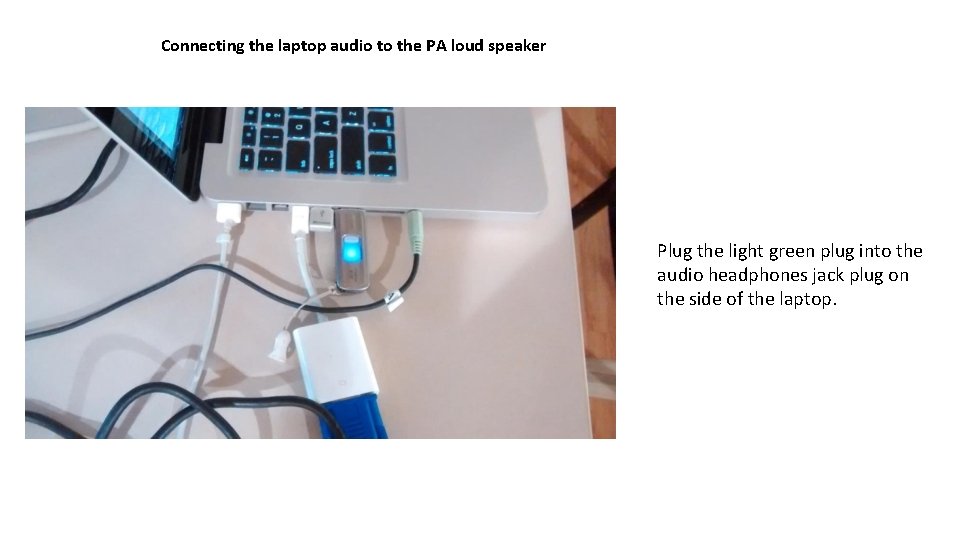
Connecting the laptop audio to the PA loud speaker Plug the light green plug into the audio headphones jack plug on the side of the laptop.
Connecting the laptop audio to the PA loud speaker Adjust the volume of the sound by the headphone volume control on the laptop screen.
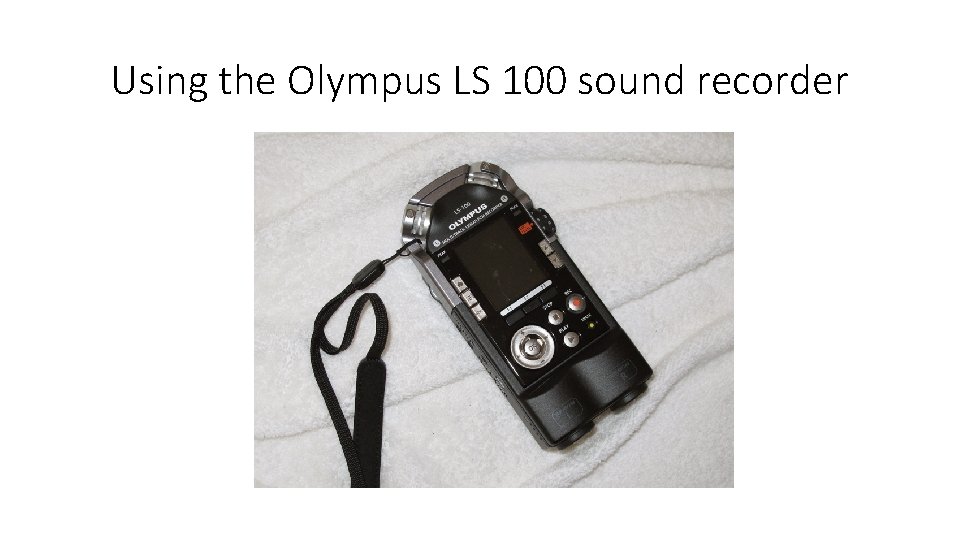
Using the Olympus LS 100 sound recorder
Recording sound • Quick info: • Rechargeable battery lasts approximately 4 hours • When recording long sessions connect the charger • Charge via small USB port • We are using the XLR input option for recording (best quality) • The device settings should not change as they are saved to internal memory
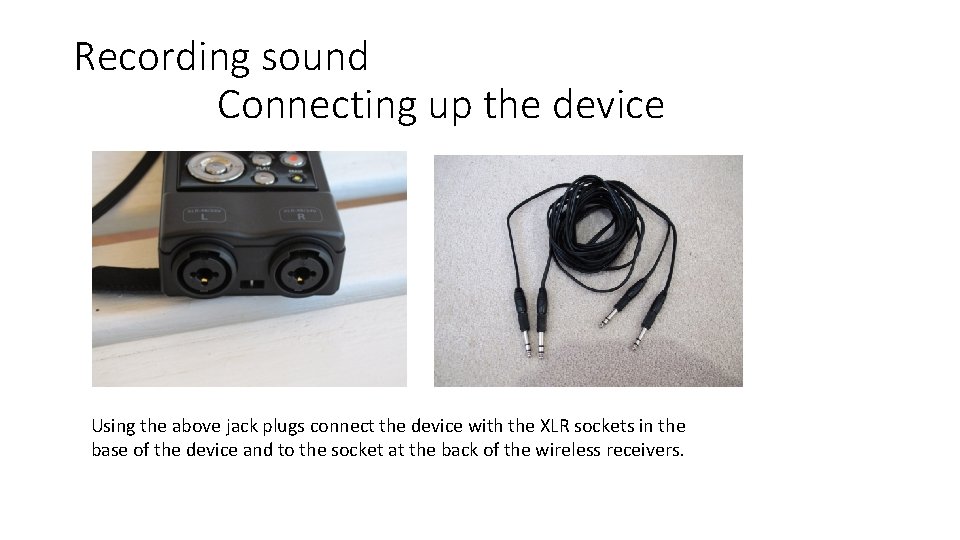
Recording sound Connecting up the device Using the above jack plugs connect the device with the XLR sockets in the base of the device and to the socket at the back of the wireless receivers.
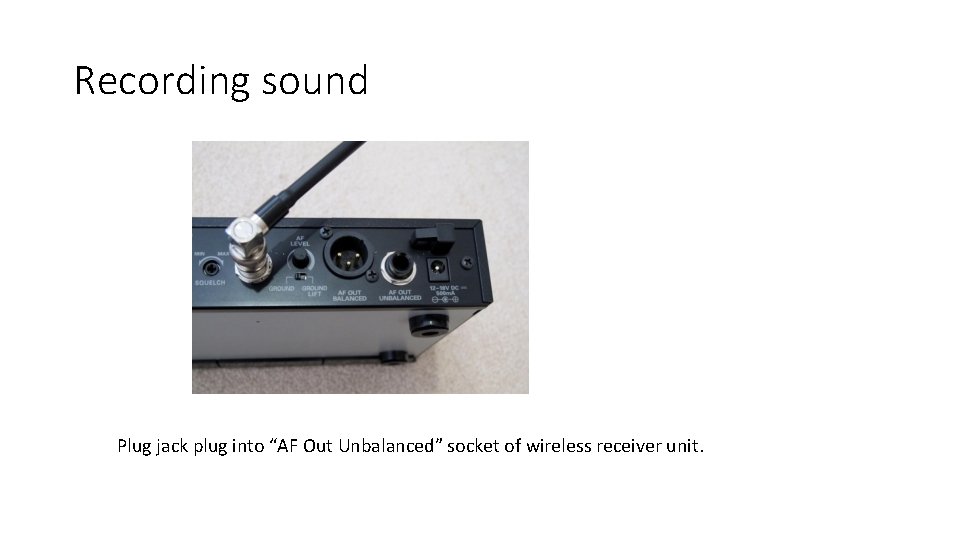
Recording sound Plug jack plug into “AF Out Unbalanced” socket of wireless receiver unit.
Recording sound To switch the device on slide the side switch until the lights come on.
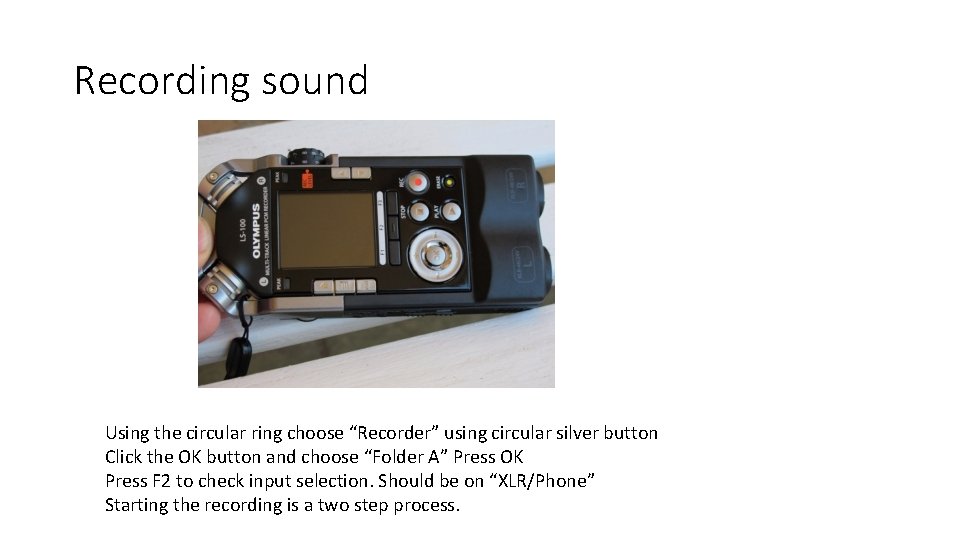
Recording sound Using the circular ring choose “Recorder” using circular silver button Click the OK button and choose “Folder A” Press OK Press F 2 to check input selection. Should be on “XLR/Phone” Starting the recording is a two step process.
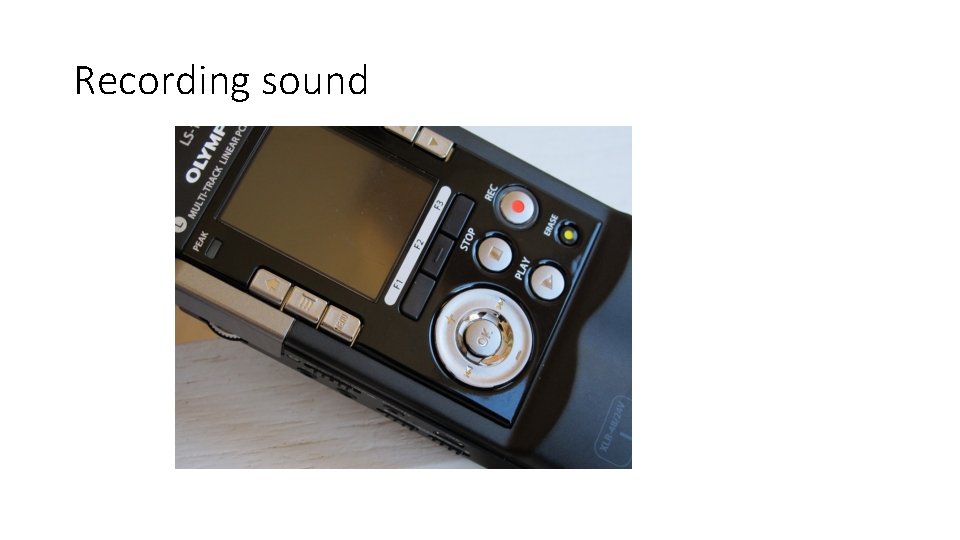
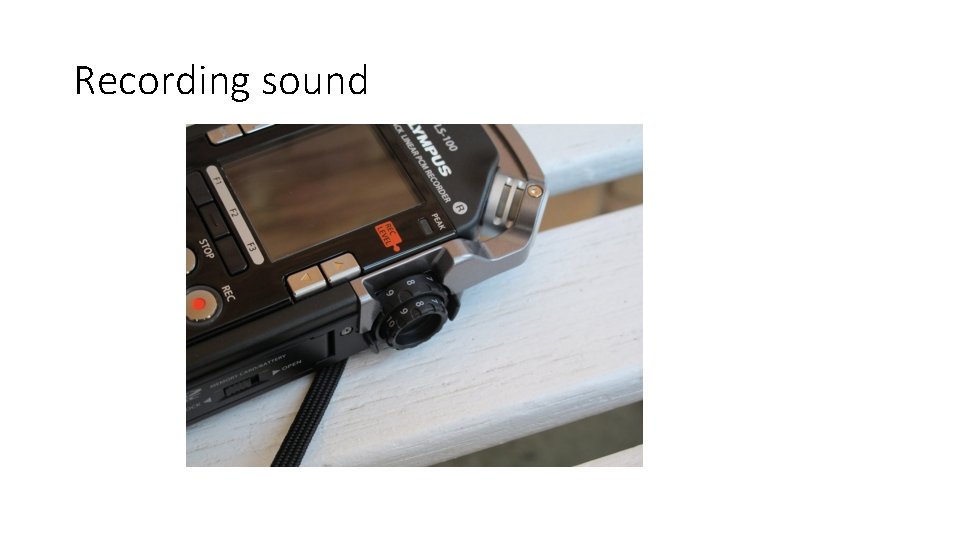
Recording sound Press the red ‘Rec” button ONCE. This step gives you the chance to set the input level. I have it set on manual so turn the black RH ‘Rec Level” wheel to 8. When there is sound you should see movement on the screen bar. Set the sound input level so that the Peaks reach approximately 0 d. B on the RH side of the screen. If there is no movement on the sound level bar check connections and the input selection. If all is OK press the red “Rec” button again and it should start recording. You will see the timer counting and movement on the sound level bar. Also the recording light will turn on. Press “Stop” to finish the recording.
Recording sound
Recording sound
Recording sound To transfer the sound files to a computer use the USB socket and supplied cable. I have the recorder output set to the uncompressed WAV format for best quality. Use software to edit the sound file for length, any deletions and to “normalise” to final sound level. Convert to the MP 3 format using a 128 Mbit setting.