
Setting Up and Using a BCU Operator Display
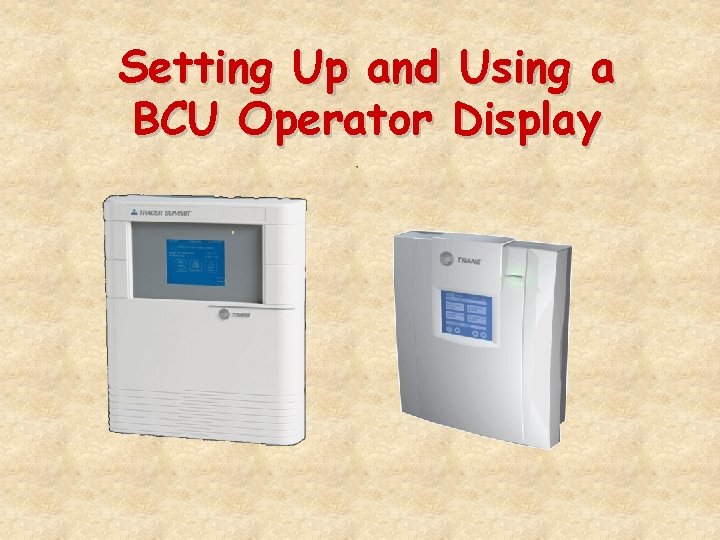
Setting Up and Using a BCU Operator Display
Webinar Topics • BCU Operator Display (OD) Features – Location in System – Screen Layout • Operator View and Control Functions – View and Manage Alarms – View and Change Setpoints and Schedules – Override schedules and Equipment • Enable OD and Setup in Summit
Why Install BCU OD? • Additional operator interface • Locate with BCU in equipment room • Most daily operator activities can be performed from the OD. – Less costly than another workstation. – Can interact with entire site from any BCU with OD • User Interface is easy to use (extensive usability testing)
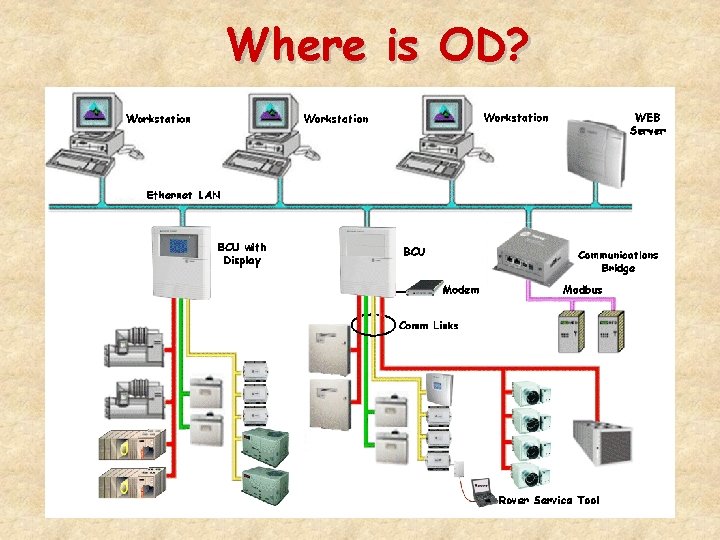
Where is OD?
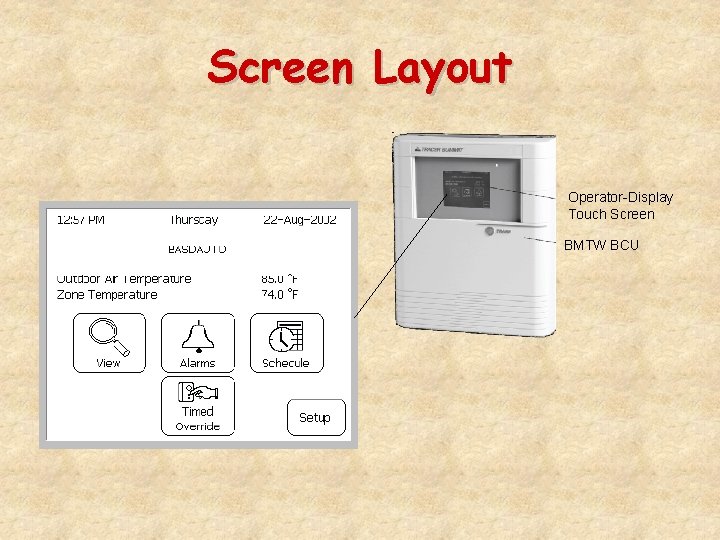
Screen Layout Operator-Display Touch Screen BMTW BCU
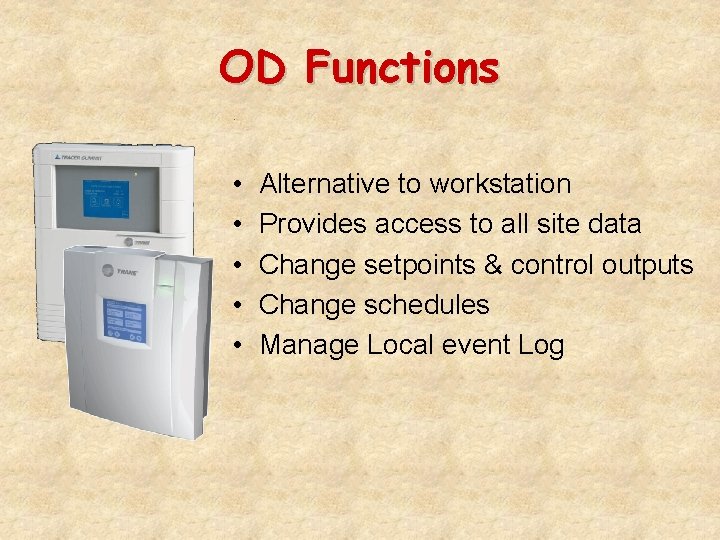
OD Functions • • • Alternative to workstation Provides access to all site data Change setpoints & control outputs Change schedules Manage Local event Log
What Can User Do? • • • Access Objects at a Single Site Change setpoints View UCM summary information Perform manual controls (overrides) View/acknowledge/delete alarms & events
What Can User Do? • • • Make permanent schedule changes Make exception schedules View custom screens Make adjustments to the display View BCU diagnostic information BMTW-SVU 02 C-EN (Electronic copy installed with Summit)
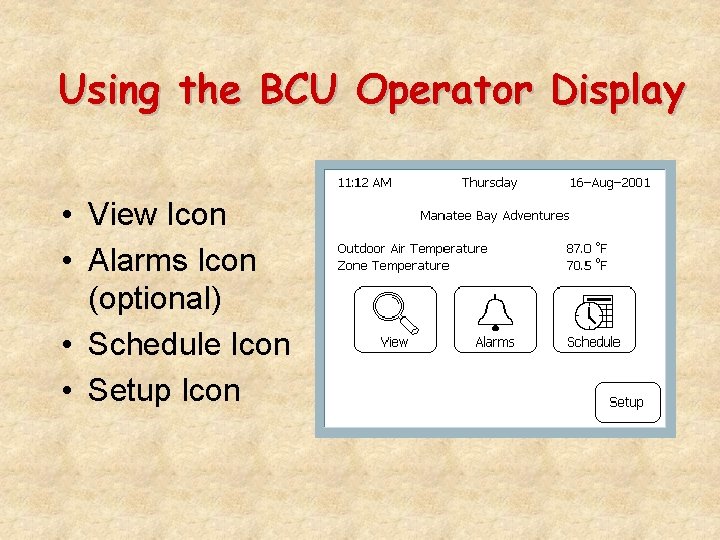
Using the BCU Operator Display • View Icon • Alarms Icon (optional) • Schedule Icon • Setup Icon
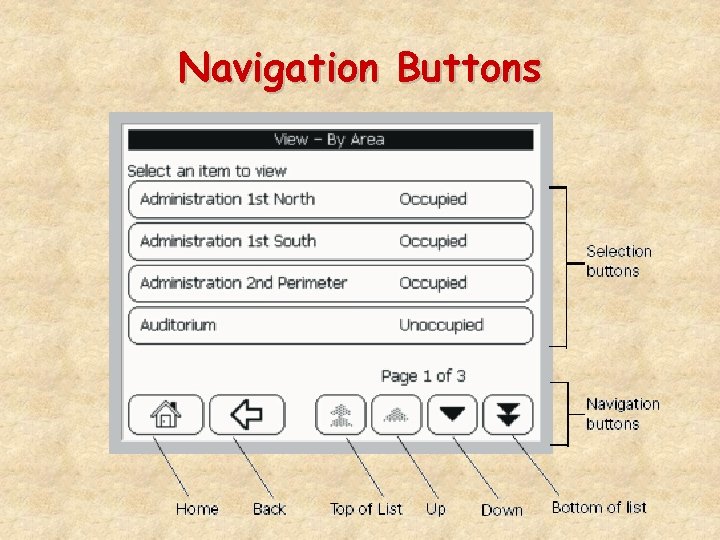
Navigation Buttons
View icon • Access optional Custom Screens • Objects are sorted by: • Building Area (if Areas are assigned to the OD) • Object Name (Name of Equipment) • Object Type (Equipment Type) • View standard equipment screens
View icon • View/change setpoints • View/perform overrides (Manual Controls) • View unit summary • View active diagnostics (most UCMs)
Alarms icon • Displayed only if a BCU Event Log exists at the BCU with the Operator Display. • First-in, First-out - holds up to 100 events. • Acknowledge Alarms/Events • This action is broadcast to other recipients.
BCU Event Log • Assigned to a specific BCU. • If assigned to a BCU with an Operator Display, that BCU-OD may access the event log object. • Supports Remote Dial-up retrieval of alarms/events. • Dial-in computer does not need to be an event recipient. • Accessible from the Workstation as a tab in the event log.
Schedules icon • Use the Operator Display editor to assign schedules to the BCU-OD. • View/modify standard schedules. • View/create/modify exception schedules. • View/modify holiday schedules. • View schedule members (Items Scheduled).
Setup icon • Change system date/time • Adjust time format on the BCU-OD between 12 hr and 24 -hr. • This is “volatile” for the first revision - if the BCU is reset the display will revert to 12 -hr. • Calibrate the touchscreen • Adjust screen brightness and contrast
Setup icon • View “technical” information about the BCU for troubleshooting purposes (Top. ICS Volume 7 Issue 2 August/September 1998) • Explicitly Log off of the BCU-OD • (rather than waiting for the 30 minute time out).
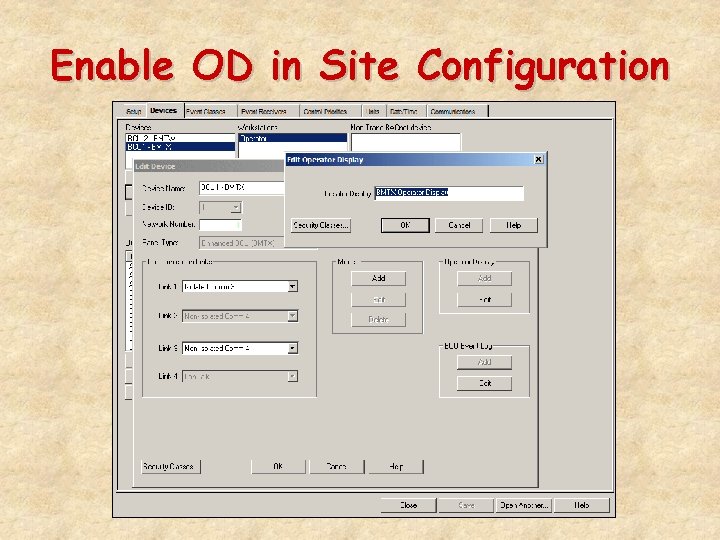
Enable OD in Site Configuration
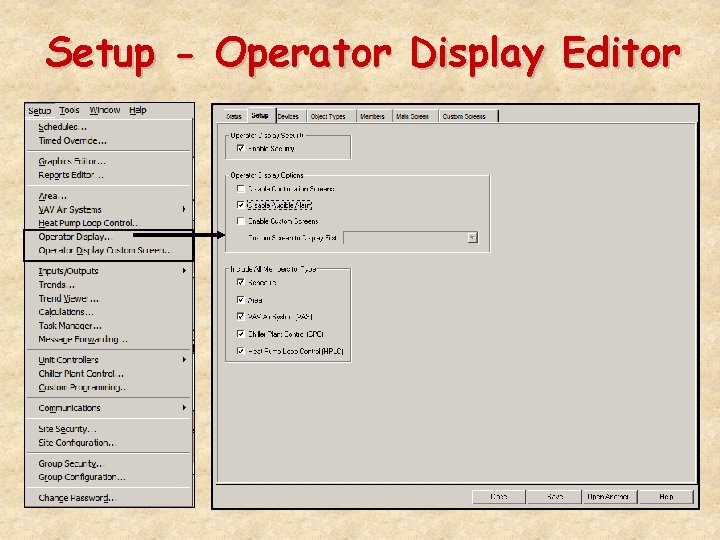
Setup - Operator Display Editor
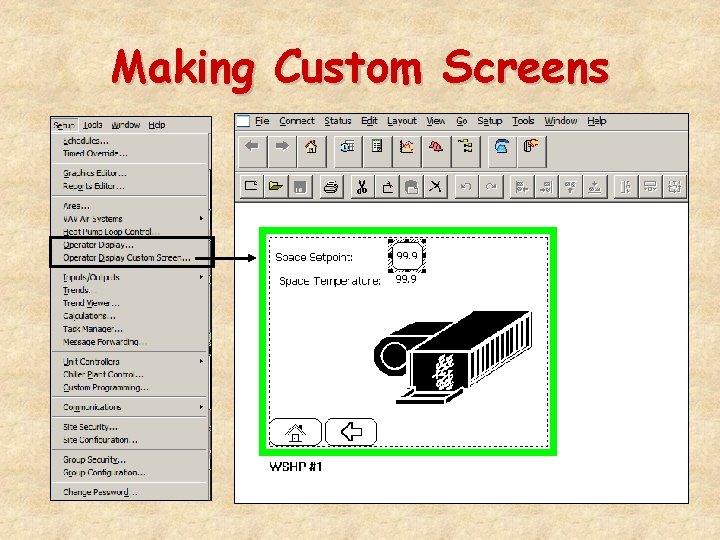
Making Custom Screens
Questions?
- Slides: 21