
Setting up and running Postal Code Conversion File
- Slides: 21
Setting up and running Postal Code Conversion File Plus (PCCF+) Health Analysis Division Statistics Canada Prepared 3 July, 2019 1
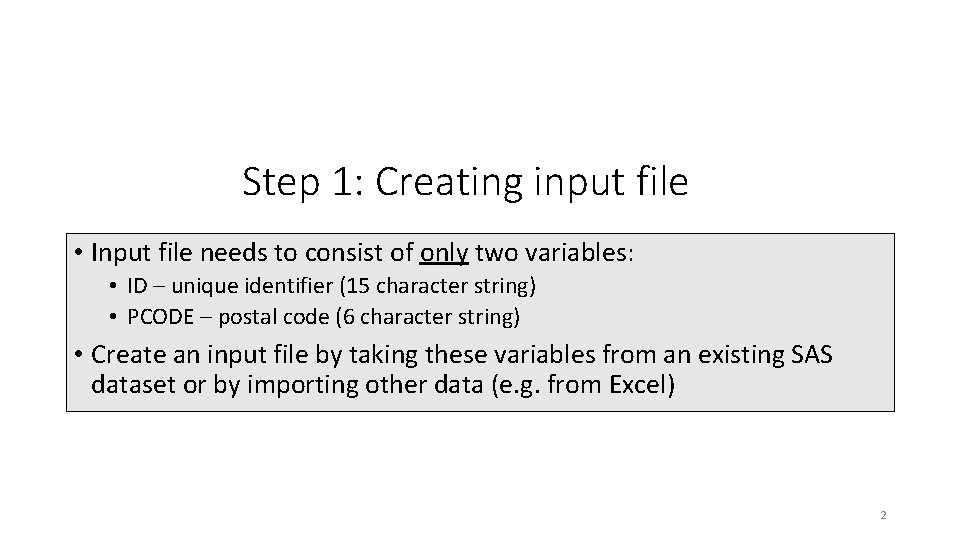
Step 1: Creating input file • Input file needs to consist of only two variables: • ID – unique identifier (15 character string) • PCODE – postal code (6 character string) • Create an input file by taking these variables from an existing SAS dataset or by importing other data (e. g. from Excel) 2
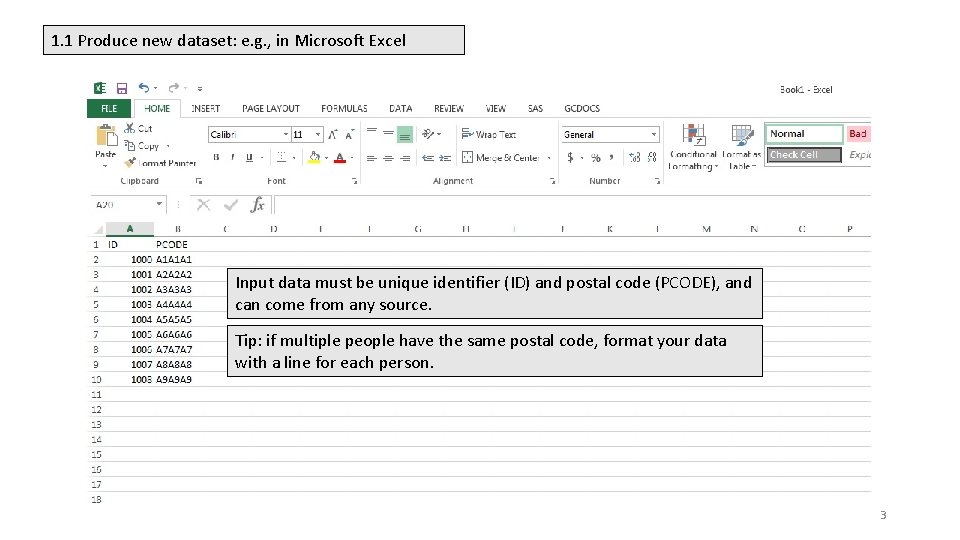
1. 1 Produce new dataset: e. g. , in Microsoft Excel Input data must be unique identifier (ID) and postal code (PCODE), and can come from any source. Tip: if multiple people have the same postal code, format your data with a line for each person. 3
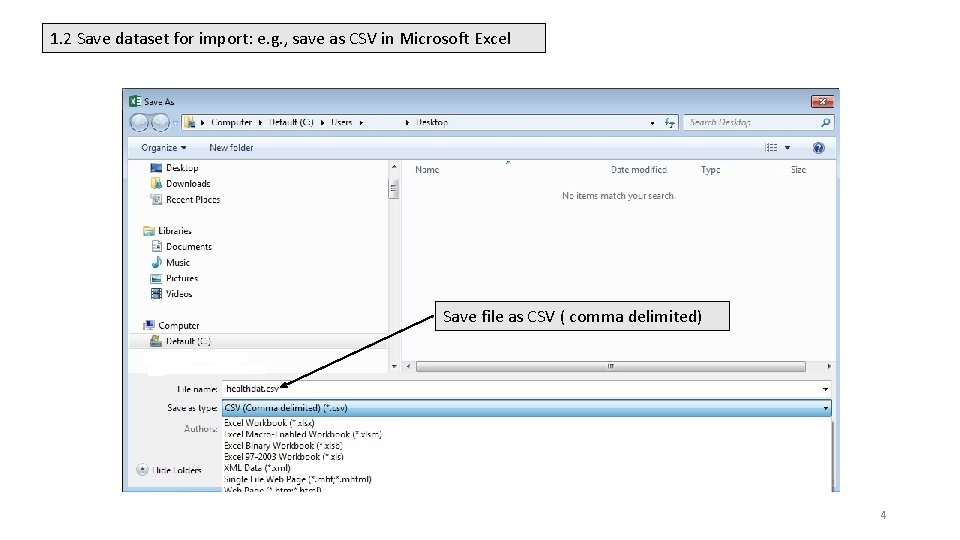
1. 2 Save dataset for import: e. g. , save as CSV in Microsoft Excel Save file as CSV ( comma delimited) 4
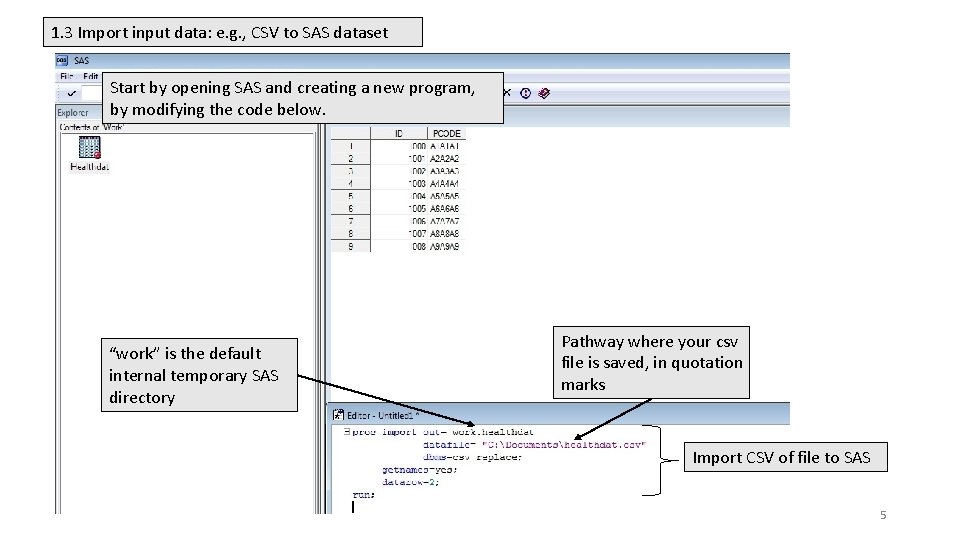
1. 3 Import input data: e. g. , CSV to SAS dataset Start by opening SAS and creating a new program, by modifying the code below. “work” is the default internal temporary SAS directory Pathway where your csv file is saved, in quotation marks Import CSV of file to SAS 5
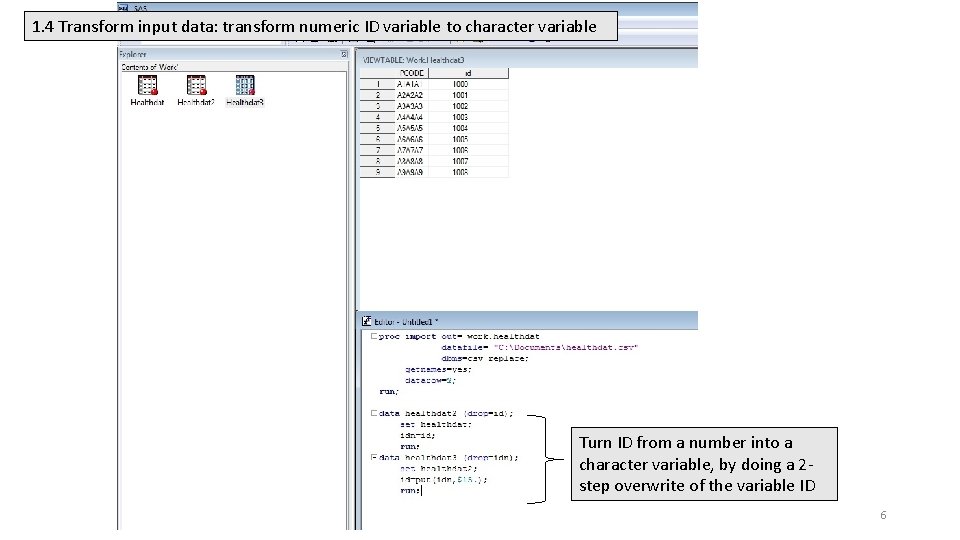
1. 4 Transform input data: transform numeric ID variable to character variable Turn ID from a number into a character variable, by doing a 2 step overwrite of the variable ID 6
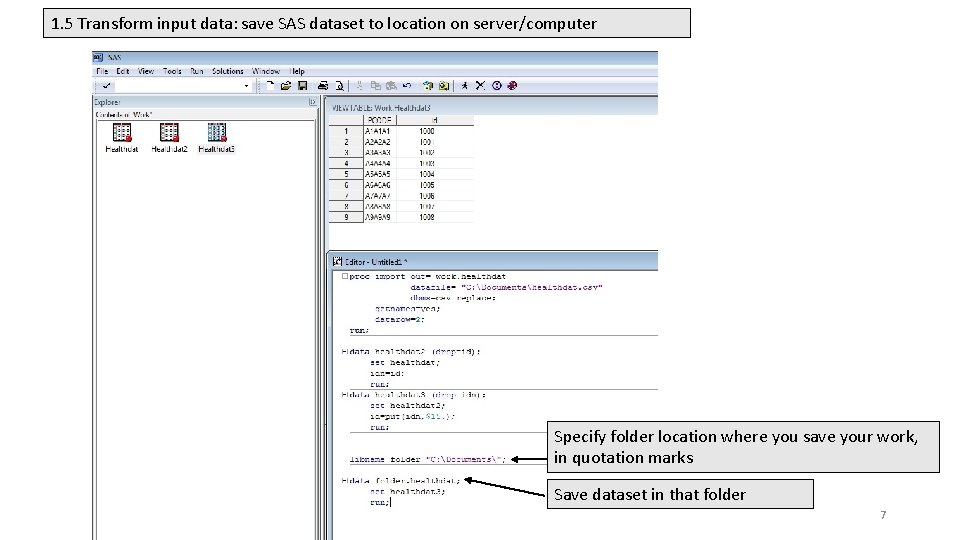
1. 5 Transform input data: save SAS dataset to location on server/computer Specify folder location where you save your work, in quotation marks Save dataset in that folder 7
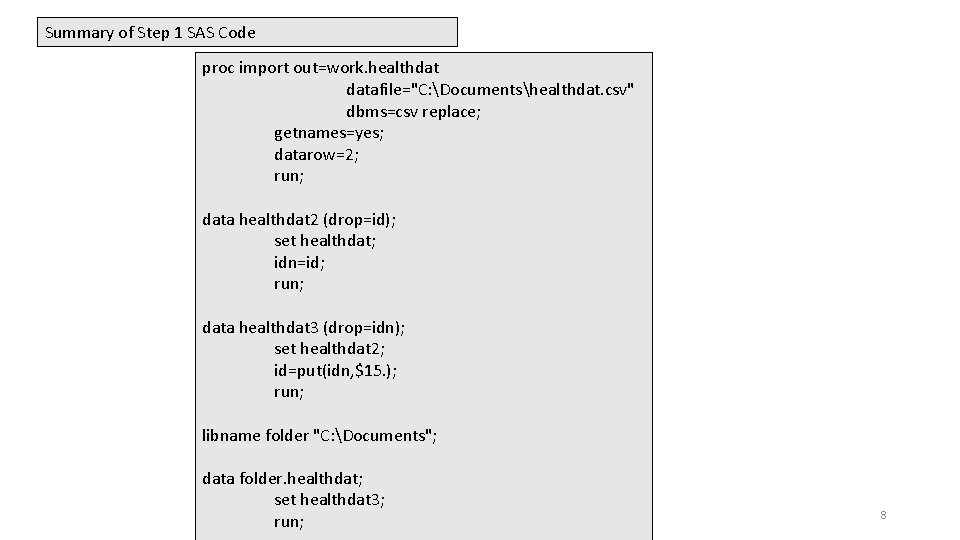
Summary of Step 1 SAS Code proc import out=work. healthdat datafile="C: Documentshealthdat. csv" dbms=csv replace; getnames=yes; datarow=2; run; data healthdat 2 (drop=id); set healthdat; idn=id; run; data healthdat 3 (drop=idn); set healthdat 2; id=put(idn, $15. ); run; libname folder "C: Documents"; data folder. healthdat; set healthdat 3; run; 8
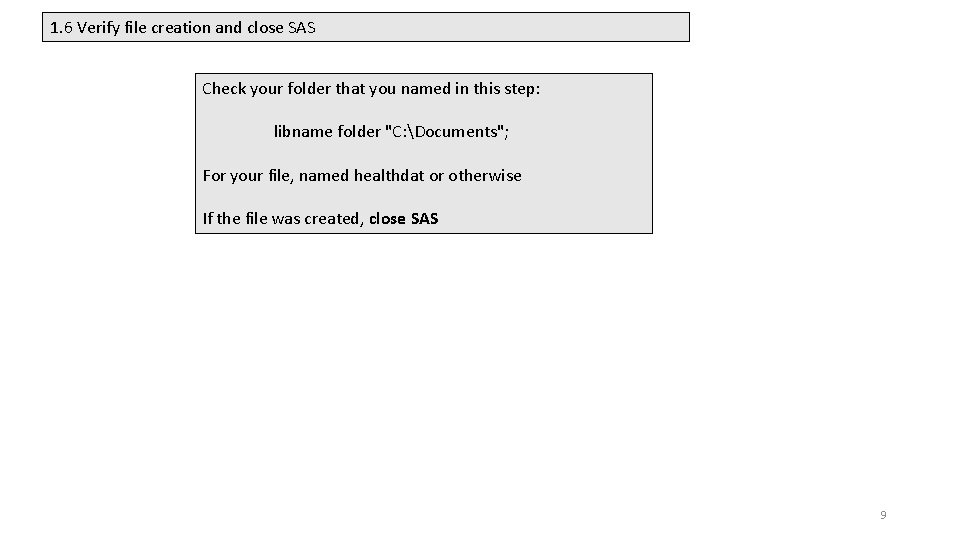
1. 6 Verify file creation and close SAS Check your folder that you named in this step: libname folder "C: Documents"; For your file, named healthdat or otherwise If the file was created, close SAS 9
Step 2: Running PCCF+ • PCCF+ requires six edits to read in the input file and run the program • User needs to make all the edits in the dialogue box, then when finished, set it running 10
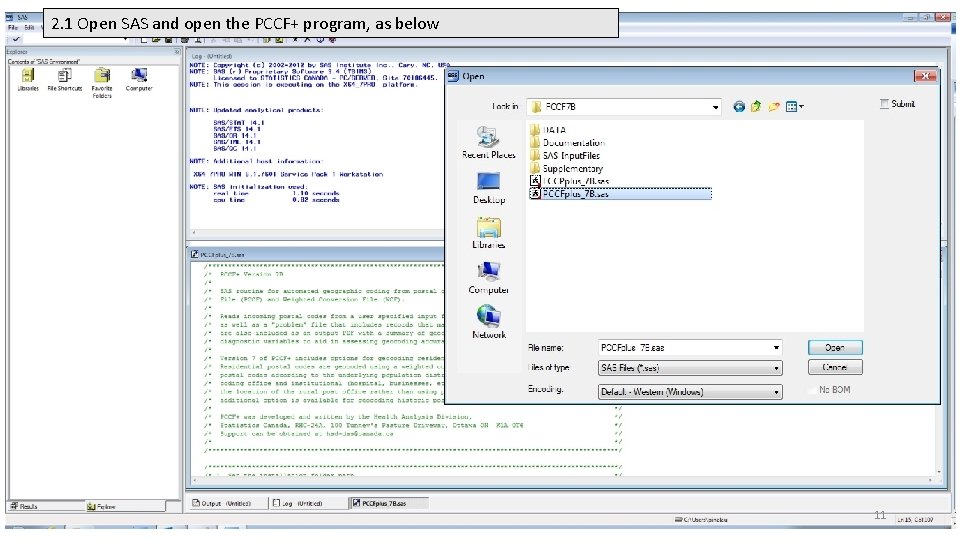
2. 1 Open SAS and open the PCCF+ program, as below 11
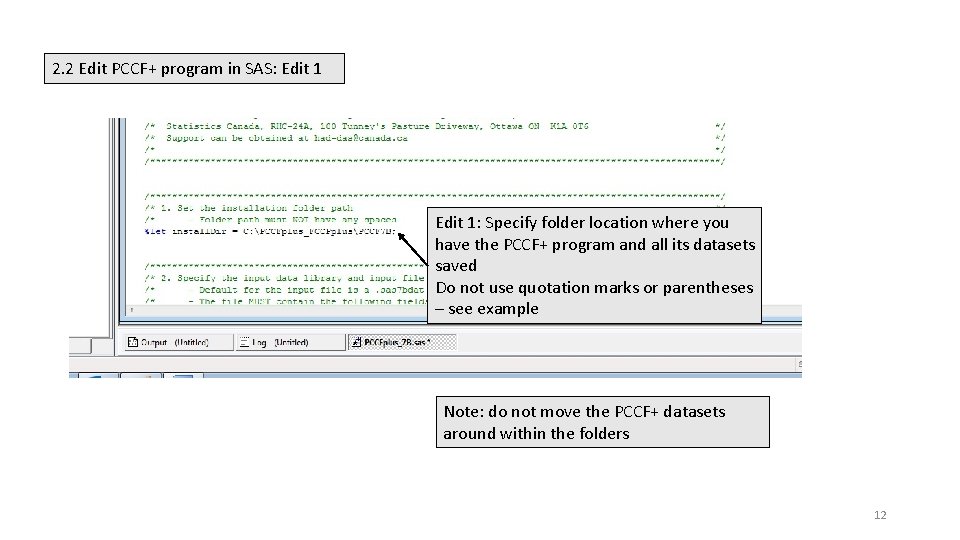
2. 2 Edit PCCF+ program in SAS: Edit 1: Specify folder location where you have the PCCF+ program and all its datasets saved Do not use quotation marks or parentheses – see example Note: do not move the PCCF+ datasets around within the folders 12
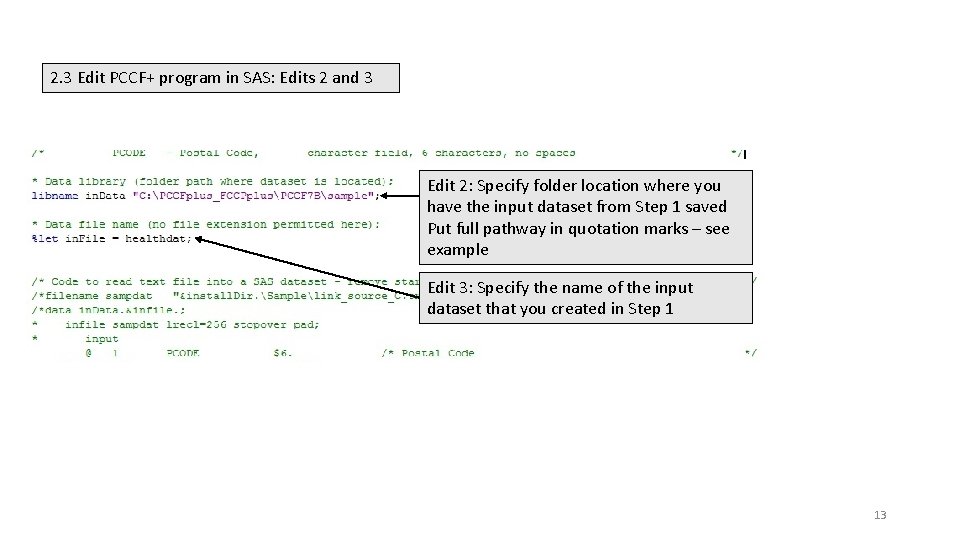
2. 3 Edit PCCF+ program in SAS: Edits 2 and 3 Edit 2: Specify folder location where you have the input dataset from Step 1 saved Put full pathway in quotation marks – see example Edit 3: Specify the name of the input dataset that you created in Step 1 13
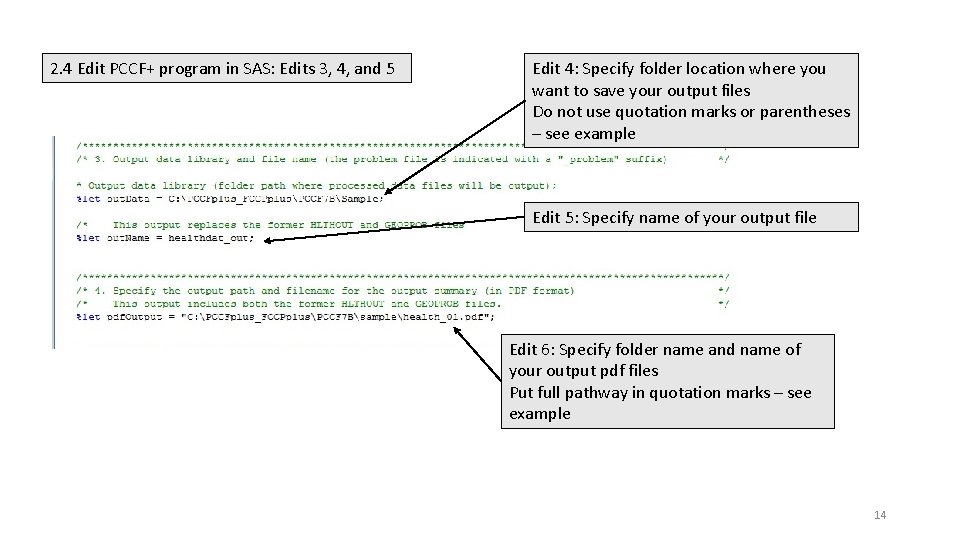
2. 4 Edit PCCF+ program in SAS: Edits 3, 4, and 5 Edit 4: Specify folder location where you want to save your output files Do not use quotation marks or parentheses – see example Edit 5: Specify name of your output file Edit 6: Specify folder name and name of your output pdf files Put full pathway in quotation marks – see example 14
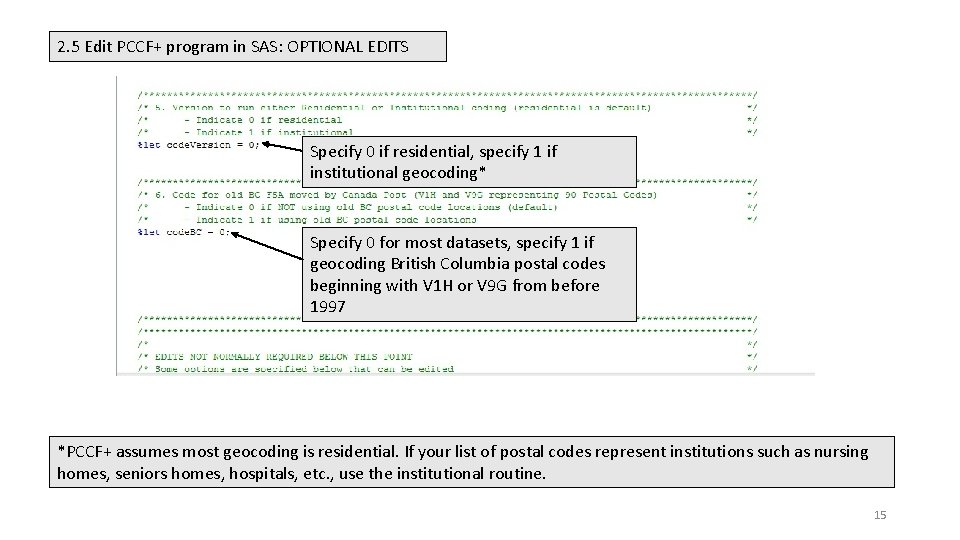
2. 5 Edit PCCF+ program in SAS: OPTIONAL EDITS Specify 0 if residential, specify 1 if institutional geocoding* Specify 0 for most datasets, specify 1 if geocoding British Columbia postal codes beginning with V 1 H or V 9 G from before 1997 *PCCF+ assumes most geocoding is residential. If your list of postal codes represent institutions such as nursing homes, seniors homes, hospitals, etc. , use the institutional routine. 15
The edits to the PCCF+ are complete –> run the program in SAS by clicking on the running man icon 16
Step 3: Checking Outputs • Open up the output folder (user specified) and check three outputs • Check output alongside user guide, which specifies what the variables are, and how to interpret them in the context of your work 17
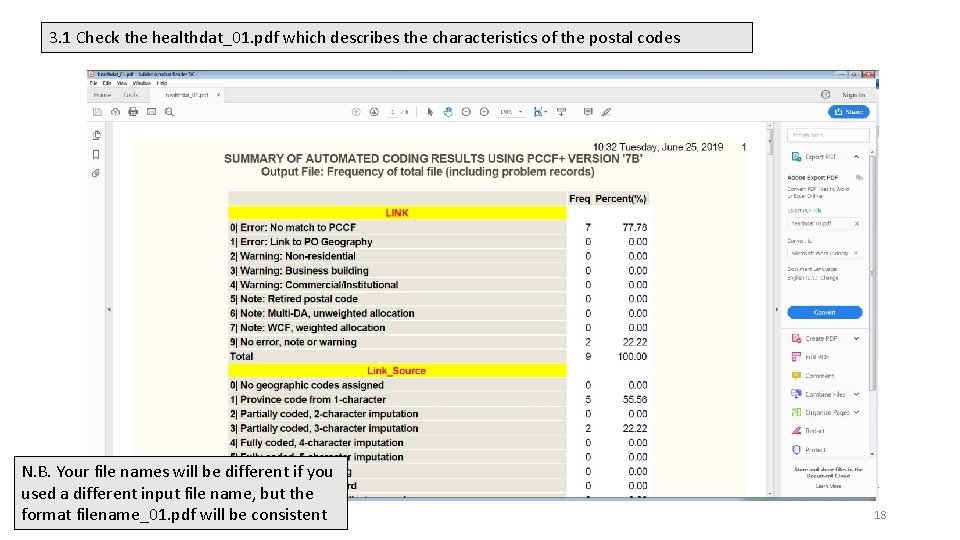
3. 1 Check the healthdat_01. pdf which describes the characteristics of the postal codes N. B. Your file names will be different if you used a different input file name, but the format filename_01. pdf will be consistent 18
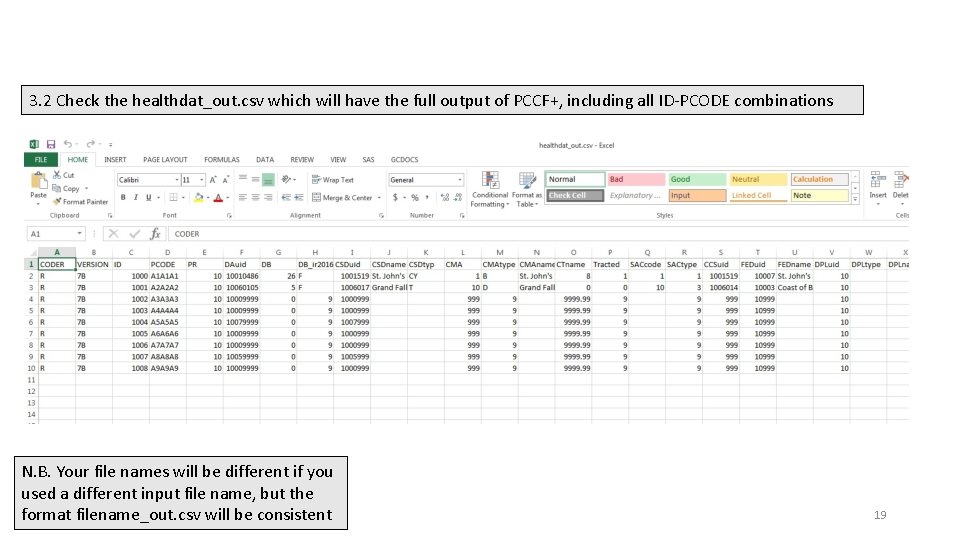
3. 2 Check the healthdat_out. csv which will have the full output of PCCF+, including all ID-PCODE combinations N. B. Your file names will be different if you used a different input file name, but the format filename_out. csv will be consistent 19
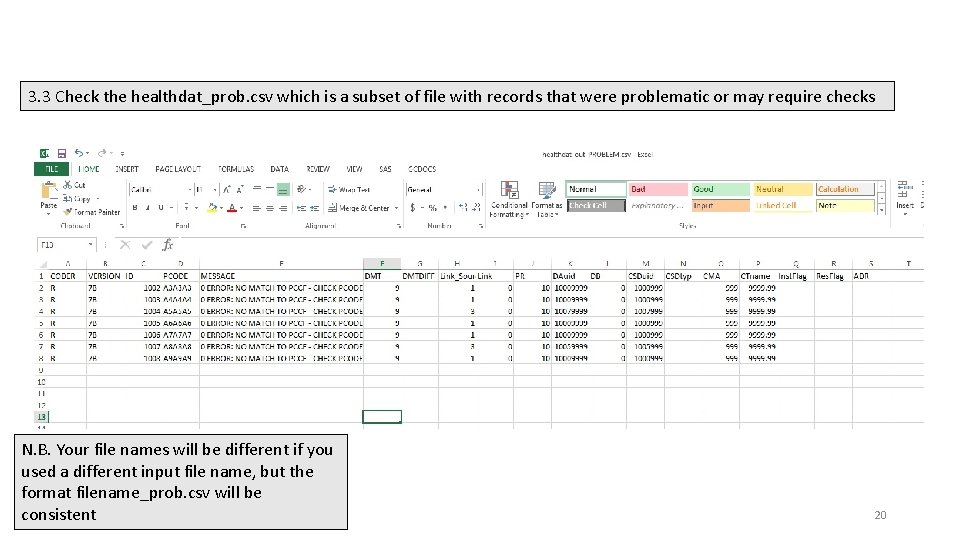
3. 3 Check the healthdat_prob. csv which is a subset of file with records that were problematic or may require checks N. B. Your file names will be different if you used a different input file name, but the format filename_prob. csv will be consistent 20
For more assistance, contact HAD-DAS@Canada. ca 21