
Setting Travel Basic IROC Training Slide Presentation Course

Setting Travel Basic IROC Training Slide Presentation

Course Objectives • Set a resource’s travel
Travel Options Several travel options are available for resources in IROC. ETD/ETA (Estimated Time of Departure / Arrival) – Resource does not require a formal itinerary; set travel with estimated time of departure and arrival. This status is not appropriate for tactical aircraft resources. Travel to Be Arranged – Resource requires travel to be arranged, but that travel is not being documented at this time. ATD/ETE (Actual Time of Departure / Estimated Time en Route) – For tactical aircraft resources, set travel with actual time of departure and estimated time en route.
Setting Travel You can set travel from multiple screens, depending on the request status and whether the resource is mob or demob.

Setting Travel from the Manage Request Screen When creating or managing a request, you can manage travel from the Travel tab on the Manage Request screen. Use this to set or edit mob or demob travel.
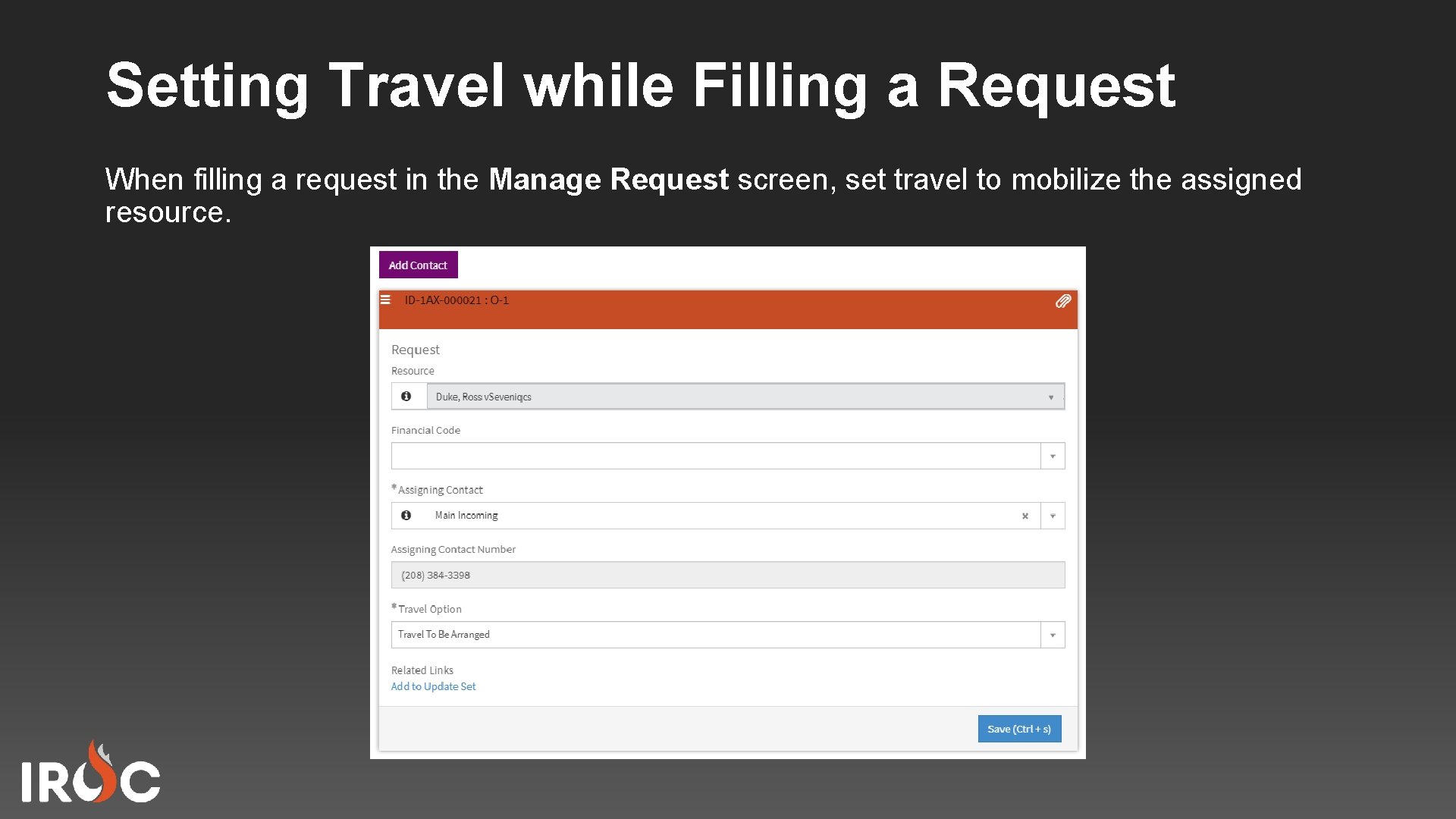
Setting Travel while Filling a Request When filling a request in the Manage Request screen, set travel to mobilize the assigned resource.
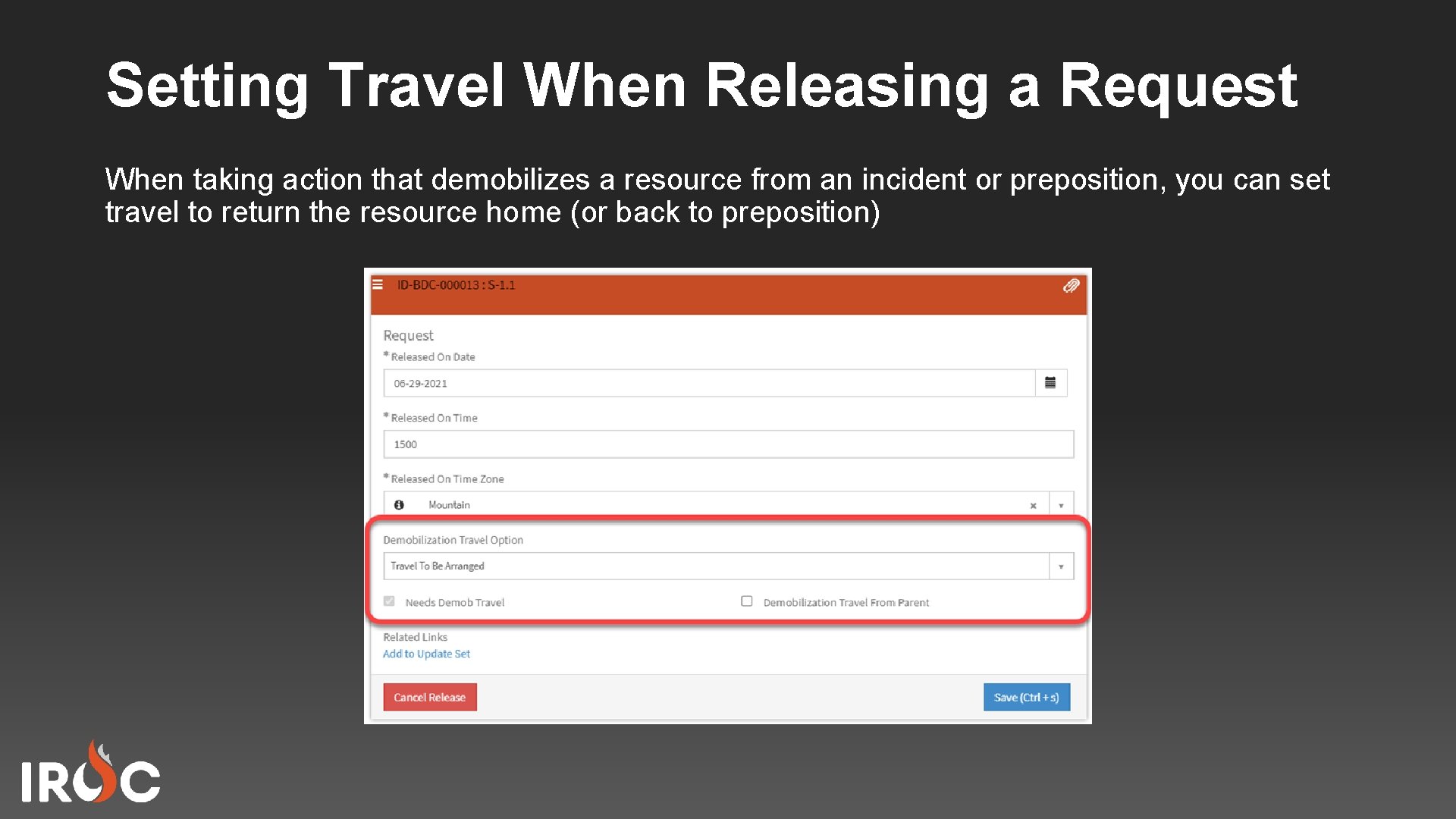
Setting Travel When Releasing a Request When taking action that demobilizes a resource from an incident or preposition, you can set travel to return the resource home (or back to preposition)
Notes To set travel for a resource, your dispatch must be one of the following: 1. The incident dispatch 2. A member of the ordering chain of the request 3. The home dispatch of the resource demobilizing to home 4. The preposition dispatch of a resource demobilizing from non-preposition back to preposition.
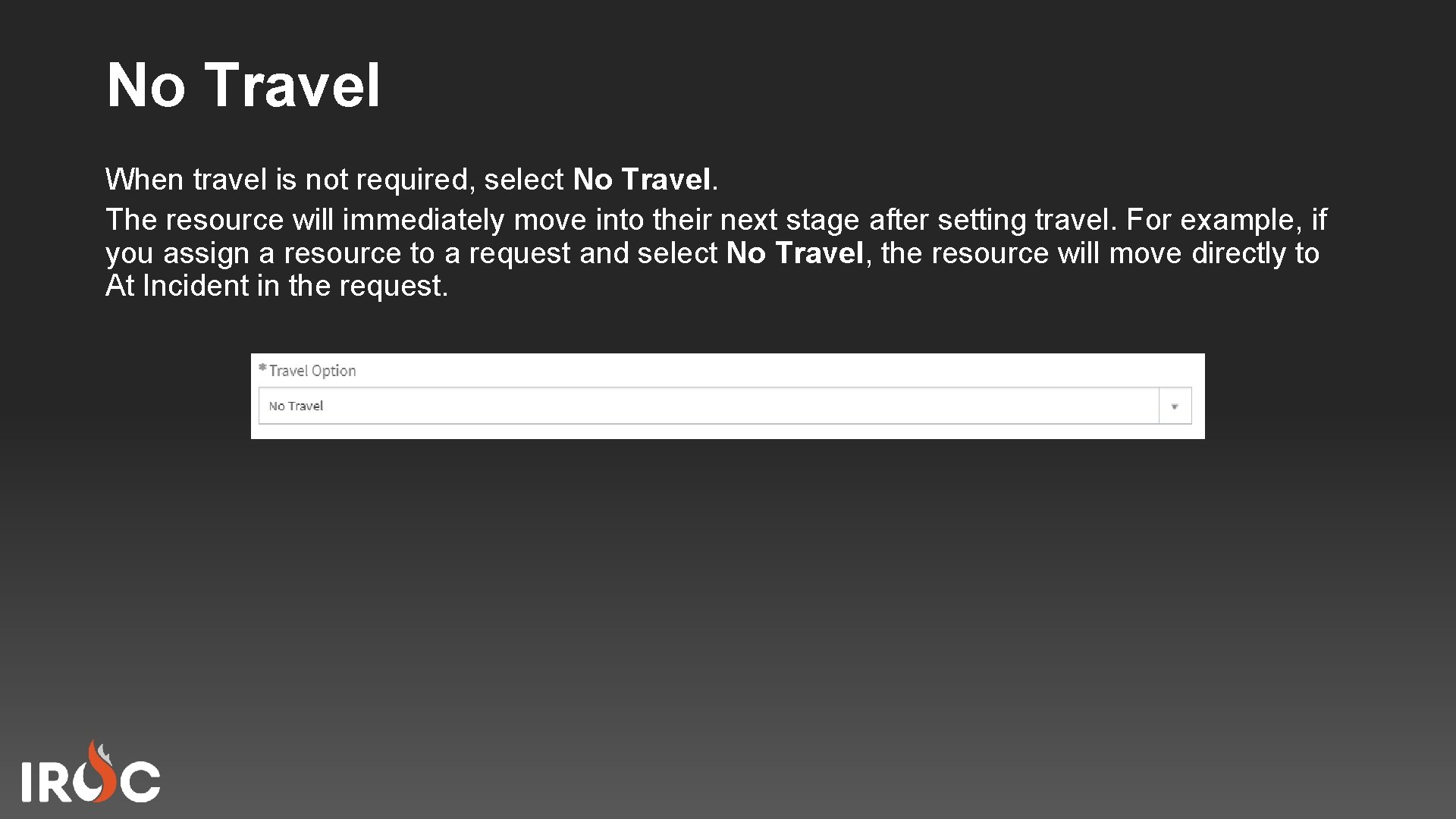
No Travel When travel is not required, select No Travel. The resource will immediately move into their next stage after setting travel. For example, if you assign a resource to a request and select No Travel, the resource will move directly to At Incident in the request.

Travel ETD / ETA By using ETD/ETA travel, the resource will progress to the next stage after the estimated time of departure and arrival periods arrive. Complete the form with estimated departure date, time and time zone, and the estimated arrival date, time and time zone (at the arriving region).
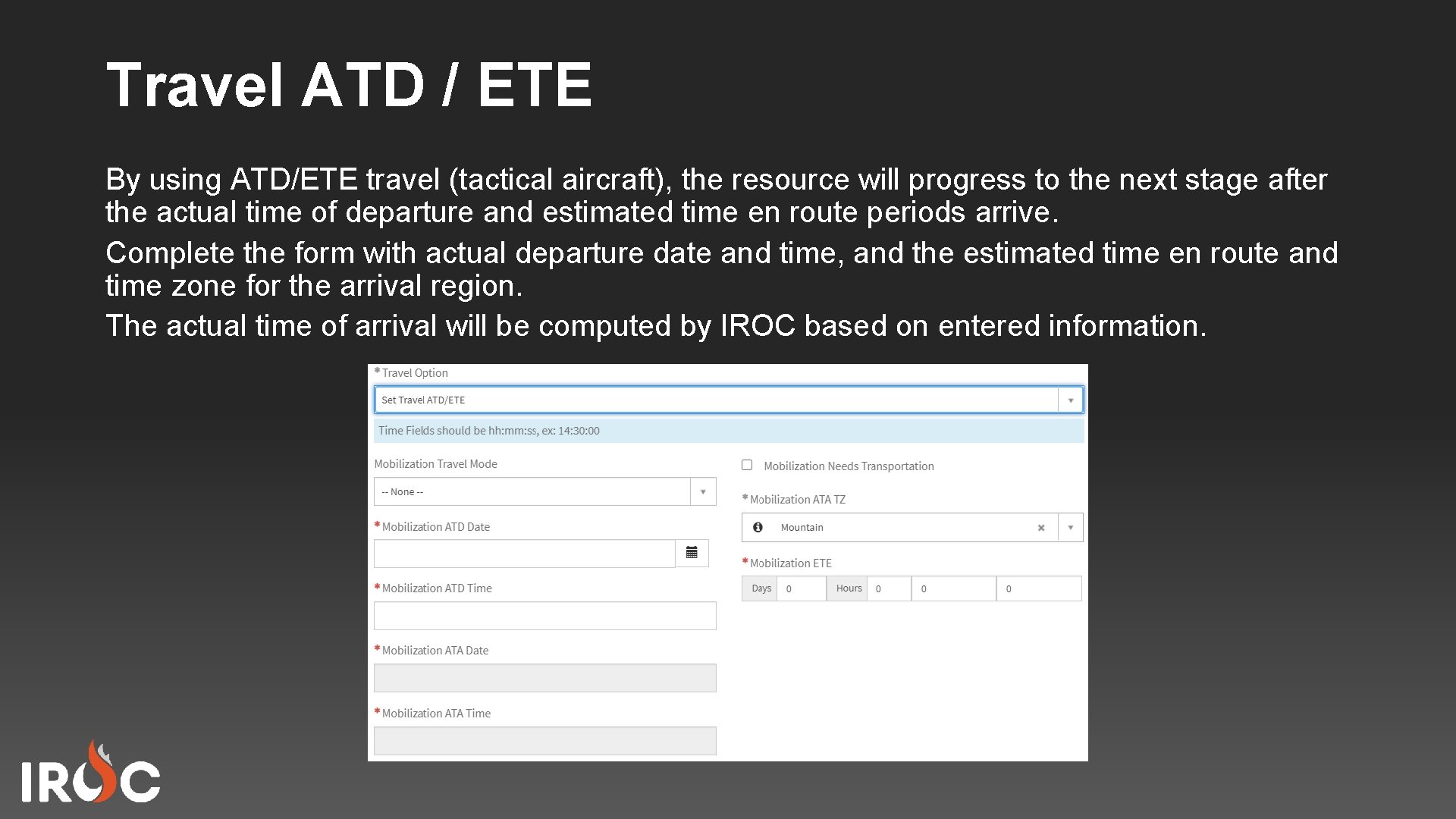
Travel ATD / ETE By using ATD/ETE travel (tactical aircraft), the resource will progress to the next stage after the actual time of departure and estimated time en route periods arrive. Complete the form with actual departure date and time, and the estimated time en route and time zone for the arrival region. The actual time of arrival will be computed by IROC based on entered information.
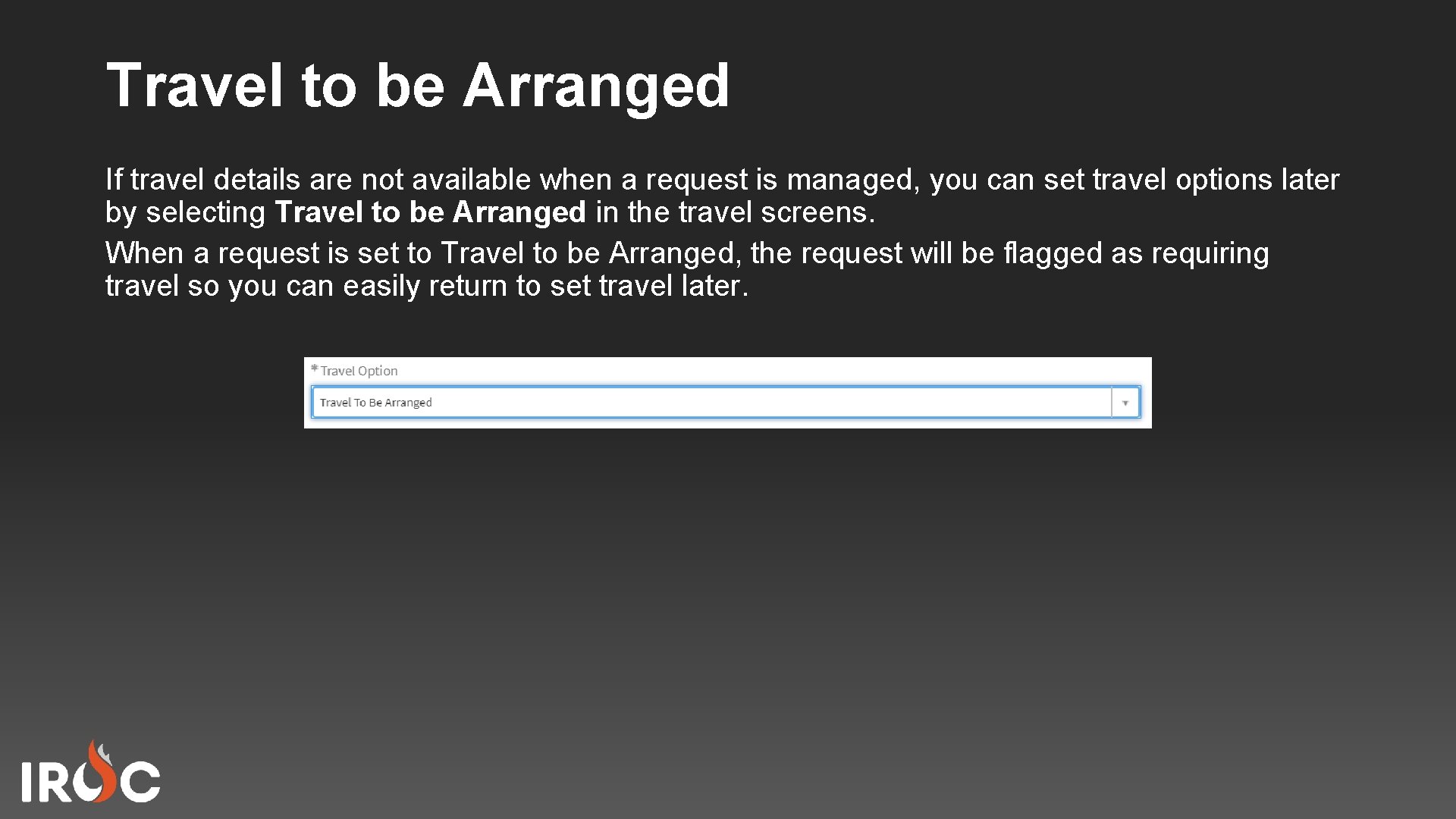
Travel to be Arranged If travel details are not available when a request is managed, you can set travel options later by selecting Travel to be Arranged in the travel screens. When a request is set to Travel to be Arranged, the request will be flagged as requiring travel so you can easily return to set travel later.

Course Objectives • Set a resource’s travel

- Slides: 14