
Setting quizzes with Microsoft Forms Once youve created
- Slides: 11
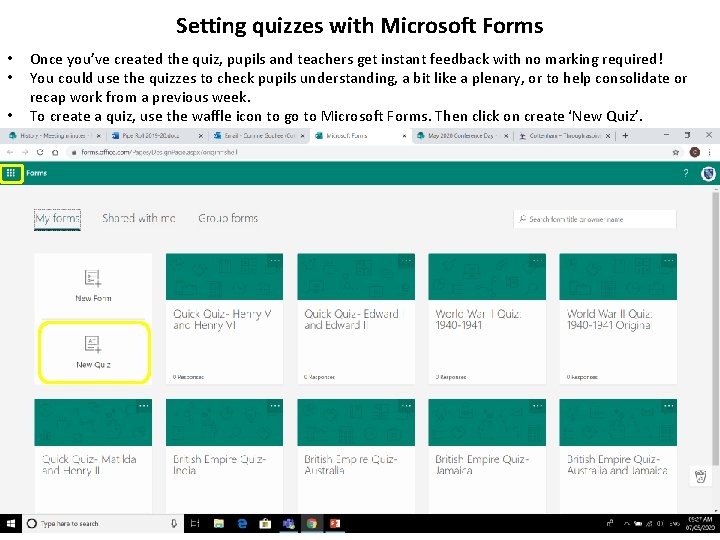
Setting quizzes with Microsoft Forms • • • Once you’ve created the quiz, pupils and teachers get instant feedback with no marking required! You could use the quizzes to check pupils understanding, a bit like a plenary, or to help consolidate or recap work from a previous week. To create a quiz, use the waffle icon to go to Microsoft Forms. Then click on create ‘New Quiz’.
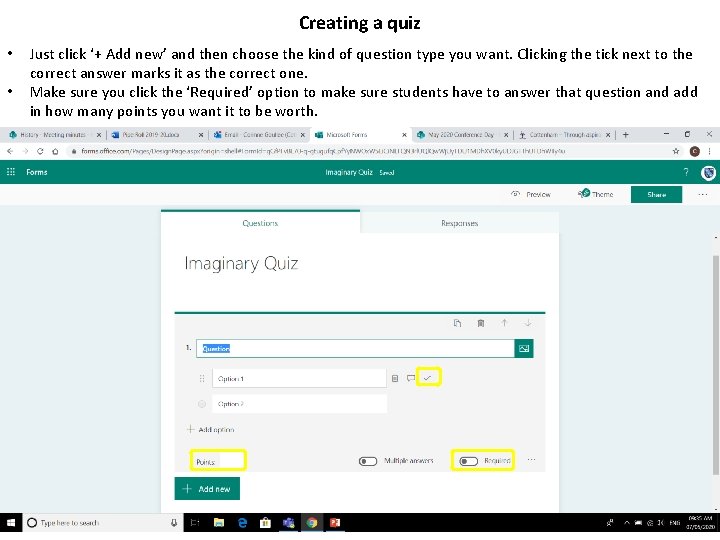
Creating a quiz • • Just click ‘+ Add new’ and then choose the kind of question type you want. Clicking the tick next to the correct answer marks it as the correct one. Make sure you click the ‘Required’ option to make sure students have to answer that question and add in how many points you want it to be worth.
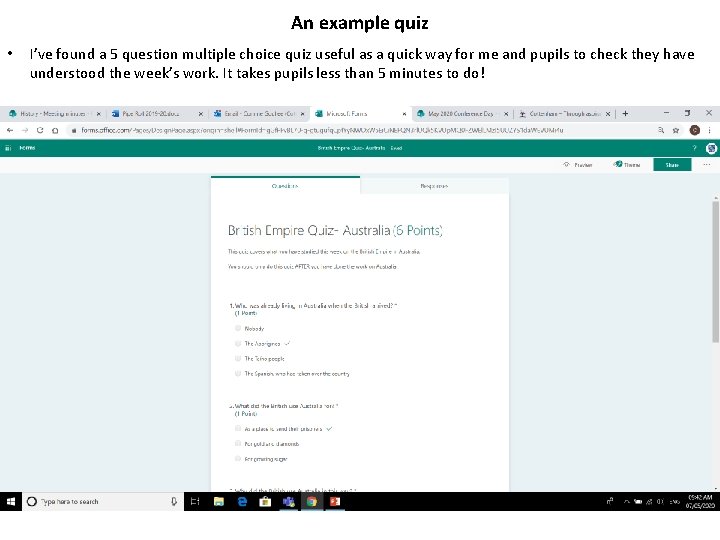
An example quiz • I’ve found a 5 question multiple choice quiz useful as a quick way for me and pupils to check they have understood the week’s work. It takes pupils less than 5 minutes to do!
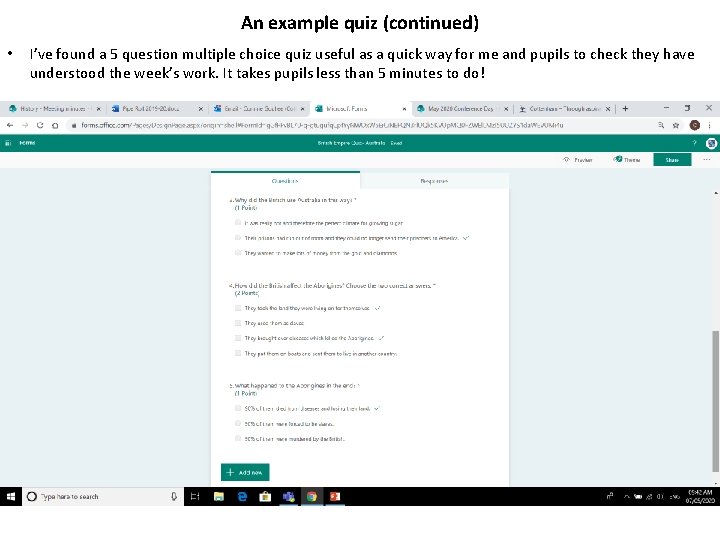
An example quiz (continued) • I’ve found a 5 question multiple choice quiz useful as a quick way for me and pupils to check they have understood the week’s work. It takes pupils less than 5 minutes to do!
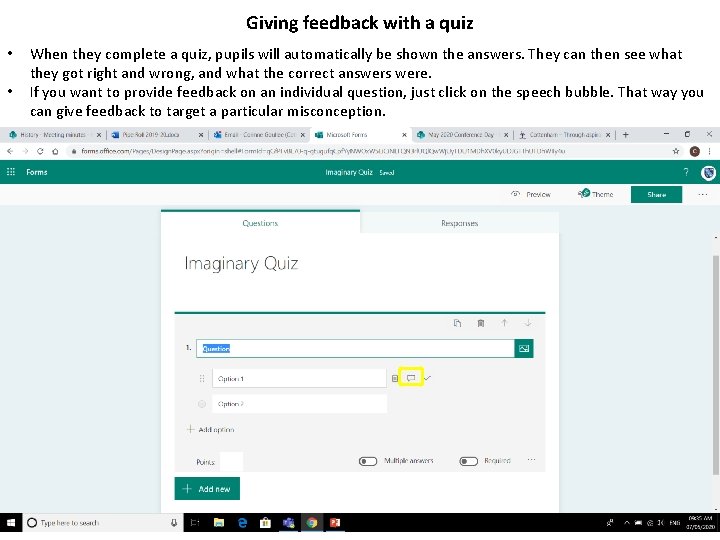
Giving feedback with a quiz • • When they complete a quiz, pupils will automatically be shown the answers. They can then see what they got right and wrong, and what the correct answers were. If you want to provide feedback on an individual question, just click on the speech bubble. That way you can give feedback to target a particular misconception.
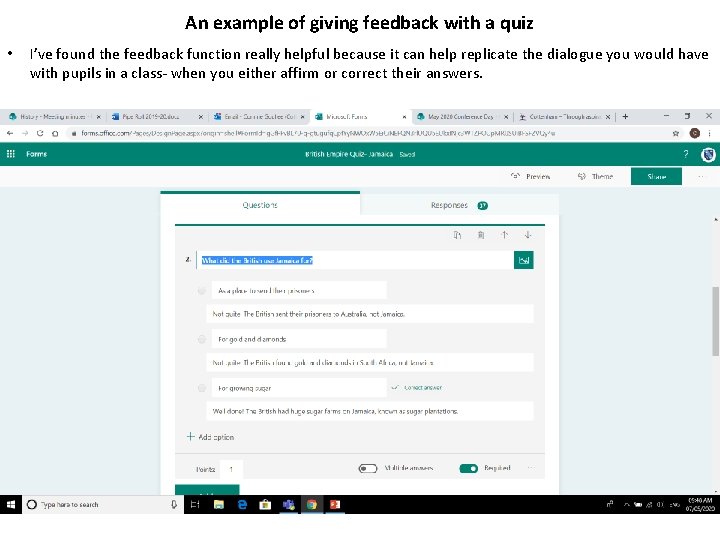
An example of giving feedback with a quiz • I’ve found the feedback function really helpful because it can help replicate the dialogue you would have with pupils in a class- when you either affirm or correct their answers.
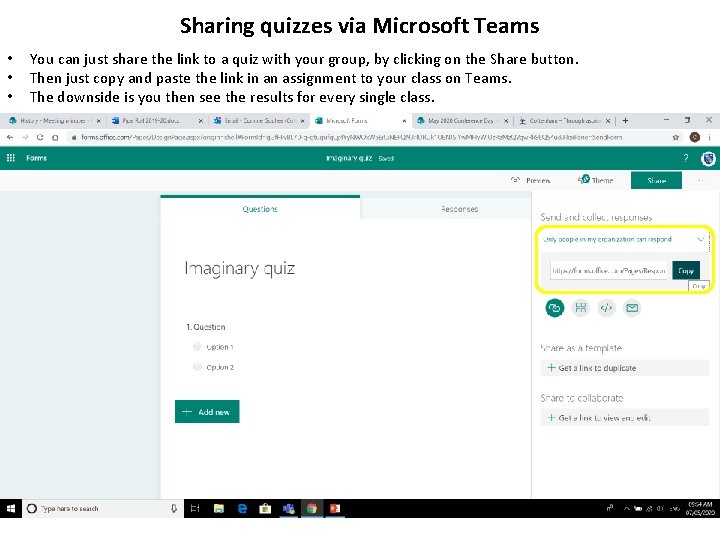
Sharing quizzes via Microsoft Teams • • • You can just share the link to a quiz with your group, by clicking on the Share button. Then just copy and paste the link in an assignment to your class on Teams. The downside is you then see the results for every single class.
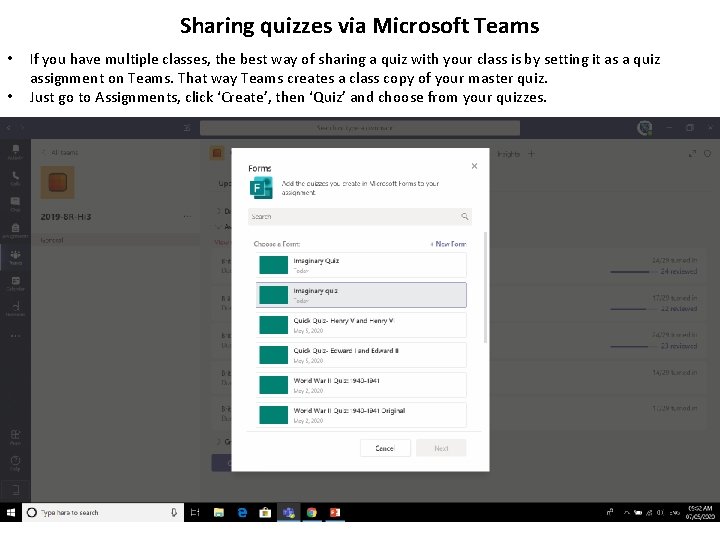
Sharing quizzes via Microsoft Teams • • If you have multiple classes, the best way of sharing a quiz with your class is by setting it as a quiz assignment on Teams. That way Teams creates a class copy of your master quiz. Just go to Assignments, click ‘Create’, then ‘Quiz’ and choose from your quizzes.
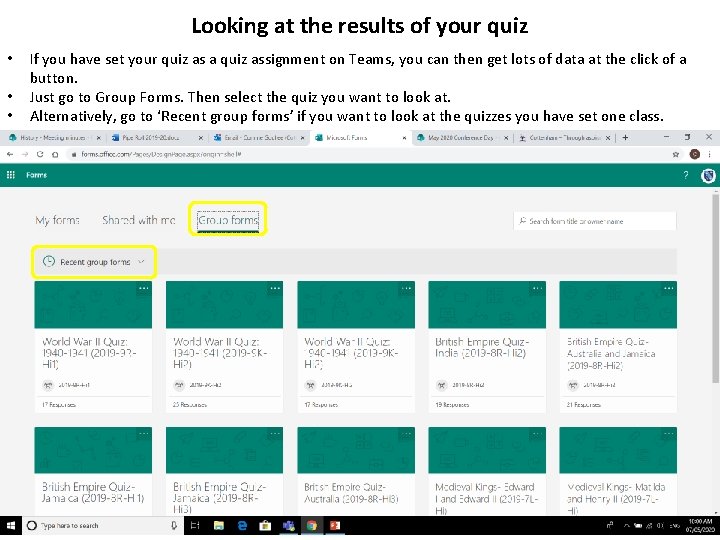
Looking at the results of your quiz • • • If you have set your quiz as a quiz assignment on Teams, you can then get lots of data at the click of a button. Just go to Group Forms. Then select the quiz you want to look at. Alternatively, go to ‘Recent group forms’ if you want to look at the quizzes you have set one class.
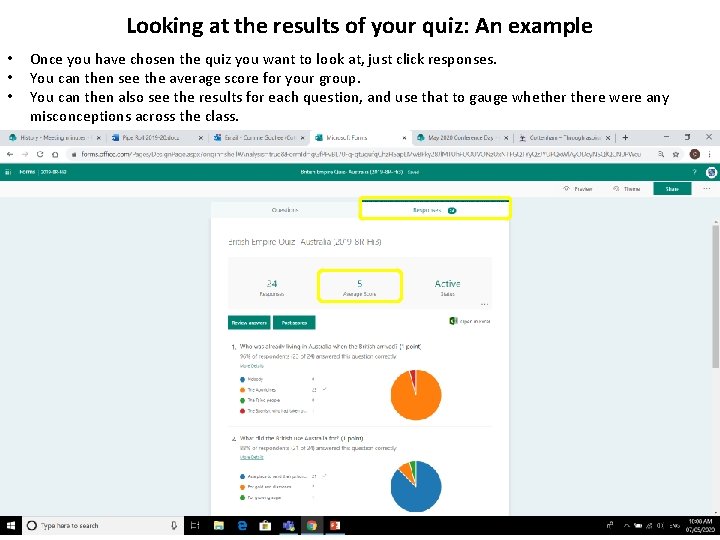
Looking at the results of your quiz: An example • • • Once you have chosen the quiz you want to look at, just click responses. You can then see the average score for your group. You can then also see the results for each question, and use that to gauge whethere were any misconceptions across the class.
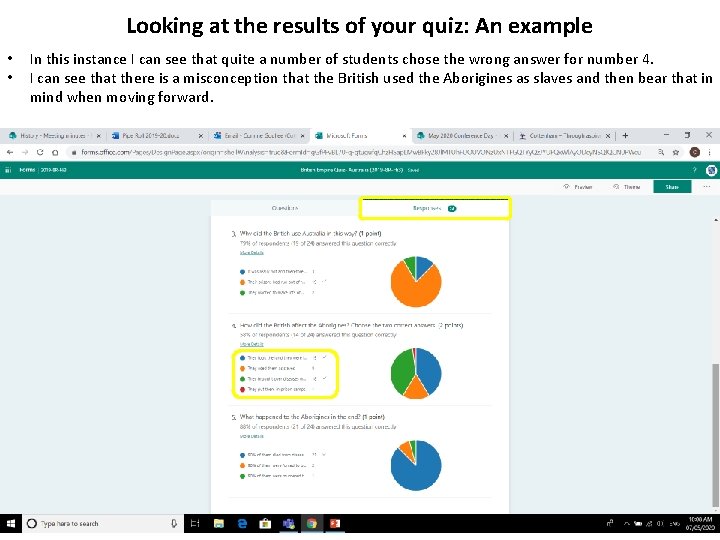
Looking at the results of your quiz: An example • • In this instance I can see that quite a number of students chose the wrong answer for number 4. I can see that there is a misconception that the British used the Aborigines as slaves and then bear that in mind when moving forward.