
Setting Defaults in Microsoft Word for Accessibility By

Setting Defaults in Microsoft Word for Accessibility By Nancy Pabros, Educational Technologist
Agenda • Microsoft Word. dot File • Steps to Accessible Default Settings • Saving the Template

MICROSOFT WORD. DOT FILE
Normal Template • The default or global template used in Microsoft Word is called the normal template and is named normal. dot • When creating a New document, the normal template is loaded. Unless modified, it: – Specifies a letter-size page with the portrait orientation and oneinch margins on all sides – Supplies a set of styles for a new document
Microsoft Word. dot File Extension • . dotx is the file extension used for templates in Word 2010 and 2007 • . dotm is the file extension used for templates with macros • . dot is the extension you should use if you will be sharing your template with users who have Word 97 -2003. – Documents based on this type of template will open in Word 2010 in the Compatibility Mode, which means you will not have all the Word 2010 features available to you
Creating a New Template (. dot File) • Start with an existing template OR • Start with a new or existing document – New or existing documents will have the normal template or an existing template associated with that document • Every document has a corresponding. dot file that stores the settings and styles used or to use for that document
STEPS TO ACCESSIBLE DEFAULT SETTINGS
Microsoft Word Defaults for Accessibility • Providing consistency is important for students with vision and learning disabilities. Providing alternate text for those with hearing and learning disabilities is necessary. Default settings can help provide these. • Microsoft Word defaults needed for accessibility are: – Heading Styles – Alt Text short cuts – Defaults Not To Change
Heading Styles • Headings are used to populate the Navigation Pane • Headings create navigability for all users – A student using a screen reader uses the navigation pane like an index to find sections of interest in that document • Heading 1 style should be the first line of the document – There should be only one Heading 1 – This creates a quick way to get to the Top of Document
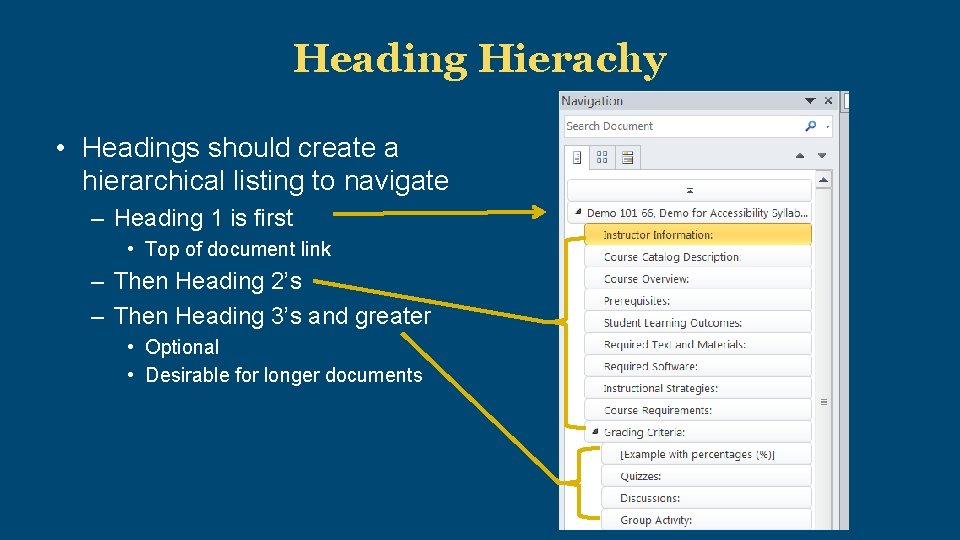
Heading Hierachy • Headings should create a hierarchical listing to navigate – Heading 1 is first • Top of document link – Then Heading 2’s – Then Heading 3’s and greater • Optional • Desirable for longer documents
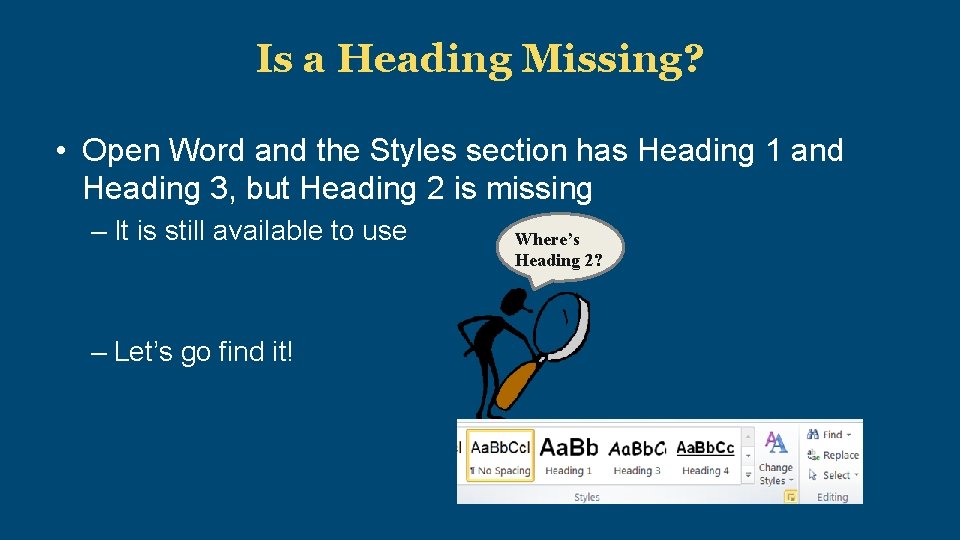
Is a Heading Missing? • Open Word and the Styles section has Heading 1 and Heading 3, but Heading 2 is missing – It is still available to use – Let’s go find it! Where’s Heading 2?
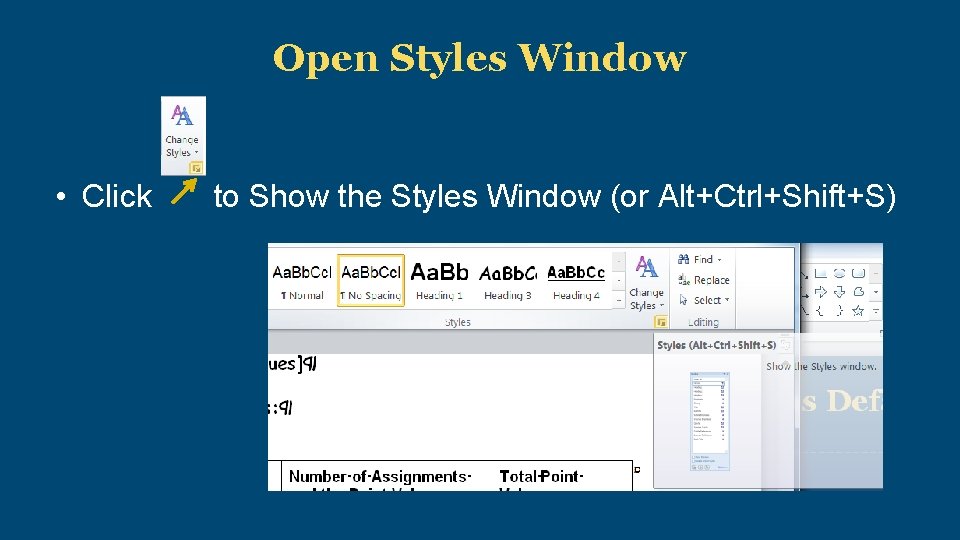
Open Styles Window • Click to Show the Styles Window (or Alt+Ctrl+Shift+S)
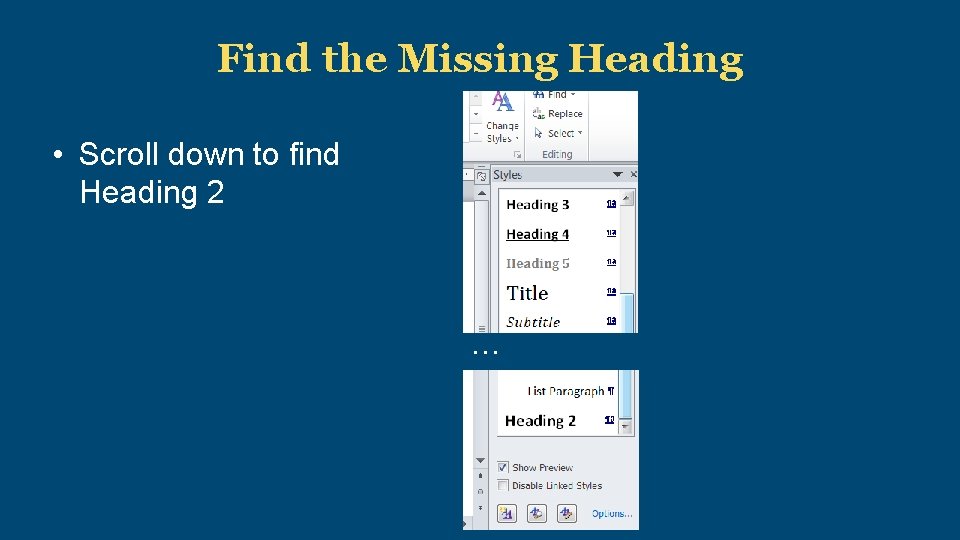
Find the Missing Heading • Scroll down to find Heading 2 …
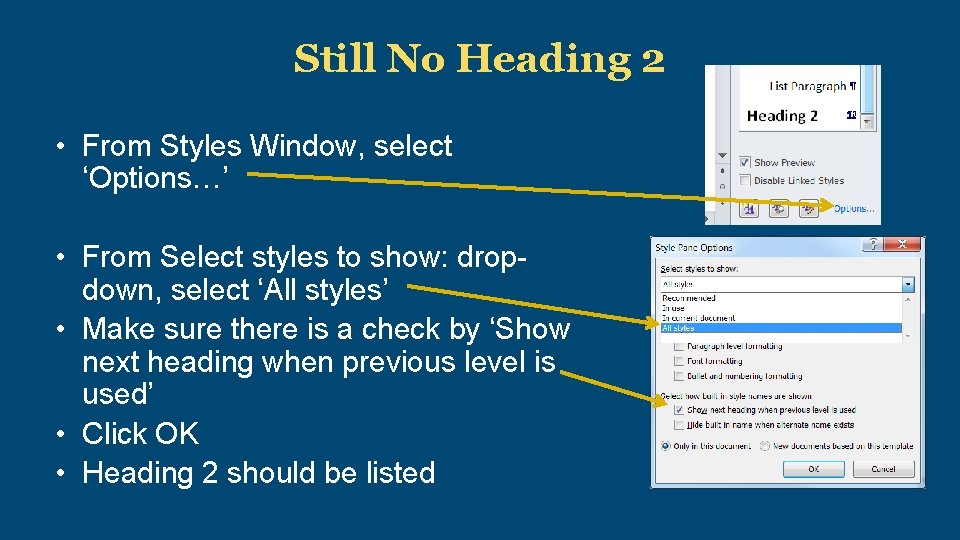
Still No Heading 2 • From Styles Window, select ‘Options…’ • From Select styles to show: dropdown, select ‘All styles’ • Make sure there is a check by ‘Show next heading when previous level is used’ • Click OK • Heading 2 should be listed
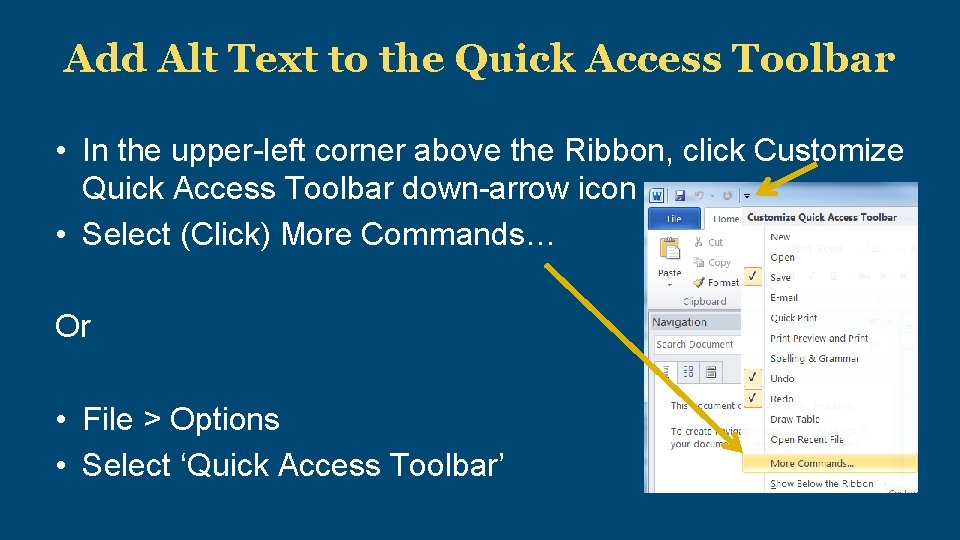
Add Alt Text to the Quick Access Toolbar • In the upper-left corner above the Ribbon, click Customize Quick Access Toolbar down-arrow icon • Select (Click) More Commands… Or • File > Options • Select ‘Quick Access Toolbar’
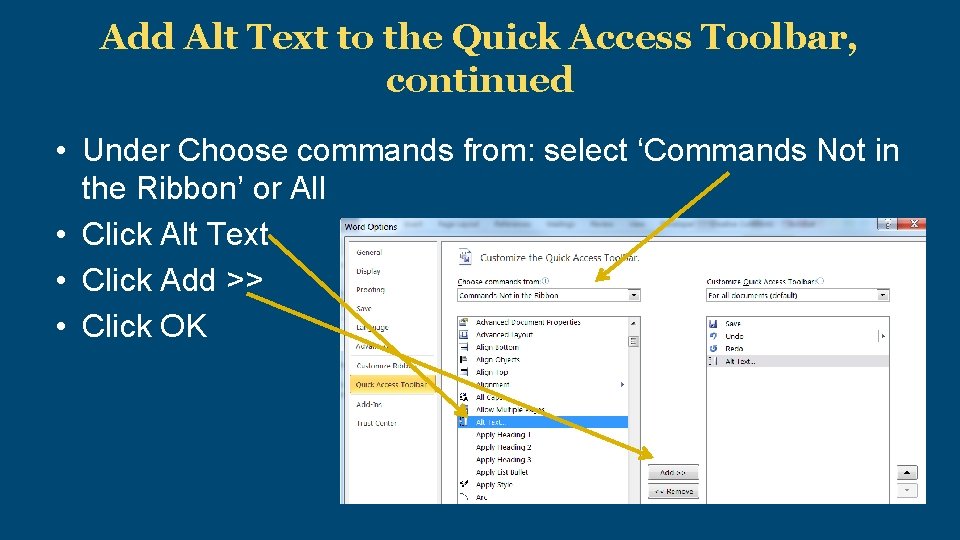
Add Alt Text to the Quick Access Toolbar, continued • Under Choose commands from: select ‘Commands Not in the Ribbon’ or All • Click Alt Text • Click Add >> • Click OK
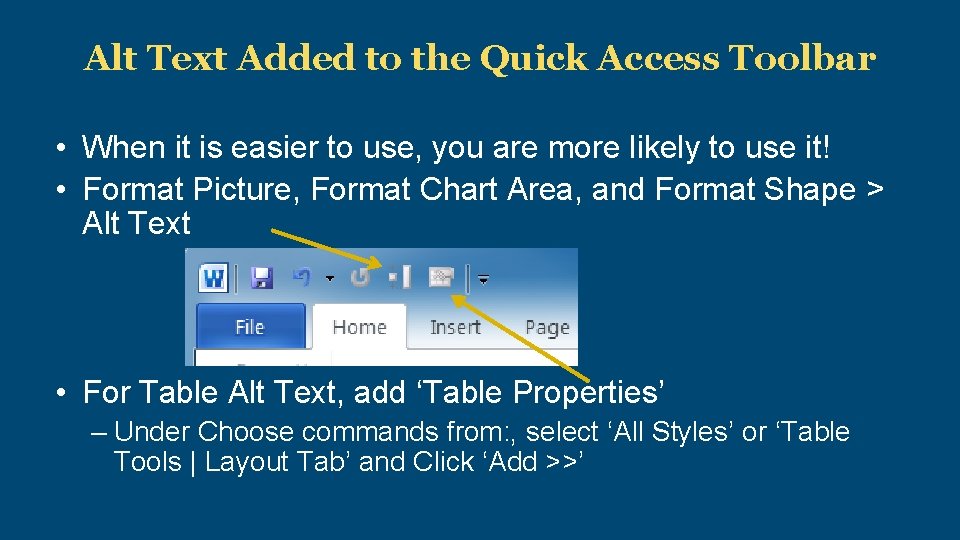
Alt Text Added to the Quick Access Toolbar • When it is easier to use, you are more likely to use it! • Format Picture, Format Chart Area, and Format Shape > Alt Text • For Table Alt Text, add ‘Table Properties’ – Under Choose commands from: , select ‘All Styles’ or ‘Table Tools | Layout Tab’ and Click ‘Add >>’
Defaults Not To Change The following are defaults not to change: • Margins – The default margin setting of 1” margins is an accessible choice • It’s already the default for the normal template – Optionally make changes, but avoid taking away necessary white space • Automatic numbering features – If turned off, lists need to be manually added with paragraph functions – Optionally make changes with accessibility in mind

SAVING THE TEMPLATE
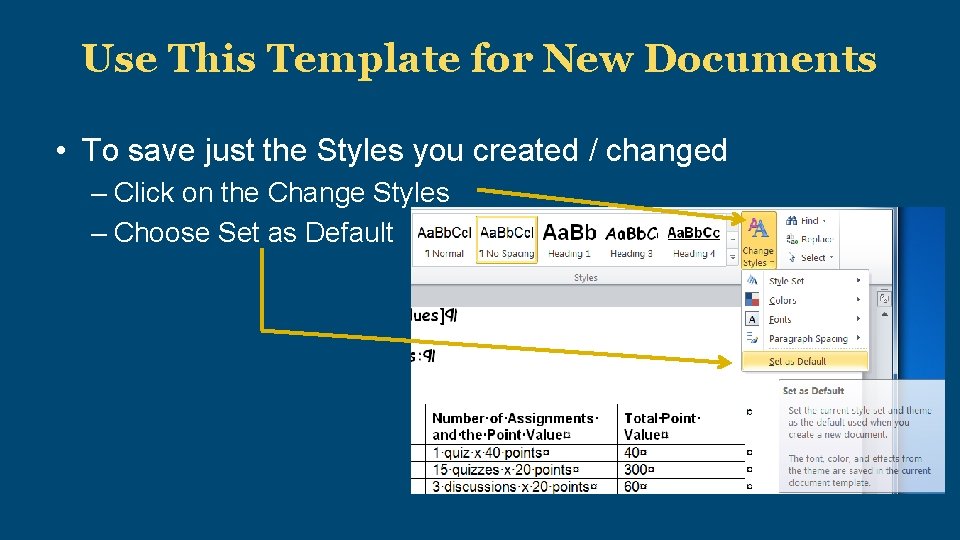
Use This Template for New Documents • To save just the Styles you created / changed – Click on the Change Styles – Choose Set as Default
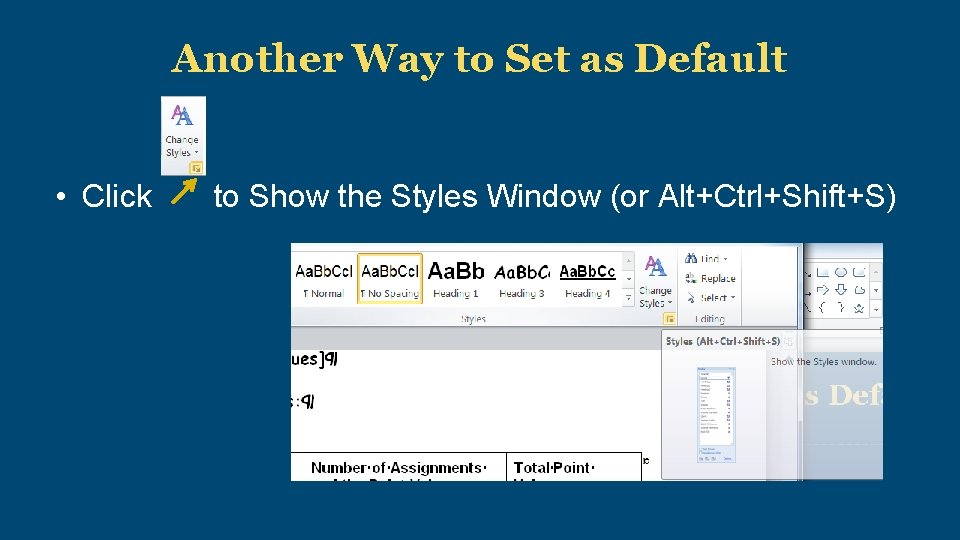
Another Way to Set as Default • Click to Show the Styles Window (or Alt+Ctrl+Shift+S)
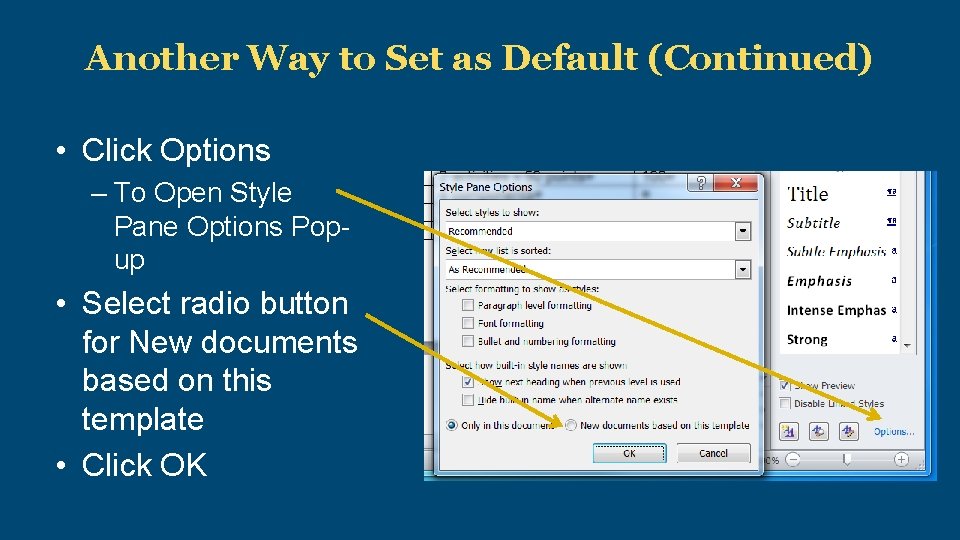
Another Way to Set as Default (Continued) • Click Options – To Open Style Pane Options Popup • Select radio button for New documents based on this template • Click OK
Save and Use as a Template • Save the changes as a template file – File > Save As – Save as type: Choose “Word Template (. dotx)” • Everything is saved (Set as Default saves just Styles) – If you type something in the document, add header or footer content, change margins, etc. that will get saved too. • Ideas for templates to create and reuse: – Syllabus – Welcome Letter

Questions?
Lab Time: Create a Template or Make a Document Accessible

Feedback Is Appreciated Thank You!
- Slides: 26