
SESSION 3 SOFTWARE TOOLS Tommy Morris Professor Electrical
- Slides: 20
SESSION 3: SOFTWARE TOOLS Tommy Morris Professor, Electrical and Computer Engineering Director, Center for Cybersecurity Research and Education University of Alabama in Huntsville
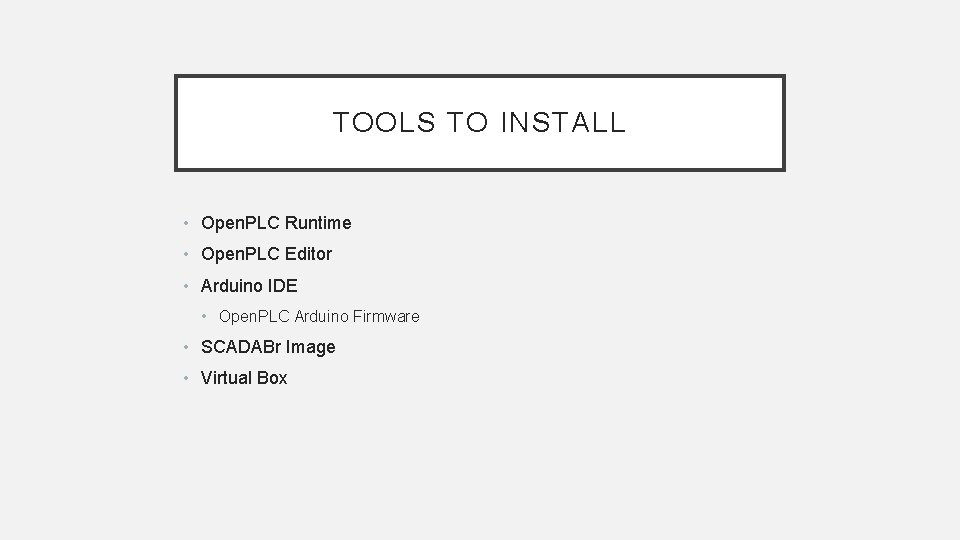
TOOLS TO INSTALL • Open. PLC Runtime • Open. PLC Editor • Arduino IDE • Open. PLC Arduino Firmware • SCADABr Image • Virtual Box
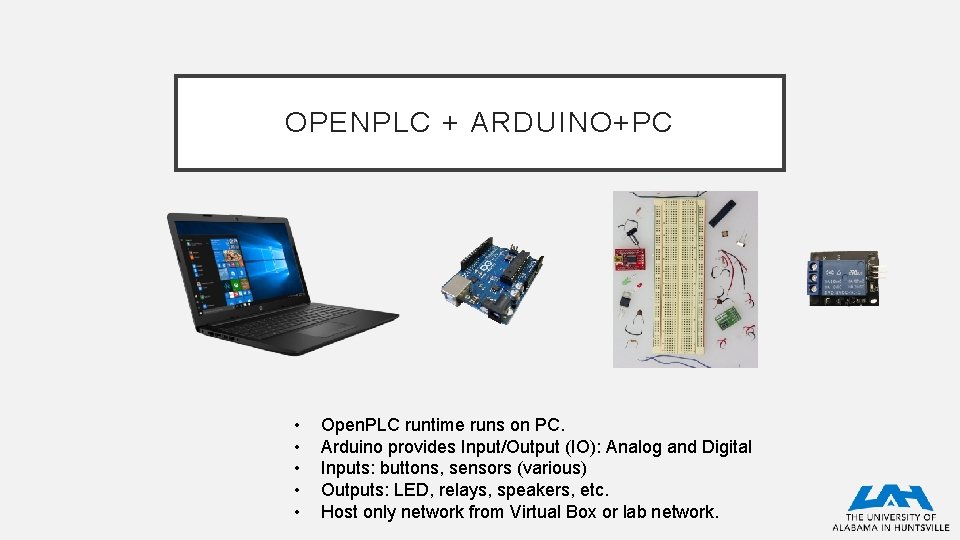
OPENPLC + ARDUINO+PC • • • Open. PLC runtime runs on PC. Arduino provides Input/Output (IO): Analog and Digital Inputs: buttons, sensors (various) Outputs: LED, relays, speakers, etc. Host only network from Virtual Box or lab network.
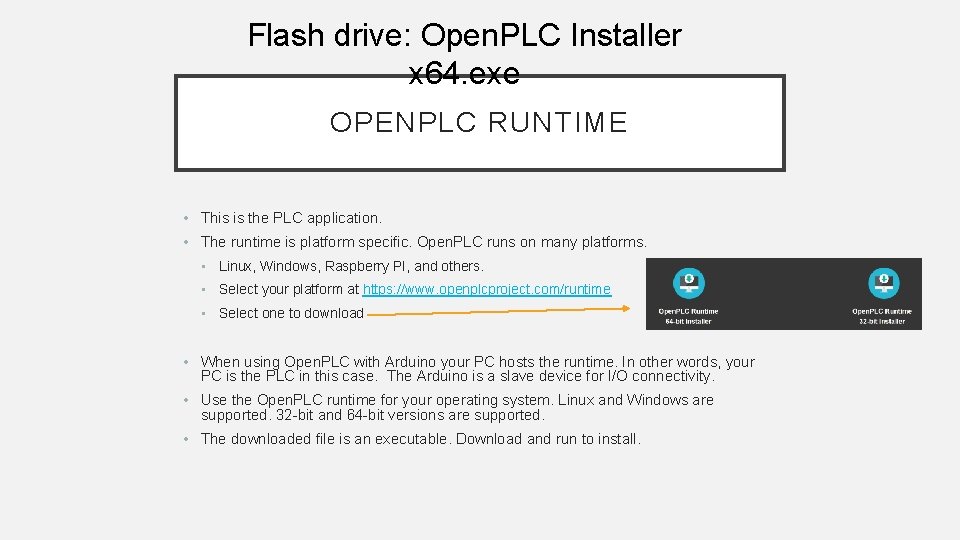
Flash drive: Open. PLC Installer x 64. exe OPENPLC RUNTIME • This is the PLC application. • The runtime is platform specific. Open. PLC runs on many platforms. • Linux, Windows, Raspberry PI, and others. • Select your platform at https: //www. openplcproject. com/runtime • Select one to download • When using Open. PLC with Arduino your PC hosts the runtime. In other words, your PC is the PLC in this case. The Arduino is a slave device for I/O connectivity. • Use the Open. PLC runtime for your operating system. Linux and Windows are supported. 32 -bit and 64 -bit versions are supported. • The downloaded file is an executable. Download and run to install.
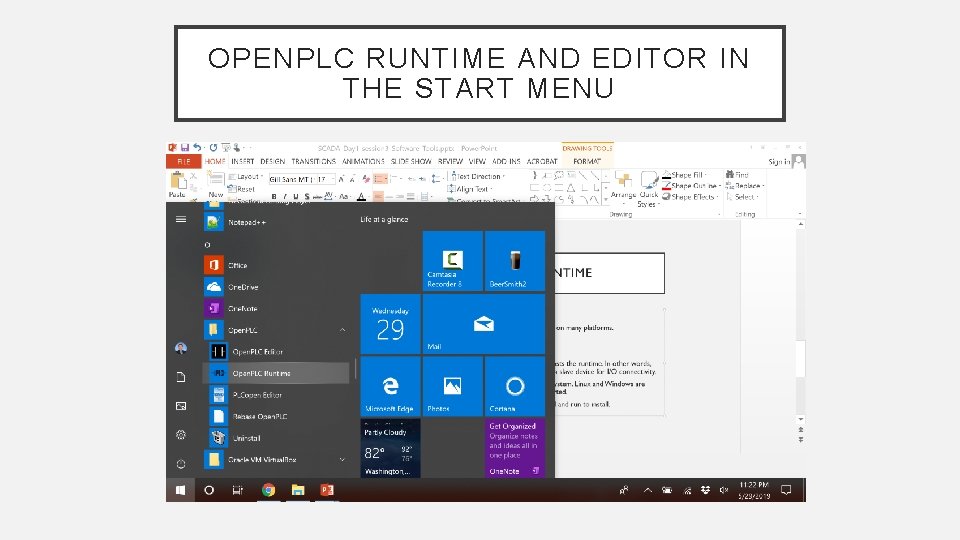
OPENPLC RUNTIME AND EDITOR IN THE START MENU
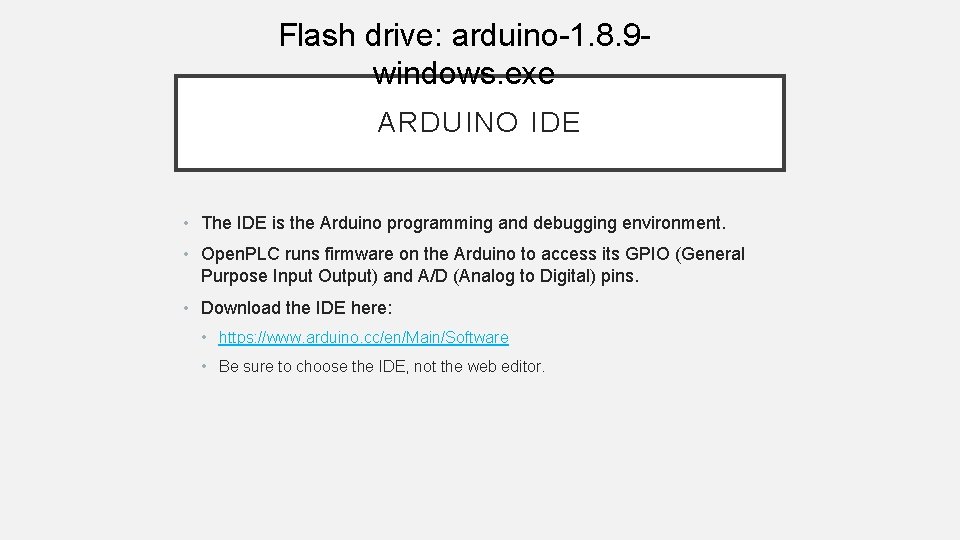
Flash drive: arduino-1. 8. 9 windows. exe ARDUINO IDE • The IDE is the Arduino programming and debugging environment. • Open. PLC runs firmware on the Arduino to access its GPIO (General Purpose Input Output) and A/D (Analog to Digital) pins. • Download the IDE here: • https: //www. arduino. cc/en/Main/Software • Be sure to choose the IDE, not the web editor.
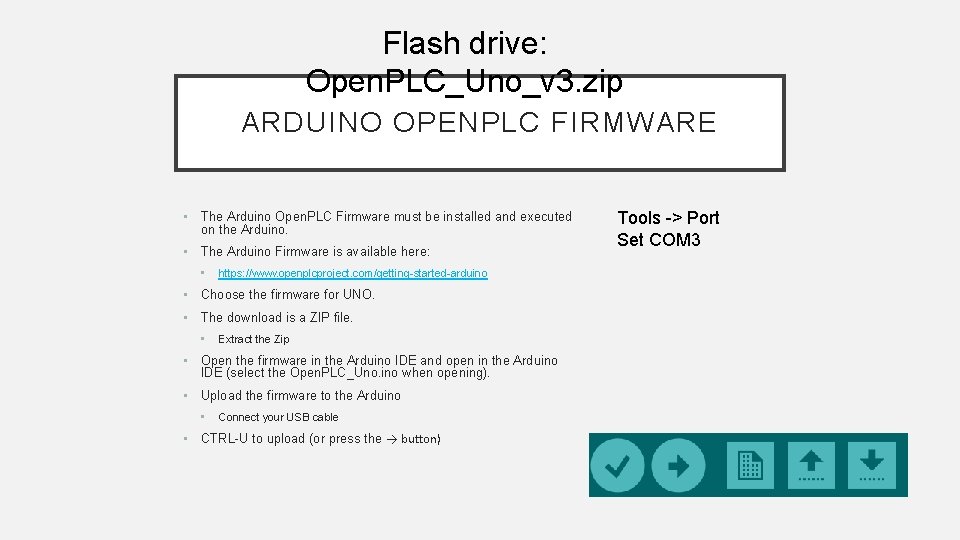
Flash drive: Open. PLC_Uno_v 3. zip ARDUINO OPENPLC FIRMWARE • The Arduino Open. PLC Firmware must be installed and executed on the Arduino. • The Arduino Firmware is available here: • https: //www. openplcproject. com/getting-started-arduino • Choose the firmware for UNO. • The download is a ZIP file. • Extract the Zip • Open the firmware in the Arduino IDE and open in the Arduino IDE (select the Open. PLC_Uno. ino when opening). • Upload the firmware to the Arduino • Connect your USB cable • CTRL-U to upload (or press the → button) Tools -> Port Set COM 3
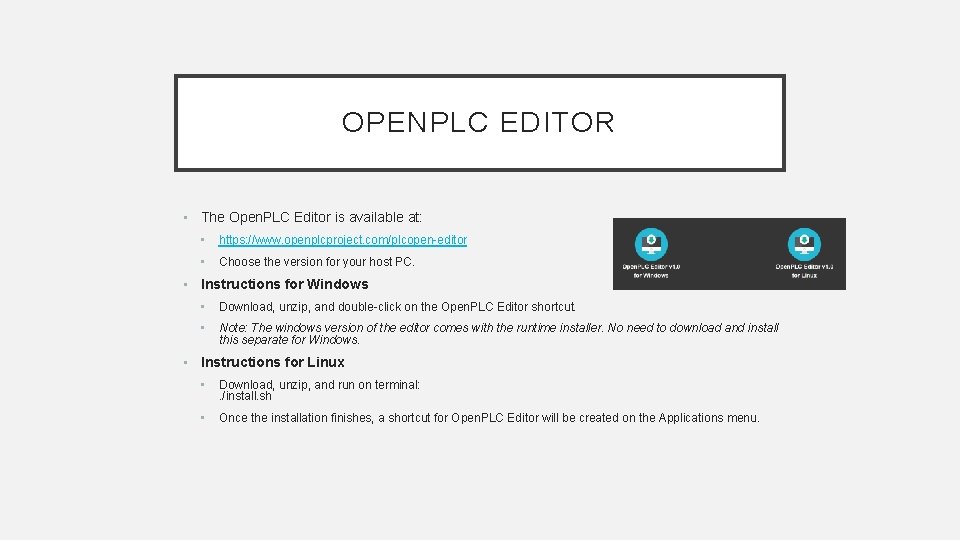
OPENPLC EDITOR • The Open. PLC Editor is available at: • https: //www. openplcproject. com/plcopen-editor • Choose the version for your host PC. • Instructions for Windows • Download, unzip, and double-click on the Open. PLC Editor shortcut. • Note: The windows version of the editor comes with the runtime installer. No need to download and install this separate for Windows. • Instructions for Linux • Download, unzip, and run on terminal: . /install. sh • Once the installation finishes, a shortcut for Open. PLC Editor will be created on the Applications menu.
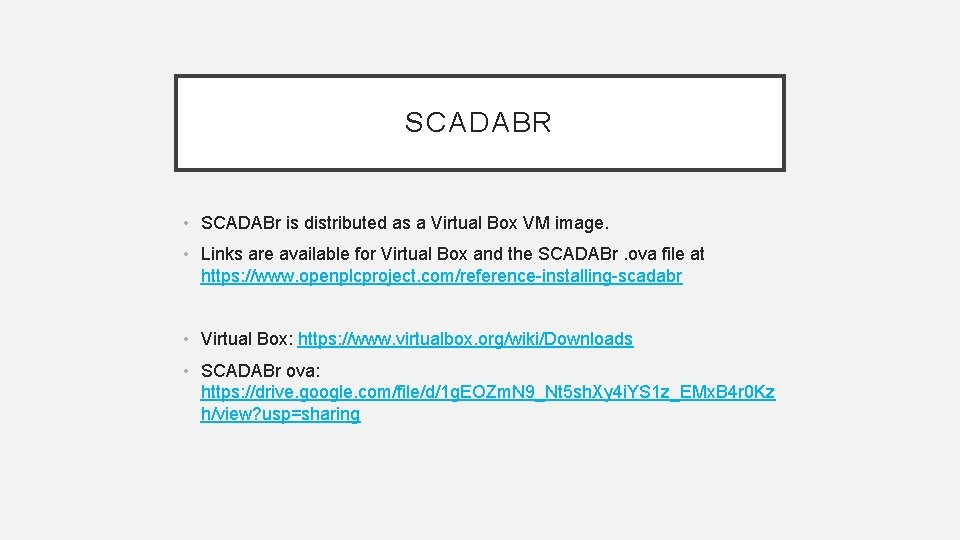
SCADABR • SCADABr is distributed as a Virtual Box VM image. • Links are available for Virtual Box and the SCADABr. ova file at https: //www. openplcproject. com/reference-installing-scadabr • Virtual Box: https: //www. virtualbox. org/wiki/Downloads • SCADABr ova: https: //drive. google. com/file/d/1 g. EOZm. N 9_Nt 5 sh. Xy 4 i. YS 1 z_EMx. B 4 r 0 Kz h/view? usp=sharing
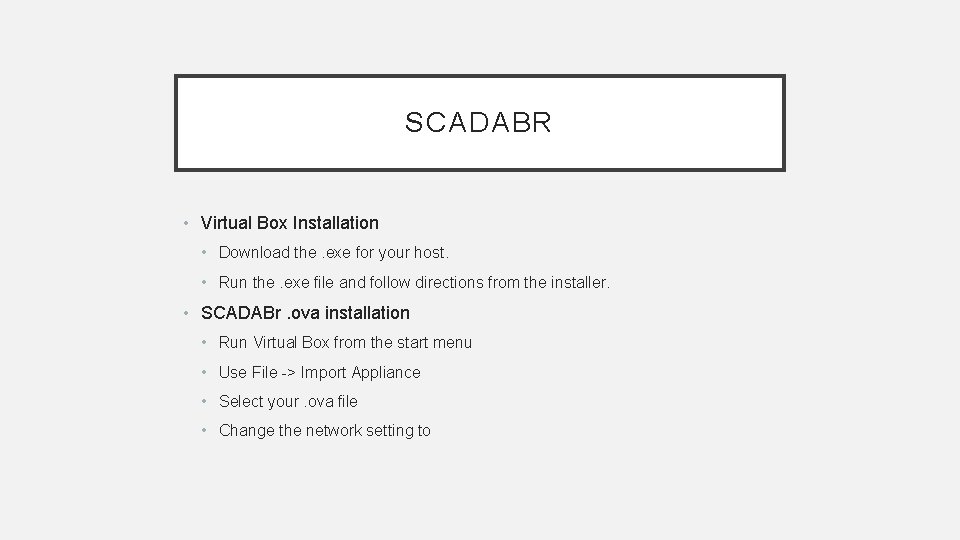
SCADABR • Virtual Box Installation • Download the. exe for your host. • Run the. exe file and follow directions from the installer. • SCADABr. ova installation • Run Virtual Box from the start menu • Use File -> Import Appliance • Select your. ova file • Change the network setting to
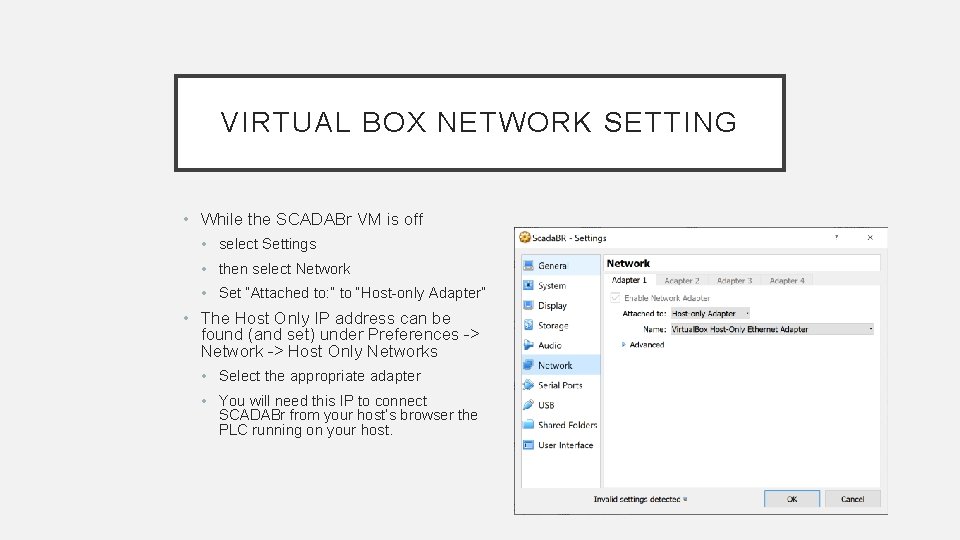
VIRTUAL BOX NETWORK SETTING • While the SCADABr VM is off • select Settings • then select Network • Set “Attached to: ” to “Host-only Adapter” • The Host Only IP address can be found (and set) under Preferences -> Network -> Host Only Networks • Select the appropriate adapter • You will need this IP to connect SCADABr from your host’s browser the PLC running on your host.
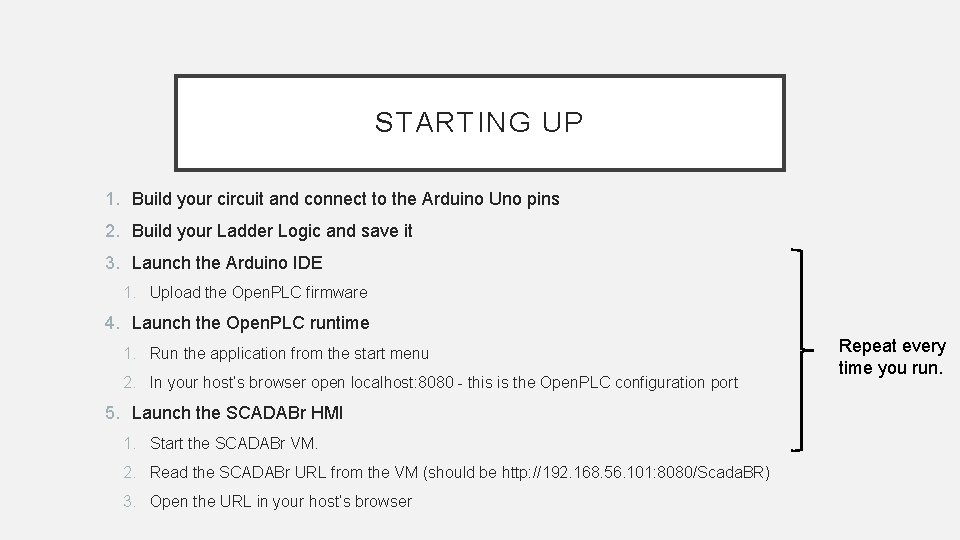
STARTING UP 1. Build your circuit and connect to the Arduino Uno pins 2. Build your Ladder Logic and save it 3. Launch the Arduino IDE 1. Upload the Open. PLC firmware 4. Launch the Open. PLC runtime 1. Run the application from the start menu 2. In your host’s browser open localhost: 8080 - this is the Open. PLC configuration port 5. Launch the SCADABr HMI 1. Start the SCADABr VM. 2. Read the SCADABr URL from the VM (should be http: //192. 168. 56. 101: 8080/Scada. BR) 3. Open the URL in your host’s browser Repeat every time you run.
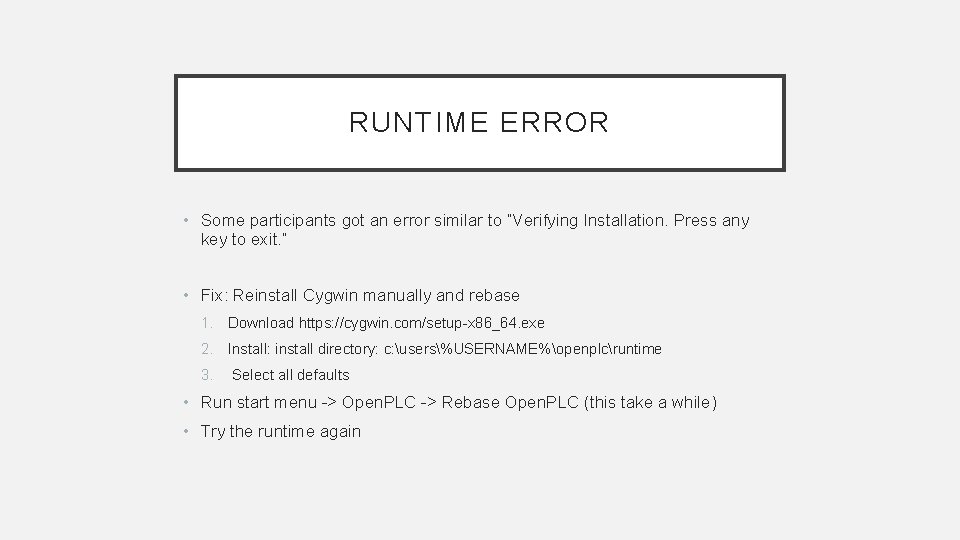
RUNTIME ERROR • Some participants got an error similar to “Verifying Installation. Press any key to exit. ” • Fix: Reinstall Cygwin manually and rebase 1. Download https: //cygwin. com/setup-x 86_64. exe 2. Install: install directory: c: users%USERNAME%openplcruntime 3. Select all defaults • Run start menu -> Open. PLC -> Rebase Open. PLC (this take a while) • Try the runtime again
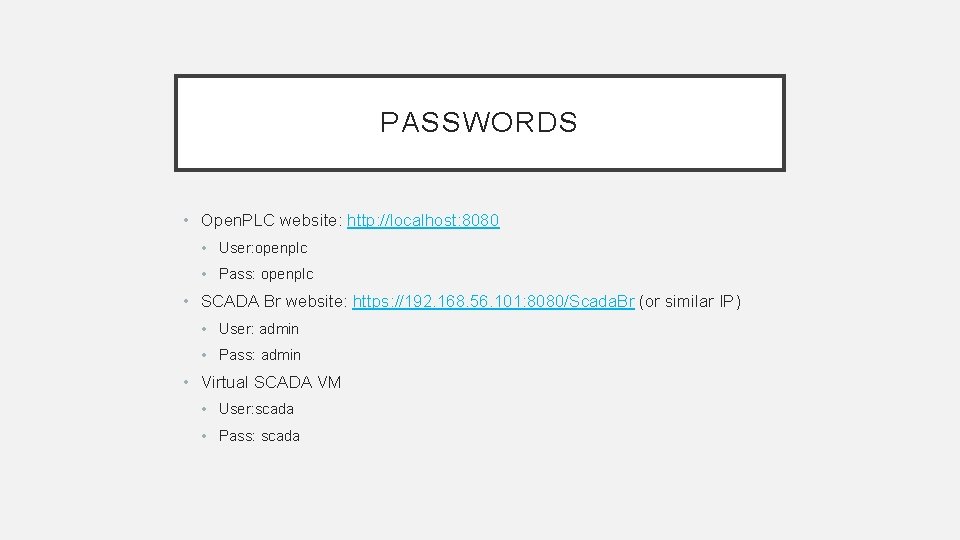
PASSWORDS • Open. PLC website: http: //localhost: 8080 • User: openplc • Pass: openplc • SCADA Br website: https: //192. 168. 56. 101: 8080/Scada. Br (or similar IP) • User: admin • Pass: admin • Virtual SCADA VM • User: scada • Pass: scada
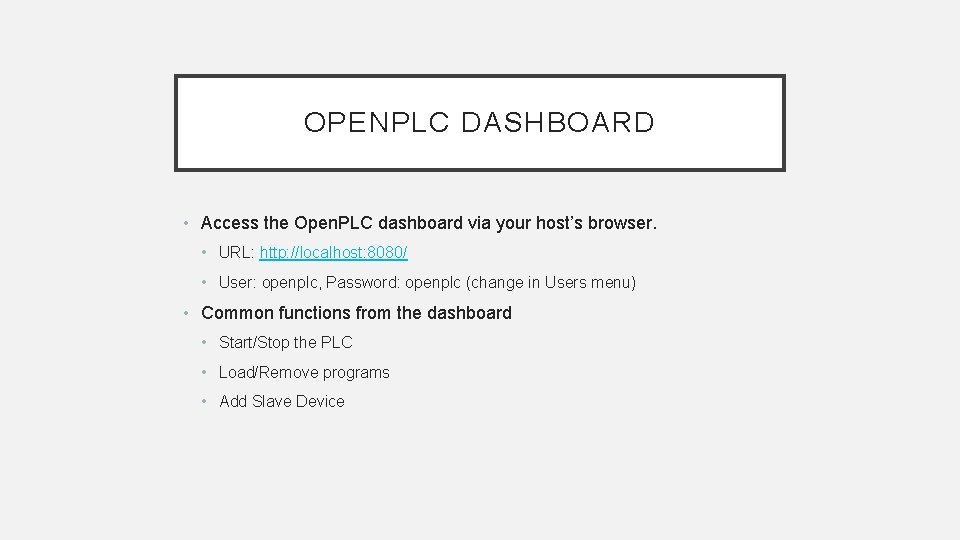
OPENPLC DASHBOARD • Access the Open. PLC dashboard via your host’s browser. • URL: http: //localhost: 8080/ • User: openplc, Password: openplc (change in Users menu) • Common functions from the dashboard • Start/Stop the PLC • Load/Remove programs • Add Slave Device
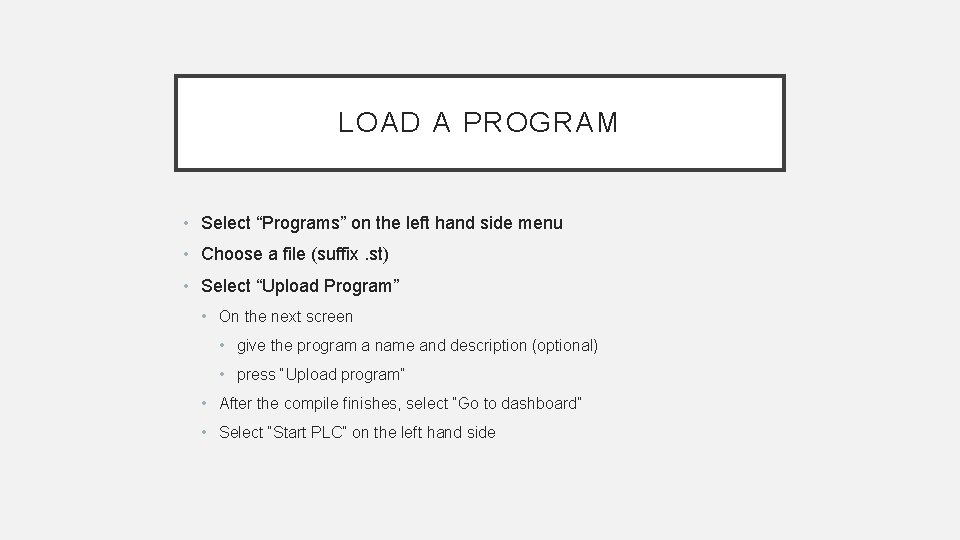
LOAD A PROGRAM • Select “Programs” on the left hand side menu • Choose a file (suffix. st) • Select “Upload Program” • On the next screen • give the program a name and description (optional) • press “Upload program” • After the compile finishes, select “Go to dashboard” • Select “Start PLC” on the left hand side
REMOVE A PROGRAM • Select “Programs” on the left hand side menu • Select an existing program from the table • Select “Remove program” • Note: “Reload program” will recompile the program. Do not use this with a new version. • When you have a new version • Remove the old version (to avoid confusion) • Upload the new version
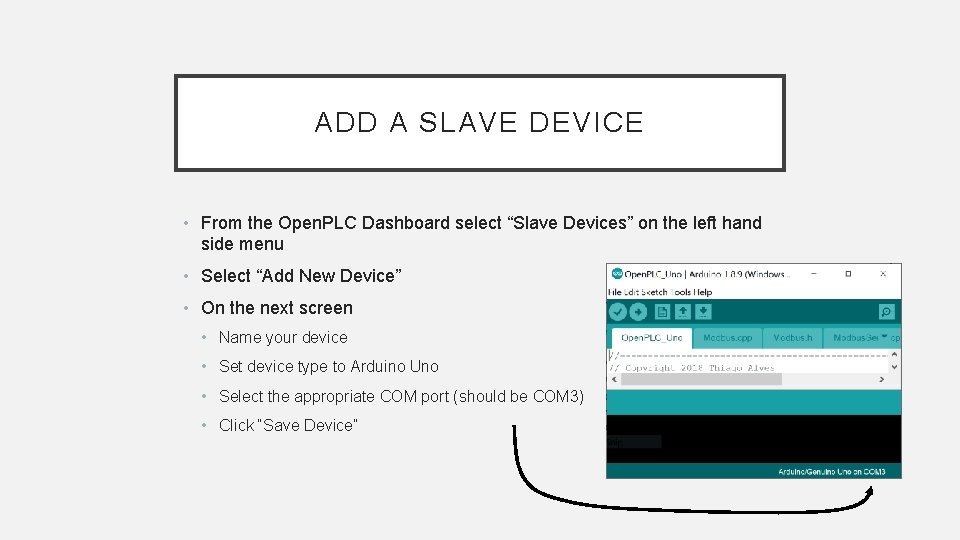
ADD A SLAVE DEVICE • From the Open. PLC Dashboard select “Slave Devices” on the left hand side menu • Select “Add New Device” • On the next screen • Name your device • Set device type to Arduino Uno • Select the appropriate COM port (should be COM 3) • Click “Save Device”
PLACING COMPONENTS IN OPENPLC EDITOR • Left click the component icon • Left click the location in the ladder section for the component
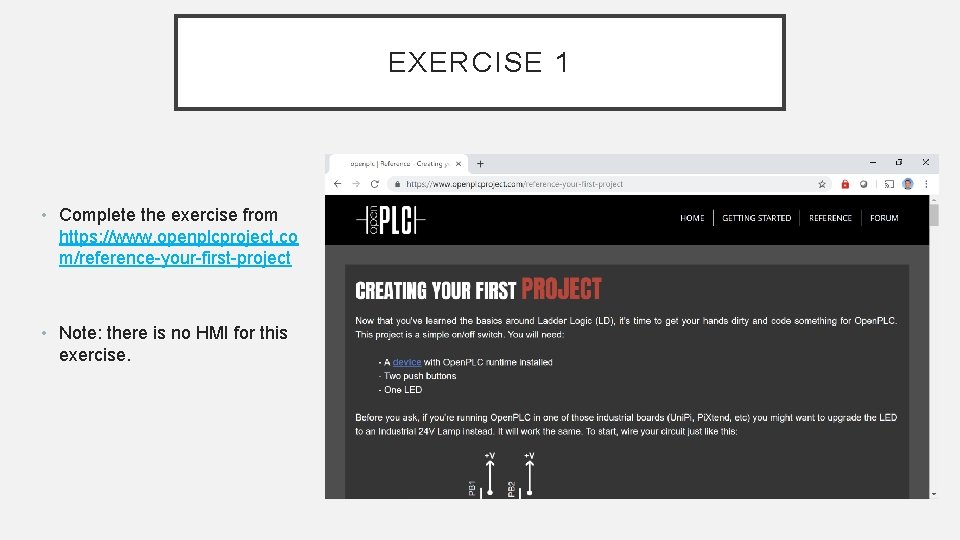
EXERCISE 1 • Complete the exercise from https: //www. openplcproject. co m/reference-your-first-project • Note: there is no HMI for this exercise.