
Services for Students with Disabilities Accessibility on Campus
Services for Students with Disabilities Accessibility on Campus and Creating Accessible Material Robert Salinas Assistive Technology Coordinator Services for Students with Disabilities
Services for Students with Disabilities • Where are we located? • Who can use our services? • What does the word “Accessible” mean to you?
Campus Accommodations • SCOUT Transportation • Note-Taking • Accessible Furniture • ASL Interpreting and Real Time Captioning • Assistive Technology • Digital Recording • Accessible Instructional Material (AIM) - Alternate-Media • Testing Services
The Law • Section 504 of the Rehabilitation Counseling Act of 1973 • Prohibits discrimination against an otherwise qualified individual with a disability solely on the basis of disability, in any program or activity that receives federal financial assistance. • Section 508 • Requires federal agencies to make their electronic and information technology accessible to all individuals who are disabled. This will give access to information and content that is comparable to accessed information by their peers. • Americans with Disabilities Act (ADA) • Provides broad nondiscrimination protection in employment, public services and public accommodations. • What does this mean for our educational systems? • We must make reasonable accommodations in order to provide students with disabilities an equitable opportunity to participate in course, programs, or activities. • Examples: extended time for test taking or completing coursework; substitutions of specific course work to complete course requirements; auxiliary aids, sign language interpreters, electronic formats and adaptive equipment.
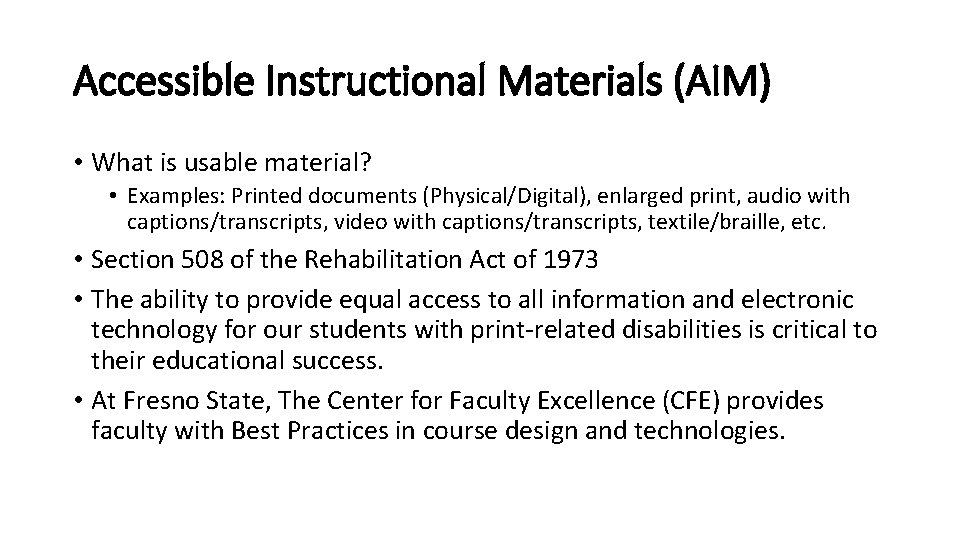
Accessible Instructional Materials (AIM) • What is usable material? • Examples: Printed documents (Physical/Digital), enlarged print, audio with captions/transcripts, video with captions/transcripts, textile/braille, etc. • Section 508 of the Rehabilitation Act of 1973 • The ability to provide equal access to all information and electronic technology for our students with print-related disabilities is critical to their educational success. • At Fresno State, The Center for Faculty Excellence (CFE) provides faculty with Best Practices in course design and technologies.
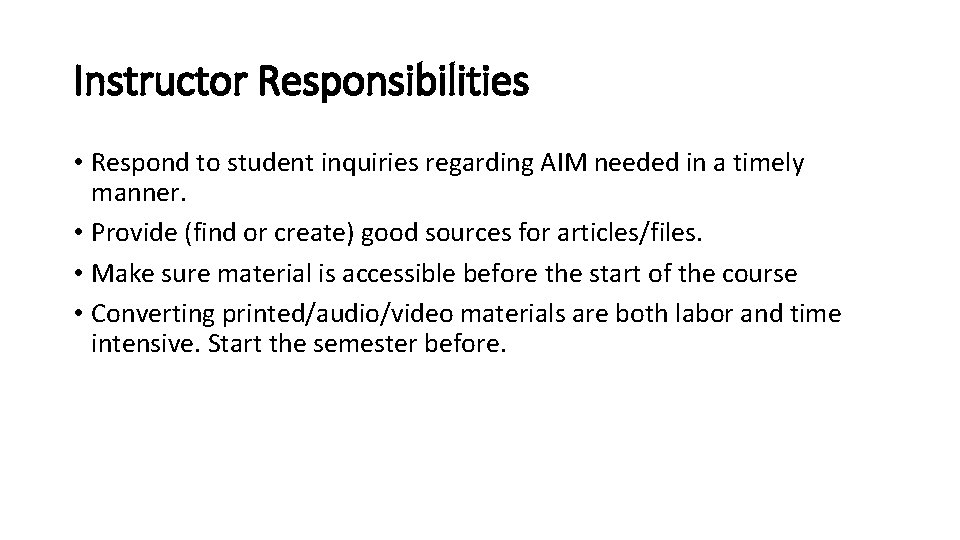
Instructor Responsibilities • Respond to student inquiries regarding AIM needed in a timely manner. • Provide (find or create) good sources for articles/files. • Make sure material is accessible before the start of the course • Converting printed/audio/video materials are both labor and time intensive. Start the semester before.
Who benefits from accessible content? • Everyone, not just individuals who disabilities • Universal Design - 7 principles (https: //goo. gl/DFrm. Es)
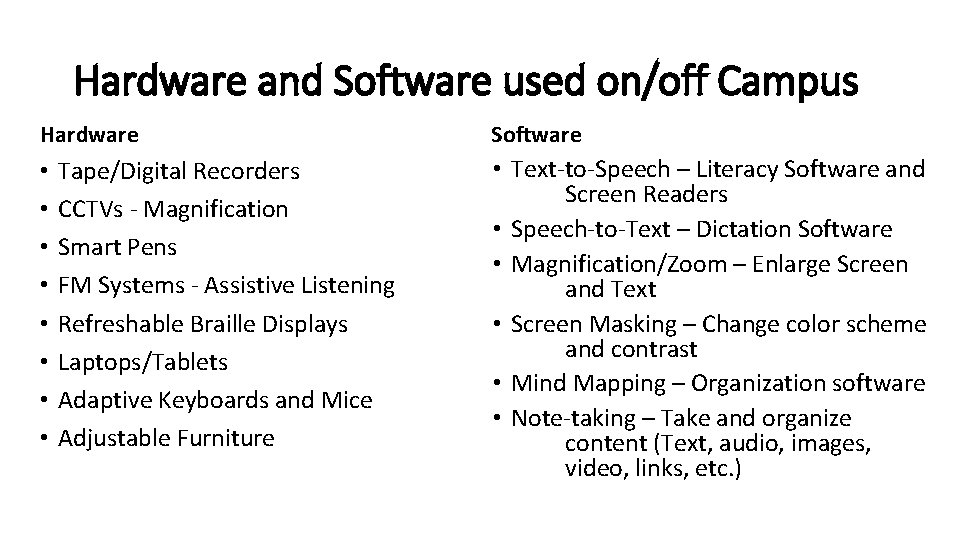
Hardware and Software used on/off Campus Hardware • • Tape/Digital Recorders CCTVs - Magnification Smart Pens FM Systems - Assistive Listening Refreshable Braille Displays Laptops/Tablets Adaptive Keyboards and Mice Adjustable Furniture Software • Text-to-Speech – Literacy Software and Screen Readers • Speech-to-Text – Dictation Software • Magnification/Zoom – Enlarge Screen and Text • Screen Masking – Change color scheme and contrast • Mind Mapping – Organization software • Note-taking – Take and organize content (Text, audio, images, video, links, etc. )
Where accessibility options? • Every current mobile electronic device is required to have accessibility features on them • Settings, accessibility (They will have Text-to-Speech, Speech-to-Text, Magnification, dexterity aids etc. )
Creating Content with Accessibility in Mind • Digital and Printable Documents: Can content be displayed differently? • Imagery – Can everyone see the content? • Audio – Can everyone hear the content? • Video – Can everyone see and hear the content? • Color Usage – Can everyone see the difference between colors? • Websites – Can everyone navigate the website (links, content & media)
Tips for Creating Content • Use a text editor as your base (MS Word). Type inside of the text document, do not use floating text boxes. • Images (Pictures, Graphs, etc. ) have Alt-text and Caption/Figure description. Reduce or remove all decorative images (Word Art). Can this be in tactile form? • Web Links are descriptive and display URL, and not “click here” • Utilize “Equations” under Insert tab or use a clear picture with Alt-Text • Don’t assign meaning to color
Tips for Styling Content • • Utilize the Styles Headings, Strong, Emphasis, Clear Formatting Use accessible Fonts San Serif (Arial, Calibri, Helvetica, Tahoma and Verdana). • Times New Roman is not an accessible font. • No smaller than size 12 Font • No awkward spaces (Enter Key and Space Bar) • Use your Indent and Spacing in the Layout Tab in MS Word • Use Bullets and Numbering • Columns with defined spacing • Tables have defined headers that repeat over pages and Alt-text
General Tips for Content • Use the Show/Hide feature in the Home Tab • Use the Navigation Pane in the View Tab • Is the Reading Order correct? • Use Pages Numbers • Provide alternate formats (Word, PDFs, e. PUB, HTML, Text files, etc. ) • Site your sources. Be mindful of copyrighted material and laws.
Tips for Imagery • Images (Pictures, Graphs, etc. ) have Alt-text and Caption/Figure description. Reduce or remove all decorative images (Word Art). • If text is inside of the image (picture of text) make sure to provide an text alternative with the image. • Don’t assign meaning to color • Don’t use animated gifs or other media with strobing elements • Provide alternate formats (Word, PDFs, e. PUB, HTML, Text files, etc. ) • Site your sources. Be mindful of copyrighted material and laws.
Tips for Audio • Make sure the audio is clear and free of ambient noises • Provide a transcript of the audio • Provide captions. • How, it’s an audio file? • Convert the audio to a video and provide captions on the video with a black background that is accurate to the audio track. • Site your sources. Be mindful of copyrighted material and laws.
Tips for Videos • Make sure the videos are clear to view, without tracking lines. • Provide captions that are accurate to the audio track and synced with the video. • Provide a transcript of the video if possible • Provide Audio Descriptions if possible. • Site your sources. Be mindful of copyrighted material and laws.
Tips for Color Usage • Don’t assign meaning to color • Make sure the contrast is as high as possible. (White background and Black Text, not White background with Light Grey text)
Tools Used in Creating AIM • MS Word (Creating content from scratch) • ABBYY Fine. Reader. Pro 12 (Primary OCR* and scanning tool) • Adobe Acrobat 11 (Secondary OCR* tool) • Read&Write (Primary student-use tool) • The result is platform agnostic (use it anywhere) *OCR = Optical Character Recognition - Turns images of text to meaningful text
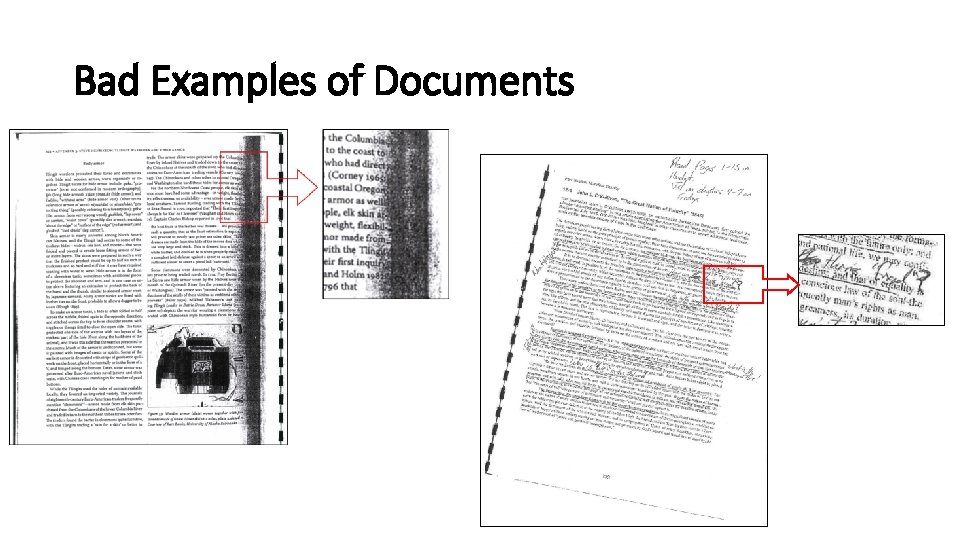
Bad Examples of Documents
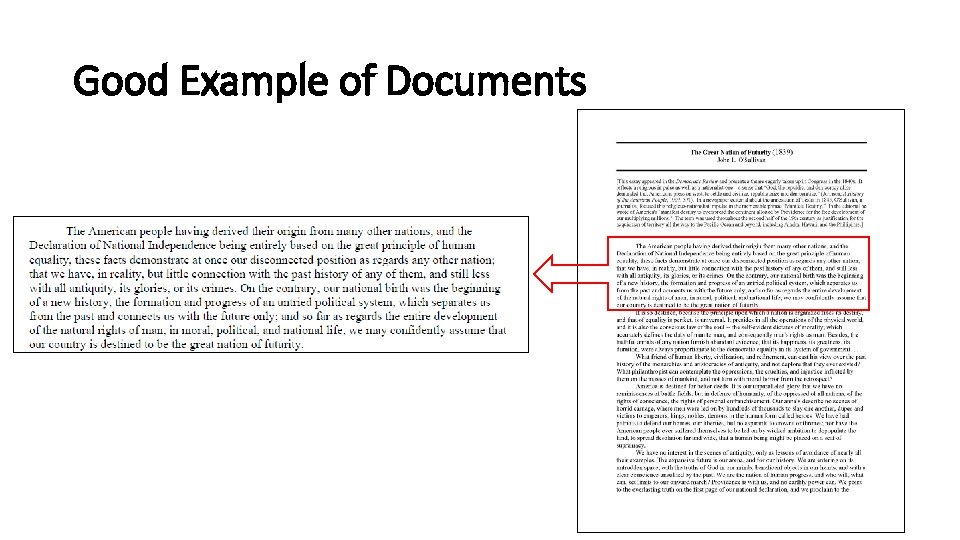
Good Example of Documents
Tips for Websites • Use all of the guidelines and tips from previous slides • Know how to navigate your website by keyboard (can I access every aspect of the site? ) • Use the Tab, Arrows, Enter, and Spacebar keys • Don’t have media that plays automatically (Audio and video) • Test website using a screen reader
Questions?
Robert Salinas Assistive Technology Coordinator Services for Students with Disabilities Location: HML Suite 1202 Office Phone: 559 -278 -2811 Email: rsalinas@csufresno. edu
- Slides: 23