
Service Now Fulfiller Basics Training Training Links Fulfiller
Service. Now Fulfiller Basics Training
Training Links • Fulfiller: http: //utqa. service-now. com • Self Service Website: http: //utqa. servicenow. com/utss
Benefits of Service. Now to UT • UT is adopting and adapting leading Service Management processes to improve our service delivery to our customers • Service. Now is an easy to use service management tool based on the ITIL framework • Provides a single system of record for UT • Enables UT to automate and standardize processes and activities that support the University • Leverages self-service capabilities for personnel and end users • Enables UT to provide efficient and consistent service delivery to our faculty, staff, and students • Provides the ability to connect campus through business process workflows and measure service delivery
What’s Changing in Phase 1 • Effective Go-Live Date, tickets should be entered into Service. Now rather than Footprints • Break-fix events will generally be entered in Service. Now as an incident • Requests published in Service. Now, rather than being incidents, will be handled as separate request tickets submitted through Self Service Website • Public Self Help will be located on the Self Service Website • For the end user, the process for submitting requests and incidents to participating Service/Help Desks will not change – phone numbers, emails will not change
Training Scope • While this training is aimed specifically at IT Fulfillers, it will also address the roles of Requestors (end users) and Approvers • Fulfillers in HR/CBO/Finance will have specific training but will benefit from the context of this training • Processes in Phase 1 that impact Fulfillers include incident management, service request and catalog • A Fulfiller is defined as someone who is assigned a task to perform in the tool and has the appropriate roles defined in the tool
Learning Objectives General Navigation in Service. Now Incident Management • Review the Incident Management process, key concepts and metrics • Review how Knowledge Management interacts with Incident Management and how to submit knowledge articles • How to use the Incident Management application and modules within Service. Now Service Catalog • Service Catalog Overview for Fulfillers including approvals and catalog tasks Service. Now Reporting Overview Appendix • Additional Navigation topics, Process Diagrams, Metrics

Service. Now GENERAL NAVIGATION
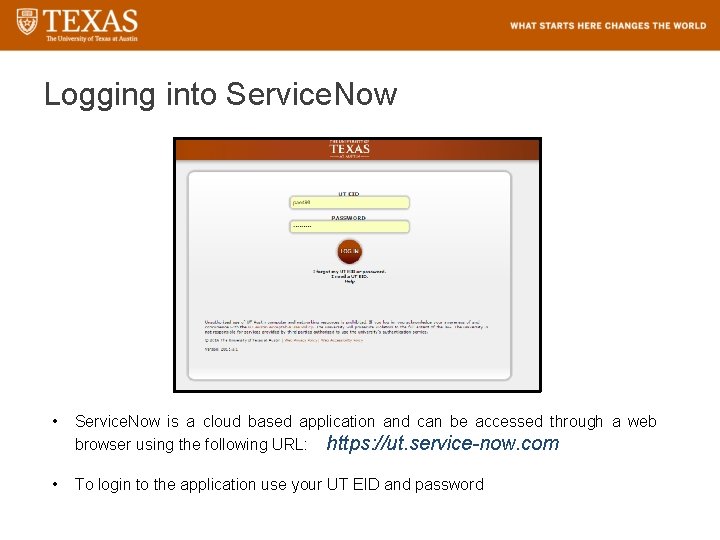
Logging into Service. Now • Service. Now is a cloud based application and can be accessed through a web browser using the following URL: https: //ut. service-now. com • To login to the application use your UT EID and password

Tool Demo GENERAL NAVIGATION
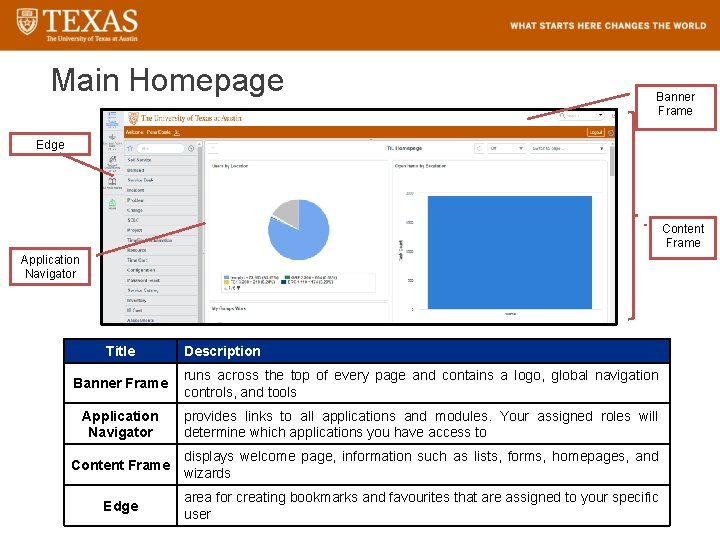
Main Homepage Banner Frame Edge Content Frame Application Navigator Title Description Banner Frame runs across the top of every page and contains a logo, global navigation controls, and tools Application Navigator provides links to all applications and modules. Your assigned roles will determine which applications you have access to Content Frame displays welcome page, information such as lists, forms, homepages, and wizards Edge area for creating bookmarks and favourites that are assigned to your specific user
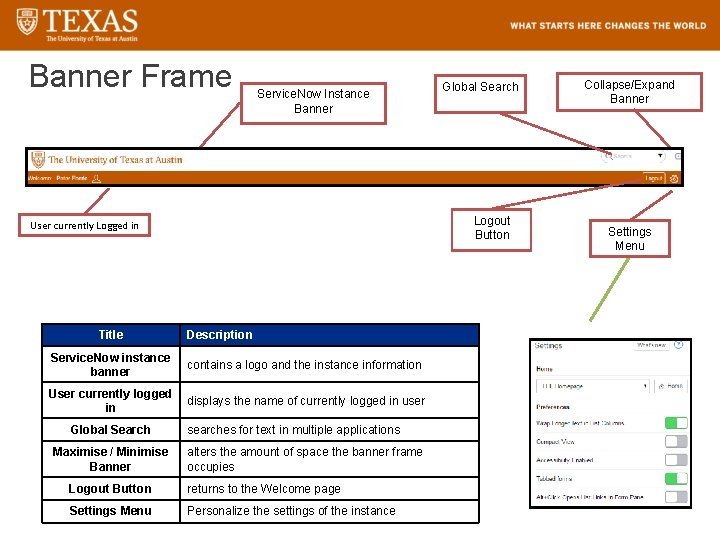
Banner Frame Service. Now Instance Banner Logout Button User currently Logged in Title Service. Now instance banner Description contains a logo and the instance information User currently logged displays the name of currently logged in user in Global Search Maximise / Minimise Banner Global Search searches for text in multiple applications alters the amount of space the banner frame occupies Logout Button returns to the Welcome page Settings Menu Personalize the settings of the instance Collapse/Expand Banner Settings Menu
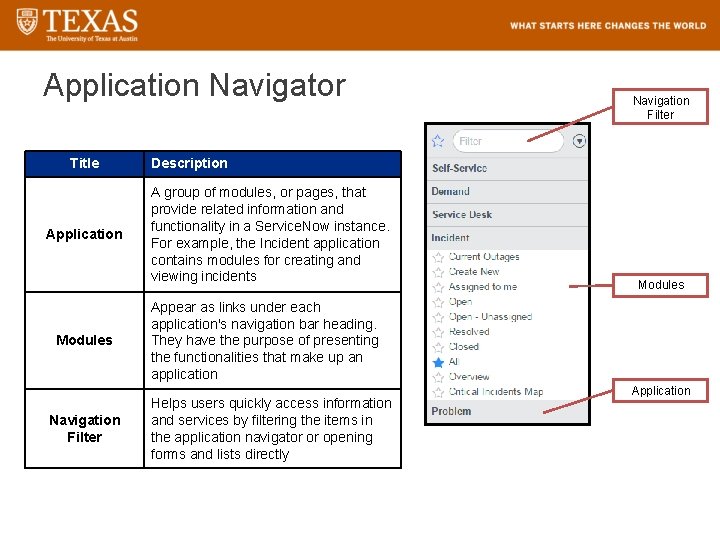
Application Navigator Title Application Modules Navigation Filter Description A group of modules, or pages, that provide related information and functionality in a Service. Now instance. For example, the Incident application contains modules for creating and viewing incidents Modules Appear as links under each application's navigation bar heading. They have the purpose of presenting the functionalities that make up an application Helps users quickly access information and services by filtering the items in the application navigator or opening forms and lists directly Application
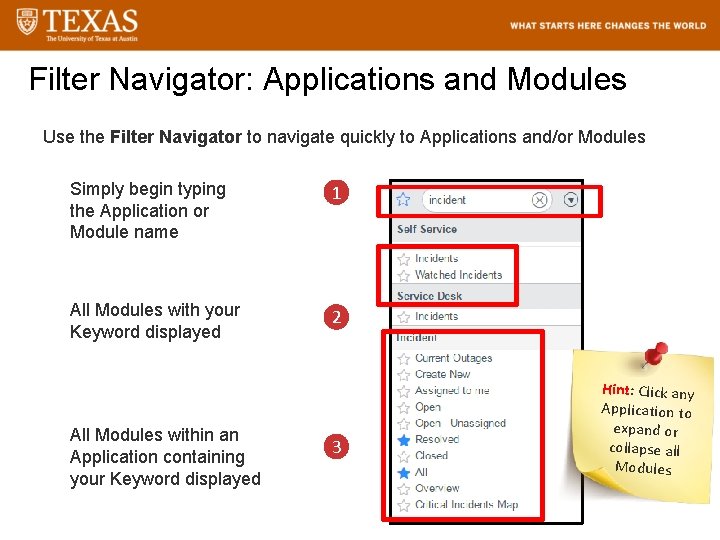
Filter Navigator: Applications and Modules Use the Filter Navigator to navigate quickly to Applications and/or Modules Simply begin typing the Application or Module name 1 All Modules with your Keyword displayed 2 All Modules within an Application containing your Keyword displayed 3 Hint: Click any Application to expand or collapse all Modules
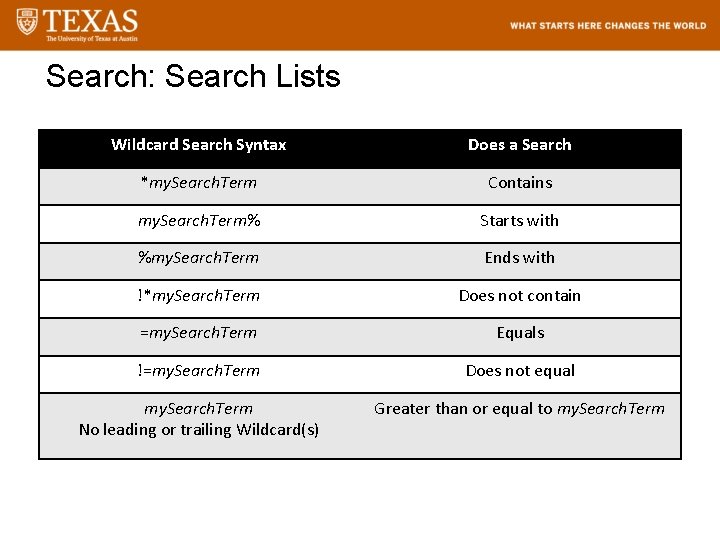
Search: Search Lists Wildcard Search Syntax Does a Search *my. Search. Term Contains my. Search. Term% Starts with %my. Search. Term Ends with !*my. Search. Term Does not contain =my. Search. Term Equals !=my. Search. Term Does not equal my. Search. Term No leading or trailing Wildcard(s) Greater than or equal to my. Search. Term
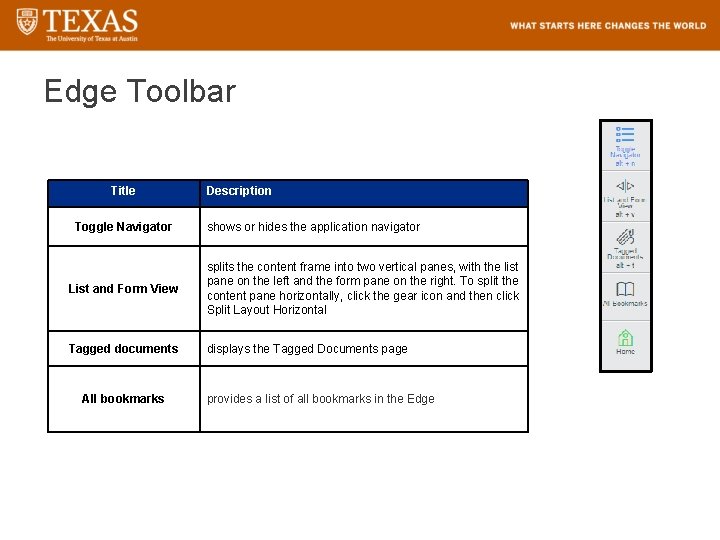
Edge Toolbar Title Toggle Navigator Description shows or hides the application navigator List and Form View splits the content frame into two vertical panes, with the list pane on the left and the form pane on the right. To split the content pane horizontally, click the gear icon and then click Split Layout Horizontal Tagged documents displays the Tagged Documents page All bookmarks provides a list of all bookmarks in the Edge
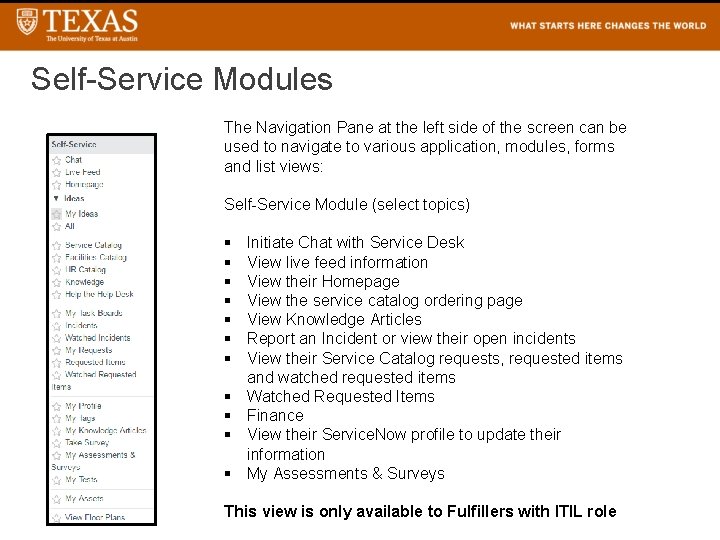
Self-Service Modules The Navigation Pane at the left side of the screen can be used to navigate to various application, modules, forms and list views: Self-Service Module (select topics) § § § Initiate Chat with Service Desk View live feed information View their Homepage View the service catalog ordering page View Knowledge Articles Report an Incident or view their open incidents View their Service Catalog requests, requested items and watched requested items Watched Requested Items Finance View their Service. Now profile to update their information My Assessments & Surveys This view is only available to Fulfillers with ITIL role
Any Questions about Navigation in Service. Now at this point? See additional slides on Navigation in the Appendix
Key Concepts INCIDENT MANAGEMENT
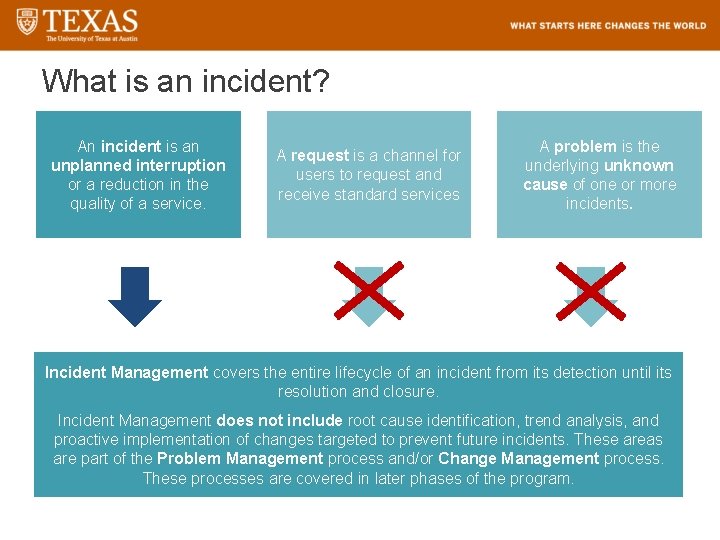
What is an incident? An incident is an unplanned interruption or a reduction in the quality of a service. A request is a channel for users to request and receive standard services A problem is the underlying unknown cause of one or more incidents. Incident Management covers the entire lifecycle of an incident from its detection until its resolution and closure. Incident Management does not include root cause identification, trend analysis, and proactive implementation of changes targeted to prevent future incidents. These areas are part of the Problem Management process and/or Change Management process. These processes are covered in later phases of the program.
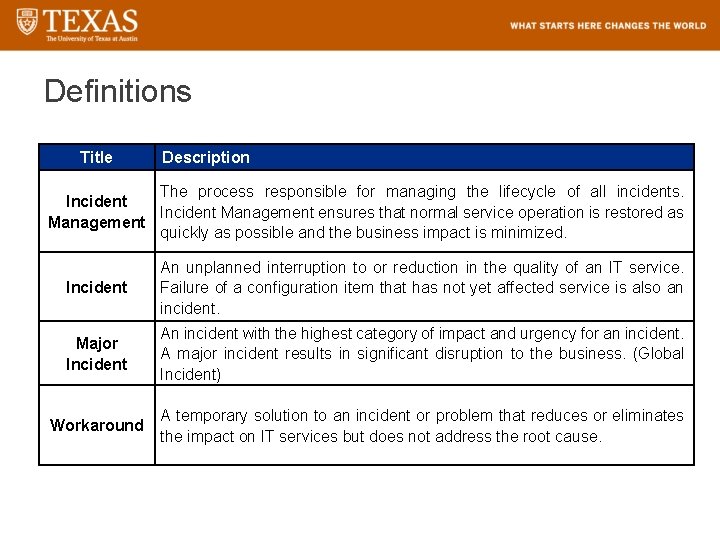
Definitions Title Description The process responsible for managing the lifecycle of all incidents. Incident Management ensures that normal service operation is restored as Management quickly as possible and the business impact is minimized. Incident An unplanned interruption to or reduction in the quality of an IT service. Failure of a configuration item that has not yet affected service is also an incident. Major Incident An incident with the highest category of impact and urgency for an incident. A major incident results in significant disruption to the business. (Global Incident) Workaround A temporary solution to an incident or problem that reduces or eliminates the impact on IT services but does not address the root cause.
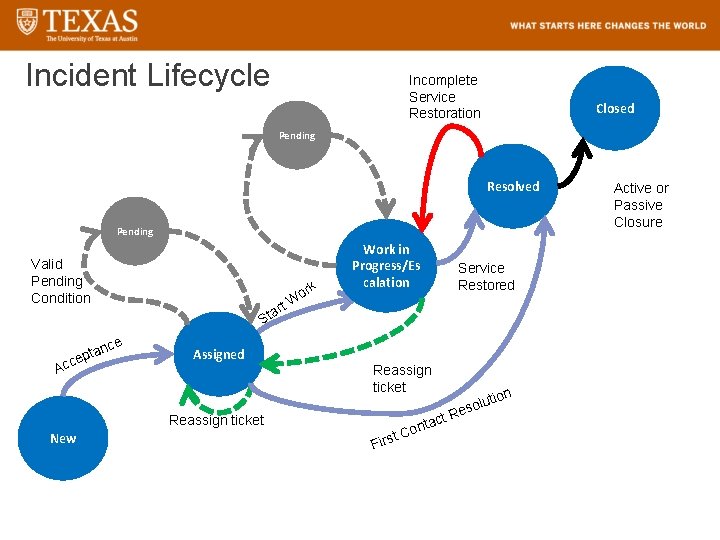
Incident Lifecycle Incomplete Service Restoration Closed Pending Resolved Pending Valid Pending Condition ork Acc rt W Assigned Reassign ticket New Service Restored a St nce a t ep Work in Progress/Es calation act ont C t s Fir ion olut Res Active or Passive Closure
User Information and Assignment Groups • Every 2 hours user account information is imported from the TED System. • Fulfillers have been placed into Assignment Groups. • All Assignment Groups have been given the ITIL role in the Service. Now tool, which allows them to access and work on Incidents, Configuration Items, Service Requests and Reports. • Fulfillers will also be able to draft new Knowledge articles via the Knowledge Bases they have access to. • Fulfillers will also be able to request Catalog Items from the Service Catalog they have access to. • Assignment Groups will be managed by the Service. Now team via requests from the department manager.
Visibility • Tickets have open visibility in Service. Now • HR and ISO will be secure • By default, you will only see your assignment groups’ tickets • Field on ticket form for confidential data • Category/checkbox that can be used to mark entire ticket private • Ticket to Service. Now team to remove confidential data
Incident Management END USER PERSPECTIVE AND THE SELF SERVICE WEBSITE
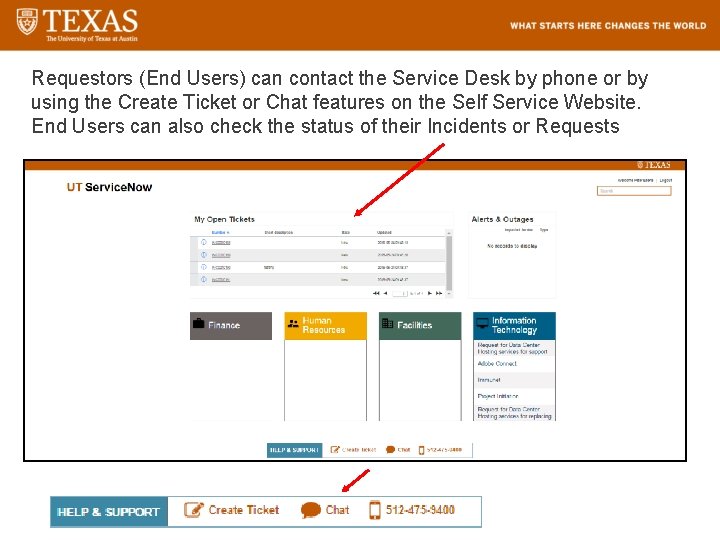
Requestors (End Users) can contact the Service Desk by phone or by using the Create Ticket or Chat features on the Self Service Website. End Users can also check the status of their Incidents or Requests
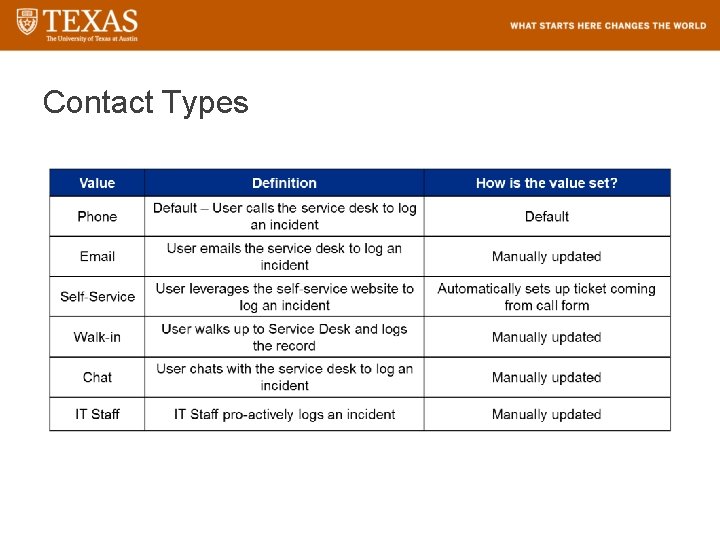
Contact Types
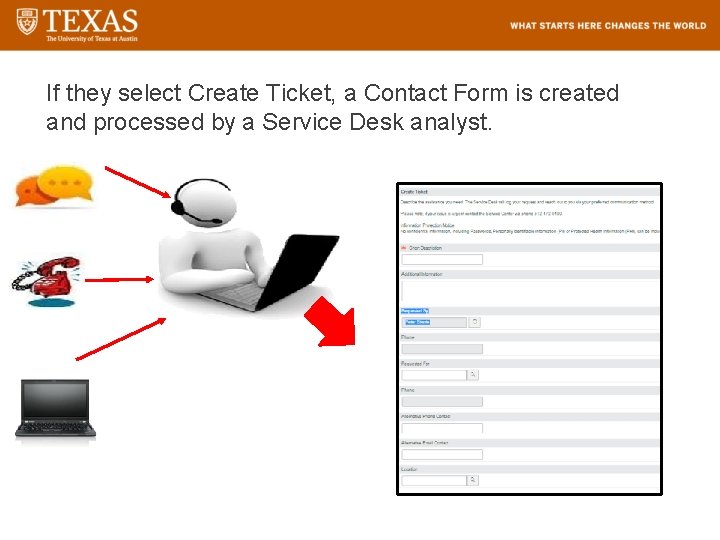
If they select Create Ticket, a Contact Form is created and processed by a Service Desk analyst.
The header of the form contains the following information: Describe the assistance you need. The Service Desk will log your request and reach out to you via your preferred communication method. Please note, if your issue is urgent contact the Service Center via phone 512 -475 -9400. Note the following Notice regarding Information Confidentially: Information Protection Notice: No confidential information, including Passwords, Personally Identifiable Information (PII) or Protected Health Information (PHI), can be included anywhere in the Service. Now system. This includes in the description, work notes, attachments and other related fields. If such information is needed, provide the contact information to obtain any necessary passwords PII/PHI data outside of the system
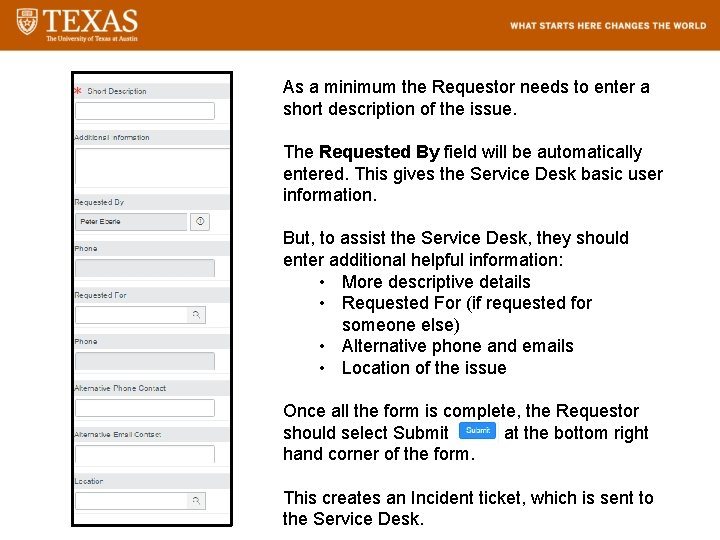
As a minimum the Requestor needs to enter a short description of the issue. The Requested By field will be automatically entered. This gives the Service Desk basic user information. But, to assist the Service Desk, they should enter additional helpful information: • More descriptive details • Requested For (if requested for someone else) • Alternative phone and emails • Location of the issue Once all the form is complete, the Requestor should select Submit at the bottom right hand corner of the form. This creates an Incident ticket, which is sent to the Service Desk.
Tool Demo CONTACT FORM
Incident Management IT SERVICE DESK PERSPECTIVE
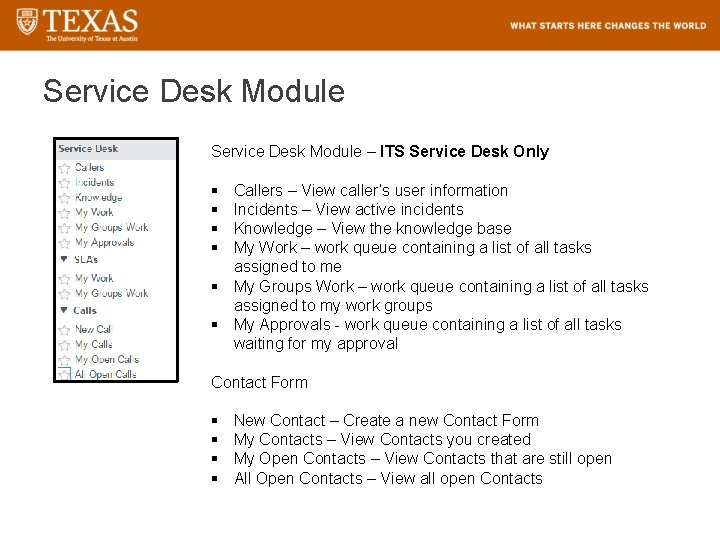
Service Desk Module – ITS Service Desk Only § § Callers – View caller’s user information Incidents – View active incidents Knowledge – View the knowledge base My Work – work queue containing a list of all tasks assigned to me § My Groups Work – work queue containing a list of all tasks assigned to my work groups § My Approvals - work queue containing a list of all tasks waiting for my approval Contact Form § § New Contact – Create a new Contact Form My Contacts – View Contacts you created My Open Contacts – View Contacts that are still open All Open Contacts – View all open Contacts
Incident Management FULFILLER PERSPECTIVE
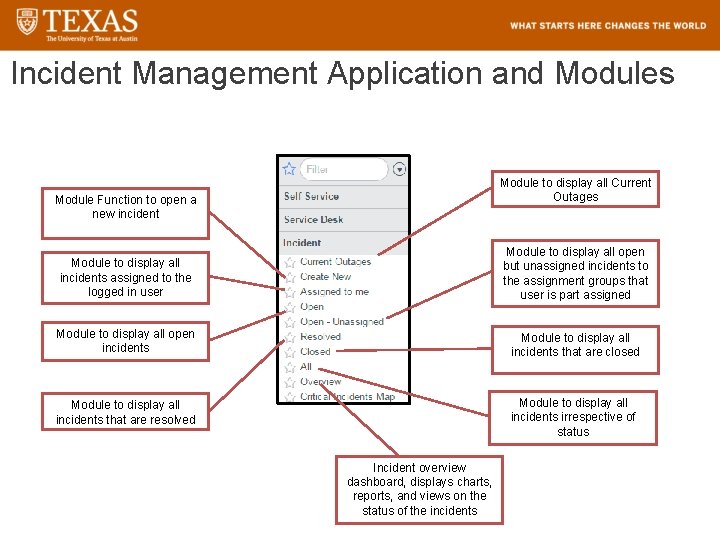
Incident Management Application and Modules Module to display all Current Outages Module Function to open a new incident Module to display all incidents assigned to the logged in user Module to display all open but unassigned incidents to the assignment groups that user is part assigned Module to display all open incidents Module to display all incidents that are closed Module to display all incidents that are resolved Module to display all incidents irrespective of status Incident overview dashboard, displays charts, reports, and views on the status of the incidents 34
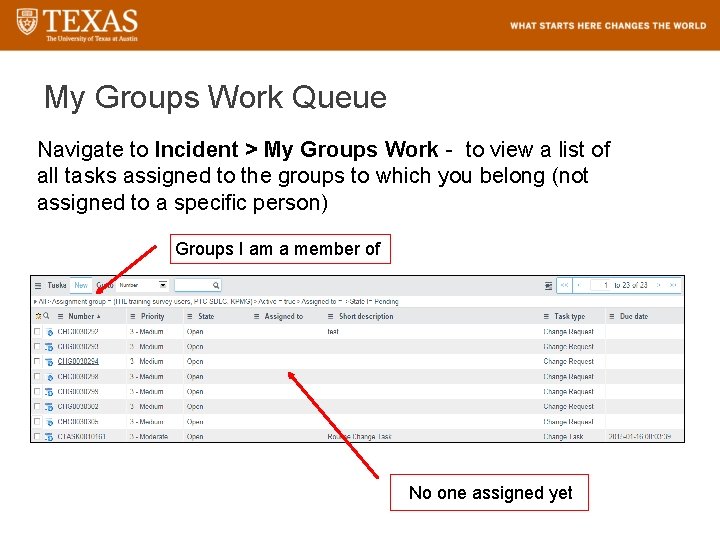
My Groups Work Queue Navigate to Incident > My Groups Work - to view a list of all tasks assigned to the groups to which you belong (not assigned to a specific person) Groups I am a member of No one assigned yet
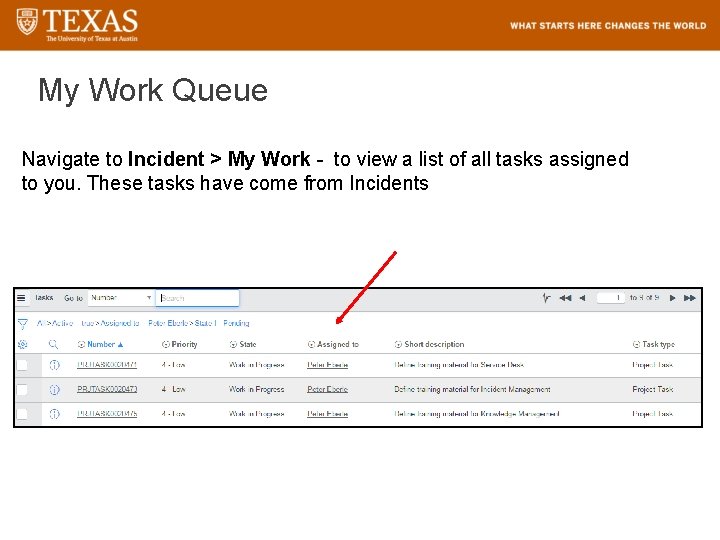
My Work Queue Navigate to Incident > My Work - to view a list of all tasks assigned to you. These tasks have come from Incidents
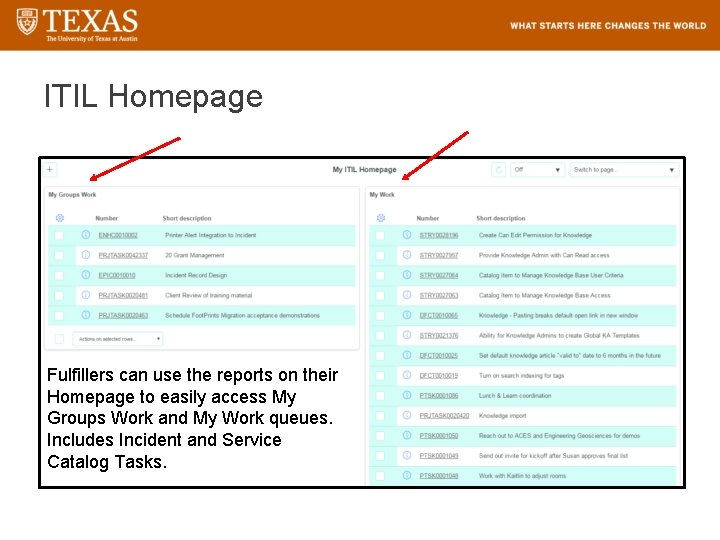
ITIL Homepage Fulfillers can use the reports on their Homepage to easily access My Groups Work and My Work queues. Includes Incident and Service Catalog Tasks.
Tool Demo INCIDENT APPLICATION
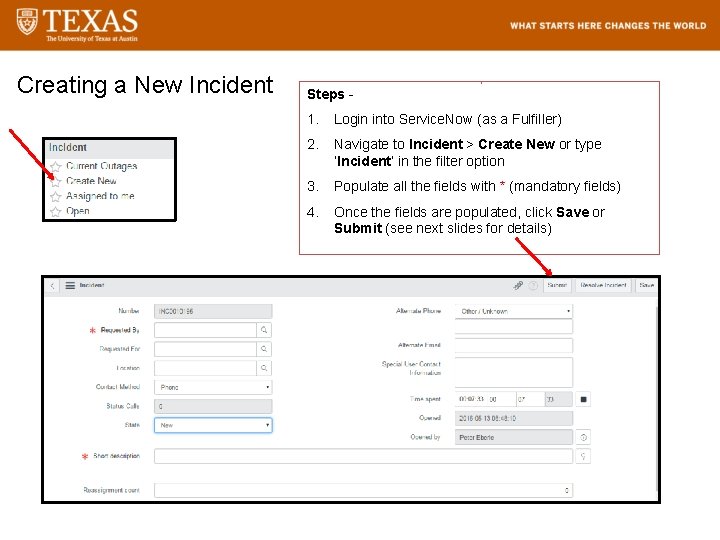
Creating a New Incident Steps - 1. Login into Service. Now (as a Fulfiller) 2. Navigate to Incident > Create New or type ‘Incident’ in the filter option 3. Populate all the fields with * (mandatory fields) 4. Once the fields are populated, click Save or Submit (see next slides for details)
Incident Handling • • An end user may contact the Service Desk via the Self Service Website and select Create Ticket. Service. Now will create an Incident record in the New state and assign it to the ITS Service Desk. The Service Desk agent will review the ticket, contact the end user for additional information, and complete the incident form, updating the Affected CI, Category, and Subcategory fields. If the Service Desk can resolve the issue they will Assign the incident to themselves, complete whatever tasks are required to resolve the incident, updating the Work Notes field, and change the state to Resolved. Service Desk agent can also assign the Incident ticket to a Fulfiller group (also known as an Assignment Group in Service. Now). This can be achieved in one of two ways. First, based on the Affected CI, the ticket will be automatically assigned to the team responsible for that CI. Secondly, the Service Desk agent can directly assign to the appropriate Assignment Group.
Incident Handling • • • Fulfiller teams will receive an email notification that an Incident Ticket has been assigned to their team in Service Desk > My Groups Work Anyone in that Assignment Group can assign the ticket to themselves or anyone in the group. Once a ticket has been assigned to an individual, it is visible in Service Desk > My Work. The Fulfiller should open and review the ticket. The Fulfiller should place the ticket state to Work in Progress. They can also place the ticket into one of several Pending States if it is necessary to open a Change Request or if they are waiting on information from the customer, a problem investigation, or reply from a vendor. The Fulfiller should keep track of everything they are doing in the Work Notes area.
Incident Handling • • • If the Incident needs to be assigned to another team, the Fulfiller can reassign the ticket to that team. Once the work has been completed and the service restored, the Fulfiller should select the Resolve Incident button. Mandatory fields in the Closure Tab, Close Code and Close Notes need to be completed. Also, the Fulfiller can check the Knowledge box to generate a draft Knowledge article. The Incident will close automatically in 5 days.
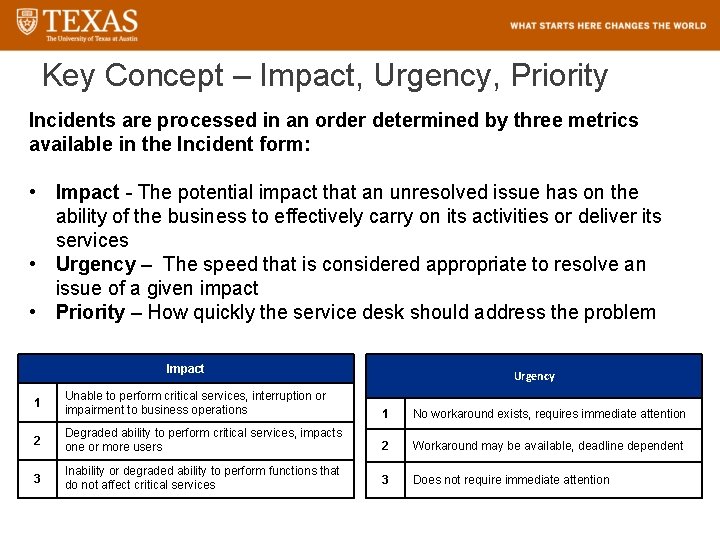
Key Concept – Impact, Urgency, Priority Incidents are processed in an order determined by three metrics available in the Incident form: • Impact - The potential impact that an unresolved issue has on the ability of the business to effectively carry on its activities or deliver its services • Urgency – The speed that is considered appropriate to resolve an issue of a given impact • Priority – How quickly the service desk should address the problem Impact Urgency 1 Unable to perform critical services, interruption or impairment to business operations 1 No workaround exists, requires immediate attention 2 Degraded ability to perform critical services, impacts one or more users 2 Workaround may be available, deadline dependent 3 Inability or degraded ability to perform functions that do not affect critical services 3 Does not require immediate attention
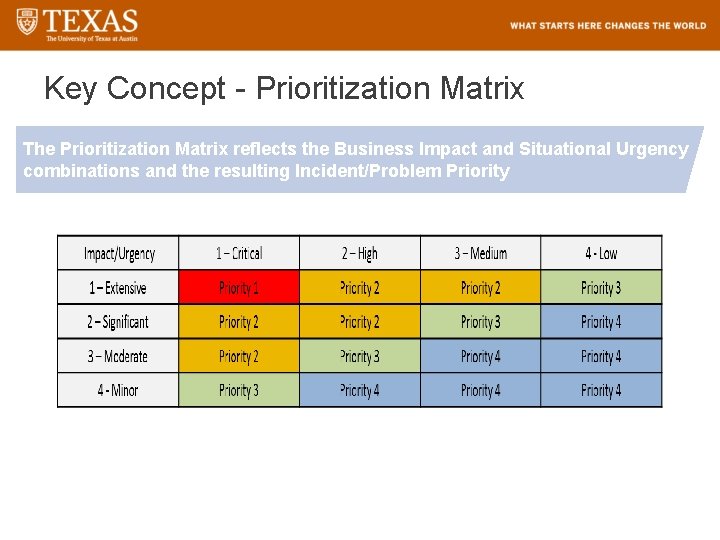
Key Concept - Prioritization Matrix The Prioritization Matrix reflects the Business Impact and Situational Urgency combinations and the resulting Incident/Problem Priority
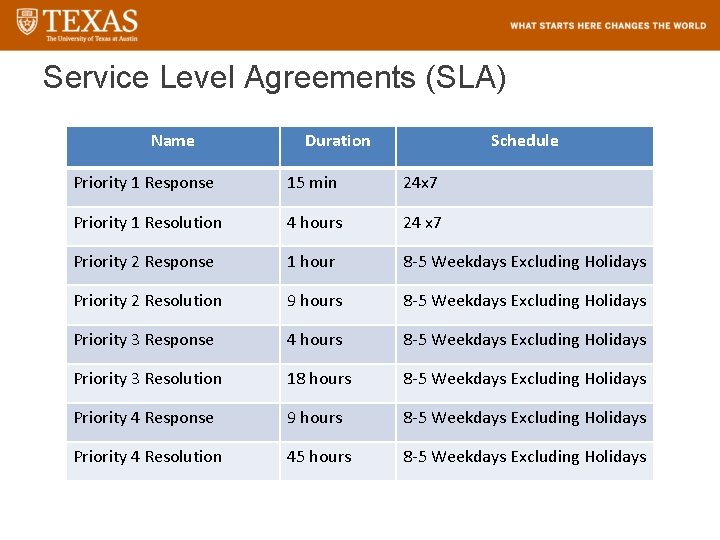
Service Level Agreements (SLA) Name Duration Schedule Priority 1 Response 15 min 24 x 7 Priority 1 Resolution 4 hours 24 x 7 Priority 2 Response 1 hour 8 -5 Weekdays Excluding Holidays Priority 2 Resolution 9 hours 8 -5 Weekdays Excluding Holidays Priority 3 Response 4 hours 8 -5 Weekdays Excluding Holidays Priority 3 Resolution 18 hours 8 -5 Weekdays Excluding Holidays Priority 4 Response 9 hours 8 -5 Weekdays Excluding Holidays Priority 4 Resolution 45 hours 8 -5 Weekdays Excluding Holidays
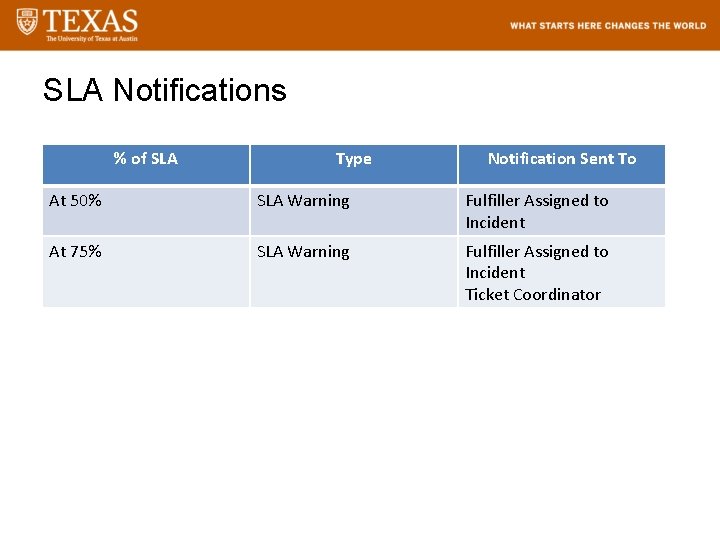
SLA Notifications % of SLA Type Notification Sent To At 50% SLA Warning Fulfiller Assigned to Incident At 75% SLA Warning Fulfiller Assigned to Incident Ticket Coordinator
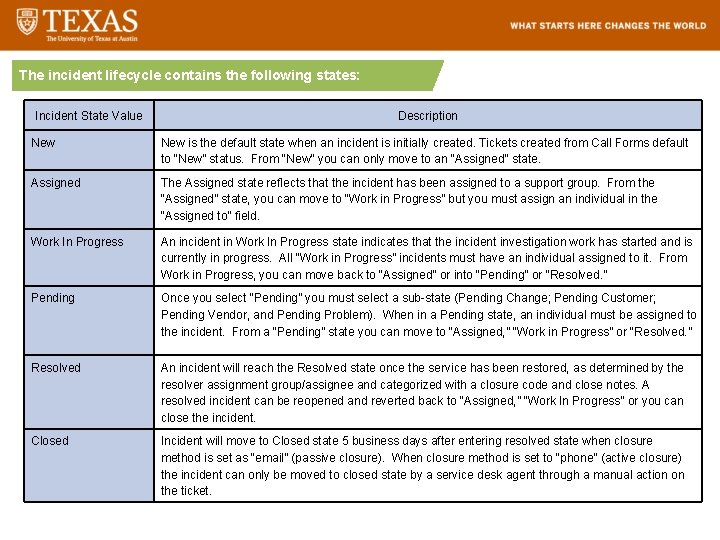
The incident lifecycle contains the following states: Incident State Value Description New is the default state when an incident is initially created. Tickets created from Call Forms default to “New” status. From “New” you can only move to an “Assigned” state. Assigned The Assigned state reflects that the incident has been assigned to a support group. From the “Assigned” state, you can move to “Work in Progress” but you must assign an individual in the “Assigned to” field. Work In Progress An incident in Work In Progress state indicates that the incident investigation work has started and is currently in progress. All “Work in Progress” incidents must have an individual assigned to it. From Work in Progress, you can move back to “Assigned” or into “Pending” or “Resolved. ” Pending Once you select “Pending” you must select a sub-state (Pending Change; Pending Customer; Pending Vendor, and Pending Problem). When in a Pending state, an individual must be assigned to the incident. From a “Pending” state you can move to “Assigned, ” “Work in Progress” or “Resolved. ” Resolved An incident will reach the Resolved state once the service has been restored, as determined by the resolver assignment group/assignee and categorized with a closure code and close notes. A resolved incident can be reopened and reverted back to “Assigned, ” “Work In Progress” or you can close the incident. Closed Incident will move to Closed state 5 business days after entering resolved state when closure method is set as “email” (passive closure). When closure method is set to “phone” (active closure) the incident can only be moved to closed state by a service desk agent through a manual action on the ticket.
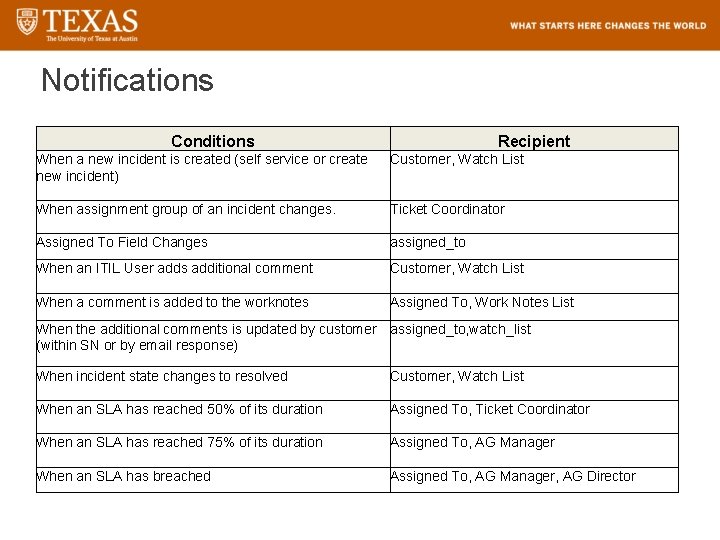
Notifications Conditions Recipient When a new incident is created (self service or create new incident) Customer, Watch List When assignment group of an incident changes. Ticket Coordinator Assigned To Field Changes assigned_to When an ITIL User adds additional comment Customer, Watch List When a comment is added to the worknotes Assigned To, Work Notes List When the additional comments is updated by customer assigned_to, watch_list (within SN or by email response) When incident state changes to resolved Customer, Watch List When an SLA has reached 50% of its duration Assigned To, Ticket Coordinator When an SLA has reached 75% of its duration Assigned To, AG Manager When an SLA has breached Assigned To, AG Manager, AG Director
![Notification Examples Email Subject: [Task] [Number] has been opened on your behalf To Whom](http://slidetodoc.com/presentation_image_h/ca3f9e294c01707cf68e4d5cbed414a5/image-49.jpg "Notification Examples Email Subject: [Task] [Number] has been opened on your behalf To Whom")
Notification Examples Email Subject: [Task] [Number] has been opened on your behalf To Whom It May Concern, We have received your [Incident/Request][Number]. Summary: [Short Description of Incident/Request]. Click Here to view: [Link to Incident/Request] Email Subject: [Task] [Number] has been updated by Requestor To Whom It May Concern, [Incident/Request][Number] has been updated by [Name]. Summary: [Short Description] [Work Notes/Comments Update] Click here to view: [Link to Incident/Request]

Categorization Incident Categories Each Category has a Subcategory Link to Categorization KB
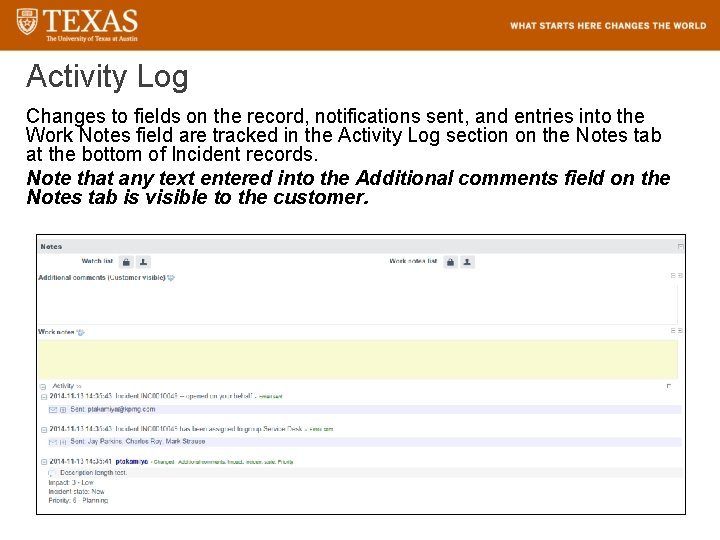
Activity Log Changes to fields on the record, notifications sent, and entries into the Work Notes field are tracked in the Activity Log section on the Notes tab at the bottom of Incident records. Note that any text entered into the Additional comments field on the Notes tab is visible to the customer.
Form Details INCIDENT FORM
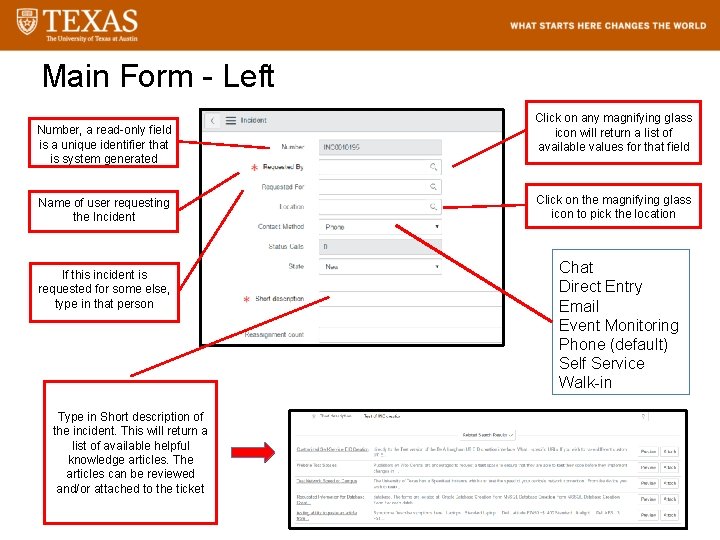
Main Form - Left Number, a read-only field is a unique identifier that is system generated Name of user requesting the Incident If this incident is requested for some else, type in that person Click on any magnifying glass icon will return a list of available values for that field Click on the magnifying glass icon to pick the location Chat Direct Entry Email Event Monitoring Phone (default) Self Service Walk-in Type in Short description of the incident. This will return a list of available helpful knowledge articles. The articles can be reviewed and/or attached to the ticket 53
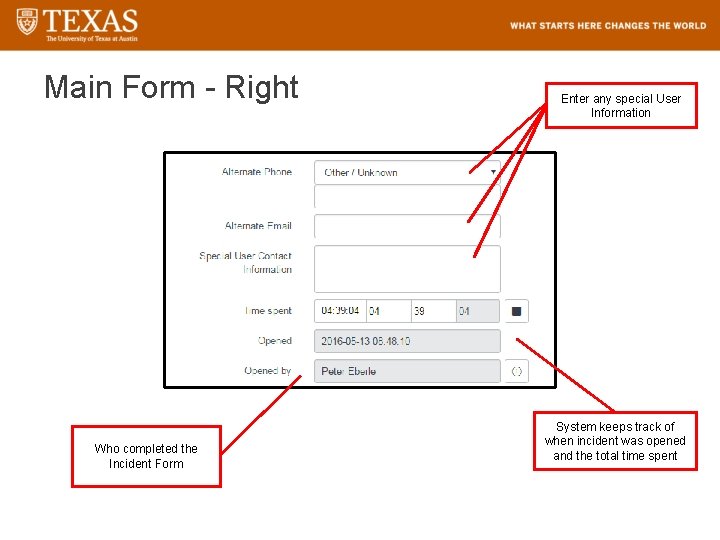
Main Form - Right Who completed the Incident Form Enter any special User Information System keeps track of when incident was opened and the total time spent 54
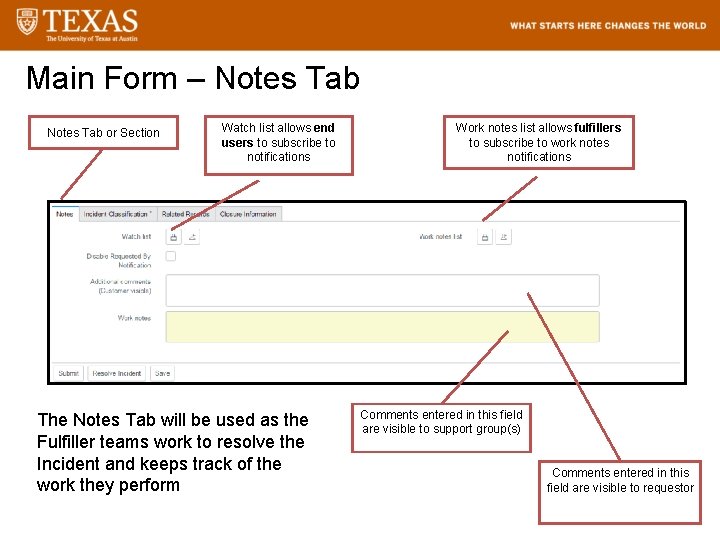
Main Form – Notes Tab or Section Watch list allows end users to subscribe to notifications The Notes Tab will be used as the Fulfiller teams work to resolve the Incident and keeps track of the work they perform Work notes list allows fulfillers to subscribe to work notes notifications Comments entered in this field are visible to support group(s) Comments entered in this field are visible to requestor
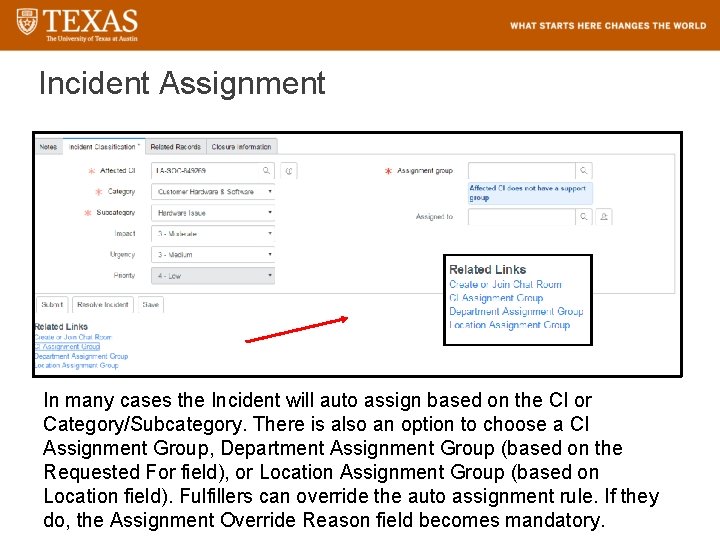
Incident Assignment In many cases the Incident will auto assign based on the CI or Category/Subcategory. There is also an option to choose a CI Assignment Group, Department Assignment Group (based on the Requested For field), or Location Assignment Group (based on Location field). Fulfillers can override the auto assignment rule. If they do, the Assignment Override Reason field becomes mandatory.
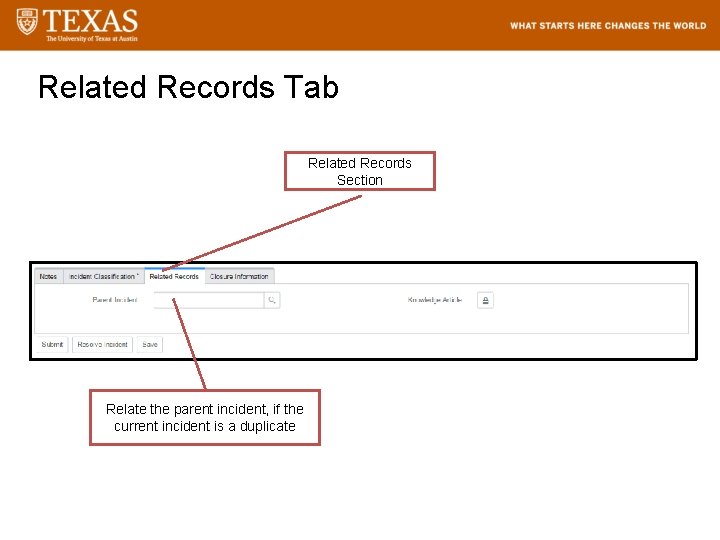
Related Records Tab Related Records Section Relate the parent incident, if the current incident is a duplicate
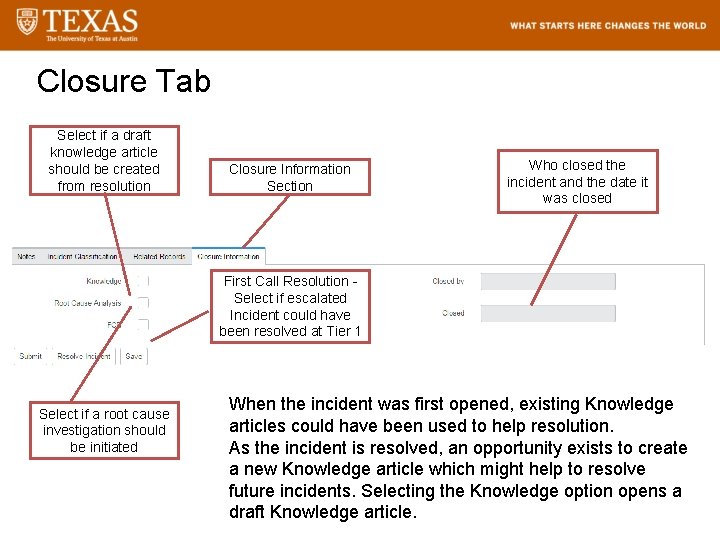
Closure Tab Select if a draft knowledge article should be created from resolution Closure Information Section Who closed the incident and the date it was closed First Call Resolution - Select if escalated Incident could have been resolved at Tier 1 Select if a root cause investigation should be initiated When the incident was first opened, existing Knowledge articles could have been used to help resolution. As the incident is resolved, an opportunity exists to create a new Knowledge article which might help to resolve future incidents. Selecting the Knowledge option opens a draft Knowledge article.
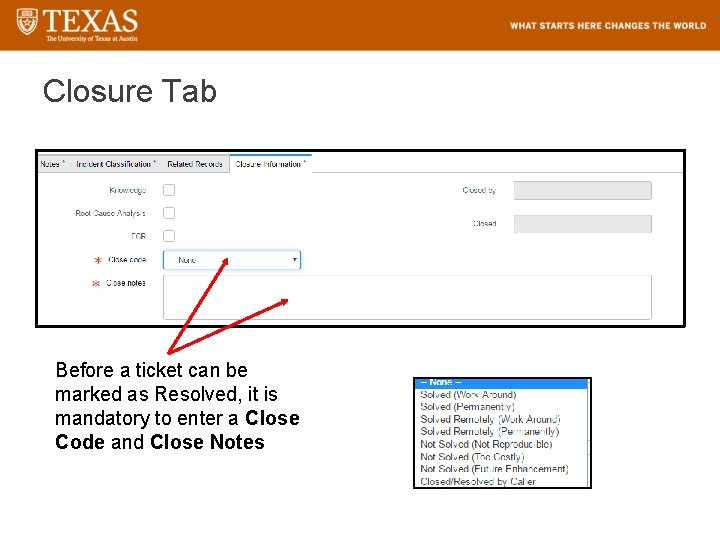
Closure Tab Before a ticket can be marked as Resolved, it is mandatory to enter a Close Code and Close Notes
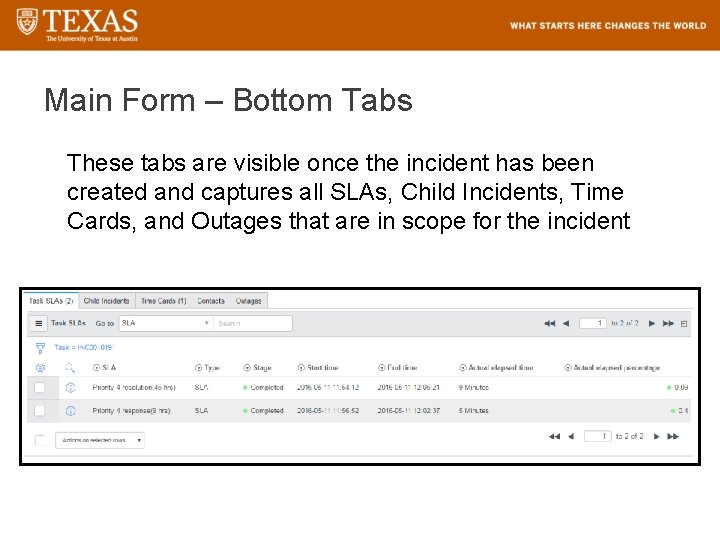
Main Form – Bottom Tabs These tabs are visible once the incident has been created and captures all SLAs, Child Incidents, Time Cards, and Outages that are in scope for the incident 60
Questions about Incident Management?

Service. Now SERVICE CATALOG OVERVIEW FOR FULFILLERS
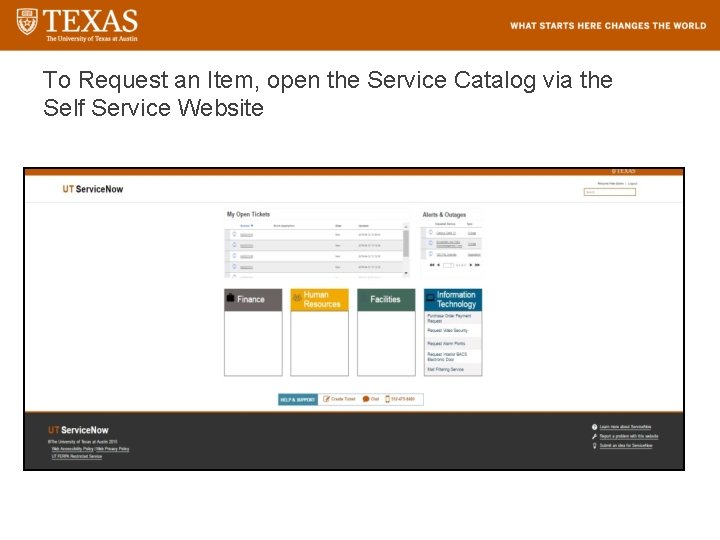
To Request an Item, open the Service Catalog via the Self Service Website
Tool Walk-Through SERVICE CATALOG
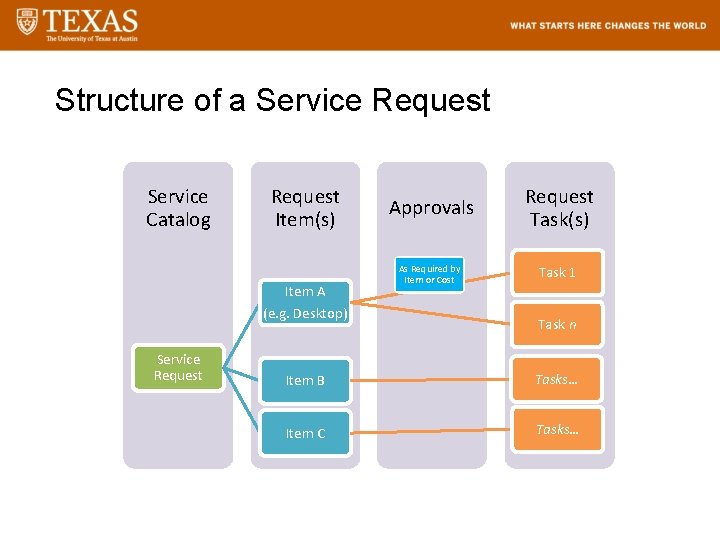
Structure of a Service Request Service Catalog Request Item(s) Item A (e. g. Desktop) Service Request Approvals As Required by Item or Cost Request Task(s) Task 1 Task n Item B Tasks… Item C Tasks…
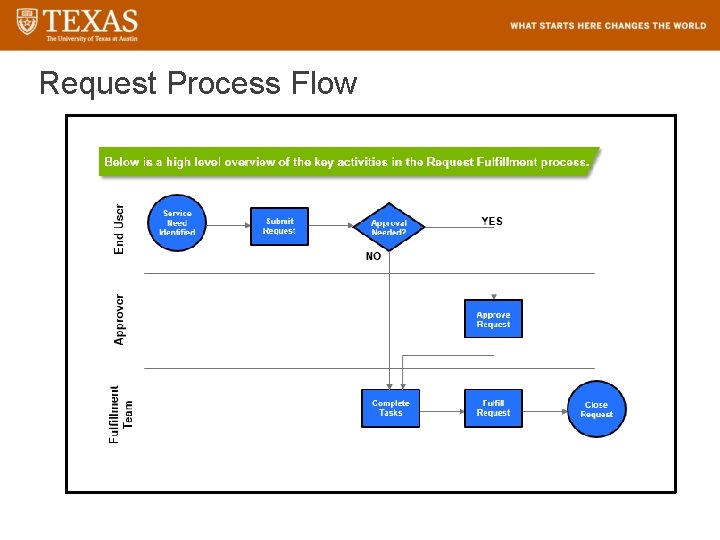
Request Process Flow
Workflows in Service. Now § A workflow is a process built into the tool that closely follows the business process steps. Based on answers to questions in the Catalog Item form and the Catalog Item chosen, decision logic fires off approval requests and catalog tasks. § Over time the Service Catalog will expand to include many different types of service requests and catalog items. Each of these Catalog Items has the potential to have a different type of workflow behind it. § The three main roles – Requester, Approver, and Fulfiller, will always be present, but the actual steps and activities in the workflow may be different, based on the Catalog Item.
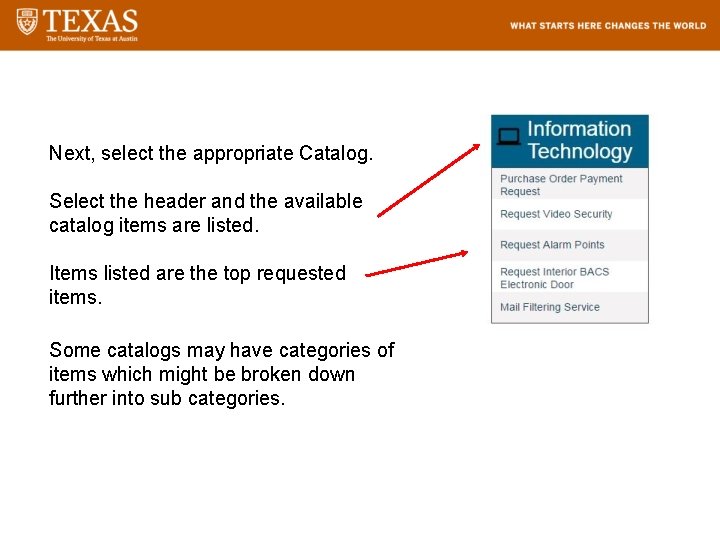
Next, select the appropriate Catalog. Select the header and the available catalog items are listed. Items listed are the top requested items. Some catalogs may have categories of items which might be broken down further into sub categories.
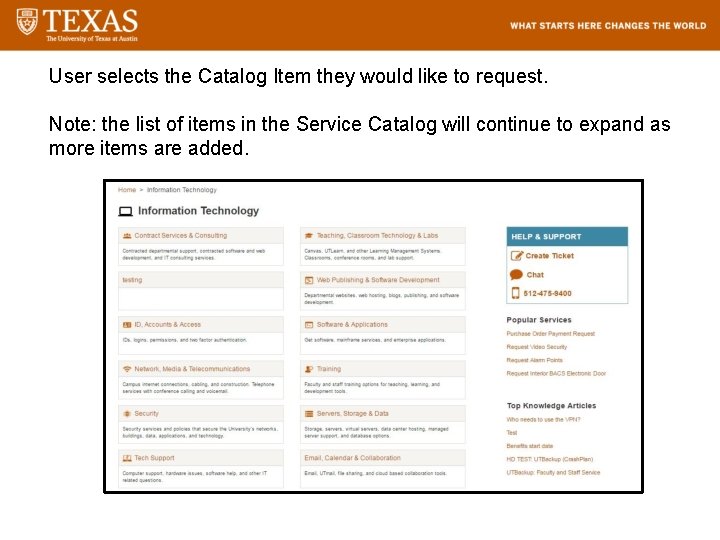
User selects the Catalog Item they would like to request. Note: the list of items in the Service Catalog will continue to expand as more items are added.
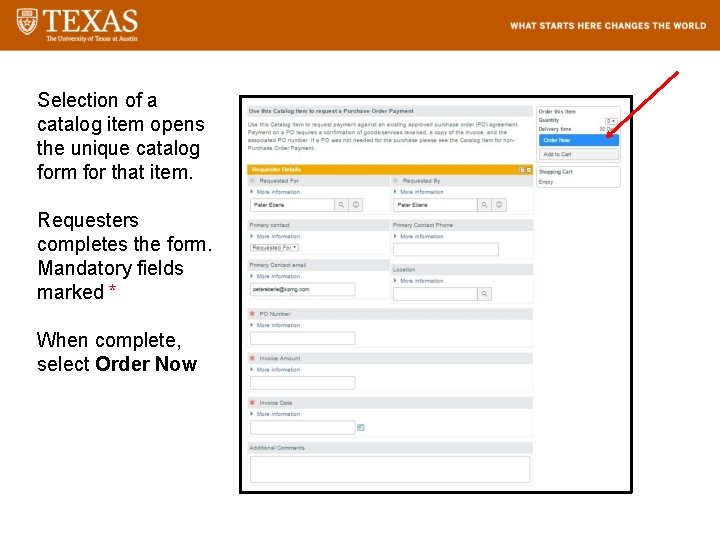
Selection of a catalog item opens the unique catalog form for that item. Requesters completes the form. Mandatory fields marked * When complete, select Order Now
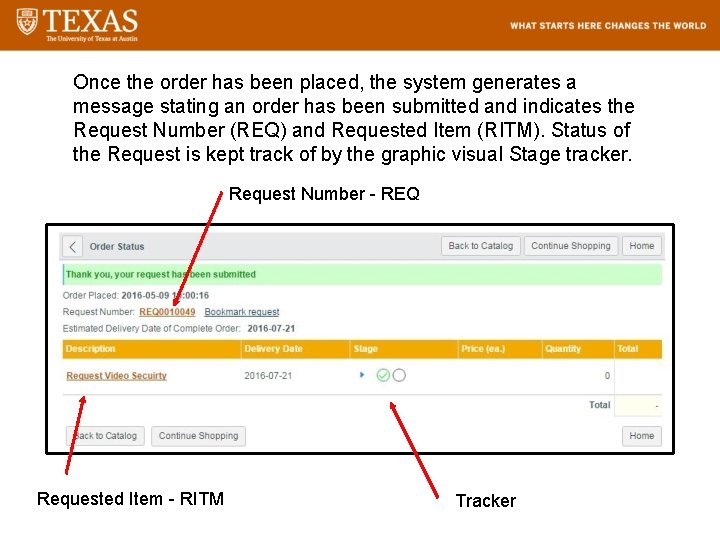
Once the order has been placed, the system generates a message stating an order has been submitted and indicates the Request Number (REQ) and Requested Item (RITM). Status of the Request is kept track of by the graphic visual Stage tracker. Request Number - REQ Requested Item - RITM Tracker
Catalog Item Approvals and Tasks Based on the Workflow for that Catalog Item, Service. Now will generate the following: • One or more approval requests. Based on the value of the item, purchasing policy, of other policies, it may be necessary to obtain one or more approvals from individuals. • Once the items have been approved (if required), Service. Now generates Fulfillment tasks to various Assignment Groups. This may include purchasing, release form a storeroom, software installation, set up, etc
Service. Now APPROVAL QUEUES
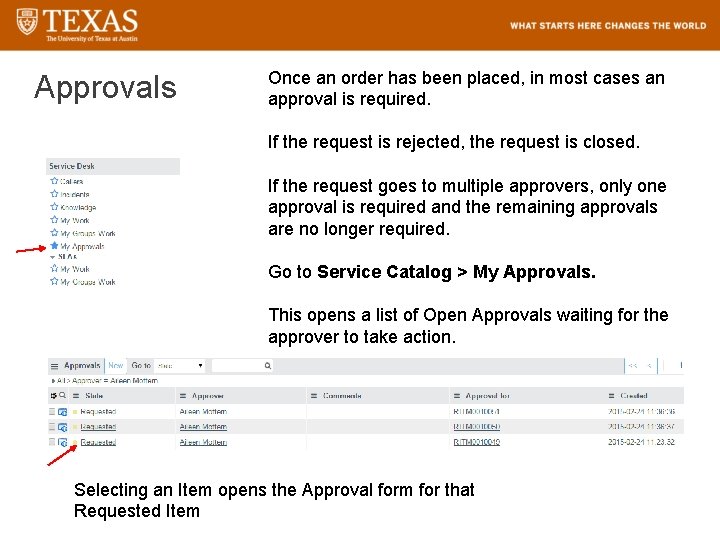
Approvals Once an order has been placed, in most cases an approval is required. If the request is rejected, the request is closed. If the request goes to multiple approvers, only one approval is required and the remaining approvals are no longer required. Go to Service Catalog > My Approvals. This opens a list of Open Approvals waiting for the approver to take action. Selecting an Item opens the Approval form for that Requested Item
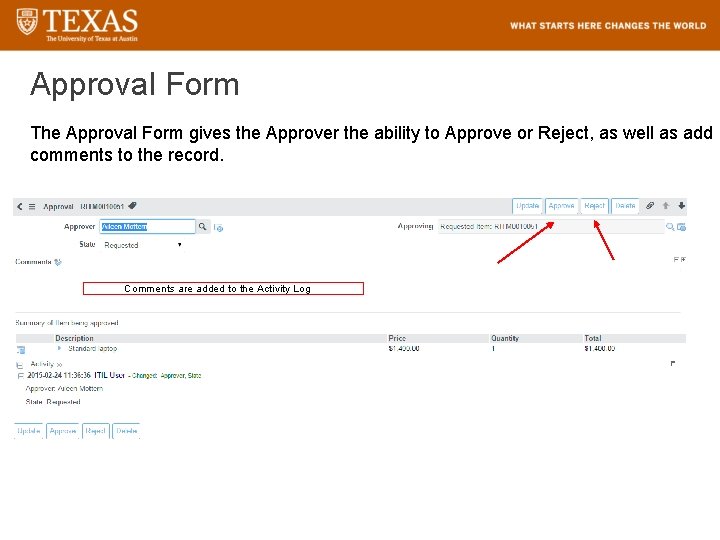
Approval Form The Approval Form gives the Approver the ability to Approve or Reject, as well as add comments to the record. Comments are added to the Activity Log
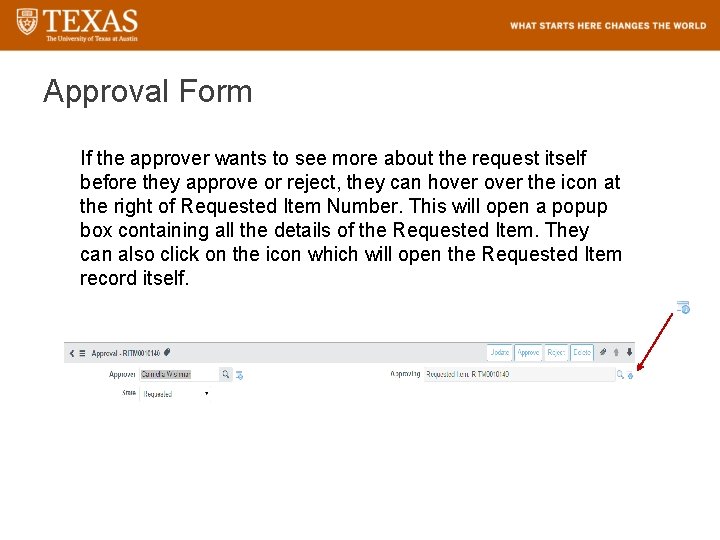
Approval Form If the approver wants to see more about the request itself before they approve or reject, they can hover the icon at the right of Requested Item Number. This will open a popup box containing all the details of the Requested Item. They can also click on the icon which will open the Requested Item record itself.
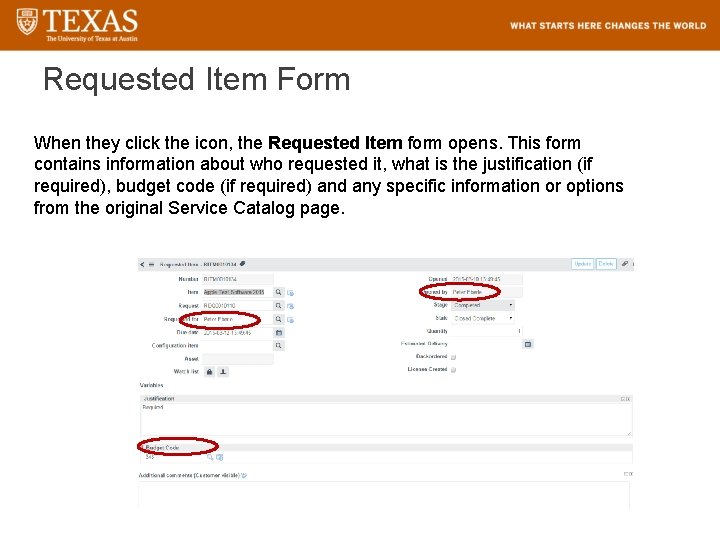
Requested Item Form When they click the icon, the Requested Item form opens. This form contains information about who requested it, what is the justification (if required), budget code (if required) and any specific information or options from the original Service Catalog page.
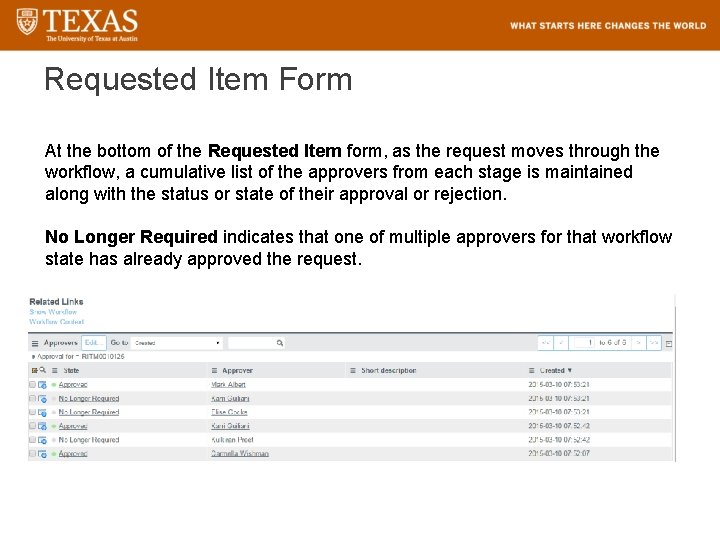
Requested Item Form At the bottom of the Requested Item form, as the request moves through the workflow, a cumulative list of the approvers from each stage is maintained along with the status or state of their approval or rejection. No Longer Required indicates that one of multiple approvers for that workflow state has already approved the request.
Service. Now FULFILLER TASKS
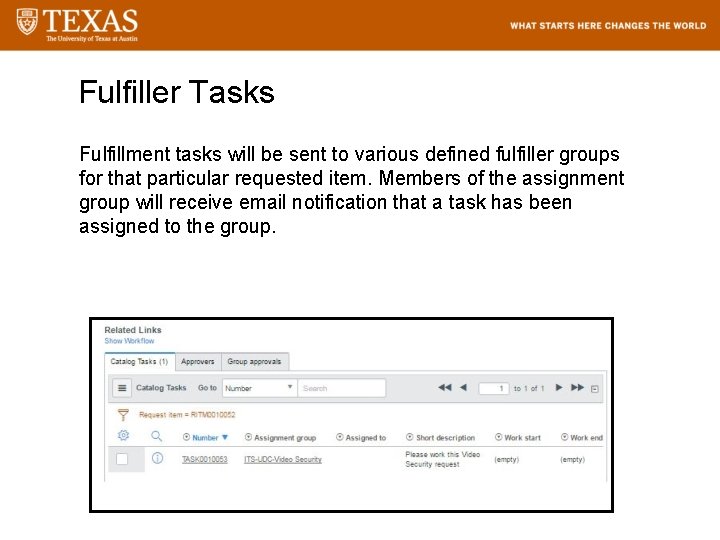
Fulfiller Tasks Fulfillment tasks will be sent to various defined fulfiller groups for that particular requested item. Members of the assignment group will receive email notification that a task has been assigned to the group.
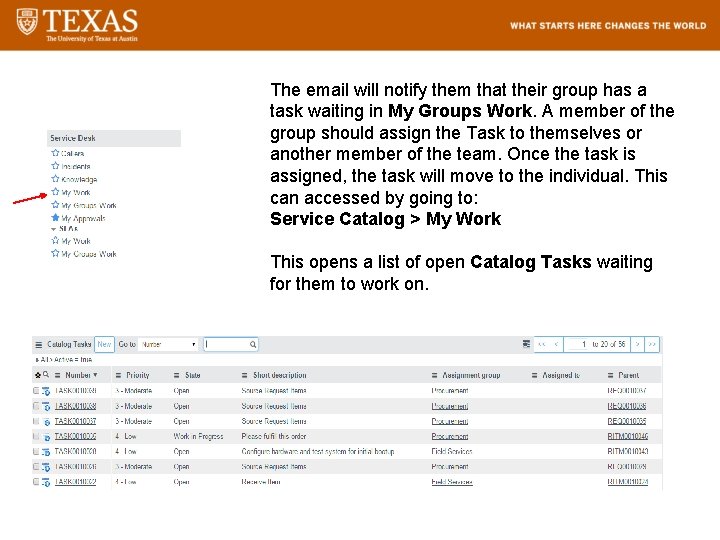
The email will notify them that their group has a task waiting in My Groups Work. A member of the group should assign the Task to themselves or another member of the team. Once the task is assigned, the task will move to the individual. This can accessed by going to: Service Catalog > My Work This opens a list of open Catalog Tasks waiting for them to work on.
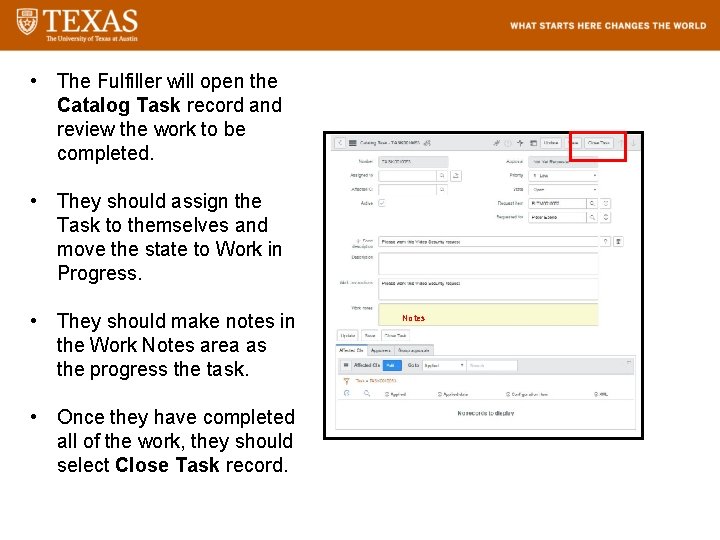
• The Fulfiller will open the Catalog Task record and review the work to be completed. • They should assign the Task to themselves and move the state to Work in Progress. • They should make notes in the Work Notes area as the progress the task. • Once they have completed all of the work, they should select Close Task record. Notes
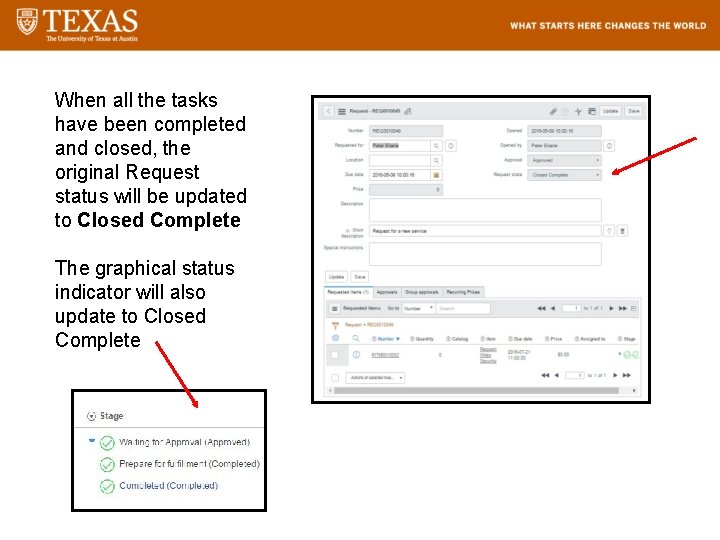
When all the tasks have been completed and closed, the original Request status will be updated to Closed Complete The graphical status indicator will also update to Closed Complete
Questions about the Service Catalog? Additional Training on Service Catalog is available in the Deep Dive for Service Catalog/CMDB

Service. Now REPORTING OVERVIEW FOR FULFILLERS
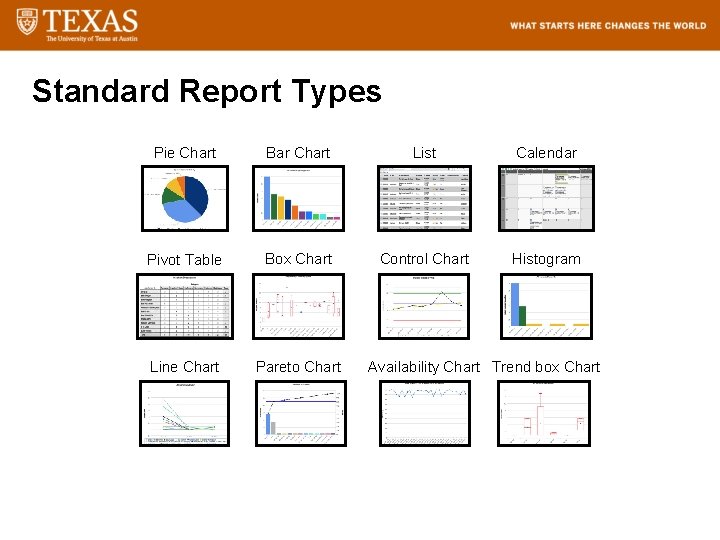
Standard Report Types Pie Chart Bar Chart List Calendar Pivot Table Box Chart Control Chart Histogram Line Chart Pareto Chart Availability Chart Trend box Chart
3 Ways to Produce Reports 1. Reports can be created from Record Lists 2. Reports can be viewed or modified from existing Out of Box Reports 3. New Reports can be produced using the built in report generator Additional Training on Reporting is available in the Deep Dive for Reporting
Tool Demo REPORTING
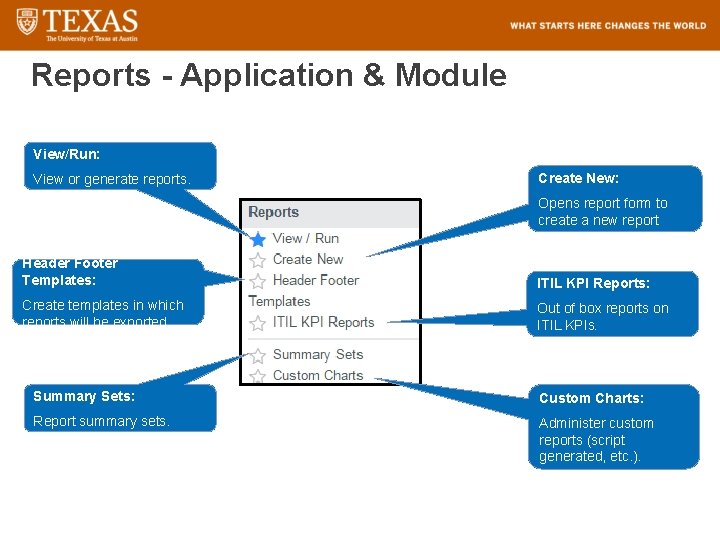
Reports - Application & Module View/Run: View or generate reports. Create New: Opens report form to create a new report Header Footer Templates: ITIL KPI Reports: Create templates in which reports will be exported. Out of box reports on ITIL KPIs. Summary Sets: Custom Charts: Report summary sets. Administer custom reports (script generated, etc. ).
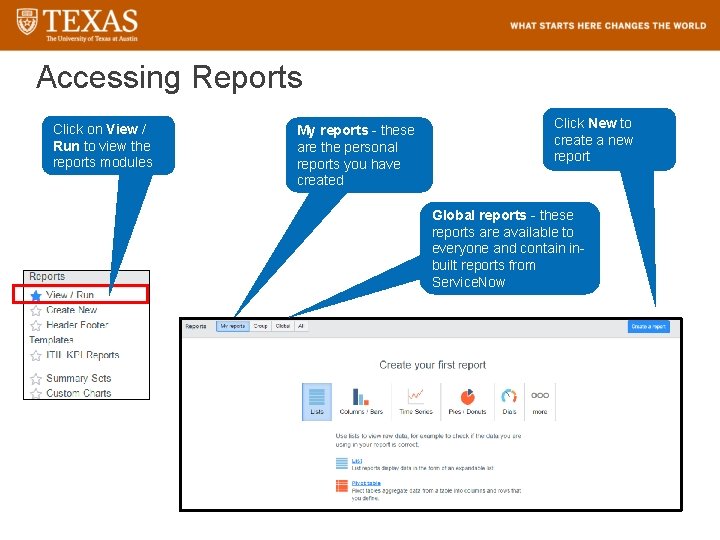
Accessing Reports Click on View / Run to view the reports modules My reports - these are the personal reports you have created Click New to create a new report Global reports - these reports are available to everyone and contain inbuilt reports from Service. Now
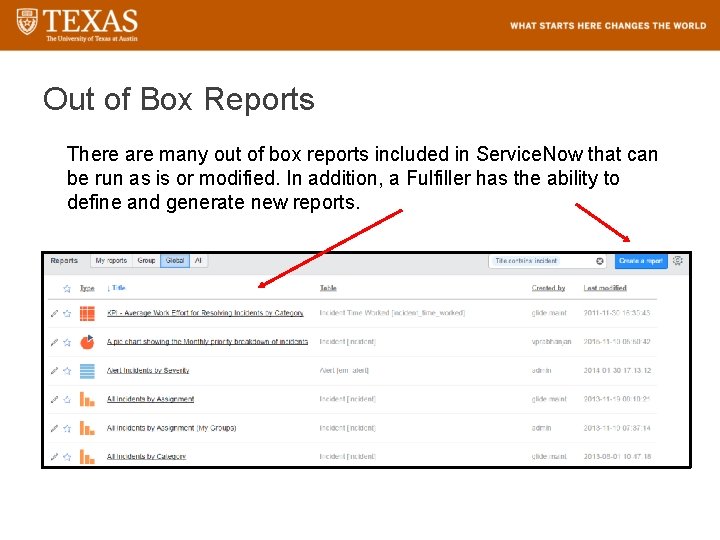
Out of Box Reports There are many out of box reports included in Service. Now that can be run as is or modified. In addition, a Fulfiller has the ability to define and generate new reports.
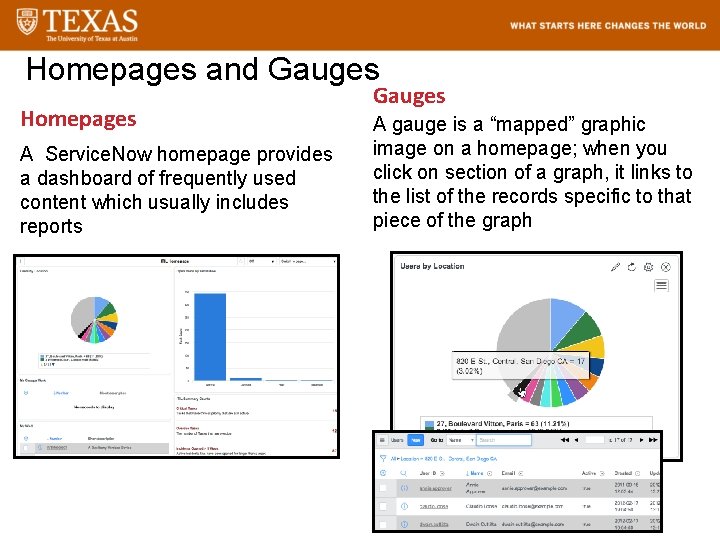
Homepages and Gauges Homepages A Service. Now homepage provides a dashboard of frequently used content which usually includes reports Gauges A gauge is a “mapped” graphic image on a homepage; when you click on section of a graph, it links to the list of the records specific to that piece of the graph
Questions about Service. Now Reports?

APPENDICES
Appendix INCIDENT DIAGRAMS AND ACTIVITIES
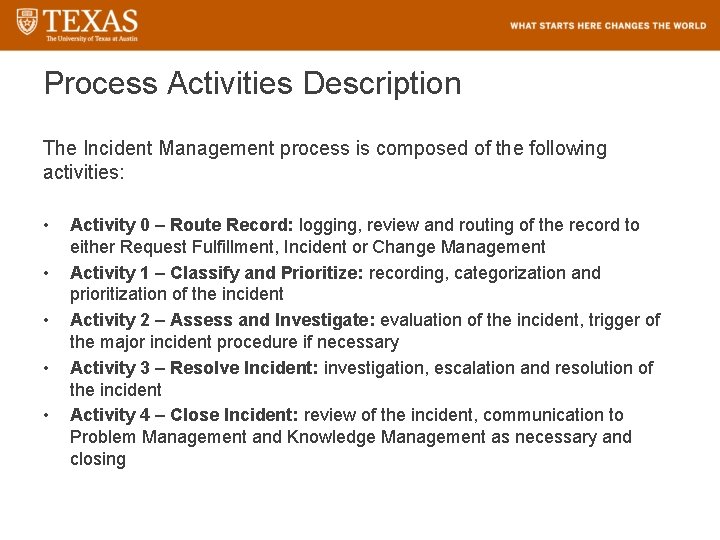
Process Activities Description The Incident Management process is composed of the following activities: • • • Activity 0 – Route Record: logging, review and routing of the record to either Request Fulfillment, Incident or Change Management Activity 1 – Classify and Prioritize: recording, categorization and prioritization of the incident Activity 2 – Assess and Investigate: evaluation of the incident, trigger of the major incident procedure if necessary Activity 3 – Resolve Incident: investigation, escalation and resolution of the incident Activity 4 – Close Incident: review of the incident, communication to Problem Management and Knowledge Management as necessary and closing
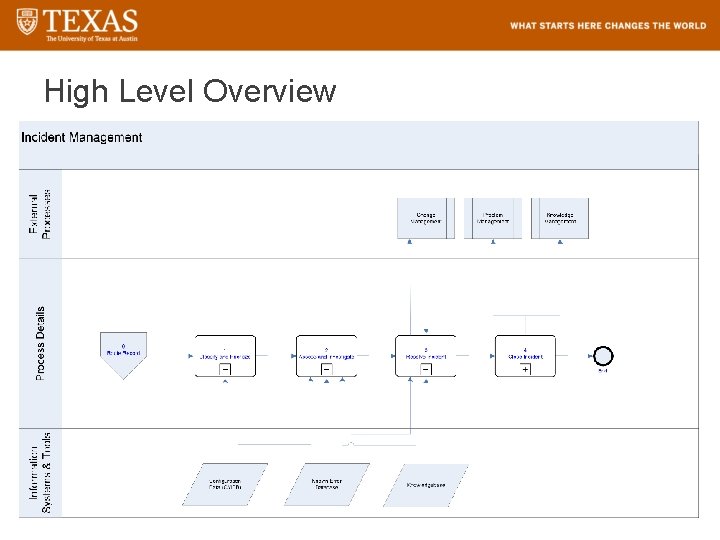
High Level Overview
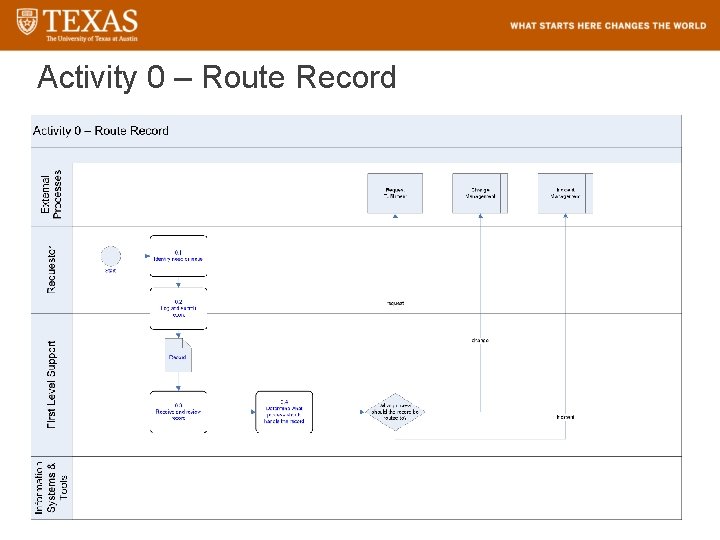
Activity 0 – Route Record
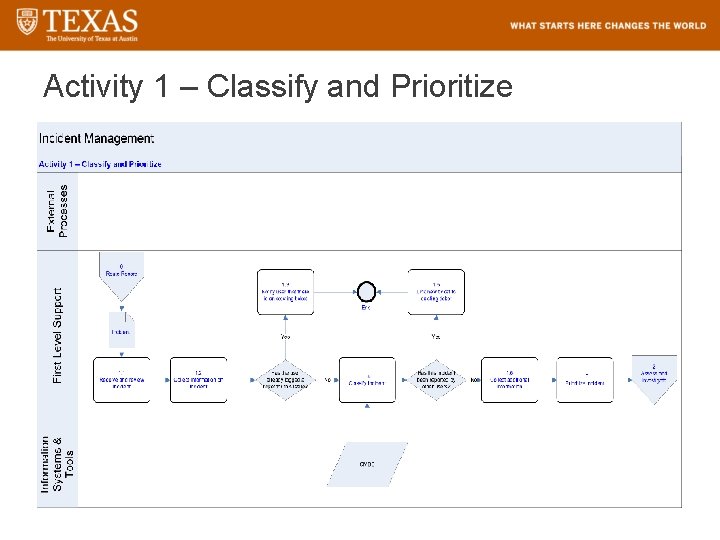
Activity 1 – Classify and Prioritize
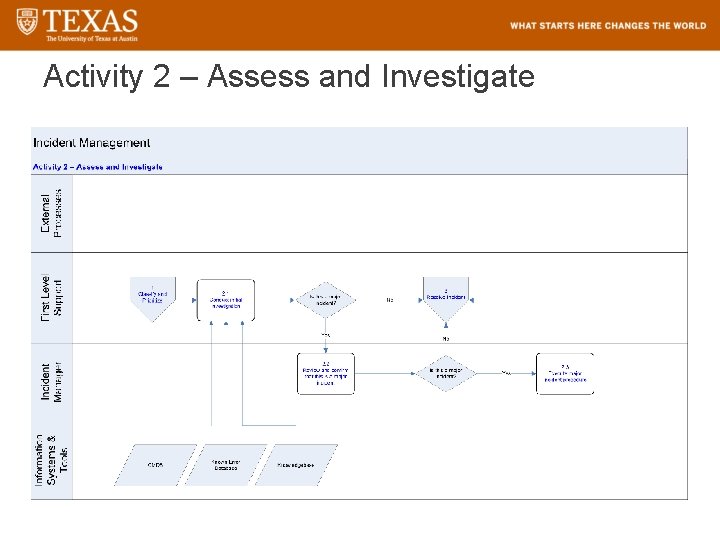
Activity 2 – Assess and Investigate
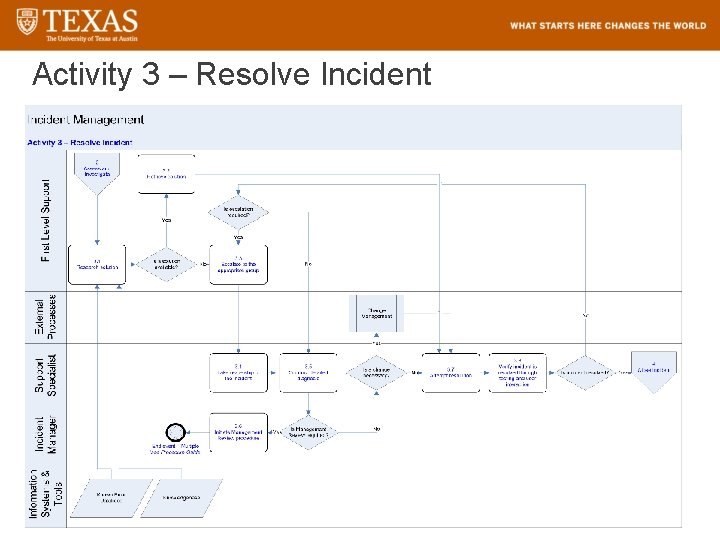
Activity 3 – Resolve Incident
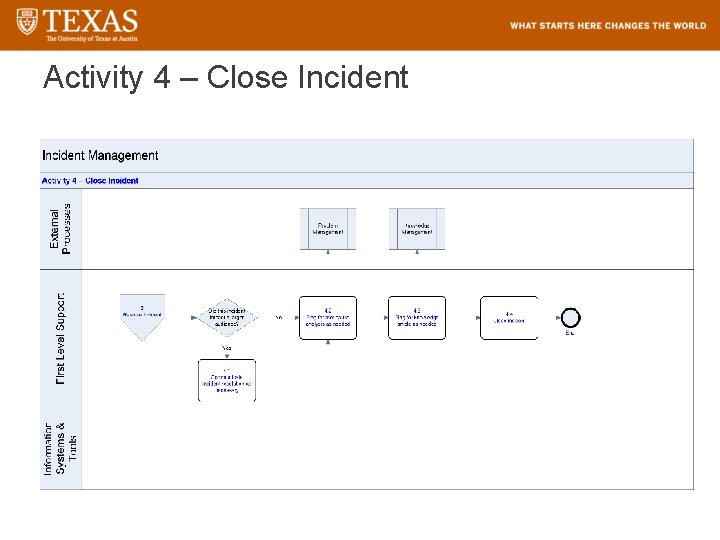
Activity 4 – Close Incident

Appendix NAVIGATION SLIDES
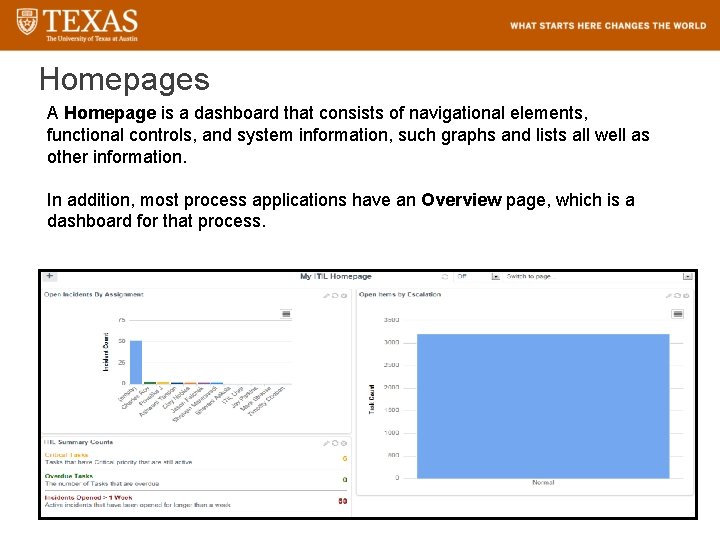
Homepages A Homepage is a dashboard that consists of navigational elements, functional controls, and system information, such graphs and lists all well as other information. In addition, most process applications have an Overview page, which is a dashboard for that process.
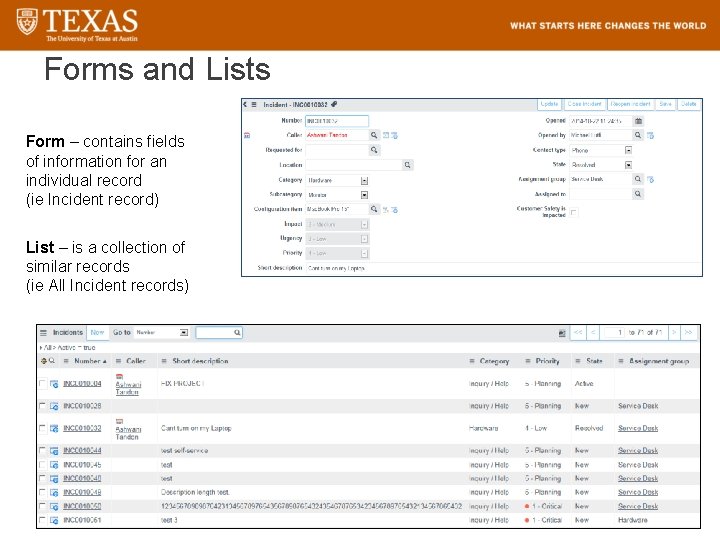
Forms and Lists Form – contains fields of information for an individual record (ie Incident record) List – is a collection of similar records (ie All Incident records)
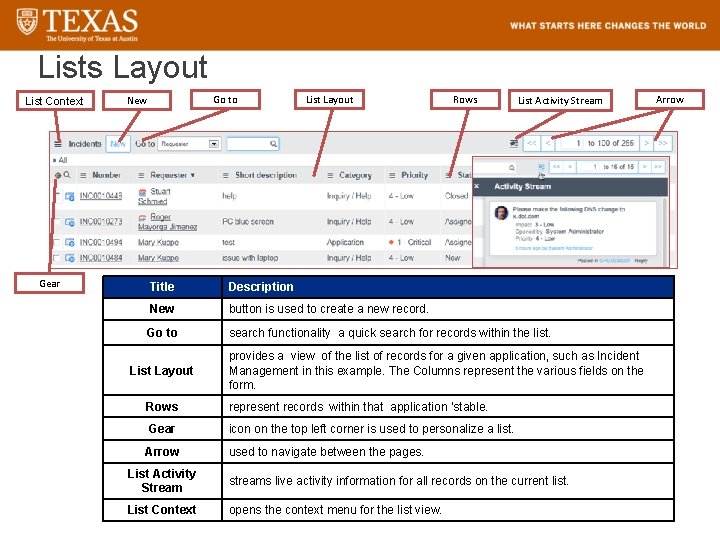
Lists Layout List Context Gear Go to New List Layout Rows List Activity Stream Title Description New button is used to create a new record. Go to search functionality a quick search for records within the list. List Layout provides a view of the list of records for a given application, such as Incident Management in this example. The Columns represent the various fields on the form. Rows represent records within that application ‘stable. Gear icon on the top left corner is used to personalize a list. Arrow used to navigate between the pages. List Activity Stream streams live activity information for all records on the current list. List Context opens the context menu for the list view. Arrow
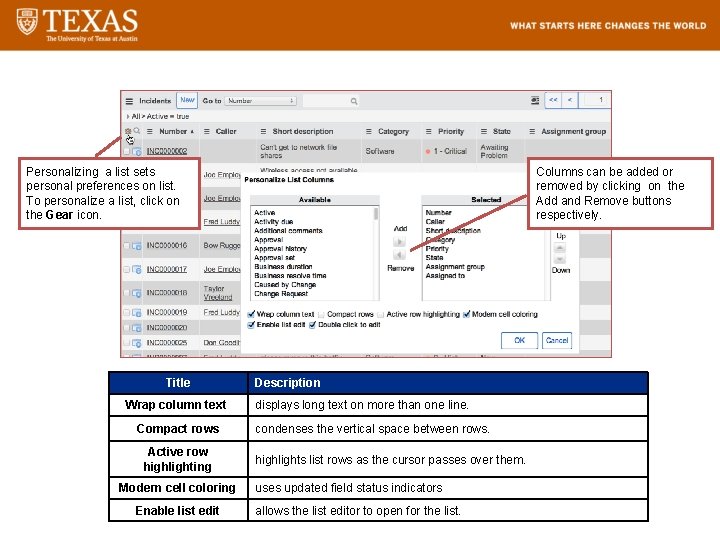
Personalize List Personalizing a list sets personal preferences on list. To personalize a list, click on the Gear icon. Title Wrap column text Compact rows Active row highlighting Modern cell coloring Enable list edit Columns can be added or removed by clicking on the Add and Remove buttons respectively. Description displays long text on more than one line. condenses the vertical space between rows. highlights list rows as the cursor passes over them. uses updated field status indicators allows the list editor to open for the list.
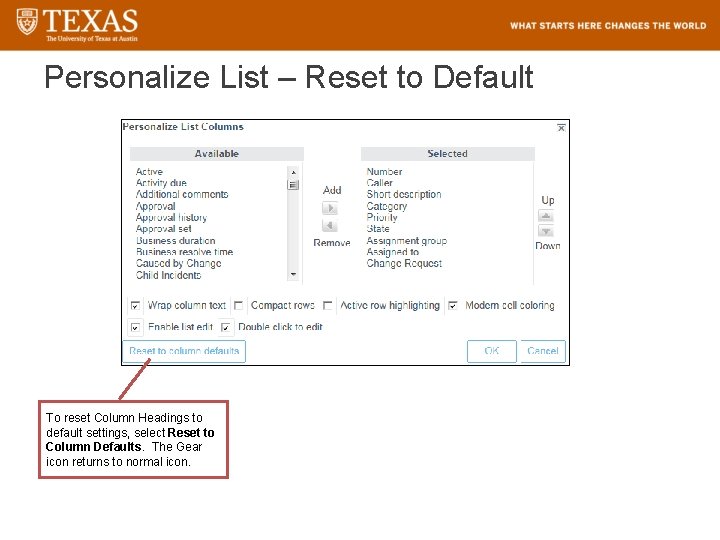
Personalize List – Reset to Default To reset Column Headings to default settings, select Reset to Column Defaults. The Gear icon returns to normal icon.
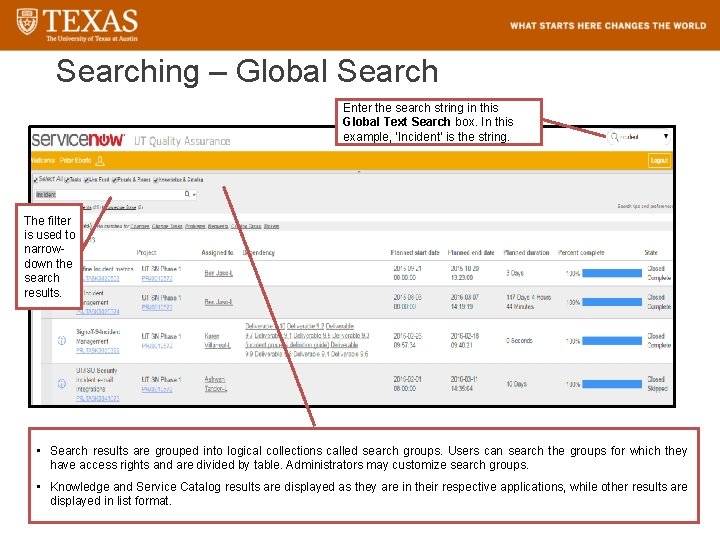
Searching – Global Search Enter the search string in this Global Text Search box. In this example, ‘Incident’ is the string. The filter is used to narrowdown the search results. • Search results are grouped into logical collections called search groups. Users can search the groups for which they have access rights and are divided by table. Administrators may customize search groups. • Knowledge and Service Catalog results are displayed as they are in their respective applications, while other results are displayed in list format.
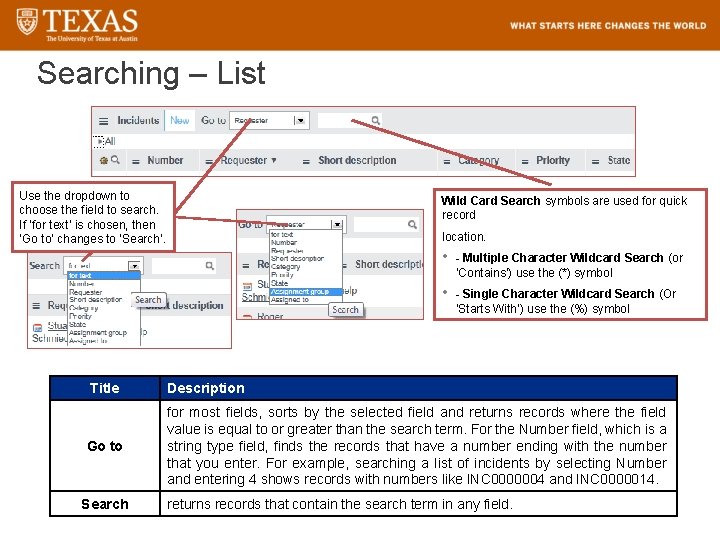
Searching – List Use the dropdown to choose the field to search. If ‘for text’ is chosen, then ‘Go to’ changes to ‘Search’. Wild Card Search symbols are used for quick record location. • - Multiple Character Wildcard Search (or ‘Contains’) use the (*) symbol • - Single Character Wildcard Search (Or ‘Starts With’) use the (%) symbol Title Description Go to for most fields, sorts by the selected field and returns records where the field value is equal to or greater than the search term. For the Number field, which is a string type field, finds the records that have a number ending with the number that you enter. For example, searching a list of incidents by selecting Number and entering 4 shows records with numbers like INC 0000004 and INC 0000014. Search returns records that contain the search term in any field.
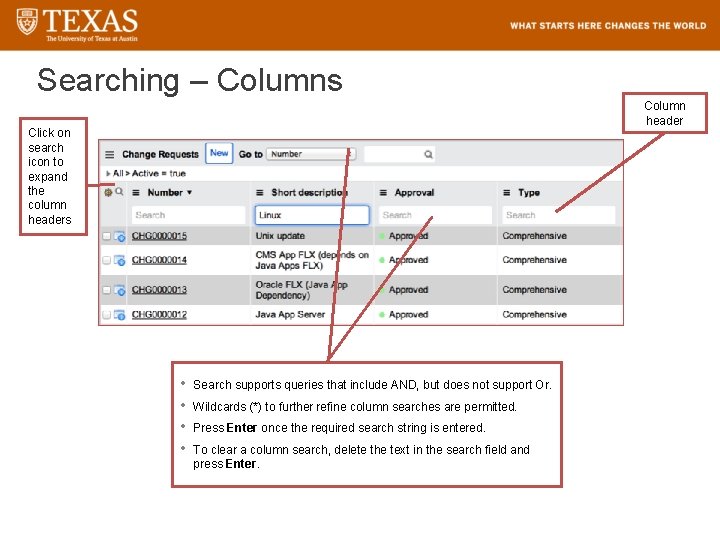
Searching – Columns Column header Click on search icon to expand the column headers • • Search supports queries that include AND, but does not support Or. Wildcards (*) to further refine column searches are permitted. Press Enter once the required search string is entered. To clear a column search, delete the text in the search field and press Enter.
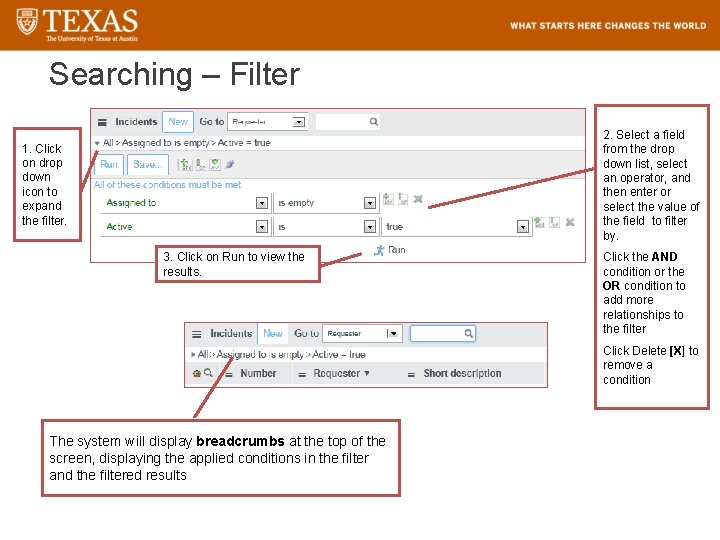
Searching – Filter 2. Select a field from the drop down list, select an operator, and then enter or select the value of the field to filter by. 1. Click on drop down icon to expand the filter. 3. Click on Run to view the results. Click the AND condition or the OR condition to add more relationships to the filter Click Delete [X] to remove a condition The system will display breadcrumbs at the top of the screen, displaying the applied conditions in the filter and the filtered results
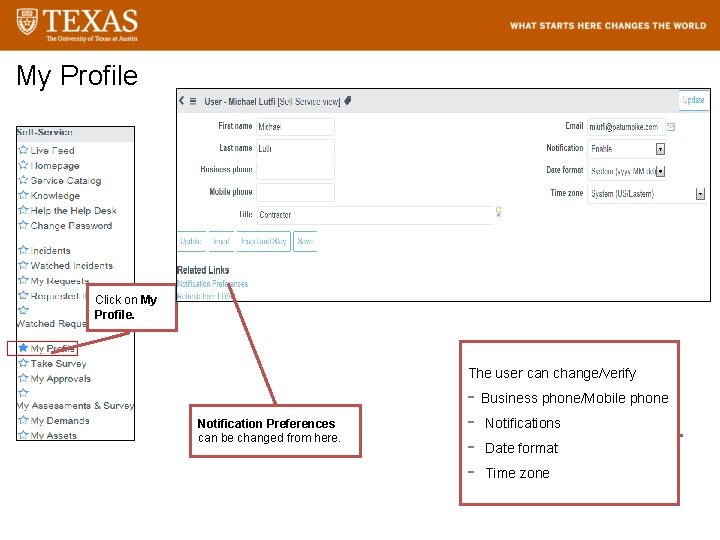
My Profile Click on My Profile. The user can change/verify Notification Preferences can be changed from here. - Business phone/Mobile phone - Notifications - Date format - Time zone

Appendix METRICS
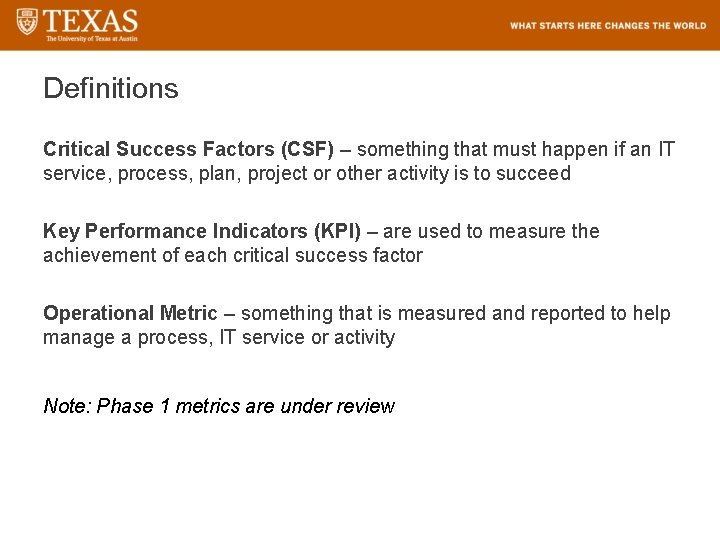
Definitions Critical Success Factors (CSF) – something that must happen if an IT service, process, plan, project or other activity is to succeed Key Performance Indicators (KPI) – are used to measure the achievement of each critical success factor Operational Metric – something that is measured and reported to help manage a process, IT service or activity Note: Phase 1 metrics are under review
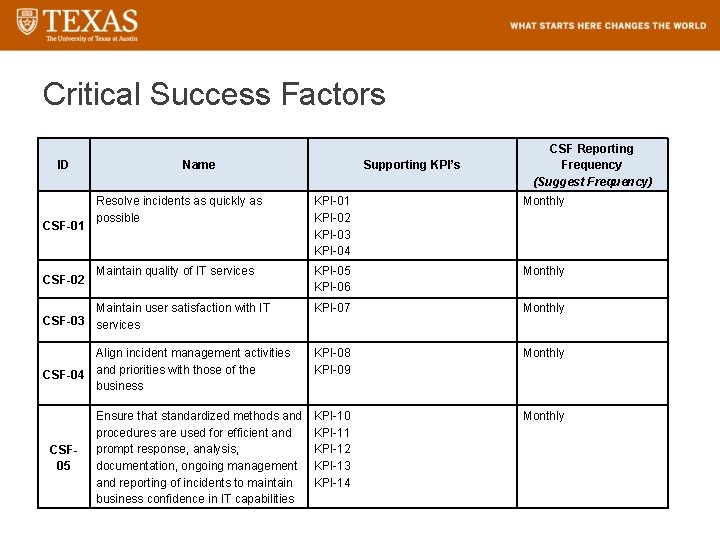
Critical Success Factors ID Name Supporting KPI’s CSF Reporting Frequency (Suggest Frequency) Resolve incidents as quickly as possible KPI-01 KPI-02 KPI-03 KPI-04 Monthly Maintain quality of IT services KPI-05 KPI-06 Monthly Maintain user satisfaction with IT CSF-03 services KPI-07 Monthly Align incident management activities CSF-04 and priorities with those of the business KPI-08 KPI-09 Monthly KPI-10 KPI-11 KPI-12 KPI-13 KPI-14 Monthly CSF-01 CSF-02 CSF- 05 Ensure that standardized methods and procedures are used for efficient and prompt response, analysis, documentation, ongoing management and reporting of incidents to maintain business confidence in IT capabilities 116
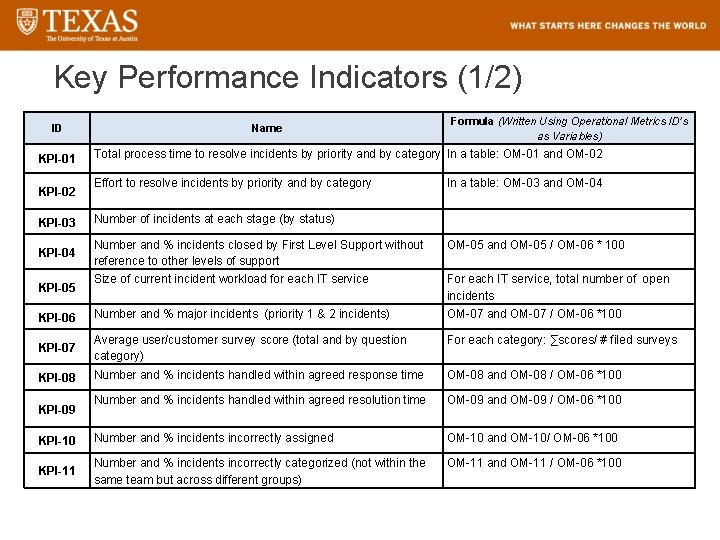
Key Performance Indicators (1/2) ID KPI-01 KPI-02 Name Formula (Written Using Operational Metrics ID’s as Variables) Total process time to resolve incidents by priority and by category In a table: OM-01 and OM-02 Effort to resolve incidents by priority and by category In a table: OM-03 and OM-04 KPI-03 Number of incidents at each stage (by status) KPI-04 Number and % incidents closed by First Level Support without reference to other levels of support OM-05 and OM-05 / OM-06 * 100 Size of current incident workload for each IT service For each IT service, total number of open incidents KPI-06 Number and % major incidents (priority 1 & 2 incidents) OM-07 and OM-07 / OM-06 *100 KPI-07 Average user/customer survey score (total and by question category) For each category: ∑scores/ # filed surveys KPI-08 Number and % incidents handled within agreed response time OM-08 and OM-08 / OM-06 *100 Number and % incidents handled within agreed resolution time OM-09 and OM-09 / OM-06 *100 KPI-10 Number and % incidents incorrectly assigned OM-10 and OM-10/ OM-06 *100 KPI-11 Number and % incidents incorrectly categorized (not within the same team but across different groups) OM-11 and OM-11 / OM-06 *100 KPI-05 KPI-09 117
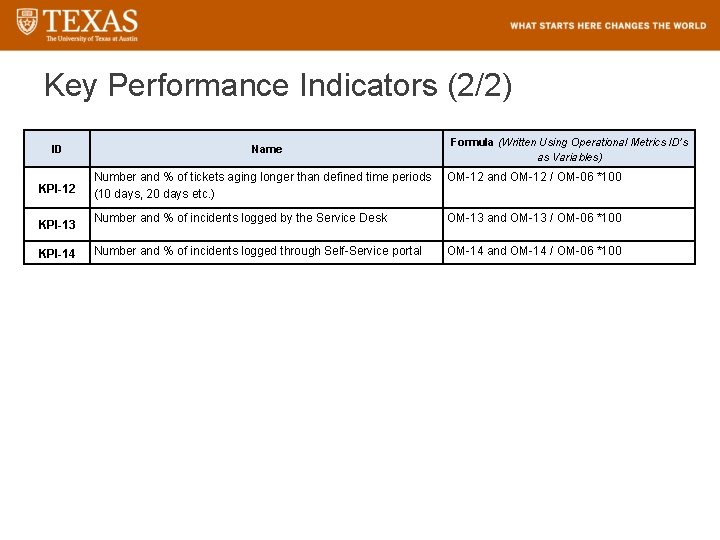
Key Performance Indicators (2/2) ID KPI-12 KPI-13 KPI-14 Name Formula (Written Using Operational Metrics ID’s as Variables) Number and % of tickets aging longer than defined time periods OM-12 and OM-12 / OM-06 *100 (10 days, 20 days etc. ) Number and % of incidents logged by the Service Desk OM-13 and OM-13 / OM-06 *100 Number and % of incidents logged through Self-Service portal OM-14 and OM-14 / OM-06 *100 118
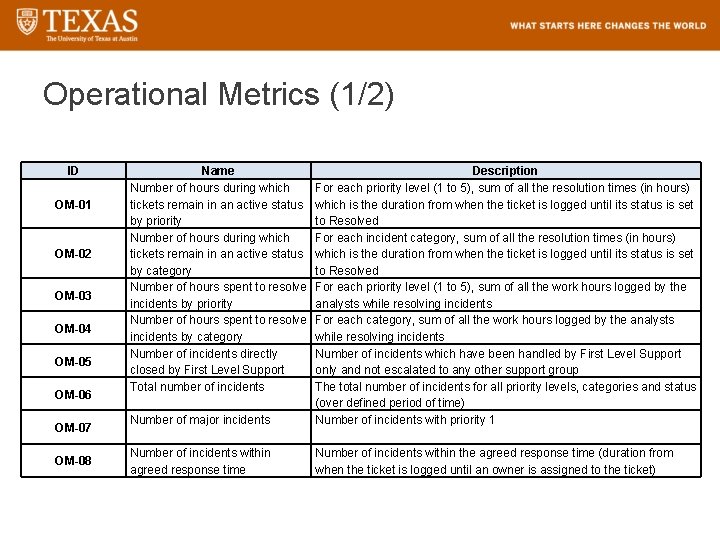
Operational Metrics (1/2) ID OM-01 OM-02 OM-03 OM-04 OM-05 OM-06 OM-07 OM-08 Name Number of hours during which tickets remain in an active status by priority Number of hours during which tickets remain in an active status by category Number of hours spent to resolve incidents by priority Number of hours spent to resolve incidents by category Number of incidents directly closed by First Level Support Total number of incidents Number of major incidents Description For each priority level (1 to 5), sum of all the resolution times (in hours) which is the duration from when the ticket is logged until its status is set to Resolved For each incident category, sum of all the resolution times (in hours) which is the duration from when the ticket is logged until its status is set to Resolved For each priority level (1 to 5), sum of all the work hours logged by the analysts while resolving incidents For each category, sum of all the work hours logged by the analysts while resolving incidents Number of incidents which have been handled by First Level Support only and not escalated to any other support group The total number of incidents for all priority levels, categories and status (over defined period of time) Number of incidents with priority 1 Number of incidents within agreed response time Number of incidents within the agreed response time (duration from when the ticket is logged until an owner is assigned to the ticket) 119
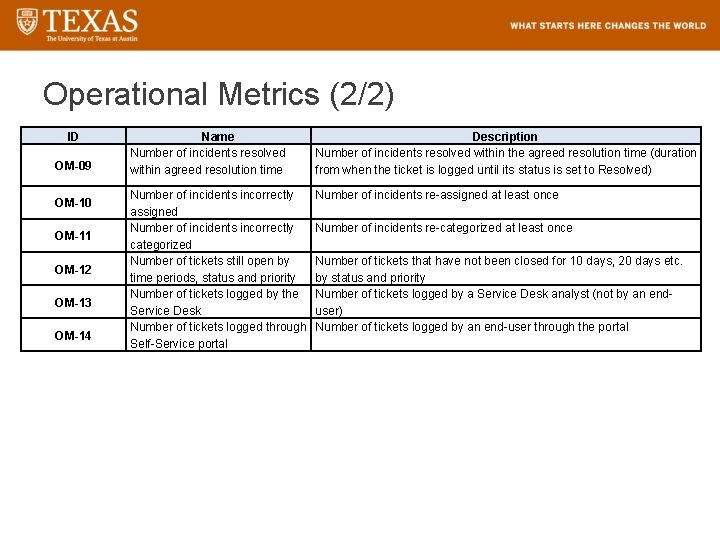
Operational Metrics (2/2) ID OM-09 OM-10 OM-11 OM-12 OM-13 OM-14 Name Number of incidents resolved within agreed resolution time Description Number of incidents resolved within the agreed resolution time (duration from when the ticket is logged until its status is set to Resolved) Number of incidents incorrectly assigned Number of incidents incorrectly categorized Number of tickets still open by time periods, status and priority Number of tickets logged by the Service Desk Number of tickets logged through Self-Service portal Number of incidents re-assigned at least once Number of incidents re-categorized at least once Number of tickets that have not been closed for 10 days, 20 days etc. by status and priority Number of tickets logged by a Service Desk analyst (not by an enduser) Number of tickets logged by an end-user through the portal 120
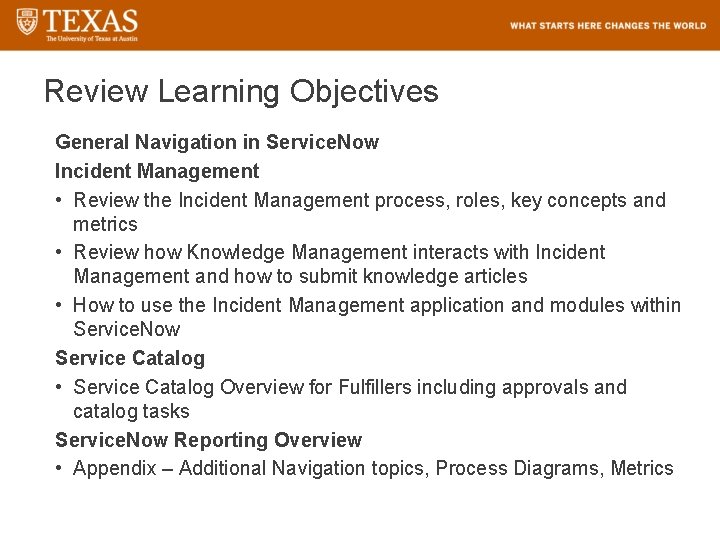
Review Learning Objectives General Navigation in Service. Now Incident Management • Review the Incident Management process, roles, key concepts and metrics • Review how Knowledge Management interacts with Incident Management and how to submit knowledge articles • How to use the Incident Management application and modules within Service. Now Service Catalog • Service Catalog Overview for Fulfillers including approvals and catalog tasks Service. Now Reporting Overview • Appendix – Additional Navigation topics, Process Diagrams, Metrics

Questions about Fulfiller Training
- Slides: 122