
Service Backup What Every Focal Point Should Know
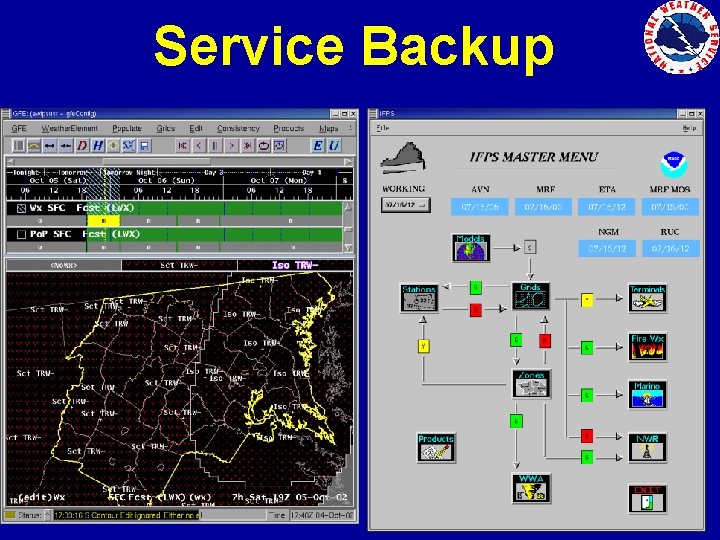
Service Backup
What Every Focal Point Should Know • Service backup only works if your site’s configuration data has been sent to the central server – If IFPS cannot find configuration data on the central server, then it has no information with which to start a new instance of IFPS – If you are unsure if your latest configuration information is there, it won’t hurt to send it again.
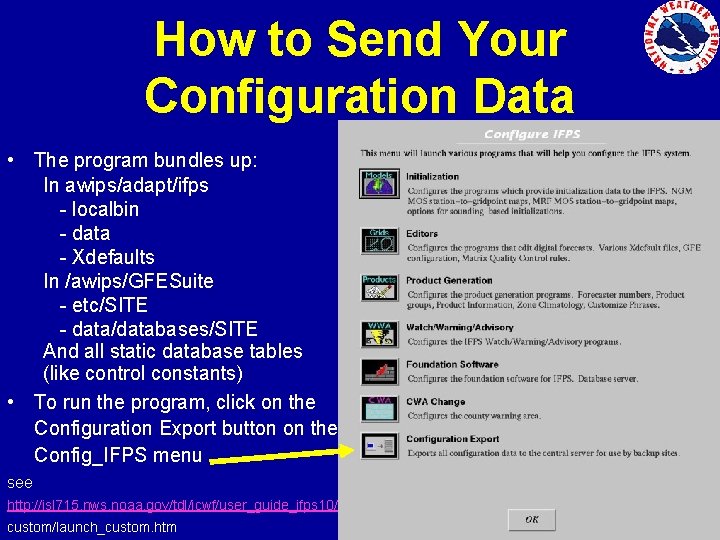
How to Send Your Configuration Data • The program bundles up: In awips/adapt/ifps - localbin - data - Xdefaults In /awips/GFESuite - etc/SITE - data/databases/SITE And all static database tables (like control constants) • To run the program, click on the Configuration Export button on the Config_IFPS menu see http: //isl 715. nws. noaa. gov/tdl/icwf/user_guide_ifps 10/ custom/launch_custom. htm
What Every Focal Point Should Know • All smart tools, edit areas and GFE local text product formatters used in the creation of your products need to be stored in the SITE directory – – Best way to check is to use the ifp. Server. Stats program. The information to look for is the last section of the output titled BASE/SITE/User Configuration. It will tell you whether any of your SITE files are being overridden. Another method is to log in as SITE and test all of edit areas, configurations, smart tools and formatters to ensure they are the ones needed for the backup site to use for grid/product creation.
What Every Focal Point Should Know • You need to resend your configuration data to the central server after any changes are made or after an upgrade – The configuration structure changes after a major upgrade, so the latest data needs to be sent to the central server so that your backup site’s IFPS knows what version of IFPS you run. – Sending in your latest changes, to smart tools, local text products, etc. , allows your backup site to benefit from this information and keeps the products going to the public more consistent.
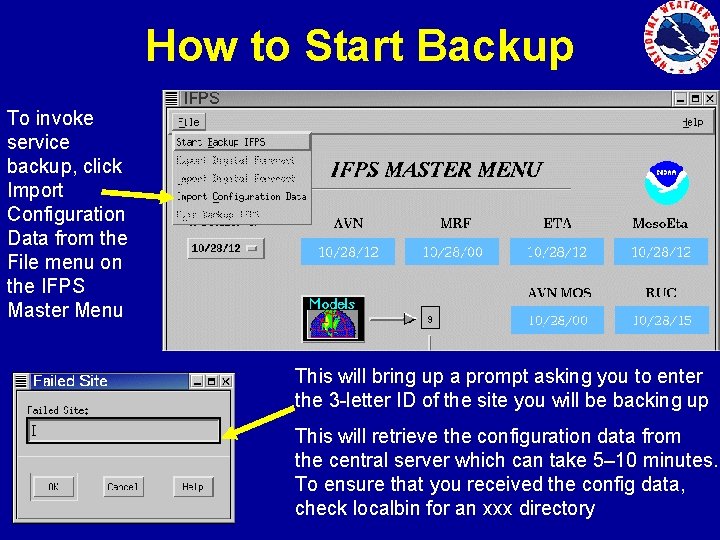
How to Start Backup To invoke service backup, click Import Configuration Data from the File menu on the IFPS Master Menu This will bring up a prompt asking you to enter the 3 -letter ID of the site you will be backing up This will retrieve the configuration data from the central server which can take 5– 10 minutes. To ensure that you received the config data, check localbin for an xxx directory
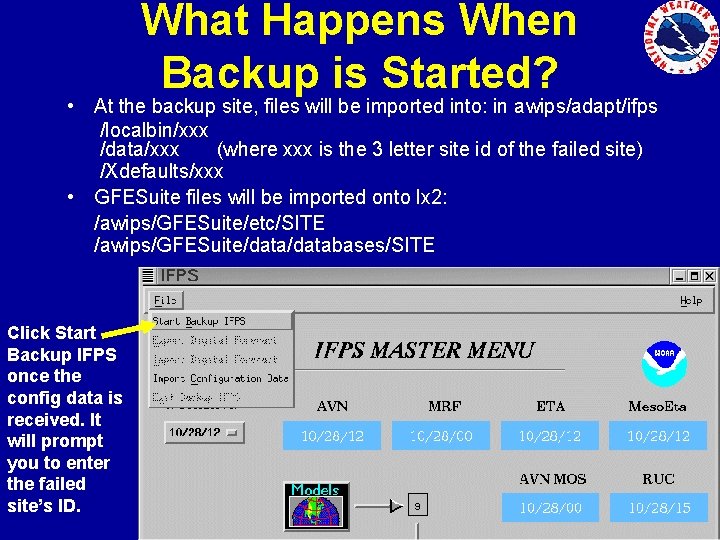
What Happens When Backup is Started? • At the backup site, files will be imported into: in awips/adapt/ifps /localbin/xxx /data/xxx (where xxx is the 3 letter site id of the failed site) /Xdefaults/xxx • GFESuite files will be imported onto lx 2: /awips/GFESuite/etc/SITE /awips/GFESuite/databases/SITE Click Start Backup IFPS once the config data is received. It will prompt you to enter the failed site’s ID.
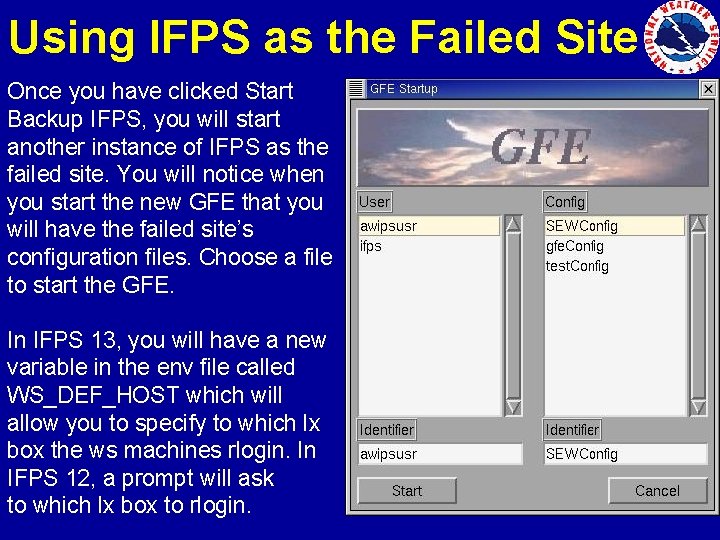
Using IFPS as the Failed Site Once you have clicked Start Backup IFPS, you will start another instance of IFPS as the failed site. You will notice when you start the new GFE that you will have the failed site’s configuration files. Choose a file to start the GFE. In IFPS 13, you will have a new variable in the env file called WS_DEF_HOST which will allow you to specify to which lx box the ws machines rlogin. In IFPS 12, a prompt will ask to which lx box to rlogin.
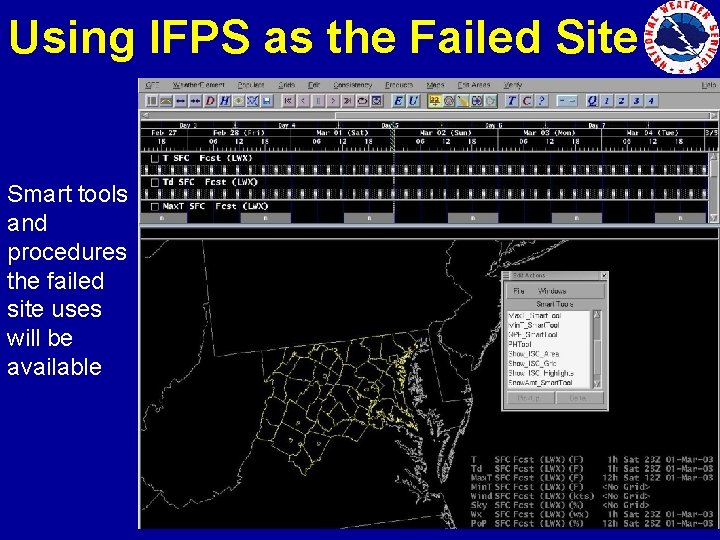
Using IFPS as the Failed Site Smart tools and procedures the failed site uses will be available
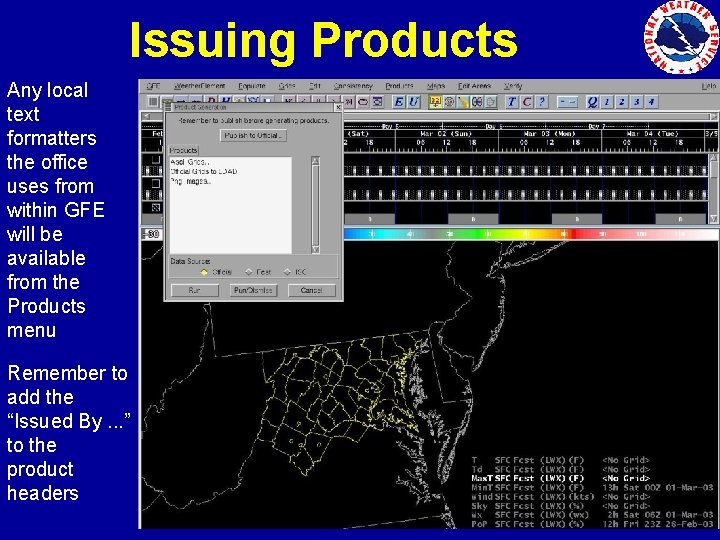
Issuing Products Any local text formatters the office uses from within GFE will be available from the Products menu Remember to add the “Issued By. . . ” to the product headers
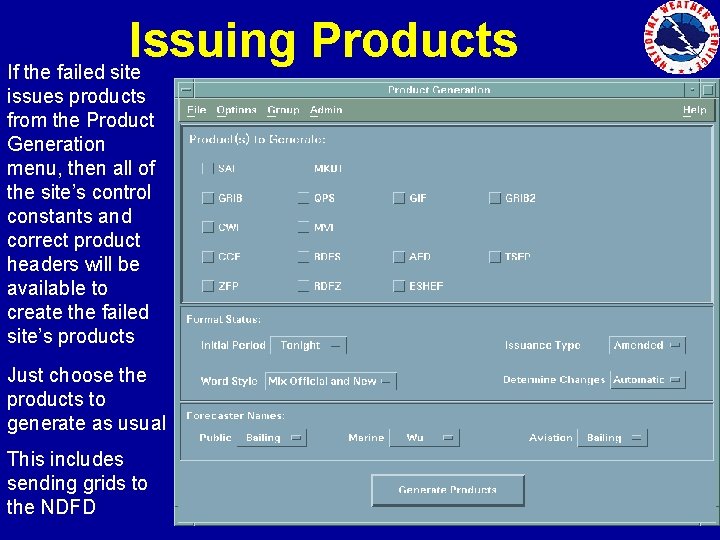
Issuing Products If the failed site issues products from the Product Generation menu, then all of the site’s control constants and correct product headers will be available to create the failed site’s products Just choose the products to generate as usual This includes sending grids to the NDFD
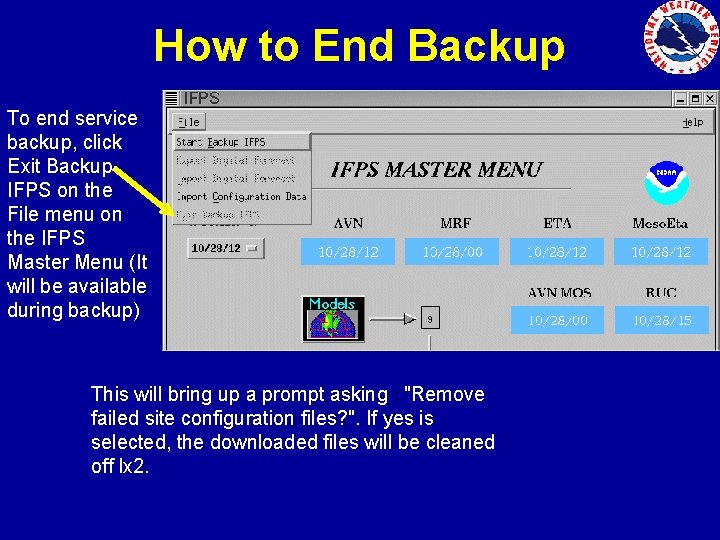
How to End Backup To end service backup, click Exit Backup IFPS on the File menu on the IFPS Master Menu (It will be available during backup) This will bring up a prompt asking : "Remove failed site configuration files? ". If yes is selected, the downloaded files will be cleaned off lx 2.
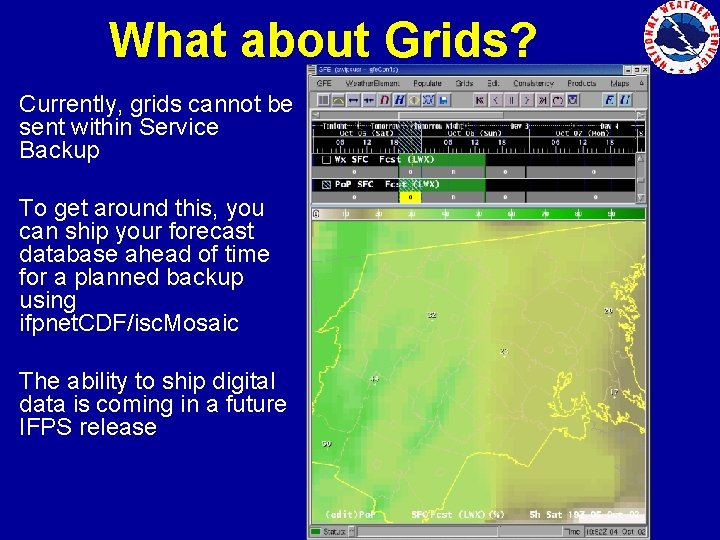
What about Grids? Currently, grids cannot be sent within Service Backup To get around this, you can ship your forecast database ahead of time for a planned backup using ifpnet. CDF/isc. Mosaic The ability to ship digital data is coming in a future IFPS release
How to Ship Grids Courtesy of Shane Searcy, ITO DMX Another method for shipping grids can be found at http: //www-md. fsl. noaa. gov/IFPS/mws 2/hotbackup 2. shw • Some things are assumed in the following instructions – – – An internal AWIPS account is set up on the Backup Site’s AWIPS using standard DOC/NOAA/NWS username and password rules All actions will performed as user ifps The Backup Site must have both LX 1 and LX 2 operating. LX 1 will run the Backup Site’s normal IFPS servers while LX 2 will run the Failed Site’s IFPS servers and hold the configuration.
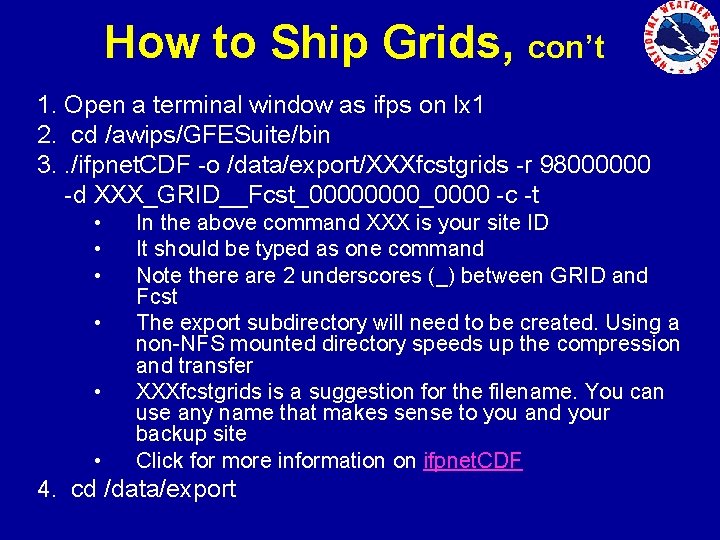
How to Ship Grids, con’t 1. Open a terminal window as ifps on lx 1 2. cd /awips/GFESuite/bin 3. . /ifpnet. CDF -o /data/export/XXXfcstgrids -r 98000000 -d XXX_GRID__Fcst_0000_0000 -c -t • • • In the above command XXX is your site ID It should be typed as one command Note there are 2 underscores (_) between GRID and Fcst The export subdirectory will need to be created. Using a non-NFS mounted directory speeds up the compression and transfer XXXfcstgrids is a suggestion for the filename. You can use any name that makes sense to you and your backup site Click for more information on ifpnet. CDF 4. cd /data/export
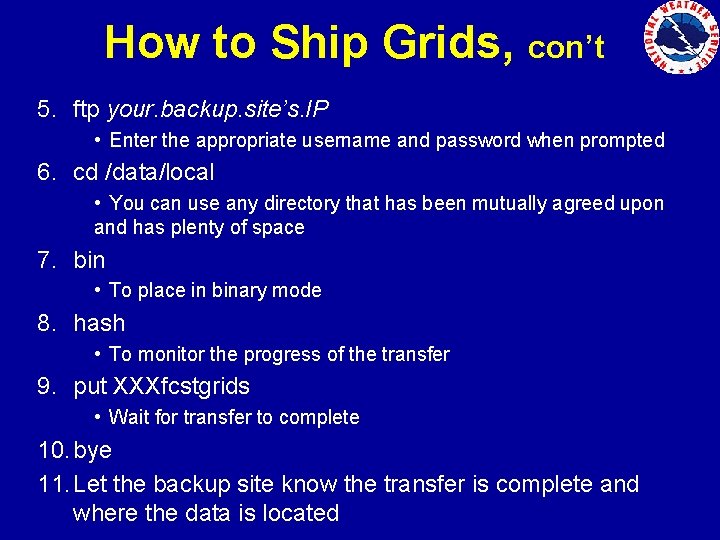
How to Ship Grids, con’t 5. ftp your. backup. site’s. IP • Enter the appropriate username and password when prompted 6. cd /data/local • You can use any directory that has been mutually agreed upon and has plenty of space 7. bin • To place in binary mode 8. hash • To monitor the progress of the transfer 9. put XXXfcstgrids • Wait for transfer to complete 10. bye 11. Let the backup site know the transfer is complete and where the data is located
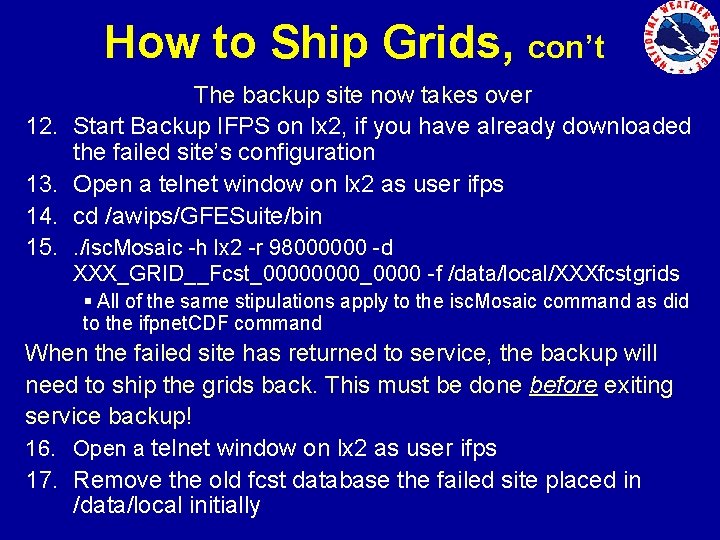
How to Ship Grids, con’t 12. 13. 14. 15. The backup site now takes over Start Backup IFPS on lx 2, if you have already downloaded the failed site’s configuration Open a telnet window on lx 2 as user ifps cd /awips/GFESuite/bin. /isc. Mosaic -h lx 2 -r 98000000 -d XXX_GRID__Fcst_0000_0000 -f /data/local/XXXfcstgrids § All of the same stipulations apply to the isc. Mosaic command as did to the ifpnet. CDF command When the failed site has returned to service, the backup will need to ship the grids back. This must be done before exiting service backup! 16. Open a telnet window on lx 2 as user ifps 17. Remove the old fcst database the failed site placed in /data/local initially
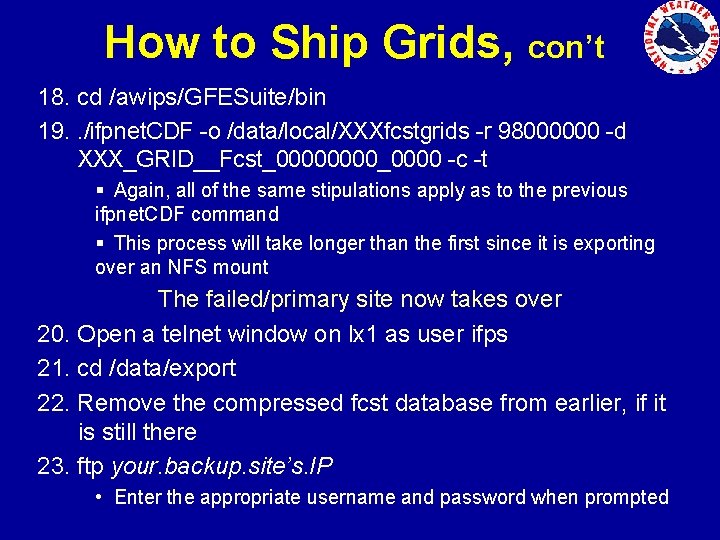
How to Ship Grids, con’t 18. cd /awips/GFESuite/bin 19. . /ifpnet. CDF -o /data/local/XXXfcstgrids -r 98000000 -d XXX_GRID__Fcst_0000_0000 -c -t § Again, all of the same stipulations apply as to the previous ifpnet. CDF command § This process will take longer than the first since it is exporting over an NFS mount The failed/primary site now takes over 20. Open a telnet window on lx 1 as user ifps 21. cd /data/export 22. Remove the compressed fcst database from earlier, if it is still there 23. ftp your. backup. site’s. IP • Enter the appropriate username and password when prompted
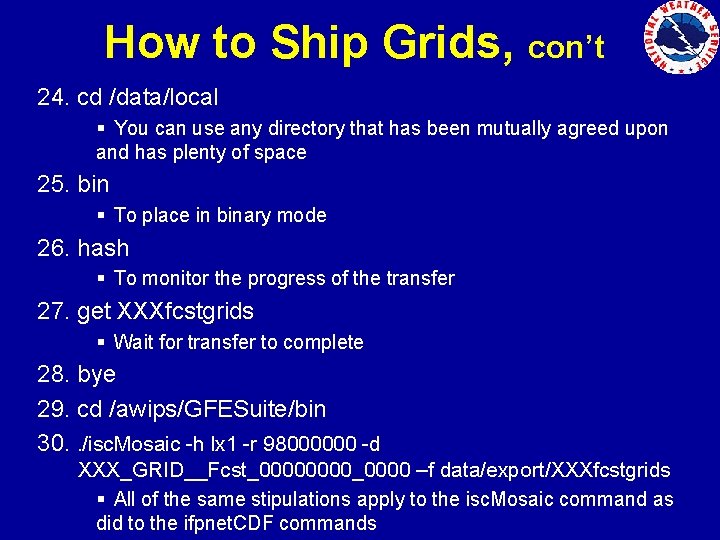
How to Ship Grids, con’t 24. cd /data/local § You can use any directory that has been mutually agreed upon and has plenty of space 25. bin § To place in binary mode 26. hash § To monitor the progress of the transfer 27. get XXXfcstgrids § Wait for transfer to complete 28. bye 29. cd /awips/GFESuite/bin 30. . /isc. Mosaic -h lx 1 -r 98000000 -d XXX_GRID__Fcst_0000_0000 –f data/export/XXXfcstgrids § All of the same stipulations apply to the isc. Mosaic command as did to the ifpnet. CDF commands
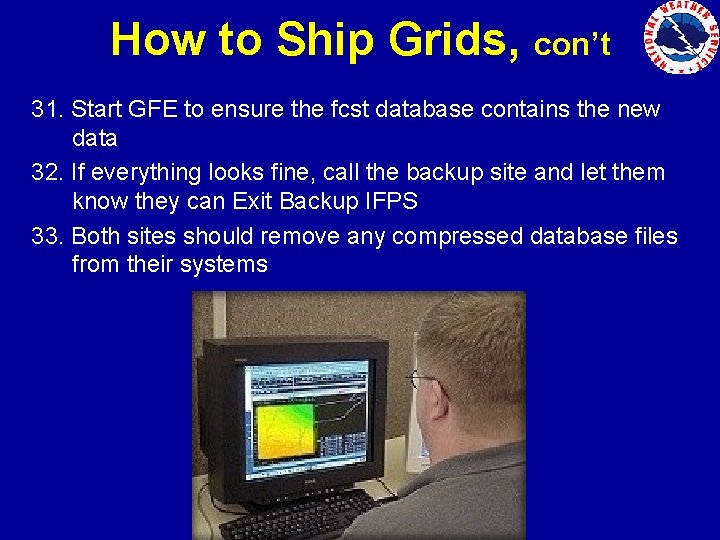
How to Ship Grids, con’t 31. Start GFE to ensure the fcst database contains the new data 32. If everything looks fine, call the backup site and let them know they can Exit Backup IFPS 33. Both sites should remove any compressed database files from their systems
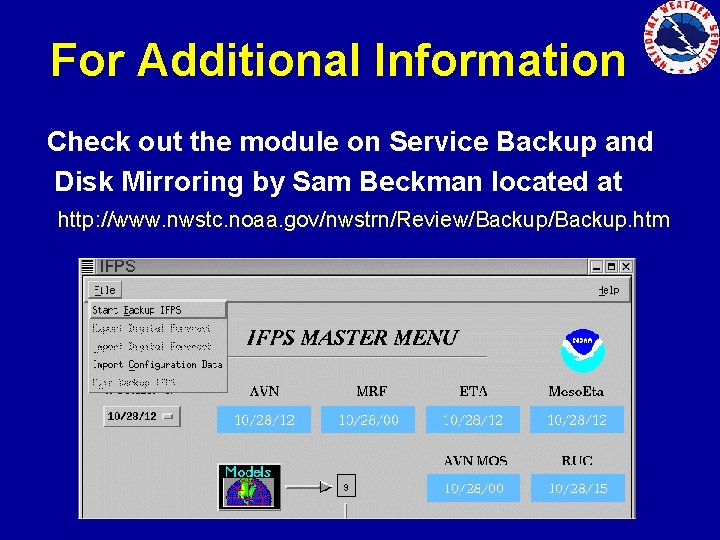
For Additional Information Check out the module on Service Backup and Disk Mirroring by Sam Beckman located at http: //www. nwstc. noaa. gov/nwstrn/Review/Backup. htm
- Slides: 21