
SEPM 12 1 fresh installation with SQL Database
SEPM 12. 1 fresh installation with SQL Database 12. 1 Enterprise Edition (EE) 12. 1 Small Business Edition (SBE) Chetan Savade Technical Analyst Fresh installation of SEP 12. 1 with SQL database 1
Why SQL ? • If you have more than 5000+ workstations in your network then you can not continue with default database i. e. Embedded. You will have to install SQL • Ease of database maintenance • Customized database report can be pulled from the database using SQL query • Reliable • Failover and Load balancing Fresh installation of SEP 12. 1 with SQL database 2
Supported SQL versions 32 bit OS 64 bit OS Microsoft SQL Server 2000 with SP 4 or later Microsoft SQL Server 2000 with SP 3 or later Microsoft SQL Server 2005 with SP 2 or later Microsoft SQL server 2008 • SQL client is required if SQL server is installed on remote server • Not supported SQL versions : MSDE, Fresh installation of SEP 12. 1 with SQL database Express or Compact version of any SQL flavor. 3
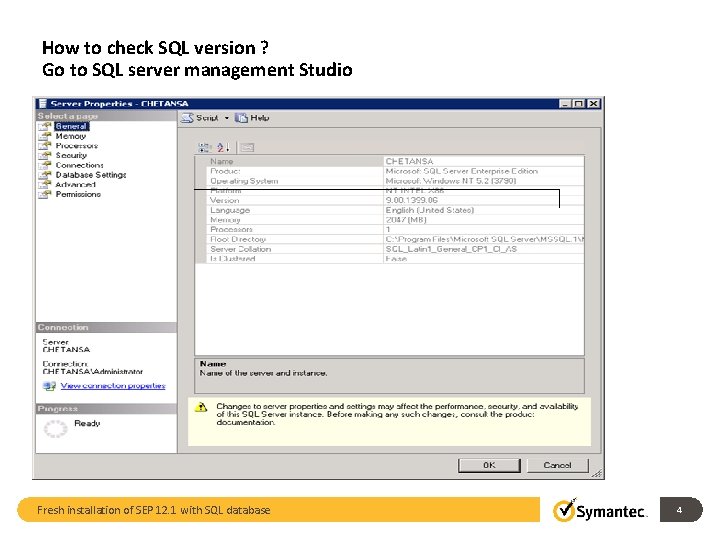
How to check SQL version ? Go to SQL server management Studio Fresh installation of SEP 12. 1 with SQL database 4
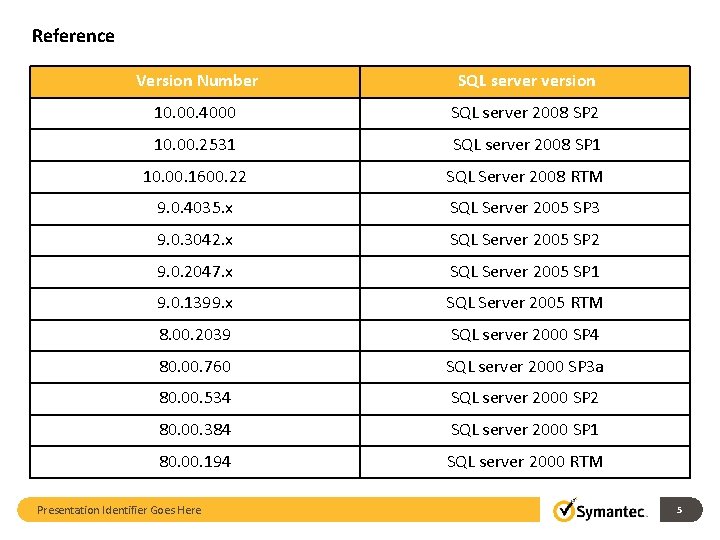
Reference Version Number SQL server version 10. 00. 4000 SQL server 2008 SP 2 10. 00. 2531 SQL server 2008 SP 1 10. 00. 1600. 22 SQL Server 2008 RTM 9. 0. 4035. x SQL Server 2005 SP 3 9. 0. 3042. x SQL Server 2005 SP 2 9. 0. 2047. x SQL Server 2005 SP 1 9. 0. 1399. x SQL Server 2005 RTM 8. 00. 2039 SQL server 2000 SP 4 80. 00. 760 SQL server 2000 SP 3 a 80. 00. 534 SQL server 2000 SP 2 80. 00. 384 SQL server 2000 SP 1 80. 00. 194 SQL server 2000 RTM Presentation Identifier Goes Here 5
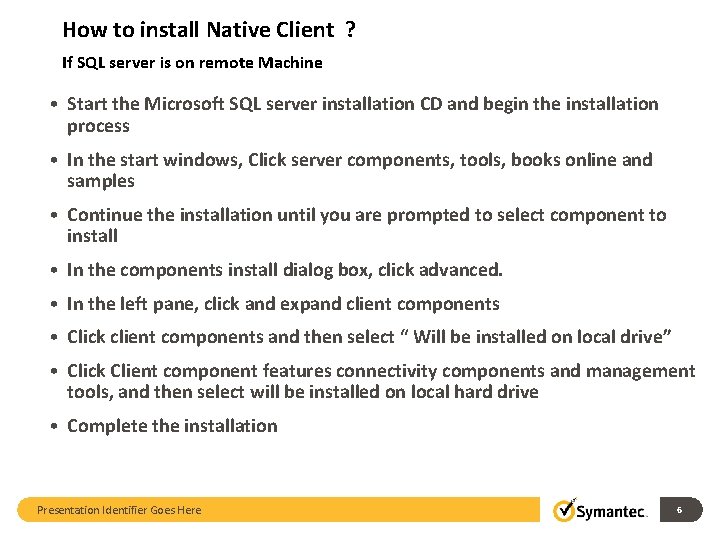
How to install Native Client ? If SQL server is on remote Machine • Start the Microsoft SQL server installation CD and begin the installation process • In the start windows, Click server components, tools, books online and samples • Continue the installation until you are prompted to select component to install • In the components install dialog box, click advanced. • In the left pane, click and expand client components • Click client components and then select “ Will be installed on local drive” • Click Client component features connectivity components and management tools, and then select will be installed on local hard drive • Complete the installation Presentation Identifier Goes Here 6
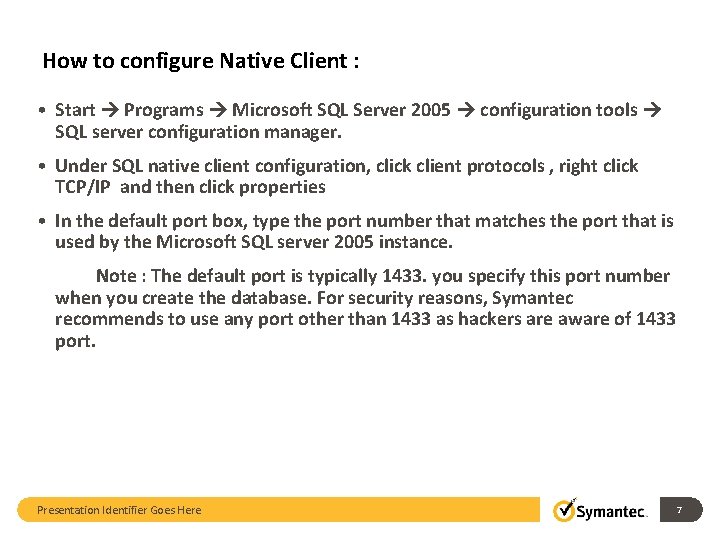
How to configure Native Client : • Start Programs Microsoft SQL Server 2005 configuration tools SQL server configuration manager. • Under SQL native client configuration, click client protocols , right click TCP/IP and then click properties • In the default port box, type the port number that matches the port that is used by the Microsoft SQL server 2005 instance. Note : The default port is typically 1433. you specify this port number when you create the database. For security reasons, Symantec recommends to use any port other than 1433 as hackers are aware of 1433 port. Presentation Identifier Goes Here 7
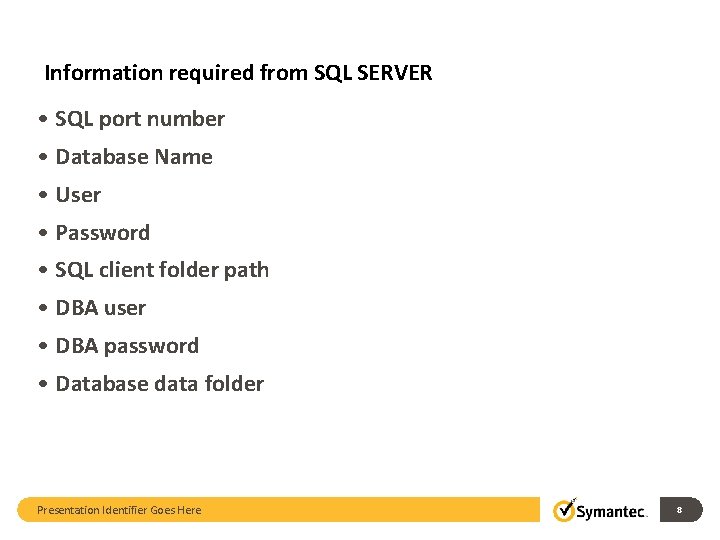
Information required from SQL SERVER • SQL port number • Database Name • User • Password • SQL client folder path • DBA user • DBA password • Database data folder Presentation Identifier Goes Here 8
SQL Check list • Install SQL server • Upgrade SQL server SP 2 or higher • Install SQL client Components • Configure Client Components Note : If SQL is on Remote Machine • Install SEPM Fresh installation of SEP 12. 1 with SQL database 9
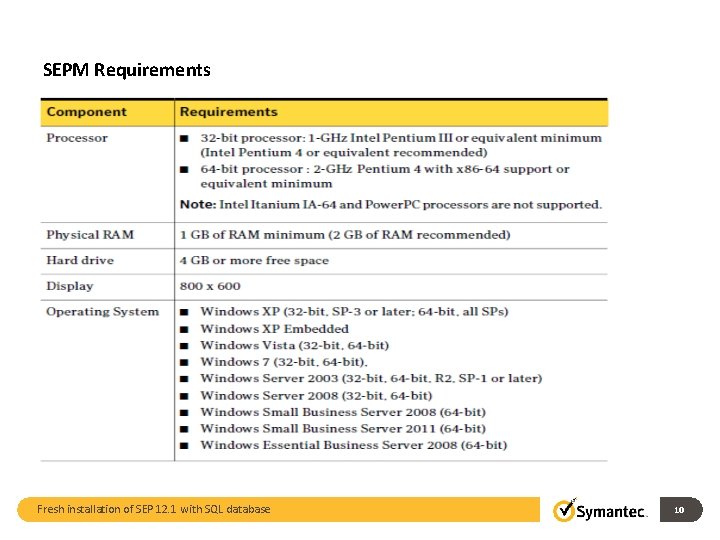
SEPM Requirements Fresh installation of SEP 12. 1 with SQL database 10
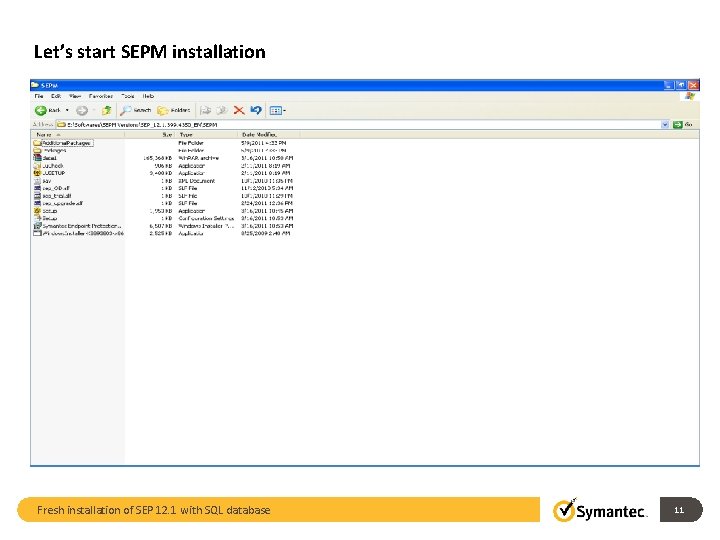
Let’s start SEPM installation Fresh installation of SEP 12. 1 with SQL database 11
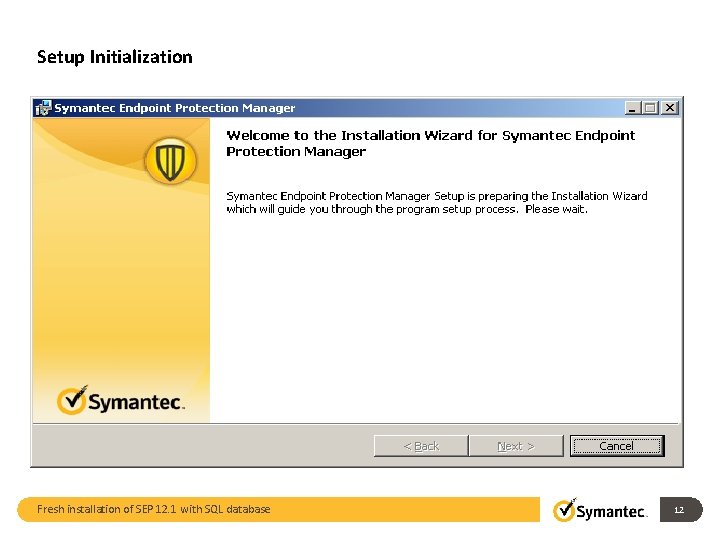
Setup Initialization Fresh installation of SEP 12. 1 with SQL database 12
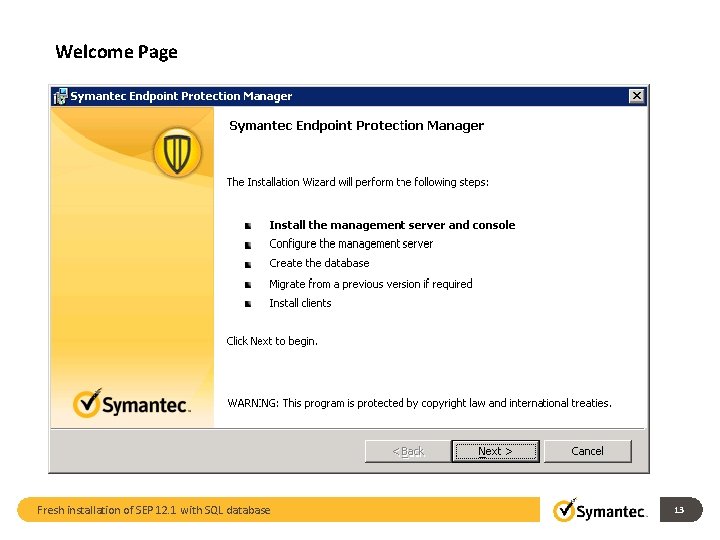
Welcome Page Fresh installation of SEP 12. 1 with SQL database 13
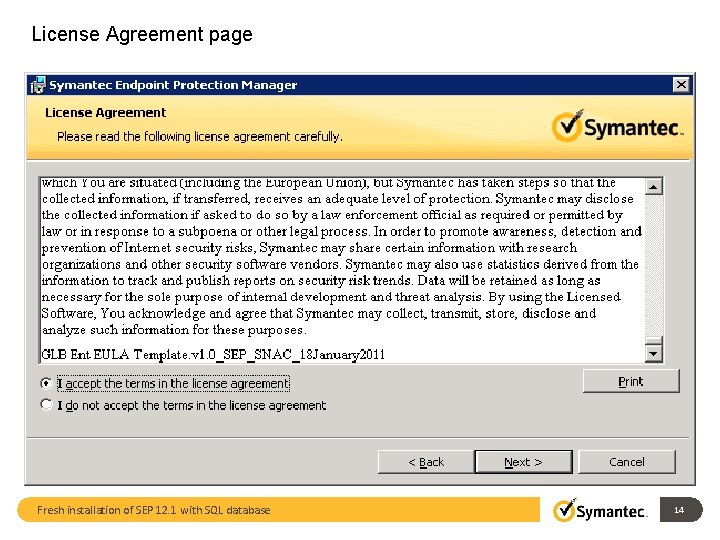
License Agreement page Fresh installation of SEP 12. 1 with SQL database 14
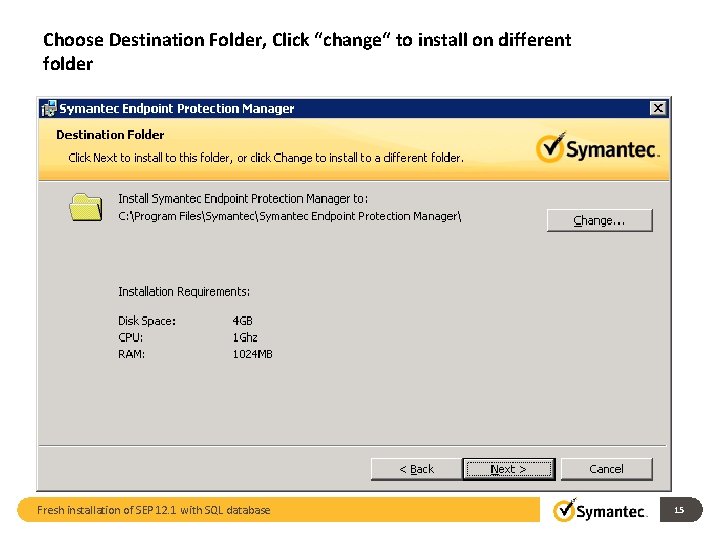
Choose Destination Folder, Click “change“ to install on different folder Fresh installation of SEP 12. 1 with SQL database 15
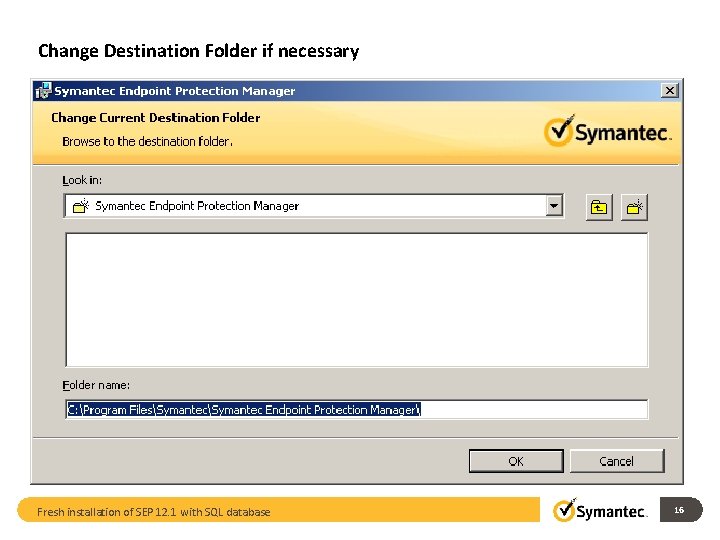
Change Destination Folder if necessary Fresh installation of SEP 12. 1 with SQL database 16
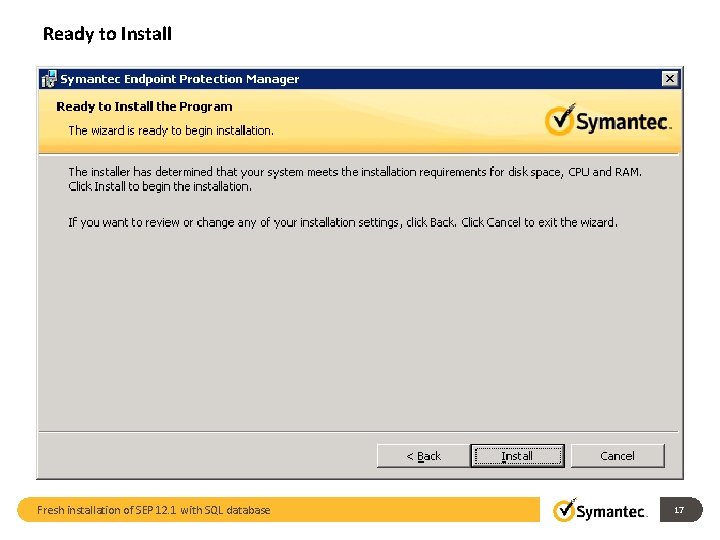
Ready to Install Fresh installation of SEP 12. 1 with SQL database 17
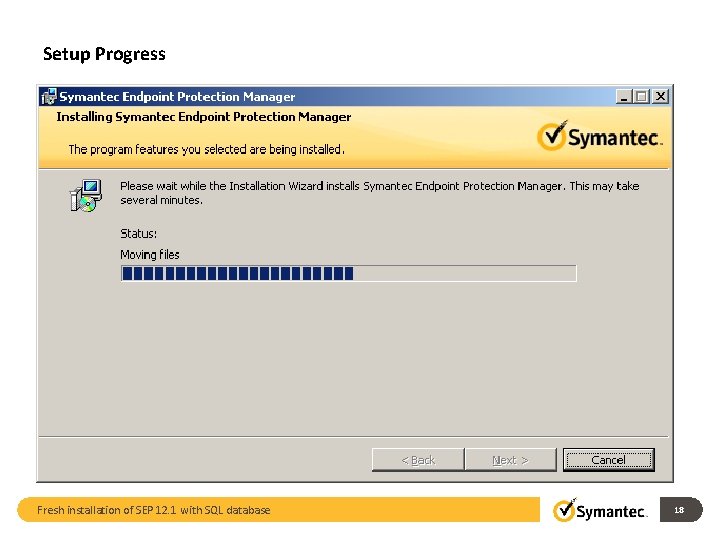
Setup Progress Fresh installation of SEP 12. 1 with SQL database 18
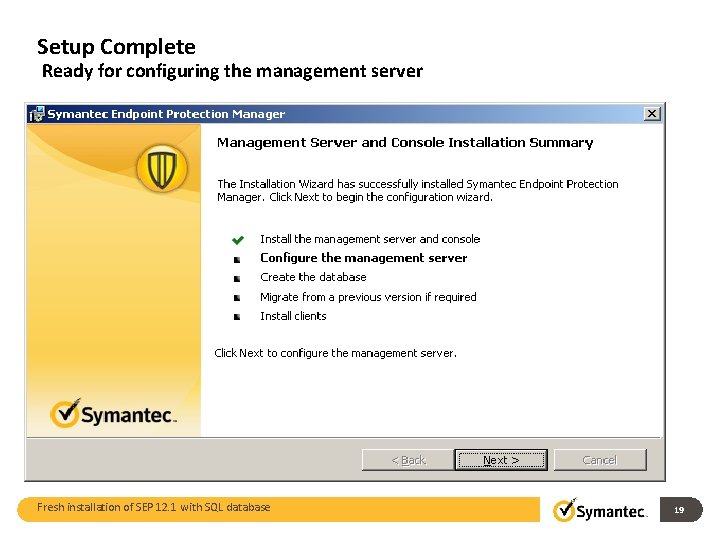
Setup Complete Ready for configuring the management server Fresh installation of SEP 12. 1 with SQL database 19
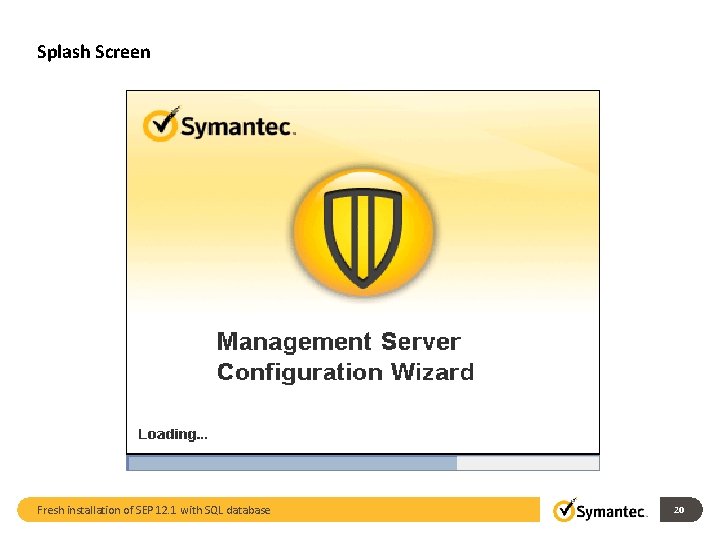
Splash Screen Fresh installation of SEP 12. 1 with SQL database 20
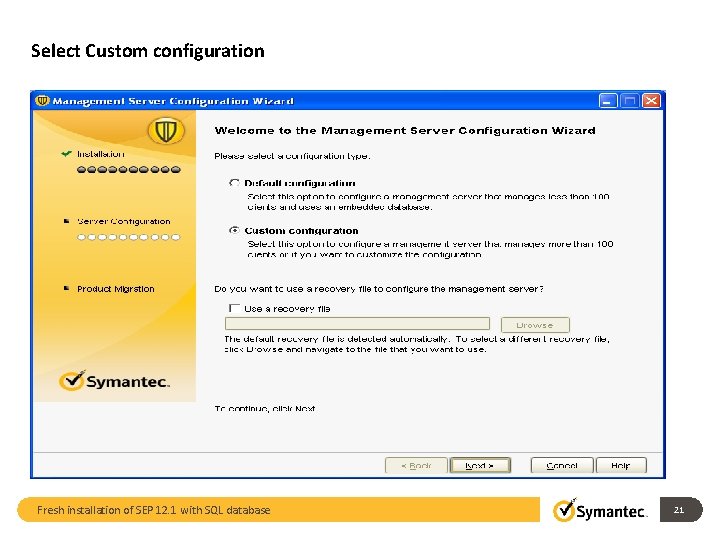
Select Custom configuration Fresh installation of SEP 12. 1 with SQL database 21
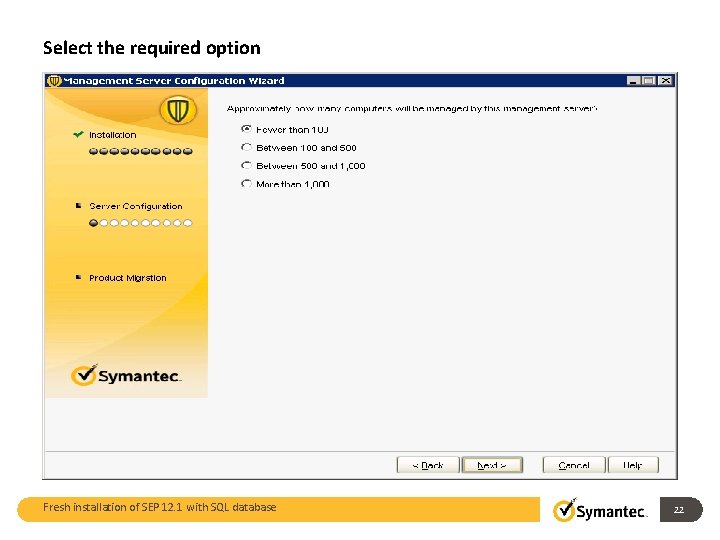
Select the required option Fresh installation of SEP 12. 1 with SQL database 22
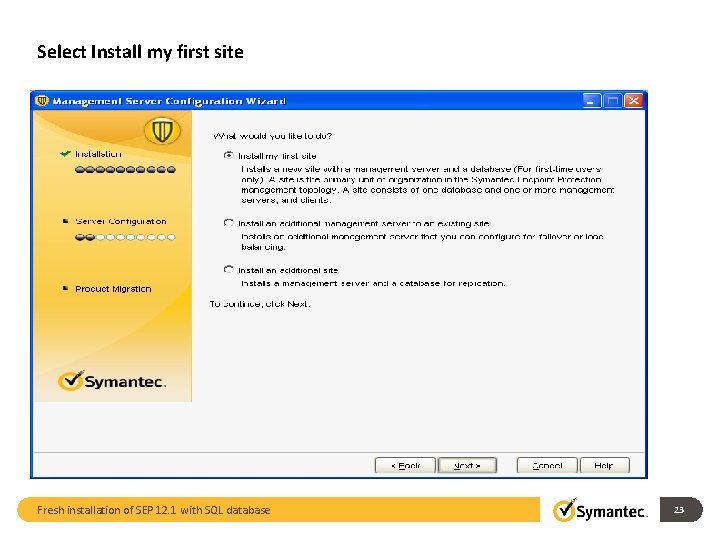
Select Install my first site Fresh installation of SEP 12. 1 with SQL database 23
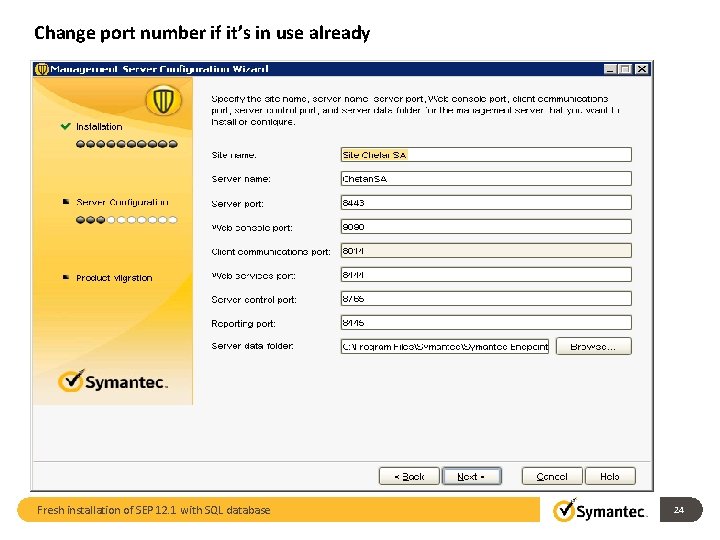
Change port number if it’s in use already Fresh installation of SEP 12. 1 with SQL database 24
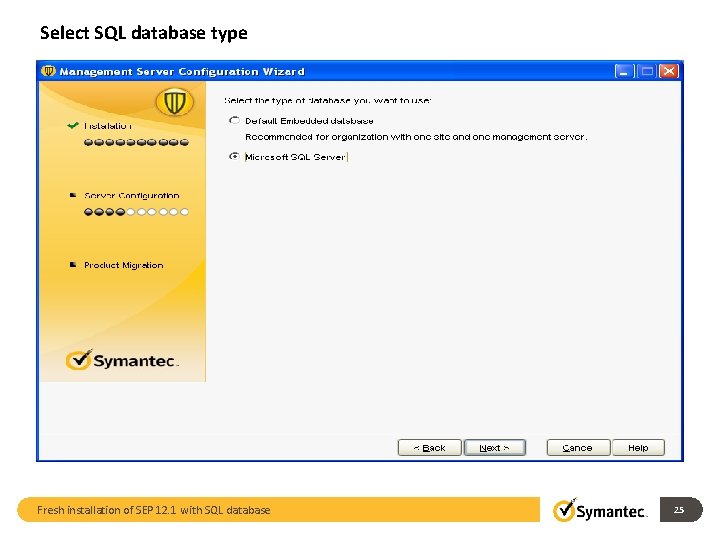
Select SQL database type Fresh installation of SEP 12. 1 with SQL database 25
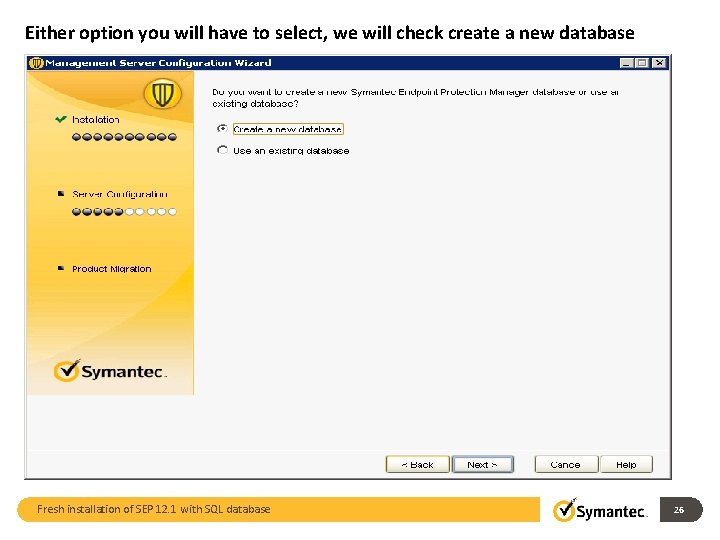
Either option you will have to select, we will check create a new database Fresh installation of SEP 12. 1 with SQL database 26
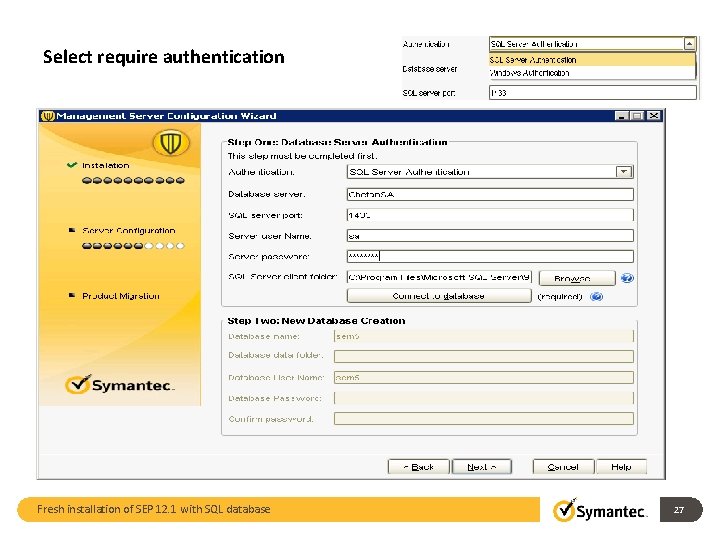
Select require authentication Fresh installation of SEP 12. 1 with SQL database 27
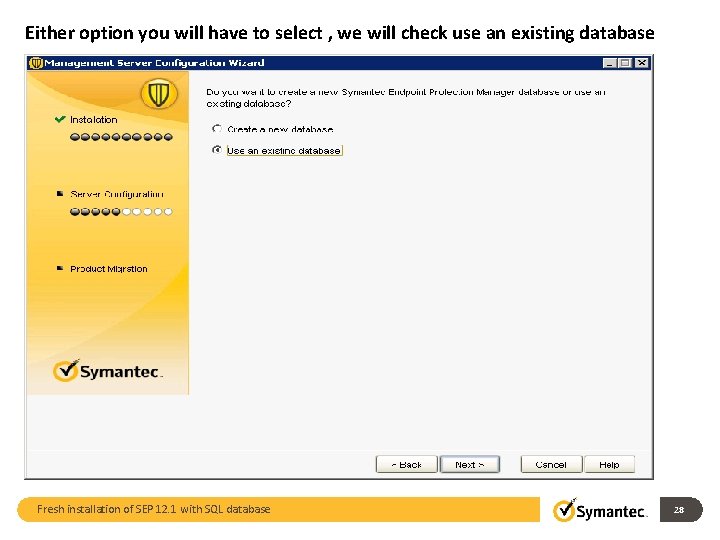
Either option you will have to select , we will check use an existing database Fresh installation of SEP 12. 1 with SQL database 28
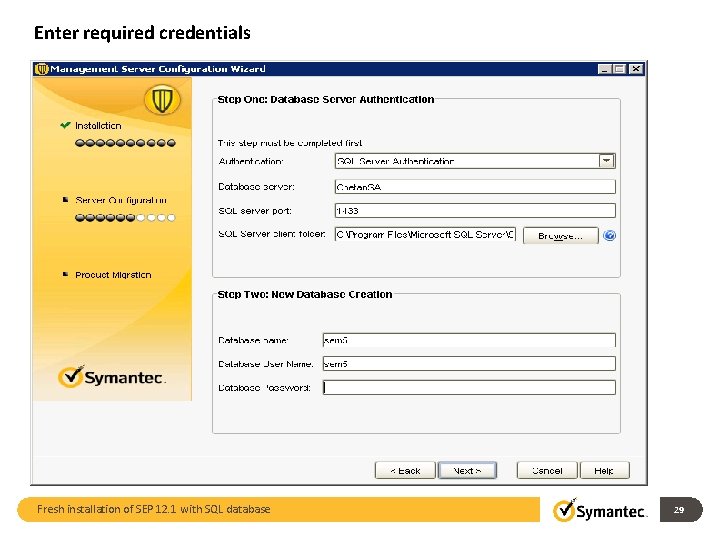
Enter required credentials Fresh installation of SEP 12. 1 with SQL database 29
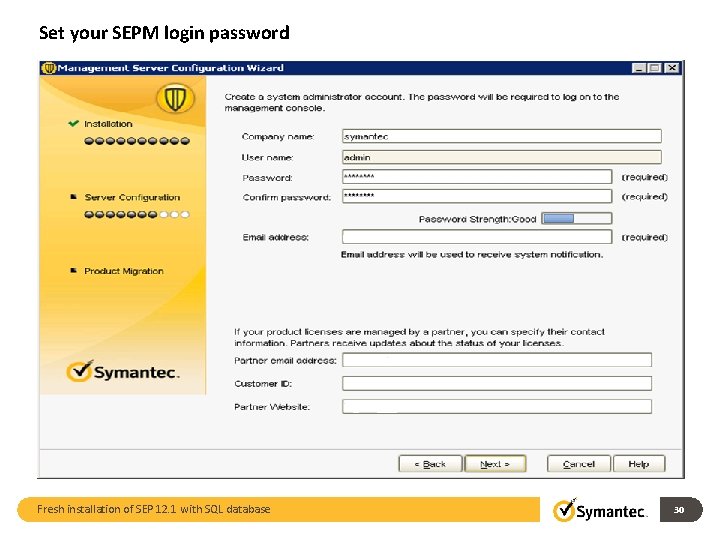
Set your SEPM login password Fresh installation of SEP 12. 1 with SQL database 30
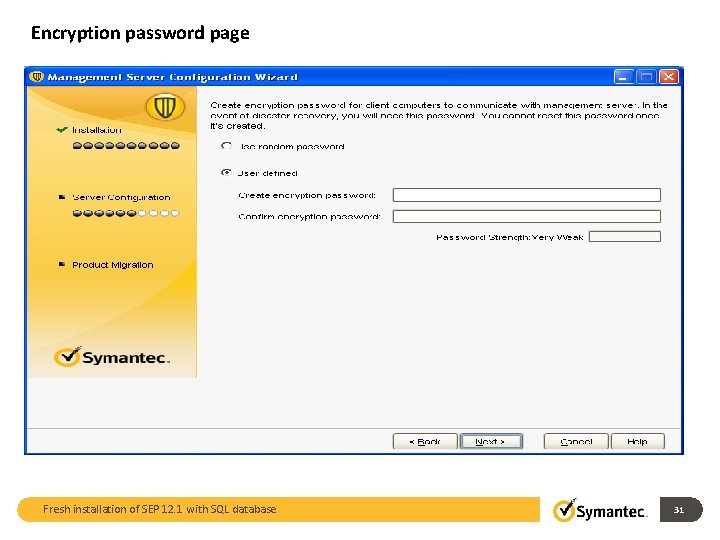
Encryption password page Fresh installation of SEP 12. 1 with SQL database 31
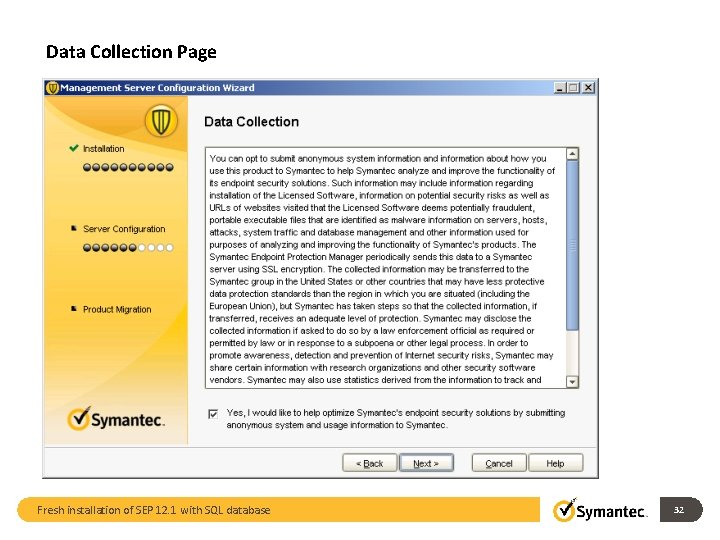
Data Collection Page Fresh installation of SEP 12. 1 with SQL database 32
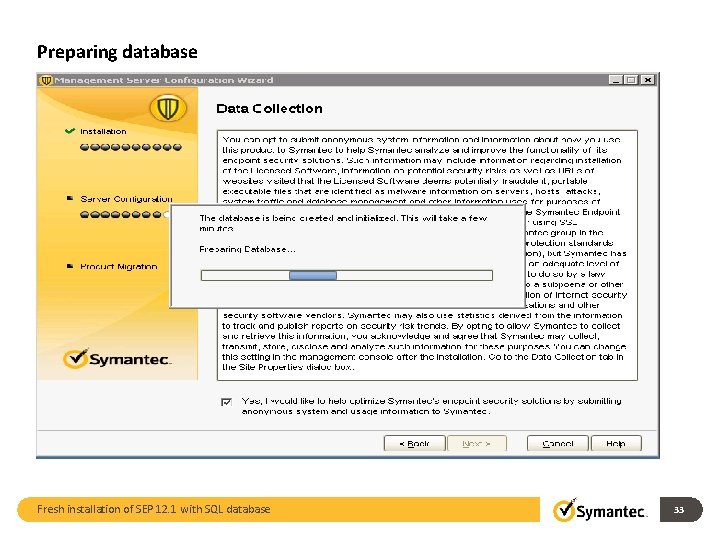
Preparing database Fresh installation of SEP 12. 1 with SQL database 33
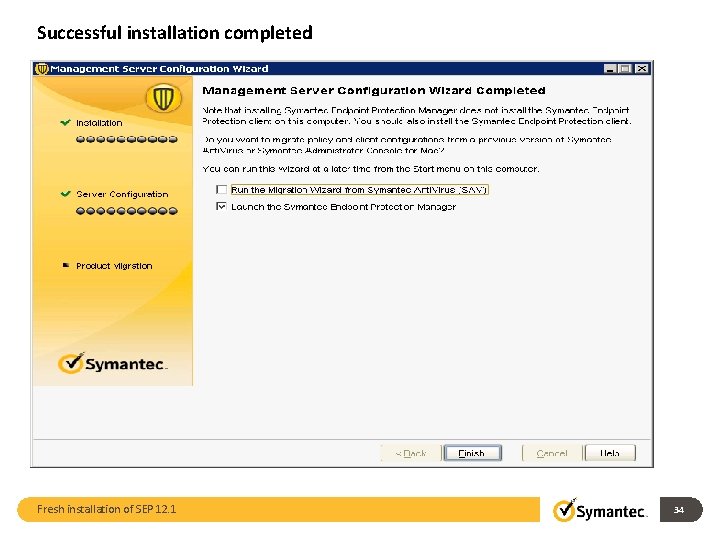
Successful installation completed Fresh installation of SEP 12. 1 34
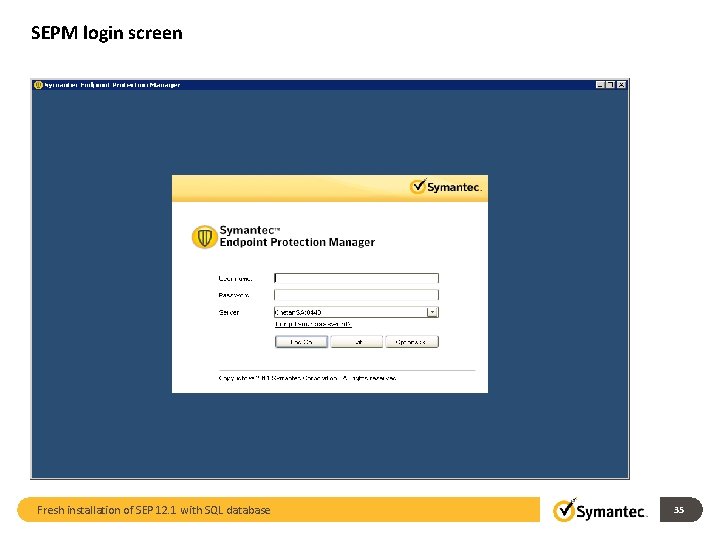
SEPM login screen Fresh installation of SEP 12. 1 with SQL database 35
Summary • Install SQL Server • Install SQL native client if SQL is on remote machine • Install SEPM • Select SQL database as a new database or use an existing database • Enter required credentials • Complete the installation • Login to SEPM Presentation Identifier Goes Here 36

Thank You Chetan Savade Fresh installation of SEP 12. 1 with SQL database 37
- Slides: 37