
SEPM 12 1 fresh installation with Embedded database
SEPM 12. 1 fresh installation with Embedded database 12. 1 Enterprise Edition (EE) 12. 1 Small Business Edition (SBE) Chetan Savade Technical Analyst SEP 12. 1 fresh installation with Embedded database 1
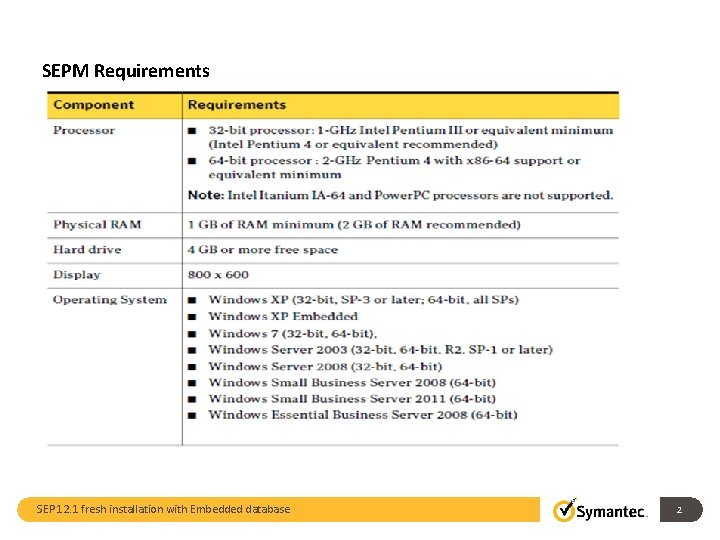
SEPM Requirements SEP 12. 1 fresh installation with Embedded database 2
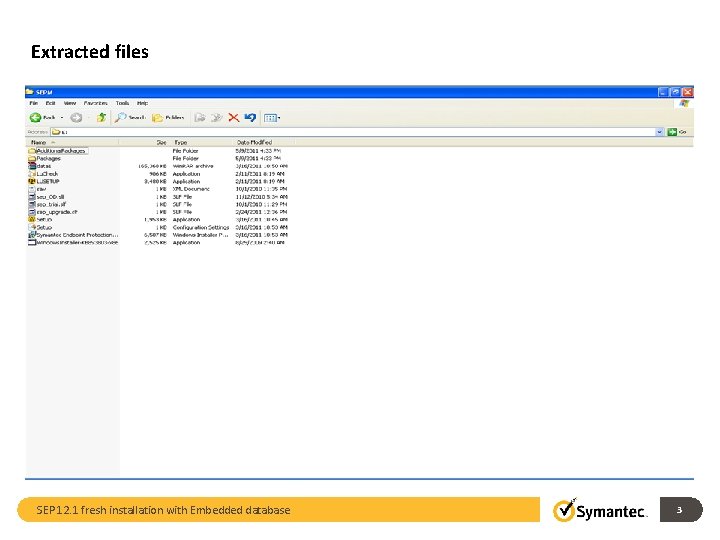
Extracted files SEP 12. 1 fresh installation with Embedded database 3
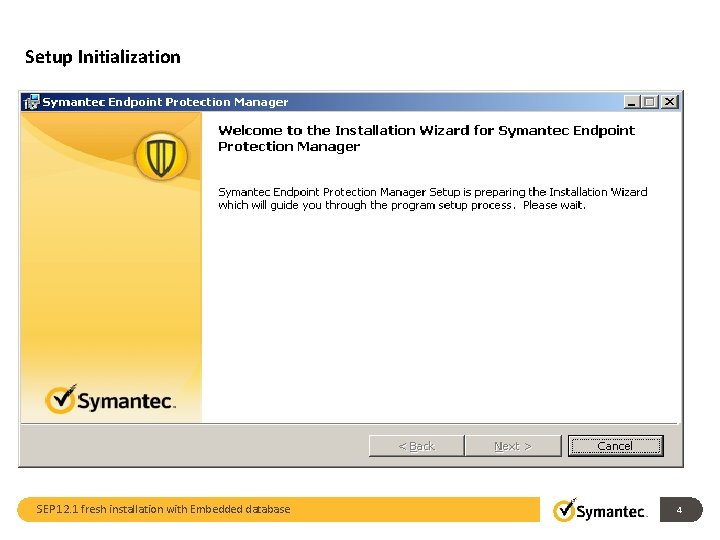
Setup Initialization SEP 12. 1 fresh installation with Embedded database 4
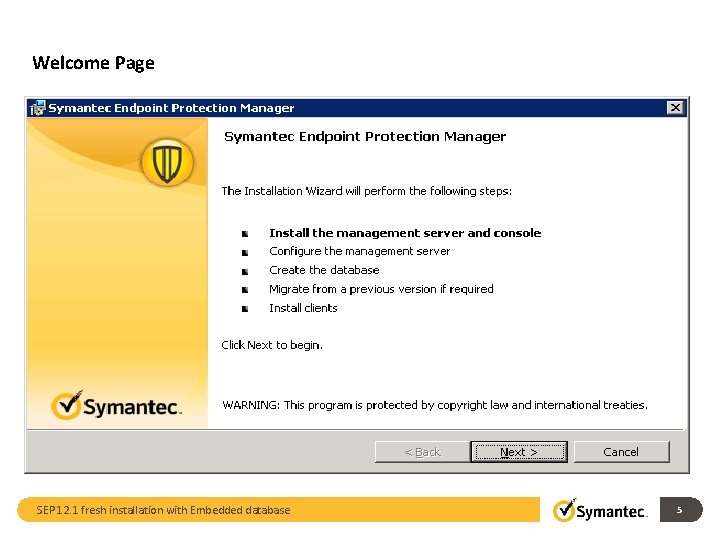
Welcome Page SEP 12. 1 fresh installation with Embedded database 5
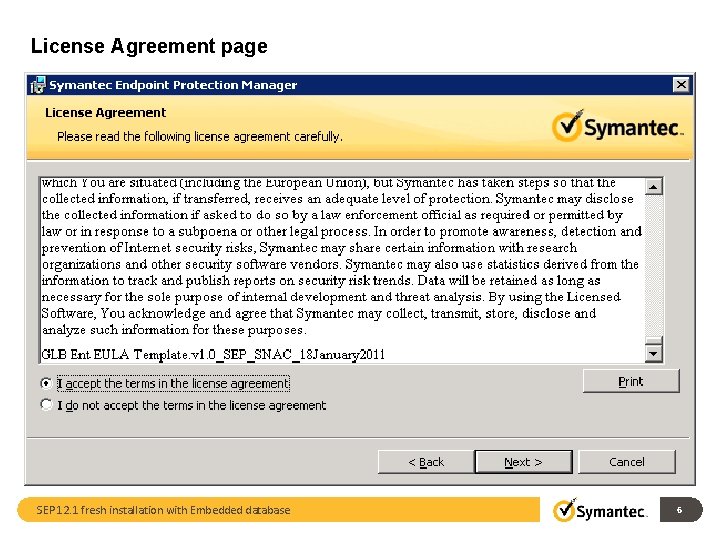
License Agreement page SEP 12. 1 fresh installation with Embedded database 6
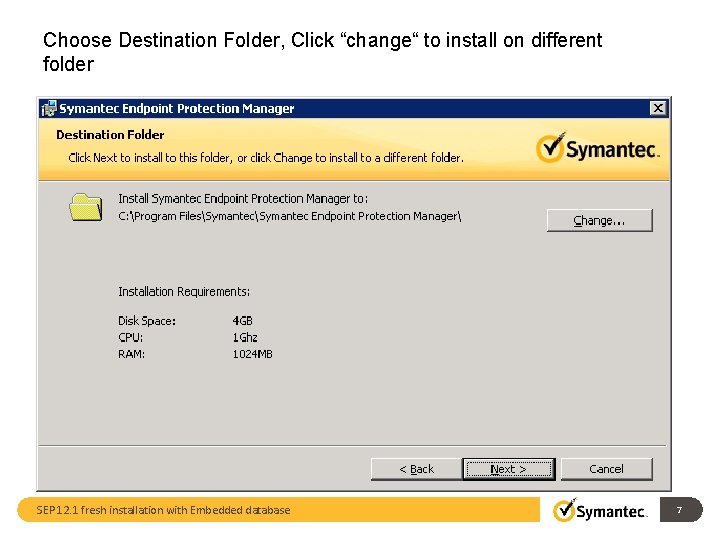
Choose Destination Folder, Click “change“ to install on different folder SEP 12. 1 fresh installation with Embedded database 7
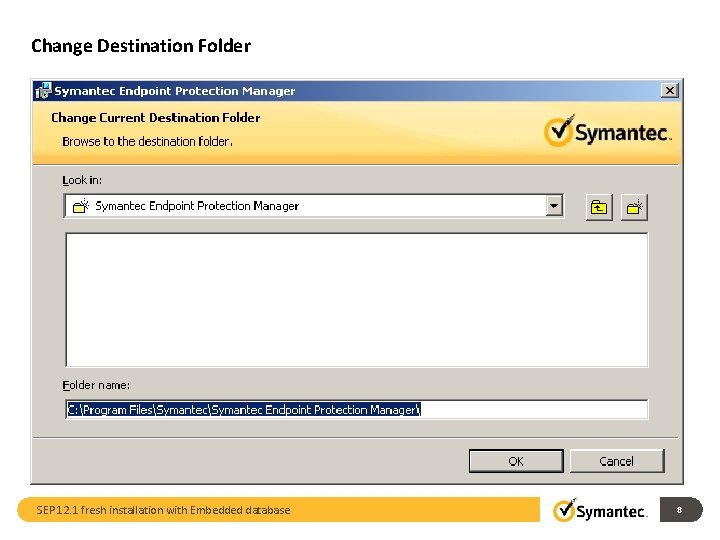
Change Destination Folder SEP 12. 1 fresh installation with Embedded database 8
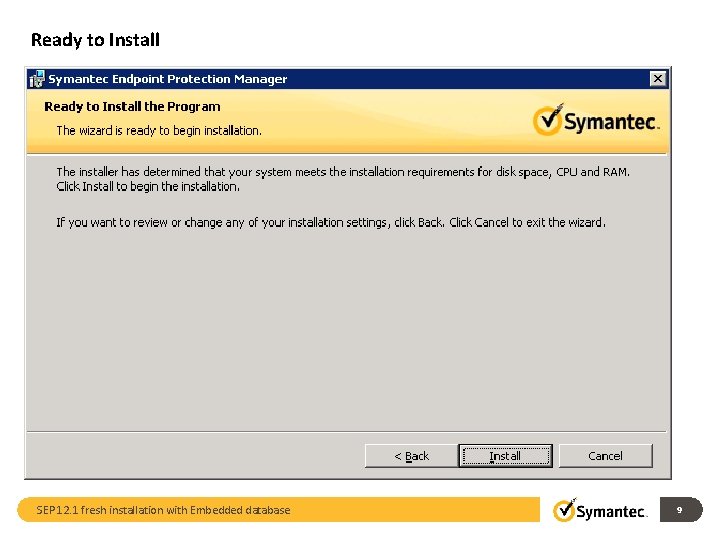
Ready to Install SEP 12. 1 fresh installation with Embedded database 9
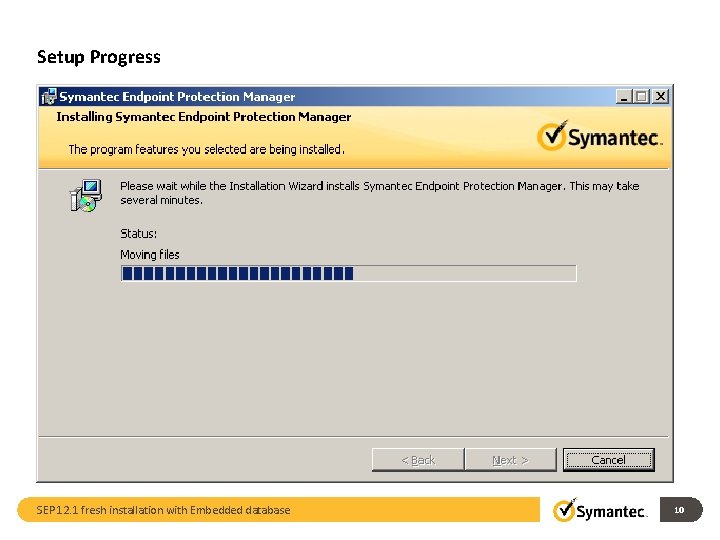
Setup Progress SEP 12. 1 fresh installation with Embedded database 10
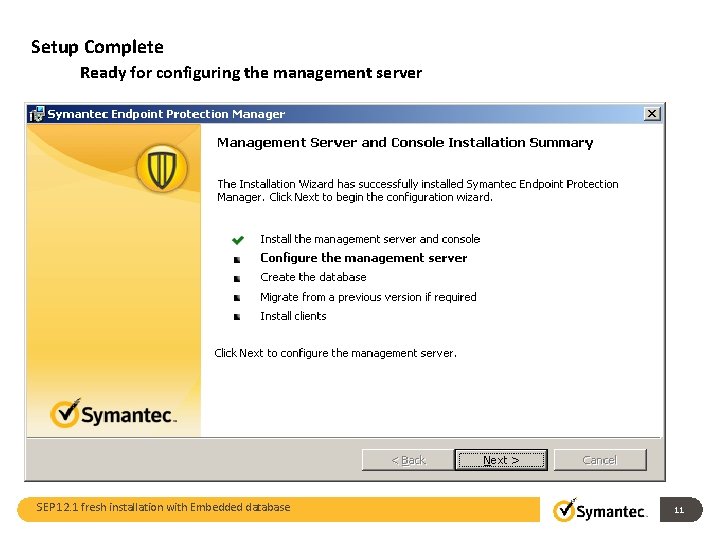
Setup Complete Ready for configuring the management server SEP 12. 1 fresh installation with Embedded database 11
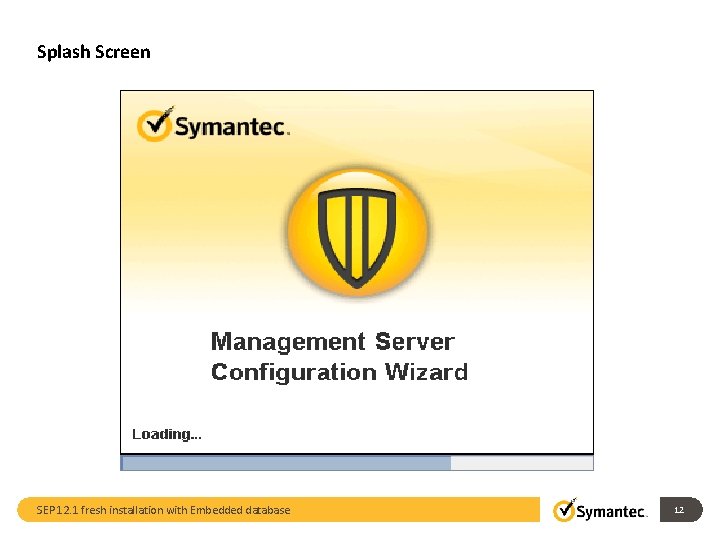
Splash Screen SEP 12. 1 fresh installation with Embedded database 12
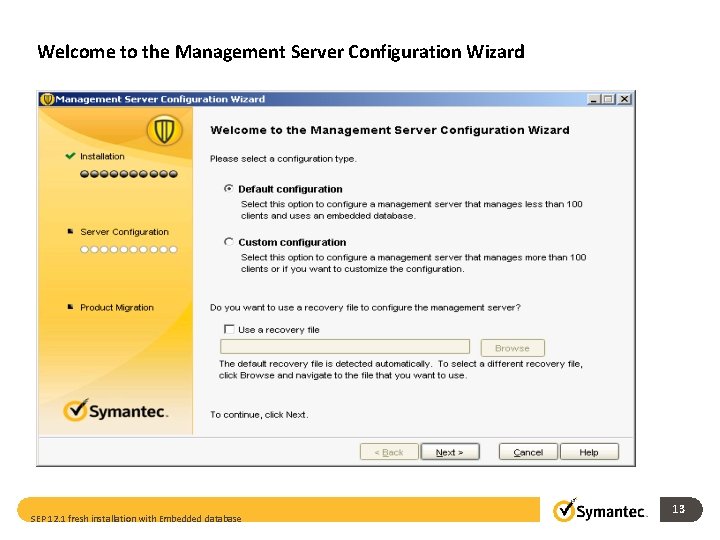
Welcome to the Management Server Configuration Wizard SEP 12. 1 fresh installation with Embedded database 13
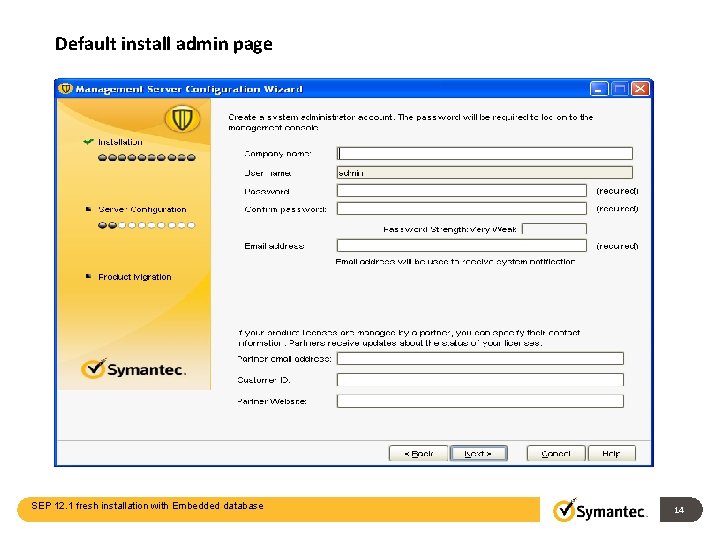
Default install admin page SEP 12. 1 fresh installation with Embedded database 14
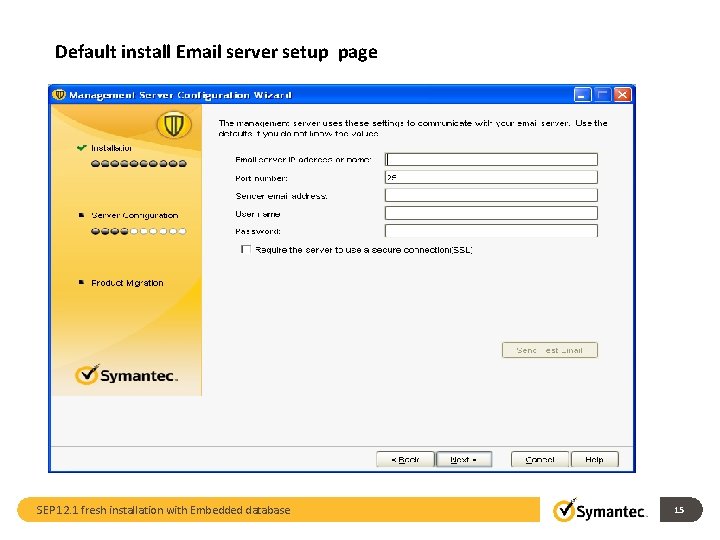
Default install Email server setup page SEP 12. 1 fresh installation with Embedded database 15
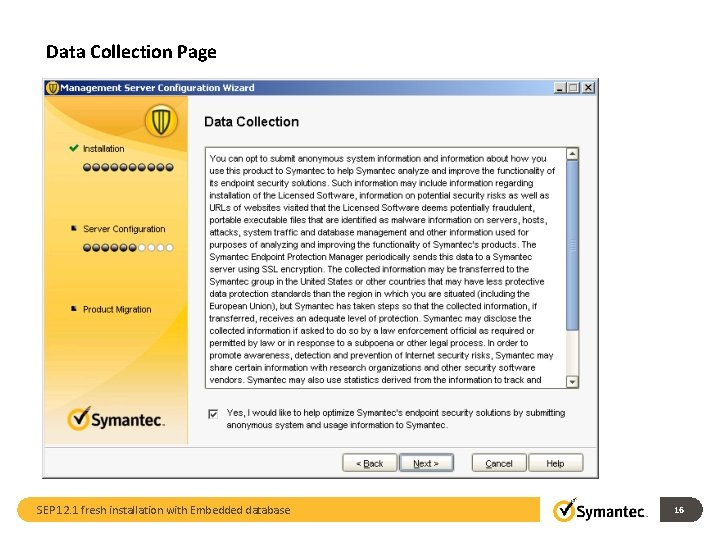
Data Collection Page SEP 12. 1 fresh installation with Embedded database 16
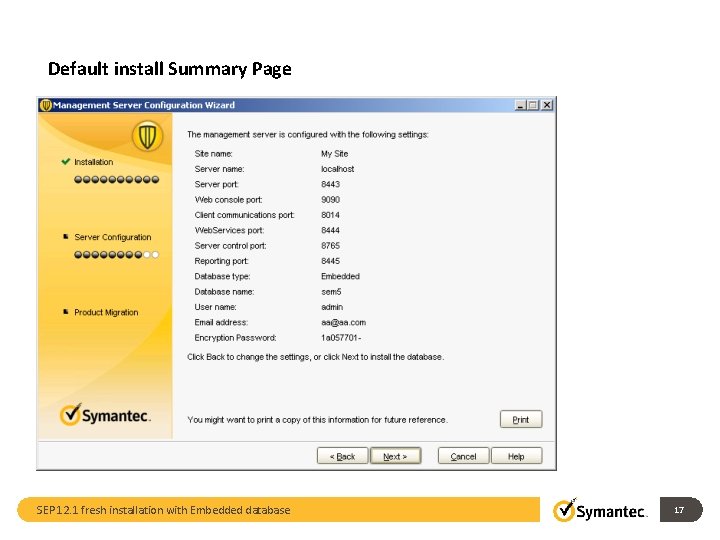
Default install Summary Page SEP 12. 1 fresh installation with Embedded database 17
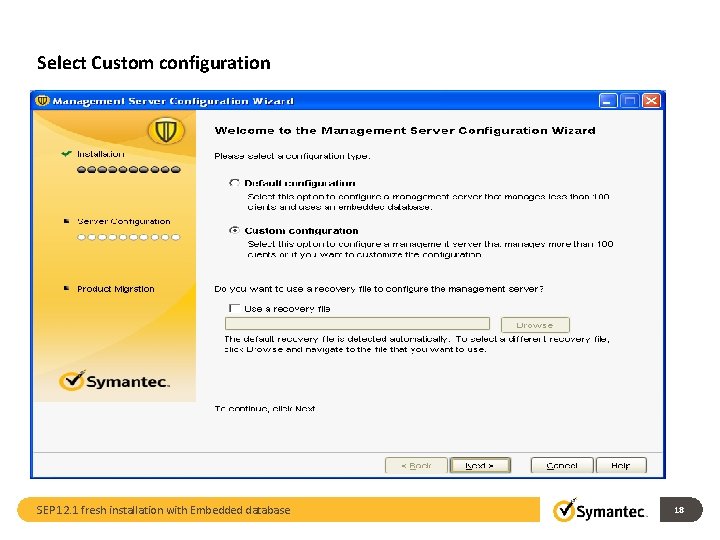
Select Custom configuration SEP 12. 1 fresh installation with Embedded database 18
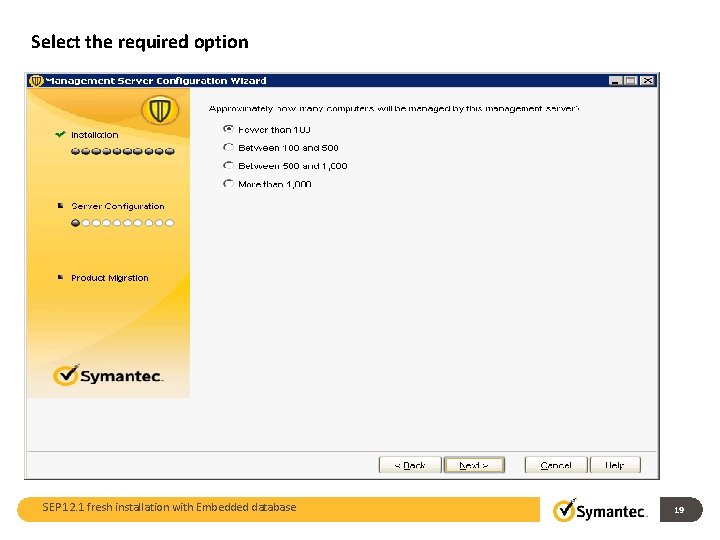
Select the required option SEP 12. 1 fresh installation with Embedded database 19
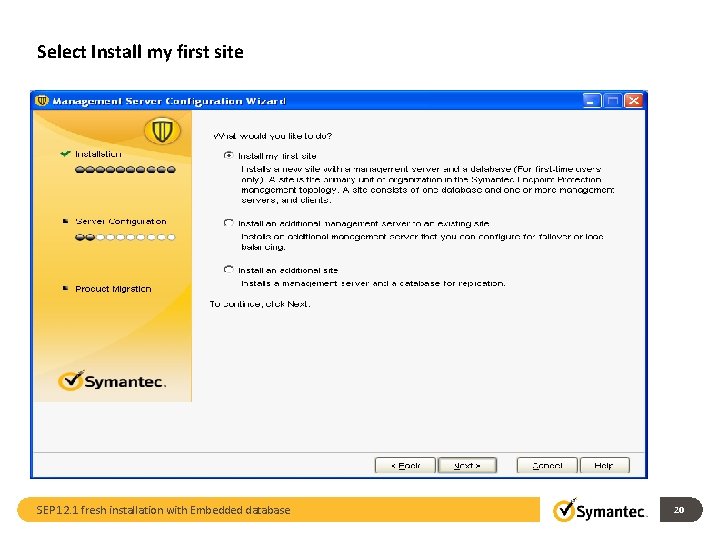
Select Install my first site SEP 12. 1 fresh installation with Embedded database 20
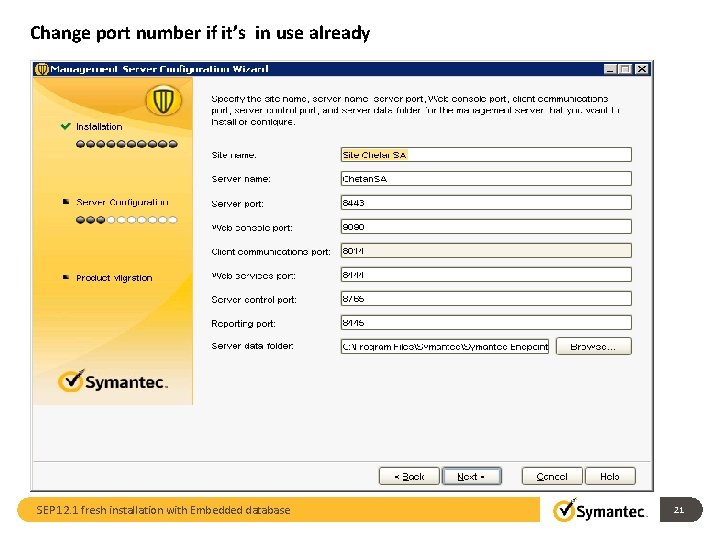
Change port number if it’s in use already SEP 12. 1 fresh installation with Embedded database 21
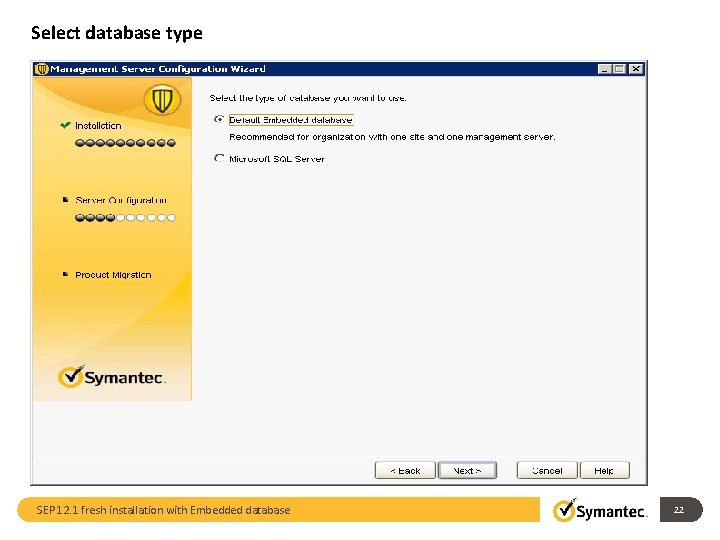
Select database type SEP 12. 1 fresh installation with Embedded database 22
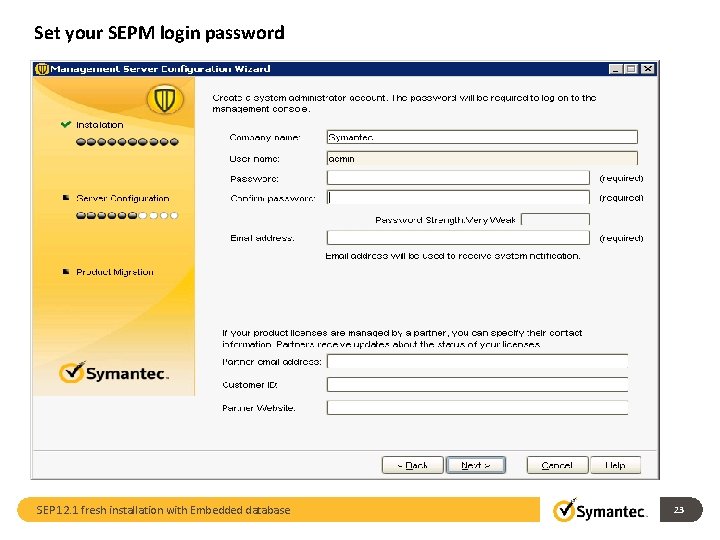
Set your SEPM login password SEP 12. 1 fresh installation with Embedded database 23
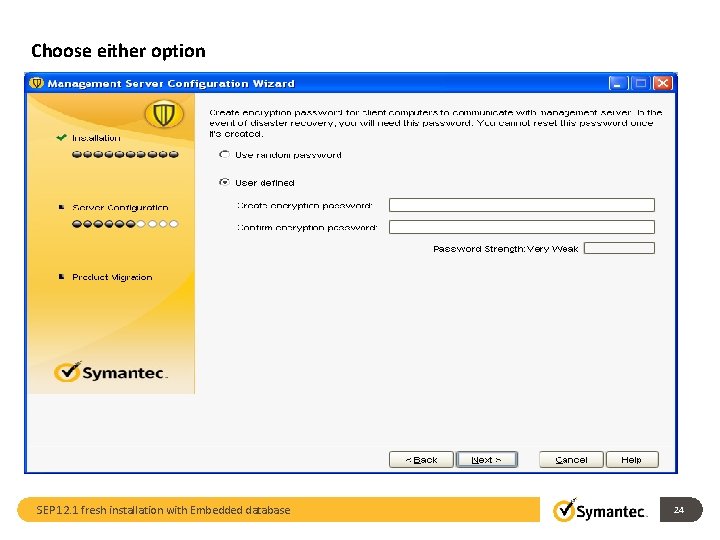
Choose either option SEP 12. 1 fresh installation with Embedded database 24
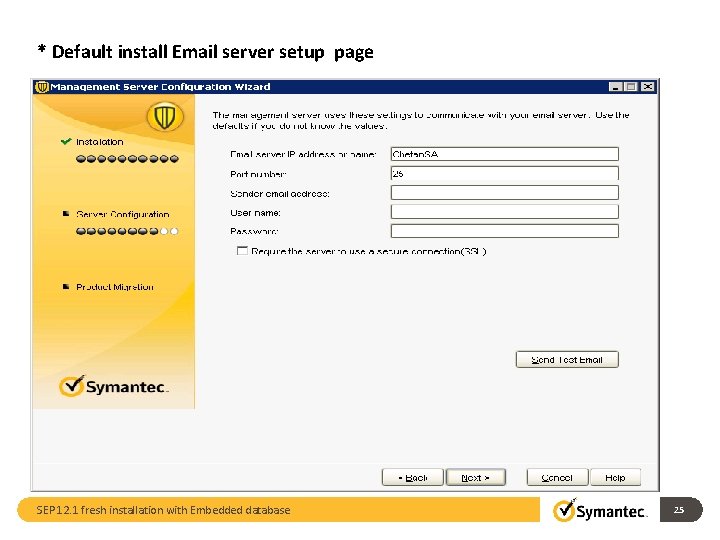
* Default install Email server setup page SEP 12. 1 fresh installation with Embedded database 25
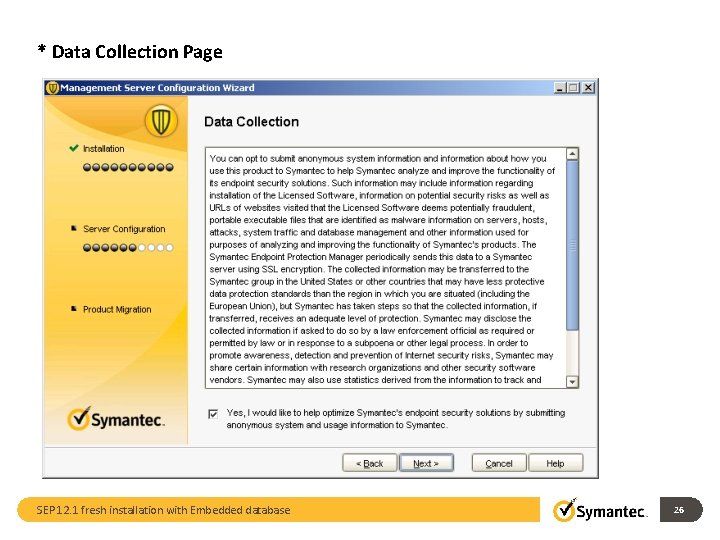
* Data Collection Page SEP 12. 1 fresh installation with Embedded database 26
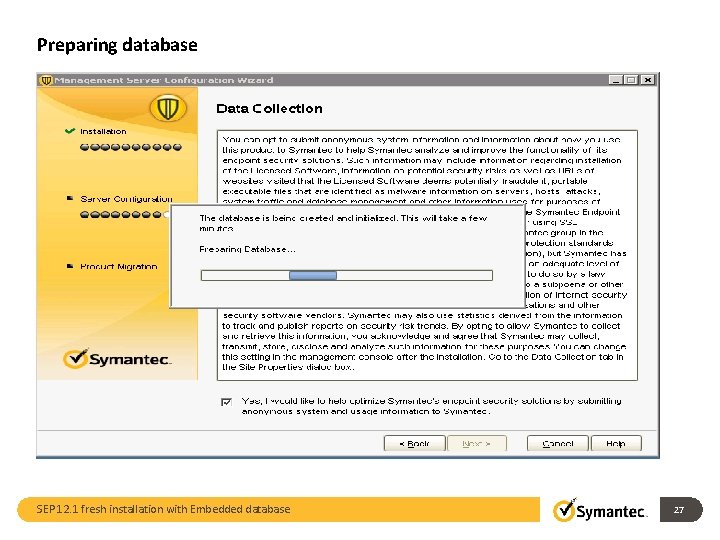
Preparing database SEP 12. 1 fresh installation with Embedded database 27
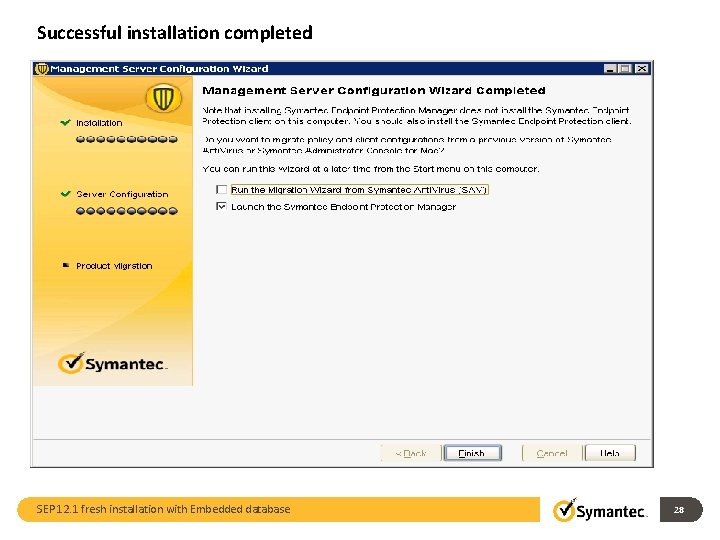
Successful installation completed SEP 12. 1 fresh installation with Embedded database 28
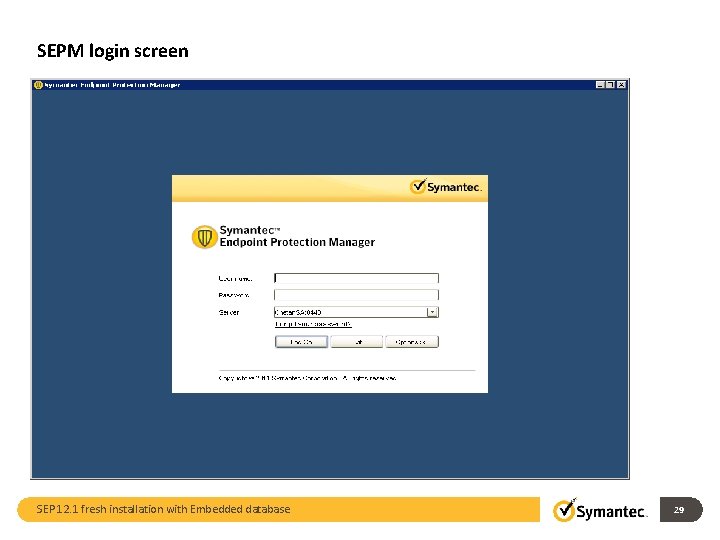
SEPM login screen SEP 12. 1 fresh installation with Embedded database 29
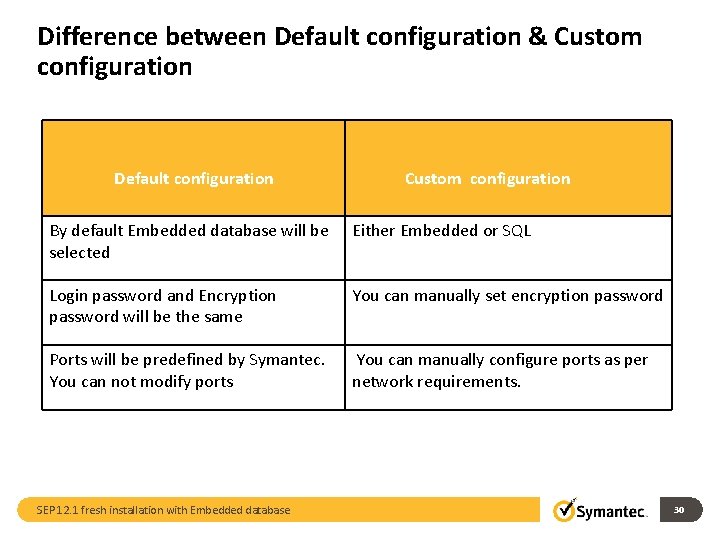
Difference between Default configuration & Custom configuration Default configuration Custom configuration By default Embedded database will be selected Either Embedded or SQL Login password and Encryption password will be the same You can manually set encryption password Ports will be predefined by Symantec. You can not modify ports You can manually configure ports as per network requirements. SEP 12. 1 fresh installation with Embedded database 30

Thank You Chetan Savade SEP 12. 1 fresh installation with Embedded database 31
- Slides: 31