
Self Service Time and Attendance SSTA Benefitted Employees
Self Service Time and Attendance (SSTA) Benefitted Employees Human Resources Updated: 05/21/2019
SSTA Benefitted Employees • Step 1. In order to log onto HR/CMS to enter your weekly time go to the following website: • https: //hrcms-prod. mass. gov/psp/H 92 PRD/EMPLOYEE/HRMS • Step 2. Log into SSTA using your 6 digit HR/CMS ID (provided by HR) and password. • The first time you log into HR/CMS, your password will be the first letter of your first name (Uppercase), first letter of your last name (lowercase), followed by your 6 digit HR/CMS ID, and the last 4 digits of your Social Security Number. (Example Cs 1234567890) • The System will ask you to reset your password upon initial login • Passwords must be at least 10 characters and must contain 1 number. • If you forget your password DO NOT use the Forgot your password link. You must submit an IT helpdesk ticket.
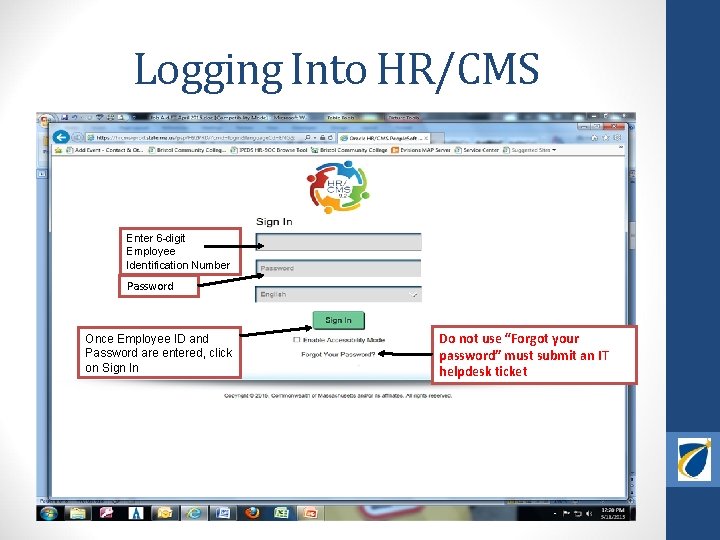
Logging Into HR/CMS Enter 6 -digit Employee Identification Number Password Once Employee ID and Password are entered, click on Sign In Do not use “Forgot your password” must submit an IT helpdesk ticket
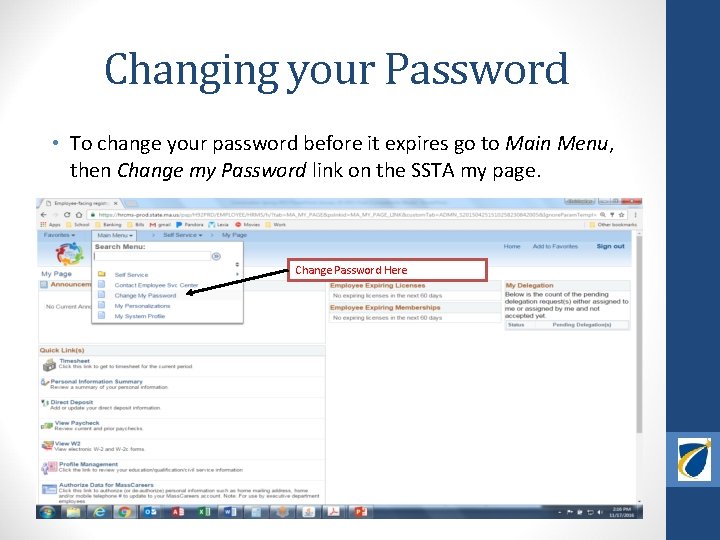
Changing your Password • To change your password before it expires go to Main Menu, then Change my Password link on the SSTA my page. Change Password Here

Entering hours into Timesheet • Step 3 - From the SSTA homepage, click on Timesheet. Click Timesheet to enter your time • You can also view your W 2 and Paycheck, change your Direct Deposit, or update your Personal Information on this page.
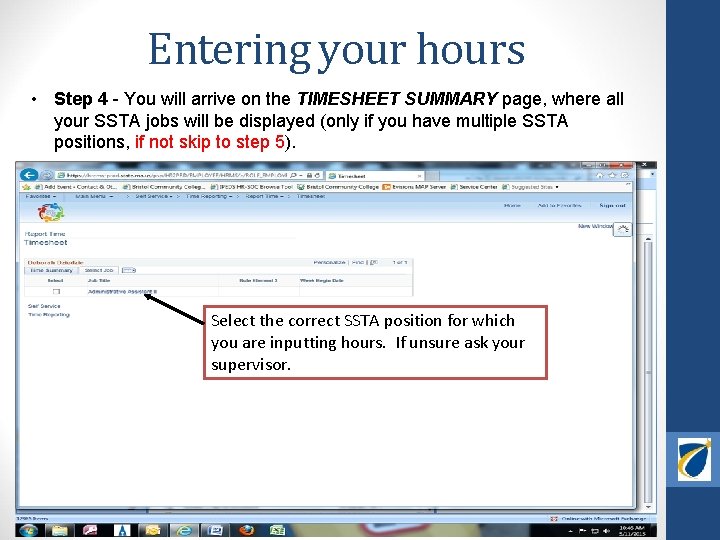
Entering your hours • Step 4 - You will arrive on the TIMESHEET SUMMARY page, where all your SSTA jobs will be displayed (only if you have multiple SSTA positions, if not skip to step 5). Select the correct SSTA position for which you are inputting hours. If unsure ask your supervisor.

Entering your Hours • • Step 5 - Once logged into your timesheet, your scheduled time will already be pre -populated into each field. Step 6 - If you worked a full week with no time off, enter REG in the TRC Box, click Submit. Enter REG in TRC Box Click Submit

Entering your Hours • • If you took any time off during the work week, click the plus (+) sign to add a row, delete the time from the day in the first row, add the time into the second row, and add the appropriate Time Reporting Code (TRC)*, then Submit. click the magnifying glass for a pop-up list of all TRCs. If using SIF or BRL you must include a comment stating relationship of family member by clicking on the Add Comments link Use the Add Comments link when using Sick in Family or Bereavement Leave
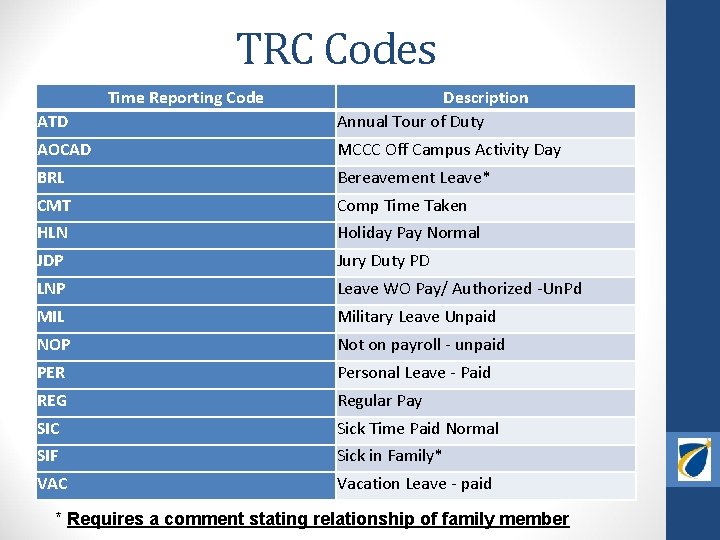
TRC Codes Time Reporting Code ATD Description Annual Tour of Duty AOCAD MCCC Off Campus Activity Day BRL Bereavement Leave* CMT Comp Time Taken HLN Holiday Pay Normal JDP Jury Duty PD LNP Leave WO Pay/ Authorized -Un. Pd MIL Military Leave Unpaid NOP Not on payroll - unpaid PER Personal Leave - Paid REG Regular Pay SIC Sick Time Paid Normal SIF Sick in Family* VAC Vacation Leave - paid * Requires a comment stating relationship of family member
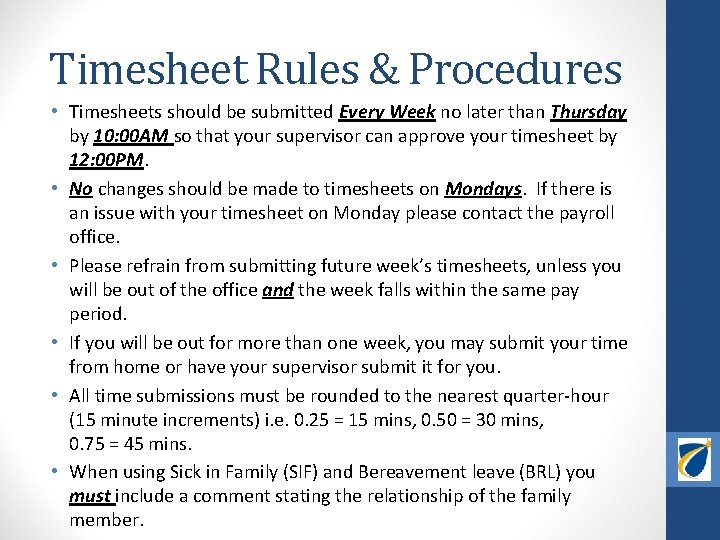
Timesheet Rules & Procedures • Timesheets should be submitted Every Week no later than Thursday by 10: 00 AM so that your supervisor can approve your timesheet by 12: 00 PM. • No changes should be made to timesheets on Mondays. If there is an issue with your timesheet on Monday please contact the payroll office. • Please refrain from submitting future week’s timesheets, unless you will be out of the office and the week falls within the same pay period. • If you will be out for more than one week, you may submit your time from home or have your supervisor submit it for you. • All time submissions must be rounded to the nearest quarter-hour (15 minute increments) i. e. 0. 25 = 15 mins, 0. 50 = 30 mins, 0. 75 = 45 mins. • When using Sick in Family (SIF) and Bereavement leave (BRL) you must include a comment stating the relationship of the family member.
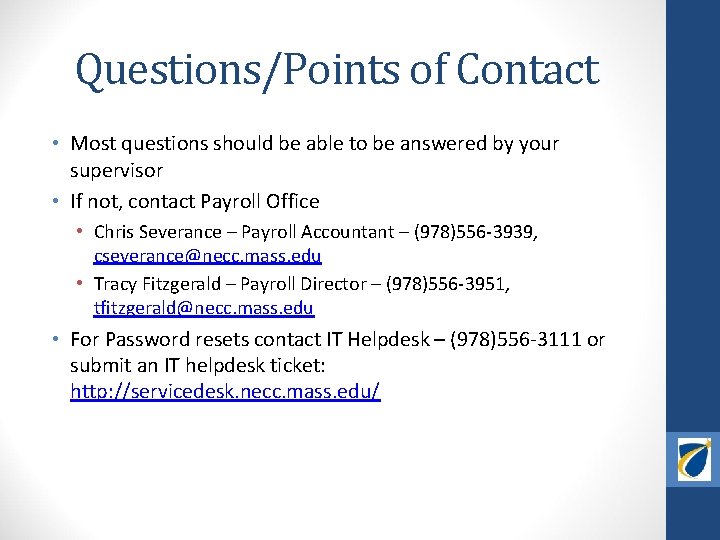
Questions/Points of Contact • Most questions should be able to be answered by your supervisor • If not, contact Payroll Office • Chris Severance – Payroll Accountant – (978)556 -3939, cseverance@necc. mass. edu • Tracy Fitzgerald – Payroll Director – (978)556 -3951, tfitzgerald@necc. mass. edu • For Password resets contact IT Helpdesk – (978)556 -3111 or submit an IT helpdesk ticket: http: //servicedesk. necc. mass. edu/
- Slides: 11