
Seesaw for Schools Creating an Account 1 Our
![Family Letter from Admin (8 Weeks After Launch) Dear Families [Our school] is using](https://slidetodoc.com/presentation_image_h2/9e5e1cea07929e5f3379200e119f2cd1/image-23.jpg "Family Letter from Admin (8 Weeks After Launch) Dear Families [Our school] is using")
- Slides: 25
Seesaw for Schools Creating an Account 1
“ Our mission is to create a space where students are inspired to do their best. 2
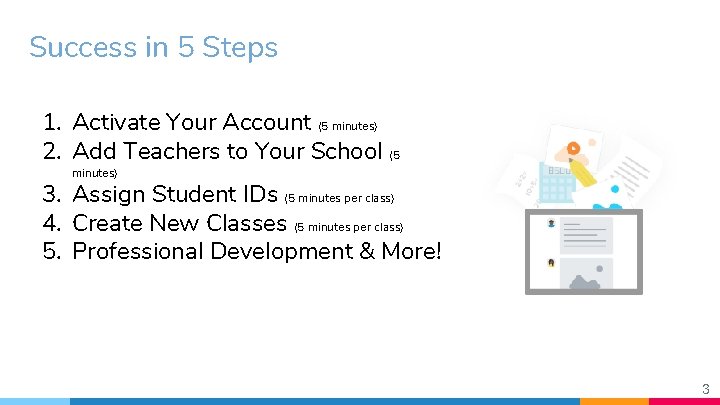
Success in 5 Steps 1. Activate Your Account (5 minutes) 2. Add Teachers to Your School (5 minutes) 3. Assign Student IDs (5 minutes per class) 4. Create New Classes (5 minutes per class) 5. Professional Development & More! 3
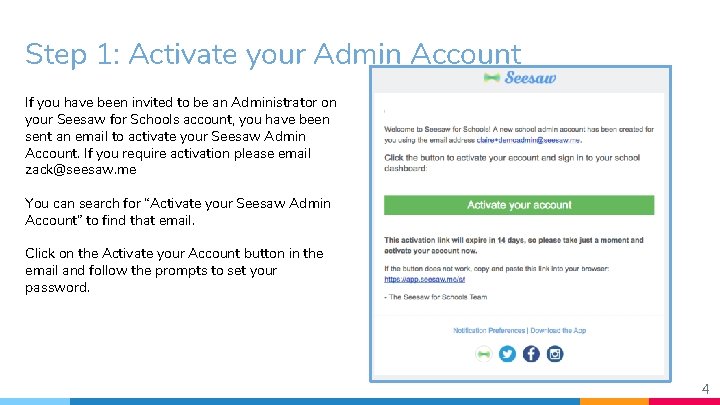
Step 1: Activate your Admin Account If you have been invited to be an Administrator on your Seesaw for Schools account, you have been sent an email to activate your Seesaw Admin Account. If you require activation please email zack@seesaw. me You can search for “Activate your Seesaw Admin Account” to find that email. Click on the Activate your Account button in the email and follow the prompts to set your password. 4
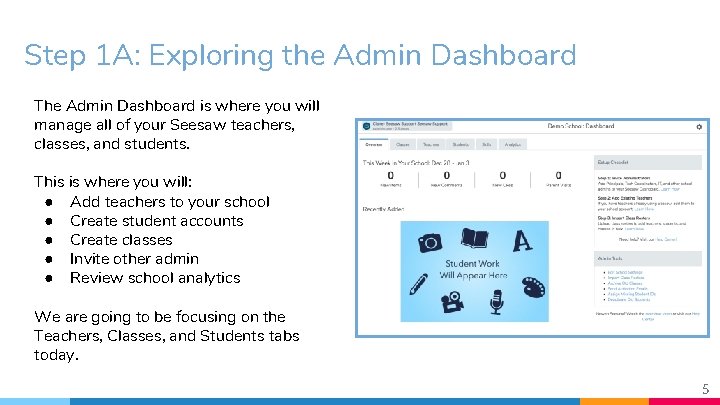
Step 1 A: Exploring the Admin Dashboard The Admin Dashboard is where you will manage all of your Seesaw teachers, classes, and students. This is where you will: ● Add teachers to your school ● Create student accounts ● Create classes ● Invite other admin ● Review school analytics We are going to be focusing on the Teachers, Classes, and Students tabs today. 5
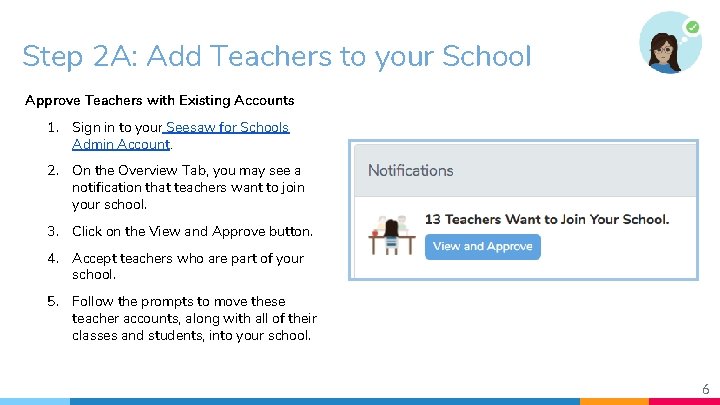
Step 2 A: Add Teachers to your School Approve Teachers with Existing Accounts 1. Sign in to your Seesaw for Schools Admin Account. 2. On the Overview Tab, you may see a notification that teachers want to join your school. 3. Click on the View and Approve button. 4. Accept teachers who are part of your school. 5. Follow the prompts to move these teacher accounts, along with all of their classes and students, into your school. 6
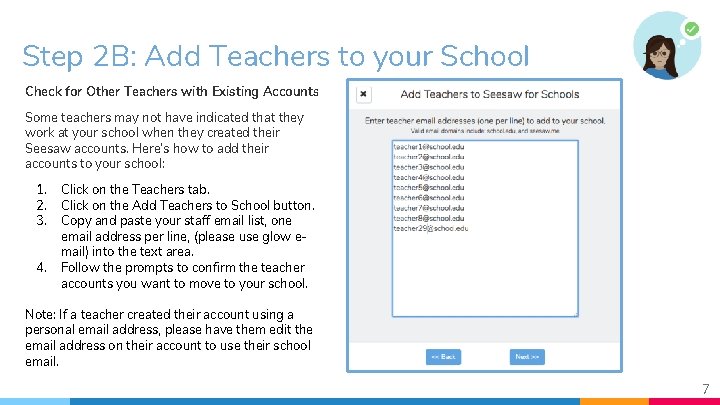
Step 2 B: Add Teachers to your School Check for Other Teachers with Existing Accounts Some teachers may not have indicated that they work at your school when they created their Seesaw accounts. Here’s how to add their accounts to your school: 1. 2. 3. 4. Click on the Teachers tab. Click on the Add Teachers to School button. Copy and paste your staff email list, one email address per line, (please use glow email) into the text area. Follow the prompts to confirm the teacher accounts you want to move to your school. Note: If a teacher created their account using a personal email address, please have them edit the email address on their account to use their school email. 7
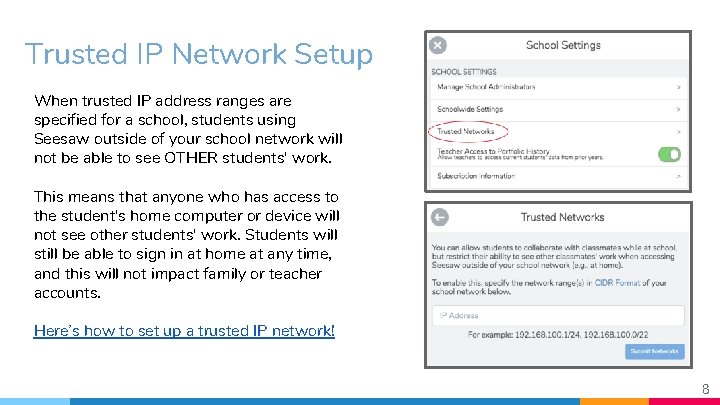
Trusted IP Network Setup When trusted IP address ranges are specified for a school, students using Seesaw outside of your school network will not be able to see OTHER students' work. This means that anyone who has access to the student's home computer or device will not see other students' work. Students will still be able to sign in at home at any time, and this will not impact family or teacher accounts. Here’s how to set up a trusted IP network! 8
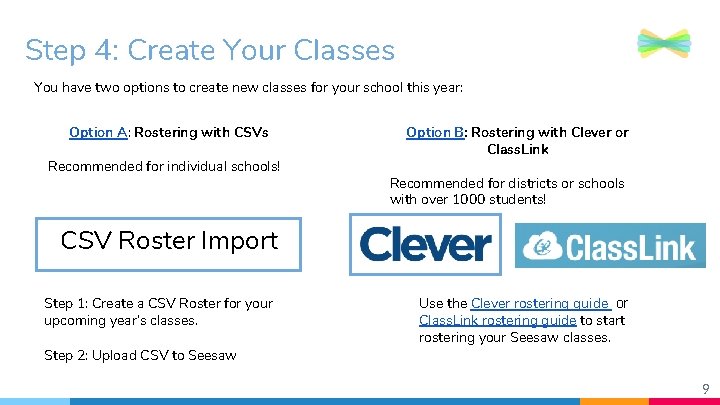
Step 4: Create Your Classes You have two options to create new classes for your school this year: Option A: Rostering with CSVs Recommended for individual schools! Option B: Rostering with Clever or Class. Link Recommended for districts or schools with over 1000 students! CSV Roster Import Step 1: Create a CSV Roster for your upcoming year’s classes. Step 2: Upload CSV to Seesaw Use the Clever rostering guide or Class. Link rostering guide to start rostering your Seesaw classes. 9
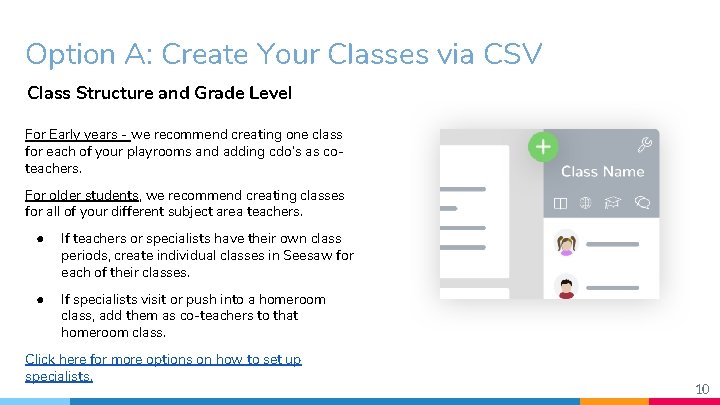
Option A: Create Your Classes via CSV Class Structure and Grade Level For Early years - we recommend creating one class for each of your playrooms and adding cdo’s as coteachers. For older students, we recommend creating classes for all of your different subject area teachers. ● If teachers or specialists have their own class periods, create individual classes in Seesaw for each of their classes. ● If specialists visit or push into a homeroom class, add them as co-teachers to that homeroom class. Click here for more options on how to set up specialists. 10
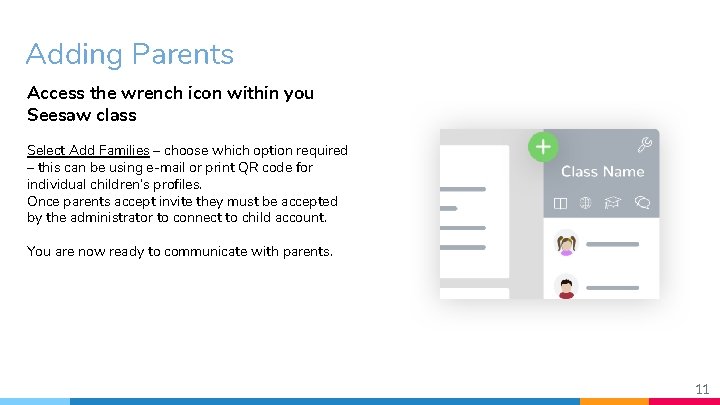
Adding Parents Access the wrench icon within you Seesaw class Select Add Families – choose which option required – this can be using e-mail or print QR code for individual children’s profiles. Once parents accept invite they must be accepted by the administrator to connect to child account. You are now ready to communicate with parents. 11
Congratulations! You’re ready to start using Seesaw at your school! Need help with End of Year steps? Check out our Seesaw for Schools End of Year guide! 12
Step 5: Professional Development & More! After your classes are created in Seesaw, we recommend hosting a few professional development sessions to train your teachers on how to use Seesaw! Use the Seesaw for Schools: Interactive Teacher Training as your training guide! As an Admin, you can host these PD sessions yourself. Or, if you have a Seesaw expert in your school, ask them to help lead the session! 13
Questions? Check out our Help Center 14
School Success Plan Appendix The following slides give exemplar emails you may wish to send to staff and parents. These can be adapted to take account of the timescales in which you are hoping to launch Seesaw. ● Email Templates ○ Customizable emails to send to IT Staff, Teachers, and Families ● Inviting Families to Seesaw ○ Instructions on how to invite Families to Seesaw, and guidelines for Families to follow 15
Email to IT Staff (2 Weeks Before Launch) Subj: Help with Network Compatibility for Seesaw Hi [Name]— Our school has purchased Seesaw for Schools. Seesaw is a portfolio app and website that our students and staff will use to document and record student learning, growth and collaboration. Student learning will also be shared with students’ families via the Seesaw Family App. We need your help to ensure success! Please review the network and compatibility requirements so we can successfully roll out Seesaw at our school. We would like to have Seesaw for Schools deployed to our staff and students on [roll out date]. Thank you for your commitment to student success at [school name]. 16
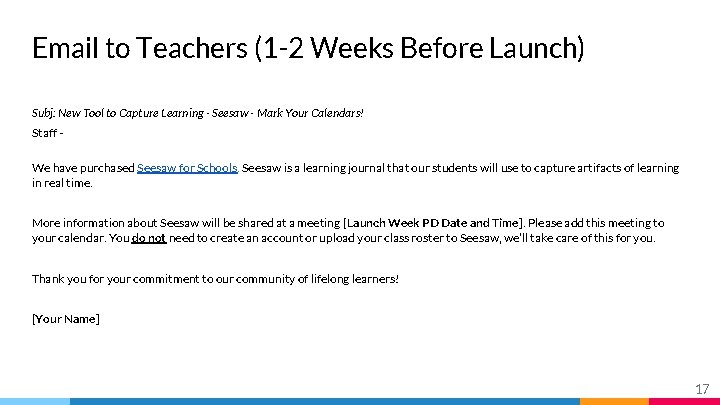
Email to Teachers (1 -2 Weeks Before Launch) Subj: New Tool to Capture Learning - Seesaw - Mark Your Calendars! Staff We have purchased Seesaw for Schools. Seesaw is a learning journal that our students will use to capture artifacts of learning in real time. More information about Seesaw will be shared at a meeting [Launch Week PD Date and Time]. Please add this meeting to your calendar. You do not need to create an account or upload your class roster to Seesaw, we’ll take care of this for you. Thank you for your commitment to our community of lifelong learners! [Your Name] 17
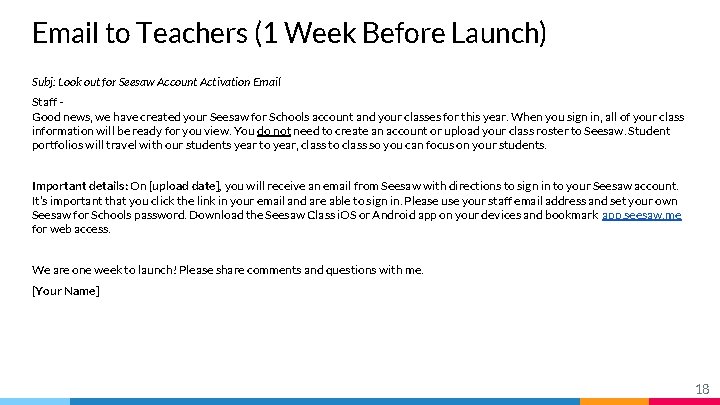
Email to Teachers (1 Week Before Launch) Subj: Look out for Seesaw Account Activation Email Staff Good news, we have created your Seesaw for Schools account and your classes for this year. When you sign in, all of your class information will be ready for you view. You do not need to create an account or upload your class roster to Seesaw. Student portfolios will travel with our students year to year, class to class so you can focus on your students. Important details: On [upload date], you will receive an email from Seesaw with directions to sign in to your Seesaw account. It’s important that you click the link in your email and are able to sign in. Please use your staff email address and set your own Seesaw for Schools password. Download the Seesaw Class i. OS or Android app on your devices and bookmark app. seesaw. me for web access. We are one week to launch! Please share comments and questions with me. [Your Name] 18
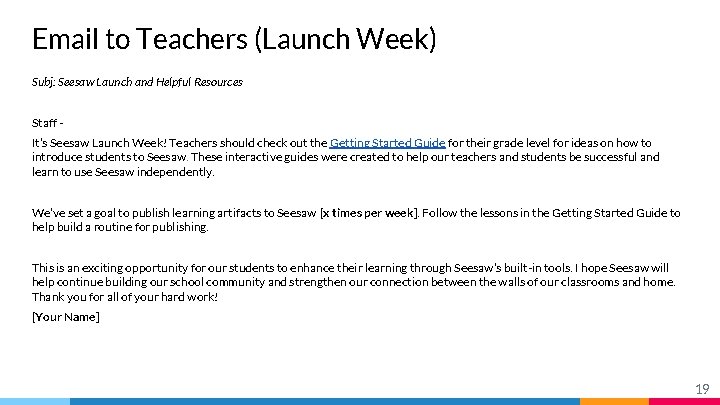
Email to Teachers (Launch Week) Subj: Seesaw Launch and Helpful Resources Staff It’s Seesaw Launch Week! Teachers should check out the Getting Started Guide for their grade level for ideas on how to introduce students to Seesaw. These interactive guides were created to help our teachers and students be successful and learn to use Seesaw independently. We’ve set a goal to publish learning artifacts to Seesaw [x times per week]. Follow the lessons in the Getting Started Guide to help build a routine for publishing. This is an exciting opportunity for our students to enhance their learning through Seesaw’s built-in tools. I hope Seesaw will help continue building our school community and strengthen our connection between the walls of our classrooms and home. Thank you for all of your hard work! [Your Name] 19
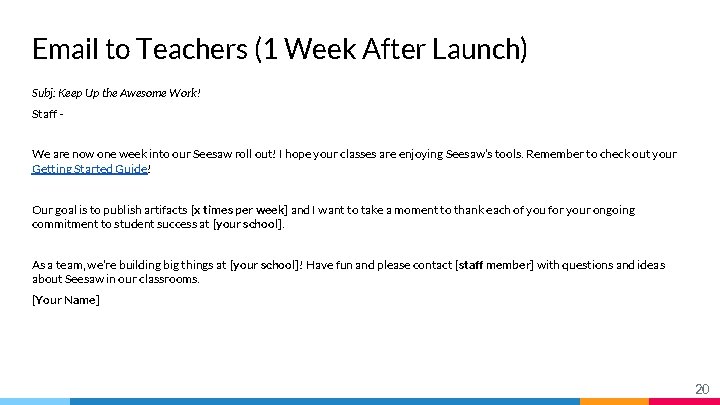
Email to Teachers (1 Week After Launch) Subj: Keep Up the Awesome Work! Staff We are now one week into our Seesaw roll out! I hope your classes are enjoying Seesaw’s tools. Remember to check out your Getting Started Guide! Our goal is to publish artifacts [x times per week] and I want to take a moment to thank each of you for your ongoing commitment to student success at [your school]. As a team, we’re building big things at [your school]! Have fun and please contact [staff member] with questions and ideas about Seesaw in our classrooms. [Your Name] 20
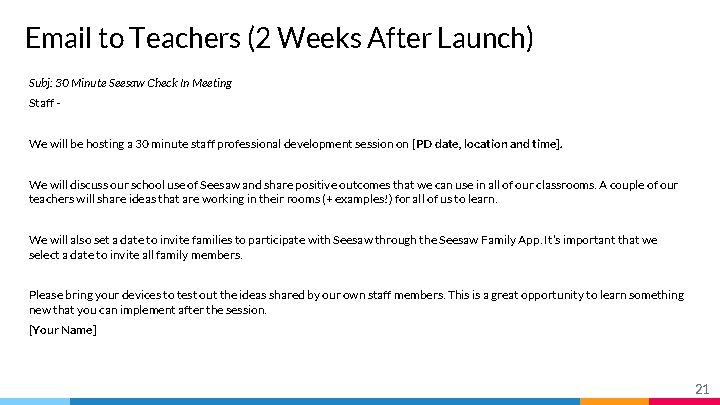
Email to Teachers (2 Weeks After Launch) Subj: 30 Minute Seesaw Check In Meeting Staff We will be hosting a 30 minute staff professional development session on [PD date, location and time]. We will discuss our school use of Seesaw and share positive outcomes that we can use in all of our classrooms. A couple of our teachers will share ideas that are working in their rooms (+ examples!) for all of us to learn. We will also set a date to invite families to participate with Seesaw through the Seesaw Family App. It’s important that we select a date to invite all family members. Please bring your devices to test out the ideas shared by our own staff members. This is a great opportunity to learn something new that you can implement after the session. [Your Name] 21
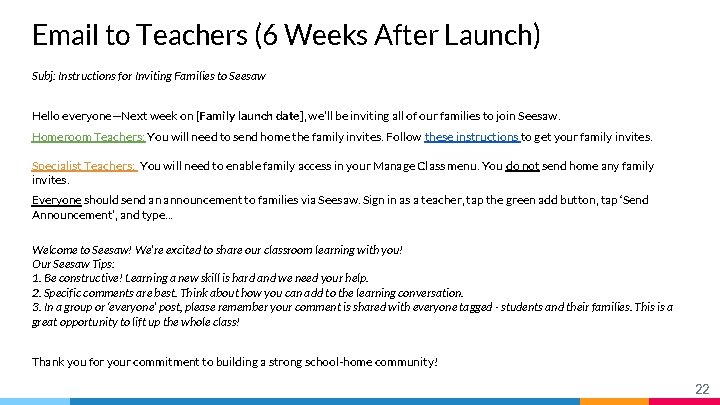
Email to Teachers (6 Weeks After Launch) Subj: Instructions for Inviting Families to Seesaw Hello everyone—Next week on [Family launch date], we’ll be inviting all of our families to join Seesaw. Homeroom Teachers: You will need to send home the family invites. Follow these instructions to get your family invites. Specialist Teachers: You will need to enable family access in your Manage Class menu. You do not send home any family invites. Everyone should send an announcement to families via Seesaw. Sign in as a teacher, tap the green add button, tap ‘Send Announcement’, and type. . . Welcome to Seesaw! We’re excited to share our classroom learning with you! Our Seesaw Tips: 1. Be constructive! Learning a new skill is hard and we need your help. 2. Specific comments are best. Think about how you can add to the learning conversation. 3. In a group or ‘everyone’ post, please remember your comment is shared with everyone tagged - students and their families. This is a great opportunity to lift up the whole class! Thank you for your commitment to building a strong school-home community! 22
Family Letter from Admin (8 Weeks After Launch) Dear Families [Our school] is using Seesaw this year! Seesaw gives your child creative tools to capture and reflect on their learning - in real time. Then this work is shared with you. Seesaw will give you a window into each of our classrooms and into your student’s learning process. We will use Seesaw to reflect and grow in areas of [learning objective] and [learning objective]. Our students are excited to use this new tool in partnership with the great things our teachers do in their classrooms. We need your help with Seesaw to ensure success at [school]. You can download Seesaw’s family App for i. OS, Android, or use the web to view your student’s learning artifacts. When your child adds new work, you will receive a notification to see, hear and respond to your child’s post. You only have access to your own child’s work and all of the content is stored securely. [our school] is happy to announce this new opportunity for our students. Please contact [school contact] with any questions about Seesaw. With your help, we can continue building our school community of lifelong learners. You will receive a handout with directions to download and sign up for your child’s Seesaw journal. These letters will go home on [family invite date]. [Name] 23
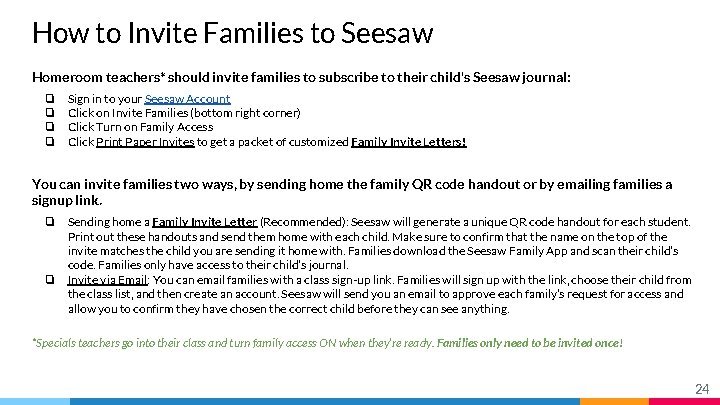
How to Invite Families to Seesaw Homeroom teachers* should invite families to subscribe to their child's Seesaw journal: ❏ ❏ Sign in to your Seesaw Account Click on Invite Families (bottom right corner) Click Turn on Family Access Click Print Paper Invites to get a packet of customized Family Invite Letters! You can invite families two ways, by sending home the family QR code handout or by emailing families a signup link. ❏ ❏ Sending home a Family Invite Letter (Recommended): Seesaw will generate a unique QR code handout for each student. Print out these handouts and send them home with each child. Make sure to confirm that the name on the top of the invite matches the child you are sending it home with. Families download the Seesaw Family App and scan their child’s code. Families only have access to their child’s journal. Invite via Email: You can email families with a class sign-up link. Families will sign up with the link, choose their child from the class list, and then create an account. Seesaw will send you an email to approve each family’s request for access and allow you to confirm they have chosen the correct child before they can see anything. *Specials teachers go into their class and turn family access ON when they’re ready. Families only need to be invited once! 24
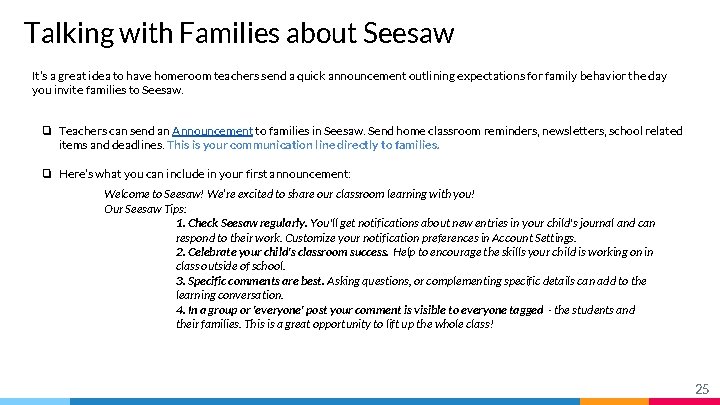
Talking with Families about Seesaw It’s a great idea to have homeroom teachers send a quick announcement outlining expectations for family behavior the day you invite families to Seesaw. ❏ Teachers can send an Announcement to families in Seesaw. Send home classroom reminders, newsletters, school related items and deadlines. This is your communication line directly to families. ❏ Here’s what you can include in your first announcement: Welcome to Seesaw! We’re excited to share our classroom learning with you! Our Seesaw Tips: 1. Check Seesaw regularly. You'll get notifications about new entries in your child's journal and can respond to their work. Customize your notification preferences in Account Settings. 2. Celebrate your child's classroom success. Help to encourage the skills your child is working on in class outside of school. 3. Specific comments are best. Asking questions, or complementing specific details can add to the learning conversation. 4. In a group or 'everyone' post your comment is visible to everyone tagged - the students and their families. This is a great opportunity to lift up the whole class! 25