
Section 3 Computing With Confidence 132022 1 By
Section 3: Computing With Confidence 1/3/2022 1 By Usaima Al-Saltey 2008
Computing problem Reliability problem of computers Reasons: • Complexity of computers and software • Competition of companies in the software market • Software versions problem: newer versions cannot interpret features of the newer versions Problem of complex software that require more memory and space and hence more powerful machines. 1/3/2022 2 By Usaima Al-Saltey 2008
A confident computer user should know more than just press key to operate software, he should, 1. Know how to deal with the computer problems 2. How to learn on your own. 3. Apply the basic steps in learning new software 1/3/2022 3 By Usaima Al-Saltey 2008
To Know how to deal with the computer problems: § § 1/3/2022 Act defensively: s Save your works every few minutes not hours (you can do this by pressing Ctrl + s) s back up the important files (by using floppy disks or CD). Look for work-arounds: there are more than one way to solve the problem. s Shut down the computer: in order to solve the problem if it is in the operating system level. s Restarting the computer: (Control + Alt + Delete) to solve the computer crash problem. s Reinstall the software: from the original CD room or floppy disk. Take some helps from the built-in help sources. Take help from the expert through the Internet (e. g. , 4 Frequently Asked Questions (FAQs)). By Usaima Al-Saltey 2008
To learn on your own: § Don’t be afraid to try things out and explore. You will learn from your mistakes. § Look for patterns: Check the differences and similarities (e. g. , tool bars and menu bars) between different software. § Use the Internet in order to take more information. § Read the software manual if it is not so big. § Try to find ‘Read me’ or ‘About this version’ and read it. 1/3/2022 5 By Usaima Al-Saltey 2008
To Apply the basic steps in learning new software, • Get some general sense of what it is supposed to do by reading the introduction in its manual. • Systematically explore its toolbars • Systematically explore its menus • Look for menus called preferences or options • Create a new document or whatever, and then change it around and look to the different formats in which it can be saved. • Have a brief look at the build-in help files. 1/3/2022 6 By Usaima Al-Saltey 2008
Key Terms • Word processing is the creating, editing, formatting, storing, retrieving, and printing of a text document. • A text document is any text that can be keyed in, such as a memo. • Creation is the original composing and keying in of the document, • Editing is making changes to the document, • Formatting is adjusting the appearance of the document, • Storing is saving the document to disk, • Retrieving is bringing the stored document from disk back into computer memory, • Printing is producing the document on paper. 7 1/3/2022 By Usaima Al-Saltey 2008
Word processors § Word processors are probably the most commonly used software today. It is used for creating, editing, formatting, storing, retrieving, and printing of a text document. § In the past, typewriters were used. § making changes was very tedious (requires page rewriting) § Now, modern word processors are used § you can easily add font styles , different font types , colors, margins, tables, columns, etc. 1/3/2022 8 By Usaima Al-Saltey 2008
Teletype machine 1/3/2022 § These are automatic typewriter machines connected to computers. § Computers feed a string of codes into the teletype machine. § Codes are characters, numbers or symbols like spaces, CR (Carriage Return) and LF (Line Feed). § Such code is called the ASCII code, which stands for “American Standard Code for Information Interchange”. 9 By Usaima Al-Saltey 2008
Modern word processors § They treat text as string of code, but with more codes corresponding to features such as (bold, italic, margins, etc. ) § Use ink jet and laser printers. § Has two main problems: § The problem of versions § Older versions cannot read files created by newer versions, because this requires first converting the codes corresponding to the new features. § The problem of incompatible files 1/3/2022 § Solutions: § Save file in Rich Text Format. rtf called sometimes 'interchange format'. § Save file in text format. txt 10 By Usaima Al-Saltey 2008
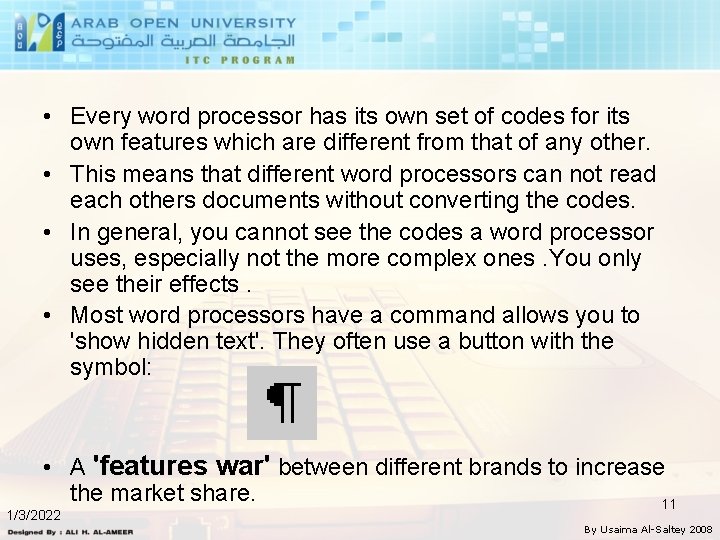
• Every word processor has its own set of codes for its own features which are different from that of any other. • This means that different word processors can not read each others documents without converting the codes. • In general, you cannot see the codes a word processor uses, especially not the more complex ones. You only see their effects. • Most word processors have a command allows you to 'show hidden text'. They often use a button with the symbol: • A 'features war' between different brands to increase the market share. 11 1/3/2022 By Usaima Al-Saltey 2008
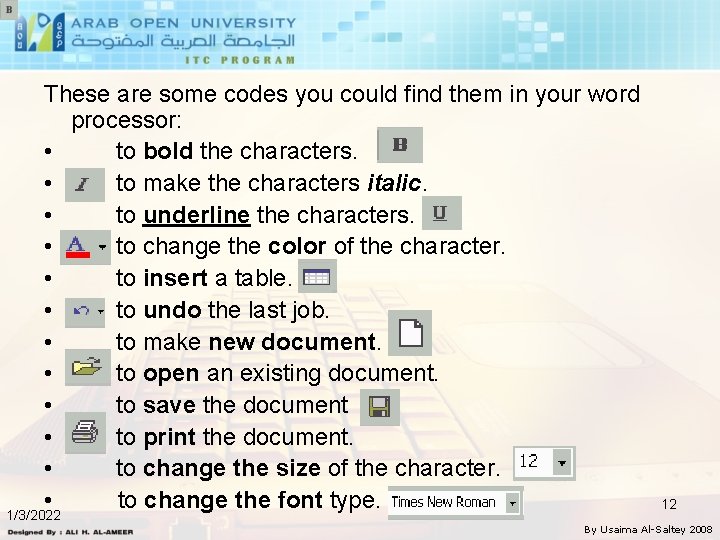
These are some codes you could find them in your word processor: • to bold the characters. • to make the characters italic. • to underline the characters. • to change the color of the character. • to insert a table. • to undo the last job. • to make new document. • to open an existing document. • to save the document • to print the document. • to change the size of the character. • to change the font type. 1/3/2022 12 By Usaima Al-Saltey 2008
• Scrolling, done by moving the cursor, lets you display any part of the document on the screen. • Word wrap automatically starts a word on the next line if it does not fit on the previous line. • Use the Backspace key to delete characters to the left or the Delete key to delete the character under the cursor or to the right of the cursor. • Mouse users issue commands through a series of menus, called pull-down menus, which offer initial choices and submenus, or by using buttons at the top of the screen. • Vertical centering adjusts the top and bottom margins so that the text is centered vertically on the printed page. • Any line can be individually centered between the left and right margins of the page. • Default settings are Settings automatically used by the word processing program. 1/3/2022 13 By Usaima Al-Saltey 2008
• When the margin settings are changed, word processing software adjusts the text to fit the new margins; this process is called automatic reformatting. • Users can tab just once to begin a paragraph or can indent an entire paragraph. • Justification refers to the evenness of the text at the side margins. • A document is fully justified when it has an even margin down each side. • Left justification causes an unjustified right side, which is referred to as ragged right text. • A font is a set of characters-letters, punctuation, and numbers-of the same design. On a serif font, each character includes small marks, known as serifs. A sans serif font is clean and stark, with no serif marks. 1/3/2022 14 By Usaima Al-Saltey 2008
• The search command, also called the find command, displays on the screen the exact page and place where a word or phrase is located. • The find and replace function finds each instance of a certain word or phrase and replaces it with another word or phrase. • A conditional replace asks you to verify each replacement. • Word processing programs offer pagination options, permitting the page number to be located at the top or bottom of the page and to the left, right, or centre, or even alternating left and right • With a single command, a user can see in reduced size a print preview of an entire page or two facing pages or even several consecutive pages. • A word processing program keeps track of space needed for a footnote and automatically renumbers if a new footnote is added. • Headers (top) and footers (bottom) appear on every page of a document. A number of variations are available, including placement, size, and font. 1/3/2022 15 By Usaima Al-Saltey 2008
• A text block can be moved, copied, or deleted. • To manipulate a block of text, you must first mark (or select) the block, which then usually appears in reverse video (in which the background color becomes the text color and vice versa). • The block move command, also known as cut and paste, moves the text to a different location. • The block copy command copies the block of text into a new location, leaving the text in its original location as well. • Block delete removes the block entirely. • A spelling checker program includes a built-in dictionary. • A thesaurus program supplies synonyms and antonyms. • One part of the overall design of a document is page layout how text and pictures are arranged on the page. • Adding text to a layout is called page composition. 16 1/3/2022 By Usaima Al-Saltey 2008
Practical capabilities of MS word Check the effect of basic key presses: § (home) key used to go to the beginning of the line. § (End) key used to go to the end of the line § (Ctrl+home) key used to go the beginning of the document. § (Ctrl+end) key used to go to end of the document. § (page up and page down) keys used to go to the next and previous pages. § (Ctrl+A) key used to select the whole document. 1/3/2022 17 By Usaima Al-Saltey 2008
Graphics Software Graphics can show words and numbers and data in ways that are meaningful and quickly understood. § Uses of graphics software § To view and analyze data. § To make a positive impression during the document presentation. • In the past, To create pictures, this meant learning how to program. • Later: – with the coming of the first Apple Macintosh computer – and the popularization of the mouse, it became easier for the average user to create pictures. • Now: – even some word processors include tools for creating simple line drawings. – As digital cameras become more popular, people are using graphics software to crop, modify or enhance their photographs. 18 1/3/2022 By Usaima Al-Saltey 2008
§ Examples of graphs software include: Windows Paint, Claris. Works, Corel. Draw, etc. § There are four categories of graphics software: § Paint § Drawing § Page layout programs § Image manipulation 1/3/2022 19 By Usaima Al-Saltey 2008
Paint Programs Examples: Windows paint, painter, Paint Box, Paintbrush. • The image is made up of lots of tiny colored dots, • The images produced are called 'Bitmaps', and have the extension '. bmp'. • Bitmap images are stored as descriptions of the color and brightness of each dot. • A large picture will have a large number of dots, and will be a large file. • Pictures produced by digital cameras, or by scanning photographs, are paint images, or Bitmaps. § The size of bitmap images can be reduced by compression which is converting them into jpeg and gif formats and are commonly used for images on World Wide Web. 1/3/2022 20 By Usaima Al-Saltey 2008
Advantage: § Good for fine details and slight shadings of colors. Disadvantages: § Bitmap files take a large memory space. § Difficult to manipulate. When adding some thing new to a bitmap you erase what ever is under the new part. 1/3/2022 21 By Usaima Al-Saltey 2008
Drawing Programs • Examples: Free Hand, Illustrator, Corel Draw, and Claris Works. • The graphs here consists of collection of objects like: lines, rectangles, square polygons, round shapes, and etc. These objects require much less storage than bitmaps. • Spread sheets’ images (e. g. , pie charts, business charts, and etc) are drawing images. 1/3/2022 22 By Usaima Al-Saltey 2008
Advantages: § Good for simpler graphical shapes § Easy to change and manipulate objects. Because you can select the constituting objects easily. § Possible to create detailed image in paint program and copy it into a draw program where it can be combined with other objects. § Take less memory space than paint images, For example: if you want to store a rectangle, you need only information about: Ø Coordinates of corners, Ø Line thickness, Ø Line color, and Ø Filling color. Disadvantage: § Not good for fine detail and subtle shadings of colors. 1/3/2022 23 By Usaima Al-Saltey 2008
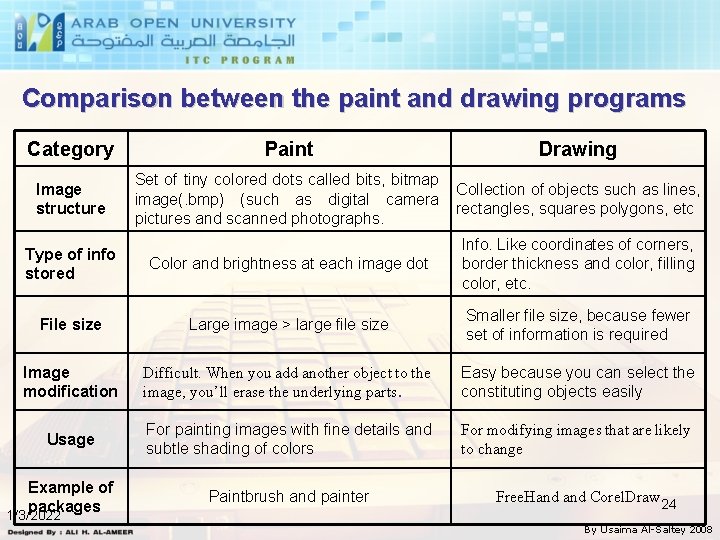
Comparison between the paint and drawing programs Category Paint Drawing Image structure Set of tiny colored dots called bits, bitmap image(. bmp) (such as digital camera pictures and scanned photographs. Collection of objects such as lines, rectangles, squares polygons, etc Type of info stored Color and brightness at each image dot Info. Like coordinates of corners, border thickness and color, filling color, etc. File size Large image > large file size Smaller file size, because fewer set of information is required Image modification Difficult. When you add another object to the image, you’ll erase the underlying parts. Easy because you can select the constituting objects easily Usage For painting images with fine details and subtle shading of colors For modifying images that are likely to change Example of packages 1/3/2022 Paintbrush and painter Free. Hand Corel. Draw 24 By Usaima Al-Saltey 2008
Page Layout Programs • Examples: Quark Express and Page. Maker. • Combining the features of Word Processors with drawing program (and adding more). • Usage: produce books, magazines, and advertisements. • Good for precise control over exactly how and where text and graphics appear on the page. 1/3/2022 25 By Usaima Al-Saltey 2008
Image Manipulation Programs • Examples: Photoshop. • To modify paint images in sophisticated ways: • Retouching images. • Stretching images. • Distorting parts of them. • Changing areas of color. 1/3/2022 26 By Usaima Al-Saltey 2008
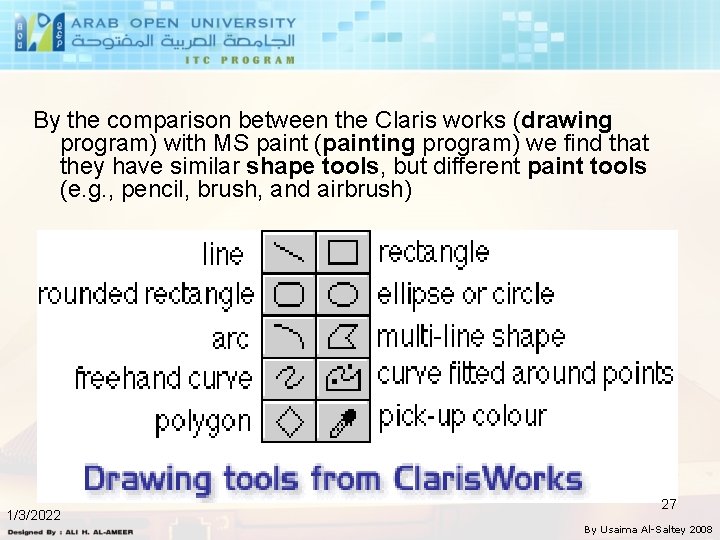
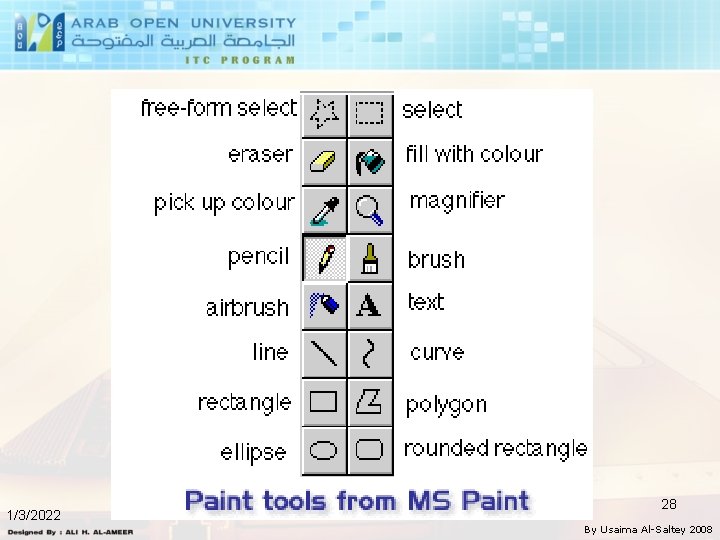
By the comparison between the Claris works (drawing program) with MS paint (painting program) we find that they have similar shape tools, but different paint tools (e. g. , pencil, brush, and airbrush) 1/3/2022 27 By Usaima Al-Saltey 2008
1/3/2022 28 By Usaima Al-Saltey 2008
Working with numbers & graphs using (Excel Spreadsheet) An electronic spreadsheet (worksheet), is a computerized version of a paper spreadsheet. Examples of spreadsheets, Microsoft Excel and Lotus 1 -2 -3. Uses: § Entering, manipulating and storing sets of data § Performing complex calculations § Generating graphs out of data Types of data that can be stored in spreadsheets: § Constant : like numbers, dates, text, currency, etc § Variable: Formulas which are constructed by performing functions like sum, average, max, etc. 29 1/3/2022 By Usaima Al-Saltey 2008
§ You can do all the formatting options and the functions that are used in the word processors (e. g. bold, italic, etc) § A spreadsheet consists of cells, in which you can enter data in the form of numbers, words, dates and times. § Data is arranged in rows and columns § Rows identified by numbers § Columns being identified by letters. § Cell : Basic storage unit. § It is the intersection of a row and column. § The cell address : The letter and number of the intersecting column and row. E. g. B 7. 1/3/2022 30 By Usaima Al-Saltey 2008
• The cell address is also known as cell reference § Active cell (current cell ): The currently selected cell. § The active cell is marked by a heavy border drawn around it. § When a cell is active you can enter data or edit that cell's contents. • Each cell can contain one of three types of information: a label, a value, or a formula. § A label provides descriptive text information about entries in the spreadsheet, such as a person's name. § A value is an actual number entered into a cell to be used in calculations. § A formula is an instruction to the program to calculate a 31 number. 1/3/2022 By Usaima Al-Saltey 2008
§ A range is a group of one or more adjacent cells occurring in a rectangular shape. § Block : Range of selected cells § If you want to act on a column, select the letter at the top of the column to highlight the whole column. § The same procedure applies to rows with their numbers. § Formula bar : The white bar below the toolbar, which shows the contents of your active cell. § The data you are entering will appear in the Formula bar § Workbook : Your Excel file that consists of all your spreadsheets or worksheets § You can have more than one sheet in a workbook § The default value is 3 1/3/2022 32 By Usaima Al-Saltey 2008
Formulas & Functions • A formula generally contains cell addresses and one or more arithmetic operators • A function is like a preprogrammed formula. § The SUM function, adds numbers together, § The AVG function, calculates the average of a group of numbers. § A formula always start with (=). Otherwise it will be a constant value which does not change. 1/3/2022 33 By Usaima Al-Saltey 2008
Common formulas include: § Arithmetic (+, -, /, *) § Sum to find a total. § Average to find the average of a group of numbers. § Max to find the maximum value of a set of numbers. § If-Then to perform tests. 1/3/2022 For example, • If I had students' exam scores in one column • And I wanted the spreadsheet to determine who had passed or failed, • I could have a formula which said something like: If score >= 40 Then 'Pass'. I write =if(CELL=40, ”PASS”, ”FAIL”) • If the number in the 'score' column was greater than or equal to 40 the word Pass would appear automatically. 34 By Usaima Al-Saltey 2008
• Automatic recalculation: when one value or calculation in a spreadsheet is changed, all dependent values on the spreadsheet are automatically recalculated to reflect the change. • "What-If" analysis is the process of changing one or more spreadsheet values and observing the resulting calculated effect. • A formula or function does not appear in the cell. Instead, the cell shows the result of the formula or function. • The result is called the displayed value of the cell. • The formula or function is the cell content. • Formulas can be done in more than one way. For example, To sum the first 5 cells in column A, you can write this in one of the following two ways: 1. =A 1+A 2+A 3+A 4+A 5 2. =sum(A 1: A 5) 1/3/2022 35 By Usaima Al-Saltey 2008
§ The addresses used by formulas are relative addresses. if you copy that formula to another cell, then the formula will be applied to the new set of cells whose addresses are just relative to the original ones. For example: § If you make a formula to sum the first 5 cells in column A. (the range from A 1: A 5) and put its value in A 6, § Then if you copy A 6 to B 6, the value at B 6 will be the summation of cells which are in the range B 1: B 5. 1/3/2022 36 By Usaima Al-Saltey 2008
Charts § Charts allow you to present data entered into the worksheet in a visual format. § You can add a chart by going to the Insert menu and selecting Chart. § The main chart types that can be used in spreadsheets are: § Bar chart § Line graphs § Pie chart 1/3/2022 37 By Usaima Al-Saltey 2008
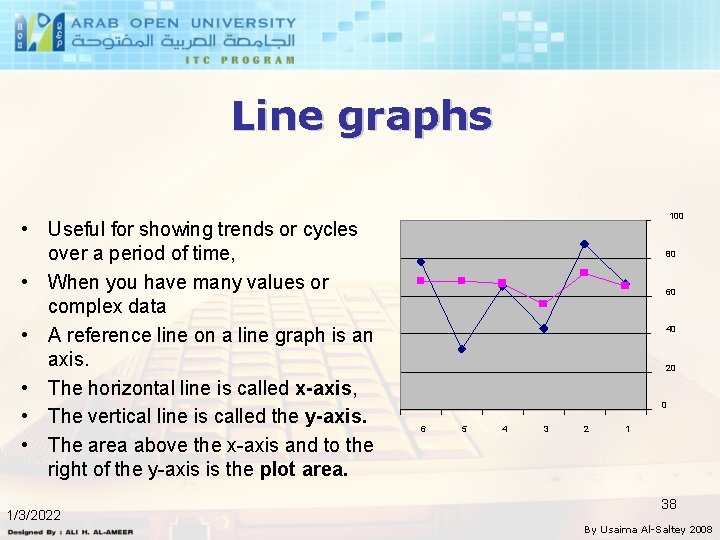
Line graphs • Useful for showing trends or cycles over a period of time, • When you have many values or complex data • A reference line on a line graph is an axis. • The horizontal line is called x-axis, • The vertical line is called the y-axis. • The area above the x-axis and to the right of the y-axis is the plot area. 1/3/2022 100 80 60 40 20 0 6 5 4 3 2 1 38 By Usaima Al-Saltey 2008
• Each dot or symbol on a line graph represents a data point • The items that the data points describe are called variables. • Excel automatically scale the x-axis and y-axis to keep the graph proportional to your data • Labels are used to identify the categories along the xaxis and the units along the y-axis. • Titles summarize the information in the graph 1/3/2022 39 By Usaima Al-Saltey 2008
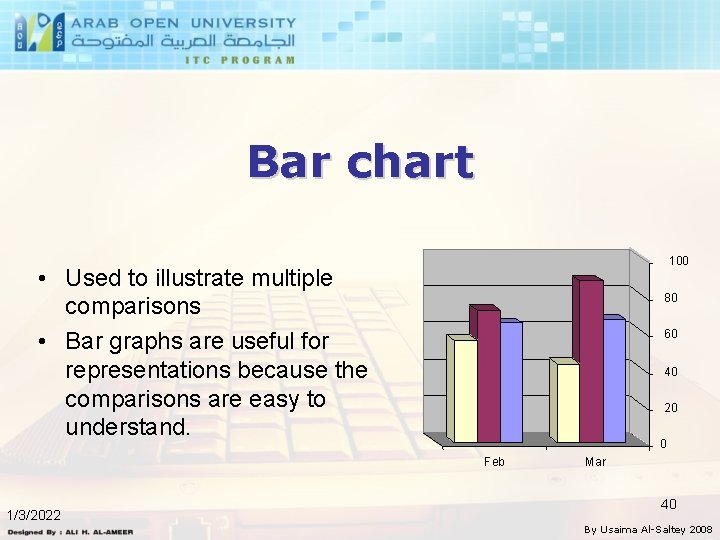
Bar chart 100 • Used to illustrate multiple comparisons • Bar graphs are useful for representations because the comparisons are easy to understand. 80 60 40 20 0 Feb 1/3/2022 Mar 40 By Usaima Al-Saltey 2008
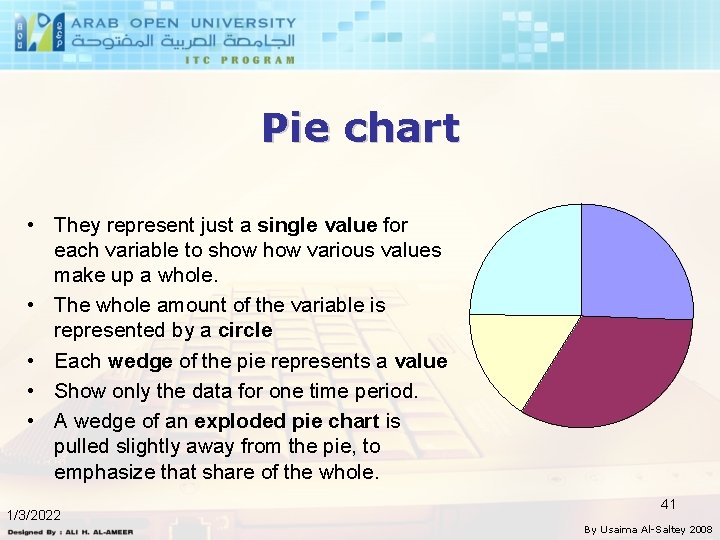
Pie chart • They represent just a single value for each variable to show various values make up a whole. • The whole amount of the variable is represented by a circle • Each wedge of the pie represents a value • Show only the data for one time period. • A wedge of an exploded pie chart is pulled slightly away from the pie, to emphasize that share of the whole. 1/3/2022 41 By Usaima Al-Saltey 2008
• Column width. Columns can be made narrower or wider, it is also possible to alter the height of the row. • Headings. it can be invoked as a wide column and can even be centered. • Number symbols. a number value can be shown with dollar sign ($), a percent sign (%), and commas and decimal places, as desired. • Appearance of data can be centered within the cell or can be justified right or left within the cell. • Printing. a spreadsheet may be centered on the printed page. § Margins may be altered. § The entire page may be printed sideways, that is, horizontally instead of vertically. § Vertical and horizontal grid lines may be hidden on the printed spreadsheet. 1/3/2022 42 By Usaima Al-Saltey 2008
Databases A database is a collection of tables interrelated by means of relationship. § The data is organized in a manner that can be easily retrieved. § Advantages of databases over spreadsheets, § Less storage space, due to reduced redundancy § Faster data retrieval § Data integrity : Files are accurate and up to date 1/3/2022 43 By Usaima Al-Saltey 2008
Structure of a database § A database consists of a set of files or tables § Each table consists of a set of records with identical structure (same number and type of fields) § Each record consists of a set of fields related to a single object, e. g. a student or employee § A field is the basic unit in any database. It is a property of your database object A special field called the primary key, uniquely identifies each record in a table. It is the basic for constructing the relationships between tables. 1/3/2022 44 By Usaima Al-Saltey 2008
Database Items § Query : Request to the database to retrieve data that meets certain criteria. § The more conditions you specify, the more restricted (fewer records) will be your result. § Form : User interface that can be used to enter, edit and view records § Report : Used to print data from the database along with statistics of your wish. You can retrieve data, but you cannot enter data from within reports. Examples of Database packages are : MS Access, dbase, File maker, etc. 1/3/2022 45 By Usaima Al-Saltey 2008
Operations done on Databases § Create and maintain the database (Add, delete and modify data) § Extract and list data that meets certain criteria (performing queries) § Sorting data in an ascending or descending order § Generate formatted reports with subtotals and totals 1/3/2022 46 By Usaima Al-Saltey 2008
After you have considered your needs, there are two steps to create a database file: § Designing the structure of the file. § Entering the data into the file. To create a file structure, you must choose meaningful fields based on the data you want to retrieve from the database. The following are the main field types: § Field name: must have a unique name. § Field type: the four commonly used types are character fields, numeric fields, data fields and logical fields. § Field width: determines the maximum number of characters or digits to be contained in the field including decimal points in case of numeric field type. § Key field: field in which an inquiry to the database can be based. 47 It is called sometimes an index field. 1/3/2022 By Usaima Al-Saltey 2008
Integrated Documents § An integrated document is a document in which elements of different software types are mixed, e. g. a word document with an image § Example of Integrated package is your MS office § Different ways of linking documents: § Copy and paste § Drag and drop, provided the two documents are opened and created by software belonging to the same family § Import or insert (embedding) § Linking § Hyperlink 1/3/2022 48 By Usaima Al-Saltey 2008
- Slides: 48