
Section 2 Navigation Objectives Student will knowhow to
Section 2 Navigation
Objectives �Student will knowhow to navigate through the browser
The web page address Ø Every web page has a Ø http: // means Hypertext Transfer Protocol – the rules unique address known as used by the Internet for the Uniform Resource sending and receiving data Locator (URL) specifying the between computers exact location (the Ø www means World Wide computer) where the web Web and is in most, but not all, URLs page is located Ø bbc. co. uk is the domain Ø A URL has distinct parts name, showing the separated by dots, each part organisation owning the site having a special significance and it has several parts Ø. co is the type of site, in this Ø A typical address is, for case a UK commercial example, organisation Al Ittihad Private School-Jumaira http: //www. bbc. co. uk Ø. uk is the country code Module 7 “Web Browsing and communication” Amira Mohammed Zedan
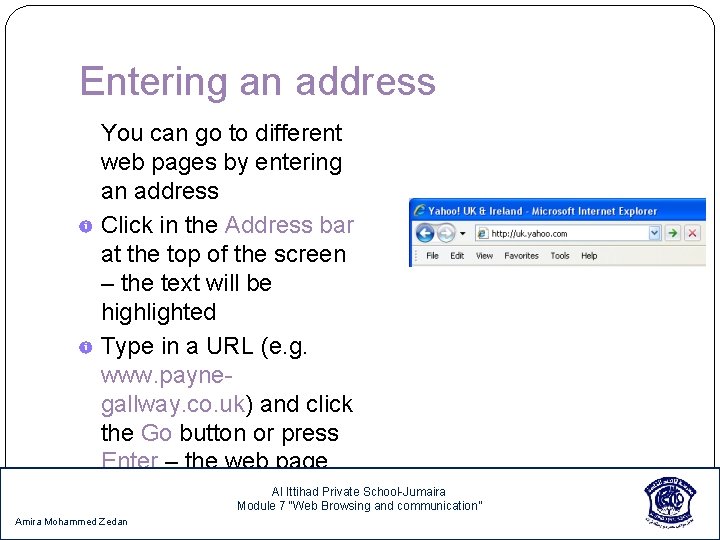
Entering an address You can go to different web pages by entering an address Click in the Address bar at the top of the screen – the text will be highlighted Type in a URL (e. g. www. paynegallway. co. uk) and click the Go button or press Enter – the web page Private School-Jumaira will appear Module. Al 7 Ittihad “Web Browsing and communication” Amira Mohammed Zedan
Navigating the Web Ø Most web pages have Ø When you move the links called hypertext links or hyperlinks Ø These let you jump to another web page within the website, to another place on the same web page or to other websites mouse pointer around the screen, its shape changes to a hand when it is over a link Ø Links are often blue, underlined text, but they may also be pictures Al Ittihad Private School-Jumaira Module 7 “Web Browsing and communication” Amira Mohammed Zedan
Moving to pages already visited Click the Back button at top of the screen to go back to the previous page Click the Forward button to take you forward through the pages you have already looked at Al Ittihad Private School-Jumaira Module 7 “Web Browsing and communication” Amira Mohammed Zedan
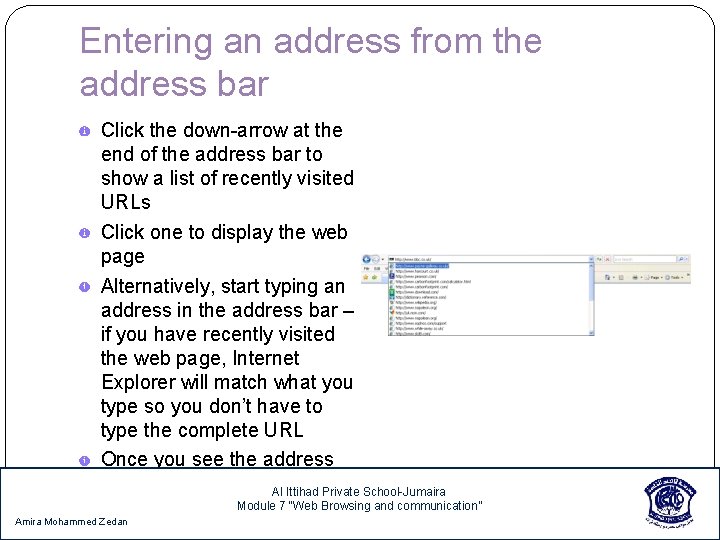
Entering an address from the address bar Click the down-arrow at the end of the address bar to show a list of recently visited URLs Click one to display the web page Alternatively, start typing an address in the address bar – if you have recently visited the web page, Internet Explorer will match what you type so you don’t have to type the complete URL Once you see the address you want, select it on the Private list School-Jumaira Al Ittihad Module 7 “Web Browsing and communication” Amira Mohammed Zedan
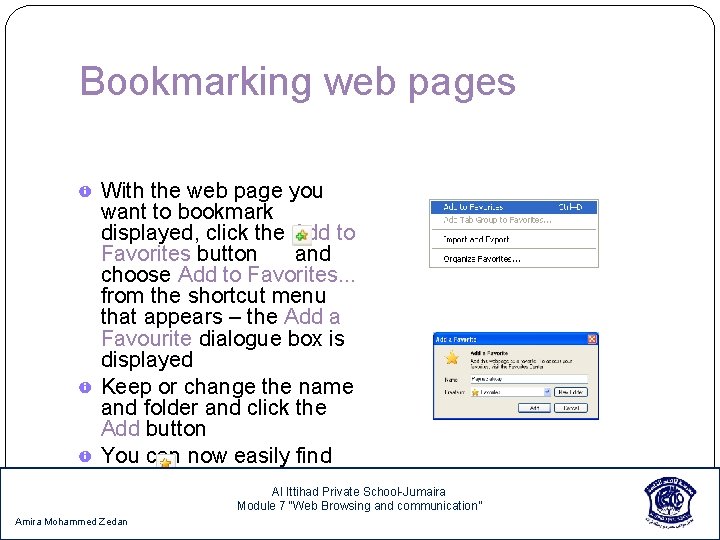
Bookmarking web pages With the web page you want to bookmark displayed, click the Add to Favorites button and choose Add to Favorites. . . from the shortcut menu that appears – the Add a Favourite dialogue box is displayed Keep or change the name and folder and click the Add button You can now easily find the bookmarked web page Al Ittihad Private School-Jumaira again by clicking the Module 7 “Web Browsing and communication” Amira Mohammed Zedan Favorites Center button
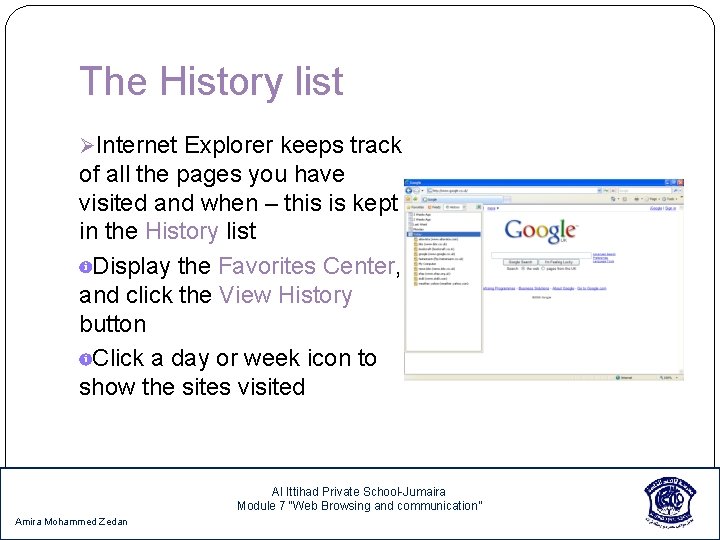
The History list ØInternet Explorer keeps track of all the pages you have visited and when – this is kept in the History list Display the Favorites Center, and click the View History button Click a day or week icon to show the sites visited Al Ittihad Private School-Jumaira Module 7 “Web Browsing and communication” Amira Mohammed Zedan
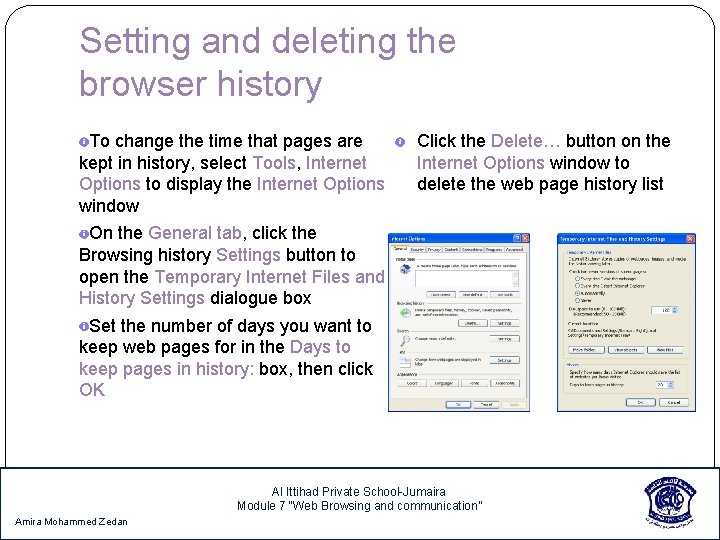
Setting and deleting the browser history To change the time that pages are kept in history, select Tools, Internet Options to display the Internet Options window Click the Delete… button on the Internet Options window to delete the web page history list On the General tab, click the Browsing history Settings button to open the Temporary Internet Files and History Settings dialogue box Set the number of days you want to keep web pages for in the Days to keep pages in history: box, then click OK Al Ittihad Private School-Jumaira Module 7 “Web Browsing and communication” Amira Mohammed Zedan
Refreshing and stopping a web page Refreshing a web page Stopping a web page downloading Ø Browsers store the pages you browse as a cache file Ø If a page is taking too long to on your disk open (this might happens if a page has a lot of pictures or Ø If you ask for the same page if there is a problem finding again, it is the stored page the website), click the Stop that is opened button Ø If you are unsure that you are looking at the latest version of the page or you get a message that a web page cannot be displayed, click the Refresh button to reload the page from the Internet, not from the cache Al Ittihad Private School-Jumaira Module 7 “Web Browsing and communication” Amira Mohammed Zedan
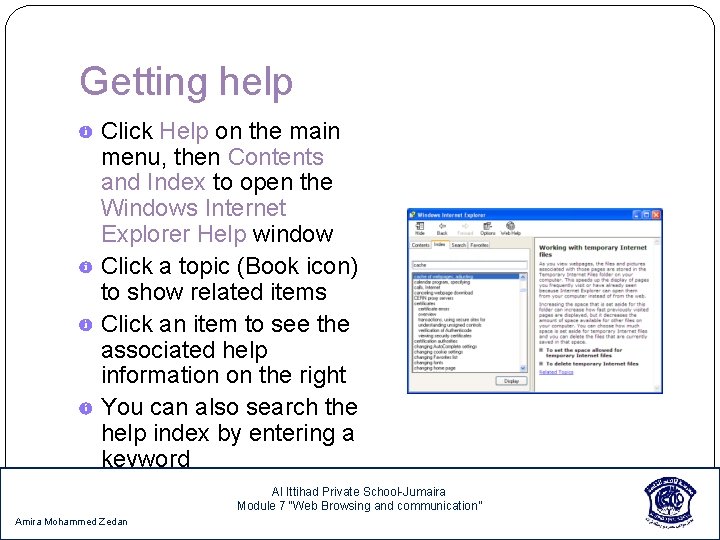
Getting help Click Help on the main menu, then Contents and Index to open the Windows Internet Explorer Help window Click a topic (Book icon) to show related items Click an item to see the associated help information on the right You can also search the help index by entering a keyword Al Ittihad Private School-Jumaira Module 7 “Web Browsing and communication” Amira Mohammed Zedan
- Slides: 12