
Section 12 1 Prepare for installing an operating
- Slides: 44
Section 12. 1 • Prepare for installing an operating system • Configure a server operating system • Use an operating system efficiently Section 12. 2 • Install hardware on a computer • Configure a workstation • Test for network connectivity
Section 12. 3 • Determine when network and software upgrades are required • Calculate the costs associated with upgrading Section 12. 4 • Properly document a network • Prepare to test a network
12. 1 Installing Operating Systems pp. 340 -345 Guide to Reading Main Ideas Key Terms Installing an OS requires important decisions about the computer’s role and services. Learn about an OS to use it efficiently. disk image partition virtual disk domain controller Internet Information Services (IIS) Client Services for Net. Ware (CSNW) Gateway Services for Net. Ware (GSNW) shareware defragment
12. 1 Installing Operating Systems pp. 340 -345 Configuration of an OS Most OS installations are highly automated. In most cases, you put a CD with a disk image in the CDROM drive, boot the computer, and follow a series of prompts to install the OS. disk image A complete copy of a configured OS, with all applications and options already set up. (p. 340)
12. 1 Installing Operating Systems pp. 340 -345 Installation of a Server OS The actual installation of a server OS is largely the same as installing a normal OS on a personal computer or workstation. In fact, many of the differences between a server OS and a normal OS are not that noticeable. However, because of the important role the server plays, you often have to do a lot of planning before you put a new server into service on a network.
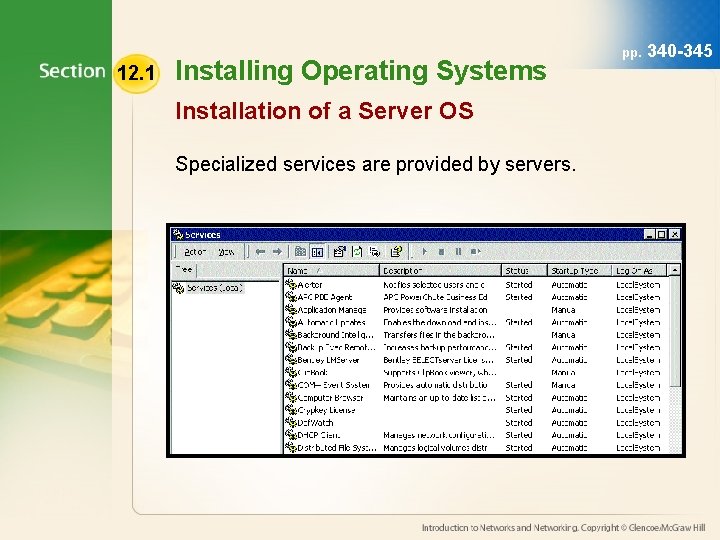
12. 1 Installing Operating Systems Installation of a Server OS Specialized services are provided by servers. pp. 340 -345
12. 1 Installing Operating Systems pp. 340 -345 Installation of a Server OS Before installing a server OS, you should know the following: partition A part of the usable space on a hard drive that acts as a virtual disk. (p. 342) • How (or if) you will partition the server hard drive(s). Partitions as also called virtual disks. • The file system that will be used. • The domain name your server will be connected to and whether the server will act as a domain controller. • The server’s computer name and administrator account’s password. virtual disk A part of a hard drive that a computer recognizes as an individual disk, even though all the storage space is contained on one physical drive. (p. 342) domain controller A Windows server that stores the logon and security information for a network. Another name for a logon server. (p. 342)
12. 1 Installing Operating Systems pp. 340 -345 Installation of a Server OS During installation of the server OS, you may need to select and configure networking components and services. You may also need to access some services during installation, for example Internet Information Services (IIS) Microsoft’s Web server that runs on Windows NT and provides services, such as file transfer (FTP), e-mail (SMTP), and Active Server Pages (ASPs). (p. 344)
12. 1 Installing Operating Systems pp. Configuration and Internetworking Between OSs Protocols can be installed on each computer to allow computers to speak the same language. For instance, Apple. Talk might be installed to allow Windows computers to communicate with the Mac computers. 340 -345
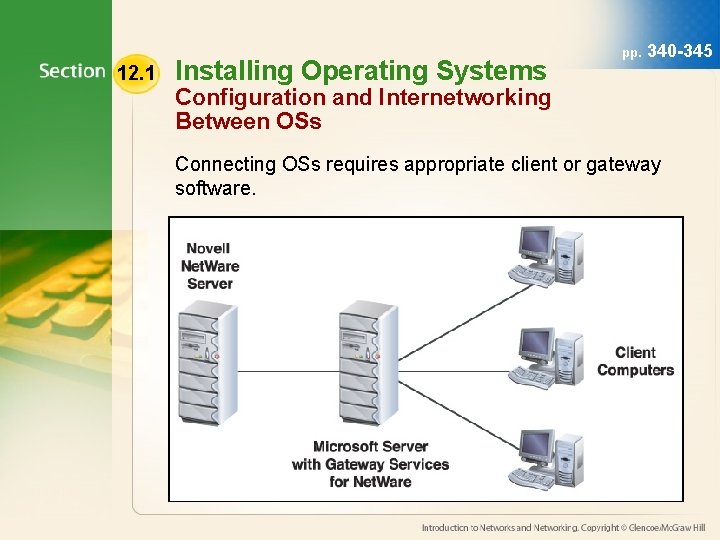
12. 1 Installing Operating Systems pp. 340 -345 Configuration and Internetworking Between OSs In a Novell Net. Ware environment using IPX/SPX, two services may be used. • Client Services for Net. Ware (CSNW) • Gateway Services for Net. Ware (GSNW) Client Services for Net. Ware (CSNW) A Windows NT protocol that allows Microsoft clients to connect to file and print resources on Net. Ware services. (p. 344) Gateway Services for Net. Ware (GSNW) A protocol that provides a gateway for Microsoft clients and services to access resources on Net. Ware services. (p. 344)
12. 1 Installing Operating Systems pp. 340 -345 Configuration and Internetworking Between OSs Connecting OSs requires appropriate client or gateway software.
12. 1 Installing Operating Systems pp. 340 -345 Efficient Use of an OS There are many ways to use your OS efficiently. Most OSs have dozens, if not hundreds, of utilities built into them. If you learn to use an OS skill one way, try something else when a new application comes along. Challenge yourself to find out all you can about the operating system and applications you use on a regular basis.
12. 1 Installing Operating Systems pp. 340 -345 Efficient Use of an OS Here are tips to make the most efficient use of the OS: • Back up your data frequently. • Keep your data saved separately from your application and OS files. • Install antivirus software and keep it up-to-date. • Keep your operating system and drivers up-to-date. • If you install shareware programs that you do not use, uninstall them. shareware Software programs you can try before you buy. (p. 345)
12. 1 Installing Operating Systems pp. 340 -345 Efficient Use of an OS More tips to make the most efficient use of the OS: • Delete temporary and other unnecessary files. • Defragment the hard drive regularly. • Empty your Web browser cache from time to time. • Create keyboard shortcuts that can make repetitive tasks easier. defragment To optimize the storage space on a hard drive by adjoining scattered files in like clusters. (p. 345)
12. 1 Installing Operating Systems pp. 340 -345 You Try It • Activity 12 A – Accessing and Configuring Services (p. 343)
12. 2 pp. Implementation 347 -352 Guide to Reading Main Ideas Key Terms Many techniques exist to connect hardware to a computer. The operating system communicates with hardware using device drivers. Most organizations have policies regarding installation of software. Use the ping utility to help test network connectivity. expansion slot Advanced Technology Attachment (ATA) Serial ATA (S-ATA) license server ping (Packet Internet Groper)
12. 2 Implementation Hardware Setup and Device Driver Installations Hardware components can be grouped into three categories: • add-in cards • external devices • storage devices pp. 347 -352
12. 2 Implementation pp. 347 -352 Hardware Setup and Device Driver Installations Remember the following when installing add-in cards: • Ground yourself first. • Handle cards by the edges. • Verify that there are empty expansion slots. • Make sure the new device is the correct type. expansion slot Thin, rectangular slots on the motherboard that accept add -in cards to increase the computer’s capabilities. (p. 348)
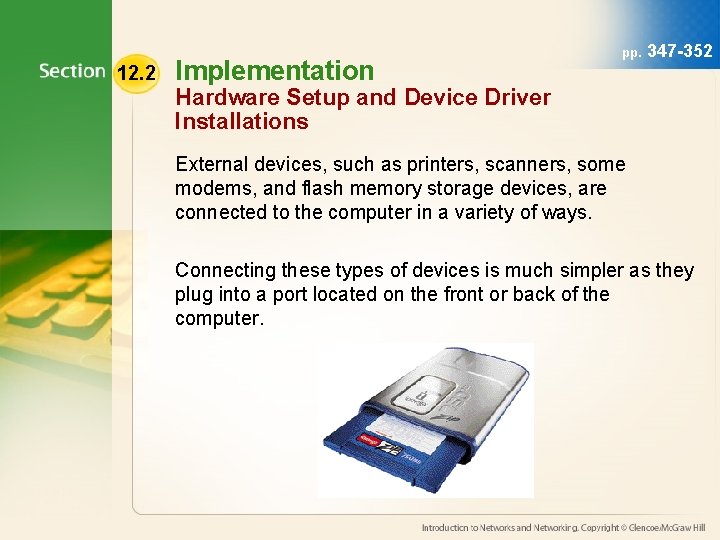
12. 2 Implementation pp. 347 -352 Hardware Setup and Device Driver Installations External devices, such as printers, scanners, some modems, and flash memory storage devices, are connected to the computer in a variety of ways. Connecting these types of devices is much simpler as they plug into a port located on the front or back of the computer.
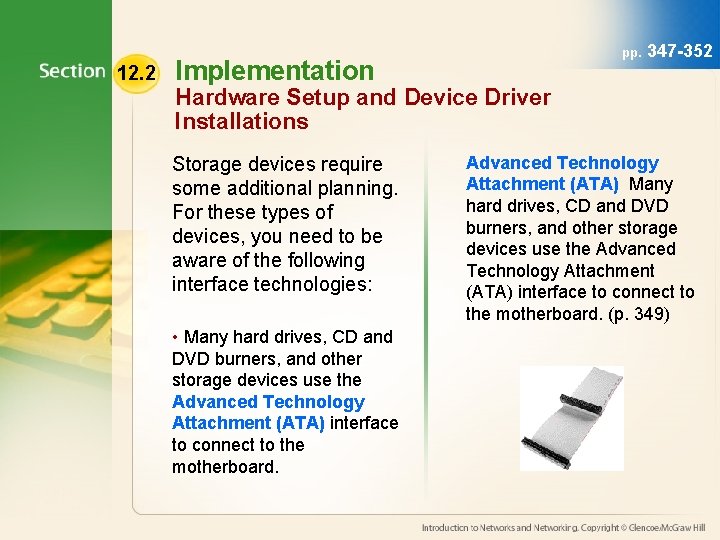
12. 2 Implementation pp. 347 -352 Hardware Setup and Device Driver Installations Storage devices require some additional planning. For these types of devices, you need to be aware of the following interface technologies: • Many hard drives, CD and DVD burners, and other storage devices use the Advanced Technology Attachment (ATA) interface to connect to the motherboard. Advanced Technology Attachment (ATA) Many hard drives, CD and DVD burners, and other storage devices use the Advanced Technology Attachment (ATA) interface to connect to the motherboard. (p. 349)
12. 2 Implementation pp. 347 -352 Hardware Setup and Device Driver Installations • A new technology known as Serial ATA (S-ATA) is replacing the aging ATA interface. • In servers, the Small Computer System Interface (SCSI) is the general standard. • Verify that your computer’s power supply can handle any additional drives. Serial ATA (S-ATA) A device that can transfer data much more quickly than either ATA or Ultra ATA devices, and uses a thinner cable. (p. 349)
12. 2 Implementation pp. 347 -352 Workstation Configuration and Software Loading In many organizations, workstation configurations are standardized to reduce the burden on IT support. A standardized workstation configuration usually consists of: • Similar hardware components. • OS configured similarly from workstation to workstation. • Identical software applications throughout the company.
12. 2 Implementation pp. 347 -352 Workstation Configuration and Software Loading Licensing information is generally input during the installation. Applications that use network licensing may need to be configured to find the appropriate license server A server that issues application licenses to clients. After closing the application, the license and application is made available to anyone else on the network. (p. 350)
12. 2 Implementation pp. 347 -352 Workstation Configuration and Software Loading Most organizations have policies regarding users configuring and loading software onto their systems. In many cases, users are strictly forbidden from doing either. There are many reasons for this: • licensing • support • security You should always check the organization’s policy before installing any software on a computer that is not your own.
12. 2 Implementation pp. 347 -352 Network Connectivity Testing A simple test can be performed just by looking at the back of the computer. Most NICs include at least one or two status light-emitting diode (LED) lights. One of the LEDs usually indicates a link status if it senses other network traffic. On many 10/100 Ethernet NICs, a LED may indicate whether the card is connected at 10 Mbps or 100 Mbps.
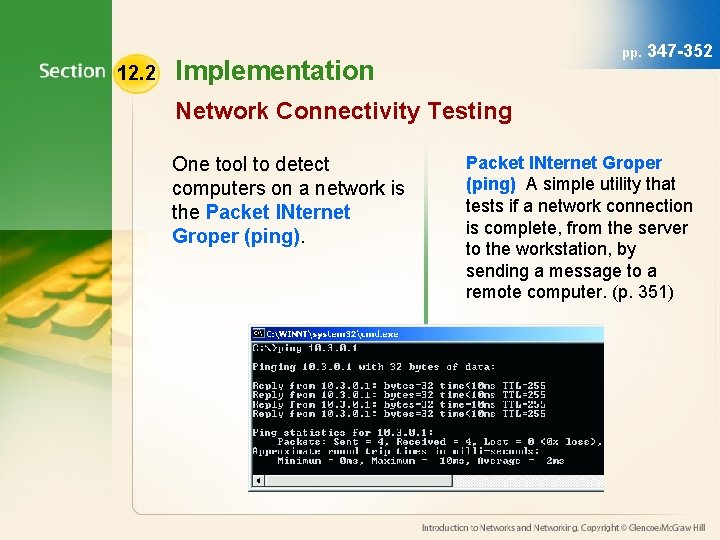
12. 2 pp. Implementation 347 -352 Network Connectivity Testing One tool to detect computers on a network is the Packet INternet Groper (ping) A simple utility that tests if a network connection is complete, from the server to the workstation, by sending a message to a remote computer. (p. 351)
12. 2 Implementation You Try It • Activity 12 B – Using Ping to Test Network Connectivity (p. 351) pp. 347 -352
12. 3 System and Network Upgrades pp. 354 -357 Guide to Reading Main Ideas Key Terms Network components and software should be closely monitored to prepare for necessary upgrades. A network administrator must calculate cost and investment to justify spending money for hardware and software. Total Cost of Ownership (TCO) Return On Investment (ROI)
12. 3 System and Network Upgrades pp. 354 -357 Network Expansion Various factors offer clues that an upgrade might be needed. If your network was configured several years ago, it is possible that the CPU and network are no longer responsive enough. This may be due to increased user demand the requirements of new software.
12. 3 System and Network Upgrades pp. 354 -357 Network Expansion Servers should have enough RAM, disk space, and processing power to allow end users to use their software applications efficiently without having to wait for the server to retrieve, process, or store their information. Monitoring the server periodically against a known baseline is important. For example, if the CPU is busy over 80 percent of the time, the CPU or the amount of memory might need to be upgraded.
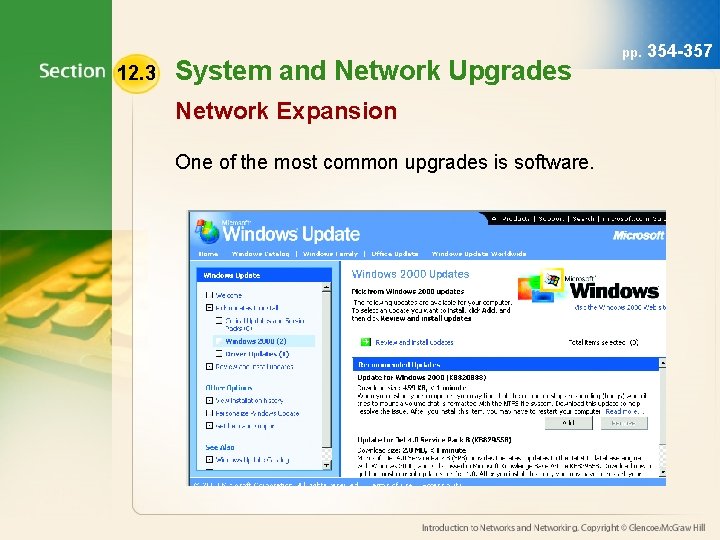
12. 3 System and Network Upgrades Network Expansion One of the most common upgrades is software. pp. 354 -357
12. 3 System and Network Upgrades pp. 354 -357 Network Expansion The current trend among major software companies is to use a maintenance or subscription program, such as those found with virus protection software. A yearly maintenance fee is paid for each license. Any upgrades to the software automatically sent to the organization. For many organizations, this is a good way to stay current on the latest software. It also makes budgeting easier because the maintenance fee is a fixed cost every year.
12. 3 System and Network Upgrades pp. 354 -357 Calculating the Cost Upgrades for network hardware and software often expensive and are frequently necessary. IT departments must present the Total Cost of Ownership (TCO) to management and then justify the proposed purchases with a Return on Investment (ROI) calculation. Total Cost of Ownership (TCO) The calculation of the initial purchase price of the hardware and software involved in the upgrade and the costs associated with installation, management, training, and insurance. (p. 356) Return On Investment (ROI) A calculation of how the cost of new equipment or software will result in increased savings or earnings. (p. 356)
12. 3 System and Network Upgrades You Try It • Activity 12 C – Calculating the ROI for an IT Purchase (p. 356) pp. 354 -357
12. 4 System Testing & Documentation pp. Guide to Reading Main Ideas Key Terms Documenting a network is an important task for IT personnel. Proper documentation can help restore important system settings in an emergency. Testing network components must be carefully planned and executed to provide meaningful results. service agreements logbook drive assignment test life cycle 358 -362
12. 4 System Testing & Documentation pp. 358 -362 Documenting a Network Documentation developed for maintenance, upgrading, and troubleshooting should contain the following: • a map of the entire network • server information • software information • essential contact information • copies of all service agreements • a record of all problems and their symptoms and solutions service agreements A contract with an outside business for maintenance and repairs of certain types of equipment, such as printers and copiers. (p. 358)
12. 4 System Testing & Documentation pp. 358 -362 Documenting a Network If there is more than one network administrator, it is important that all records are kept in a shared logbook. This log can become an invaluable guide to future administrators. logbook A written record of all changes that affect the network. (p. 359)
12. 4 System Testing & Documentation pp. 358 -362 Documenting a Network In addition to the items listed previously, the documentation should also include: • Purchase and installation dates and descriptions of all key equipment. • Vendor, model, and warranty information, including serial numbers. • The installation process and the results. You should record any configuration settings you made and note whether the installation process was successful. • The initial and subsequent network configurations. • Network usage policies and procedures.
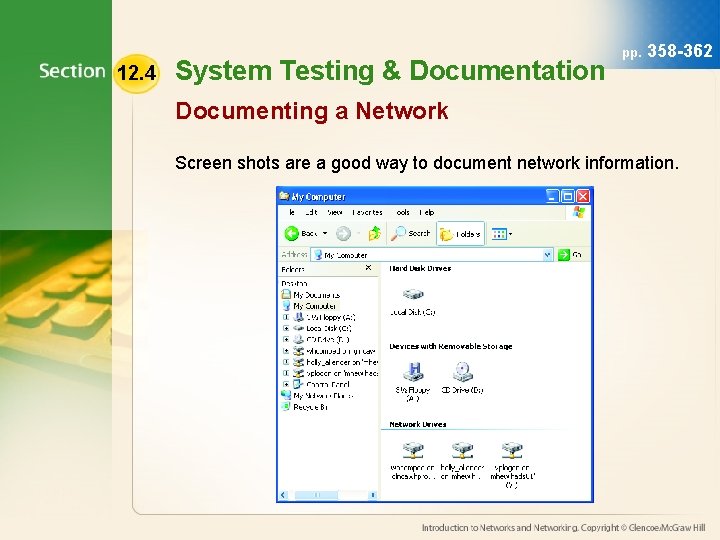
12. 4 System Testing & Documentation pp. 358 -362 Documenting a Network • Network resources and drive assignments. • Copies of crucial network configuration files, such as Config. sys and. bat files. • Any unusual application program configurations. • Any particular computer, motherboard, or peripheral settings. • Hardware or software changes. • Any activities that affect the topology or architecture. drive assignment Mapping a network folder or drive to a logical drive on a user’s computer. (p. 359)
12. 4 System Testing & Documentation pp. 358 -362 Documenting a Network Screen shots are a good way to document network information.
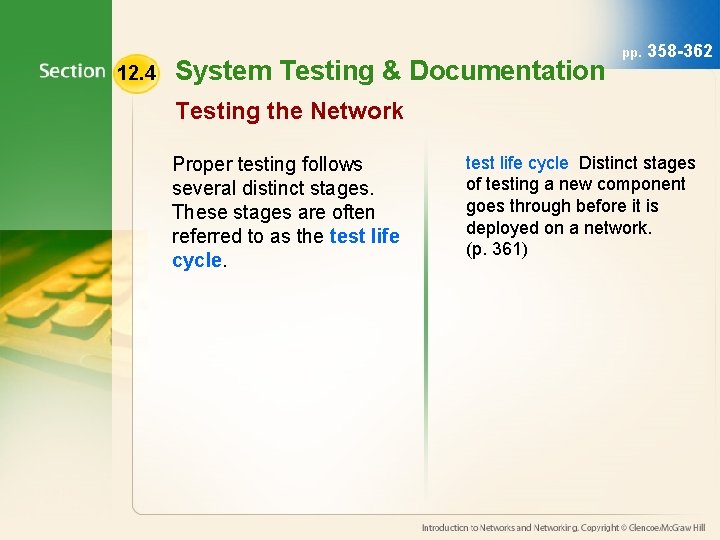
12. 4 System Testing & Documentation pp. 358 -362 Testing the Network Proper testing follows several distinct stages. These stages are often referred to as the test life cycle Distinct stages of testing a new component goes through before it is deployed on a network. (p. 361)
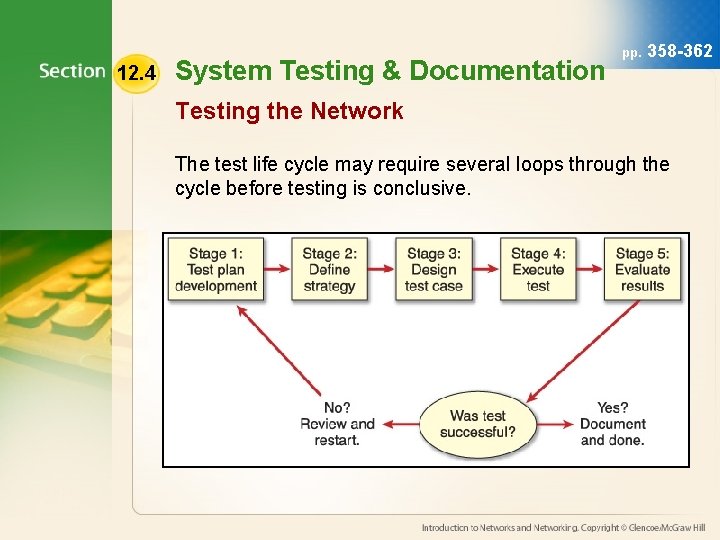
12. 4 System Testing & Documentation pp. 358 -362 Testing the Network The test life cycle may require several loops through the cycle before testing is conclusive.
12. 4 System Testing & Documentation pp. 358 -362 You Try It • Activity 12 D – Mapping a Network Drive and Folder (p. 359) • Activity 12 E – Implementing the Test Life Cycle (p. 361)
Chapter 12 Resources For more resources on this chapter, go to the Introduction to Networks and Networking Web site at http: //networking. glencoe. com.