
SDI GRB Appliance Training 0 Introduction The SDI

SDI GRB Appliance Training 0
Introduction The SDI GRB Appliance is a networked device pre-configured with software to ingest and distribute GOES-R Series satellite data from the GRB (GOES Rebroadcast) data stream. This SDI (SSEC Data Ingestor) is the third generation of satellite ingestors produced by the University of Wisconsin. Madison Space Science and Engineering Center. Hereafter, the terms SDI and appliance in this manual refer specifically to the SDI GRB Appliance. The SDI has four primary functions - Ingest, Notify, Distribute and Monitor. ● Ingest: Data ingest in the SDI is accomplished using the CSPP Geo GRB software to create mission-standard net. CDF-4 files. ● Notify: Open source Rabbit. MQ software is used by the SDI to notify data consumers when data becomes available at one of its standard network interfaces. ● Distribute: The SDI supports SFTP and NFS as standard output interfaces. Optionally the SDI supports the Mc. IDAS ADDE data interface. ● Monitor: The SDI can be monitored using Check_MK for standard and SDI-specific properties. 1
Introduction The SDI is not a general purpose server; users are discouraged from adding additional software because this can interfere with system performance and result in data loss. The SDI requires input from a data stream provider like SSEC Satellite Data Services or from a user-supplied antenna system providing demodulated GRB packets via direct gigabit Ethernet connection to the SDI. 2
Installation and Configuration Initial Checkout, Power Up and Status Check Each site receives an installation and configuration guide with their shipment that is created specifically for their order. The information below also appears in that document. The contents of a standard SDI GRB Appliance shipment are listed below. If you ordered multiple units you will receive these items in each package. ● Dell Power. Edge R 440 Server - includes bezel, rail racks and power cords ● System Software USB flash drive - contains backup copy of preinstalled system software (complete system consisting of the operating system and utilities, SDI configuration and applications, CSPP Geo GRB and other packages appropriate for the system you ordered), configured with the local settings listed below ● SSH Keys and Example Client Scripts USB flash drive - contains SSH keys to access your SDI GRB Appliance and example client scripts that can be run to access data using the Rabbit. MQ Messaging System 3
Installation and Configuration Initial Checkout, Power Up and Status Check The appliance is shipped to sites with the system software installed and is preconfigured with the following settings (for static network configurations, i. e. , DHCP is not being used) in order to customize it for the receiving site. This is intended to make the system ready to run as soon as it is assembled and powered up. ● ● ● IP address for SDI Netmask Gateway IP address(es) of nameserver(s) Optional: IP address(es) of specific NTP server(s) 4
Installation and Configuration Initial Checkout, Power Up and Status Check Perform the steps below to power up your new SDI GRB Appliance. 1. Connect the demodulator cable to the 1 gigabit port labeled DMOD. Note: If your system is running SDI version 2. 0. 10 or later (distributed beginning November 2019), the software will ingest either GOES-16 or GOES 17 and can be changed from one to the other by switching your feed. To do so, simply switch the demodulator cable by disconnecting the old cable (e. g. , GOES-16) and then connecting the other cable (e. g. , GOES-17). No other changes are needed. 2. Connect the LAN ethernet cable to the 10 gigabit port labeled LAN. 3. Connect the console, keyboard and mouse that you chose for your system. 4. Connect the dual hot-plug redundant power cords to initiate the power up sequence. 5
Installation and Configuration Initial Checkout, Power Up and Status Check Once the appliance completes the power up sequence, login as user root. If you don’t know the password, send an email to sdi. help@ssec. wisc. edu with your contact information and we will then call you and relay it over the phone. The system is designed to immediately start ingesting GRB data if your data feed is in place. Data is ingesting if the two conditions below are met: ● the log file, /data/sdidata/holding/log/ingest/grb. log, is updating (note: run command tail -f grb. log to check for updates as they are added) ● data is accumulating in the /data/sdidata/complete/goes directories, e. g. , /data/sdidata/complete/goes/grb/goes<nn>/<ccyy>/ <ccyy_mm_dd_jjj>/ <instrument>/ <product_level>/ <coverage>/ If data is not ingesting, see Troubleshooting for diagnostic procedures. 6
Installing a software update The SDI GRB Appliance is shipped to sites with the system software installed and is preconfigured with the local settings provided to SSEC. You will not need to install software upon receiving your appliance. The instructions to follow are provided for installing future software updates you receive from SSEC. The updates will be provided on a USB flash drive specific for each appliance with a hard-coded network configuration. The flash drive includes the complete system: operating system and utilities, SDI configuration and applications, CSPP Geo GRB and other packages appropriate for the system ordered. During the update procedure you will have the option to remove the existing GRB data or to leave it intact (step 5). 7
Installing a software update 1. Insert the supplied USB flash drive into a USB port on the appliance and then reboot the system with command reboot or by pressing Ctrl+Alt+Delete. You can ignore any unmounting errors that appear. 2. Closely watch the console. When the menu listing the function key actions appears, immediately press F 11 to bring up the Boot Manager. Note: You must press the F 11 key within 10 seconds; otherwise the system will continue booting off the hard drive. 3. When the Boot Manager Main Menu appears, select the One-shot BIOS Boot Menu option and press Enter. 4. When the Boot Manager Root Menu appears, select the Data. Traveler n. n option (where n. n is a version number, e. g. , 3. 0) to use the USB flash drive inserted in step 1 above and press Enter. 8

Installing a software update 5. When the blue SSEC SDI Installer screen appears, select the appropriate option for your system and press Enter. The options are: Upgrade SSEC SDI system or Install SSEC SDI system The Upgrade option does a fresh install of the complete system* but leaves the contents of /data, including the completed GRB data, intact. The system drive will be reformatted. The Install option does a fresh install of the complete system* and removes the existing GRB data (everything in /data, including log files). Do not select the Install option unless you are sure that you want to reformat the system and data drives. Systems configured with the ADDE (rather than BASIC) option that have local changes will also lose them during the Install and thus will need to be re-added later. See Site-configurable Items in the next section. 9
Installing a software update 6. When the message appears saying that the Cent. OS Install is complete, remove the USB flash drive then click the Reboot button in the bottom right to reboot the system. The SDI GRB Appliance software update is complete. The system is designed to immediately start ingesting GRB data if your data feed is in place. Data is ingesting if the two conditions below are met: ● the log file, /data/sdidata/holding/log/ingest/grb. log, is updating (note: run command tail -f grb. log to check for updates as they are added) ● data is accumulating in the /data/sdidata/complete/goes directories, e. g. , /data/sdidata/complete/goes/grb/goes<NN>/<CCYY>/ <CCYY_MM_DD_JJJ>/ <instrument>/ <product_level>/ <coverage>/ If data is not ingesting, see Troubleshooting slides for diagnostic procedures. 10
Site-configurable Items An option to change the number of days to scour from the default of 7 to the site’s preferred number of days is being considered. SDI GRB Appliances configured with the ADDE (rather than BASIC) option allow you to choose ADDE dataset names other than the defaults by uploading two files. See Mc. IDAS ADDE Configuration in MCIDAS training for instructions. 11
Accessing the Appliance Root Access Root access provides complete access to the SDI and thus should only be used when necessary by SDI administrators to perform tasks such as the following: ● power up or restart ● start and stop services ● troubleshoot problems Root access is available by logging in at the console or using the root. ssh key found on the SSH Keys and Example Client Scripts USB flash drive that was shipped with your system. The example below shows how to use the key to login to the SDI as user root from any workstation that has the key installed. Type: ssh -i /p ath-to/root. sshkey root@<appliance_IP> 12
Accessing the Appliance SFTP read/write access SFTP read and write access to the /data/sdidata directories is available using the sdiwrite. ssh key found on the SSH Keys and Example Client Scripts USB flash drive that was shipped with your system. This key is intended for use by SDI administrators to perform tasks such as the following: ● download log files ● upload site-specific files (ADDE only; see Appendix D - Mc. IDAS ADDE Configuration) ● remove completed data files ● remove log files ● access data ingested by the appliance The example command below shows how to use the key to start an sftp prompt. Type: sftp -i /p ath-to/sdiwrite. sshkey sdiwrite@<appliance_IP> 13
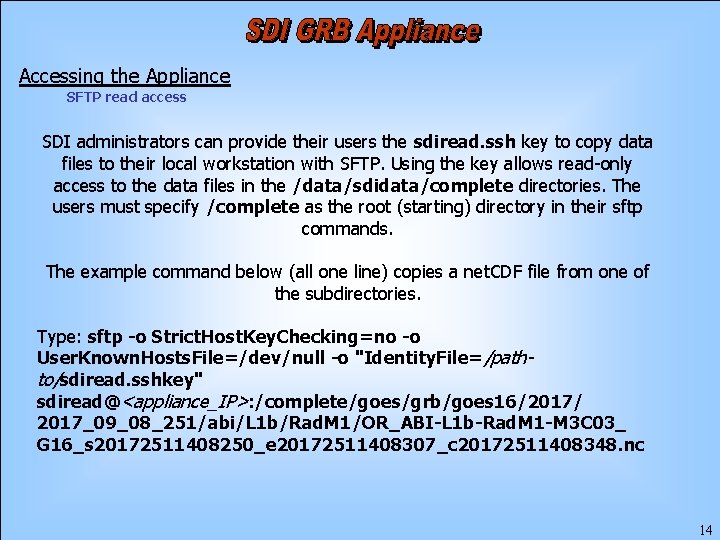
Accessing the Appliance SFTP read access SDI administrators can provide their users the sdiread. ssh key to copy data files to their local workstation with SFTP. Using the key allows read-only access to the data files in the /data/sdidata/complete directories. The users must specify /complete as the root (starting) directory in their sftp commands. The example command below (all one line) copies a net. CDF file from one of the subdirectories. Type: sftp -o Strict. Host. Key. Checking=no -o User. Known. Hosts. File=/dev/null -o "Identity. File=/pathto/sdiread. sshkey" sdiread@<appliance_IP>: /complete/goes/grb/goes 16/2017/ 2017_09_08_251/abi/L 1 b/Rad. M 1/OR_ABI-L 1 b-Rad. M 1 -M 3 C 03_ G 16_s 20172511408250_e 20172511408307_c 20172511408348. nc 14
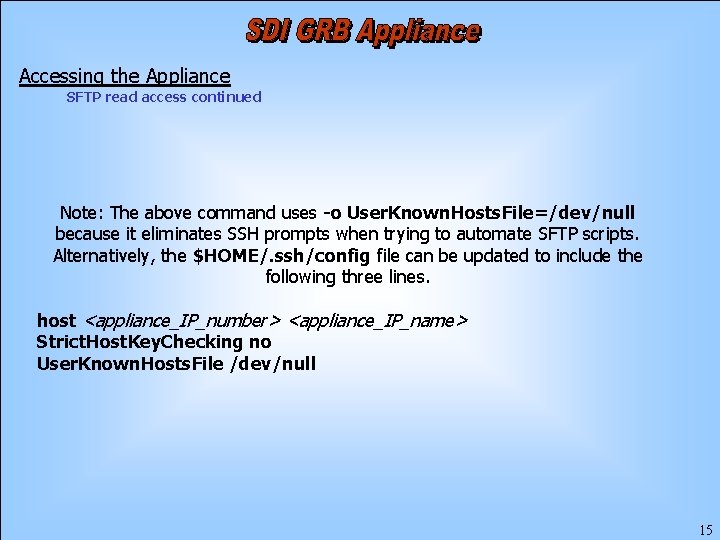
Accessing the Appliance SFTP read access continued Note: The above command uses -o User. Known. Hosts. File=/dev/null because it eliminates SSH prompts when trying to automate SFTP scripts. Alternatively, the $HOME/. ssh/config file can be updated to include the following three lines. host <appliance_IP_number> <appliance_IP_name> Strict. Host. Key. Checking no User. Known. Hosts. File /dev/null 15
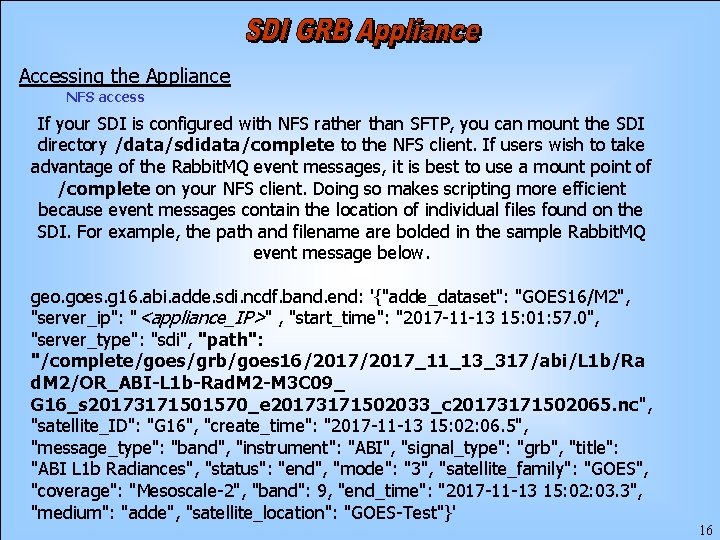
Accessing the Appliance NFS access If your SDI is configured with NFS rather than SFTP, you can mount the SDI directory /data/sdidata/complete to the NFS client. If users wish to take advantage of the Rabbit. MQ event messages, it is best to use a mount point of /complete on your NFS client. Doing so makes scripting more efficient because event messages contain the location of individual files found on the SDI. For example, the path and filename are bolded in the sample Rabbit. MQ event message below. geo. goes. g 16. abi. adde. sdi. ncdf. band. end: '{"adde_dataset": "GOES 16/M 2", "server_ip": "<appliance_IP>" , "start_time": "2017 -11 -13 15: 01: 57. 0", "server_type": "sdi", "path": "/complete/goes/grb/goes 16/2017_11_13_317/abi/L 1 b/Ra d. M 2/OR_ABI-L 1 b-Rad. M 2 -M 3 C 09_ G 16_s 20173171501570_e 20173171502033_c 20173171502065. nc", "satellite_ID": "G 16", "create_time": "2017 -11 -13 15: 02: 06. 5", "message_type": "band", "instrument": "ABI", "signal_type": "grb", "title": "ABI L 1 b Radiances", "status": "end", "mode": "3", "satellite_family": "GOES", "coverage": "Mesoscale-2", "band": 9, "end_time": "2017 -11 -13 15: 02: 03. 3", "medium": "adde", "satellite_location": "GOES-Test"}' 16
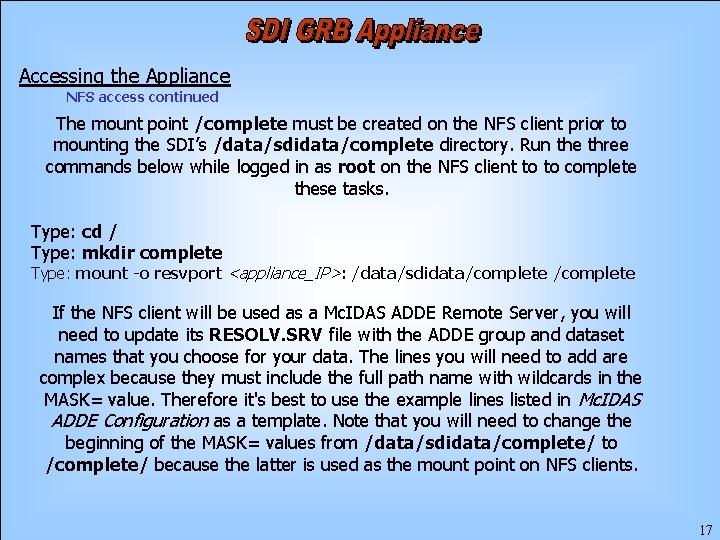
Accessing the Appliance NFS access continued The mount point /complete must be created on the NFS client prior to mounting the SDI’s /data/sdidata/complete directory. Run the three commands below while logged in as root on the NFS client to to complete these tasks. Type: cd / Type: mkdir complete Type: mount -o resvport <appliance_IP>: /data/sdidata/complete If the NFS client will be used as a Mc. IDAS ADDE Remote Server, you will need to update its RESOLV. SRV file with the ADDE group and dataset names that you choose for your data. The lines you will need to add are complex because they must include the full path name with wildcards in the MASK= value. Therefore it's best to use the example lines listed in Mc. IDAS ADDE Configuration as a template. Note that you will need to change the beginning of the MASK= values from /data/sdidata/complete/ to /complete/ because the latter is used as the mount point on NFS clients. 17
Accessing the Appliance Process Control The SDI GRB Appliance runs two main processes, Ingest and Event. The Ingest process receives the data feed from the GOES Rebroadcast (GRB) across ports 50010 and 50020. The Event process moves completed images to a logical directory structure and publishes Rabbit. MQ event messages. Both processes are set up as services and automatically start when the software is installed or updated. Under normal operations the Ingest and Event processes run continuously. SDI administrators can check the status and, if necessary, start, stop or restart either of the services with the commands below. The commands must be run from the console or while logged in using the root. ssh key. To check or change the Ingest process status: Type: service ssecsdi <action> where <action> is status, stop, start or restart To check or change the Event process status: Type: service ssecevent <action> where <action> is status, stop, start or restart 18
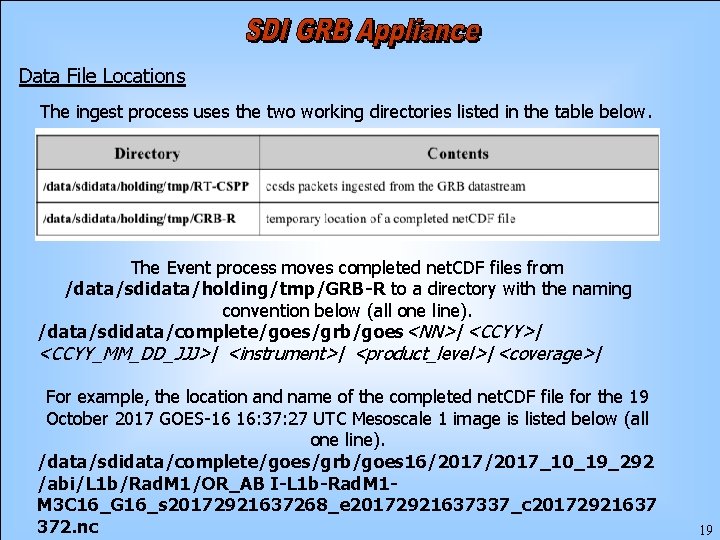
Data File Locations The ingest process uses the two working directories listed in the table below. The Event process moves completed net. CDF files from /data/sdidata/holding/tmp/GRB-R to a directory with the naming convention below (all one line). /data/sdidata/complete/goes/grb/goes<NN>/<CCYY>/ <CCYY_MM_DD_JJJ>/ <instrument>/ <product_level>/<coverage>/ For example, the location and name of the completed net. CDF file for the 19 October 2017 GOES-16 16: 37: 27 UTC Mesoscale 1 image is listed below (all one line). /data/sdidata/complete/goes/grb/goes 16/2017_10_19_292 /abi/L 1 b/Rad. M 1/OR_AB I-L 1 b-Rad. M 1 M 3 C 16_G 16_s 20172921637268_e 20172921637337_c 20172921637 372. nc 19
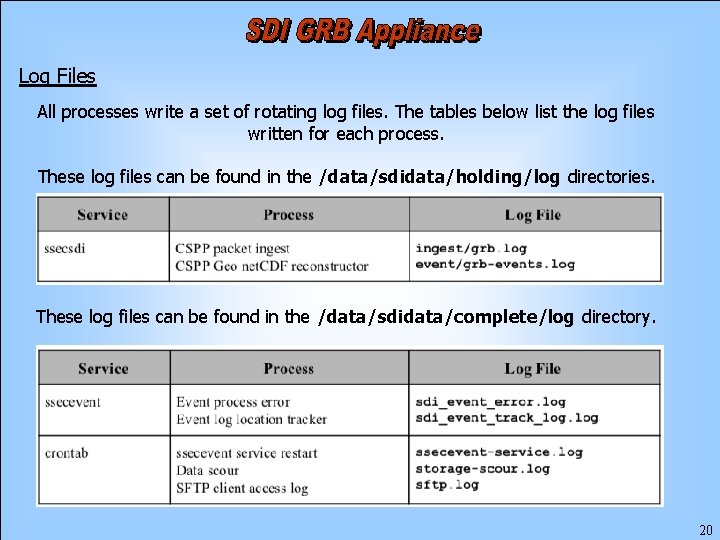
Log Files All processes write a set of rotating log files. The tables below list the log files written for each process. These log files can be found in the /data/sdidata/holding/log directories. These log files can be found in the /data/sdidata/complete/log directory. 20
Rabbit. MQ Event Notifications The Event process, ssecevent, continually reads the contents of the grbevents. log file. For each line in the file a Rabbit. MQ event message is published to a queue using Advanced Message Queuing Protocol (AMQP). The queue of messages is local to the SDI and is made available using a Rabbit. MQ server. Users (clients) can subscribe to the queue and watch for the events to start their own post-processing scripts. The SSH Keys and Example Client Scripts USB flash drive that was shipped with your system includes the amqpfind script that listens for messages and example scripts that demonstrate how to use amqpfind. See Accessing Data with Example Client Scripts. 21
File System Maintenance A crontab entry runs the script storage_scour e very 15 minutes. The script removes files containing data older than 7 days. 22
Accessing Data with Example Client Scripts This section contains information about the tools provided on the SSH Keys and Example Client Scripts USB flash drive that can be used to access data on your SDI GRB Appliance. There are four sections: ● ● Overview Contents of the Flash Drive Using amqpfind Accessing Data via SFTP Using the Event Messaging System 23
Accessing Data with Example Client Scripts Overview Your SDI GRB Appliance ingests the GRB signal and creates files in net. CDF format. There are multiple methods to access these data from another workstation. The available methods depend on the configuration selected when your system was purchased. If it is configured with the BASIC option, you can access its data from another workstation using either SFTP or NFS (whichever you chose with your order). If it is configured with the ADDE option, you can access its data using either of those methods and also can access it from other workstations using Mc. IDAS-X (which requires a separate license) or another ADDE client. During the ingest process, messages such as image start, image end and band end are published to a queue on the appliance. The queue of messages is made available to client workstations via a Rabbit. MQ server running on your appliance. A script using amqpfind is provided with your system to let users subscribe to the messages. See the Using amqpfind s ection in this appendix for more information. Scripts using amqpfind together with SFTP, NFS or ADDE can initiate processes to access the data based on the message content. 24
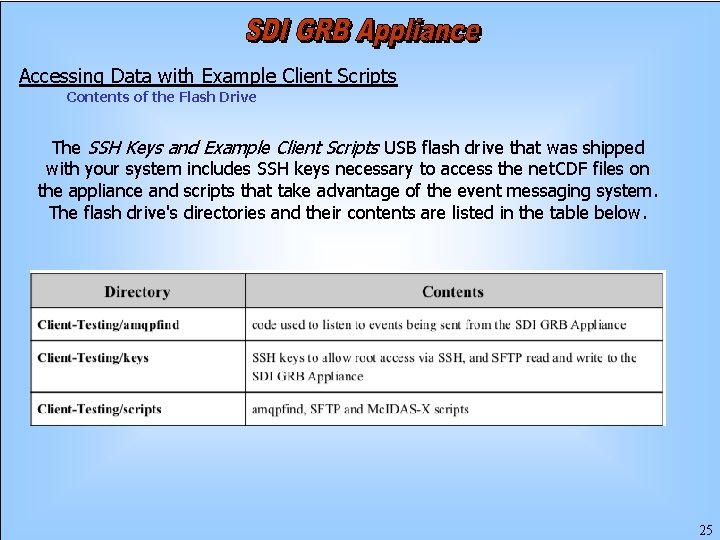
Accessing Data with Example Client Scripts Contents of the Flash Drive The SSH Keys and Example Client Scripts USB flash drive that was shipped with your system includes SSH keys necessary to access the net. CDF files on the appliance and scripts that take advantage of the event messaging system. The flash drive's directories and their contents are listed in the table below. 25
Accessing Data with Example Client Scripts Using amqpfind During the SDI GRB Appliance ingest process, messages such as image start, image end and band end are published to a queue on the appliance. The queue of messages is made available to client workstations by making a connection to the Rabbit. MQ server on the appliance. The amqpfind script, which is provided on the SSH Keys and Example Client Scripts USB flash drive that was shipped with your system, creates the connection and takes command line arguments to subscribe to all or a subset of messages being delivered to the client workstation. This information can be used to complete tasks, such as initiate processes to access the data based on the message content. 26
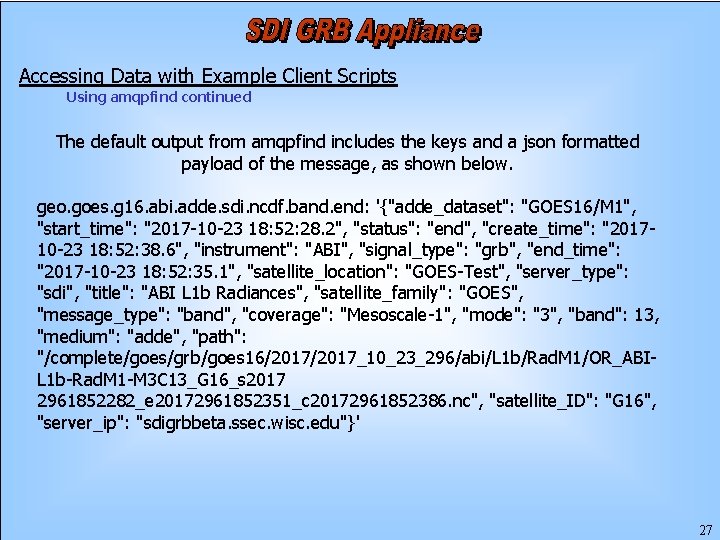
Accessing Data with Example Client Scripts Using amqpfind continued The default output from amqpfind includes the keys and a json formatted payload of the message, as shown below. geo. goes. g 16. abi. adde. sdi. ncdf. band. end: '{"adde_dataset": "GOES 16/M 1", "start_time": "2017 -10 -23 18: 52: 28. 2", "status": "end", "create_time": "201710 -23 18: 52: 38. 6", "instrument": "ABI", "signal_type": "grb", "end_time": "2017 -10 -23 18: 52: 35. 1", "satellite_location": "GOES-Test", "server_type": "sdi", "title": "ABI L 1 b Radiances", "satellite_family": "GOES", "message_type": "band", "coverage": "Mesoscale-1", "mode": "3", "band": 13, "medium": "adde", "path": "/complete/goes/grb/goes 16/2017_10_23_296/abi/L 1 b/Rad. M 1/OR_ABIL 1 b-Rad. M 1 -M 3 C 13_G 16_s 2017 2961852282_e 20172961852351_c 20172961852386. nc", "satellite_ID": "G 16", "server_ip": "sdigrbbeta. ssec. wisc. edu"}' 27
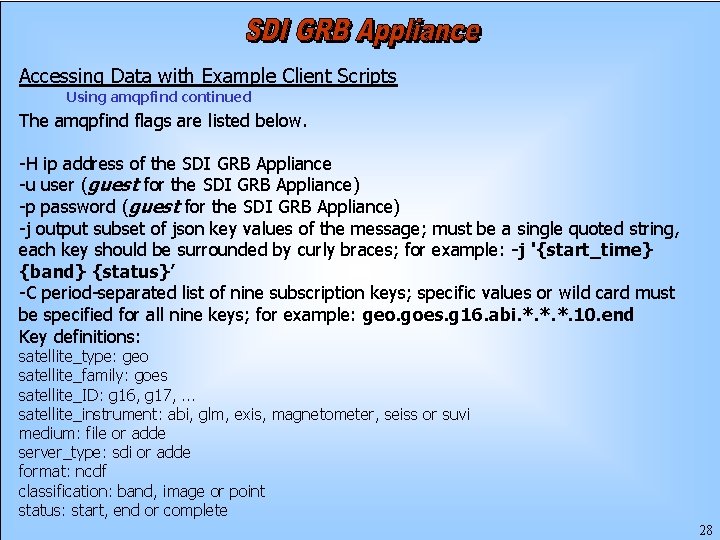
Accessing Data with Example Client Scripts Using amqpfind continued The amqpfind flags are listed below. -H ip address of the SDI GRB Appliance -u user (guest for the SDI GRB Appliance) -p password (guest for the SDI GRB Appliance) -j output subset of json key values of the message; must be a single quoted string, each key should be surrounded by curly braces; for example: -j '{start_time} {band} {status}’ -C period-separated list of nine subscription keys; specific values or wild card must be specified for all nine keys; for example: geo. goes. g 16. abi. *. *. *. 10. end Key definitions: satellite_type: geo satellite_family: goes satellite_ID: g 16, g 17, . . . satellite_instrument: abi, glm, exis, magnetometer, seiss or suvi medium: file or adde server_type: sdi or adde format: ncdf classification: band, image or point status: start, end or complete 28
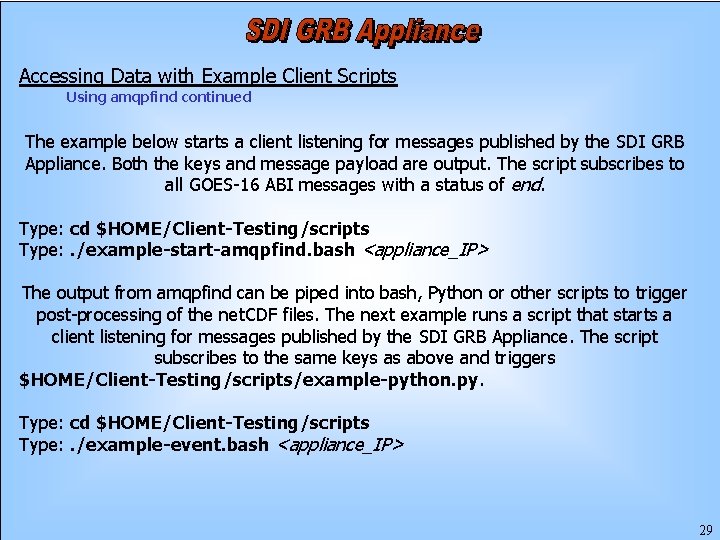
Accessing Data with Example Client Scripts Using amqpfind continued The example below starts a client listening for messages published by the SDI GRB Appliance. Both the keys and message payload are output. The script subscribes to all GOES-16 ABI messages with a status of end. Type: cd $HOME/Client-Testing/scripts Type: . /example-start-amqpfind. bash <appliance_IP> The output from amqpfind can be piped into bash, Python or other scripts to trigger post-processing of the net. CDF files. The next example runs a script that starts a client listening for messages published by the SDI GRB Appliance. The script subscribes to the same keys as above and triggers $HOME/Client-Testing/scripts/example-python. py. Type: cd $HOME/Client-Testing/scripts Type: . /example-event. bash <appliance_IP> 29
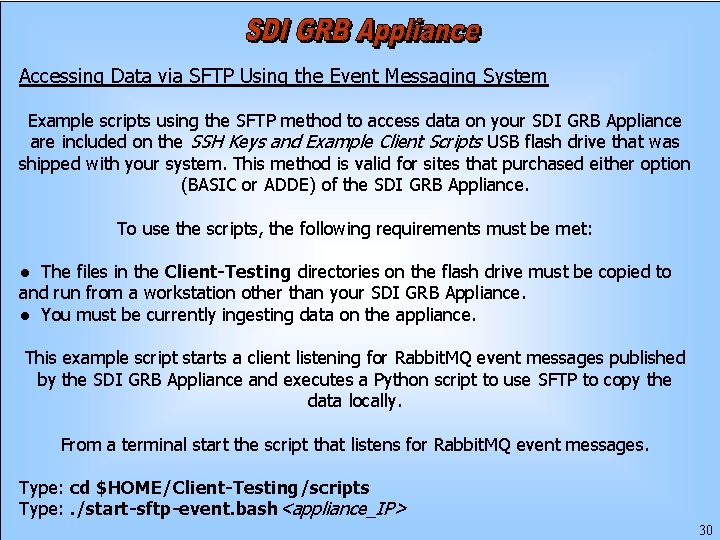
Accessing Data via SFTP Using the Event Messaging System Example scripts using the SFTP method to access data on your SDI GRB Appliance are included on the SSH Keys and Example Client Scripts USB flash drive that was shipped with your system. This method is valid for sites that purchased either option (BASIC or ADDE) of the SDI GRB Appliance. To use the scripts, the following requirements must be met: ● The files in the Client-Testing directories on the flash drive must be copied to and run from a workstation other than your SDI GRB Appliance. ● You must be currently ingesting data on the appliance. This example script starts a client listening for Rabbit. MQ event messages published by the SDI GRB Appliance and executes a Python script to use SFTP to copy the data locally. From a terminal start the script that listens for Rabbit. MQ event messages. Type: cd $HOME/Client-Testing/scripts Type: . /start-sftp-event. bash<appliance_IP> 30
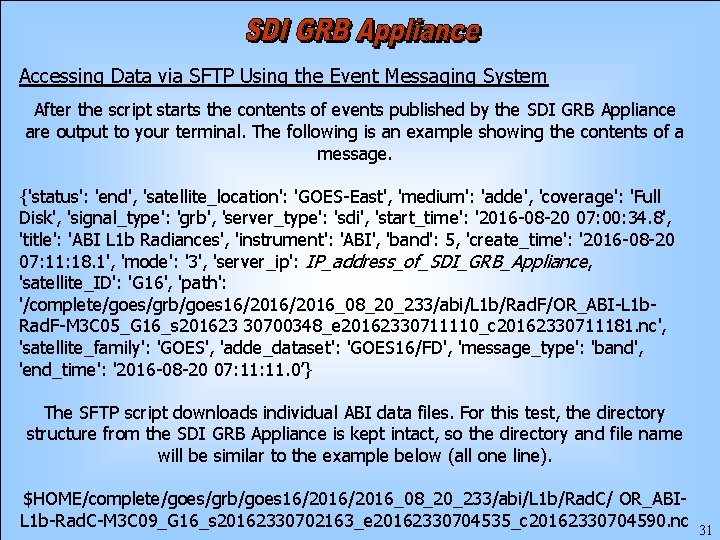
Accessing Data via SFTP Using the Event Messaging System After the script starts the contents of events published by the SDI GRB Appliance are output to your terminal. The following is an example showing the contents of a message. {'status': 'end', 'satellite_location': 'GOES-East', 'medium': 'adde', 'coverage': 'Full Disk', 'signal_type': 'grb', 'server_type': 'sdi', 'start_time': '2016 -08 -20 07: 00: 34. 8', 'title': 'ABI L 1 b Radiances', 'instrument': 'ABI', 'band': 5, 'create_time': '2016 -08 -20 07: 11: 18. 1', 'mode': '3', 'server_ip': IP_address_of_SDI_GRB_Appliance, 'satellite_ID': 'G 16', 'path': '/complete/goes/grb/goes 16/2016_08_20_233/abi/L 1 b/Rad. F/OR_ABI-L 1 b. Rad. F-M 3 C 05_G 16_s 201623 30700348_e 20162330711110_c 20162330711181. nc', 'satellite_family': 'GOES', 'adde_dataset': 'GOES 16/FD', 'message_type': 'band', 'end_time': '2016 -08 -20 07: 11. 0’} The SFTP script downloads individual ABI data files. For this test, the directory structure from the SDI GRB Appliance is kept intact, so the directory and file name will be similar to the example below (all one line). $HOME/complete/goes/grb/goes 16/2016_08_20_233/abi/L 1 b/Rad. C/ OR_ABIL 1 b-Rad. C-M 3 C 09_G 16_s 20162330702163_e 20162330704535_c 20162330704590. nc 31
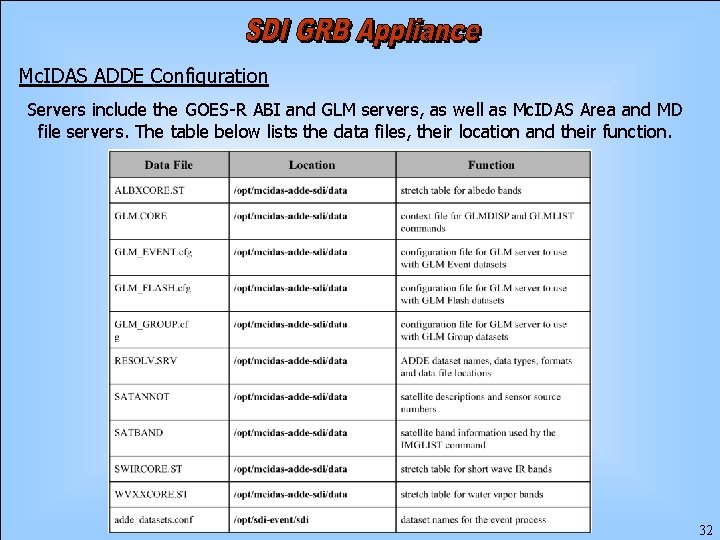
Mc. IDAS ADDE Configuration Servers include the GOES-R ABI and GLM servers, as well as Mc. IDAS Area and MD file servers. The table below lists the data files, their location and their function. 32
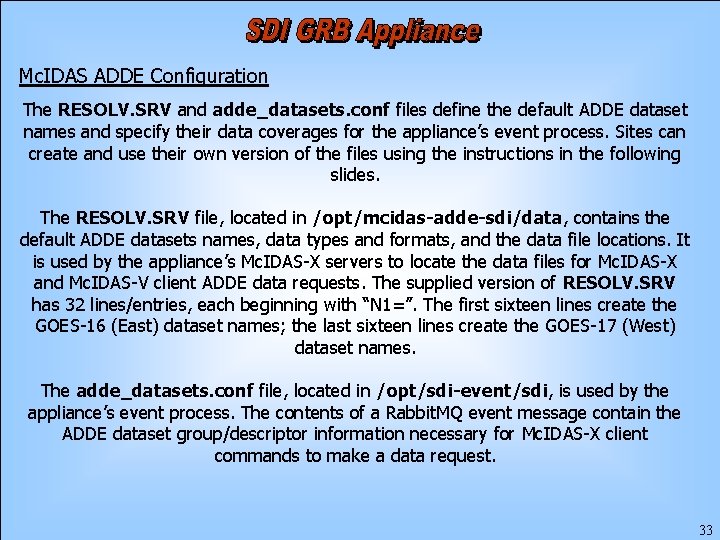
Mc. IDAS ADDE Configuration The RESOLV. SRV and adde_datasets. conf files define the default ADDE dataset names and specify their data coverages for the appliance’s event process. Sites can create and use their own version of the files using the instructions in the following slides. The RESOLV. SRV file, located in /opt/mcidas-adde-sdi/data, contains the default ADDE datasets names, data types and formats, and the data file locations. It is used by the appliance’s Mc. IDAS-X servers to locate the data files for Mc. IDAS-X and Mc. IDAS-V client ADDE data requests. The supplied version of RESOLV. SRV has 32 lines/entries, each beginning with “N 1=”. The first sixteen lines create the GOES-16 (East) dataset names; the last sixteen lines create the GOES-17 (West) dataset names. The adde_datasets. conf file, located in /opt/sdi-event/sdi, is used by the appliance’s event process. The contents of a Rabbit. MQ event message contain the ADDE dataset group/descriptor information necessary for Mc. IDAS-X client commands to make a data request. 33
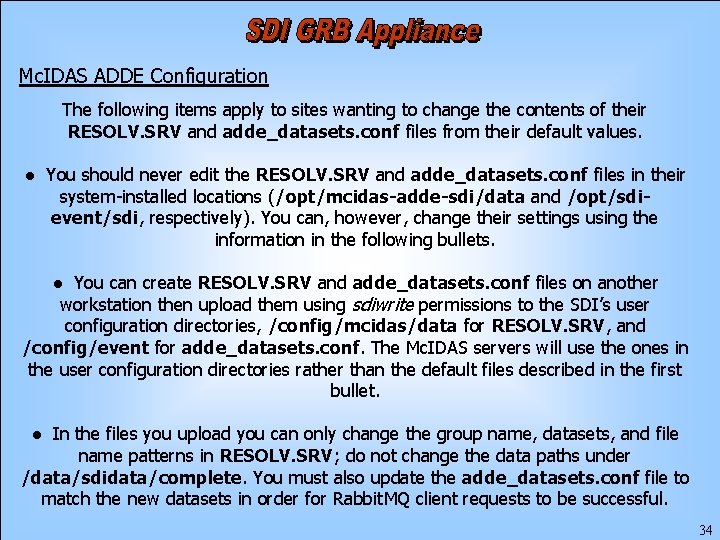
Mc. IDAS ADDE Configuration The following items apply to sites wanting to change the contents of their RESOLV. SRV and adde_datasets. conf files from their default values. ● You should never edit the RESOLV. SRV and adde_datasets. conf files in their system-installed locations (/opt/mcidas-adde-sdi/data and /opt/sdievent/sdi, respectively). You can, however, change their settings using the information in the following bullets. ● You can create RESOLV. SRV and adde_datasets. conf files on another workstation then upload them using sdiwrite permissions to the SDI’s user configuration directories, /config/mcidas/data for RESOLV. SRV, and /config/event for adde_datasets. conf. The Mc. IDAS servers will use the ones in the user configuration directories rather than the default files described in the first bullet. ● In the files you upload you can only change the group name, datasets, and file name patterns in RESOLV. SRV; do not change the data paths under /data/sdidata/complete. You must also update the adde_datasets. conf file to match the new datasets in order for Rabbit. MQ client requests to be successful. 34
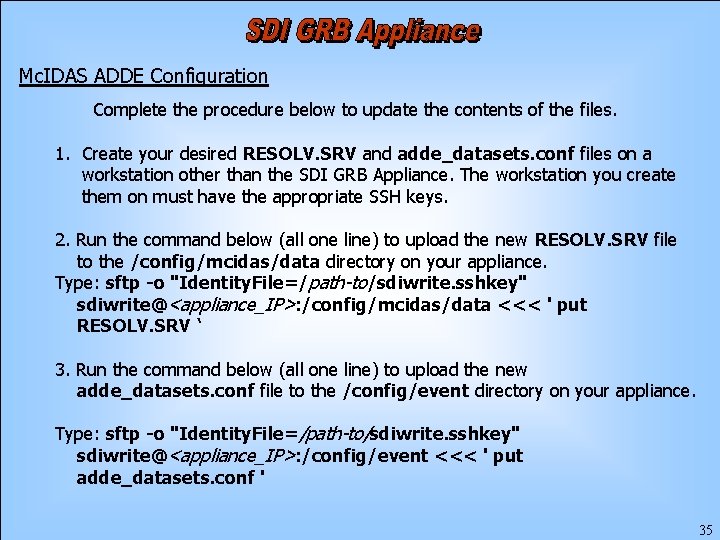
Mc. IDAS ADDE Configuration Complete the procedure below to update the contents of the files. 1. Create your desired RESOLV. SRV and adde_datasets. conf files on a workstation other than the SDI GRB Appliance. The workstation you create them on must have the appropriate SSH keys. 2. Run the command below (all one line) to upload the new RESOLV. SRV file to the /config/mcidas/data directory on your appliance. Type: sftp -o "Identity. File=/path-to/sdiwrite. sshkey" sdiwrite@<appliance_IP>: /config/mcidas/data <<< ' put RESOLV. SRV ‘ 3. Run the command below (all one line) to upload the new adde_datasets. conf file to the /config/event directory on your appliance. Type: sftp -o "Identity. File=/path-to/sdiwrite. sshkey" sdiwrite@<appliance_IP>: /config/event <<< ' put adde_datasets. conf ' 35
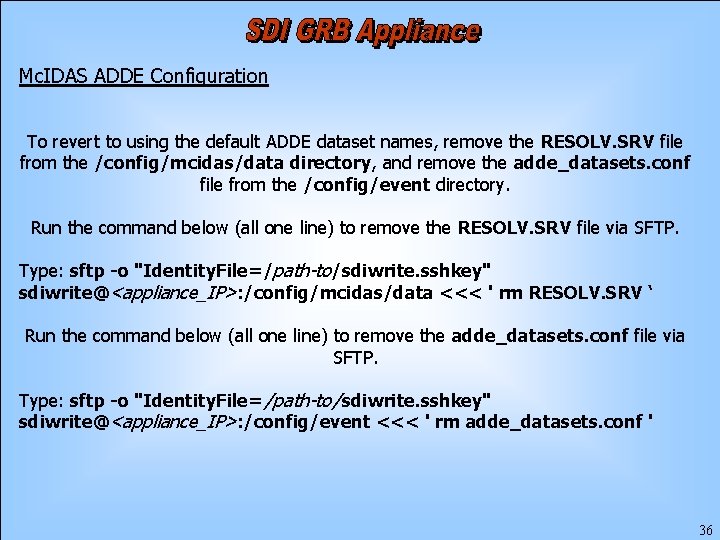
Mc. IDAS ADDE Configuration To revert to using the default ADDE dataset names, remove the RESOLV. SRV file from the /config/mcidas/data directory, and remove the adde_datasets. conf file from the /config/event directory. Run the command below (all one line) to remove the RESOLV. SRV file via SFTP. Type: sftp -o "Identity. File=/path-to/sdiwrite. sshkey" sdiwrite@<appliance_IP>: /config/mcidas/data <<< ' rm RESOLV. SRV ‘ Run the command below (all one line) to remove the adde_datasets. conf file via SFTP. Type: sftp -o "Identity. File=/path-to/sdiwrite. sshkey" sdiwrite@<appliance_IP>: /config/event <<< ' rm adde_datasets. conf ' 36
Troubleshooting Questions This section lists issues that may occur with the SDI GRB Appliance. The bullet list below contains a list of all of the questions in this appendix. After the list you will find each individual question paired with its answer. ● Q 1: How do I check whether GRB data is being ingested? ● Q 2: What should I do if GRB data is not being ingested? ● Q 3: What should I do if the ssecsdi and ssecevent daemons are running but GRB data is not ingesting? ● Q 4: What should I do if the grb. log file is updating but data is not filing? ● Q 5: What should I do if data flow is not showing with ncat? ● Q 6: How can I tell if the ingest service has been running continuously or is stopping and restarting? ● Q 7: How do I download log files? ● Q 8: Are there example scripts available for accessing data using the Rabbit. MQ messaging system? ● Q 9: How do I switch from ingesting GOES-16 to GOES-17 (or vice-versa)? 37
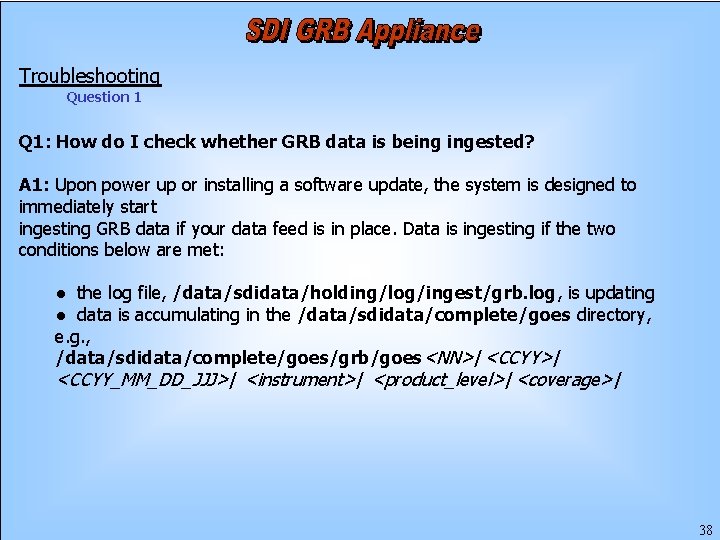
Troubleshooting Question 1 Q 1: How do I check whether GRB data is being ingested? A 1: Upon power up or installing a software update, the system is designed to immediately start ingesting GRB data if your data feed is in place. Data is ingesting if the two conditions below are met: ● the log file, /data/sdidata/holding/log/ingest/grb. log, is updating ● data is accumulating in the /data/sdidata/complete/goes directory, e. g. , /data/sdidata/complete/goes/grb/goes<NN>/<CCYY>/ <CCYY_MM_DD_JJJ>/ <instrument>/ <product_level>/<coverage>/ 38
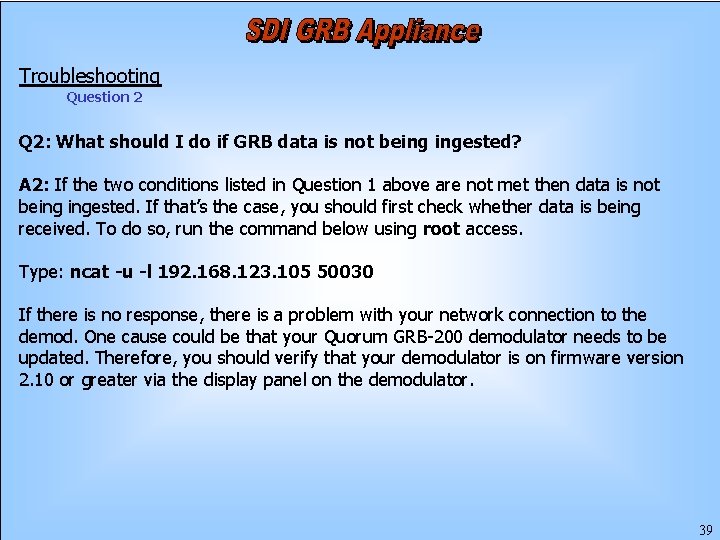
Troubleshooting Question 2 Q 2: What should I do if GRB data is not being ingested? A 2: If the two conditions listed in Question 1 above are not met then data is not being ingested. If that’s the case, you should first check whether data is being received. To do so, run the command below using root access. Type: ncat -u -l 192. 168. 123. 105 50030 If there is no response, there is a problem with your network connection to the demod. One cause could be that your Quorum GRB-200 demodulator needs to be updated. Therefore, you should verify that your demodulator is on firmware version 2. 10 or greater via the display panel on the demodulator. 39
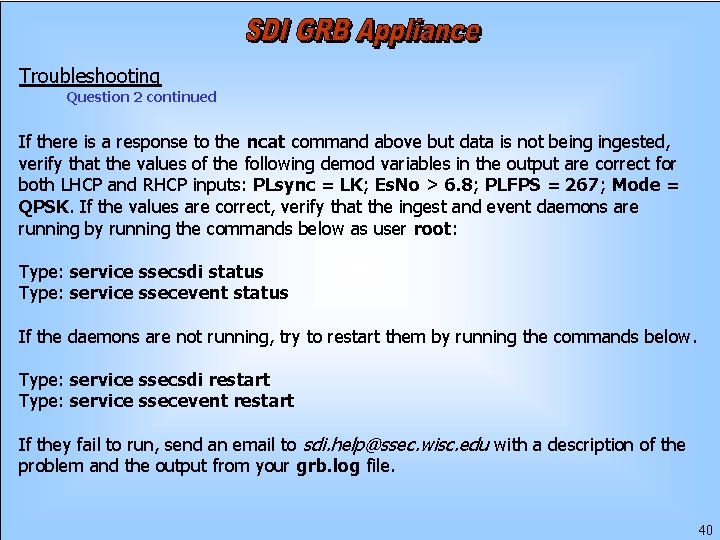
Troubleshooting Question 2 continued If there is a response to the ncat command above but data is not being ingested, verify that the values of the following demod variables in the output are correct for both LHCP and RHCP inputs: PLsync = LK; Es. No > 6. 8; PLFPS = 267; Mode = QPSK. If the values are correct, verify that the ingest and event daemons are running by running the commands below as user root: Type: service ssecsdi status Type: service ssecevent status If the daemons are not running, try to restart them by running the commands below. Type: service ssecsdi restart Type: service ssecevent restart If they fail to run, send an email to sdi. help@ssec. wisc. edu with a description of the problem and the output from your grb. log file. 40
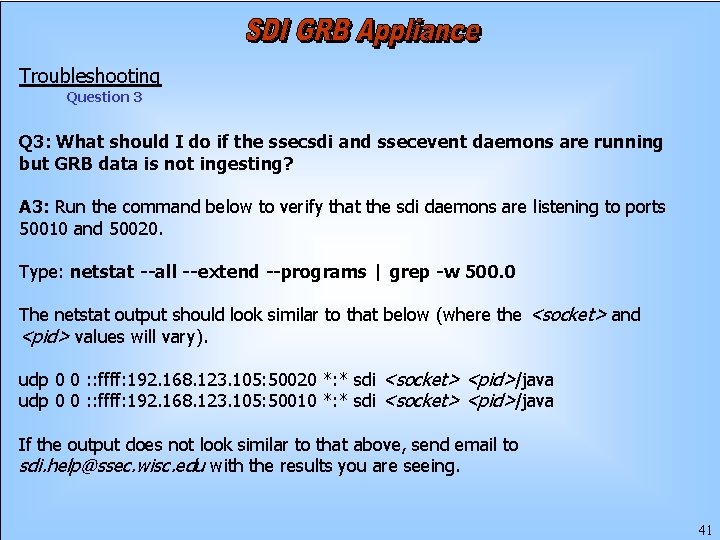
Troubleshooting Question 3 Q 3: What should I do if the ssecsdi and ssecevent daemons are running but GRB data is not ingesting? A 3: Run the command below to verify that the sdi daemons are listening to ports 50010 and 50020. Type: netstat --all --extend --programs | grep -w 500. 0 The netstat output should look similar to that below (where the <socket> and <pid> values will vary). udp 0 0 : : ffff: 192. 168. 123. 105: 50020 *: * sdi <socket> <pid>/java udp 0 0 : : ffff: 192. 168. 123. 105: 50010 *: * sdi <socket> <pid>/java If the output does not look similar to that above, send email to sdi. help@ssec. wisc. edu with the results you are seeing. 41
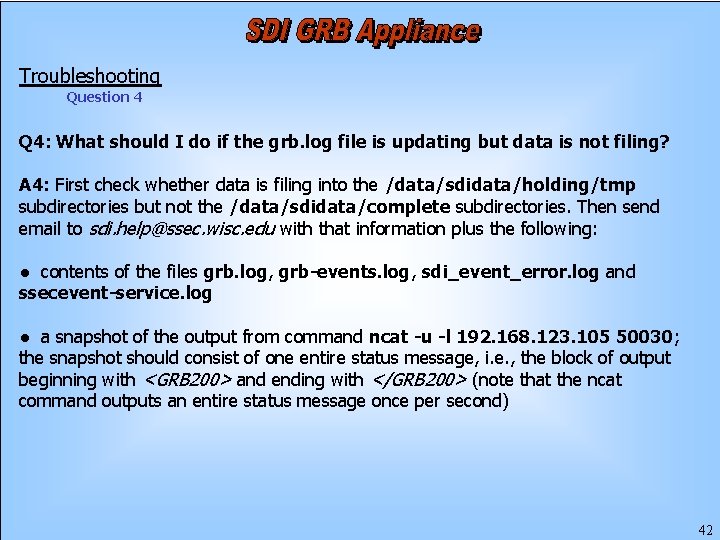
Troubleshooting Question 4 Q 4: What should I do if the grb. log file is updating but data is not filing? A 4: First check whether data is filing into the /data/sdidata/holding/tmp subdirectories but not the /data/sdidata/complete subdirectories. Then send email to sdi. help@ssec. wisc. edu with that information plus the following: ● contents of the files grb. log, grb-events. log, sdi_event_error. log and ssecevent-service. log ● a snapshot of the output from command ncat -u -l 192. 168. 123. 105 50030; the snapshot should consist of one entire status message, i. e. , the block of output beginning with <GRB 200> and ending with </GRB 200> (note that the ncat command outputs an entire status message once per second) 42
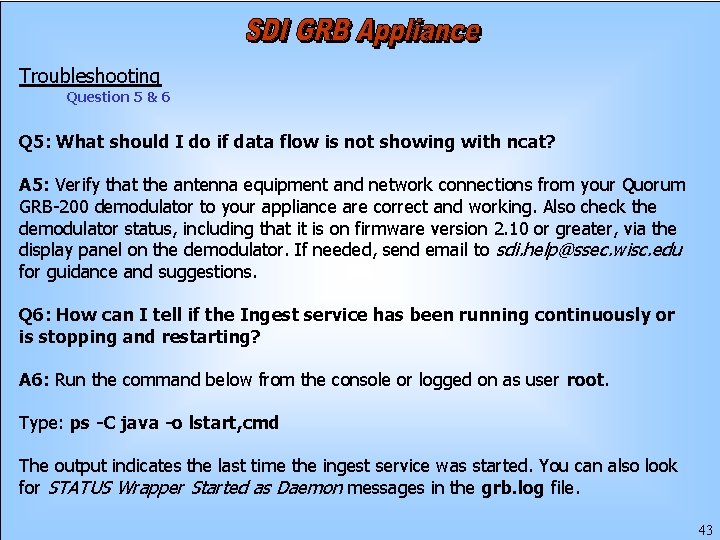
Troubleshooting Question 5 & 6 Q 5: What should I do if data flow is not showing with ncat? A 5: Verify that the antenna equipment and network connections from your Quorum GRB-200 demodulator to your appliance are correct and working. Also check the demodulator status, including that it is on firmware version 2. 10 or greater, via the display panel on the demodulator. If needed, send email to sdi. help@ssec. wisc. edu for guidance and suggestions. Q 6: How can I tell if the Ingest service has been running continuously or is stopping and restarting? A 6: Run the command below from the console or logged on as user root. Type: ps -C java -o lstart, cmd The output indicates the last time the ingest service was started. You can also look for STATUS Wrapper Started as Daemon messages in the grb. log file. 43
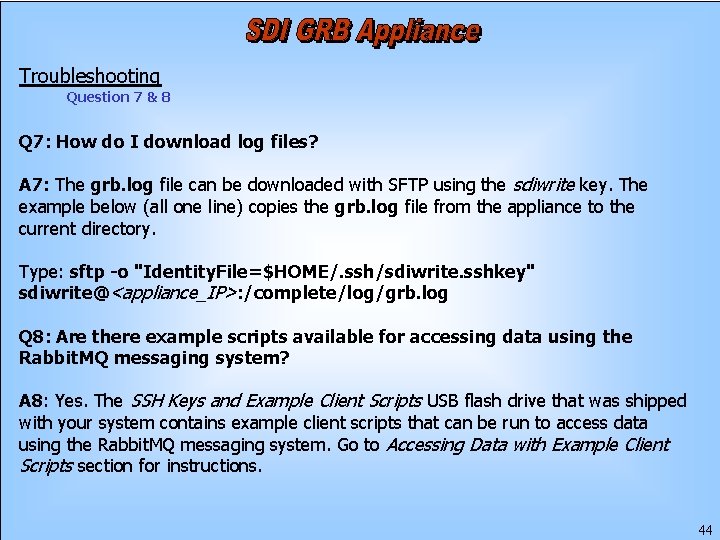
Troubleshooting Question 7 & 8 Q 7: How do I download log files? A 7: The grb. log file can be downloaded with SFTP using the sdiwrite key. The example below (all one line) copies the grb. log file from the appliance to the current directory. Type: sftp -o "Identity. File=$HOME/. ssh/sdiwrite. sshkey" sdiwrite@<appliance_IP>: /complete/log/grb. log Q 8: Are there example scripts available for accessing data using the Rabbit. MQ messaging system? A 8: Yes. The SSH Keys and Example Client Scripts USB flash drive that was shipped with your system contains example client scripts that can be run to access data using the Rabbit. MQ messaging system. Go to Accessing Data with Example Client Scripts section for instructions. 44
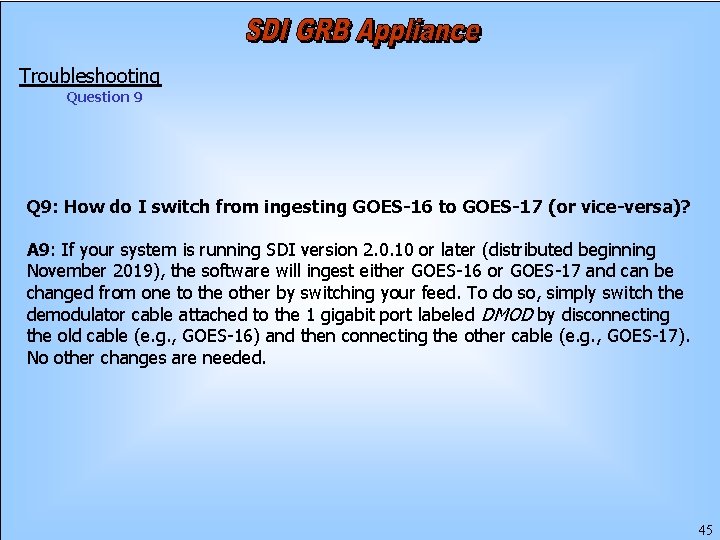
Troubleshooting Question 9 Q 9: How do I switch from ingesting GOES-16 to GOES-17 (or vice-versa)? A 9: If your system is running SDI version 2. 0. 10 or later (distributed beginning November 2019), the software will ingest either GOES-16 or GOES-17 and can be changed from one to the other by switching your feed. To do so, simply switch the demodulator cable attached to the 1 gigabit port labeled DMOD by disconnecting the old cable (e. g. , GOES-16) and then connecting the other cable (e. g. , GOES-17). No other changes are needed. 45
- Slides: 46