
SDA Viewing Part Drawing Document Quick Reference Guide
- Slides: 4
SDA Viewing Part Drawing / Document Quick Reference Guide
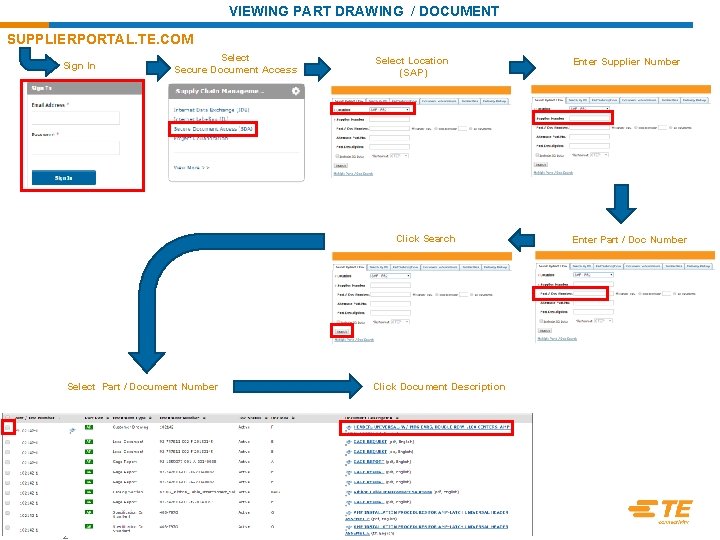
VIEWING PART DRAWING / DOCUMENT SUPPLIERPORTAL. TE. COM Sign In Select Secure Document Access Select Location (SAP) Click Search Select Part / Document Number TE Connectivity Confidential & Proprietary. Do not reproduce or distribute. 2 Click Document Description Enter Supplier Number Enter Part / Doc Number
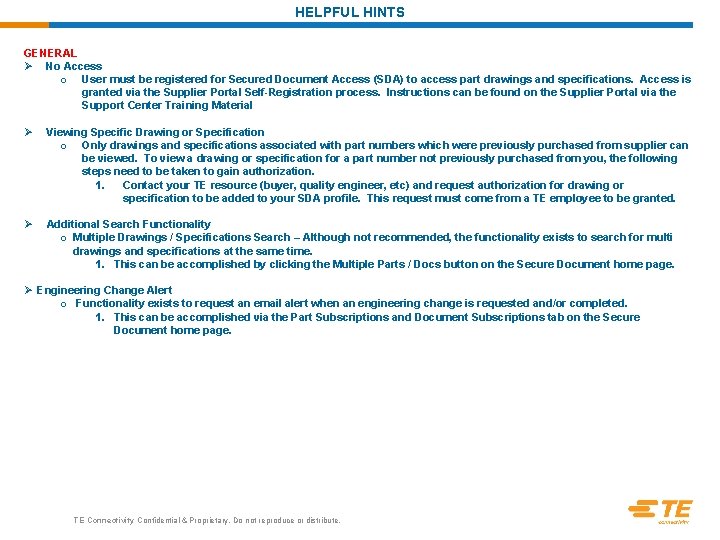
HELPFUL HINTS GENERAL Ø No Access o User must be registered for Secured Document Access (SDA) to access part drawings and specifications. Access is granted via the Supplier Portal Self-Registration process. Instructions can be found on the Supplier Portal via the Support Center Training Material Ø Viewing Specific Drawing or Specification o Only drawings and specifications associated with part numbers which were previously purchased from supplier can be viewed. To view a drawing or specification for a part number not previously purchased from you, the following steps need to be taken to gain authorization. 1. Contact your TE resource (buyer, quality engineer, etc) and request authorization for drawing or specification to be added to your SDA profile. This request must come from a TE employee to be granted. Ø Additional Search Functionality o Multiple Drawings / Specifications Search – Although not recommended, the functionality exists to search for multi drawings and specifications at the same time. 1. This can be accomplished by clicking the Multiple Parts / Docs button on the Secure Document home page. Ø Engineering Change Alert o Functionality exists to request an email alert when an engineering change is requested and/or completed. 1. This can be accomplished via the Part Subscriptions and Document Subscriptions tab on the Secure Document home page. TE Connectivity Confidential & Proprietary. Do not reproduce or distribute.
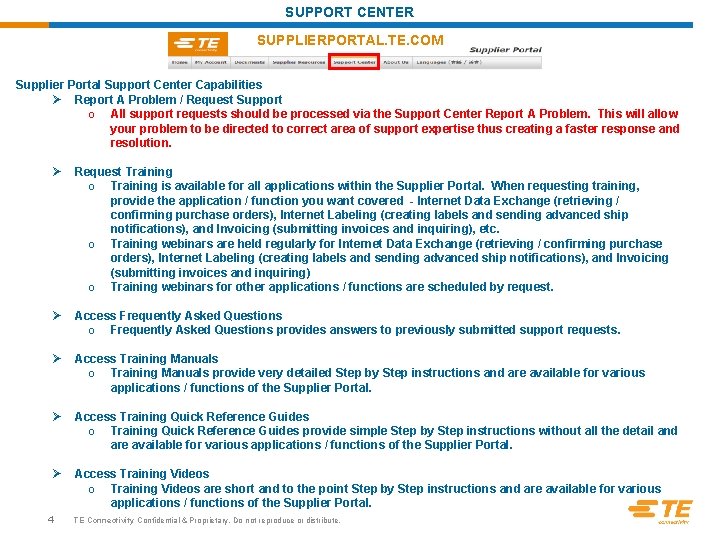
SUPPORT CENTER SUPPLIERPORTAL. TE. COM Supplier Portal Support Center Capabilities Ø Report A Problem / Request Support o All support requests should be processed via the Support Center Report A Problem. This will allow your problem to be directed to correct area of support expertise thus creating a faster response and resolution. Ø Request Training o Training is available for all applications within the Supplier Portal. When requesting training, provide the application / function you want covered - Internet Data Exchange (retrieving / confirming purchase orders), Internet Labeling (creating labels and sending advanced ship notifications), and Invoicing (submitting invoices and inquiring), etc. o Training webinars are held regularly for Internet Data Exchange (retrieving / confirming purchase orders), Internet Labeling (creating labels and sending advanced ship notifications), and Invoicing (submitting invoices and inquiring) o Training webinars for other applications / functions are scheduled by request. Ø Access Frequently Asked Questions o Frequently Asked Questions provides answers to previously submitted support requests. Ø Access Training Manuals o Training Manuals provide very detailed Step by Step instructions and are available for various applications / functions of the Supplier Portal. Ø Access Training Quick Reference Guides o Training Quick Reference Guides provide simple Step by Step instructions without all the detail and are available for various applications / functions of the Supplier Portal. Ø Access Training Videos o Training Videos are short and to the point Step by Step instructions and are available for various applications / functions of the Supplier Portal. 4 TE Connectivity Confidential & Proprietary. Do not reproduce or distribute.