
SCREEN BASED CONTROL Agenda Mengidentifikasi karakteristik dan kemampuan
SCREEN – BASED CONTROL
Agenda Mengidentifikasi karakteristik dan kemampuan dari berbagai layar kontrol Memilih kontrol yang tepat bagi pengguna dan tugas nya
Screen Control Sometimes called ‘widgets’ Widgets: the elements of a screen that constitute its body. Definition: objek grafis yang mewakili sifat atau operasi dari objek lain Functions: ◦ Mengizinkan masuk atau pemilihan nilai tertentu ◦ Mengizinkan perubahan atau penyuntingan suatu nilai tertentu ◦ Menampilkan hanya bagian tertentu dari teks, nilai, atau grafis ◦ Suatu perintah yang harus dilakukan ◦ Memiliki jendela pop-up kontekstual
Three Extremely Important Principles A control must: Look the way it works Work the way it looks “Look” “enter-ability” or “click-ability” Used exactly as its design intended Presented in a standard manner Example: Windows XP: Raised elements can be pressed Recessed elements can not be pressed Elements on a flat white background can be opened, edited, or moved.
Operable Controls … are those that permit: ◦ ◦ ◦ Entry Selection Changing Editing Cause a command to be performed Here are the classes… (next slide)
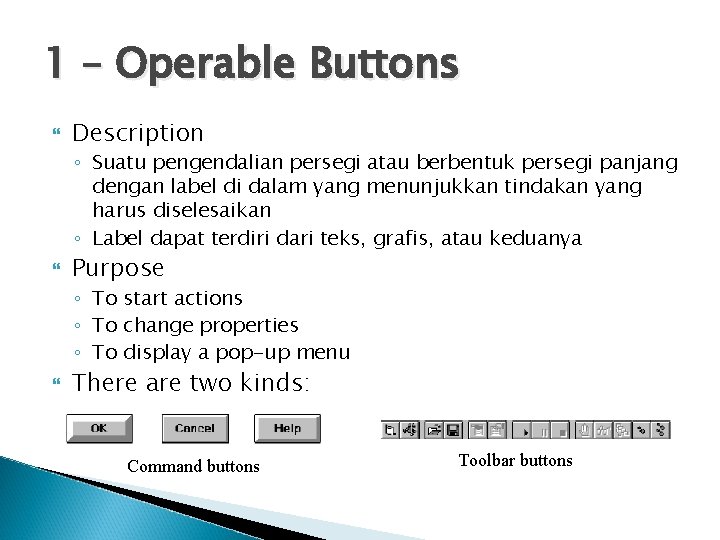
1 – Operable Buttons Description ◦ Suatu pengendalian persegi atau berbentuk persegi panjang dengan label di dalam yang menunjukkan tindakan yang harus diselesaikan ◦ Label dapat terdiri dari teks, grafis, atau keduanya Purpose ◦ To start actions ◦ To change properties ◦ To display a pop-up menu There are two kinds: Command buttons Toolbar buttons
1 – Operable Buttons Keuntungan ◦ Selalu terlihat, mengingat salah satu pilihan yang tersedia ◦ Mudah ◦ Dapat diselenggarakan secara logis dalam pekerjaan daerah ◦ Dapat memberikan gambaran yang berarti dari tindakan yang akan dilakukan ◦ ukuran lebih besar biasanya memberikan target seleksi lebih cepat • ◦ Dapat memiliki penampilan 3 -D Menambah gaya estetis menyenangkan untuk layar Menyediakan umpan balik visual melalui gerakan tombol bila diaktifkan ◦ Dapat mengizinkan penggunaan keyboard dan akselerator setara ◦ Lebih cepat daripada menggunakan menu bar dua langkah / urutan pulldown Kekurangan • Menghabiskan ruang layar • Ukuran membatasi jumlah yang dapat ditampilkan • Membutuhkan berpaling dari wilayah kerja utama untuk mengaktifkan • Membutuhkan memindahkan pointer untuk memilih
1 – Operable Buttons To a window: ◦ To cause something to happen immediately ◦ To display another window ◦ To display a menu of options ◦ To set a mode or property value • Things to consider: – – – Usage Structure Labels Size Number Location & layout In a web ◦ Use links to show information Organization Intent indicators Expansion buttons Default Keyboard equivalent / accelerators – Button activation – – –
2 – Text Entry / Read only controls Usually referred as “field” or “text-box” Description Unprotected: a text box into which information can be keyed Protected: A text box used for display purposes only Usually rectangular in shape Usually possesses a caption or label describing the kind of information contained within it Two types exist Single-line Multiple-line When first displayed, the box may be blank or contain an initial value Purpose To permit the display, entering, or editing of textual information To display read-only information
2 – Text Entry / Read only controls Advantages Very flexible Familiar Consumes little screen space Disadvantages Requires use of typewriter keyboard. Requires user to remember what must be keyed Proper usage Most useful for data that is Unlimited in scope Difficult to categorize Of a variety of different lengths When using a selection list is not possible
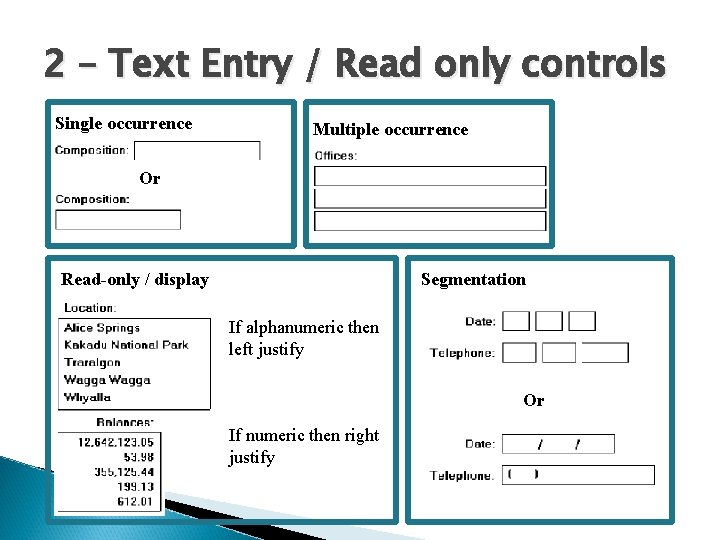
2 – Text Entry / Read only controls Single occurrence Multiple occurrence Or Segmentation Read-only / display If alphanumeric then left justify Or If numeric then right justify
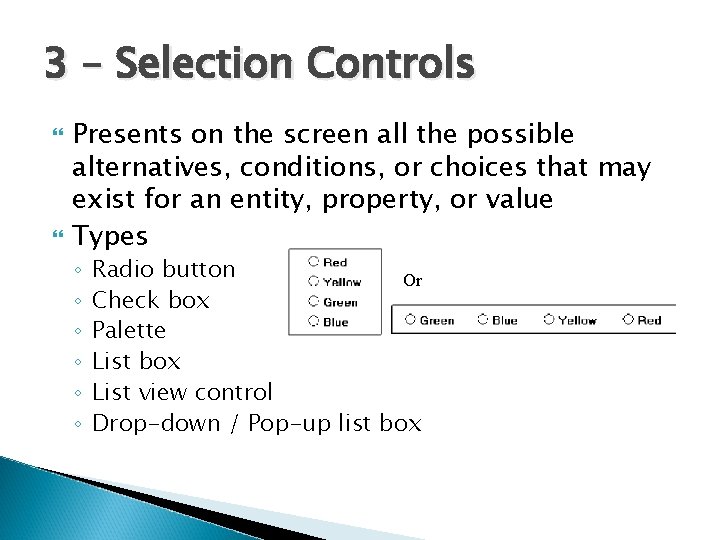
3 – Selection Controls Presents on the screen all the possible alternatives, conditions, or choices that may exist for an entity, property, or value Types ◦ ◦ ◦ Radio button Or Check box Palette List box List view control Drop-down / Pop-up list box
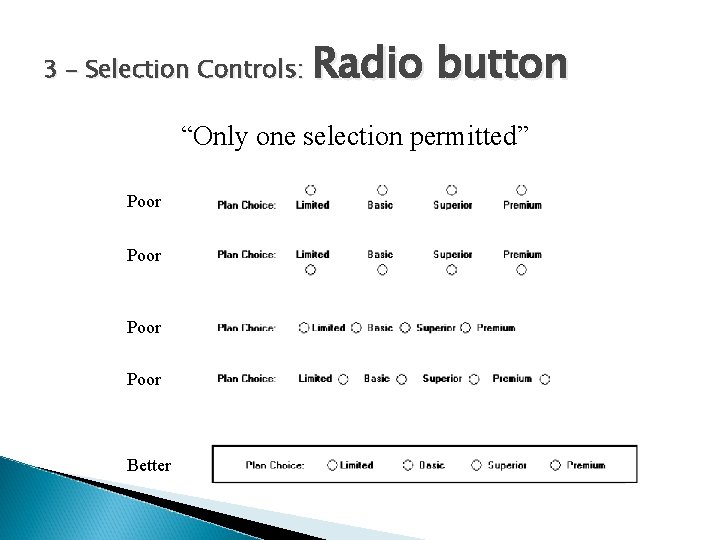
3 – Selection Controls: Radio button “Only one selection permitted” Poor Better
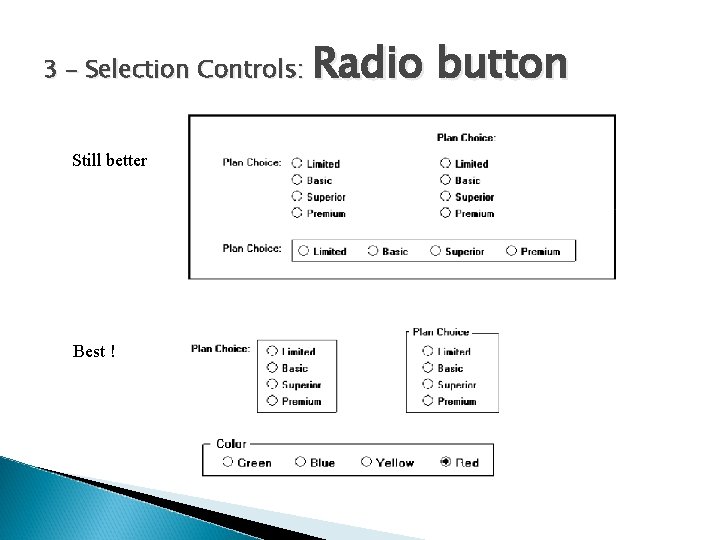
3 – Selection Controls: Still better Best ! Radio button
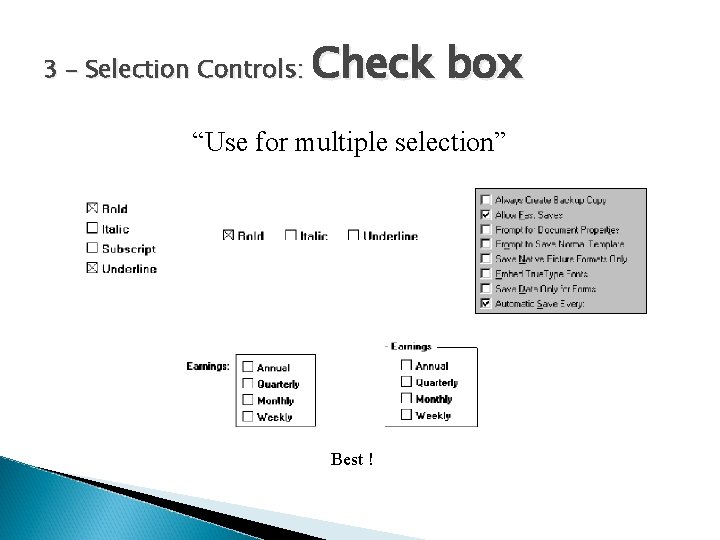
3 – Selection Controls: Check box “Use for multiple selection” Best !
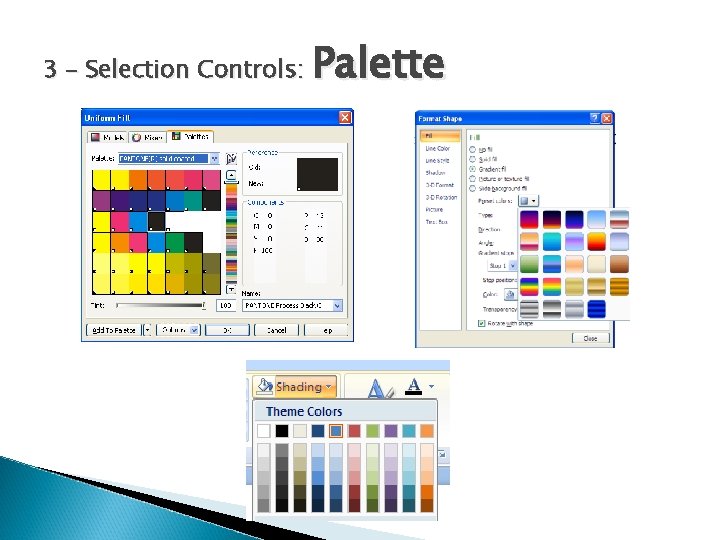
3 – Selection Controls: Palette
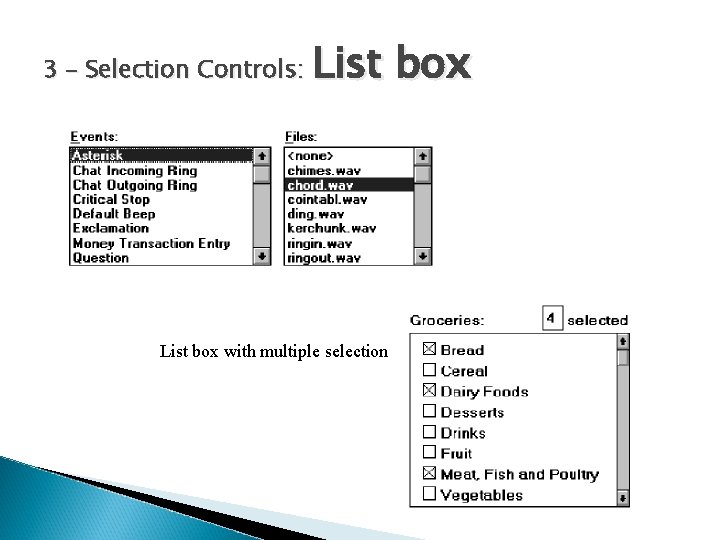
3 – Selection Controls: List box with multiple selection
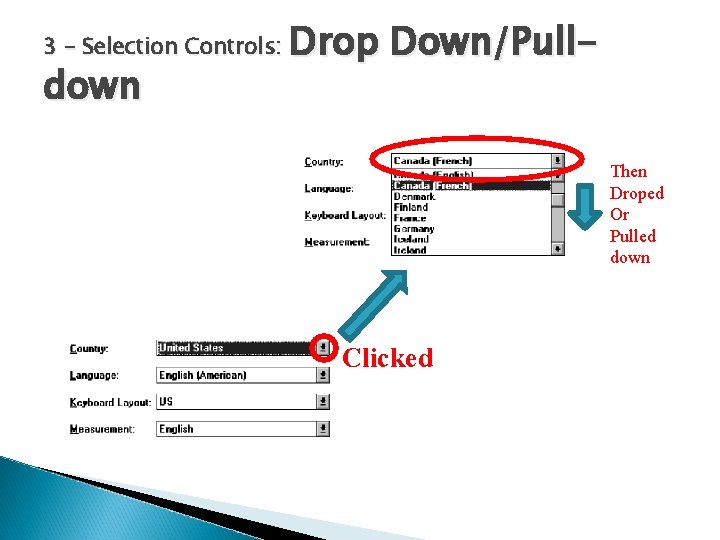
3 – Selection Controls: down Drop Down/Pull. Then Droped Or Pulled down Clicked
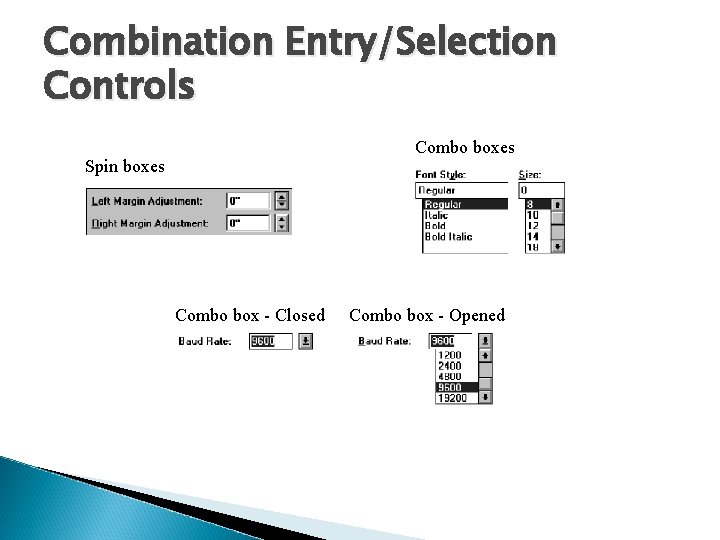
Combination Entry/Selection Controls Combo boxes Spin boxes Combo box - Closed Combo box - Opened
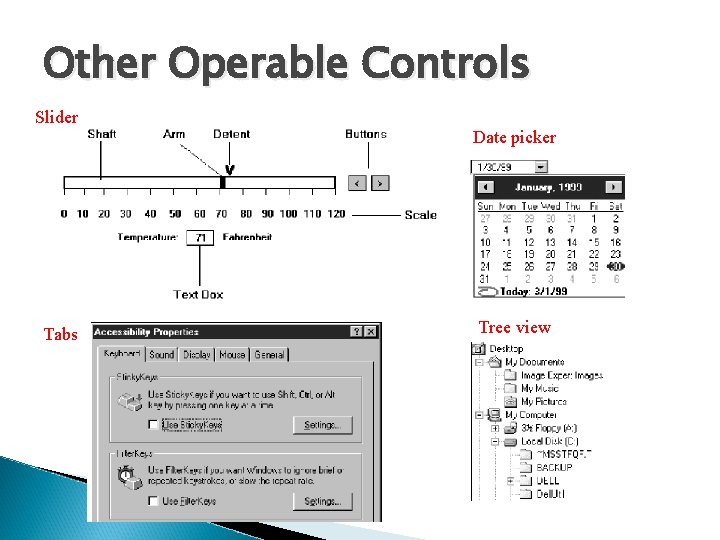
Other Operable Controls Slider Date picker Tabs Tree view
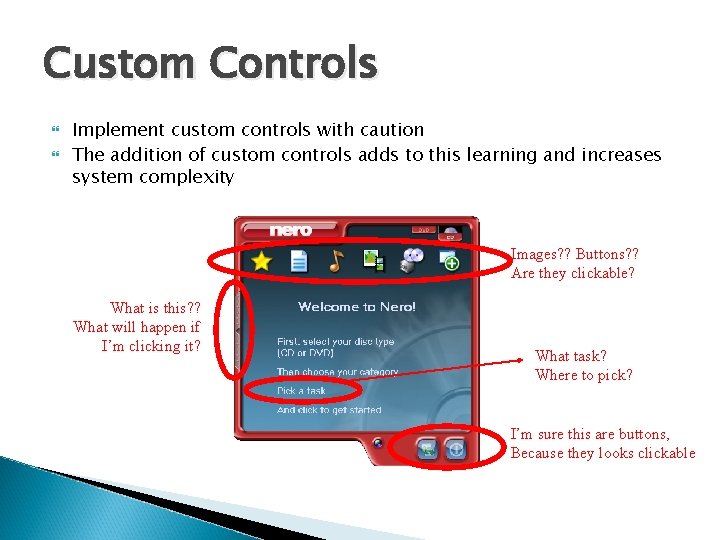
Custom Controls Implement custom controls with caution The addition of custom controls adds to this learning and increases system complexity Images? ? Buttons? ? Are they clickable? What is this? ? What will happen if I’m clicking it? What task? Where to pick? I’m sure this are buttons, Because they looks clickable
Presentation Controls Teks statis bidang: informasi read-only tekstual kotak Group: bingkai persegi panjang yang mengelilingi kontrol atau kelompok kontrol; keterangan opsional dapat disertakan. Kolom judul: informasi tekstual read-only yang berfungsi sebagai judul di atas kolom teks atau angka Alat ujung / balon tip: jendela pop-up kecil yang berisi informasi; bisa ditempatkan di balon
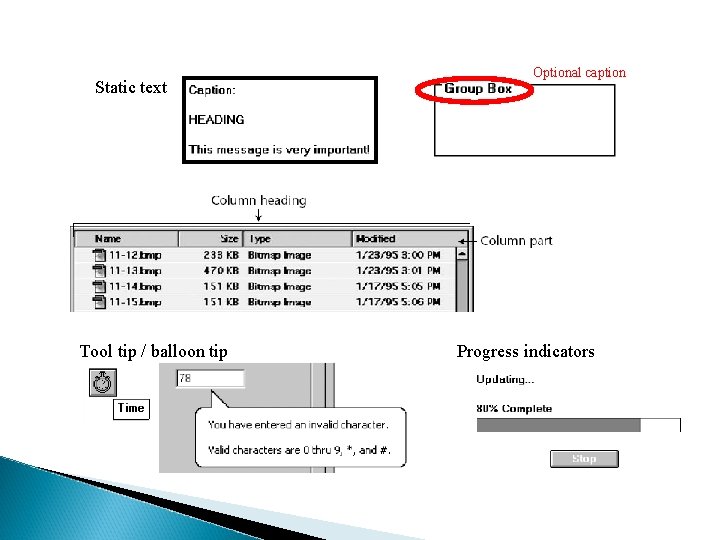
Static text Tool tip / balloon tip Optional caption Progress indicators
Selecting the Proper Controls Choose familiar controls Consider the task Reduce the number of “clicks” Display as many control choices as possible When to permit text entry? Permit text entry if any of the following questions can be answered “Yes” Is the data unlimited in size and scope? Is the data familiar? Is the data not conducive to typing errors? Will typing be faster than choice selection? Is the user an experienced typist?
Selecting the Proper Controls Buttons or Menus for commands? ◦ Consider the following: Whether or not the command is part of a standard tool set. The total number of commands in the application. The complexity of the commands. The frequency with which commands are used. Whether or not the command is used in association with another control.
- Slides: 25