
Scratch Workshop Thursday August 26 2010 What is
- Slides: 19
Scratch Workshop Thursday, August 26, 2010
What is Scratch? • Scratch is a programming language that makes it easy to create interactive stories, animations, games, music and art • Designed to help young people (ages 8+) to develop 21 st Century skills
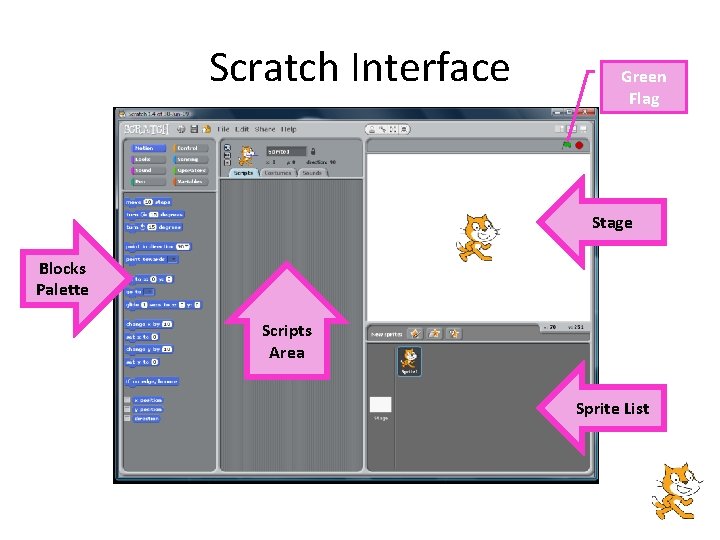
Scratch Interface Green Flag Stage Blocks Palette Scripts Area Sprite List
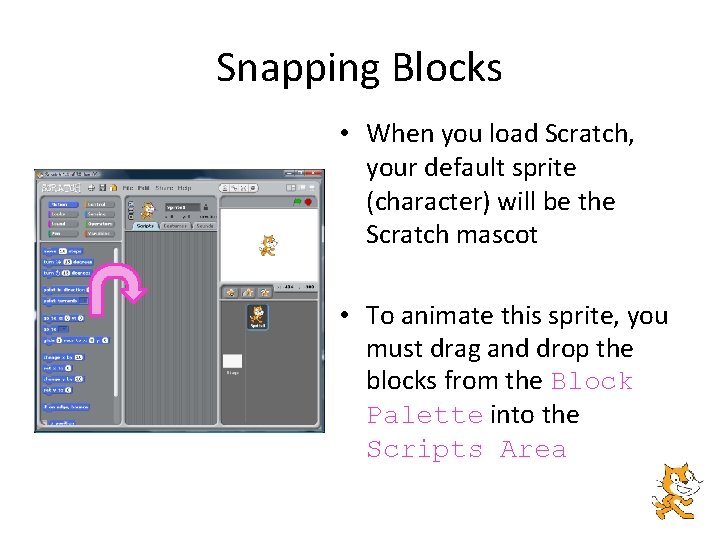
Snapping Blocks • When you load Scratch, your default sprite (character) will be the Scratch mascot • To animate this sprite, you must drag and drop the blocks from the Block Palette into the Scripts Area
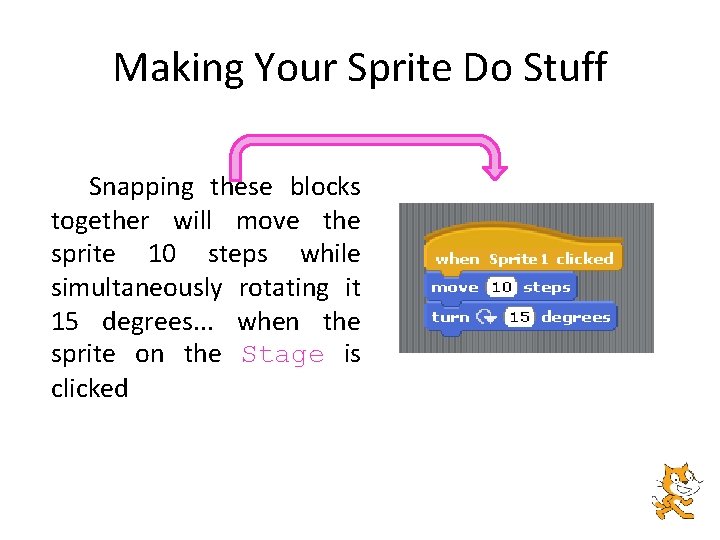
Making Your Sprite Do Stuff Snapping these blocks together will move the sprite 10 steps while simultaneously rotating it 15 degrees. . . when the sprite on the Stage is clicked
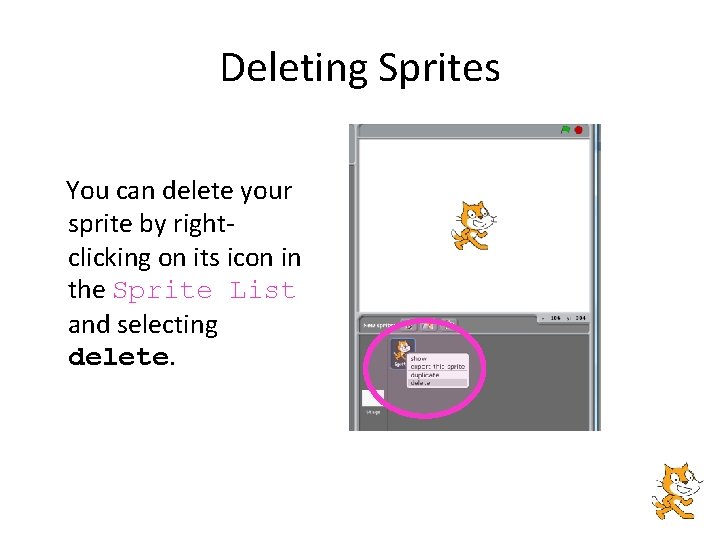
Deleting Sprites You can delete your sprite by rightclicking on its icon in the Sprite List and selecting delete.
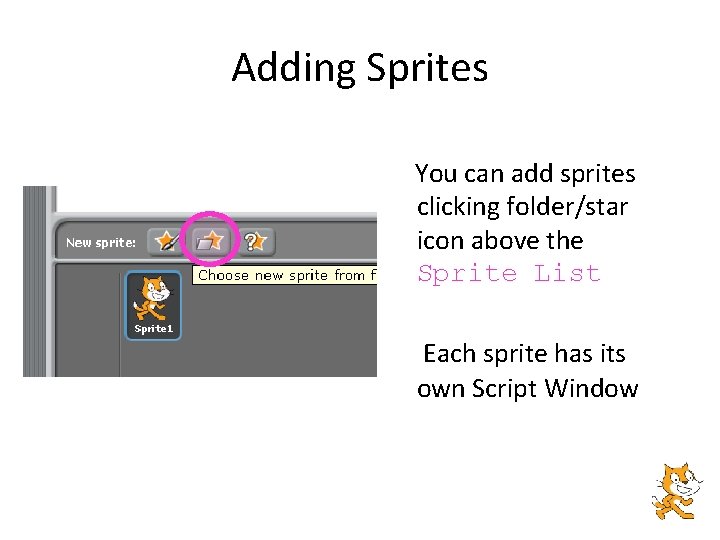
Adding Sprites You can add sprites clicking folder/star icon above the Sprite List Each sprite has its own Script Window
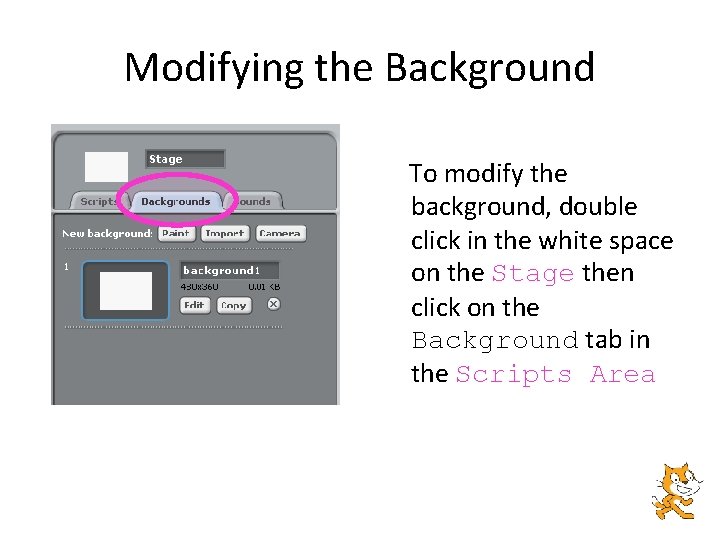
Modifying the Background To modify the background, double click in the white space on the Stage then click on the Background tab in the Scripts Area
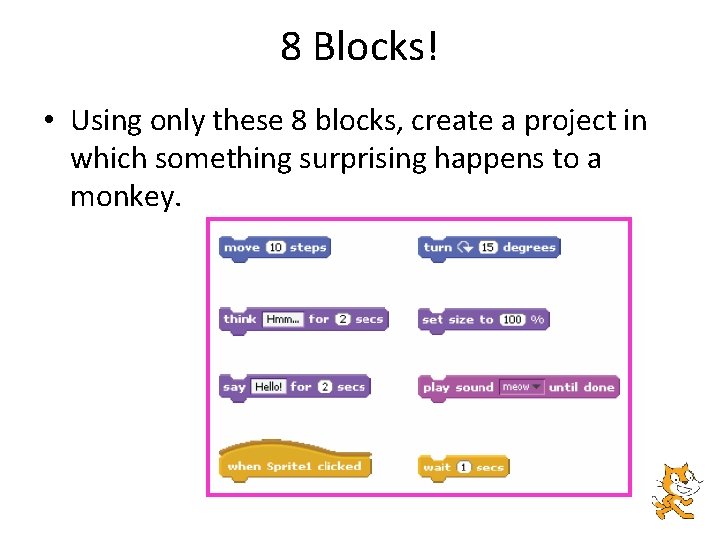
8 Blocks! • Using only these 8 blocks, create a project in which something surprising happens to a monkey.
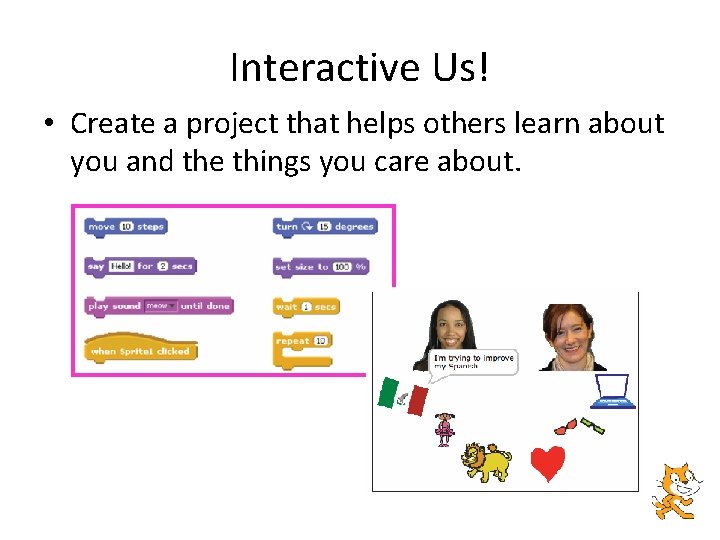
Interactive Us! • Create a project that helps others learn about you and the things you care about.
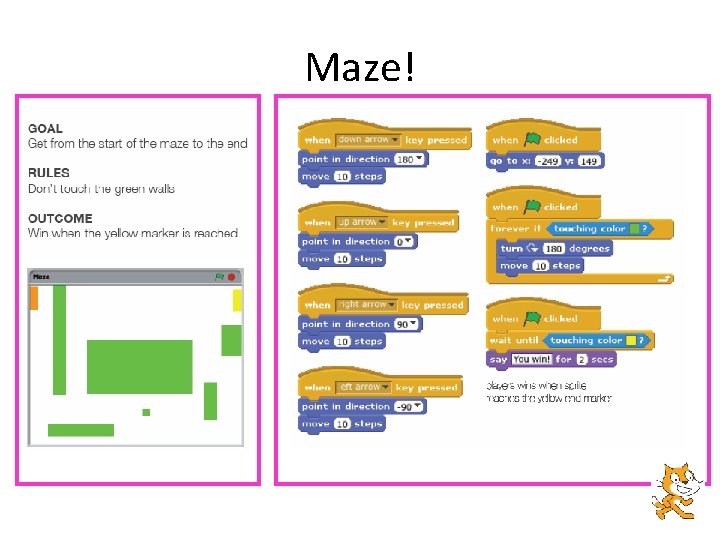
Maze!
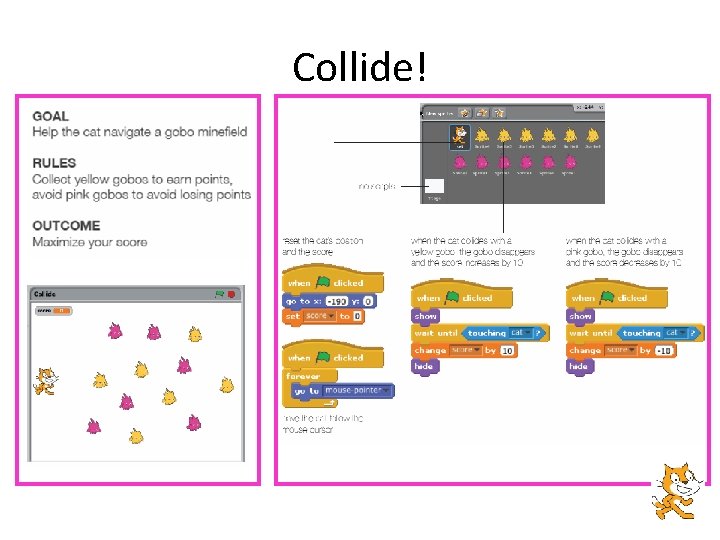
Collide!
Telling Stories • Slide show • Choose your own adventure • Animation
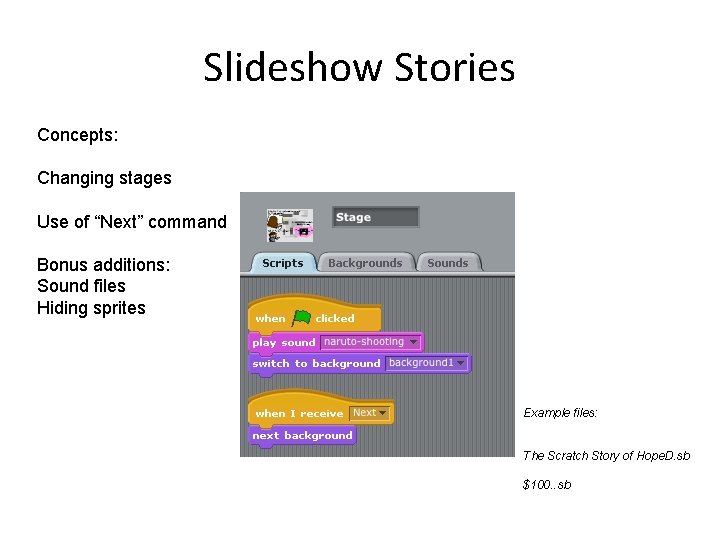
Slideshow Stories Concepts: Changing stages Use of “Next” command Bonus additions: Sound files Hiding sprites Example files: The Scratch Story of Hope. D. sb $100. . sb
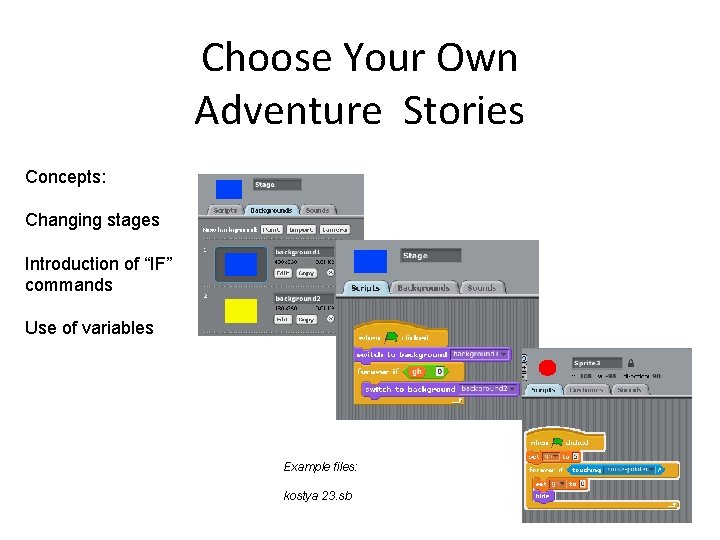
Choose Your Own Adventure Stories Concepts: Changing stages Introduction of “IF” commands Use of variables Example files: kostya 23. sb
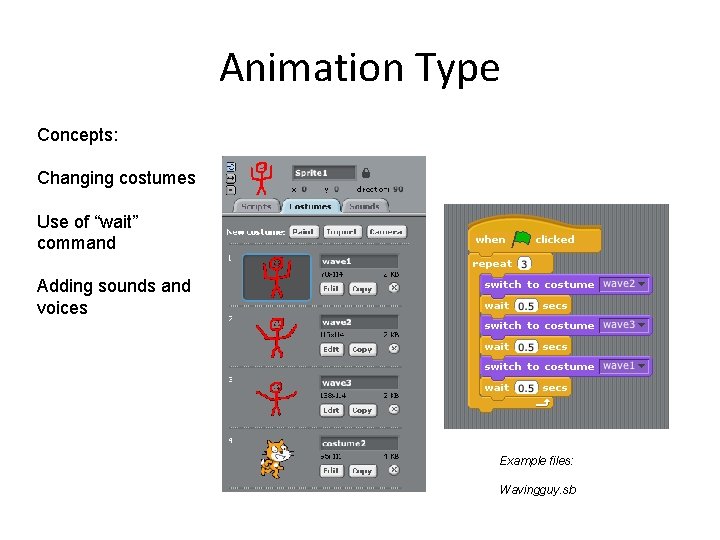
Animation Type Concepts: Changing costumes Use of “wait” command Adding sounds and voices Example files: Wavingguy. sb
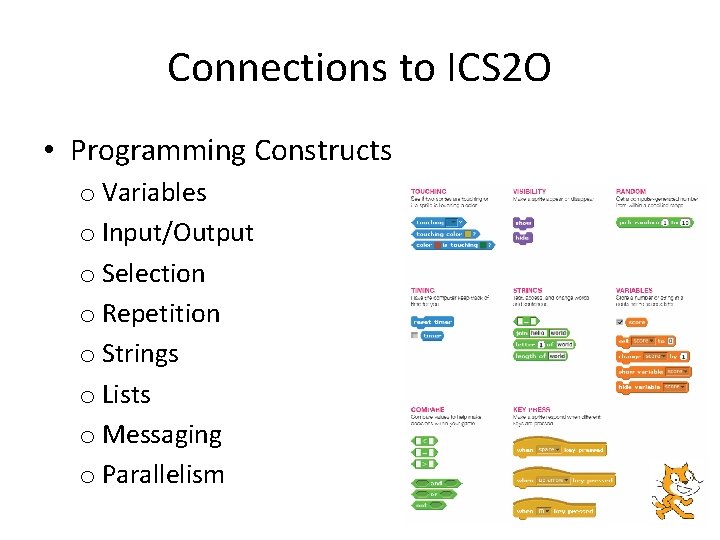
Connections to ICS 2 O • Programming Constructs o Variables o Input/Output o Selection o Repetition o Strings o Lists o Messaging o Parallelism
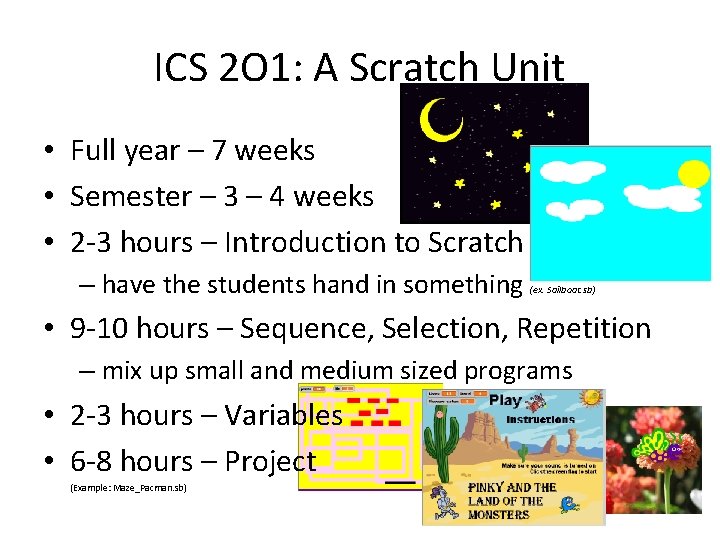
ICS 2 O 1: A Scratch Unit • Full year – 7 weeks • Semester – 3 – 4 weeks • 2 -3 hours – Introduction to Scratch – have the students hand in something (ex. Sailboat. sb) • 9 -10 hours – Sequence, Selection, Repetition – mix up small and medium sized programs • 2 -3 hours – Variables • 6 -8 hours – Project (Example: Maze_Pacman. sb)
Resources • http: //learnscratch. org/ • http: //scratched. media. mit. edu/resources/scratch-lesson-plan • http: //www. lero. ie/educationoutreach/secondlevel/scratchlessonp lans/ • http: //www. openbookproject. net/courses/scratch/day 01. html • http: //scratched. media. mit. edu/resources/scratch-studenttaskcards-accompanying-video-tutorials