
Scratch Lesson 2 Log into your account Open
- Slides: 15
Scratch Lesson 2
Log into your account • Open the internet browser : • Safari or Internet Explorer • Type in the URL scratch. mit. edu • Log into your Scratch account.
Chapter 1 - Section B • When you have logged in, click CREATE to open a new blank project. • Open your text book on page 9. • Complete the 8 tasks in section B Sprite Skills Practice.
Repeat • Click File. • Click GO TO MY STUFF. • If untitled projects appear in your list delete them by clicking on the blue delete to the right of the window. • Click on SEE INSIDE to open your Twinkle, twinkle program.
Repeat • Did you notice that the 3 rd and 4 th lines of the tune are identical? • Could we avoid including the same seven blocks twice here? • Now click on the red writing below to watch the Using Repeat video.
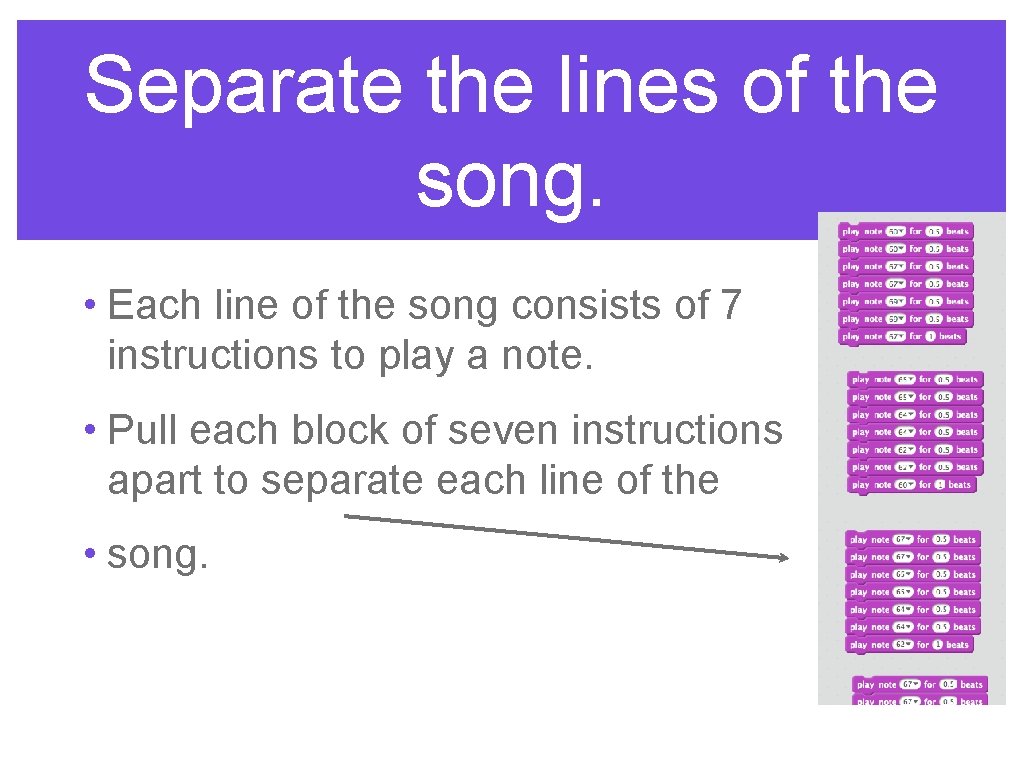
Separate the lines of the song. • Each line of the song consists of 7 instructions to play a note. • Pull each block of seven instructions apart to separate each line of the • song.
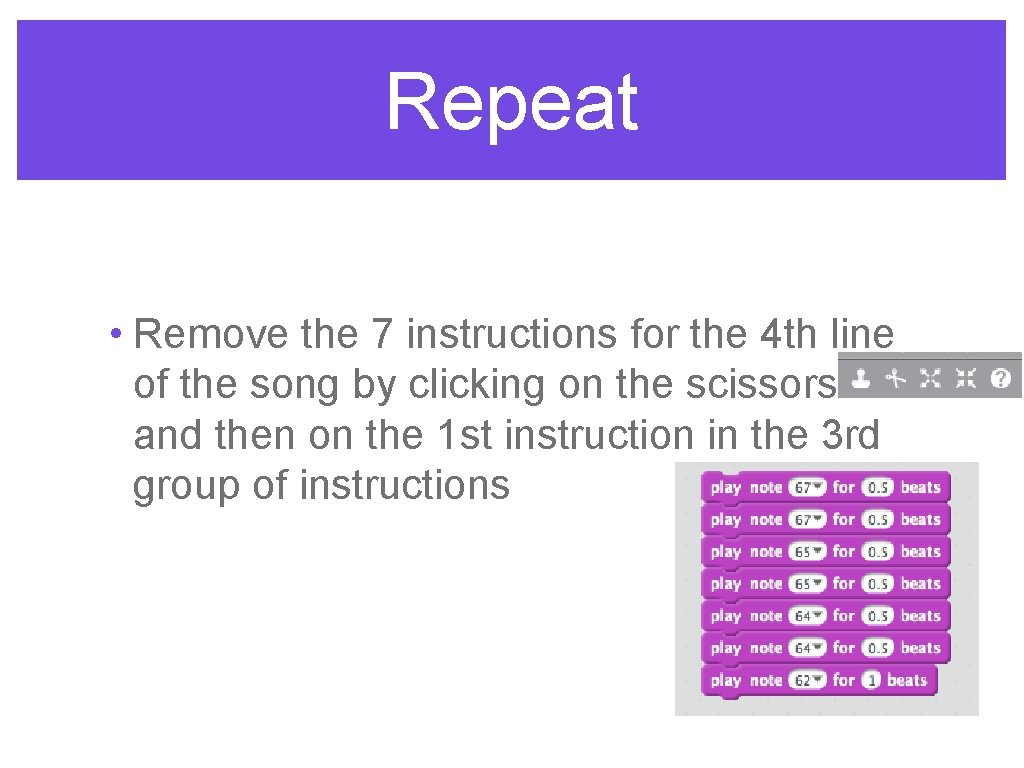
Repeat • Remove the 7 instructions for the 4 th line of the song by clicking on the scissors and then on the 1 st instruction in the 3 rd group of instructions
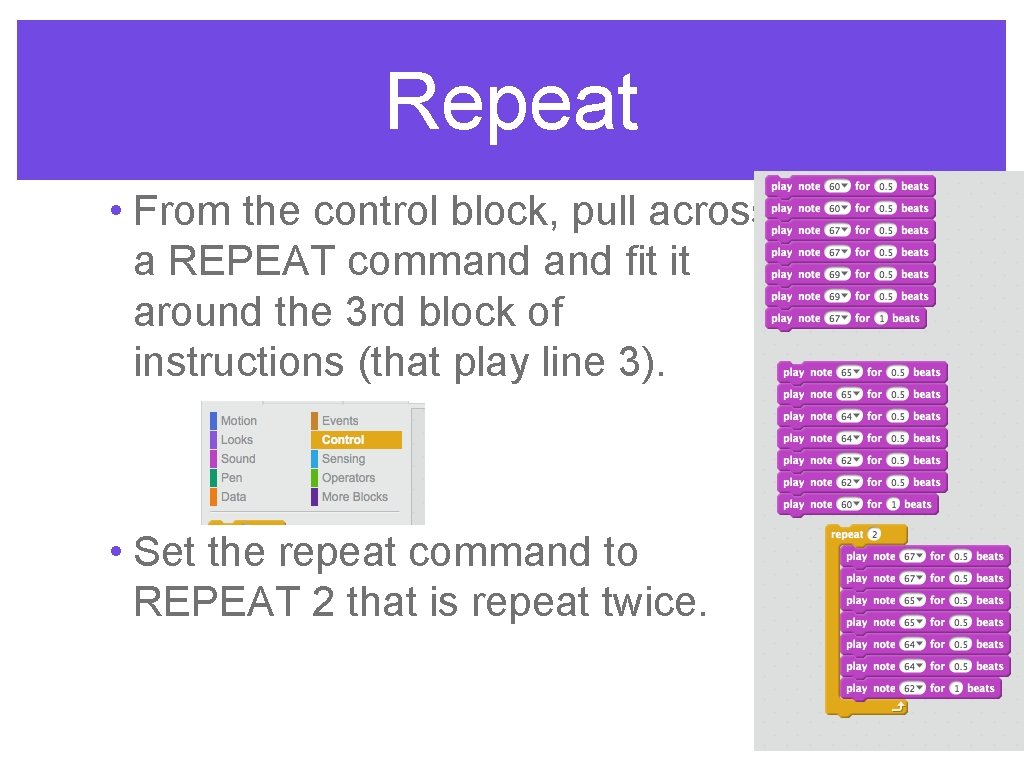
Repeat • From the control block, pull across a REPEAT command fit it around the 3 rd block of instructions (that play line 3). • Set the repeat command to REPEAT 2 that is repeat twice.
Repeat • Now join all the blocks up together again and double click to play the song.
Saving • Click File. • Click Save Now. • Click File. • Click GO TO MY STUFF.
Copybook • Draw a line under your work from Lesson 1. • Put today’s date and the heading Lesson 2 on the next line in your copybook. • Answer the following questions in your copybook.
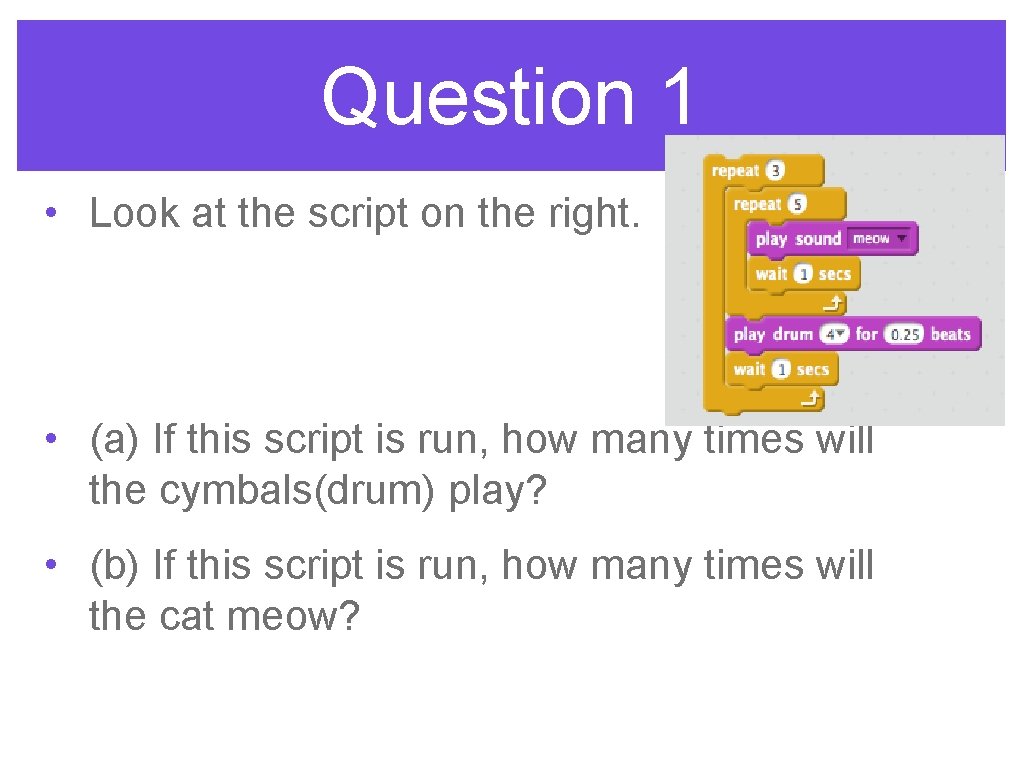
Question 1 • Look at the script on the right. • (a) If this script is run, how many times will the cymbals(drum) play? • (b) If this script is run, how many times will the cat meow?
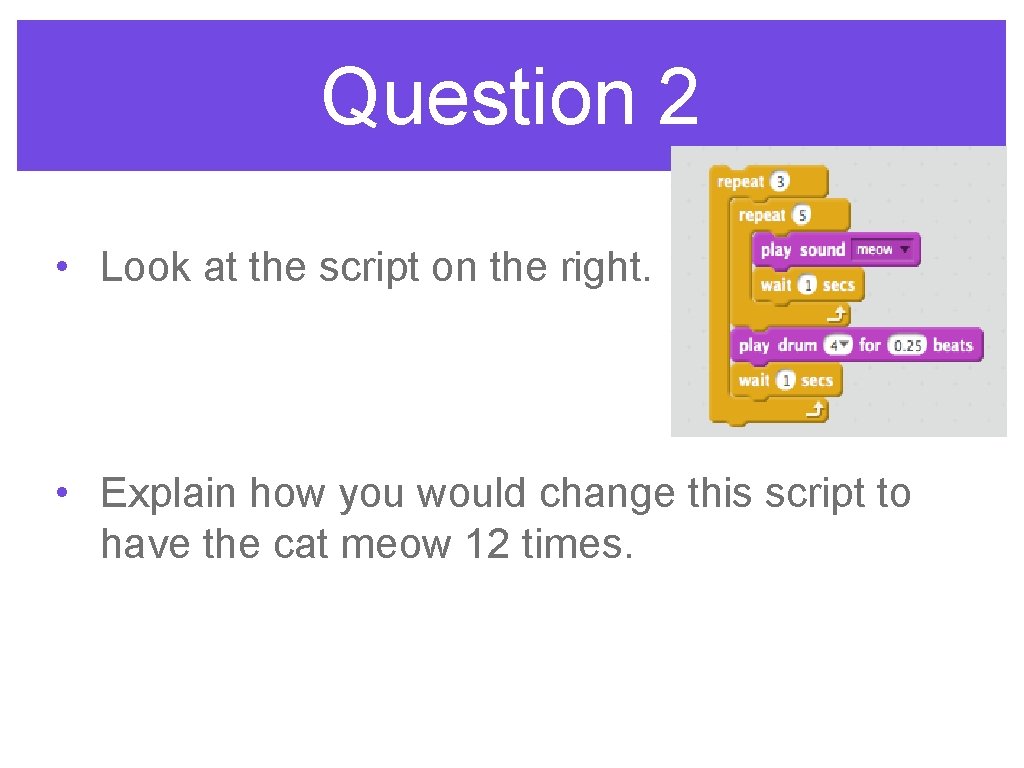
Question 2 • Look at the script on the right. • Explain how you would change this script to have the cat meow 12 times.
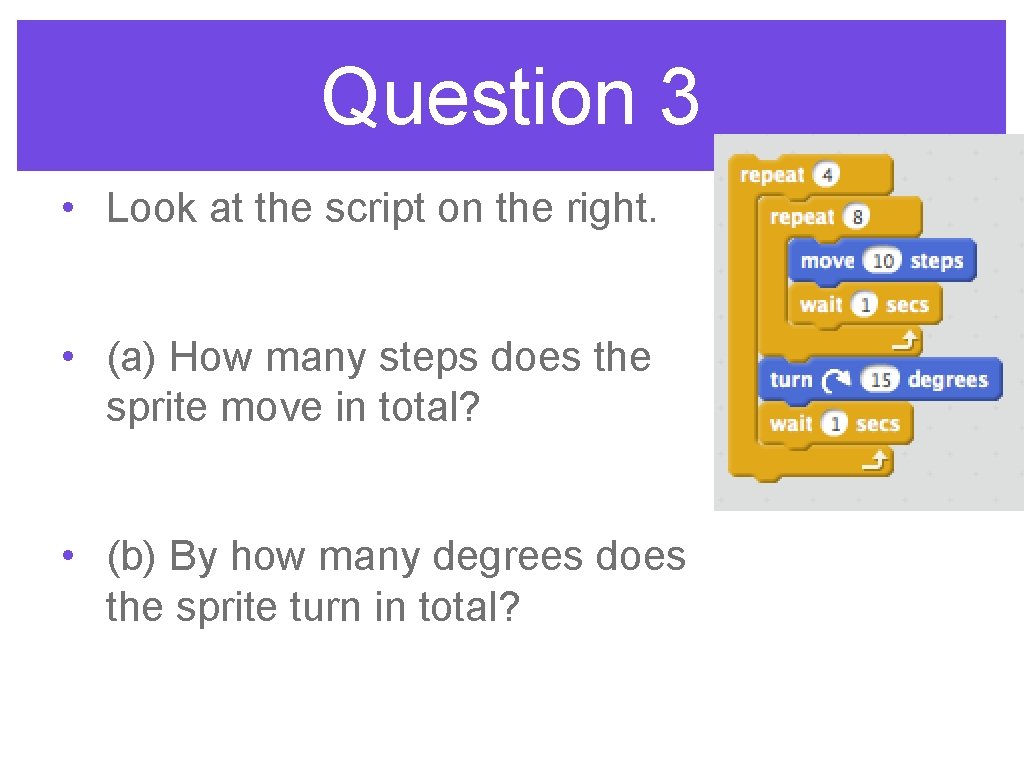
Question 3 • Look at the script on the right. • (a) How many steps does the sprite move in total? • (b) By how many degrees does the sprite turn in total?
Logging out • Click on your username on the right hand side of the blue bar across the top of the Scratch window. • Click Sign out.