
Scratch For Kids Programming for Fourth Graders Go
- Slides: 13
Scratch For Kids Programming for Fourth Graders
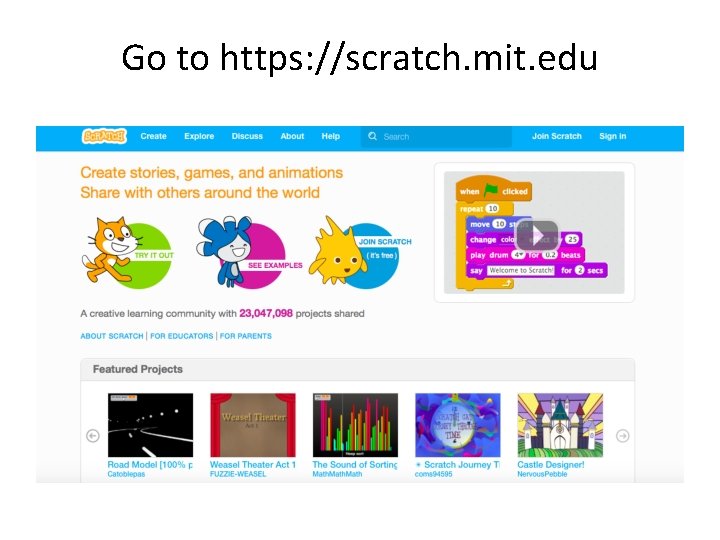
Go to https: //scratch. mit. edu
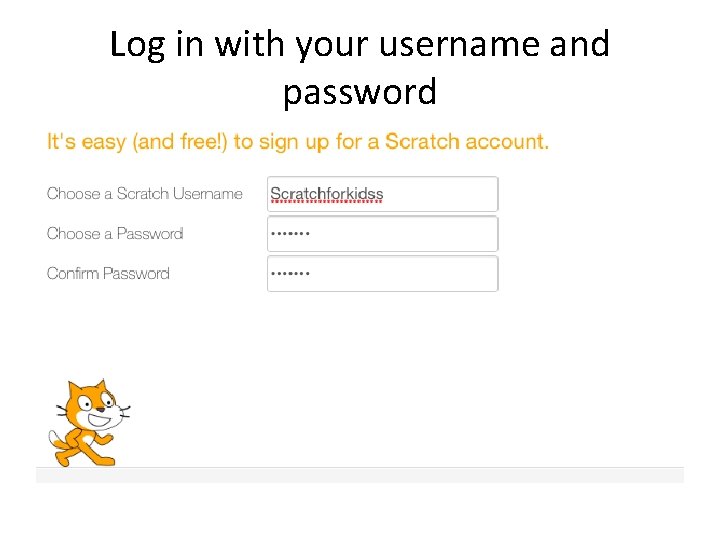
Log in with your username and password
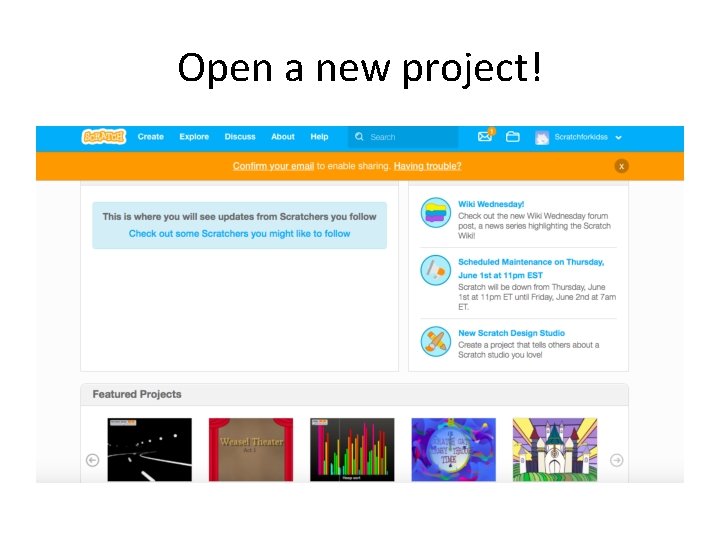
Open a new project!
How do we use the Hover function? • Our goal is to make our sprite’s costume change when we roll the mouse over the sprite. • What controls will we need in order to make this happen?
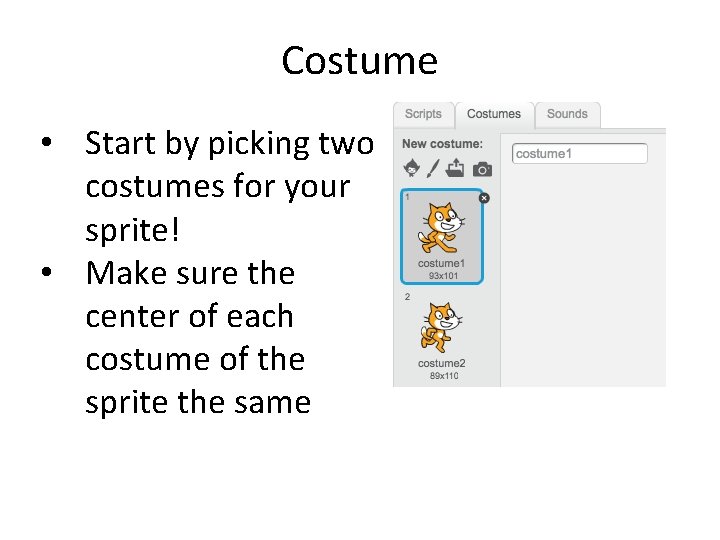
Costume • Start by picking two costumes for your sprite! • Make sure the center of each costume of the sprite the same
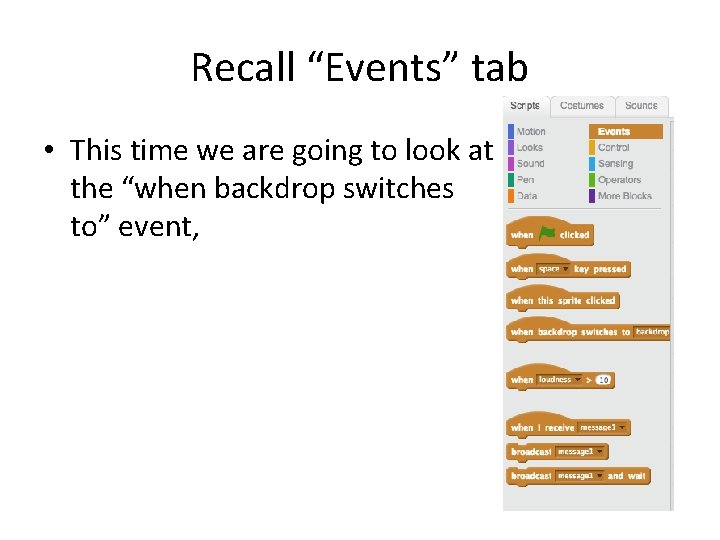
Recall “Events” tab • This time we are going to look at the “when backdrop switches to” event,
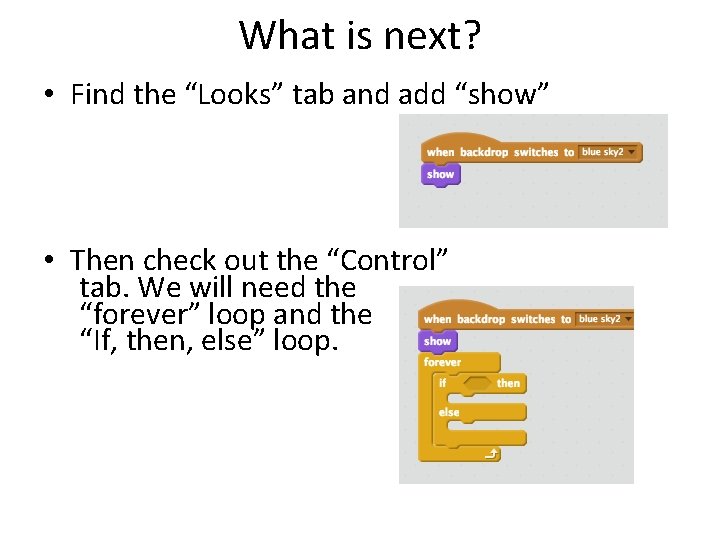
What is next? • Find the “Looks” tab and add “show” • Then check out the “Control” tab. We will need the “forever” loop and the “If, then, else” loop.
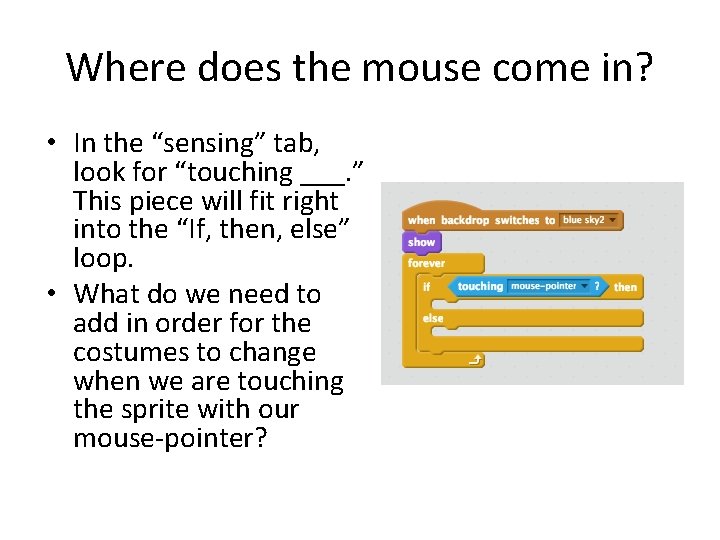
Where does the mouse come in? • In the “sensing” tab, look for “touching ___. ” This piece will fit right into the “If, then, else” loop. • What do we need to add in order for the costumes to change when we are touching the sprite with our mouse-pointer?
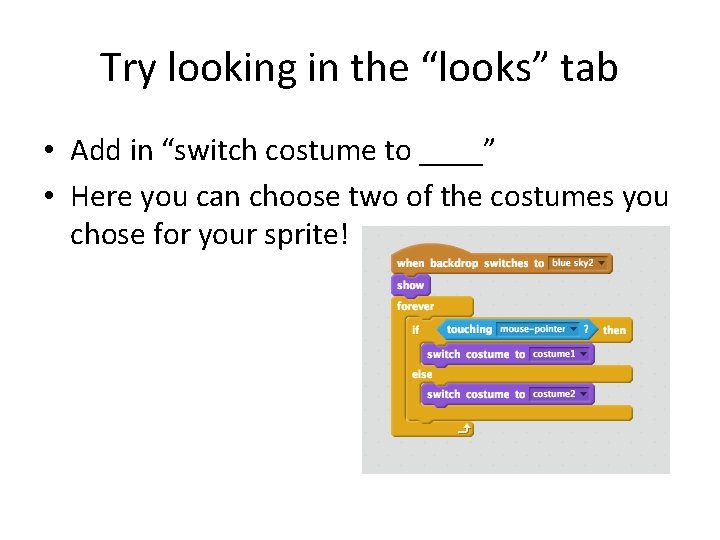
Try looking in the “looks” tab • Add in “switch costume to ____” • Here you can choose two of the costumes you chose for your sprite!
Is your program working? • Press the green flag! • Are your costumes changing when you move your mouse over your sprite? • If not, check with your neighbor or ask me!
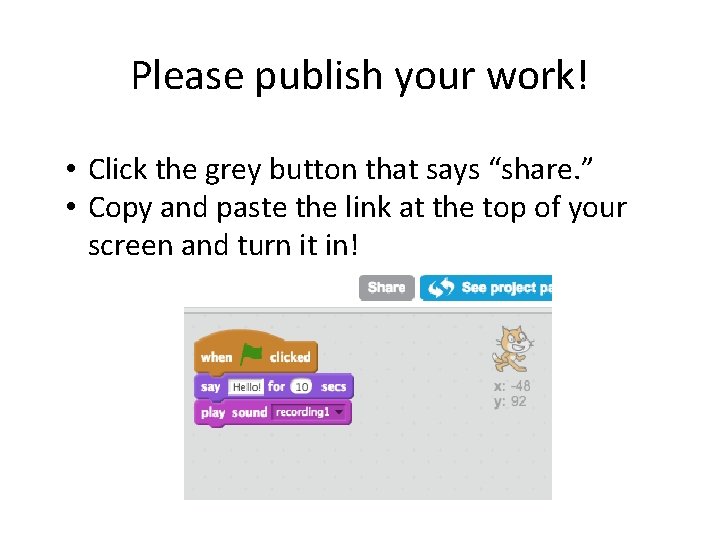
Please publish your work! • Click the grey button that says “share. ” • Copy and paste the link at the top of your screen and turn it in!
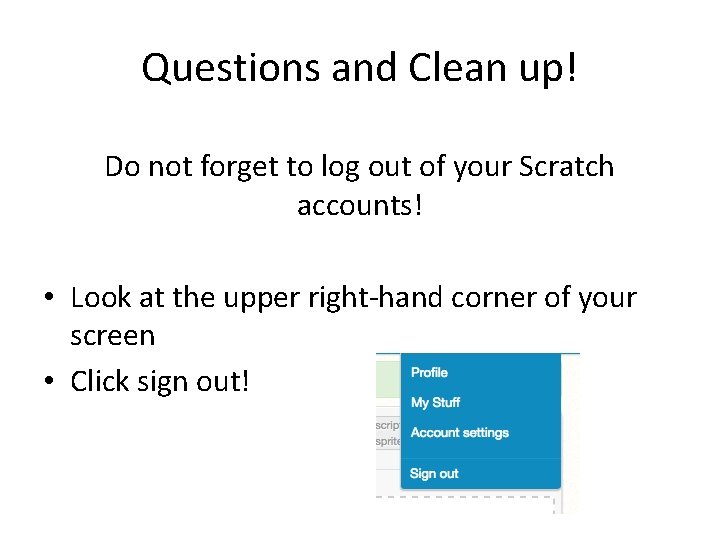
Questions and Clean up! Do not forget to log out of your Scratch accounts! • Look at the upper right-hand corner of your screen • Click sign out!