
Scratch Animated Stories Year One Computing Year 6

- Slides: 11
Scratch: Animated Stories Year One Computing | Year 6 | Scratch: Animated Stories | Show and Hide | Lesson 3
Show and Hide
• I can control when objects need to be visible. • I can locate and insert the ‘show’ and ‘hide’ blocks in a script. • I can locate the correct place for a sprite to appear visible. • I can make a sprite invisible when it is not active in the code.
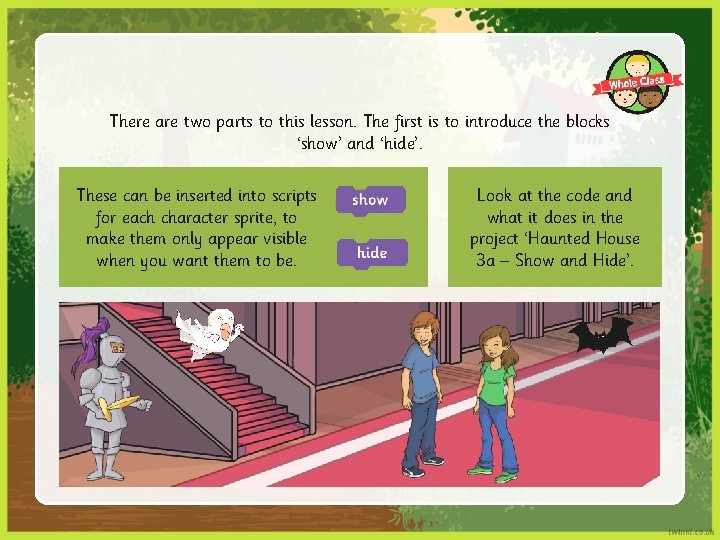
There are two parts to this lesson. The first is to introduce the blocks ‘show’ and ‘hide’. These can be inserted into scripts for each character sprite, to make them only appear visible when you want them to be. Look at the code and what it does in the project ‘Haunted House 3 a – Show and Hide’.
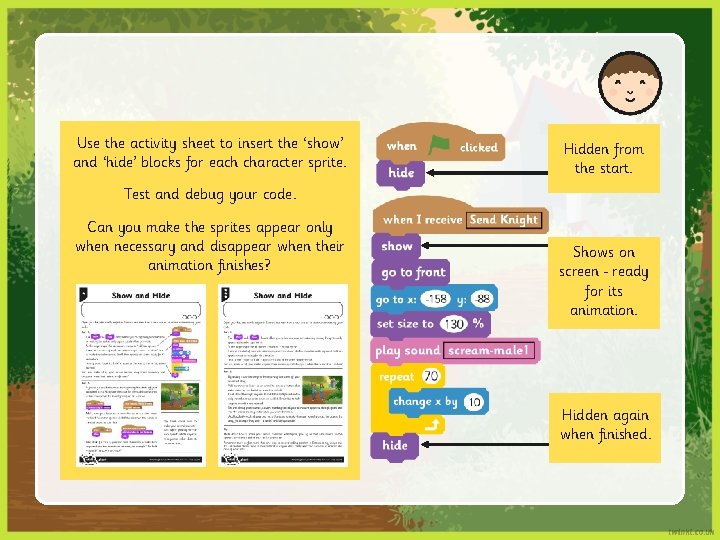
Use the activity sheet to insert the ‘show’ and ‘hide’ blocks for each character sprite. Hidden from the start. Test and debug your code. Can you make the sprites appear only when necessary and disappear when their animation finishes? Shows on screen ready for its animation. Hidden again when finished.
The second part of the lesson is introducing another use for ‘show’ and ‘hide’ blocks. This time you are going to create a button to switch backdrops. Look at the next stage of the project in ‘Haunted House 3 b – New Backdrop’.
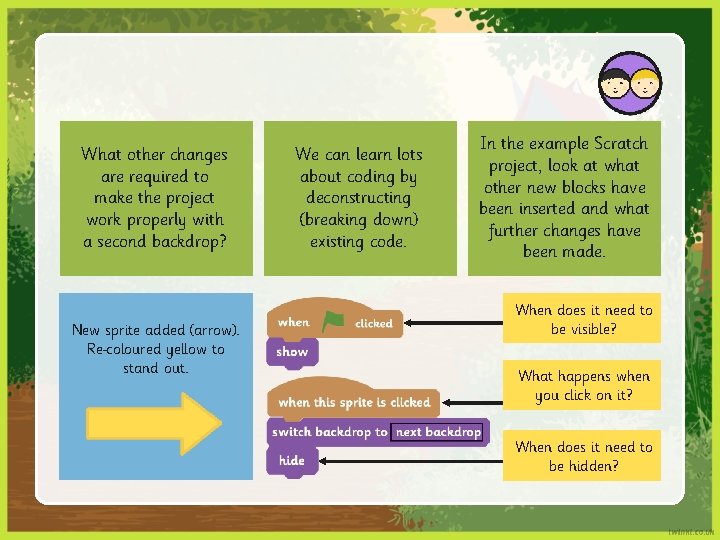
What other changes are required to make the project work properly with a second backdrop? New sprite added (arrow). Re coloured yellow to stand out. We can learn lots about coding by deconstructing (breaking down) existing code. In the example Scratch project, look at what other new blocks have been inserted and what further changes have been made. When does it need to be visible? What happens when you click on it? When does it need to be hidden?
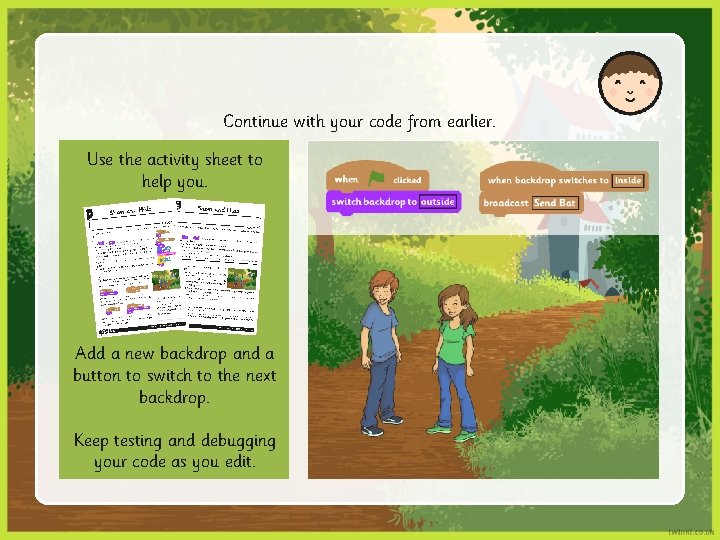
Continue with your code from earlier. Use the activity sheet to help you. Add a new backdrop and a button to switch to the next backdrop. Keep testing and debugging your code as you edit.
What stages has our animation gone through so far? • Firstly, making characters move. • Structuring the timing so they don’t happen all at once. • Showing and hiding characters to make them appear only at the desired time. • Finally, we have a new backdrop and a way of moving the scenes on. Test out each other’s codes and help to debug. Feedback about any errors and how they were solved.
• I can control when objects need to be visible. • I can locate and insert the ‘show’ and ‘hide’ blocks in a script. • I can locate the correct place for a sprite to appear visible. • I can make a sprite invisible when it is not active in the code.