
Scouts Tracker 202 An Introduction to the Commissioner
- Slides: 34
Scouts. Tracker 202 An Introduction to the Commissioner Edition
What is Scouts. Tracker? • It’s a comprehensive section administration web application that helps you manage: – Youths’ progress through the Program • Canadian Path! – Event tracking and Management – Communication – Inventory – Planning – Weekly reporting – Etc.
Five Basic Concepts 1. Events and Program are Linked – – 2. Everyone should have visibility – 3. Youth privacy Two-deep communications Your time is precious – 5. Youth AND parents AND Scouters should clearly see • their youths’ progress (and the next steps) • upcoming and past events (and the purpose/objective of each) Security is important – – 4. Scouting youth participate in events that advance them through the Program We help the youth organize events with specific program objectives in mind! Recordkeeping should be easy… so you can work with the youth, instead of maintaining your section records Substantiate the Canadian Path – – Youth led Personal Journey OAS Plan-Do-Review
Commissioner Edition Mandate • Help tie things together, so the section Scouters have fewer Scouts. Tracker tasks on their plates • Provide greater access to group-wide information/resources • Make it easier to manage/optimize your Group’s investment in Scouts. Tracker
Commissioner Edition Difference • Used to be like the standard section editions (Colony, Pack, etc. ), except – No youth (has links to Sections, instead) – No badges – Could push events • This year, add a suite of commissioner-only features • Some Group-only functionality disabled at Area/Council levels
“Official” Account • An “official” designation is required, because – Scouts. Tracker has no tie into My. Scouts, so in theory, anyone could create an account claiming to be a Group or Area Commissioner – Sometimes you get multiple enthusiastic individuals within a Group setting up Commissioner accounts for their Group – You can actually have section-level specific accounts, e. g. , a Council “Venturer Advisor Forum” account only is of interest to Company accounts
“Official” Account • So there is the ability to designate an account as “the” official account for a Group/Area/Council – Go into “Account” | “Public Profile” • An official account has some functionality unlocked • Requires that you designate “Key 3” – CC/CED/CYC, or AC/SRM/AYC, or GC – Constantly nagged if you don’t fill these roles
“Official” Account • Only one official account per Group/Area – E. g. , designating a second 1 st Muddy Paw Group account as “official” will remove the “official” designation from any other 1 st Muddy Paw Group account
“Master” Login • If an account is the “official” account, then you can designate one of the administrator logins to be a “master” • “Master” can gain access to any section account in your license – Under “Account” | “Sections”, there is a “Connect” button beside each section that has redeemed your license – Click on it, and you’re automatically connected (no sign in req’d) to that account
“Master” Login • From the section account’s perspective – Master login shows as “tech contact” – Master login cannot be deleted by section account administrators – The ability to change the section account’s profile (i. e. , “Account” | “Public Profile”) is now restricted to only the “master” login
“Master” Login • Outstanding issue… • Master login is tied to a license – You can have one master per license – Defined at the same level as the license… • e. g. , if you have a Group license, it’s defined through the Group’s official Commissioner account… • If you have an Area license it’s defined through the Area’s official Commissioner account • This means that if you’re under an Area license, you have an Area master – but you then can’t have masters for each Group
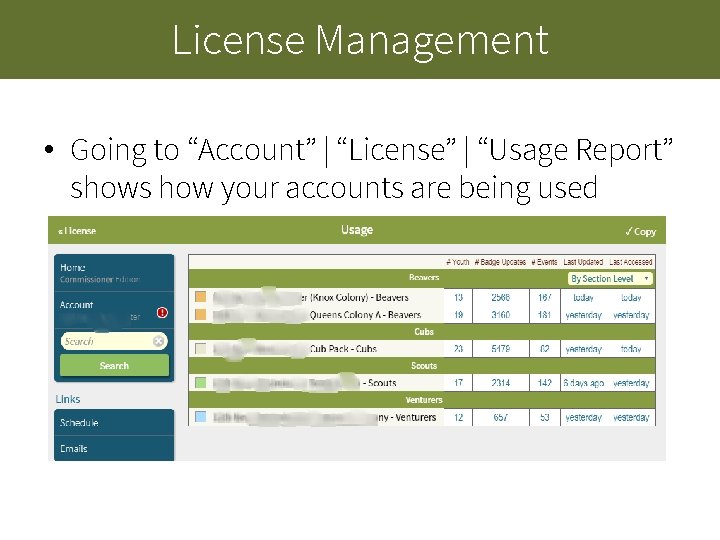
License Management • Going to “Account” | “License” | “Usage Report” shows how your accounts are being used
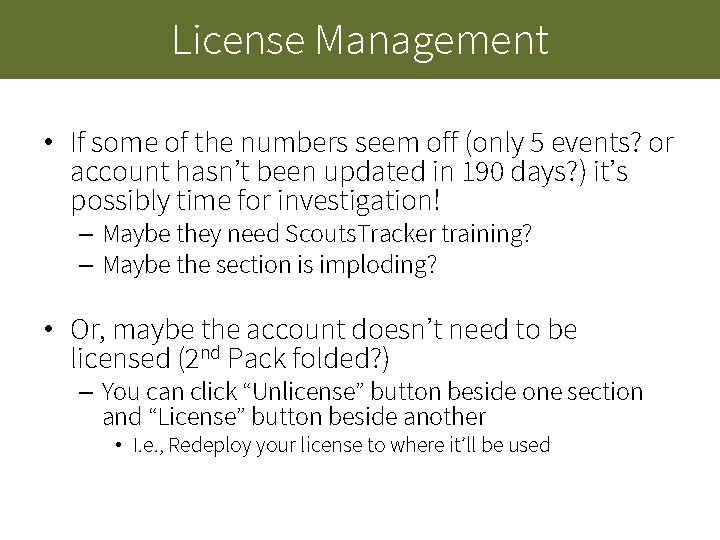
License Management • If some of the numbers seem off (only 5 events? or account hasn’t been updated in 190 days? ) it’s possibly time for investigation! – Maybe they need Scouts. Tracker training? – Maybe the section is imploding? • Or, maybe the account doesn’t need to be licensed (2 nd Pack folded? ) – You can click “Unlicense” button beside one section and “License” button beside another • I. e. , Redeploy your license to where it’ll be used
Pushing Events • You can add an events to your Group/Area/Council calendar – All sections can see these events if they use “Schedule” | “Options” | “Show other schedules” • But you can also “push” events to their calendars
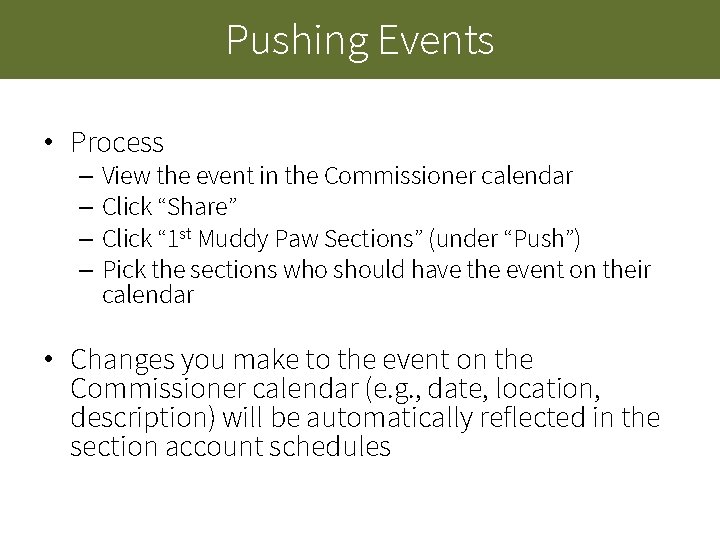
Pushing Events • Process – View the event in the Commissioner calendar – Click “Share” – Click “ 1 st Muddy Paw Sections” (under “Push”) – Pick the sections who should have the event on their calendar • Changes you make to the event on the Commissioner calendar (e. g. , date, location, description) will be automatically reflected in the section account schedules
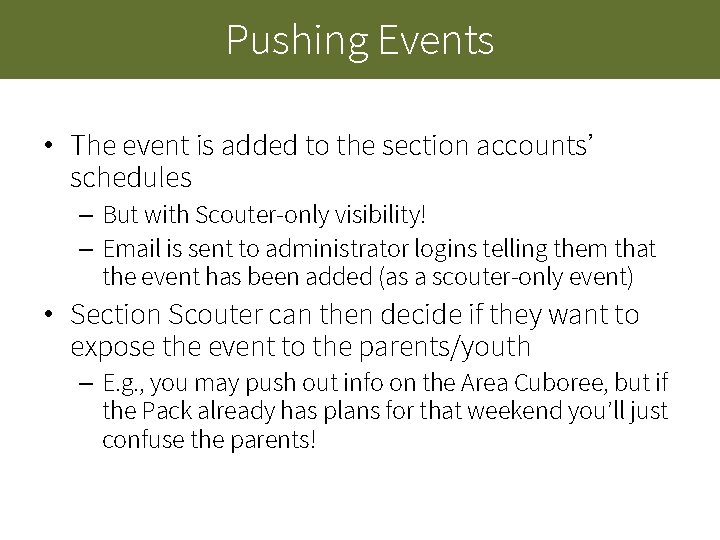
Pushing Events • The event is added to the section accounts’ schedules – But with Scouter-only visibility! – Email is sent to administrator logins telling them that the event has been added (as a scouter-only event) • Section Scouter can then decide if they want to expose the event to the parents/youth – E. g. , you may push out info on the Area Cuboree, but if the Pack already has plans for that weekend you’ll just confuse the parents!
OAS and Progression Badges • Group-only feature • All sections can work on same OAS badges, and all sections can award “Progression” badges (CP version of the old Link badges) • Many Groups now treat these as shared resources across all section accounts – i. e. , they shuffle a common badge box from section to section throughout the week
OAS and Progression Badges • Under “Account” | “Inventory” | “Options” there is a switch to let you share your OAS badges • If set, then the section accounts’ inventory accounts of the OAS and progression badges will show the Group’s stock • Any updates made to these inventory items (e. g. , awarding Camping Skills 2 in a Pack or Troop meeting) will update the Group’s stock
Group Gear • Group-only feature • Under “Account” | “Inventory” you can click “Add” to create a new inventory item to be tracked – E. g. , tents, stoves, group crests • You can optionally choose to share this inventory with your section accounts – Like OAS sharing, this will then cause any modifications by section accounts to update the Group’s inventory
Group Gear • Group Gear attributes include – Category (controls how items are grouped) • E. g. , “uniform”, “camping gear”, “meeting paraphernalia” – Location (e. g. , “Bill’s garage”) – Notes (e. g. , “Lantern #3 needs new mantle”, “Almost Empty” (e. g. , for a “Naptha” inventory item)) • How you group things (e. g. , a lumped “Stoves” item vs. having separate “Stove #1”, “Stove #2” items is up to you • Does not support “sign out/in” of gear
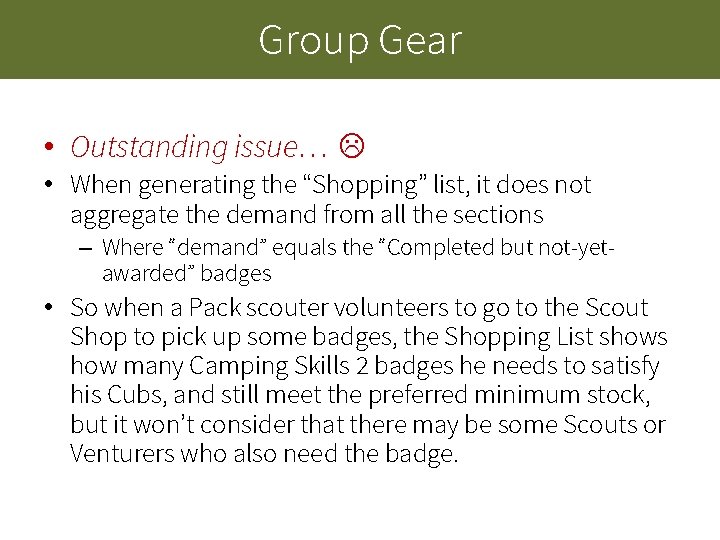
Group Gear • Outstanding issue… • When generating the “Shopping” list, it does not aggregate the demand from all the sections – Where “demand” equals the “Completed but not-yetawarded” badges • So when a Pack scouter volunteers to go to the Scout Shop to pick up some badges, the Shopping List shows how many Camping Skills 2 badges he needs to satisfy his Cubs, and still meet the preferred minimum stock, but it won’t consider that there may be some Scouts or Venturers who also need the badge.
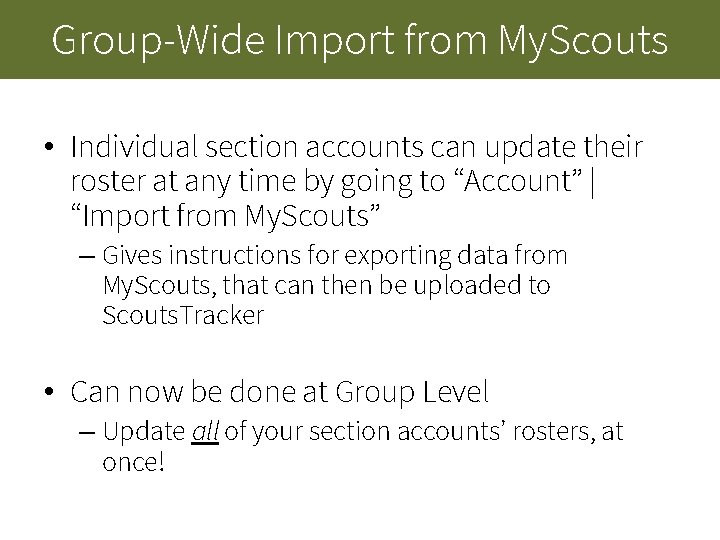
Group-Wide Import from My. Scouts • Individual section accounts can update their roster at any time by going to “Account” | “Import from My. Scouts” – Gives instructions for exporting data from My. Scouts, that can then be uploaded to Scouts. Tracker • Can now be done at Group Level – Update all of your section accounts’ rosters, at once!
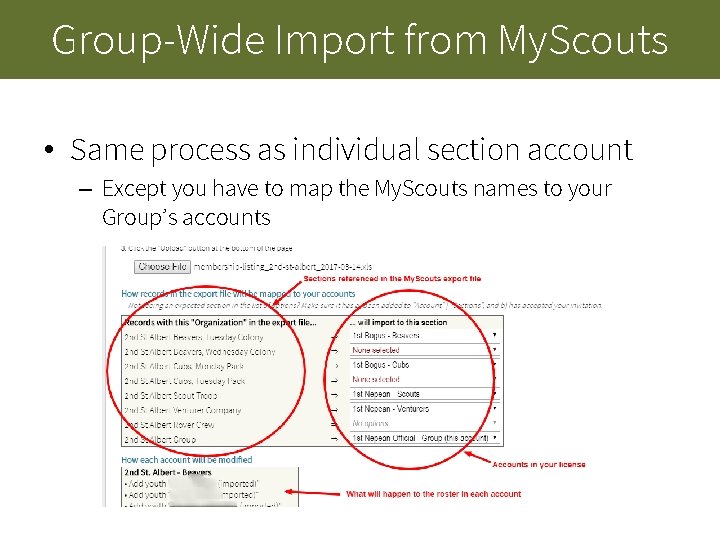
Group-Wide Import from My. Scouts • Same process as individual section account – Except you have to map the My. Scouts names to your Group’s accounts
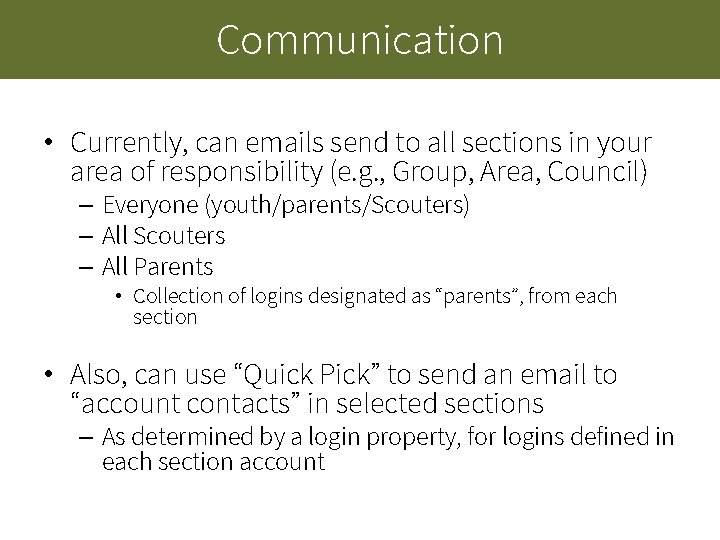
Communication • Currently, can emails send to all sections in your area of responsibility (e. g. , Group, Area, Council) – Everyone (youth/parents/Scouters) – All Scouters – All Parents • Collection of logins designated as “parents”, from each section • Also, can use “Quick Pick” to send an email to “account contacts” in selected sections – As determined by a login property, for logins defined in each section account
Communication • Outstanding Issue… • You can’t filter/select by account when doing “Add Everyone”, “Add Scouters” or “Add Parents” – I. e. , it currently goes to all accounts • Ideally, you should be able to do a “Quick Pick” and specify whether you’re adding parents, scouters, or everyone
Adding Sections • Automatic mode – When a section account redeems your Group License Key, and you already have an “official” account – When you create an account via your Commissioner account • “Account” | “Sections” | “Create new account” • Manual mode – Suitable for Groups/Areas where the section accounts redeemed the license key before the official Commissioner account was set up – Required by Groups where the license is provided by the Area, or vice versa
Adding Sections • Group/Area-wide Implied Invitation – Support can set up a filter so that every account in Carleton Area, or every account in Voyageur Council automatically is invited to join the “official” account – When a scouter goes to “Account” | “Collaboration” they’ll find a list of Invitations • Can click “Accept” or “Decline” • Must ask Dakemi support to set this up
Adding Sections • Manual: “Quick Add” – If you’re also an administrator in other section accounts, you can do a Quick Add to select which accounts should join your commissioner account
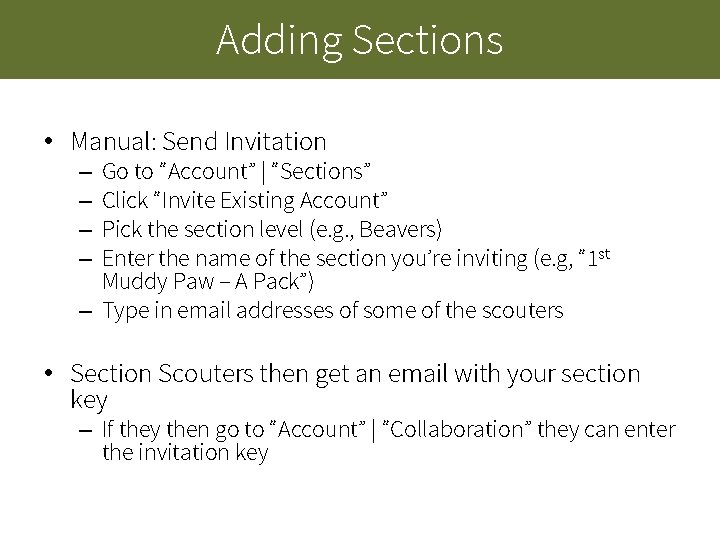
Adding Sections • Manual: Send Invitation Go to “Account” | “Sections” Click “Invite Existing Account” Pick the section level (e. g. , Beavers) Enter the name of the section you’re inviting (e. g, “ 1 st Muddy Paw – A Pack”) – Type in email addresses of some of the scouters – – • Section Scouters then get an email with your section key – If they then go to “Account” | “Collaboration” they can enter the invitation key
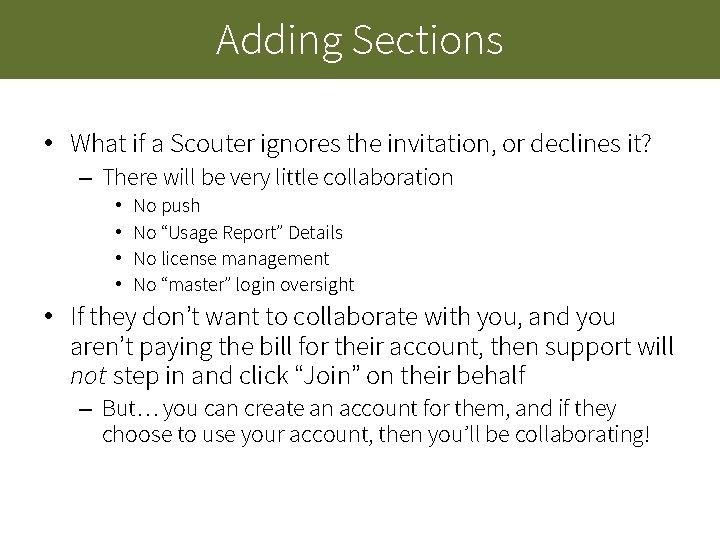
Adding Sections • What if a Scouter ignores the invitation, or declines it? – There will be very little collaboration • • No push No “Usage Report” Details No license management No “master” login oversight • If they don’t want to collaborate with you, and you aren’t paying the bill for their account, then support will not step in and click “Join” on their behalf – But… you can create an account for them, and if they choose to use your account, then you’ll be collaborating!
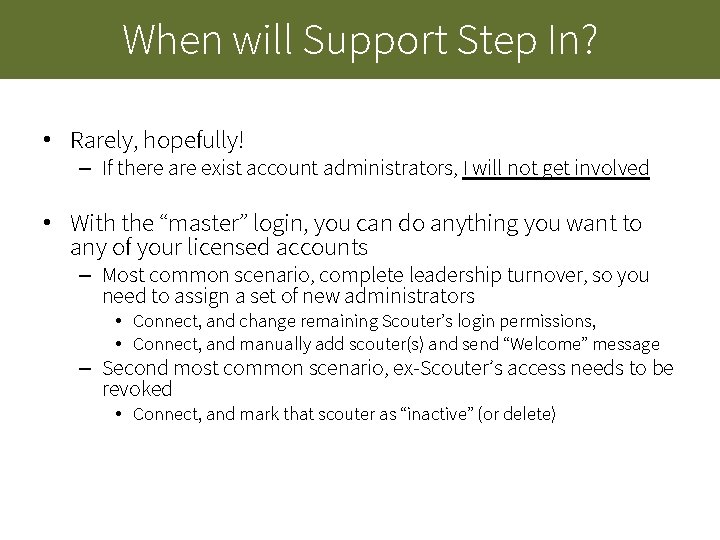
When will Support Step In? • Rarely, hopefully! – If there are exist account administrators, I will not get involved • With the “master” login, you can do anything you want to any of your licensed accounts – Most common scenario, complete leadership turnover, so you need to assign a set of new administrators • Connect, and change remaining Scouter’s login permissions, • Connect, and manually add scouter(s) and send “Welcome” message – Second most common scenario, ex-Scouter’s access needs to be revoked • Connect, and mark that scouter as “inactive” (or delete)
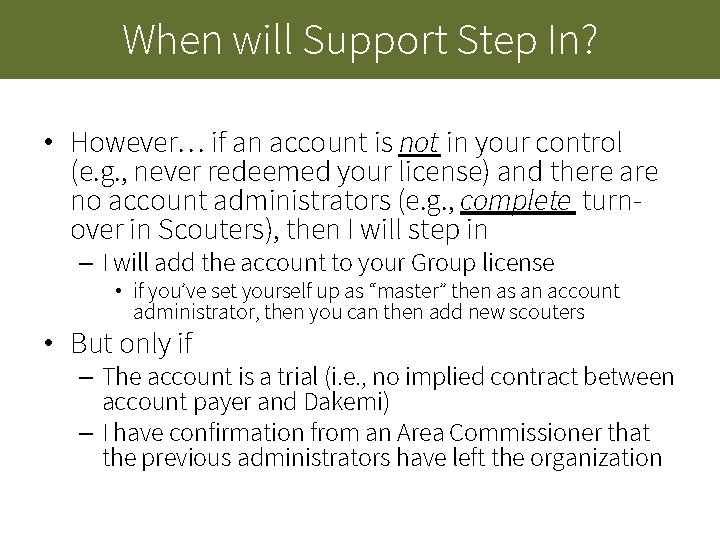
When will Support Step In? • However… if an account is not in your control (e. g. , never redeemed your license) and there are no account administrators (e. g. , complete turnover in Scouters), then I will step in – I will add the account to your Group license • if you’ve set yourself up as “master” then as an account administrator, then you can then add new scouters • But only if – The account is a trial (i. e. , no implied contract between account payer and Dakemi) – I have confirmation from an Area Commissioner that the previous administrators have left the organization
What’s Still Missing? • Probably a lot of functionality! – COAA submission – PQS compliance visibility – WB 2 self-assessment • I am not a Commissioner, so I rely on the input from people like you to help me understand the “pain points” in your role – support@scoutstracker. ca
Questions?