
Scientific Poster 48 x 36 Poster Template Your
- Slides: 1
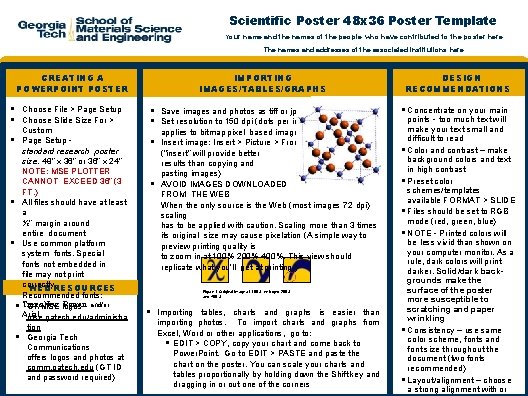
Scientific Poster 48 x 36 Poster Template Your name and the names of the people who have contributed to the poster here The names and addresses of the associated institutions here CREATING A POWERPOINT POSTER Choose File > Page Setup Choose Slide Size For > Custom Page Setup standard research poster size: 48” x 36” or 36” x 24” NOTE: MSE PLOTTER CANNOT EXCEED 36” (3 FT. ) All files should have at least a ½” margin around entire document Use common platform system fonts. Special fonts not embedded in file may not print correctly. WEB RESOURCES Recommended fonts: Times New logos Roman- and/or GT/MSE Arial mse. gatech. edu/administra tion Georgia Tech Communications offers logos and photos at comm. gatech. edu (GT ID and password required) IMPORTING IMAGES/TABLES/GRAPHS Save images and photos as tiff or jpeg Set resolution to 150 dpi (dots per inch applies to bitmap pixel based images) Insert image: Insert > Picture > From file (“insert” will provide better results than copying and pasting images) AVOID IMAGES DOWNLOADED FROM THE WEB When the only source is the Web (most images 72 dpi) scaling has to be applied with caution. Scaling more than 3 times its original size may cause pixelation (A simple way to preview printing quality is to zoom in at 100% 200% 400%. This view should replicate what you’ll get at printing. ) Figure 1: Original image at 100%, enlarged 200% and 400%. Importing tables, charts and graphs is easier than importing photos. To import charts and graphs from Excel, Word or other applications, go to: EDIT > COPY, copy your chart and come back to Power. Point. Go to EDIT > PASTE and paste the chart on the poster. You can scale your charts and tables proportionally by holding down the Shift key and dragging in or out one of the corners DESIGN RECOMMENDATIONS Concentrate on your main points - too much text will make your text small and difficult to read Color and contrast – make background colors and text in high contrast Preset color schemes/templates available FORMAT > SLIDE Files should be set to RGB mode (red, green, blue) NOTE - Printed colors will be less vivid than shown on your computer monitor. As a rule, dark colors will print darker. Solid/dark backgrounds make the surface of the poster more susceptible to scratching and paper wrinkling Consistency – use same color scheme, fonts and font size throughout the document (two fonts recommended) Layout/alignment – choose a strong alignment with or