
SCIENCE BASELINE BENCHMARK ASSESSMENT 2020 2021 VIRTUAL ADMINISTRATION

SCIENCE BASELINE BENCHMARK ASSESSMENT 2020 -2021 VIRTUAL ADMINISTRATION Office of Assessment, Research, and Data Analysis
Purpose • Monitor student progress of the Next Generation Sunshine State Standards (NGSSS). • Provide valid and reliable information regarding content mastery and/or instructional focus. • Utilize the data to make meaningful and timely curricular decisions. • Progress reporting tool for School Improvement Plans. 2

Usage of Science Baseline Data The Science Baseline Assessments should be used as a “precursor” to determine what content students know and need to be taught. It is a snapshot of previous learning; therefore, debriefing with students should not be considered nor providing them with a classroom grade. Best practice strategies for using the science baseline data could include the following. § § To make instructional decisions about strengths and needs To determine flexible groupings To differentiate instruction To determine if the students need basic knowledge or application-based activities § To track deficiencies and proficiencies by standards over time § To determine which students are ready for advanced instruction 3

Students To Be Tested All eligible students must take the Baseline Benchmark Assessment in Science § Science Grades 5, 8, and Biology 4

Administration Timeline Date Task September 1– September 11, 2020 View Training Materials: Power. Point Program Guide, and Guidelines for Remote Testing Conduct Training Sessions Computer-Based Administration: Assign and Release Assessments to Classes in Performance Matters September 14– October 2, 2020 Administration of the Baseline Benchmark Assessment Download Score Reports from Performance Matters 5
Testing Format (Computer-Based) Grade Number of Standards Item Type Number of Items Approximate Testing time 5 25 Multiple-choice 66 66 minutes 8 53 Multiple-choice 73 73 minutes Biology 20 Multiple-choice 67 67 minutes 6
Administration Process § Computer-Based Assessment in Performance Matters § Untimed (can be administered over 2 -day time period including a starting and stopping point) § Universal Design Features available for all students § Test Administrators should read Guidelines for Remote Proctoring in Performance Matters § Monitor students in Zoom or TEAMS via OLA Student Administration § Braille Formats to be mailed to students’ home (see slide #15 for details) § Reference sheet for grade 8 and biology can be made available to students prior to testing or students can use the embedded reference sheet in Performance Matters. o Periodic Table of Elements is located at http: //oada. dadeschools. net/IAP/Biology. Grade 8 Reference. Sheet. pdf § Score Reports via Performance Matters 7
Administration Decisions § Approximate testing times are only an estimate of the amount of time it would take a student to complete the test. § Baseline Assessments are not timed tests; every opportunity should be provided for students to complete the test. § Due to the length of the tests, testing may be divided into two sessions. Ø A stopping point should be designated in advance for all classrooms/students. Ø Students should not be allowed to revisit a section on the test that was administered during a previous testing session. 8
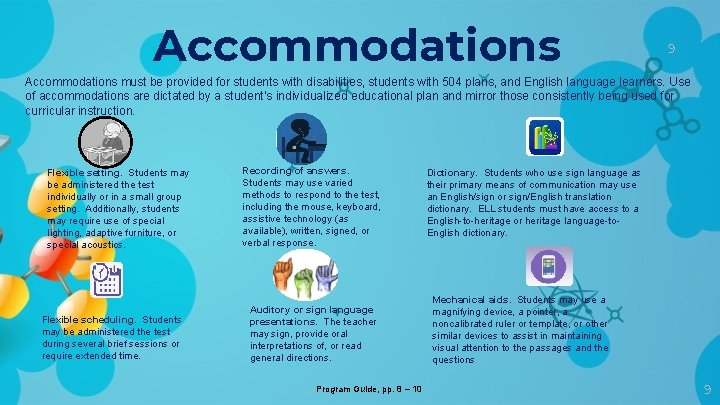
Accommodations 9 Accommodations must be provided for students with disabilities, students with 504 plans, and English language learners. Use of accommodations are dictated by a student’s individualized educational plan and mirror those consistently being used for curricular instruction. Flexible setting. Students may be administered the test individually or in a small group setting. Additionally, students may require use of special lighting, adaptive furniture, or special acoustics. Flexible scheduling. Students may be administered the test during several brief sessions or require extended time. Recording of answers. Students may use varied methods to respond to the test, including the mouse, keyboard, assistive technology (as available), written, signed, or verbal response. Auditory or sign language presentations. The teacher may sign, provide oral interpretations of, or read general directions. Program Guide, pp. 8 – 10 Dictionary. Students who use sign language as their primary means of communication may use an English/sign or sign/English translation dictionary. ELL students must have access to a English-to-heritage or heritage language-to. English dictionary. Mechanical aids. Students may use a magnifying device, a pointer, a noncalibrated ruler or template, or other similar devices to assist in maintaining visual attention to the passages and the questions 9
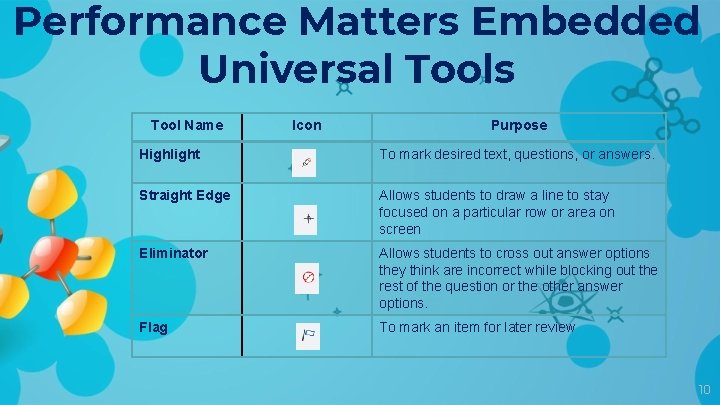
Performance Matters Embedded Universal Tools Tool Name Icon Purpose Highlight To mark desired text, questions, or answers. Straight Edge Allows students to draw a line to stay focused on a particular row or area on screen Eliminator Allows students to cross out answer options they think are incorrect while blocking out the rest of the question or the other answer options. Flag To mark an item for later review 10
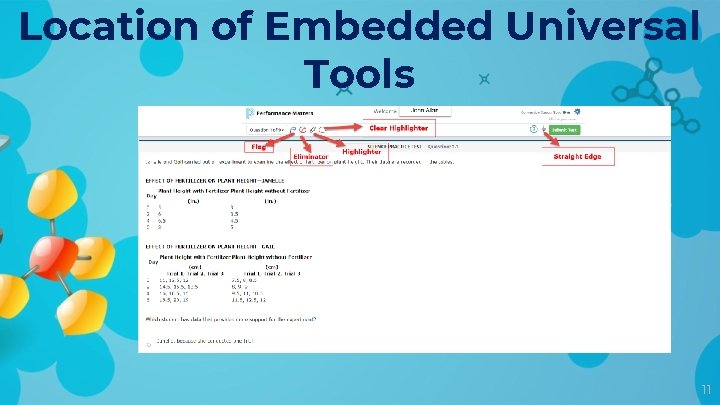
Location of Embedded Universal Tools 11
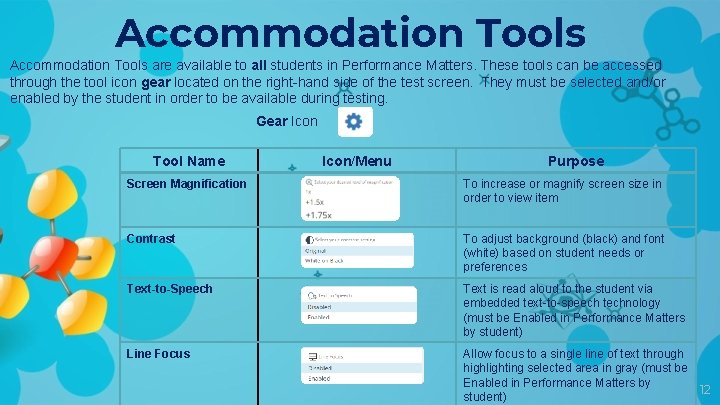
Accommodation Tools are available to all students in Performance Matters. These tools can be accessed through the tool icon gear located on the right-hand side of the test screen. They must be selected and/or enabled by the student in order to be available during testing. Gear Icon Tool Name Icon/Menu Purpose Screen Magnification To increase or magnify screen size in order to view item Contrast To adjust background (black) and font (white) based on student needs or preferences Text-to-Speech Text is read aloud to the student via embedded text-to-speech technology (must be Enabled in Performance Matters by student) Line Focus Allow focus to a single line of text through highlighting selected area in gray (must be Enabled in Performance Matters by 12 student)
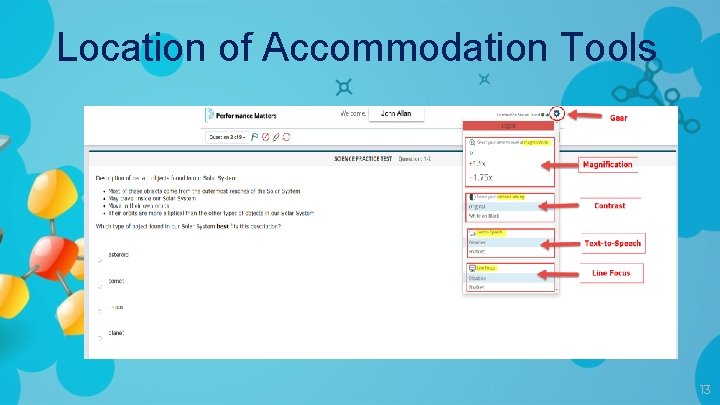
Location of Accommodation Tools 13
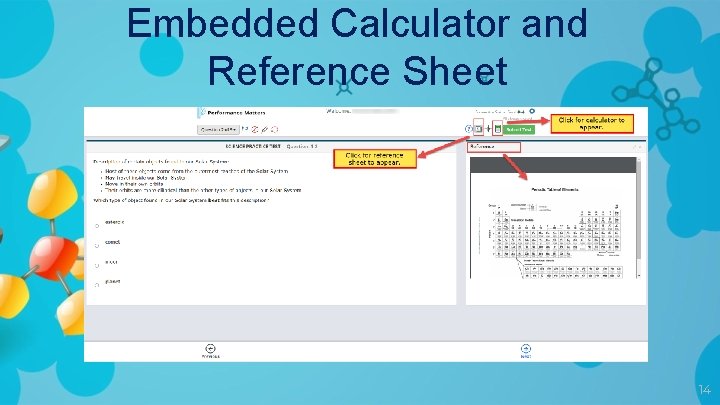
Embedded Calculator and Reference Sheet 14
Handling of Braille Forms § § The Braille format for visually impaired students will be mailed directly to the students’ home or school Schools need to contact parents, verify home address, and advise the Test Administration Center of the correct address before the materials will be mailed. The teacher of the visually impaired student should contact Student Assessment for an original form of the assessment. o Record all students answers on a student answer sheet, which can be downloaded in Performance Matters. The teacher of the visually impaired have the following options for processing the student’s answer sheet for scoring purposes. o The Braille student answer sheet should be emailed to testplatform@dadeschools. net for scanning into the Performance Matters platform, if the teacher of the visually impaired does not have access to the designated scanning computer(s) at the school site. o The teacher of the visually impaired can obtain the student’s M-DCPS login credentials for the portal, then login as the student and record answer responses on the OLA version of the assessment. o Download the installation and scanning script software located at http: //oada. dadeschools. net/IAP. asp using the installation procedures and then scan the answer sheet. Contact testplatform@dadeschools. net if you need assistance with installation and scanning process. 15
Computer-Based Testing Logistics § Allow students to watch the Performance Matters student video prior to testing located at https: //performancematters. wistia. com/medias/wztla 4 fwv 4 § The Test Administrator should have all students’ M-DCPS ID numbers available the day of testing to avoid any delay of testing. o Students will use their M-DCPS 7 -digit ID number to login into the portal with their password. § Test Administrators must proctor students and have the video conferencing (Microsoft Teams, Zoom, or Newrow) window showing the OLA Student Administration window and the video tiles of the students to ensure fidelity during testing. o Monitor student status during the testing session from Microsoft Teams, Zoom, or Newrow via the OLA Student Administration screen. o The lockdown browser feature will be activated during testing and if students are locked out they will have to be unlocked via the OLA Student Administration screen § Direct students’ attention to the pre-determined stopping point, if a test is to be administered over two sessions. Have them logout without submitting the test if two sessions will be administered. § Unassign or Lock the assessment if over 2 students are testing days, this avoids them from accessing the assessment after school hours. Program Guide, pp. 14 -15 16
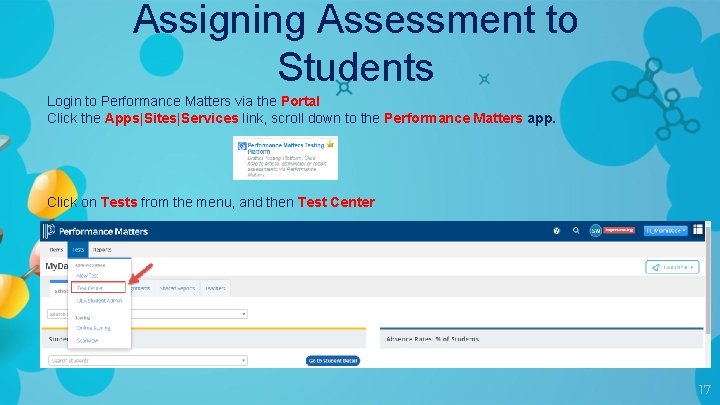
Assigning Assessment to Students Login to Performance Matters via the Portal Click the Apps|Sites|Services link, scroll down to the Performance Matters app. Click on Tests from the menu, and then Test Center 17
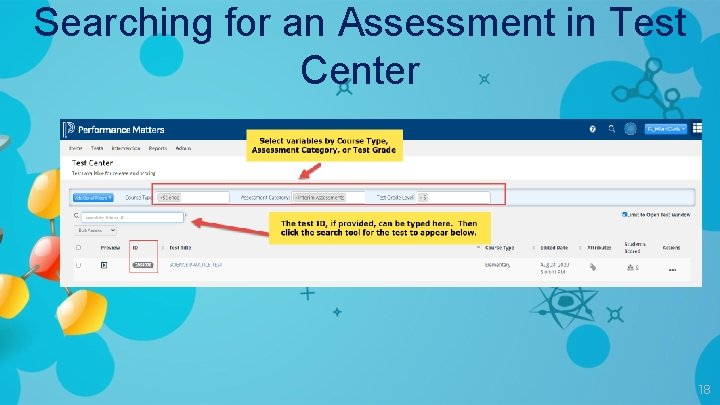
Searching for an Assessment in Test Center 18
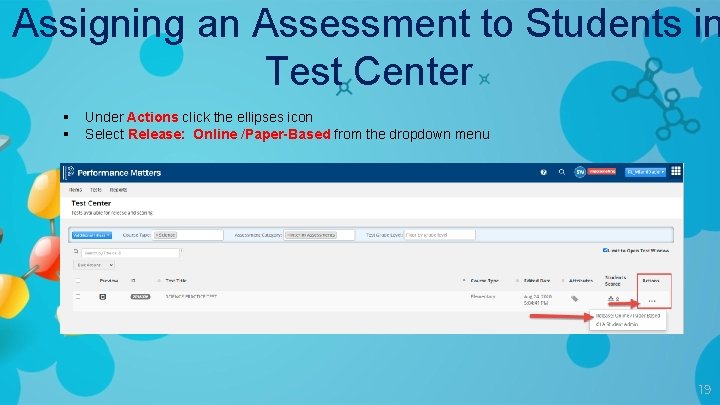
Assigning an Assessment to Students in Test Center § § Under Actions click the ellipses icon Select Release: Online /Paper-Based from the dropdown menu 19
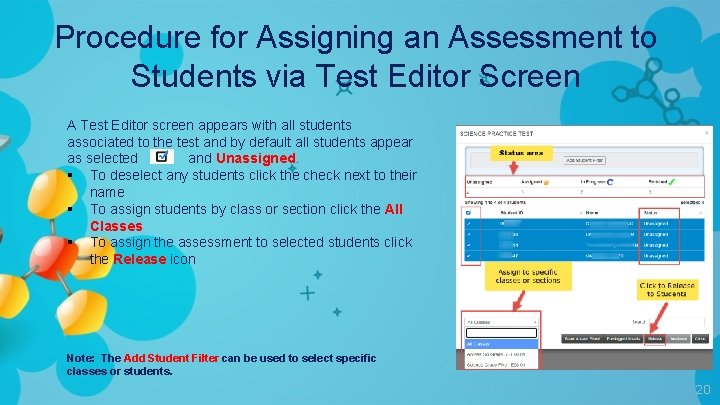
Procedure for Assigning an Assessment to Students via Test Editor Screen A Test Editor screen appears with all students associated to the test and by default all students appear as selected and Unassigned. § To deselect any students click the check next to their name § To assign students by class or section click the All Classes § To assign the assessment to selected students click the Release icon Note: The Add Student Filter can be used to select specific classes or students. 20
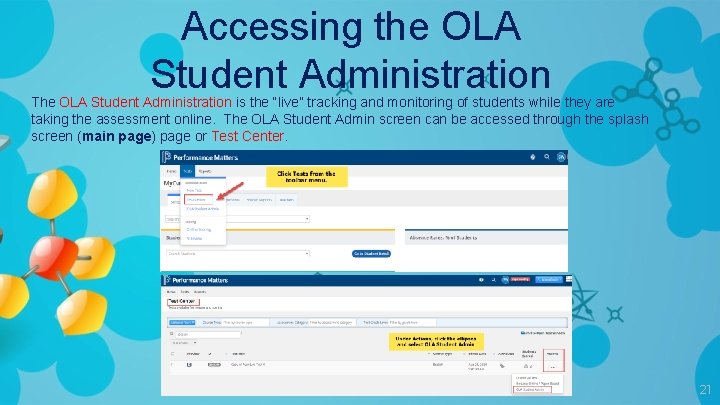
Accessing the OLA Student Administration The OLA Student Administration is the “live” tracking and monitoring of students while they are taking the assessment online. The OLA Student Admin screen can be accessed through the splash screen (main page) page or Test Center. 21
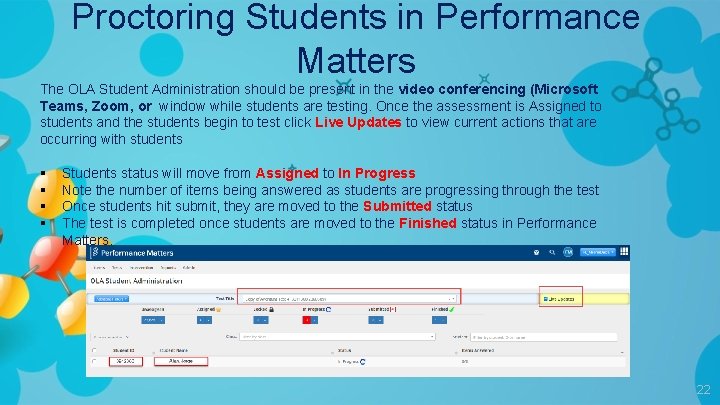
Proctoring Students in Performance Matters The OLA Student Administration should be present in the video conferencing (Microsoft Teams, Zoom, or window while students are testing. Once the assessment is Assigned to students and the students begin to test click Live Updates to view current actions that are occurring with students § § Students status will move from Assigned to In Progress Note the number of items being answered as students are progressing through the test Once students hit submit, they are moved to the Submitted status The test is completed once students are moved to the Finished status in Performance Matters. 22
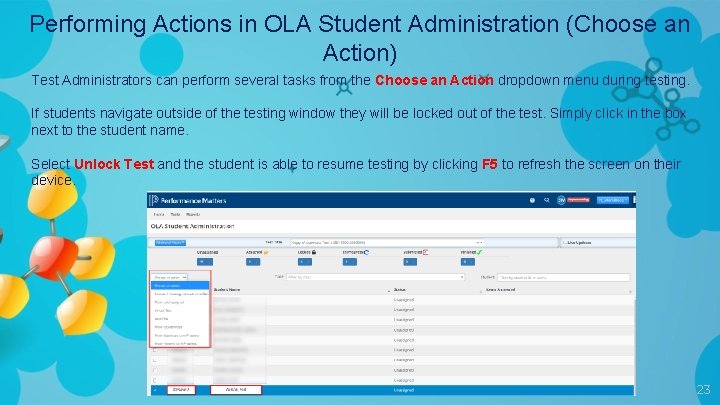
Performing Actions in OLA Student Administration (Choose an Action) Test Administrators can perform several tasks from the Choose an Action dropdown menu during testing. If students navigate outside of the testing window they will be locked out of the test. Simply click in the box next to the student name. Select Unlock Test and the student is able to resume testing by clicking F 5 to refresh the screen on their device. 23
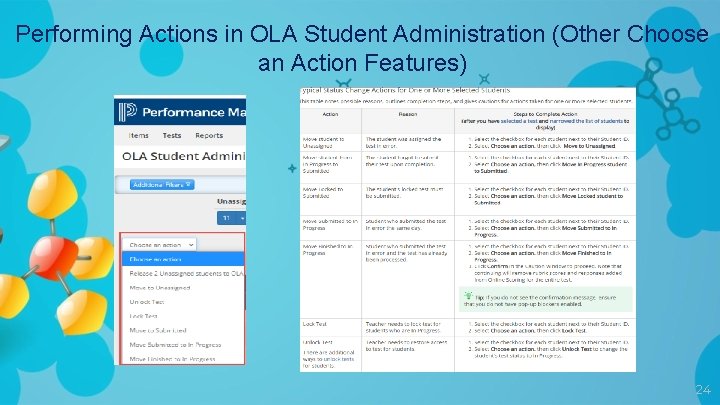
Performing Actions in OLA Student Administration (Other Choose an Action Features) 24
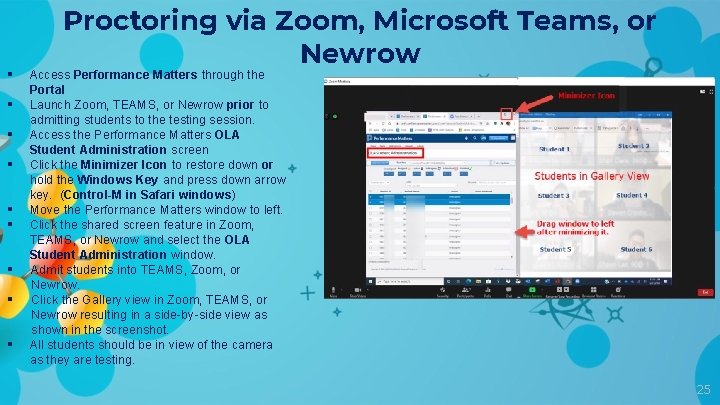
§ § § § § Proctoring via Zoom, Microsoft Teams, or Newrow Access Performance Matters through the Portal Launch Zoom, TEAMS, or Newrow prior to admitting students to the testing session. Access the Performance Matters OLA Student Administration screen Click the Minimizer Icon to restore down or hold the Windows Key and press down arrow key. (Control-M in Safari windows) Move the Performance Matters window to left. Click the shared screen feature in Zoom, TEAMS, or Newrow and select the OLA Student Administration window. Admit students into TEAMS, Zoom, or Newrow. Click the Gallery view in Zoom, TEAMS, or Newrow resulting in a side-by-side view as shown in the screenshot. All students should be in view of the camera as they are testing. 25
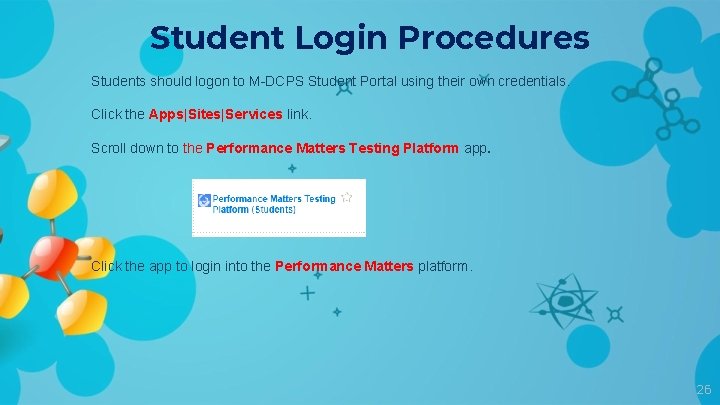
Student Login Procedures Students should logon to M-DCPS Student Portal using their own credentials. Click the Apps|Sites|Services link. Scroll down to the Performance Matters Testing Platform app. Click the app to login into the Performance Matters platform. 26
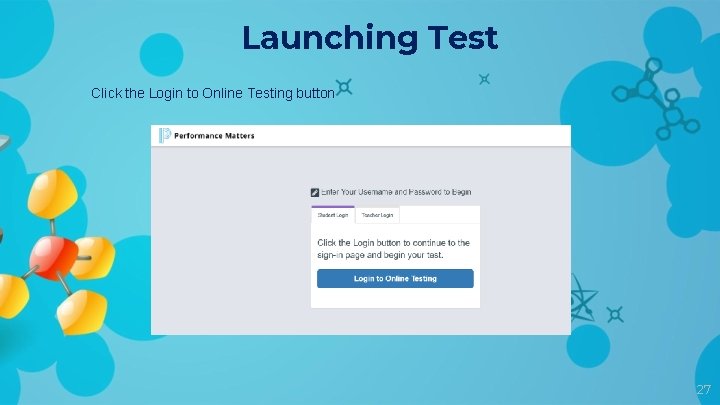
Launching Test Click the Login to Online Testing button 27
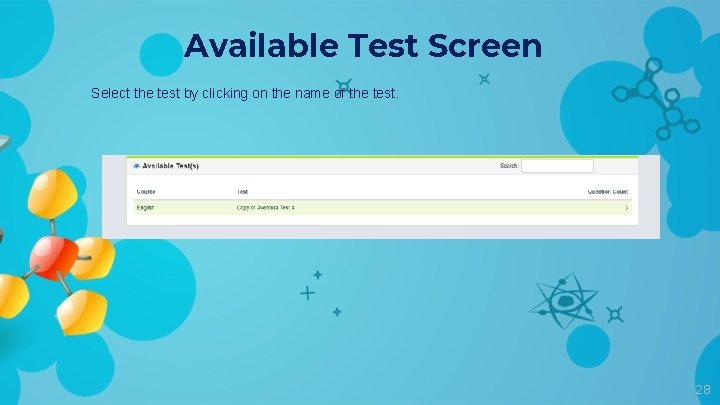
Available Test Screen Select the test by clicking on the name of the test. 28
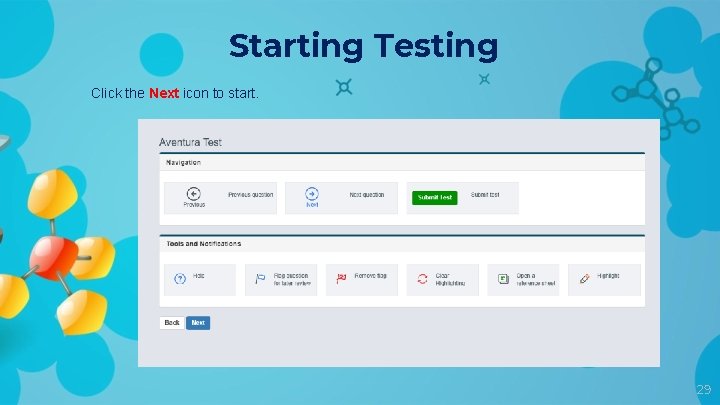
Starting Testing Click the Next icon to start. 29
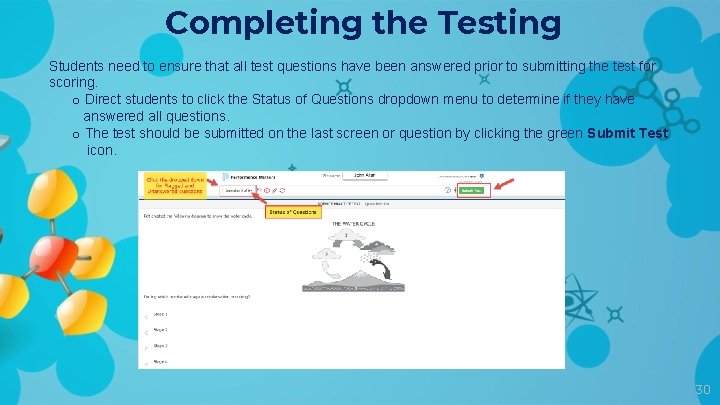
Completing the Testing Students need to ensure that all test questions have been answered prior to submitting the test for scoring. o Direct students to click the Status of Questions dropdown menu to determine if they have answered all questions. o The test should be submitted on the last screen or question by clicking the green Submit Test icon. 30
View/Print Reports § Student Item Analysis Report (SIA) are available approximately 15 -30 minutes after scanning. § Baseball Card, Scoreboard, and Comparative Results Reports are available approximately 24 hours after scanning. § Direct classroom teachers and administrators to view, download and/or print score results after testing for analysis purposes. § Teachers should use the SIA to determine students’ strengths and weakness. 31
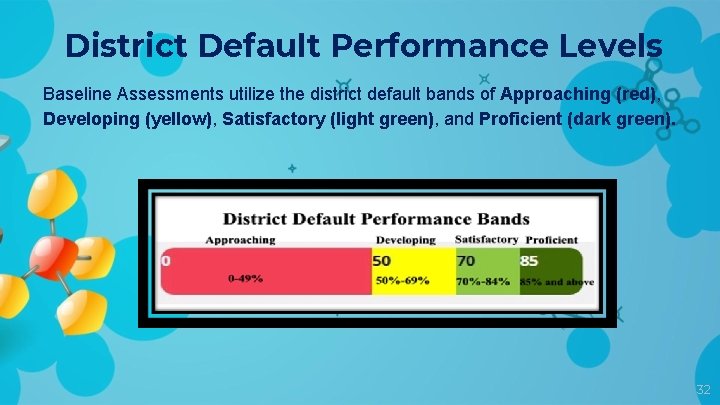
District Default Performance Levels Baseline Assessments utilize the district default bands of Approaching (red), Developing (yellow), Satisfactory (light green), and Proficient (dark green). 32
Program Contacts Ms. Felicia Mallory, Executive Director FMallory@dadeschools. net Ms. Denetra Collins, Staff Specialist Collinsd@dadeschools. net Performance Matters Test. Platform@dadeschools. net Ms. Marva Wilks, Program Manager mwilks@dadeschools. net Mr. Daniel Rodriguez, Technical Consultant dnrodriguez@dadeschools. net Program contacts can be reached via videophone through Microsoft TEAMS. 33
- Slides: 33