
School of Business Eastern Illinois University List box
School of Business Eastern Illinois University List box & Combo box controls (Week 14, Monday 4/21/2003) © Abdou Illia, Spring 2003
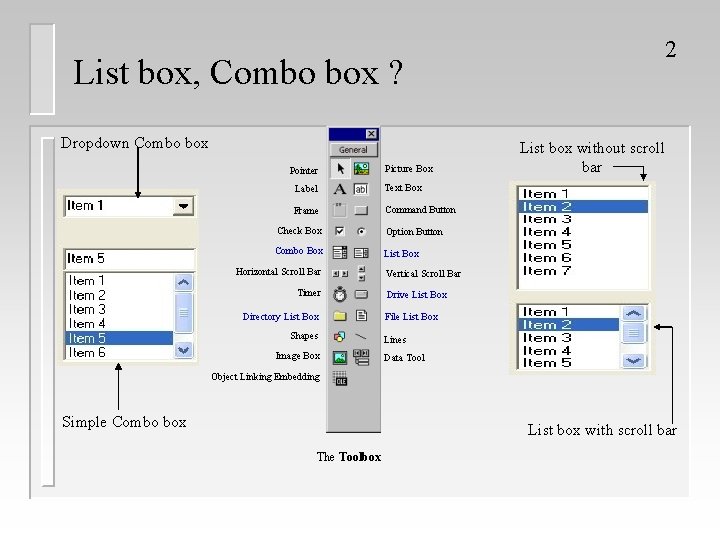
List box, Combo box ? Dropdown Combo box Pointer Picture Box Label Text Box Frame Command Button Check Box Option Button Combo Box List Box Horizontal Scroll Bar Timer Directory List Box Shapes Image Box 2 List box without scroll bar Vertical Scroll Bar Drive List Box File List Box Lines Data Tool Object Linking Embedding Simple Combo box List box with scroll bar The Toolbox
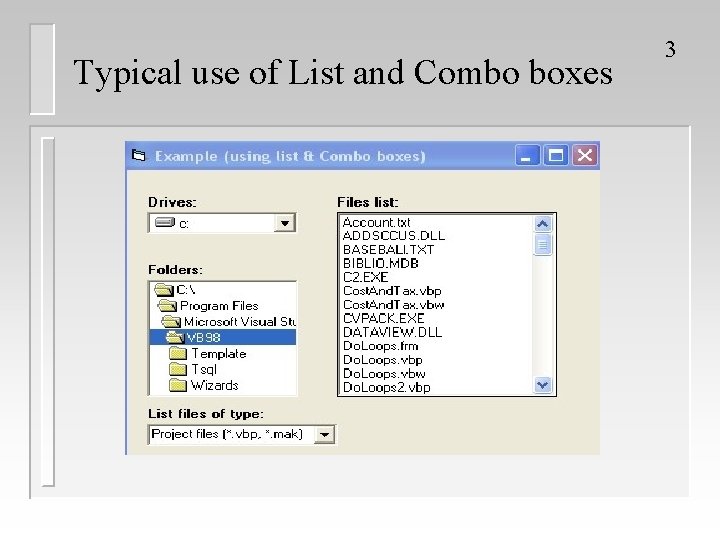
Typical use of List and Combo boxes 3
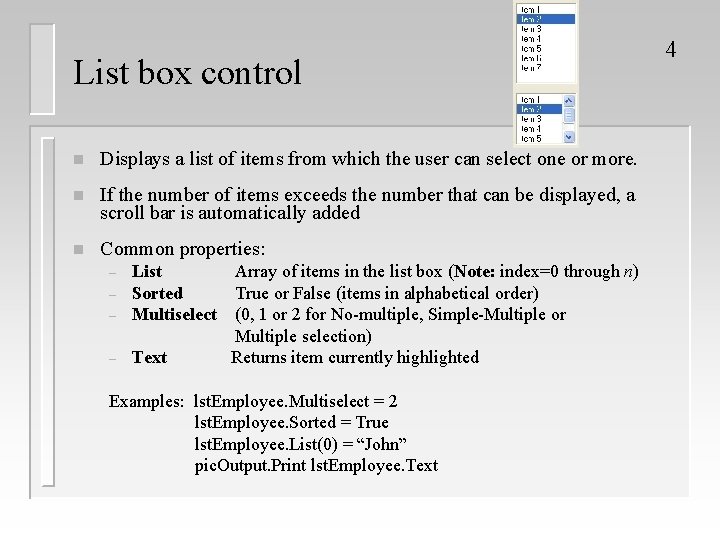
List box control n Displays a list of items from which the user can select one or more. n If the number of items exceeds the number that can be displayed, a scroll bar is automatically added n Common properties: – List Sorted Multiselect – Text – – Array of items in the list box (Note: index=0 through n) True or False (items in alphabetical order) (0, 1 or 2 for No-multiple, Simple-Multiple or Multiple selection) Returns item currently highlighted Examples: lst. Employee. Multiselect = 2 lst. Employee. Sorted = True lst. Employee. List(0) = “John” pic. Output. Print lst. Employee. Text 4
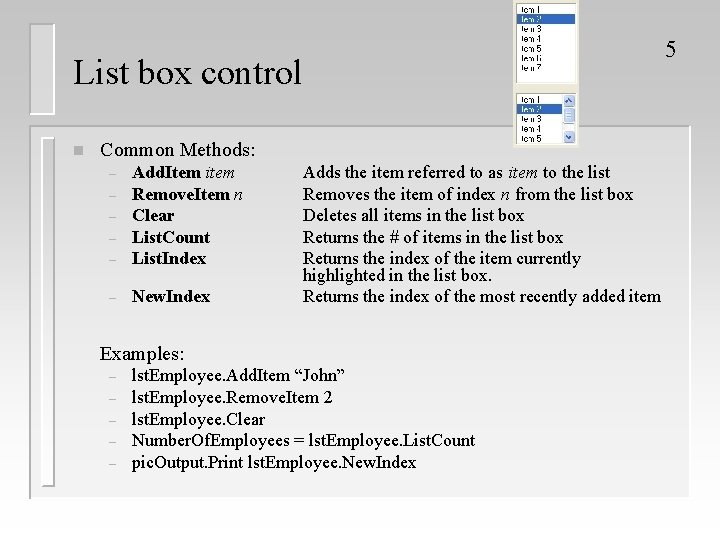
List box control n Common Methods: – Add. Item item Remove. Item n Clear List. Count List. Index – New. Index – – Adds the item referred to as item to the list Removes the item of index n from the list box Deletes all items in the list box Returns the # of items in the list box Returns the index of the item currently highlighted in the list box. Returns the index of the most recently added item Examples: – – – lst. Employee. Add. Item “John” lst. Employee. Remove. Item 2 lst. Employee. Clear Number. Of. Employees = lst. Employee. List. Count pic. Output. Print lst. Employee. New. Index 5
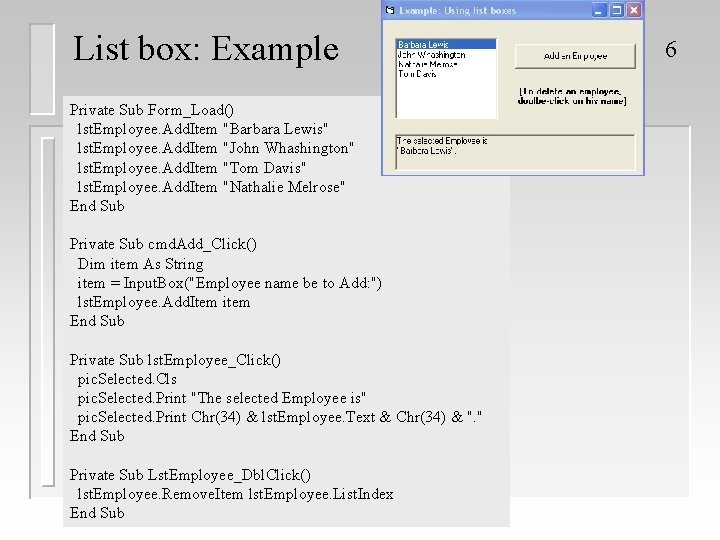
List box: Example Private Sub Form_Load() lst. Employee. Add. Item "Barbara Lewis" lst. Employee. Add. Item "John Whashington" lst. Employee. Add. Item "Tom Davis" lst. Employee. Add. Item "Nathalie Melrose" End Sub Private Sub cmd. Add_Click() Dim item As String item = Input. Box("Employee name be to Add: ") lst. Employee. Add. Item item End Sub Private Sub lst. Employee_Click() pic. Selected. Cls pic. Selected. Print "The selected Employee is" pic. Selected. Print Chr(34) & lst. Employee. Text & Chr(34) & ". " End Sub Private Sub Lst. Employee_Dbl. Click() lst. Employee. Remove. Item lst. Employee. List. Index End Sub 6
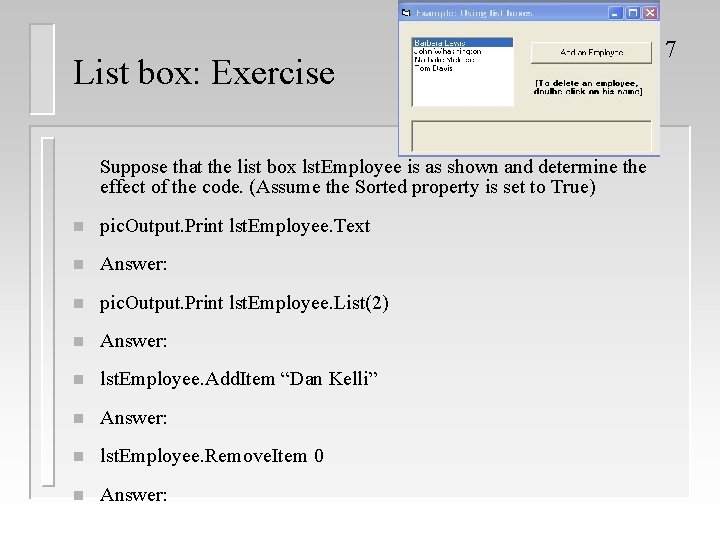
List box: Exercise Suppose that the list box lst. Employee is as shown and determine the effect of the code. (Assume the Sorted property is set to True) n pic. Output. Print lst. Employee. Text n Answer: n pic. Output. Print lst. Employee. List(2) n Answer: n lst. Employee. Add. Item “Dan Kelli” n Answer: n lst. Employee. Remove. Item 0 n Answer: 7
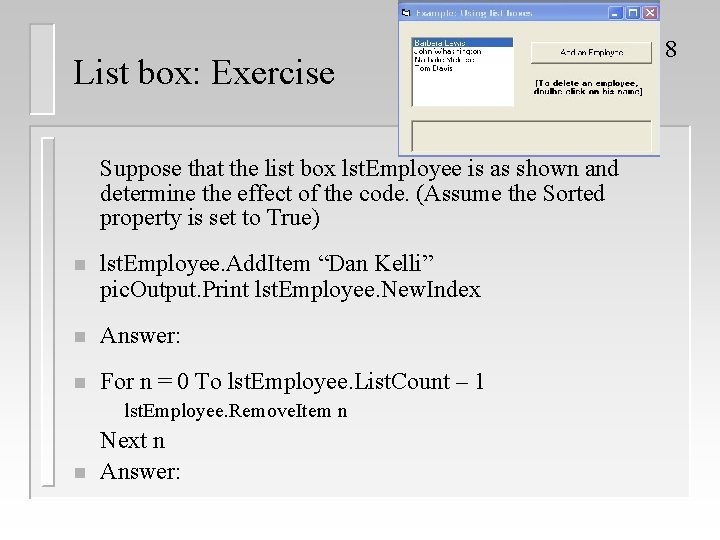
List box: Exercise Suppose that the list box lst. Employee is as shown and determine the effect of the code. (Assume the Sorted property is set to True) n lst. Employee. Add. Item “Dan Kelli” pic. Output. Print lst. Employee. New. Index n Answer: n For n = 0 To lst. Employee. List. Count – 1 lst. Employee. Remove. Item n n Next n Answer: 8
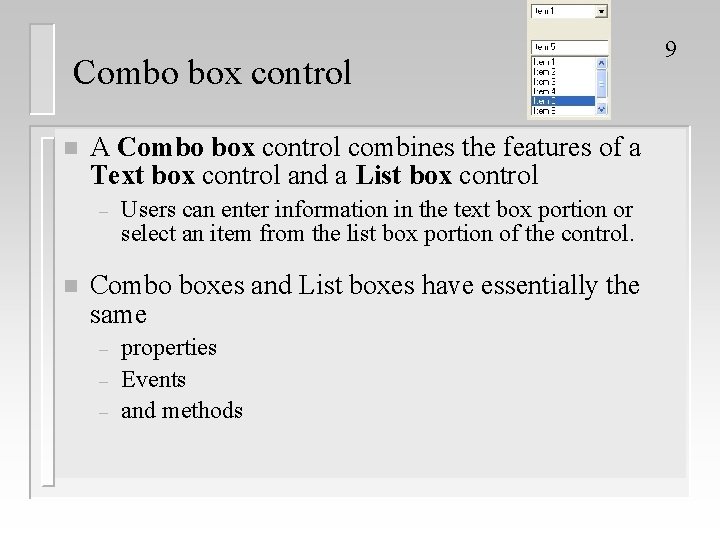
Combo box control n A Combo box control combines the features of a Text box control and a List box control – n Users can enter information in the text box portion or select an item from the list box portion of the control. Combo boxes and List boxes have essentially the same – – – properties Events and methods 9
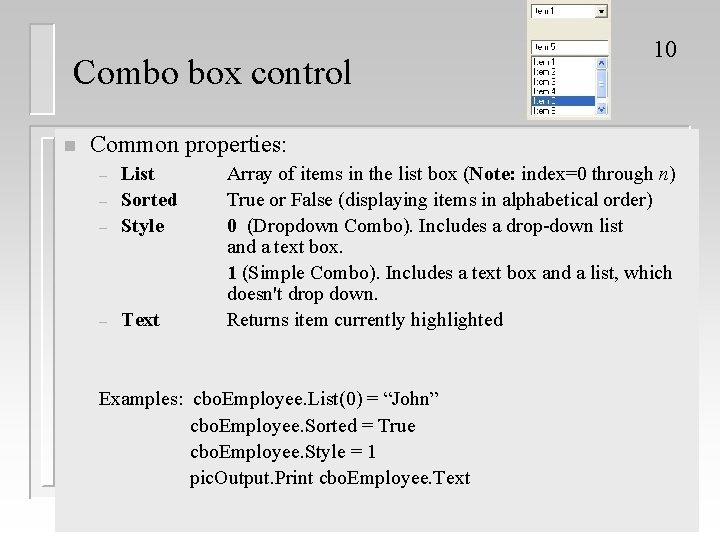
Combo box control n 10 Common properties: – List Sorted Style – Text – – Array of items in the list box (Note: index=0 through n) True or False (displaying items in alphabetical order) 0 (Dropdown Combo). Includes a drop-down list and a text box. 1 (Simple Combo). Includes a text box and a list, which doesn't drop down. Returns item currently highlighted Examples: cbo. Employee. List(0) = “John” cbo. Employee. Sorted = True cbo. Employee. Style = 1 pic. Output. Print cbo. Employee. Text
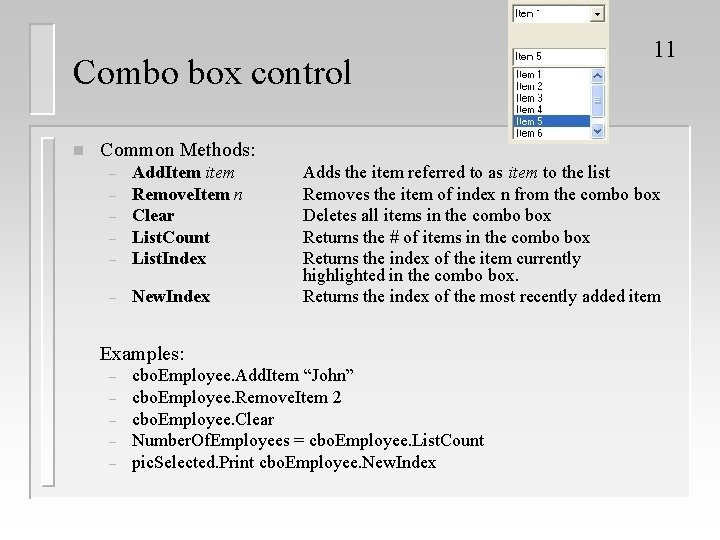
Combo box control n 11 Common Methods: – Add. Item item Remove. Item n Clear List. Count List. Index – New. Index – – Adds the item referred to as item to the list Removes the item of index n from the combo box Deletes all items in the combo box Returns the # of items in the combo box Returns the index of the item currently highlighted in the combo box. Returns the index of the most recently added item Examples: – – – cbo. Employee. Add. Item “John” cbo. Employee. Remove. Item 2 cbo. Employee. Clear Number. Of. Employees = cbo. Employee. List. Count pic. Selected. Print cbo. Employee. New. Index
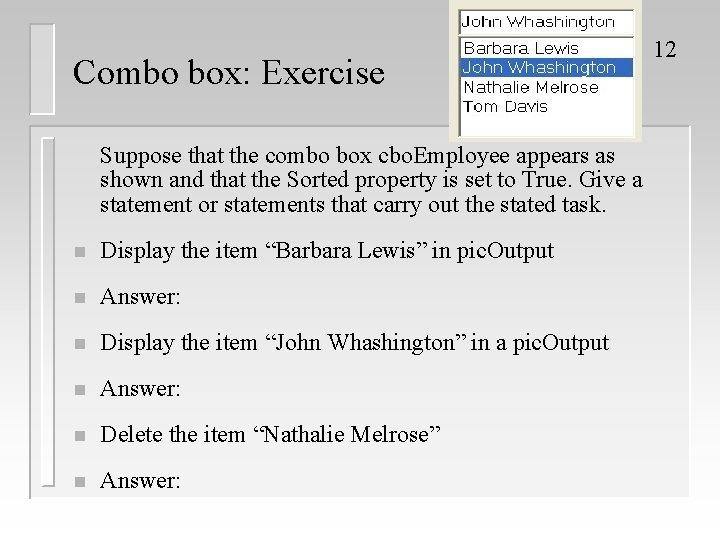
Combo box: Exercise Suppose that the combo box cbo. Employee appears as shown and that the Sorted property is set to True. Give a statement or statements that carry out the stated task. n Display the item “Barbara Lewis” in pic. Output n Answer: n Display the item “John Whashington” in a pic. Output n Answer: n Delete the item “Nathalie Melrose” n Answer: 12
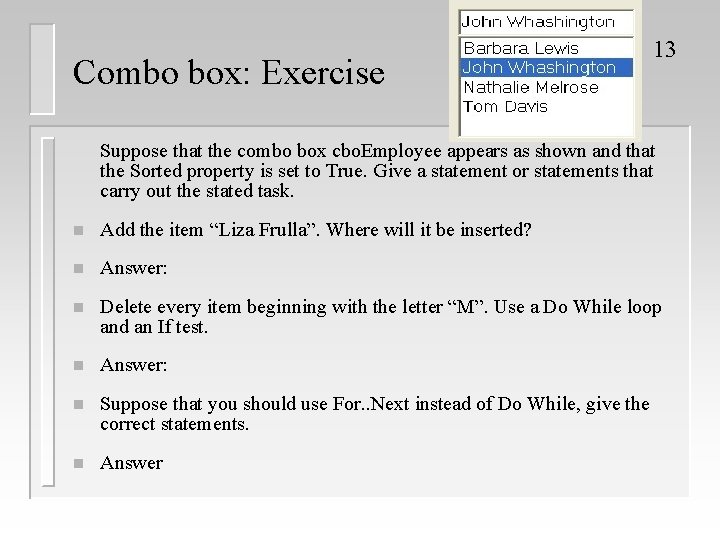
Combo box: Exercise 13 Suppose that the combo box cbo. Employee appears as shown and that the Sorted property is set to True. Give a statement or statements that carry out the stated task. n Add the item “Liza Frulla”. Where will it be inserted? n Answer: n Delete every item beginning with the letter “M”. Use a Do While loop and an If test. n Answer: n Suppose that you should use For. . Next instead of Do While, give the correct statements. n Answer
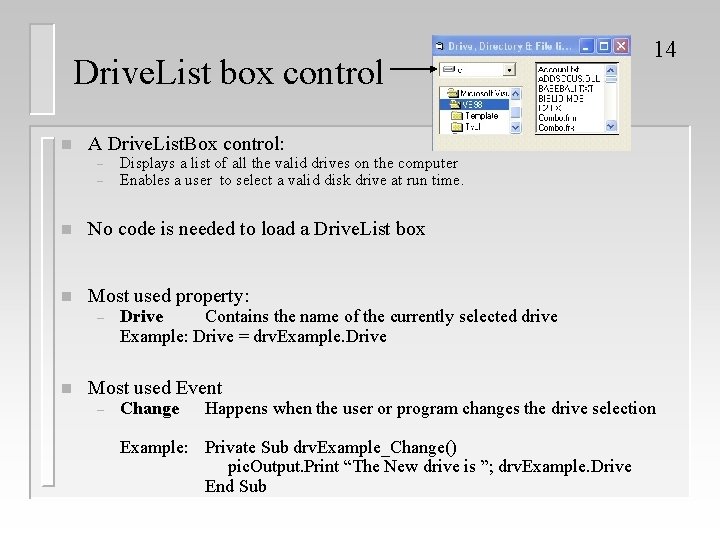
Drive. List box control n A Drive. List. Box control: – – Displays a list of all the valid drives on the computer Enables a user to select a valid disk drive at run time. n No code is needed to load a Drive. List box n Most used property: – n 14 Drive Contains the name of the currently selected drive Example: Drive = drv. Example. Drive Most used Event – Change Happens when the user or program changes the drive selection Example: Private Sub drv. Example_Change() pic. Output. Print “The New drive is ”; drv. Example. Drive End Sub
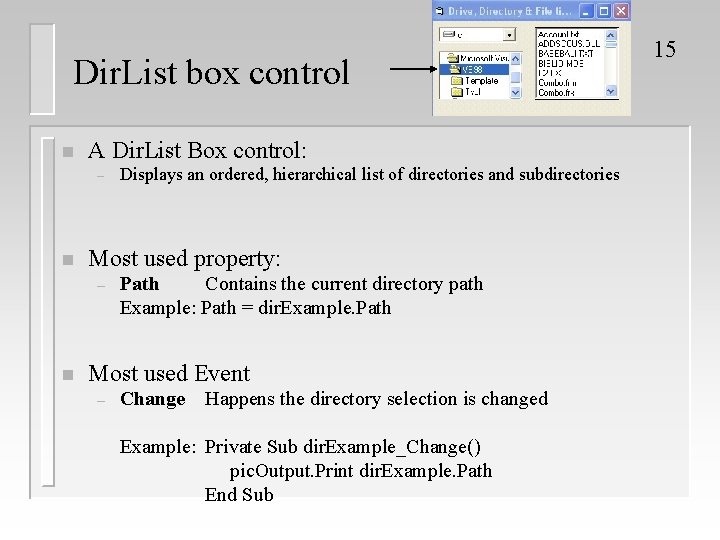
Dir. List box control n A Dir. List Box control: – n Most used property: – n Displays an ordered, hierarchical list of directories and subdirectories Path Contains the current directory path Example: Path = dir. Example. Path Most used Event – Change Happens the directory selection is changed Example: Private Sub dir. Example_Change() pic. Output. Print dir. Example. Path End Sub 15
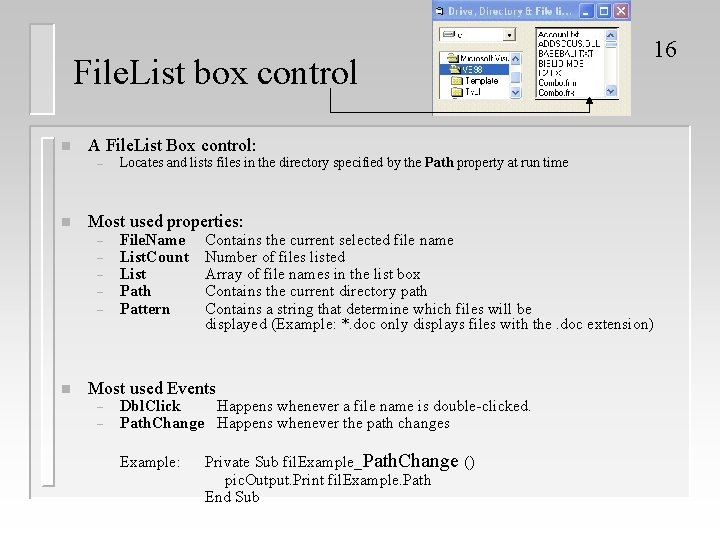
File. List box control n A File. List Box control: – n Locates and lists files in the directory specified by the Path property at run time Most used properties: – – – n 16 File. Name List. Count List Path Pattern Contains the current selected file name Number of files listed Array of file names in the list box Contains the current directory path Contains a string that determine which files will be displayed (Example: *. doc only displays files with the. doc extension) Most used Events – – Dbl. Click Happens whenever a file name is double-clicked. Path. Change Happens whenever the path changes Example: Private Sub fil. Example_Path. Change () pic. Output. Print fil. Example. Path End Sub
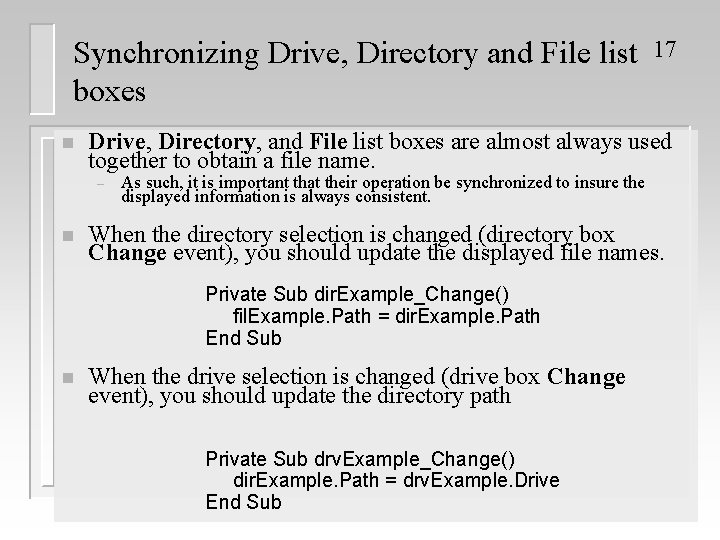
Synchronizing Drive, Directory and File list boxes n Drive, Directory, and File list boxes are almost always used together to obtain a file name. – n As such, it is important that their operation be synchronized to insure the displayed information is always consistent. When the directory selection is changed (directory box Change event), you should update the displayed file names. Private Sub dir. Example_Change() fil. Example. Path = dir. Example. Path End Sub n 17 When the drive selection is changed (drive box Change event), you should update the directory path Private Sub drv. Example_Change() dir. Example. Path = drv. Example. Drive End Sub
- Slides: 17