
Scheduling Reports in Alio Intelligence Kimberly Schalk Computer

Scheduling Reports in Alio Intelligence Kimberly Schalk Computer Management Technologies (CMT)

Kim Schalk Vice President Computer Management Technologies (CMT) • 25 years of programming experience • 24 years with Computer Management Technologies (CMT) • I have been a project manager for most of my tenure with CMT • I have been providing professional services for Alio Intelligence since its introduction
Agenda • • • Things to Keep in Mind When Building Reports for Others Purging the Data Before Saving the Report Using Refresh on Open When Saving the Report Scheduling from the BI Launch Pad Scheduling from the Central Management Console Time permitting, a quick peek at the Instance Manager 3

Things to Keep in Mind When Building Reports That Others Will Use
When Building Reports for Others • When the report is complete, before saving for the last time, purge the data from the report • When saving for the last time, choose a Public Folder • When saving for the last time, also remember to check the refresh on open box (especially if you don’t purge the data); Refresh on open forces the report to refresh when anyone views it • Schedule the Report for those that do not have access to Alio Intelligence to run it themselves 5
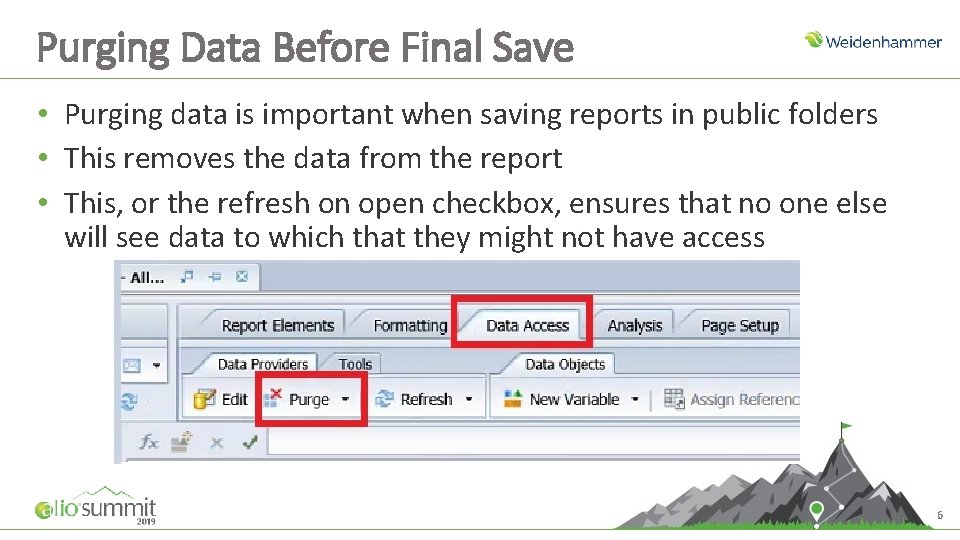
Purging Data Before Final Save • Purging data is important when saving reports in public folders • This removes the data from the report • This, or the refresh on open checkbox, ensures that no one else will see data to which that they might not have access 6
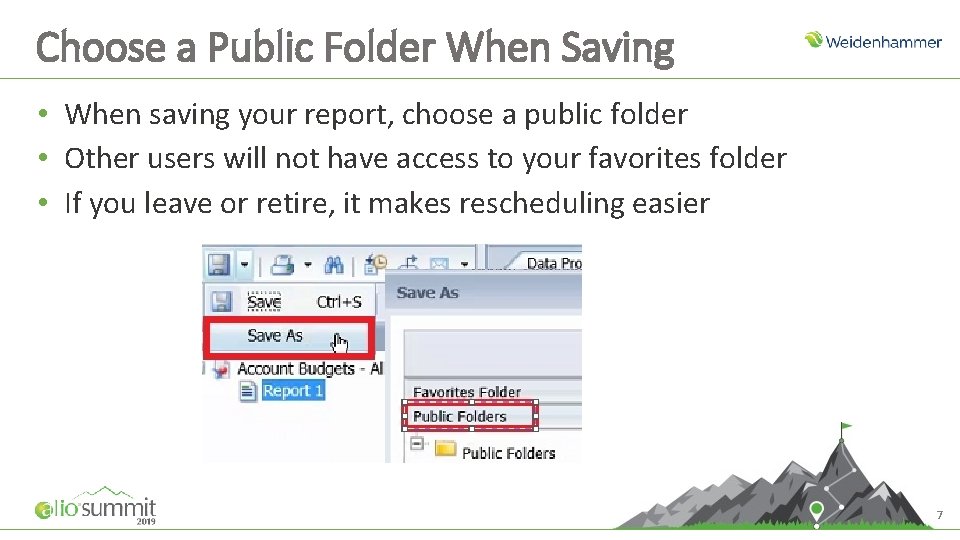
Choose a Public Folder When Saving • When saving your report, choose a public folder • Other users will not have access to your favorites folder • If you leave or retire, it makes rescheduling easier 7
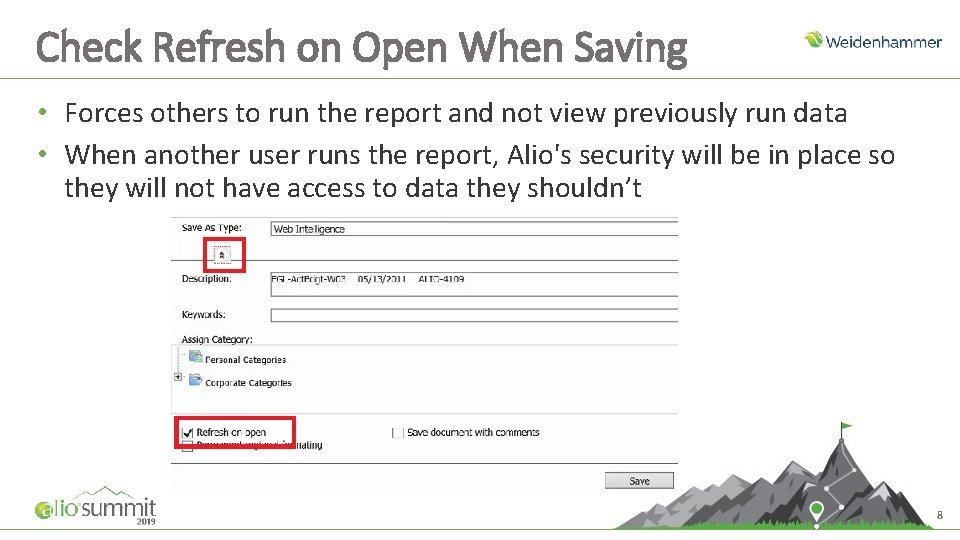
Check Refresh on Open When Saving • Forces others to run the report and not view previously run data • When another user runs the report, Alio's security will be in place so they will not have access to data they shouldn’t 8

Scheduling From the BI Launch Pad
Considerations Using the BI Launch Pad for Scheduling • When scheduling a report from the BI Launch Pad, the report will run with your Alio security settings, because you are logged in as yourself • When you run the report, the data visible, is what the person receiving the report will view • Add appropriate filters to narrow down the report scope before scheduling. • Are there filters that will force you to reschedule at a certain time of the year? Example: Contract Year or Fiscal Year. If so, remember to set a reminder in your calendar to reschedule and replace the scheduled job for the new filters. If your business has a work procedure book that documents duties, be sure to include these. 10
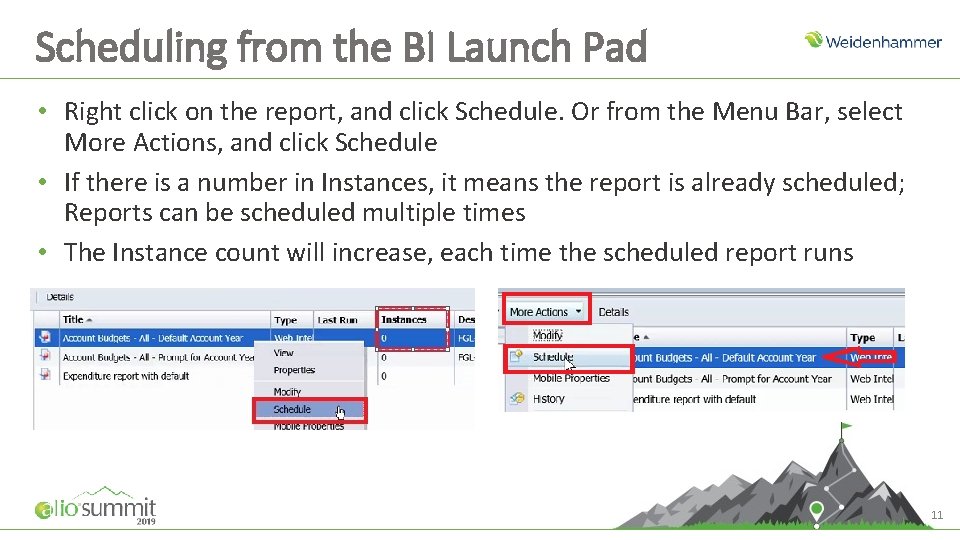
Scheduling from the BI Launch Pad • Right click on the report, and click Schedule. Or from the Menu Bar, select More Actions, and click Schedule • If there is a number in Instances, it means the report is already scheduled; Reports can be scheduled multiple times • The Instance count will increase, each time the scheduled report runs 11
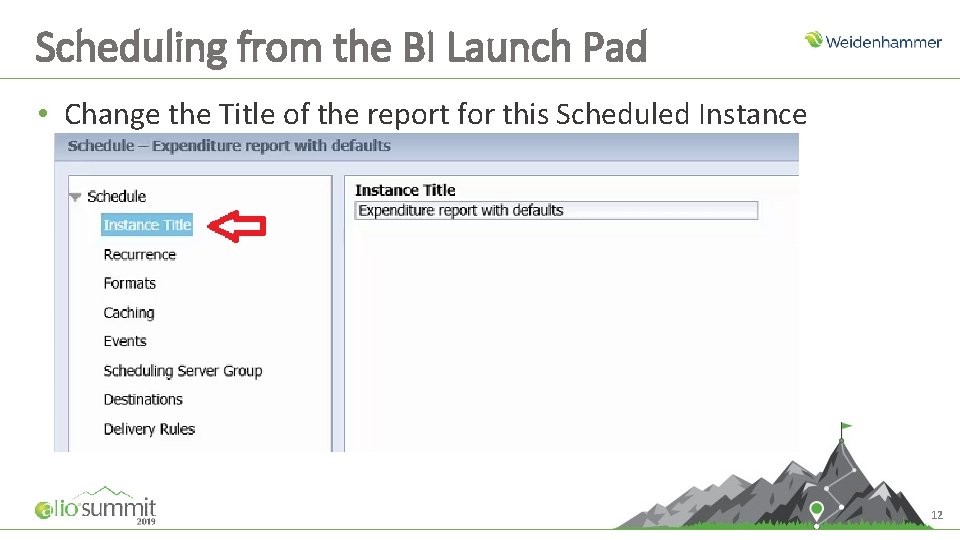
Scheduling from the BI Launch Pad • Change the Title of the report for this Scheduled Instance 12
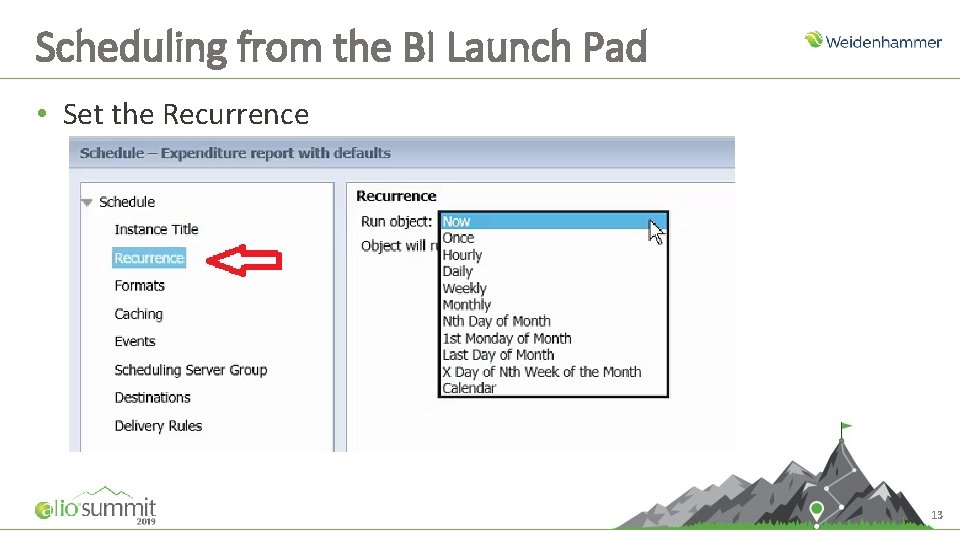
Scheduling from the BI Launch Pad • Set the Recurrence 13
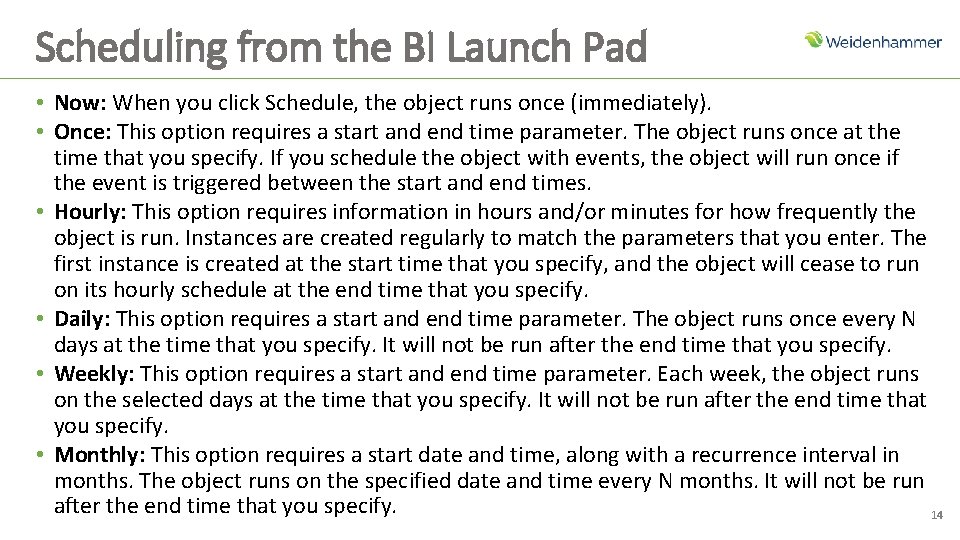
Scheduling from the BI Launch Pad • Now: When you click Schedule, the object runs once (immediately). • Once: This option requires a start and end time parameter. The object runs once at the time that you specify. If you schedule the object with events, the object will run once if the event is triggered between the start and end times. • Hourly: This option requires information in hours and/or minutes for how frequently the object is run. Instances are created regularly to match the parameters that you enter. The first instance is created at the start time that you specify, and the object will cease to run on its hourly schedule at the end time that you specify. • Daily: This option requires a start and end time parameter. The object runs once every N days at the time that you specify. It will not be run after the end time that you specify. • Weekly: This option requires a start and end time parameter. Each week, the object runs on the selected days at the time that you specify. It will not be run after the end time that you specify. • Monthly: This option requires a start date and time, along with a recurrence interval in months. The object runs on the specified date and time every N months. It will not be run after the end time that you specify. 14
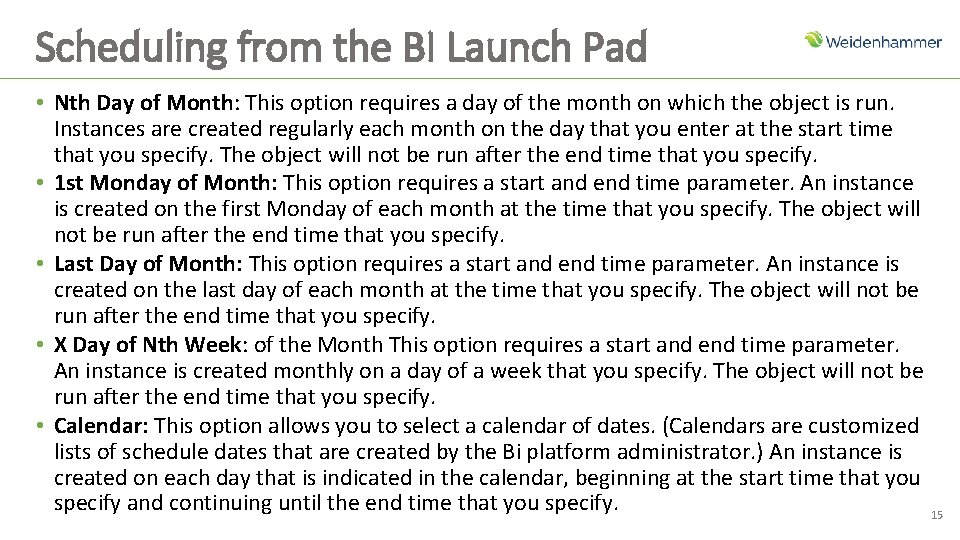
Scheduling from the BI Launch Pad • Nth Day of Month: This option requires a day of the month on which the object is run. Instances are created regularly each month on the day that you enter at the start time that you specify. The object will not be run after the end time that you specify. • 1 st Monday of Month: This option requires a start and end time parameter. An instance is created on the first Monday of each month at the time that you specify. The object will not be run after the end time that you specify. • Last Day of Month: This option requires a start and end time parameter. An instance is created on the last day of each month at the time that you specify. The object will not be run after the end time that you specify. • X Day of Nth Week: of the Month This option requires a start and end time parameter. An instance is created monthly on a day of a week that you specify. The object will not be run after the end time that you specify. • Calendar: This option allows you to select a calendar of dates. (Calendars are customized lists of schedule dates that are created by the Bi platform administrator. ) An instance is created on each day that is indicated in the calendar, beginning at the start time that you specify and continuing until the end time that you specify. 15
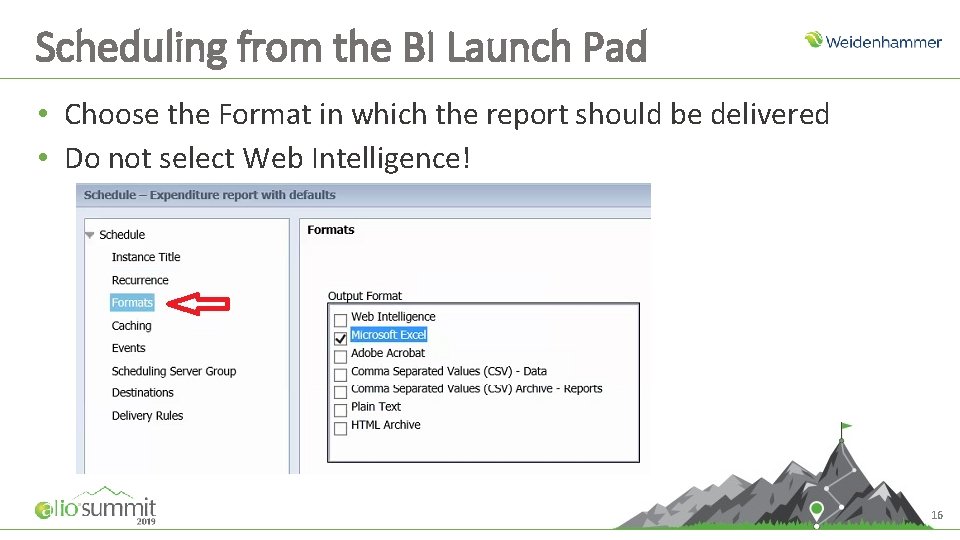
Scheduling from the BI Launch Pad • Choose the Format in which the report should be delivered • Do not select Web Intelligence! 16
Scheduling from the BI Launch Pad • Web Intelligence: Sends the report(s) to the destination as a. wid type. This will only open for people that have the desktop version of Web Intelligence installed. Do not use this unless you are instructed to by your support staff. • Microsoft Excel: Sends the file the report(s) to the destination as a. xlsx type. • Adobe Acrobat: Sends the report(s) to the destination as a. pdf type. • Comma Separated Values (CSV) – Data: Sends the data to the destination as a. csv type. However, it sends all the data in the query, not just what is in the report. It also does not hold formatting. • Comma Separated Values (CSV) Archive – Reports: Sends the data to the destination as a. zip type. The. csv from the report will be in a zip folder. Not convenient if you are trying to automate with a 3 rd party. It uses a zip folder because there may be more than one report. • Plain Text: Sends the file to the destination as a. txt type. This will be a tab-delimited text file. Very convenient for 3 rd parties. • HTML Archive: Sends the file to the destination as a. zip type. The. html form of the report will be in a zip folder. 17
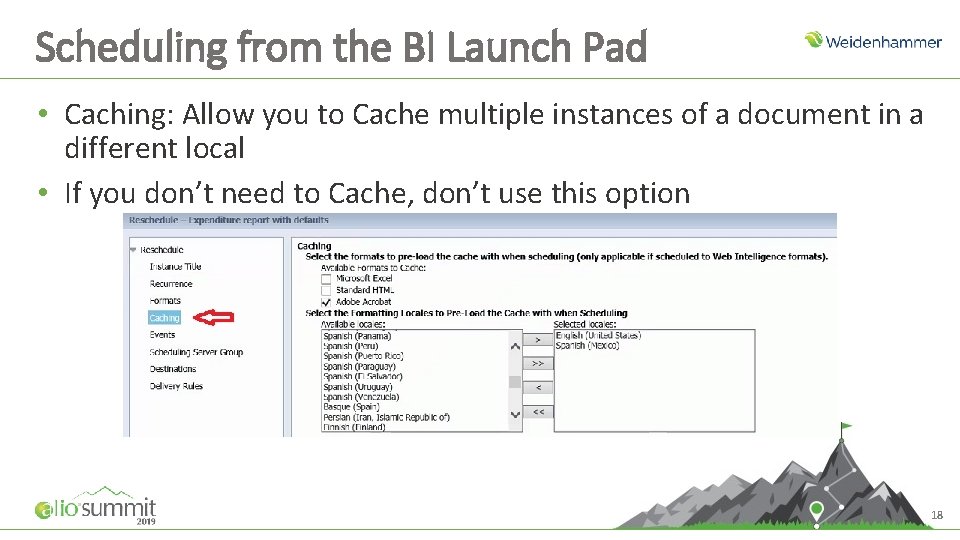
Scheduling from the BI Launch Pad • Caching: Allow you to Cache multiple instances of a document in a different local • If you don’t need to Cache, don’t use this option 18
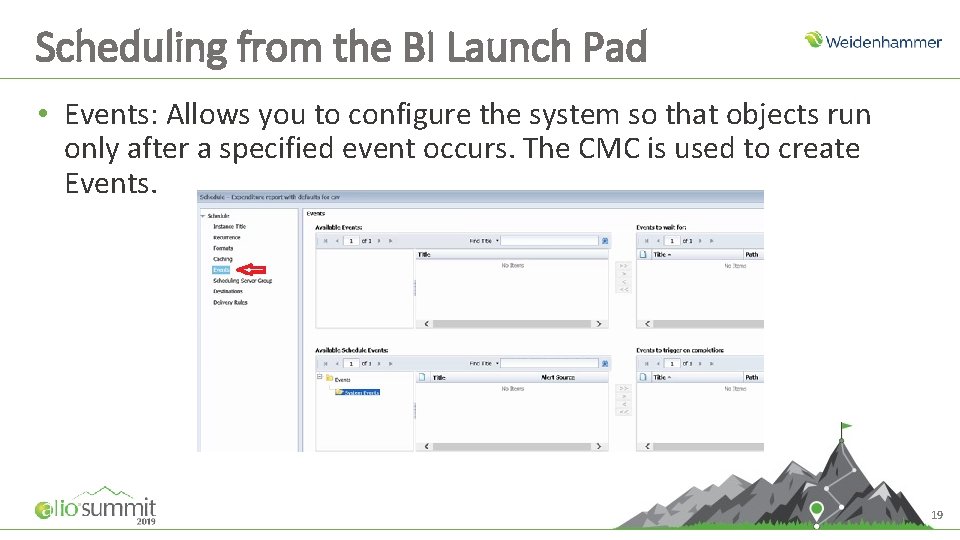
Scheduling from the BI Launch Pad • Events: Allows you to configure the system so that objects run only after a specified event occurs. The CMC is used to create Events. 19
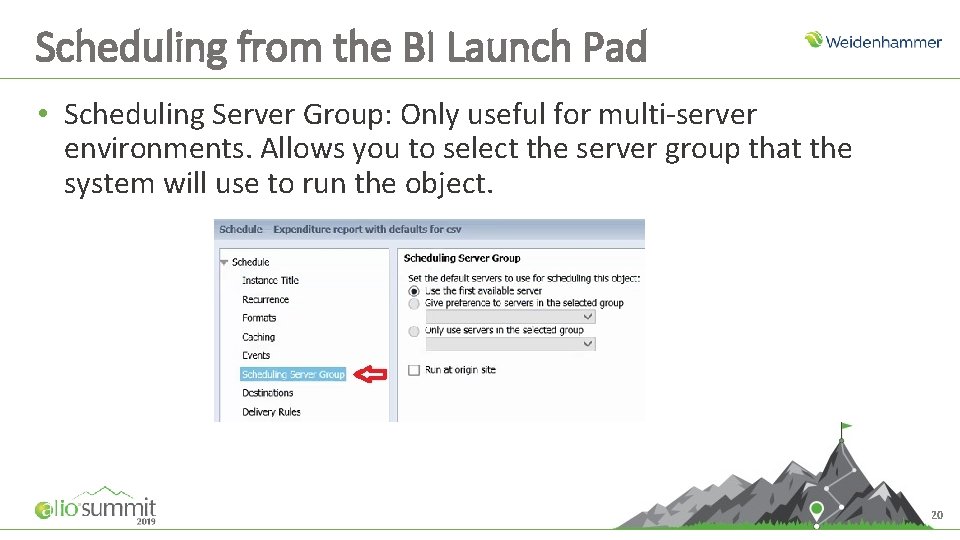
Scheduling from the BI Launch Pad • Scheduling Server Group: Only useful for multi-server environments. Allows you to select the server group that the system will use to run the object. 20
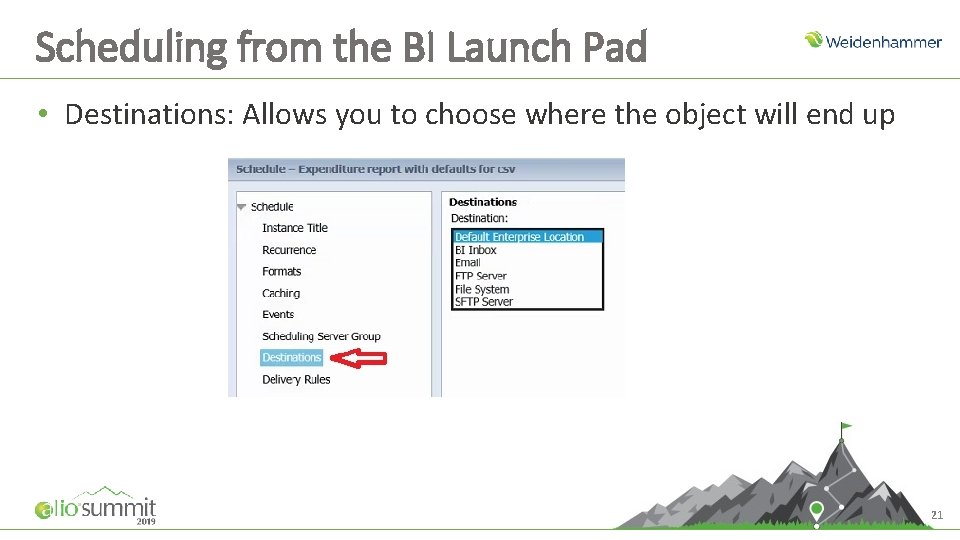
Scheduling from the BI Launch Pad • Destinations: Allows you to choose where the object will end up 21
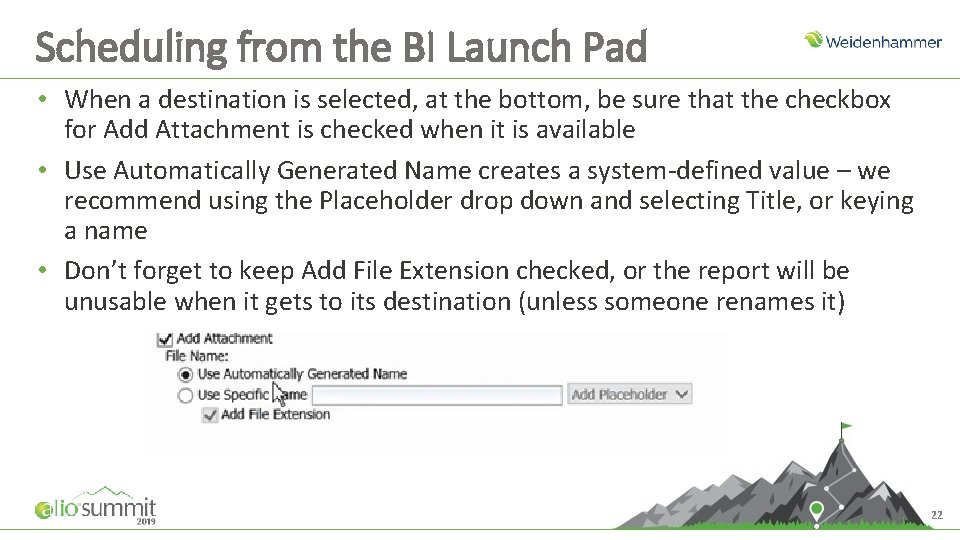
Scheduling from the BI Launch Pad • When a destination is selected, at the bottom, be sure that the checkbox for Add Attachment is checked when it is available • Use Automatically Generated Name creates a system-defined value – we recommend using the Placeholder drop down and selecting Title, or keying a name • Don’t forget to keep Add File Extension checked, or the report will be unusable when it gets to its destination (unless someone renames it) 22
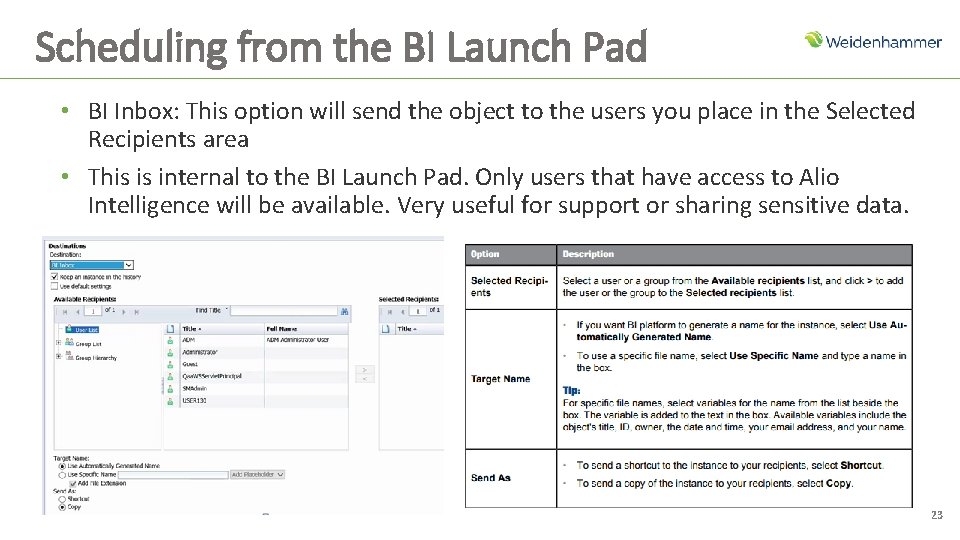
Scheduling from the BI Launch Pad • BI Inbox: This option will send the object to the users you place in the Selected Recipients area • This is internal to the BI Launch Pad. Only users that have access to Alio Intelligence will be available. Very useful for support or sharing sensitive data. 23
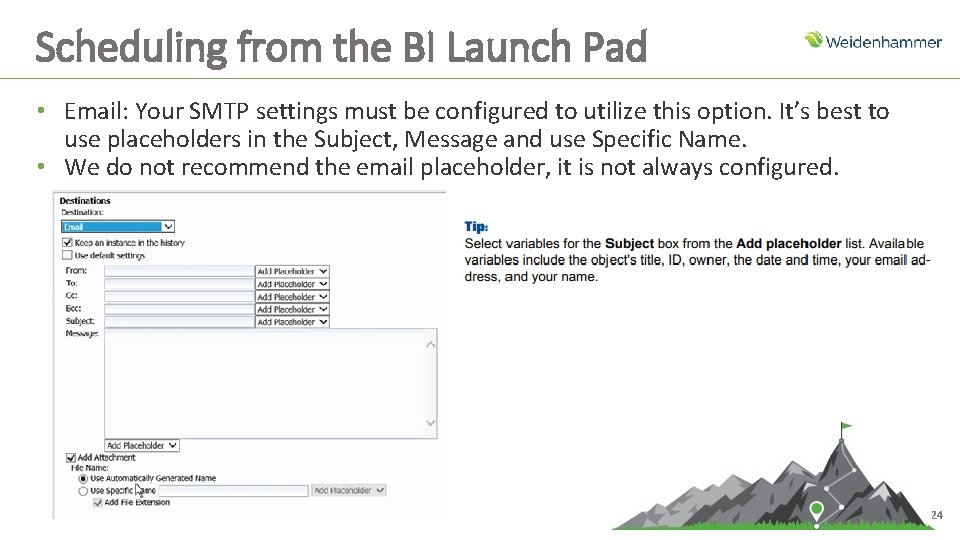
Scheduling from the BI Launch Pad • Email: Your SMTP settings must be configured to utilize this option. It’s best to use placeholders in the Subject, Message and use Specific Name. • We do not recommend the email placeholder, it is not always configured. 24
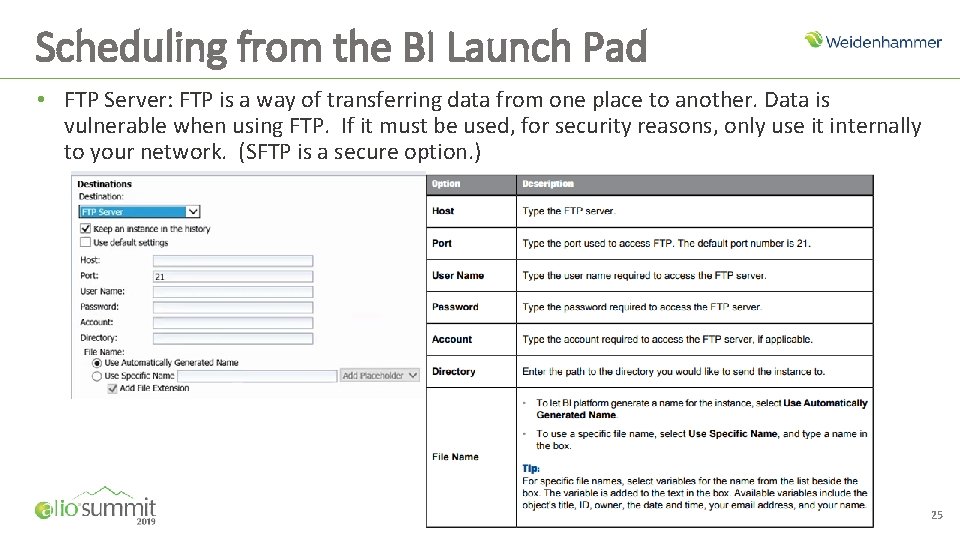
Scheduling from the BI Launch Pad • FTP Server: FTP is a way of transferring data from one place to another. Data is vulnerable when using FTP. If it must be used, for security reasons, only use it internally to your network. (SFTP is a secure option. ) 25
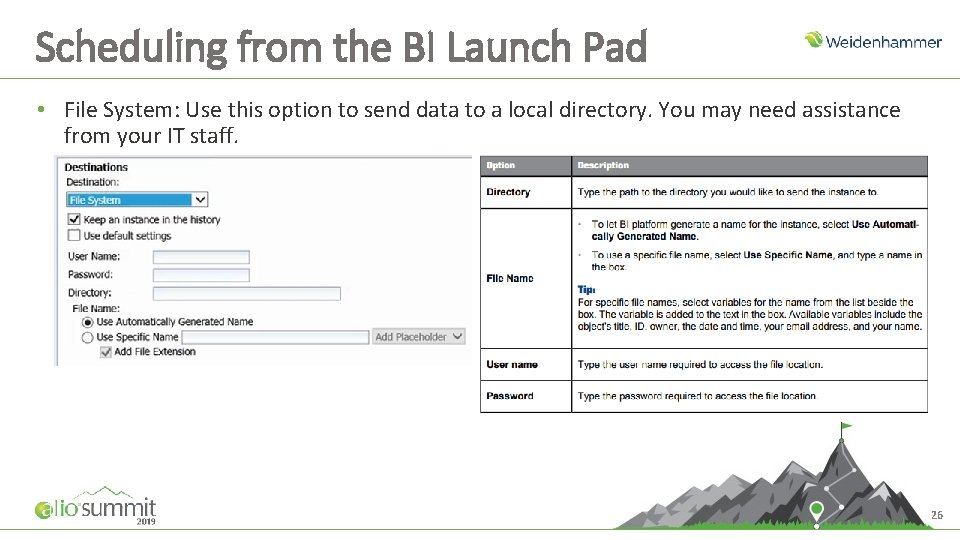
Scheduling from the BI Launch Pad • File System: Use this option to send data to a local directory. You may need assistance from your IT staff. 26
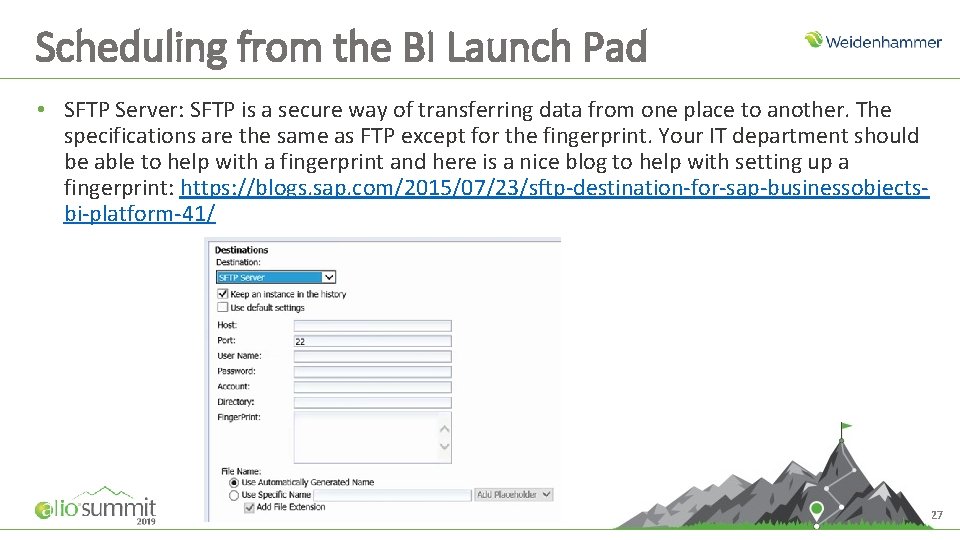
Scheduling from the BI Launch Pad • SFTP Server: SFTP is a secure way of transferring data from one place to another. The specifications are the same as FTP except for the fingerprint. Your IT department should be able to help with a fingerprint and here is a nice blog to help with setting up a fingerprint: https: //blogs. sap. com/2015/07/23/sftp-destination-for-sap-businessobjectsbi-platform-41/ 27
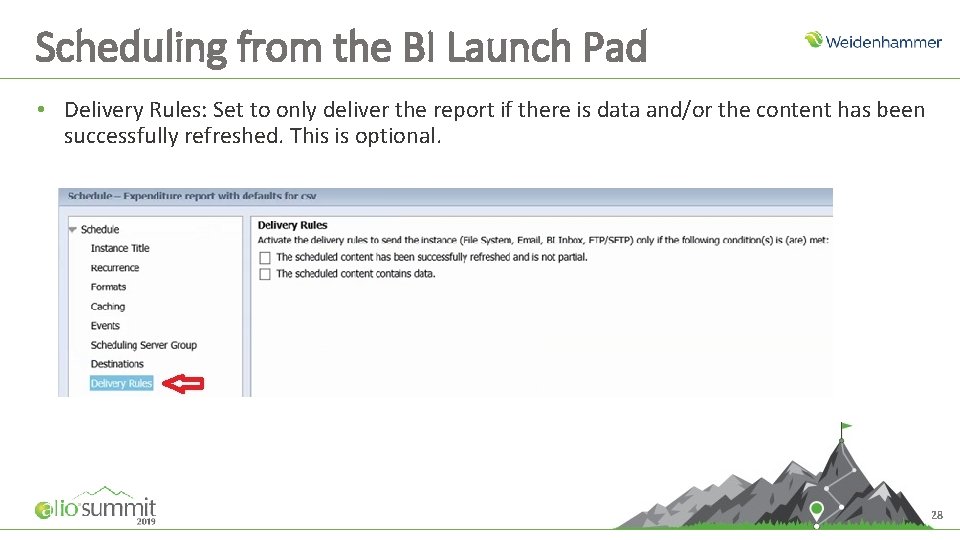
Scheduling from the BI Launch Pad • Delivery Rules: Set to only deliver the report if there is data and/or the content has been successfully refreshed. This is optional. 28
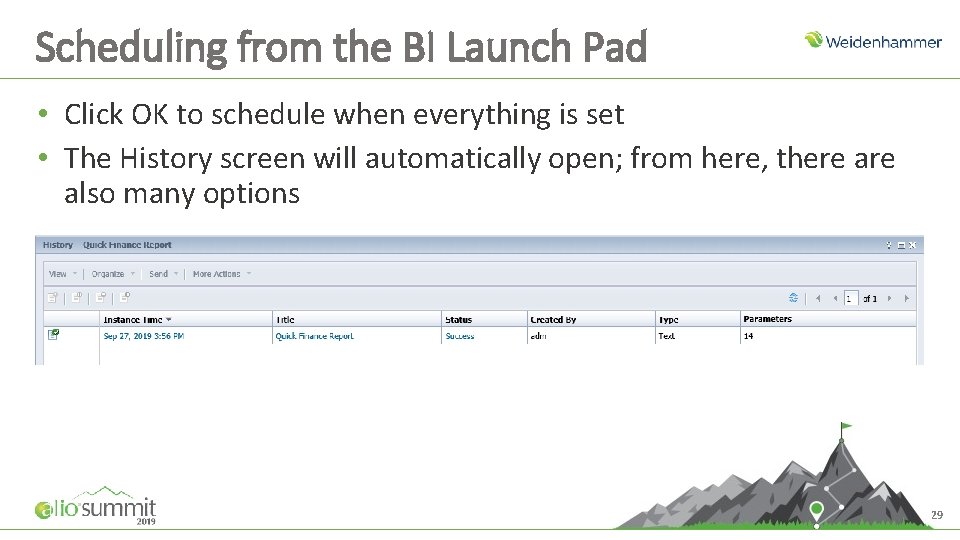
Scheduling from the BI Launch Pad • Click OK to schedule when everything is set • The History screen will automatically open; from here, there also many options 29
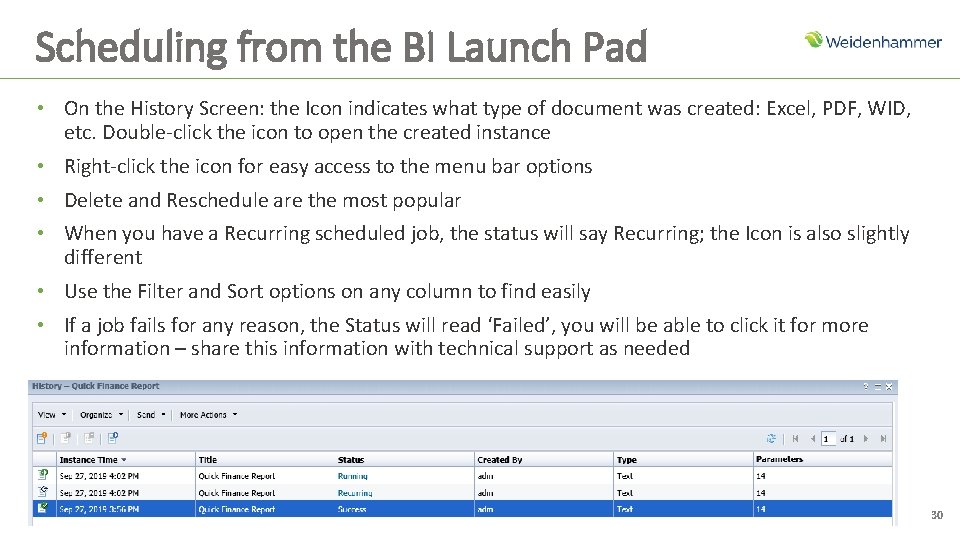
Scheduling from the BI Launch Pad • On the History Screen: the Icon indicates what type of document was created: Excel, PDF, WID, etc. Double-click the icon to open the created instance • Right-click the icon for easy access to the menu bar options • Delete and Reschedule are the most popular • When you have a Recurring scheduled job, the status will say Recurring; the Icon is also slightly different • Use the Filter and Sort options on any column to find easily • If a job fails for any reason, the Status will read ‘Failed’, you will be able to click it for more information – share this information with technical support as needed 30
Scheduling from the Central Management Console (CMC)
Scheduling from the CMC • Remember that other URL that is used to set up users and security for AI? That URL has some great options for scheduling and maintaining instances. • The main differences are: o o o The option to schedule reports on behalf of others The ability to set up notifications for failed or successful instances Controlling Instances 32
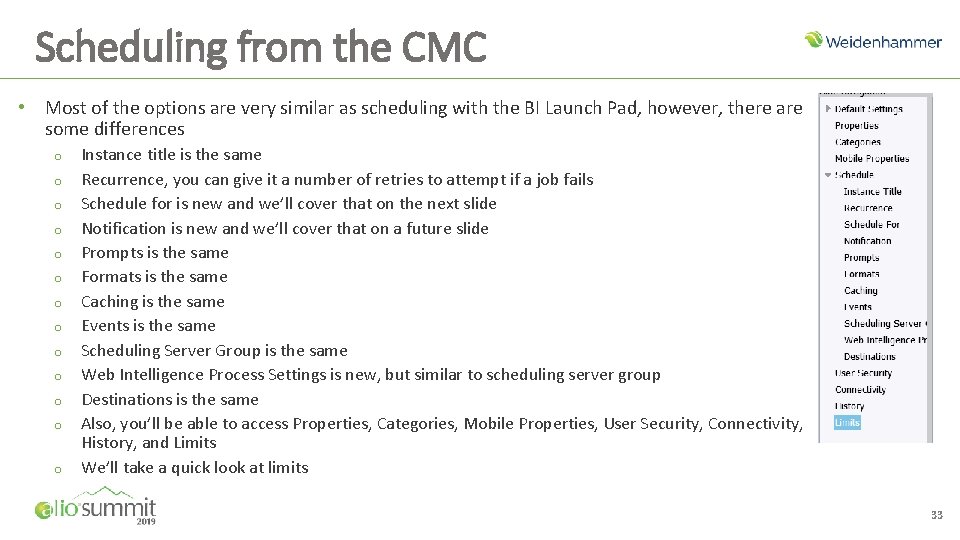
Scheduling from the CMC • Most of the options are very similar as scheduling with the BI Launch Pad, however, there are some differences o o o o Instance title is the same Recurrence, you can give it a number of retries to attempt if a job fails Schedule for is new and we’ll cover that on the next slide Notification is new and we’ll cover that on a future slide Prompts is the same Formats is the same Caching is the same Events is the same Scheduling Server Group is the same Web Intelligence Process Settings is new, but similar to scheduling server group Destinations is the same Also, you’ll be able to access Properties, Categories, Mobile Properties, User Security, Connectivity, History, and Limits We’ll take a quick look at limits 33
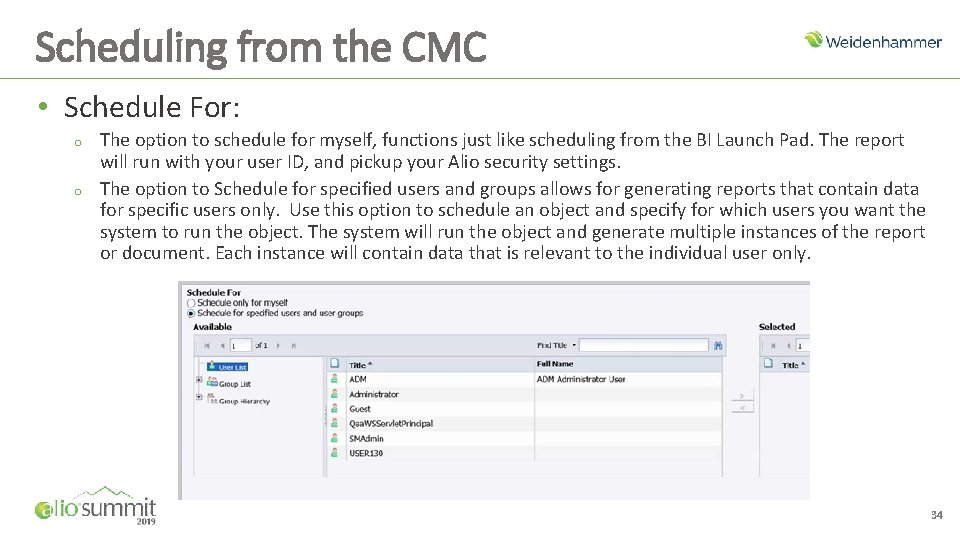
Scheduling from the CMC • Schedule For: o o The option to schedule for myself, functions just like scheduling from the BI Launch Pad. The report will run with your user ID, and pickup your Alio security settings. The option to Schedule for specified users and groups allows for generating reports that contain data for specific users only. Use this option to schedule an object and specify for which users you want the system to run the object. The system will run the object and generate multiple instances of the report or document. Each instance will contain data that is relevant to the individual user only. 34
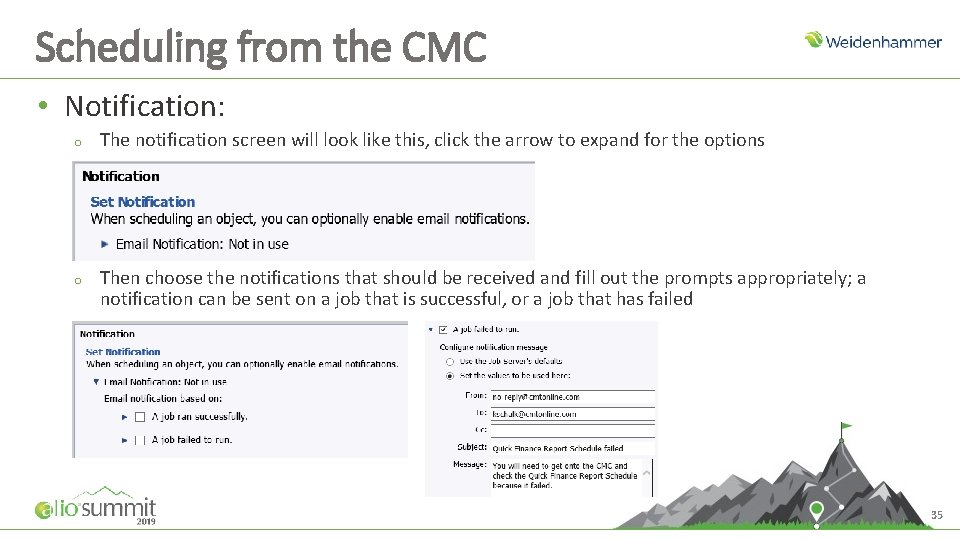
Scheduling from the CMC • Notification: o The notification screen will look like this, click the arrow to expand for the options o Then choose the notifications that should be received and fill out the prompts appropriately; a notification can be sent on a job that is successful, or a job that has failed 35
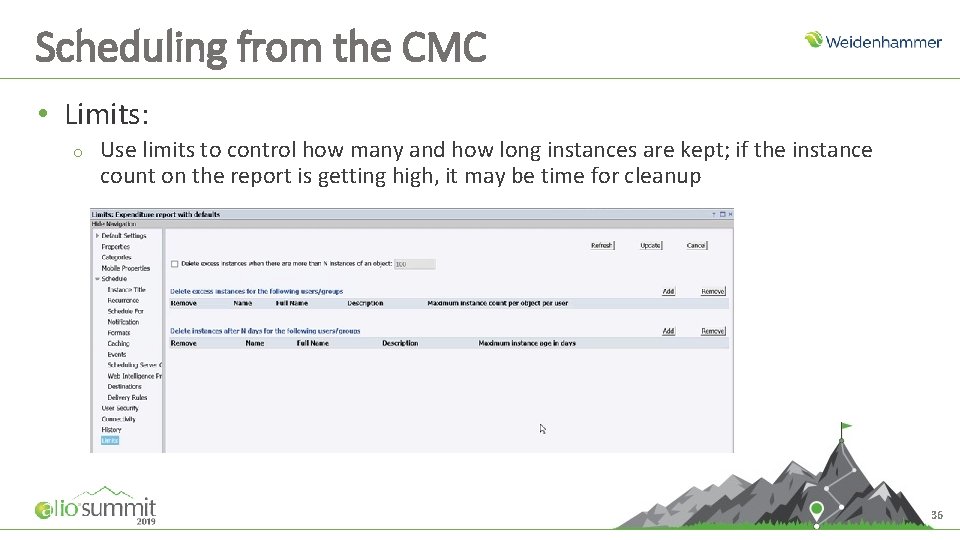
Scheduling from the CMC • Limits: o Use limits to control how many and how long instances are kept; if the instance count on the report is getting high, it may be time for cleanup 36
A Peek at the Instance Manager within the Central Management Console (CMC)
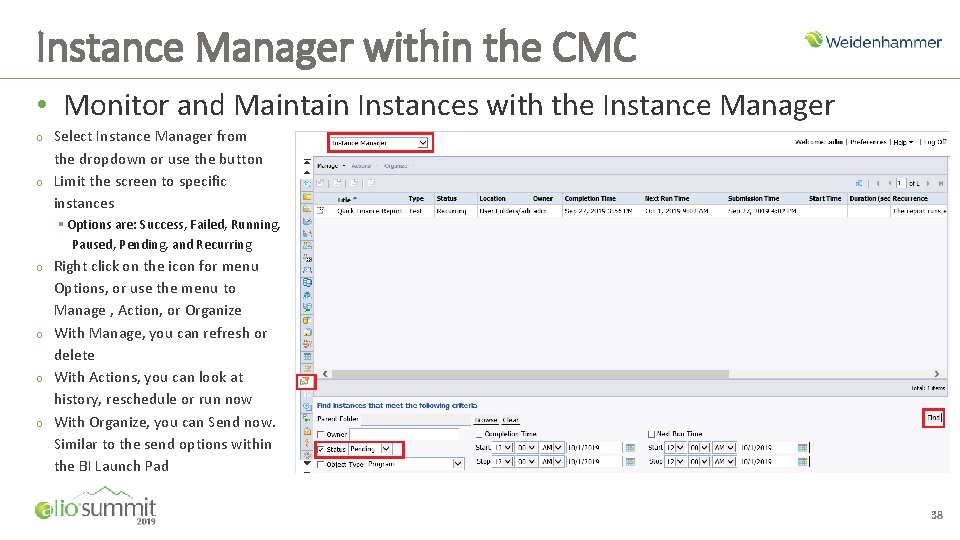
Instance Manager within the CMC • Monitor and Maintain Instances with the Instance Manager o o Select Instance Manager from the dropdown or use the button Limit the screen to specific instances § Options are: Success, Failed, Running, Paused, Pending, and Recurring o o Right click on the icon for menu Options, or use the menu to Manage , Action, or Organize With Manage, you can refresh or delete With Actions, you can look at history, reschedule or run now With Organize, you can Send now. Similar to the send options within the BI Launch Pad 38

Discussion
Additional Training • If you are interested in other Alio Web. Ex group training sessions, you can view the list of sessions currently available at: http: //www. myalio. com/web-training • If you prefer one-on-one training, please contact your Alio support provider directly for cost and scheduling information • If you are seeking Alio documentation or recorded training sessions, please log onto infolink: https: //infolink. hammer. net/login. aspx • If you have any additional questions or concerns, please contact Alio support at 1 -800 -914 -9879 or by direct email to wccc@hammer. net

Thank You
- Slides: 41