
Scheduler 7 6 8 Graphical Work Week GWW
- Slides: 31
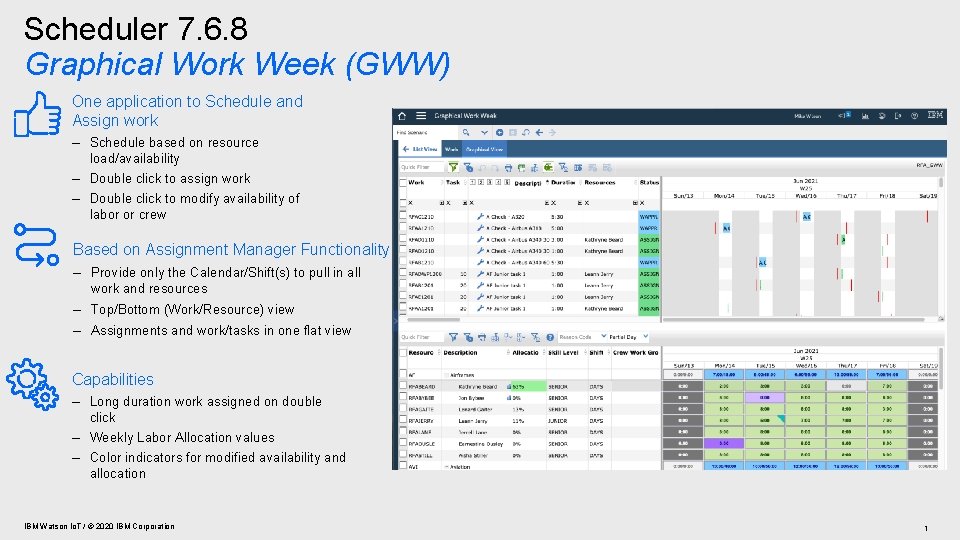
Scheduler 7. 6. 8 Graphical Work Week (GWW) One application to Schedule and Assign work – Schedule based on resource load/availability – Double click to assign work – Double click to modify availability of labor or crew Based on Assignment Manager Functionality – Provide only the Calendar/Shift(s) to pull in all work and resources – Top/Bottom (Work/Resource) view – Assignments and work/tasks in one flat view Capabilities – Long duration work assigned on double click – Weekly Labor Allocation values – Color indicators for modified availability and allocation IBM Watson Io. T / © 2020 IBM Corporation 1
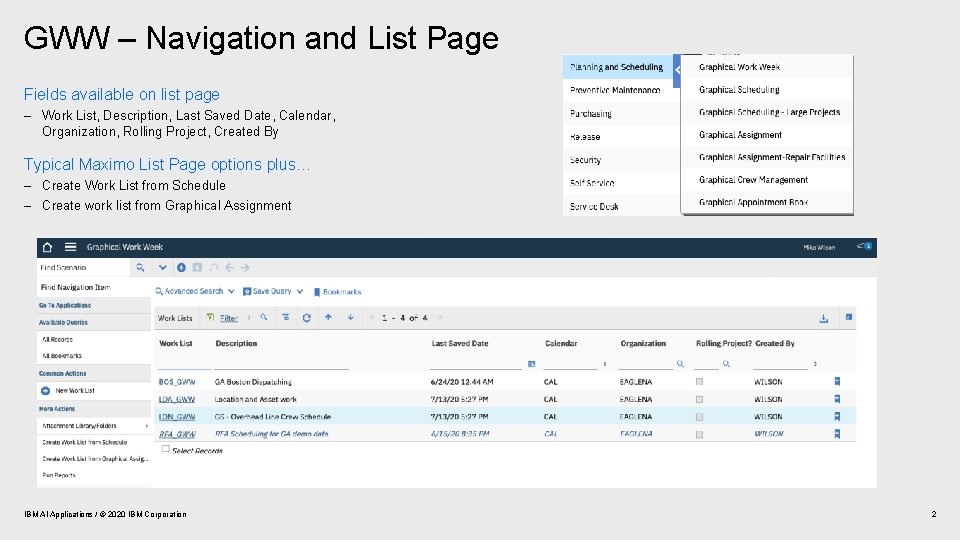
GWW – Navigation and List Page Fields available on list page – Work List, Description, Last Saved Date, Calendar, Organization, Rolling Project, Created By Typical Maximo List Page options plus… – Create Work List from Schedule – Create work list from Graphical Assignment IBM AI Applications / © 2020 IBM Corporation 2
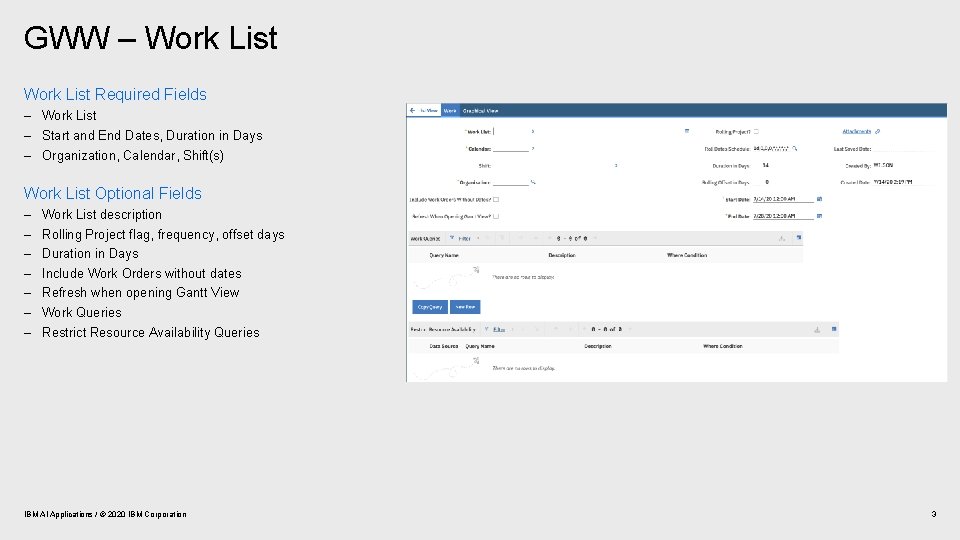
GWW – Work List Required Fields – Work List – Start and End Dates, Duration in Days – Organization, Calendar, Shift(s) Work List Optional Fields – – – – Work List description Rolling Project flag, frequency, offset days Duration in Days Include Work Orders without dates Refresh when opening Gantt View Work Queries Restrict Resource Availability Queries IBM AI Applications / © 2020 IBM Corporation 3
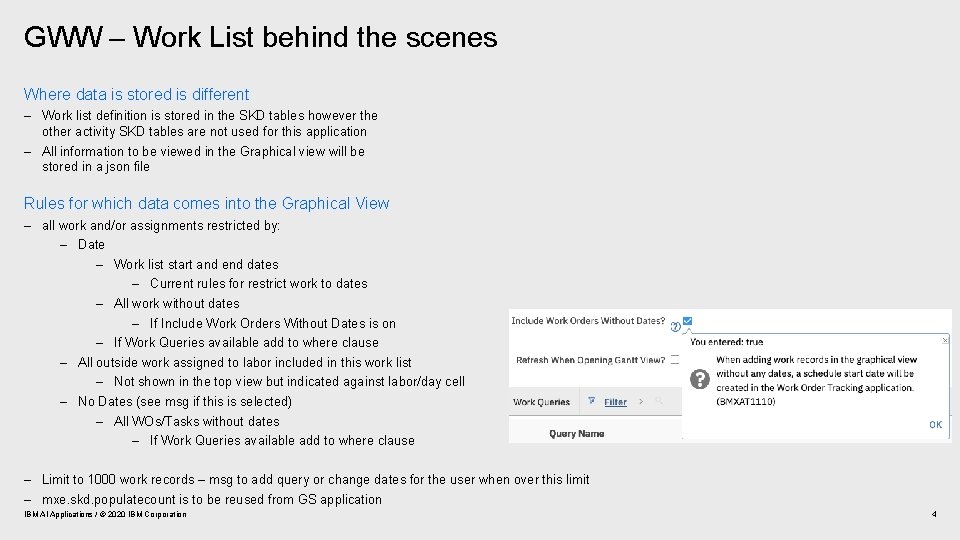
GWW – Work List behind the scenes Where data is stored is different – Work list definition is stored in the SKD tables however the other activity SKD tables are not used for this application – All information to be viewed in the Graphical view will be stored in a json file Rules for which data comes into the Graphical View – all work and/or assignments restricted by: – Date – Work list start and end dates – Current rules for restrict work to dates – All work without dates – If Include Work Orders Without Dates is on – If Work Queries available add to where clause – All outside work assigned to labor included in this work list – Not shown in the top view but indicated against labor/day cell – No Dates (see msg if this is selected) – All WOs/Tasks without dates – If Work Queries available add to where clause – Limit to 1000 work records – msg to add query or change dates for the user when over this limit – mxe. skd. populatecount is to be reused from GS application IBM AI Applications / © 2020 IBM Corporation 4
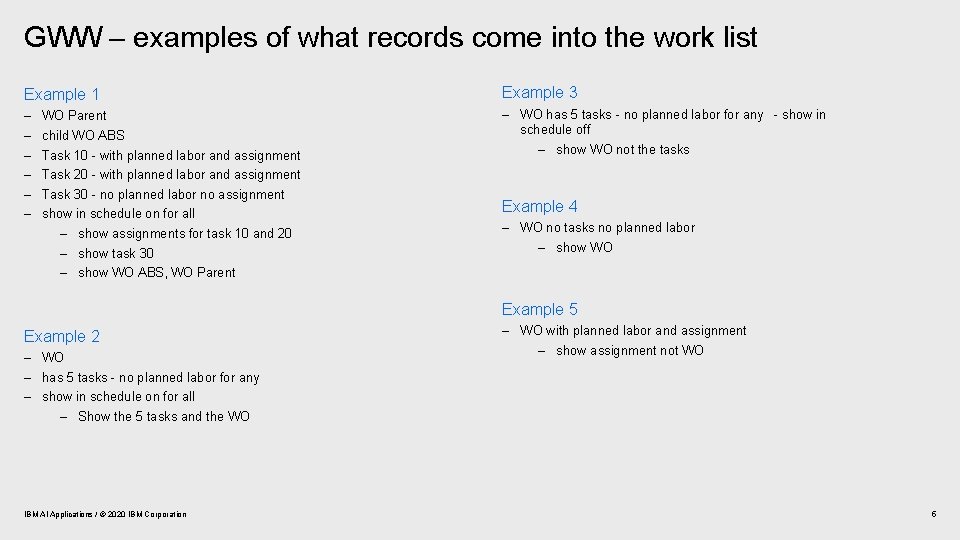
GWW – examples of what records come into the work list Example 1 Example 3 – – – – WO has 5 tasks - no planned labor for any - show in schedule off – show WO not the tasks WO Parent child WO ABS Task 10 - with planned labor and assignment Task 20 - with planned labor and assignment Task 30 - no planned labor no assignment show in schedule on for all – show assignments for task 10 and 20 – show task 30 – show WO ABS, WO Parent Example 4 – WO no tasks no planned labor – show WO Example 5 Example 2 – WO – has 5 tasks - no planned labor for any – show in schedule on for all – Show the 5 tasks and the WO IBM AI Applications / © 2020 IBM Corporation – WO with planned labor and assignment – show assignment not WO 5
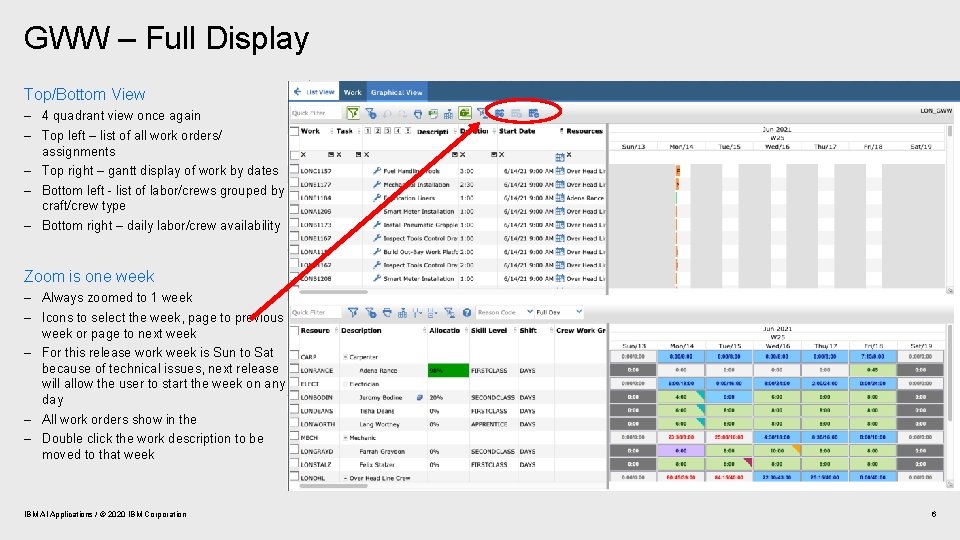
GWW – Full Display Top/Bottom View – 4 quadrant view once again – Top left – list of all work orders/ assignments – Top right – gantt display of work by dates – Bottom left - list of labor/crews grouped by craft/crew type – Bottom right – daily labor/crew availability Zoom is one week – Always zoomed to 1 week – Icons to select the week, page to previous week or page to next week – For this release work week is Sun to Sat because of technical issues, next release will allow the user to start the week on any day – All work orders show in the – Double click the work description to be moved to that week IBM AI Applications / © 2020 IBM Corporation 6
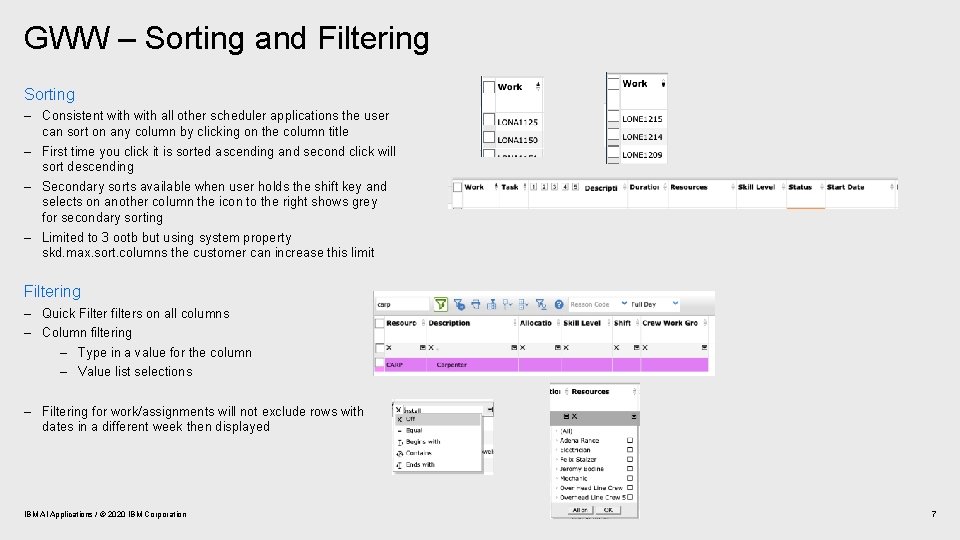
GWW – Sorting and Filtering Sorting – Consistent with all other scheduler applications the user can sort on any column by clicking on the column title – First time you click it is sorted ascending and second click will sort descending – Secondary sorts available when user holds the shift key and selects on another column the icon to the right shows grey for secondary sorting – Limited to 3 ootb but using system property skd. max. sort. columns the customer can increase this limit Filtering – Quick Filter filters on all columns – Column filtering – Type in a value for the column – Value list selections – Filtering for work/assignments will not exclude rows with dates in a different week then displayed IBM AI Applications / © 2020 IBM Corporation 7
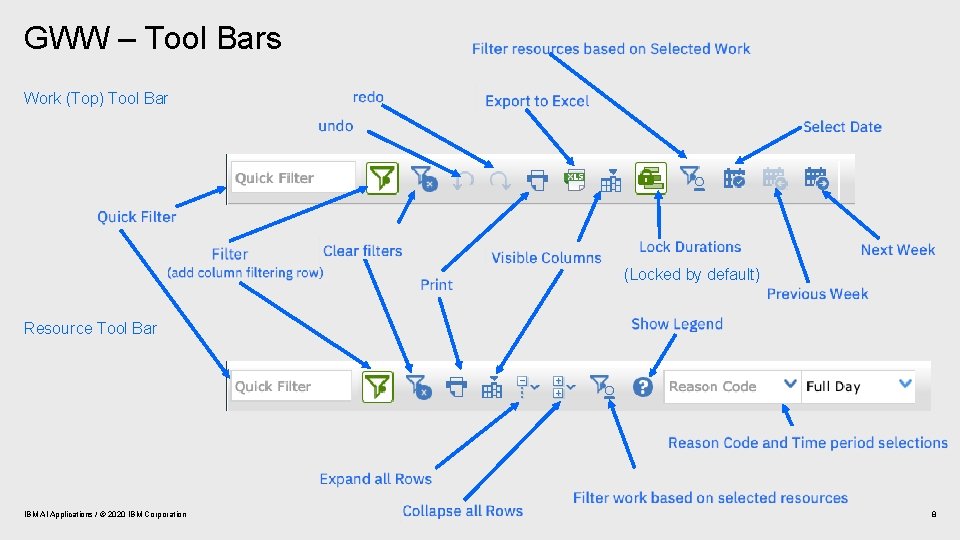
GWW – Tool Bars Work (Top) Tool Bar (Locked by default) Resource Tool Bar IBM AI Applications / © 2020 IBM Corporation 8
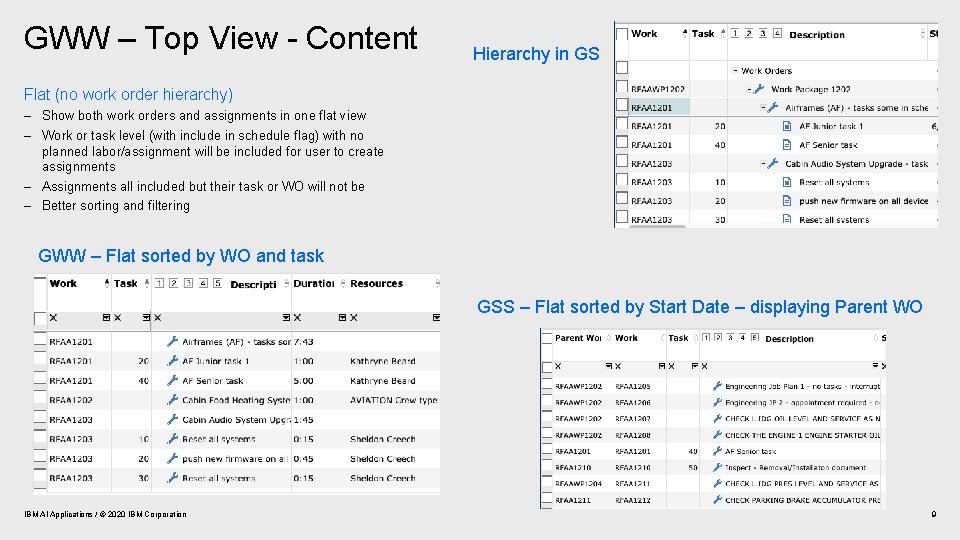
GWW – Top View - Content Hierarchy in GS Flat (no work order hierarchy) – Show both work orders and assignments in one flat view – Work or task level (with include in schedule flag) with no planned labor/assignment will be included for user to create assignments – Assignments all included but their task or WO will not be – Better sorting and filtering GWW – Flat sorted by WO and task GSS – Flat sorted by Start Date – displaying Parent WO IBM AI Applications / © 2020 IBM Corporation 9
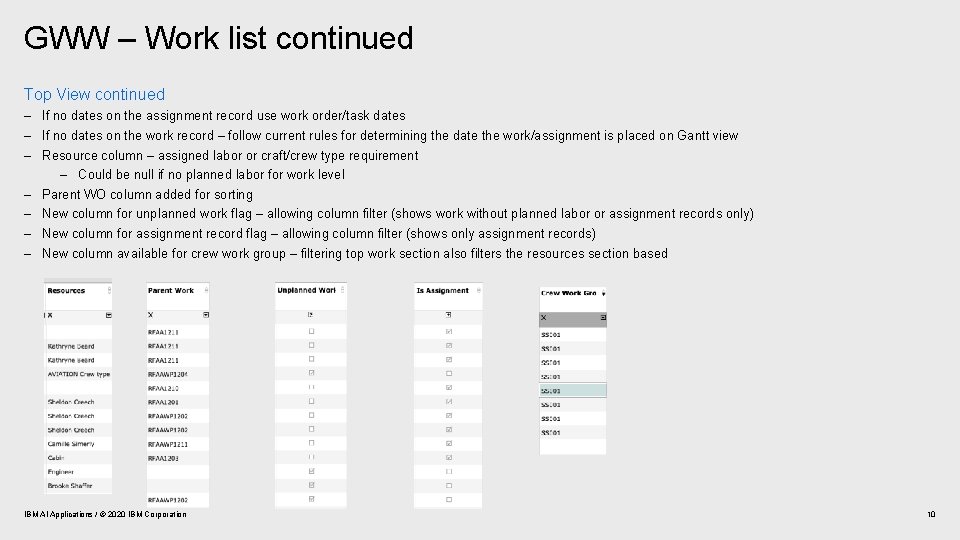
GWW – Work list continued Top View continued – If no dates on the assignment record use work order/task dates – If no dates on the work record – follow current rules for determining the date the work/assignment is placed on Gantt view – Resource column – assigned labor or craft/crew type requirement – Could be null if no planned labor for work level – Parent WO column added for sorting – New column for unplanned work flag – allowing column filter (shows work without planned labor or assignment records only) – New column for assignment record flag – allowing column filter (shows only assignment records) – New column available for crew work group – filtering top work section also filters the resources section based IBM AI Applications / © 2020 IBM Corporation 10
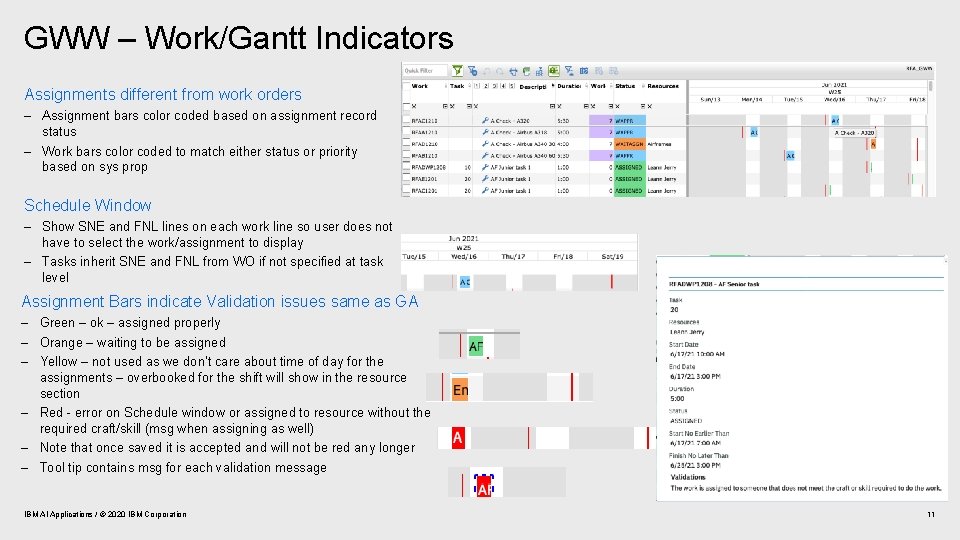
GWW – Work/Gantt Indicators Assignments different from work orders – Assignment bars color coded based on assignment record status – Work bars color coded to match either status or priority based on sys prop Schedule Window – Show SNE and FNL lines on each work line so user does not have to select the work/assignment to display – Tasks inherit SNE and FNL from WO if not specified at task level Assignment Bars indicate Validation issues same as GA – Green – ok – assigned properly – Orange – waiting to be assigned – Yellow – not used as we don’t care about time of day for the assignments – overbooked for the shift will show in the resource section – Red - error on Schedule window or assigned to resource without the required craft/skill (msg when assigning as well) – Note that once saved it is accepted and will not be red any longer – Tool tip contains msg for each validation message IBM AI Applications / © 2020 IBM Corporation 11
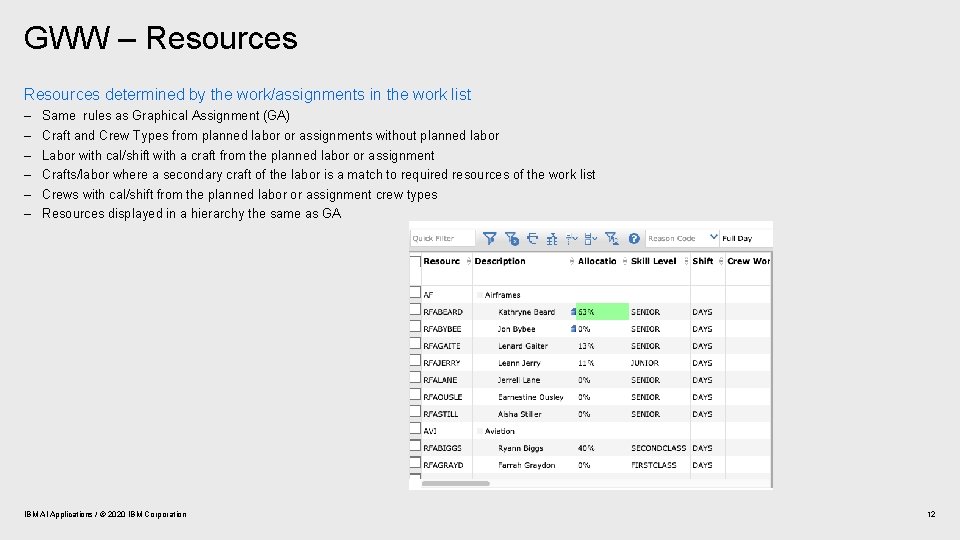
GWW – Resources determined by the work/assignments in the work list – – – Same rules as Graphical Assignment (GA) Craft and Crew Types from planned labor or assignments without planned labor Labor with cal/shift with a craft from the planned labor or assignment Crafts/labor where a secondary craft of the labor is a match to required resources of the work list Crews with cal/shift from the planned labor or assignment crew types Resources displayed in a hierarchy the same as GA IBM AI Applications / © 2020 IBM Corporation 12
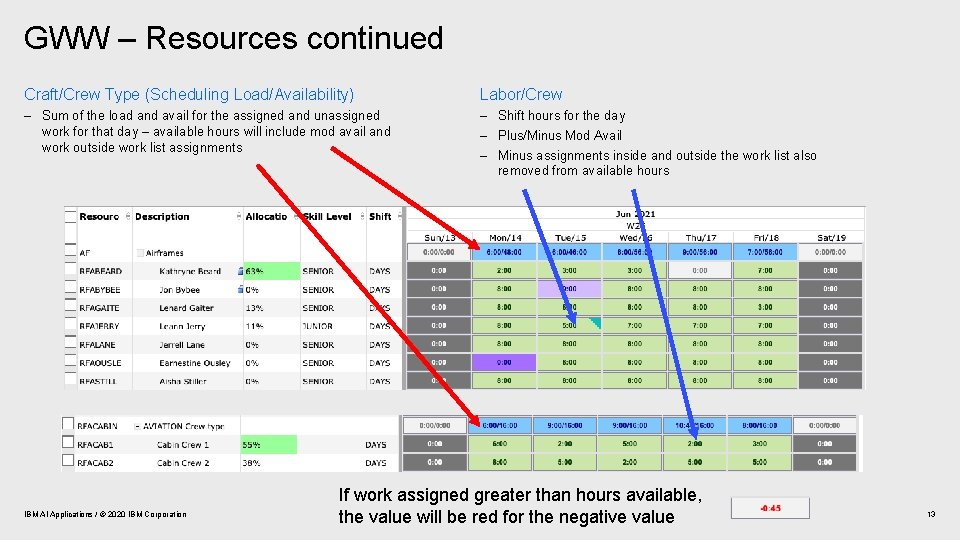
GWW – Resources continued Craft/Crew Type (Scheduling Load/Availability) Labor/Crew – Sum of the load and avail for the assigned and unassigned work for that day – available hours will include mod avail and work outside work list assignments – Shift hours for the day – Plus/Minus Mod Avail – Minus assignments inside and outside the work list also removed from available hours IBM AI Applications / © 2020 IBM Corporation If work assigned greater than hours available, the value will be red for the negative value 13
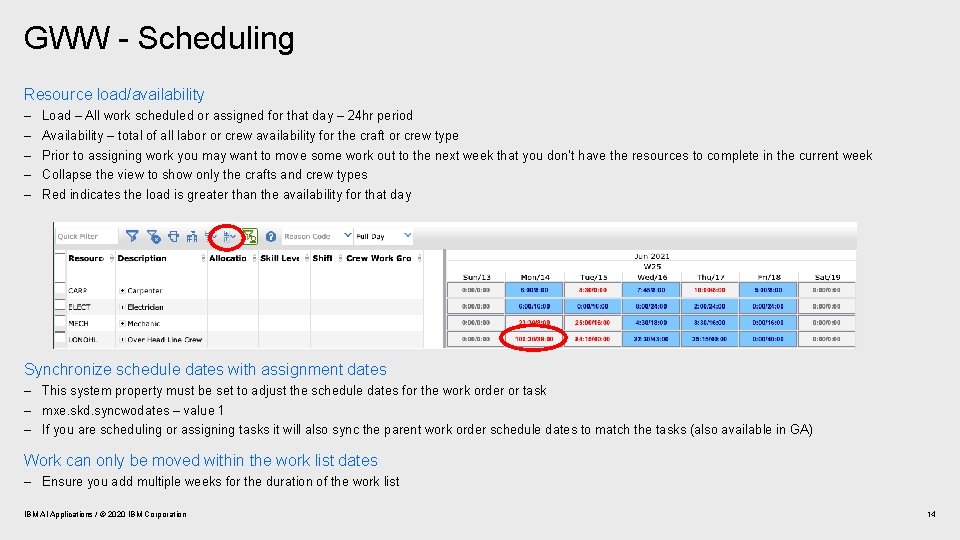
GWW - Scheduling Resource load/availability – – – Load – All work scheduled or assigned for that day – 24 hr period Availability – total of all labor or crew availability for the craft or crew type Prior to assigning work you may want to move some work out to the next week that you don’t have the resources to complete in the current week Collapse the view to show only the crafts and crew types Red indicates the load is greater than the availability for that day Synchronize schedule dates with assignment dates – This system property must be set to adjust the schedule dates for the work order or task – mxe. skd. syncwodates – value 1 – If you are scheduling or assigning tasks it will also sync the parent work order schedule dates to match the tasks (also available in GA) Work can only be moved within the work list dates – Ensure you add multiple weeks for the duration of the work list IBM AI Applications / © 2020 IBM Corporation 14
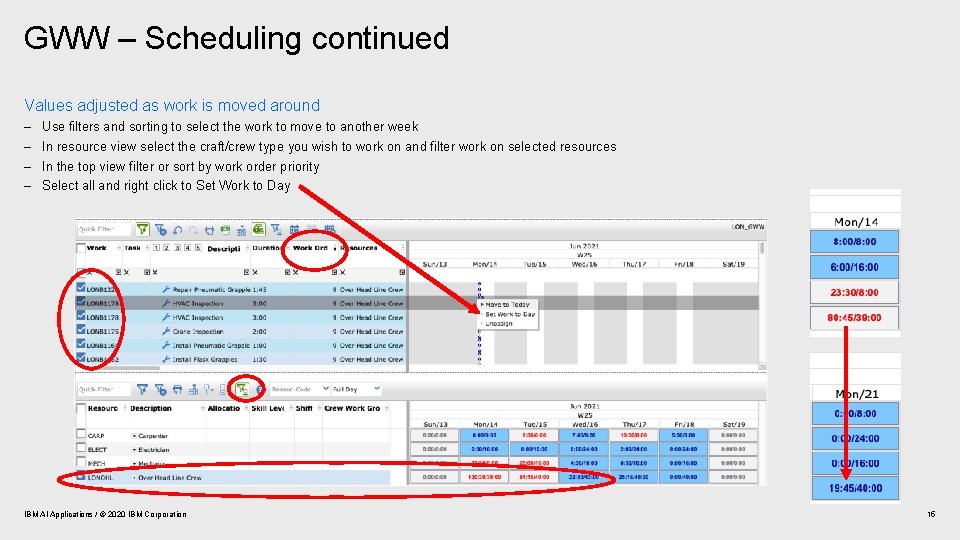
GWW – Scheduling continued Values adjusted as work is moved around – – Use filters and sorting to select the work to move to another week In resource view select the craft/crew type you wish to work on and filter work on selected resources In the top view filter or sort by work order priority Select all and right click to Set Work to Day IBM AI Applications / © 2020 IBM Corporation 15
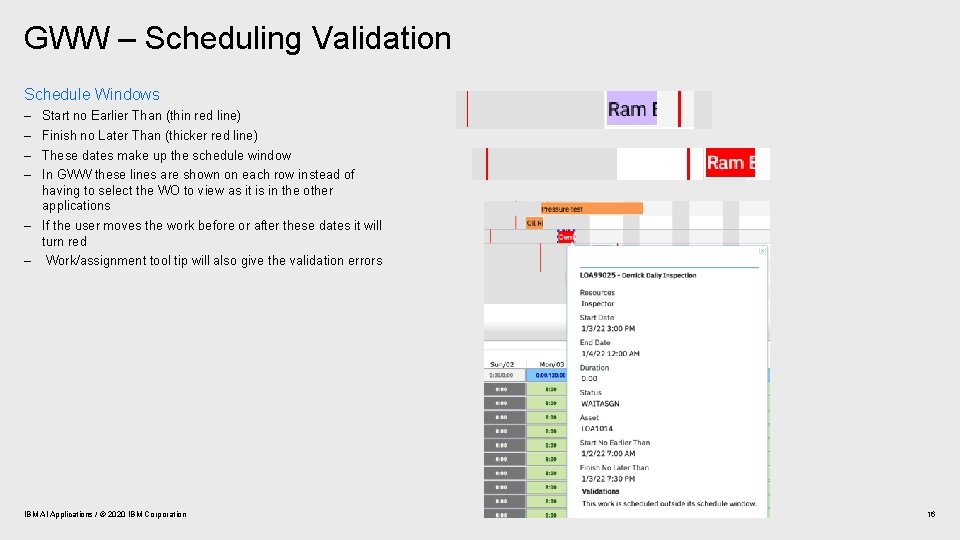
GWW – Scheduling Validation Schedule Windows – – Start no Earlier Than (thin red line) Finish no Later Than (thicker red line) These dates make up the schedule window In GWW these lines are shown on each row instead of having to select the WO to view as it is in the other applications – If the user moves the work before or after these dates it will turn red – Work/assignment tool tip will also give the validation errors IBM AI Applications / © 2020 IBM Corporation 16
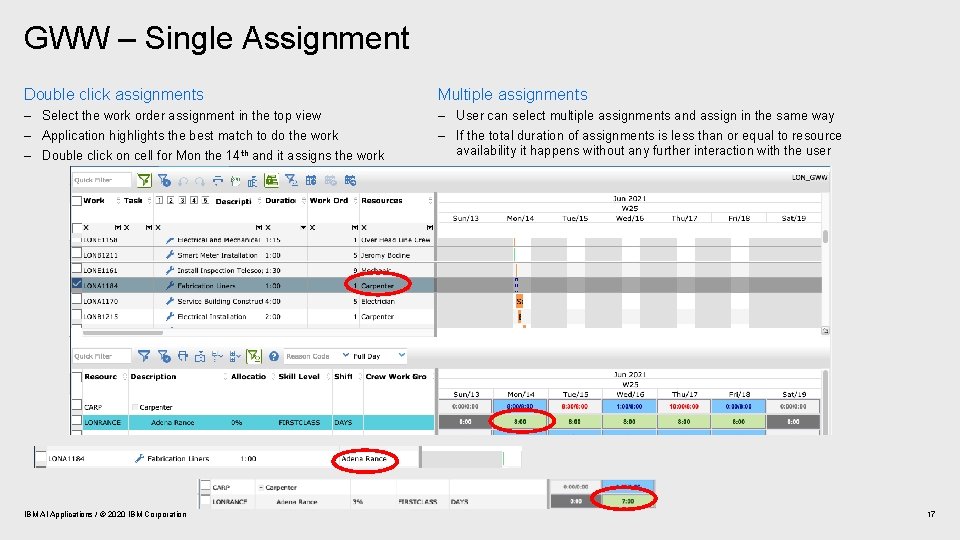
GWW – Single Assignment Double click assignments Multiple assignments – Select the work order assignment in the top view – Application highlights the best match to do the work – Double click on cell for Mon the 14 th and it assigns the work – User can select multiple assignments and assign in the same way – If the total duration of assignments is less than or equal to resource availability it happens without any further interaction with the user IBM AI Applications / © 2020 IBM Corporation 17
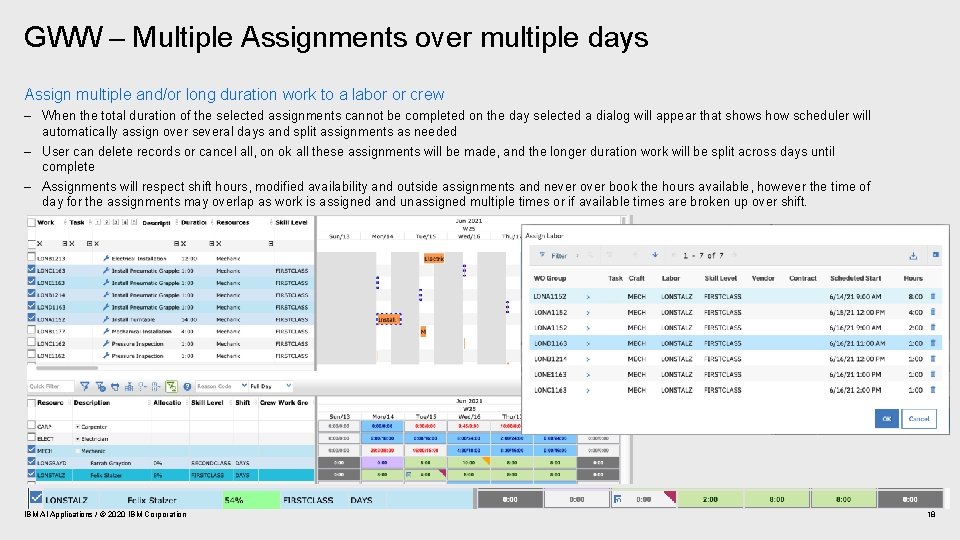
GWW – Multiple Assignments over multiple days Assign multiple and/or long duration work to a labor or crew – When the total duration of the selected assignments cannot be completed on the day selected a dialog will appear that shows how scheduler will automatically assign over several days and split assignments as needed – User can delete records or cancel all, on ok all these assignments will be made, and the longer duration work will be split across days until complete – Assignments will respect shift hours, modified availability and outside assignments and never over book the hours available, however the time of day for the assignments may overlap as work is assigned and unassigned multiple times or if available times are broken up over shift. IBM AI Applications / © 2020 IBM Corporation 18
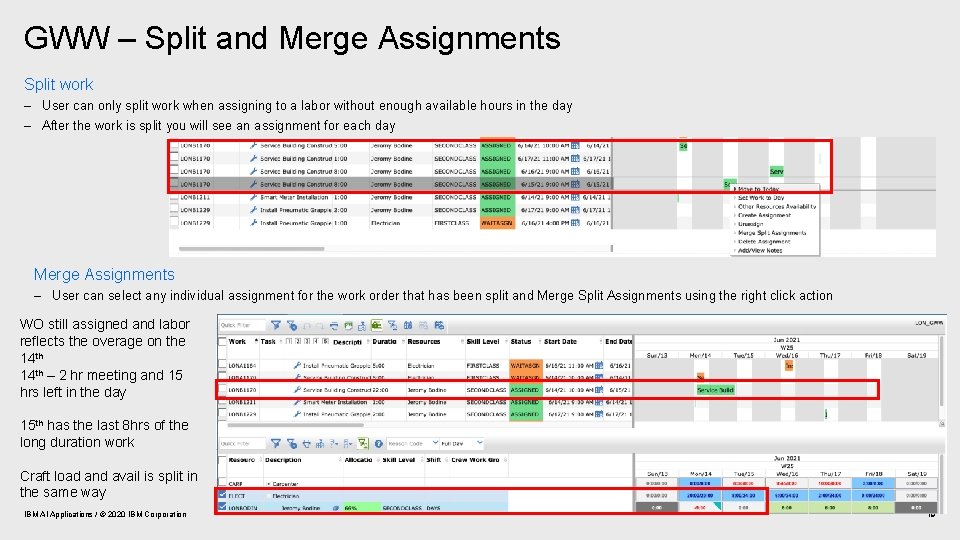
GWW – Split and Merge Assignments Split work – User can only split work when assigning to a labor without enough available hours in the day – After the work is split you will see an assignment for each day Merge Assignments – User can select any individual assignment for the work order that has been split and Merge Split Assignments using the right click action WO still assigned and labor reflects the overage on the 14 th – 2 hr meeting and 15 hrs left in the day 15 th has the last 8 hrs of the long duration work Craft load and avail is split in the same way IBM AI Applications / © 2020 IBM Corporation 19
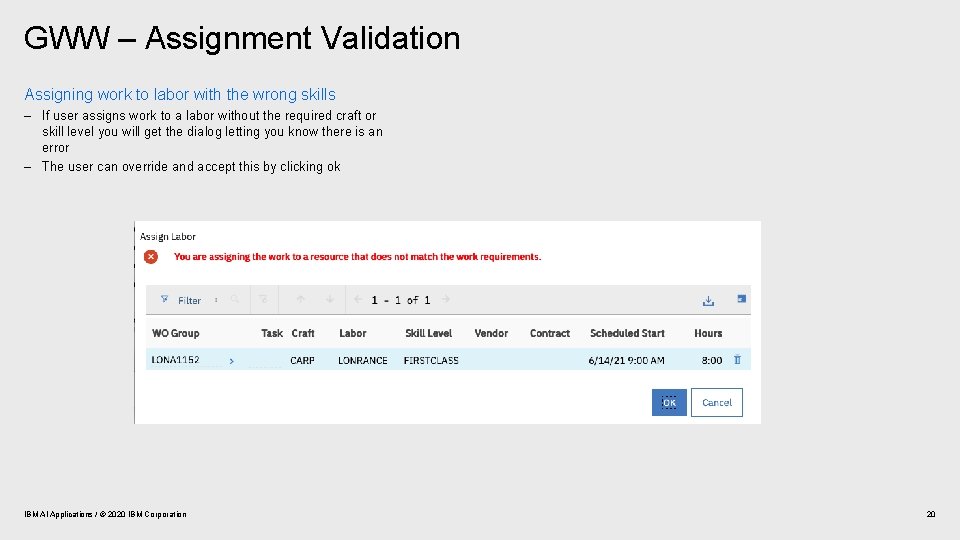
GWW – Assignment Validation Assigning work to labor with the wrong skills – If user assigns work to a labor without the required craft or skill level you will get the dialog letting you know there is an error – The user can override and accept this by clicking ok IBM AI Applications / © 2020 IBM Corporation 20
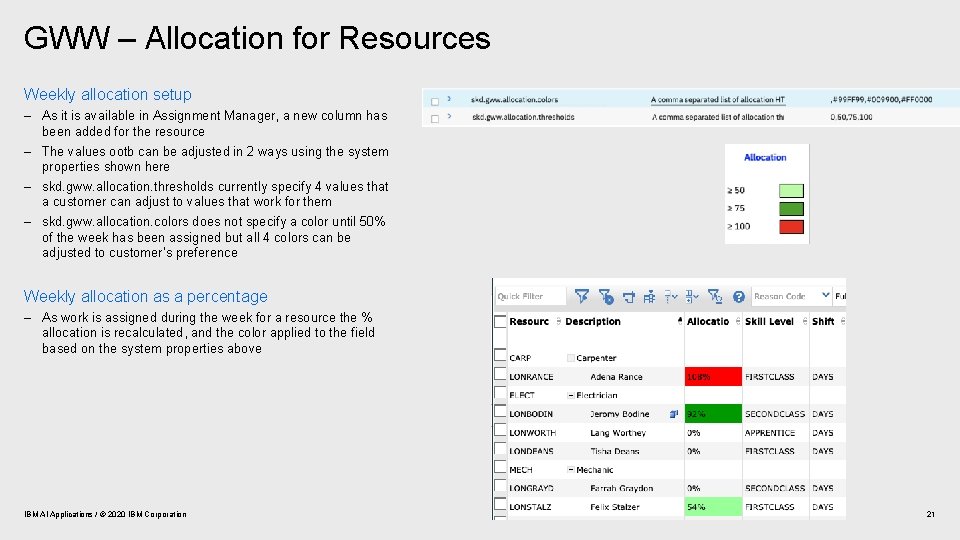
GWW – Allocation for Resources Weekly allocation setup – As it is available in Assignment Manager, a new column has been added for the resource – The values ootb can be adjusted in 2 ways using the system properties shown here – skd. gww. allocation. thresholds currently specify 4 values that a customer can adjust to values that work for them – skd. gww. allocation. colors does not specify a color until 50% of the week has been assigned but all 4 colors can be adjusted to customer’s preference Weekly allocation as a percentage – As work is assigned during the week for a resource the % allocation is recalculated, and the color applied to the field based on the system properties above IBM AI Applications / © 2020 IBM Corporation 21
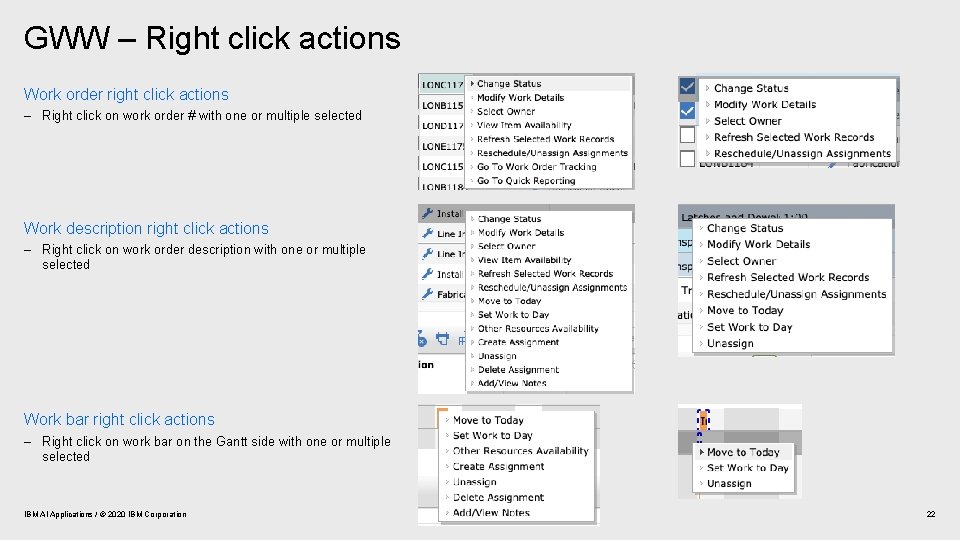
GWW – Right click actions Work order right click actions – Right click on work order # with one or multiple selected Work description right click actions – Right click on work order description with one or multiple selected Work bar right click actions – Right click on work bar on the Gantt side with one or multiple selected IBM AI Applications / © 2020 IBM Corporation 22
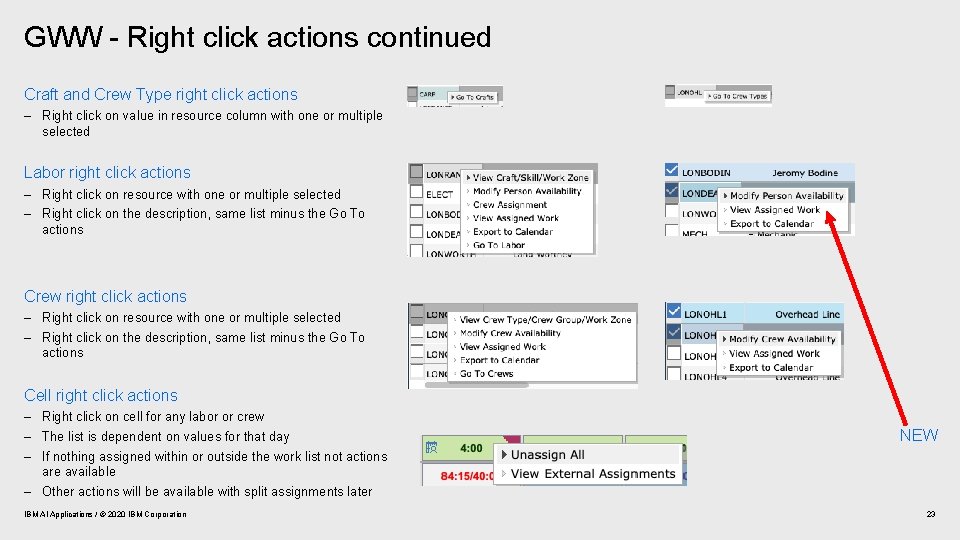
GWW - Right click actions continued Craft and Crew Type right click actions – Right click on value in resource column with one or multiple selected Labor right click actions – Right click on resource with one or multiple selected – Right click on the description, same list minus the Go To actions Crew right click actions – Right click on resource with one or multiple selected – Right click on the description, same list minus the Go To actions Cell right click actions – Right click on cell for any labor or crew – The list is dependent on values for that day – If nothing assigned within or outside the work list not actions are available – Other actions will be available with split assignments later IBM AI Applications / © 2020 IBM Corporation NEW 23
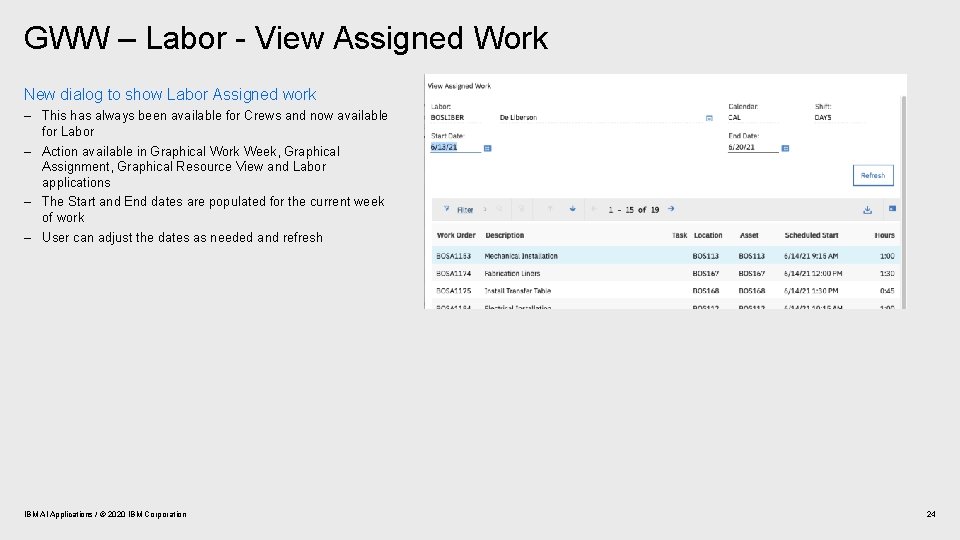
GWW – Labor - View Assigned Work New dialog to show Labor Assigned work – This has always been available for Crews and now available for Labor – Action available in Graphical Work Week, Graphical Assignment, Graphical Resource View and Labor applications – The Start and End dates are populated for the current week of work – User can adjust the dates as needed and refresh IBM AI Applications / © 2020 IBM Corporation 24
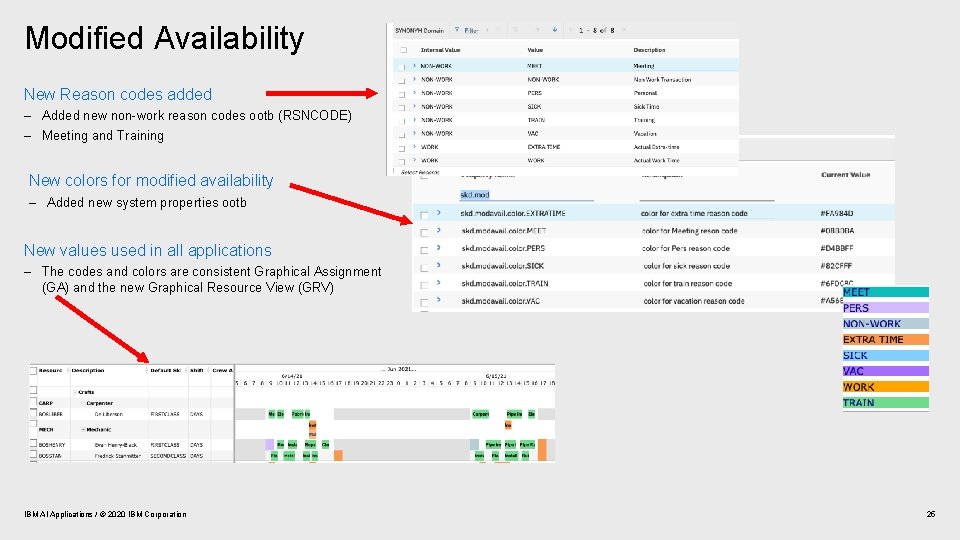
Modified Availability New Reason codes added – Added new non-work reason codes ootb (RSNCODE) – Meeting and Training New colors for modified availability – Added new system properties ootb New values used in all applications – The codes and colors are consistent Graphical Assignment (GA) and the new Graphical Resource View (GRV) IBM AI Applications / © 2020 IBM Corporation 25
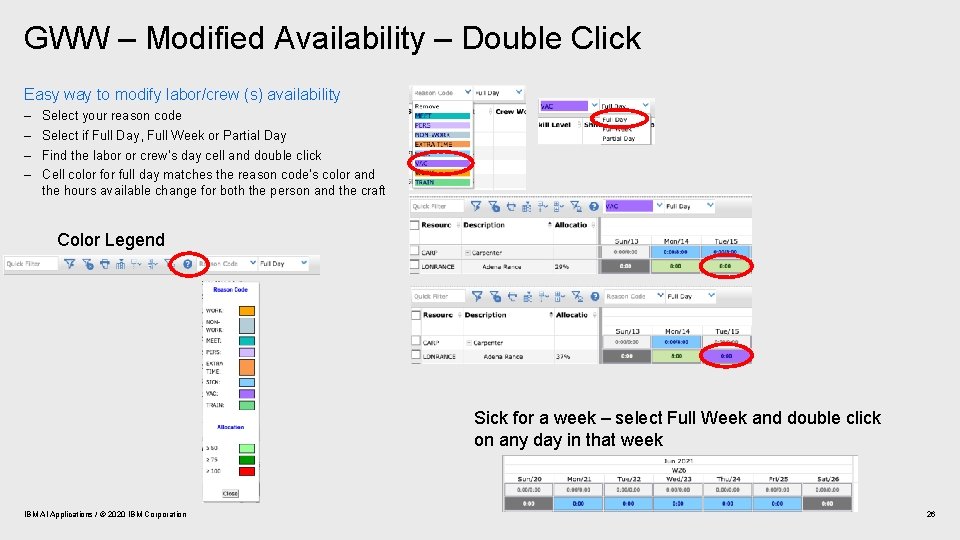
GWW – Modified Availability – Double Click Easy way to modify labor/crew (s) availability – – Select your reason code Select if Full Day, Full Week or Partial Day Find the labor or crew’s day cell and double click Cell color full day matches the reason code’s color and the hours available change for both the person and the craft Color Legend Sick for a week – select Full Week and double click on any day in that week IBM AI Applications / © 2020 IBM Corporation 26
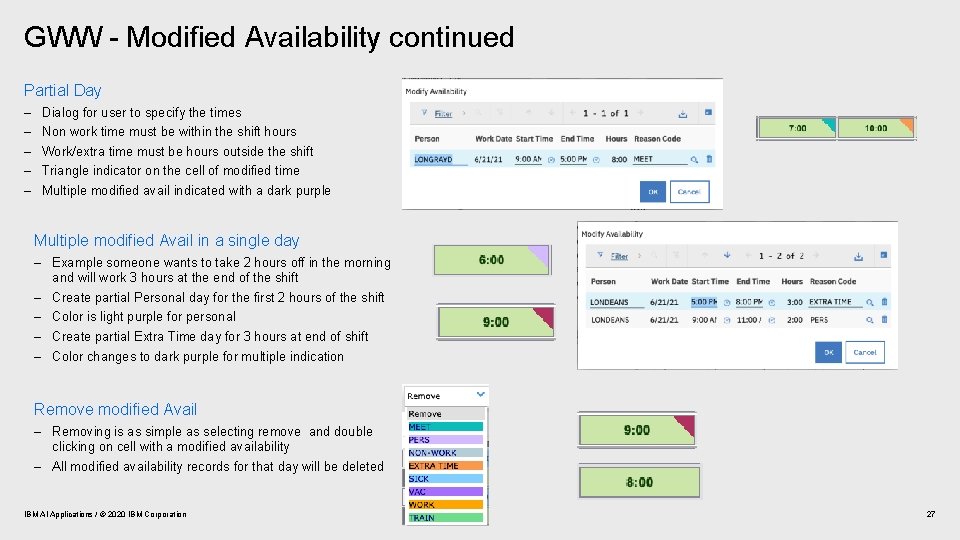
GWW - Modified Availability continued Partial Day – – – Dialog for user to specify the times Non work time must be within the shift hours Work/extra time must be hours outside the shift Triangle indicator on the cell of modified time Multiple modified avail indicated with a dark purple Multiple modified Avail in a single day – Example someone wants to take 2 hours off in the morning and will work 3 hours at the end of the shift – Create partial Personal day for the first 2 hours of the shift – Color is light purple for personal – Create partial Extra Time day for 3 hours at end of shift – Color changes to dark purple for multiple indication Remove modified Avail – Removing is as simple as selecting remove and double clicking on cell with a modified availability – All modified availability records for that day will be deleted IBM AI Applications / © 2020 IBM Corporation 27
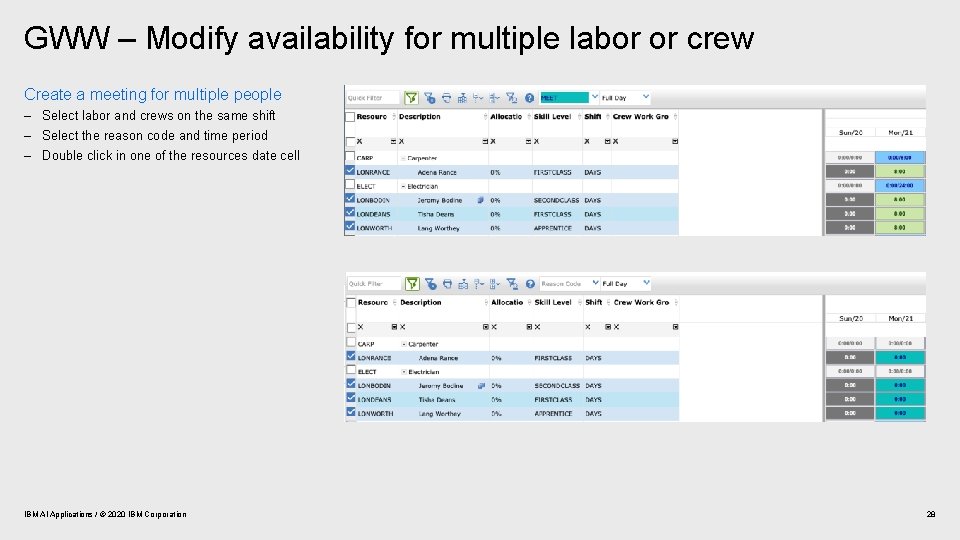
GWW – Modify availability for multiple labor or crew Create a meeting for multiple people – Select labor and crews on the same shift – Select the reason code and time period – Double click in one of the resources date cell IBM AI Applications / © 2020 IBM Corporation 28
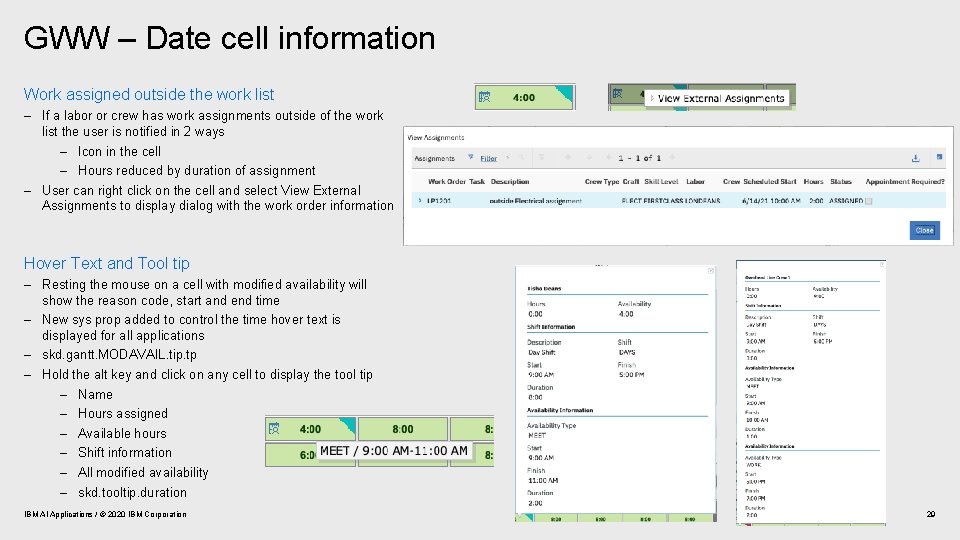
GWW – Date cell information Work assigned outside the work list – If a labor or crew has work assignments outside of the work list the user is notified in 2 ways – Icon in the cell – Hours reduced by duration of assignment – User can right click on the cell and select View External Assignments to display dialog with the work order information Hover Text and Tool tip – Resting the mouse on a cell with modified availability will show the reason code, start and end time – New sys prop added to control the time hover text is displayed for all applications – skd. gantt. MODAVAIL. tip. tp – Hold the alt key and click on any cell to display the tool tip – Name – Hours assigned – Available hours – Shift information – All modified availability – skd. tooltip. duration IBM AI Applications / © 2020 IBM Corporation 29
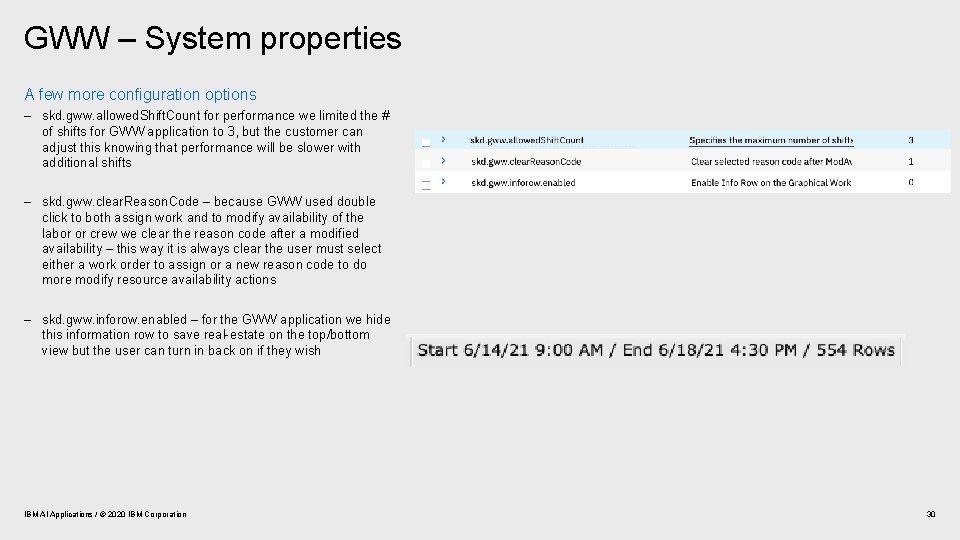
GWW – System properties A few more configuration options – skd. gww. allowed. Shift. Count for performance we limited the # of shifts for GWW application to 3, but the customer can adjust this knowing that performance will be slower with additional shifts – skd. gww. clear. Reason. Code – because GWW used double click to both assign work and to modify availability of the labor or crew we clear the reason code after a modified availability – this way it is always clear the user must select either a work order to assign or a new reason code to do more modify resource availability actions – skd. gww. inforow. enabled – for the GWW application we hide this information row to save real-estate on the top/bottom view but the user can turn in back on if they wish IBM AI Applications / © 2020 IBM Corporation 30
GWW - Limitations Functionality not in GWW where customer is best to continue using Graphical Assignment Application – – – Dispatching Hourly resource view CPM Display dependencies % complete Compliance Optimization Scenarios, compare Dynamic Scheduling Locked appointments Calendar Breaks Asset/Location Operational/Maintenance calendar Functionality limitations compared to other Scheduler applications – – Zooming Tool bar options Right click actions Split assignment IBM AI Applications / © 2020 IBM Corporation 31