
Scanning Documents to Portfolio Using our hp scanjet
- Slides: 34
Scanning Documents to Portfolio Using our hp scanjet 5470 c
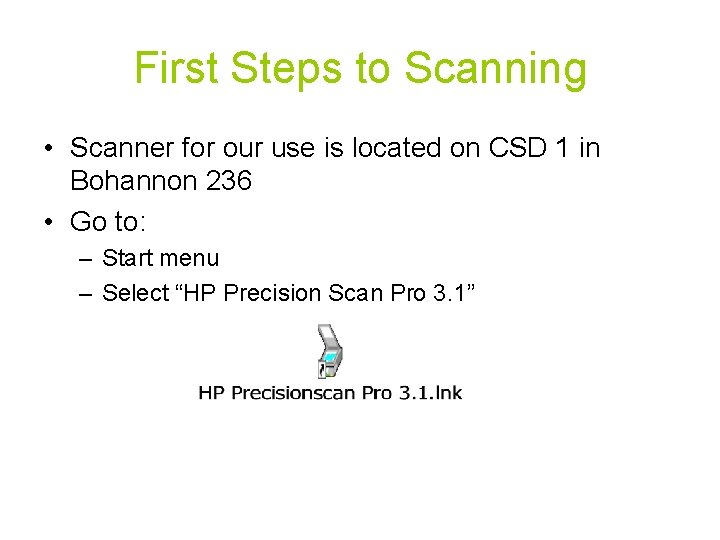
First Steps to Scanning • Scanner for our use is located on CSD 1 in Bohannon 236 • Go to: – Start menu – Select “HP Precision Scan Pro 3. 1”
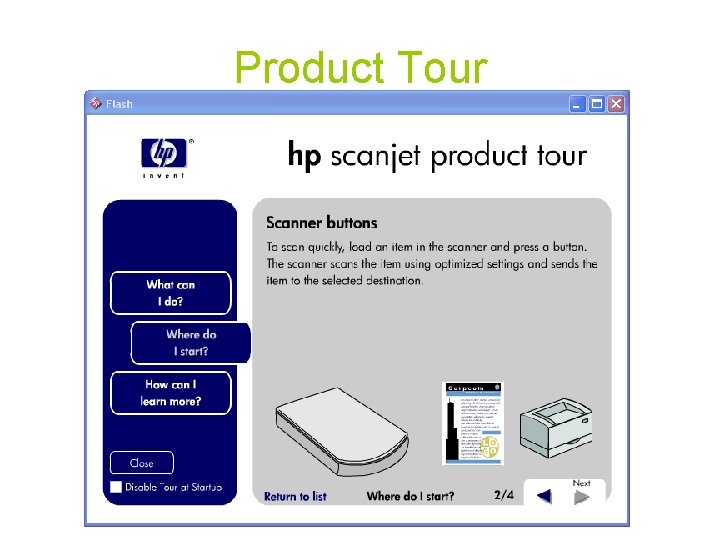
Product Tour
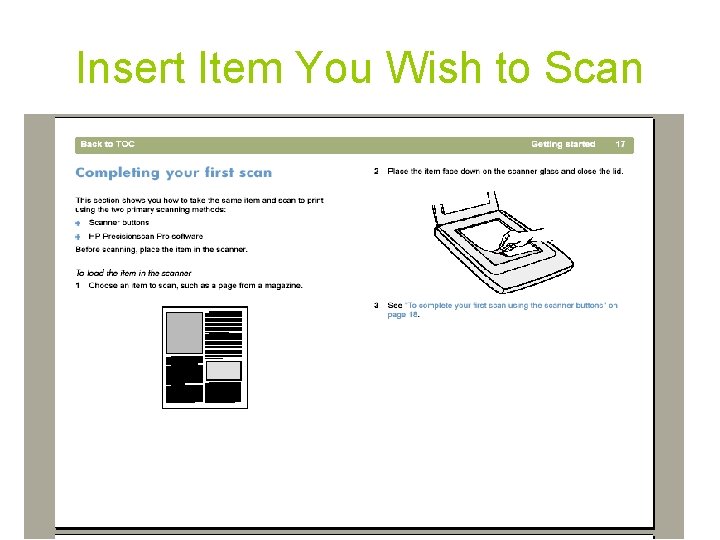
Insert Item You Wish to Scan
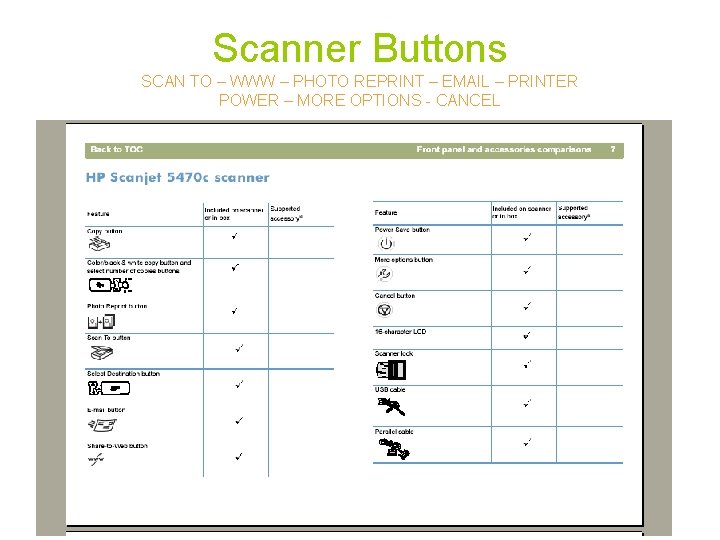
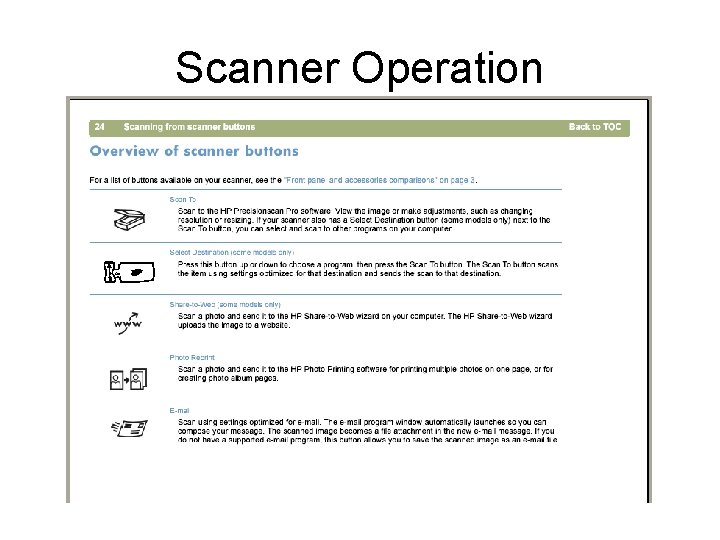
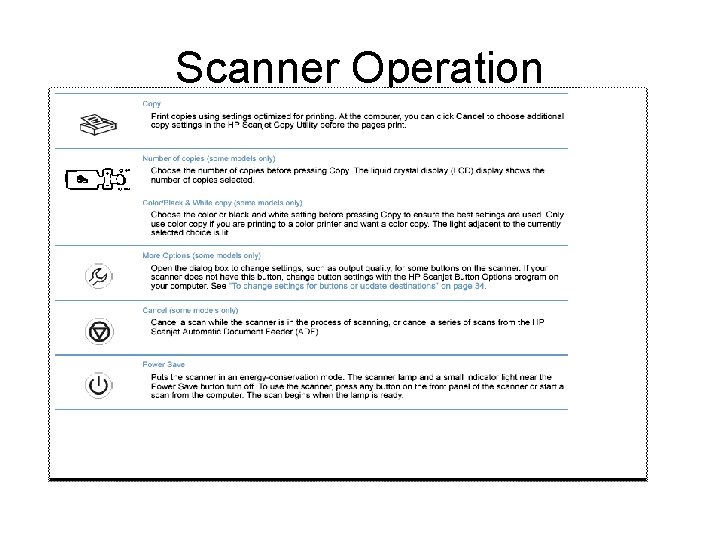
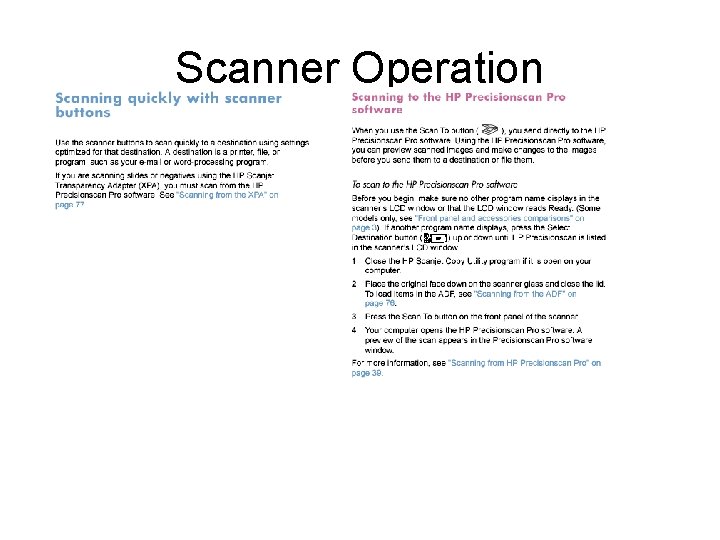
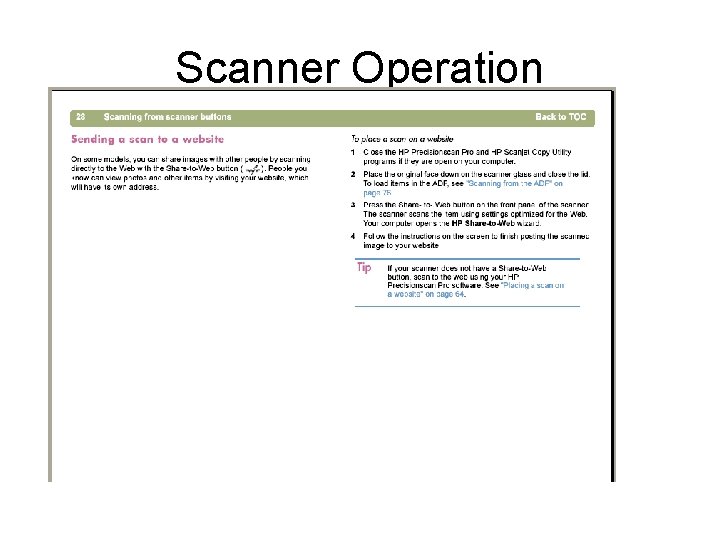
Scanner Buttons SCAN TO – WWW – PHOTO REPRINT – EMAIL – PRINTER POWER – MORE OPTIONS - CANCEL
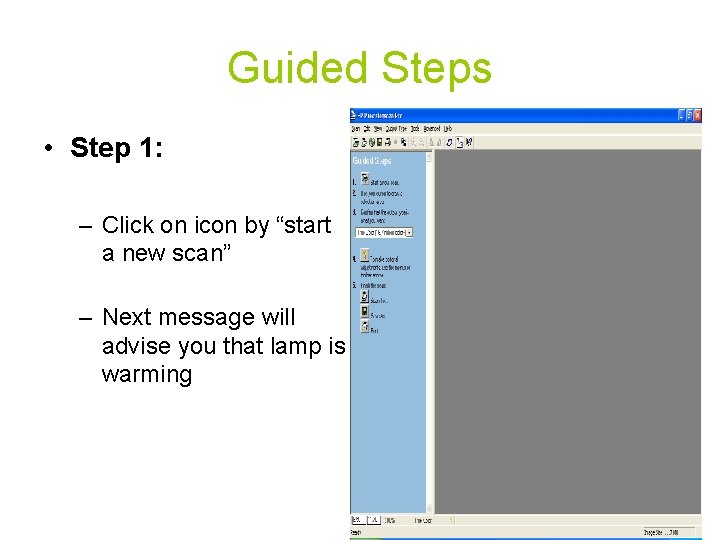
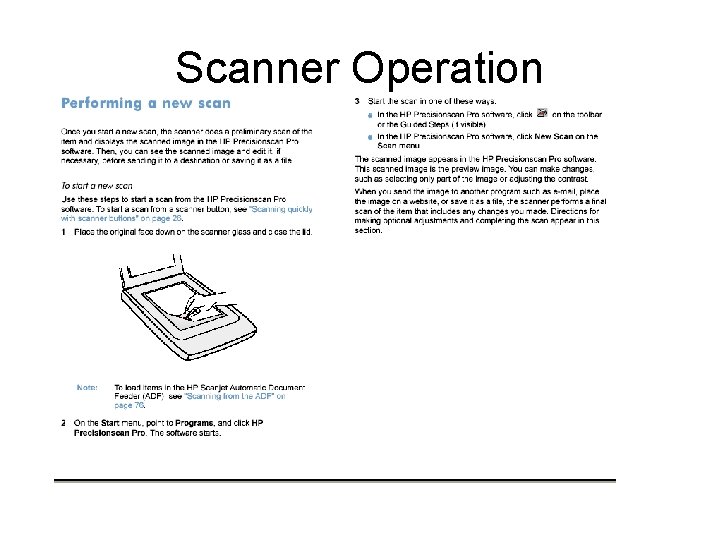
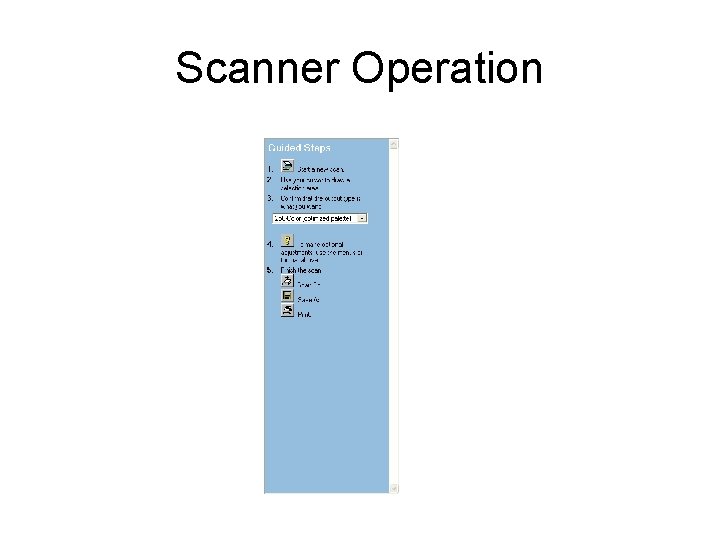
Guided Steps • Step 1: – Click on icon by “start a new scan” – Next message will advise you that lamp is warming
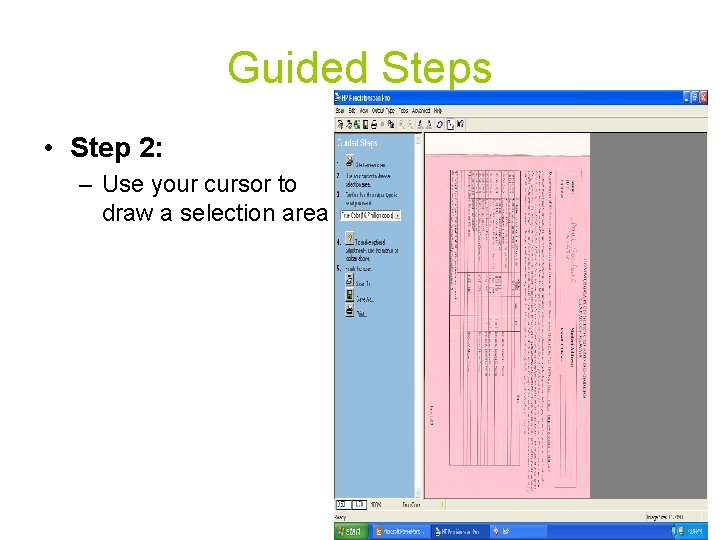
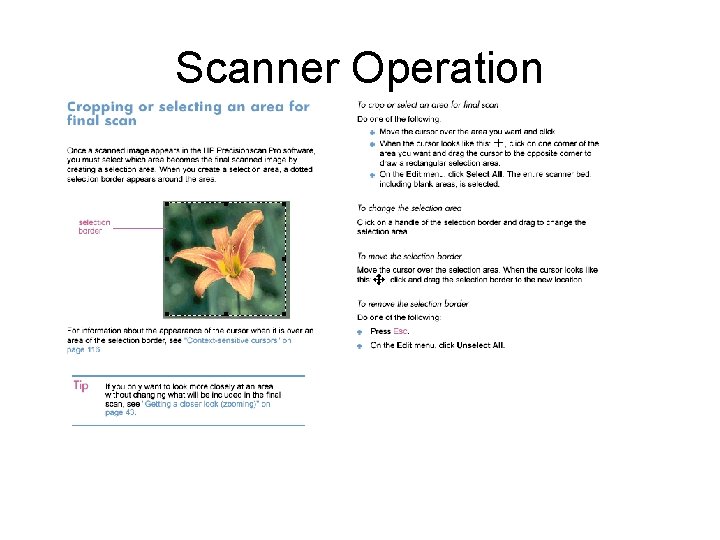
Guided Steps • Step 2: – Use your cursor to draw a selection area
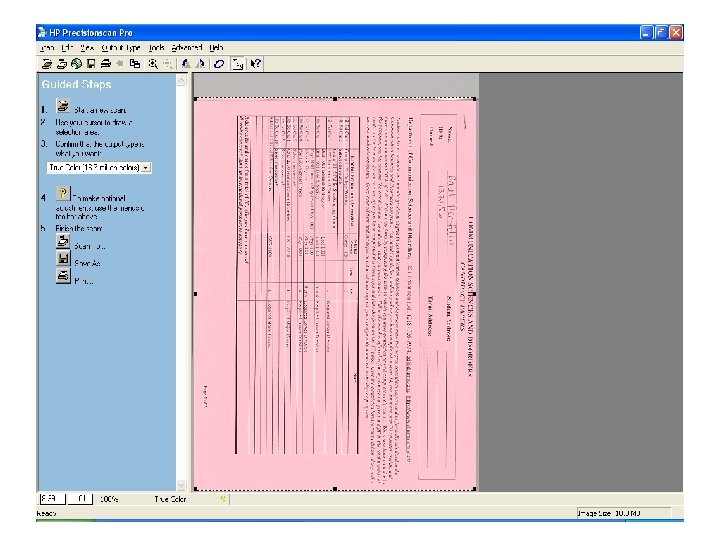
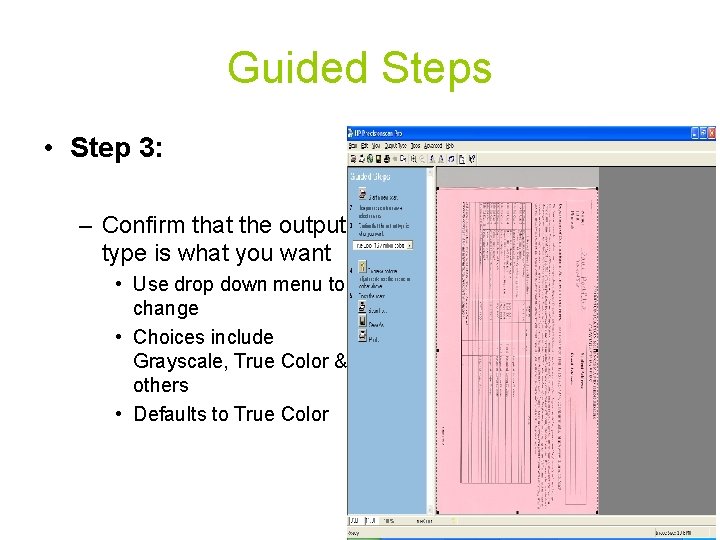
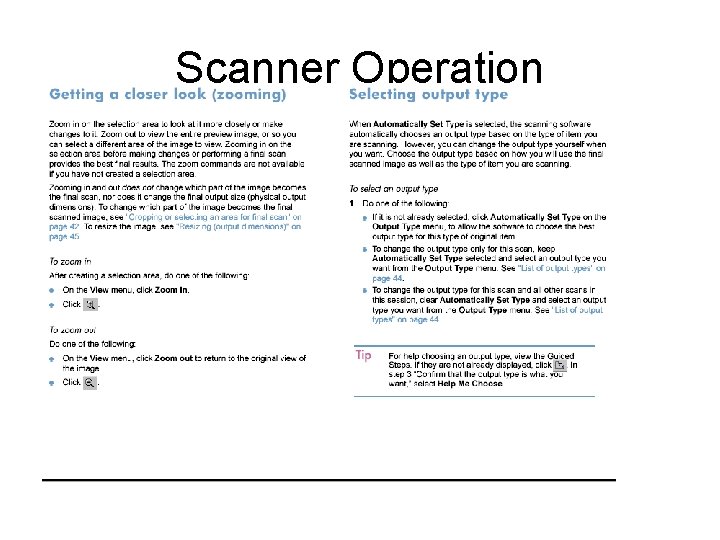
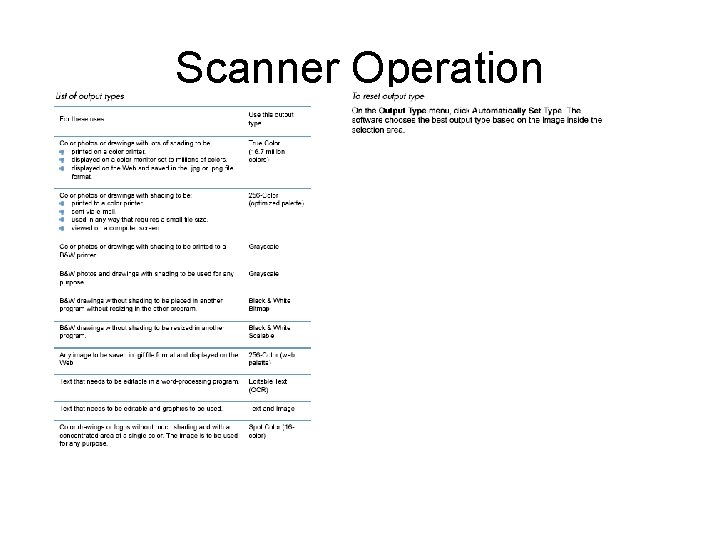
Guided Steps • Step 3: – Confirm that the output type is what you want • Use drop down menu to change • Choices include Grayscale, True Color & others • Defaults to True Color
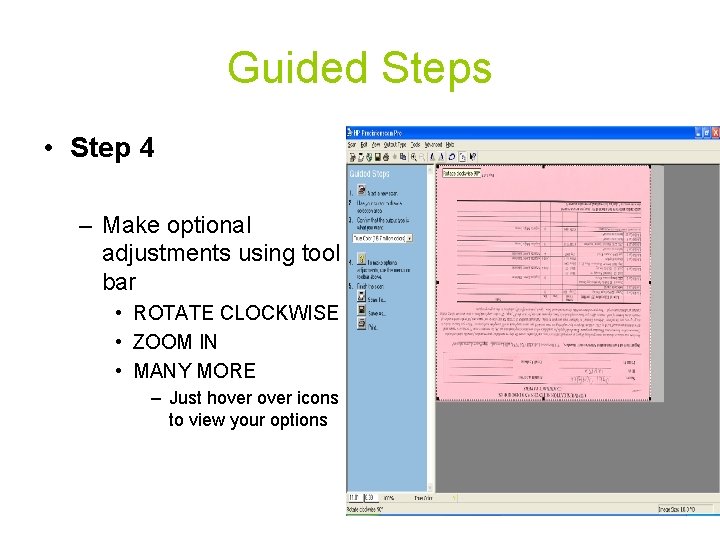
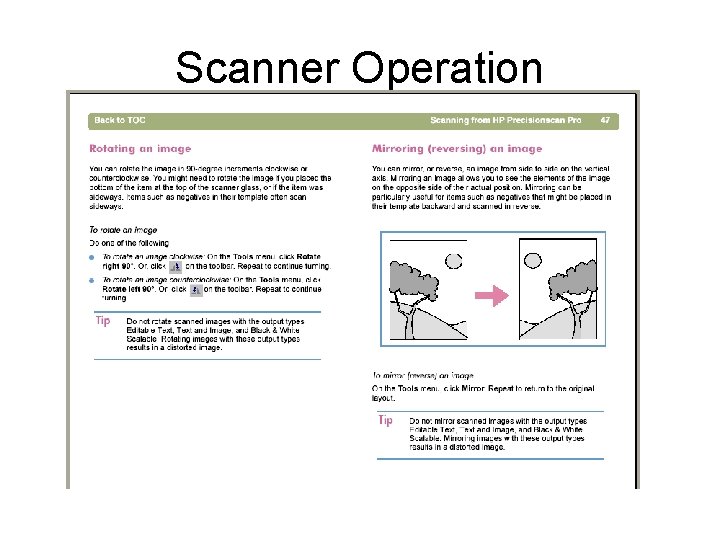
Guided Steps • Step 4 – Make optional adjustments using tool bar • ROTATE CLOCKWISE • ZOOM IN • MANY MORE – Just hover icons to view your options
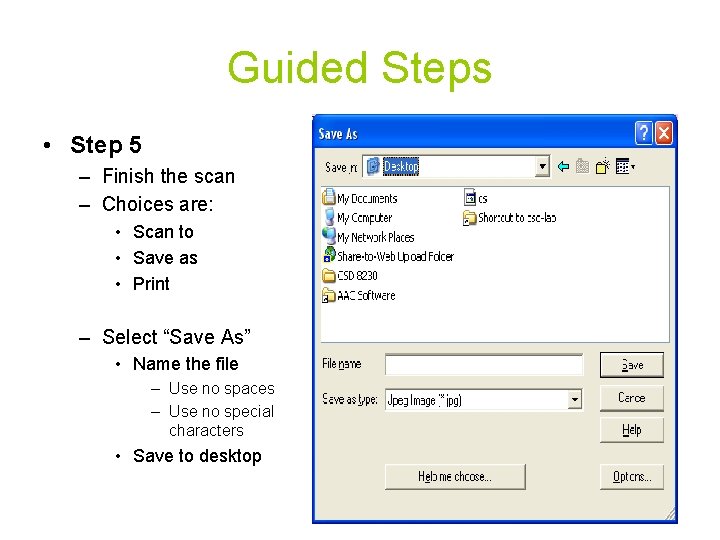
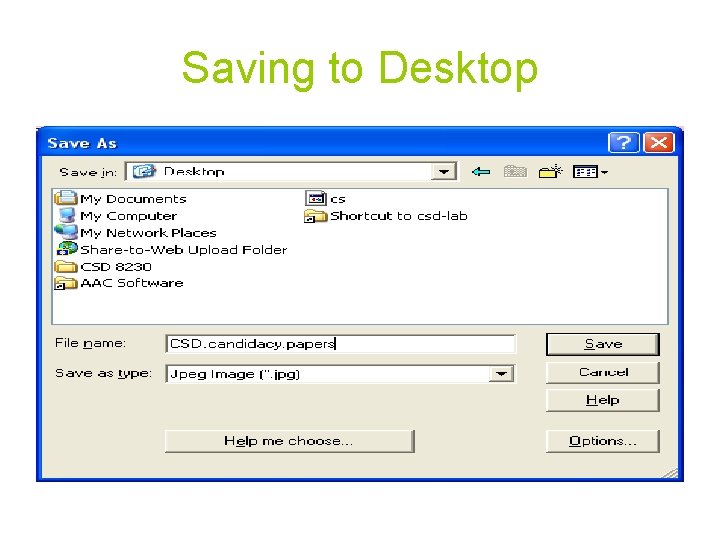
Guided Steps • Step 5 – Finish the scan – Choices are: • Scan to • Save as • Print – Select “Save As” • Name the file – Use no spaces – Use no special characters • Save to desktop
Saving to Desktop
Upload to Portfolio • Log into your Portfolio • Select “enter” function • Go to Material Manager – Follow same steps as explained in last week’s Material Manager Power. Point – Uploading this type of file requires the exact same procedure as uploading a word file • Following the upload, DELETE the item from the desktop
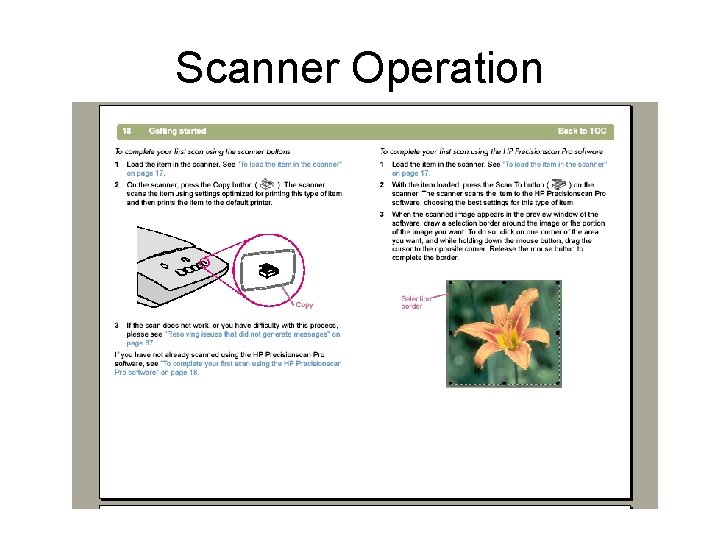
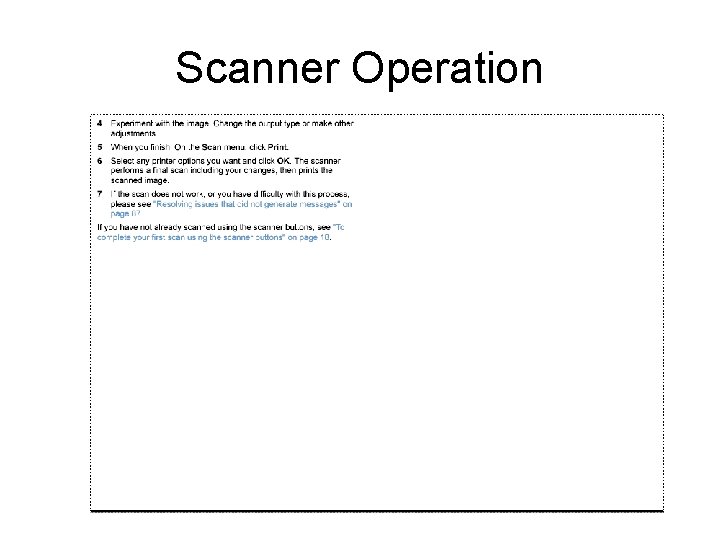
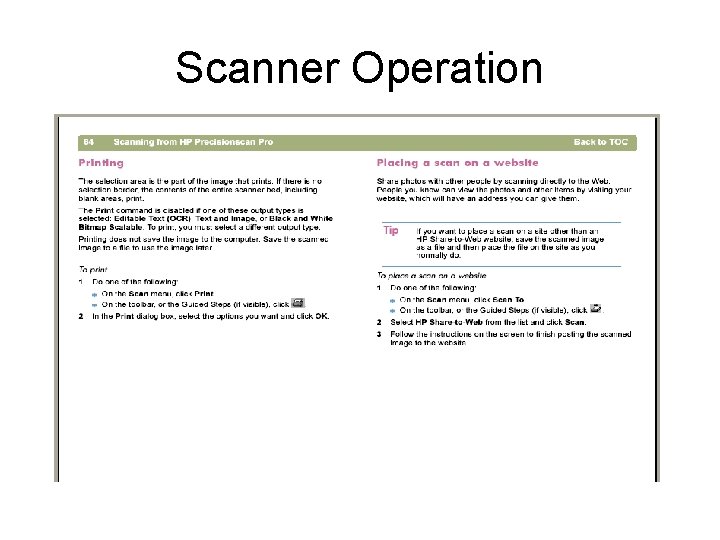
Scanner Operation • This covers the basics to get us scanning! • For more details on the many other features of our lab’s scanner, review the remainder of this Power. Point • It will be available at the CSD 4010 web site for your convenience! • In the interest of time, today we will take turns with the scanner & then email the saved document to upload to Portfolio from a different computer
Scanner Operation
Scanner Operation
Scanner Operation
Scanner Operation
Scanner Operation
Scanner Operation
Scanner Operation
Scanner Operation
Scanner Operation
Scanner Operation
Scanner Operation
Scanner Operation
Scanner Operation
Scanner Operation
Scanner Operation
Scanner Operation
Scanner Operation
Scanner Operation
Scanner Operation
Scanner Operation