
SCAN IMPORT AND AUTOMATICALLY FILE DOCUMENTS TO BOX
SCAN, IMPORT, AND AUTOMATICALLY FILE DOCUMENTS TO BOX Introduction A brief introduction to Scanning to Box with cc. Scan® a popular document scanning application for an ever-expanding list of repositories and content management systems in the Cloud Visit the cc. Scan Website Scan, Import, and Automatically File documents 1
SCAN, IMPORT, AND AUTOMATICALLY FILE DOCUMENTS TO BOX What are Box and cc. Scan? • What is Box? • Box is an increasingly popular online collaboration platform located at www. box. com • Box makes it simple for businesses to share, manage and access all their content online • What is cc. Scan? • A production-quality capture application used to scan and import documents directly to Box in an automated, time-saving manner Visit the cc. Scan Website Scan, Import, and Automatically File documents 2
SCAN, IMPORT, AND AUTOMATICALLY FILE DOCUMENTS TO BOX Typical Scenario • Typically people that scan documents to Box • First scan to their PC, then use the browser to create a folder in Box and upload their document(s) • And finally they use the browser to set Box document properties such as description, sharing mode, etc • Obviously this approach takes a lot more time than necessary • The next slide shows how cc. Scan eliminate this wasted time Visit the cc. Scan Website Scan, Import, and Automatically File documents 3
SCAN, IMPORT, AND AUTOMATICALLY FILE DOCUMENTS TO BOX Optimized Scenario • Is there a better way to scan to Box? • YES, absolutely! • Scan Directly to the Box with cc. Scan Standard • Eliminate time-consuming intermediate steps • Set Box document properties immediately • Automated the process with cc. Scan Advanced Visit the cc. Scan Website Scan, Import, and Automatically File documents 4
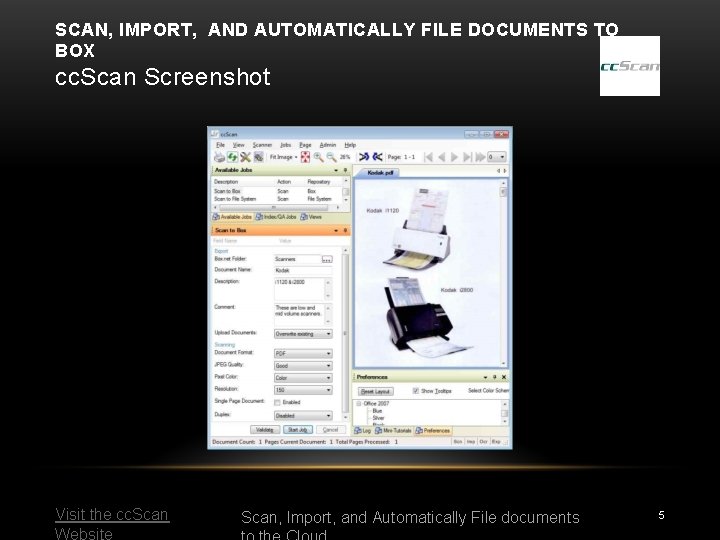
SCAN, IMPORT, AND AUTOMATICALLY FILE DOCUMENTS TO BOX cc. Scan Screenshot Visit the cc. Scan Website Scan, Import, and Automatically File documents 5

SCAN, IMPORT, AND AUTOMATICALLY FILE DOCUMENTS TO BOX One-Step Process • • Eliminate Time-Consuming Intermediate Steps • Stop scanning documents to your PC first • Stop creating Box folders manually • Stop uploading scanned documents to Box manually • Stop setting Box document properties afterwards Instead do all of the above in a single step • Select a scanning job in cc. Scan • Enter folder name, document name, description, tags, … • Start job • Done! Visit the cc. Scan Website Scan, Import, and Automatically File documents 6
SCAN, IMPORT, AND AUTOMATICALLY FILE DOCUMENTS TO BOX Box Properties • Set Box Document Properties Immediately • Enter Box Properties while scanning instead of adding them later • Either enter new values or use default values • Supported Box properties • Folder name, Document name, • Description, Comment, One or more descriptive tags • Action to take when document already exists • How to share the document • One or more email addresses to send sharing notifications to • Text of the notification email, Access password Visit the cc. Scan Website Scan, Import, and Automatically File documents 7
SCAN, IMPORT, AND AUTOMATICALLY FILE DOCUMENTS TO BOX Automate with cc. Scan Advanced • Separate a stack of multi-page documents automatically with barcodes • Automatically name documents, automatically select/create folders, and automatically enter data in document properties with values • Extracted from one or more barcodes • Obtained with text pattern searches in text retrieved with OCR • Computed from running counters • Barcode values, text search results, and counters are made available in “macros” which can be combined with static text to form complex expressions • Use multiple barcodes and text pattern searches in combination with “conditional macros” to test for different document types and apply rulebased processing • Automation works equally well with scanned paper documents and imported PDFs Visit the cc. Scan Website Scan, Import, and Automatically File documents 8

SCAN, IMPORT, AND AUTOMATICALLY FILE DOCUMENTS TO BOX Additional Features • Bulk import capability to upload large amounts of files at once • Pre-configured set of import and scanning jobs can be customized • • Create new jobs and/or modify existing jobs • Select the properties the operator should enter and the default values Use optional Index/QA step • As “error queue” to manually forward documents not processed by automation • To review scan results, insert and delete pages • To enter values into document properties • To redact and annotate documents before storing them • Share a high-throughput scanner in "kiosk" environment with automatic logout • Daily audit log in script-language friendly format Visit the cc. Scan Website Scan, Import, and Automatically File documents 9
SCAN, IMPORT, AND AUTOMATICALLY FILE DOCUMENTS TO BOX Next Step To learn more about cc. Scan for Box or download a free trial please visit http: //www. capturecomponents. com/products/cc. Scan. For. Box. html or email Capture Components LLC at sales@capturecomponents. com Visit the cc. Scan Website Scan, Import, and Automatically File documents 10
- Slides: 10