
Scan Bay II Application Training Version 6 40
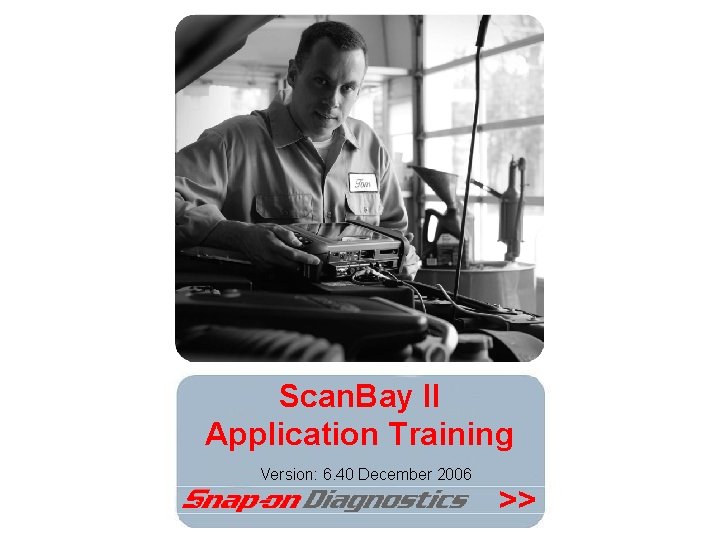
Scan. Bay II Application Training Version: 6. 40 December 2006 >>
Back ground information › Two systems in use – DSS, three versions for: • US / Canada dealer channel • UK dealer channel • Australian dealer channel – Scan. Bay II: • • Used for all distributors Germany / Austria Snap-on Benelux dealer channel Some other tools divisions as Eurotools, Japan and Mexico >>
Scan. Bay II Principles › Scan. Bay II is a medium that gives the possibilities to purchase the latest software for the Scanner anywhere at any time. >>
Scan. Bay II Concept › Web based › Scan. Bay II Software application on PC › Scan. Bay Interface to program the cartridges >>
Scan. Bay II Web Server › Latest Scan. Bay II application including: – USB Scan. Bay drivers – System files for Cartridges • Master. ini (Euro, US and Australian) – Menu structure – All available modules (P/N and Description) › Latest software modules – VCS (Vehicle Communication Software) – TS (Trouble Shooter) >>
Scan. Bay II Web Server › Invoice interface – The web sends the following info to the AS 400 for invoicing: • Customer account no • Scan. Bay User ID • Part Numbers • Net Prices › Sends confirmation Email of each purchase >>
Scan. Bay II Web Server › Databases – Pricing database – Product database • Bundles and other configurations all have a P/N that is invoiced – Users • Discount, user ID, Password, Business unit, etc. – Cartridge • Licensed modules and demo status – Sales history >>
Scan. Bay II Web Server › Business units – Each user is linked to a business unit in the – Each user is linked to a Kings Lynn Account number › Each business unit has: – His own products / bundles – His own pricing >>
Scan. Bay II Software: The Scan. Bay II application software comes on a CD for initial installation, all updates, Scan. Bay II application and Software modules for VCS and TS are automatically available via the internet. › All the software is installed on the C drive in the program folder including the Downloaded Software modules. >>
Scan. Bay II software: › Instantaneous updates via internet for: – Scan. Bay II Program – VCS / TS modules › Multiply users on one Kings Lynn account number › Convenient billing: – Customer order number reference – Price confirmation – Email confirmation of order › Flexible Pricing structure >>
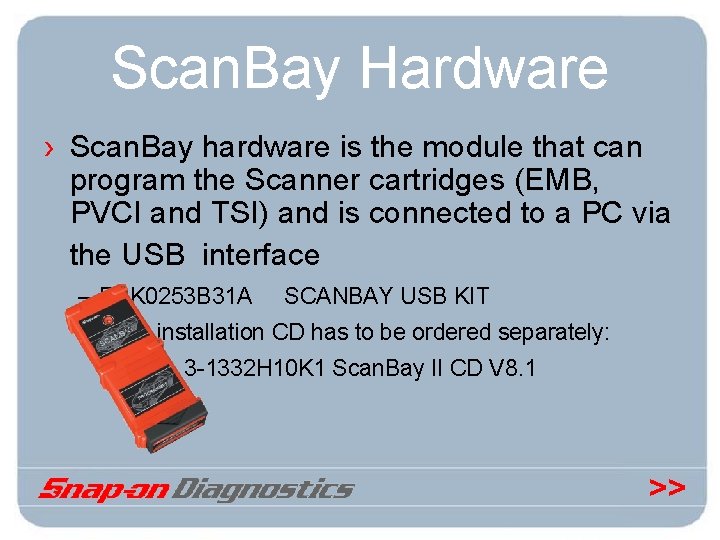
Scan. Bay Hardware › Scan. Bay hardware is the module that can program the Scanner cartridges (EMB, PVCI and TSI) and is connected to a PC via the USB interface – EAK 0253 B 31 A SCANBAY USB KIT The installation CD has to be ordered separately: 3 -1332 H 10 K 1 Scan. Bay II CD V 8. 1 >>
Scan. Bay II Capabilities › Programs VCS modules to PVCI and EMB cartridges › Enable / disable VCS modules on preloaded PVCI cartridges › Program TS modules on to a TSI and EMB Cartridge › Scan. Bay II application software is available in English, Spanish and German language >>
Hardware Recognition › Scan. Bay II will automatically recognize hardware (PVCI/TSI/EMB) and the software modules that are available for these cartridges. – EMB cartridge with EMB VCS and TS modules – PVCI cartridge with PVCI VCS modules – TSI cartridge with TSI TS modules >>
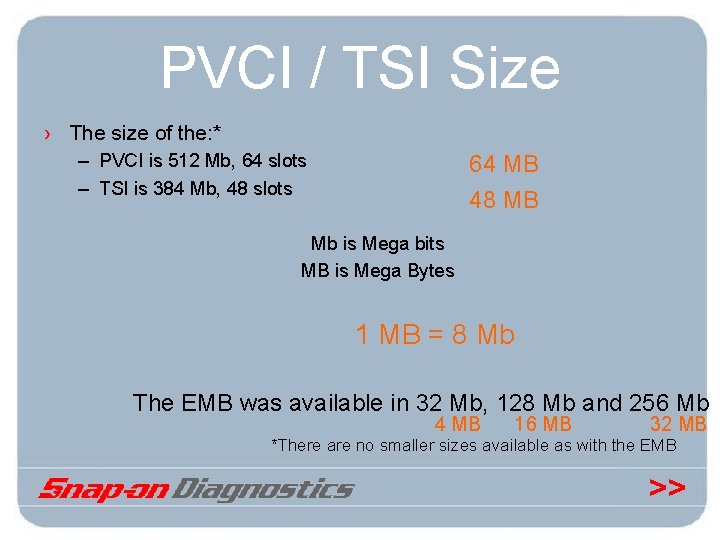
PVCI / TSI Size › The size of the: * – PVCI is 512 Mb, 64 slots – TSI is 384 Mb, 48 slots 64 MB 48 MB Mb is Mega bits MB is Mega Bytes 1 MB = 8 Mb The EMB was available in 32 Mb, 128 Mb and 256 Mb 4 MB 16 MB 32 MB *There are no smaller sizes available as with the EMB >>
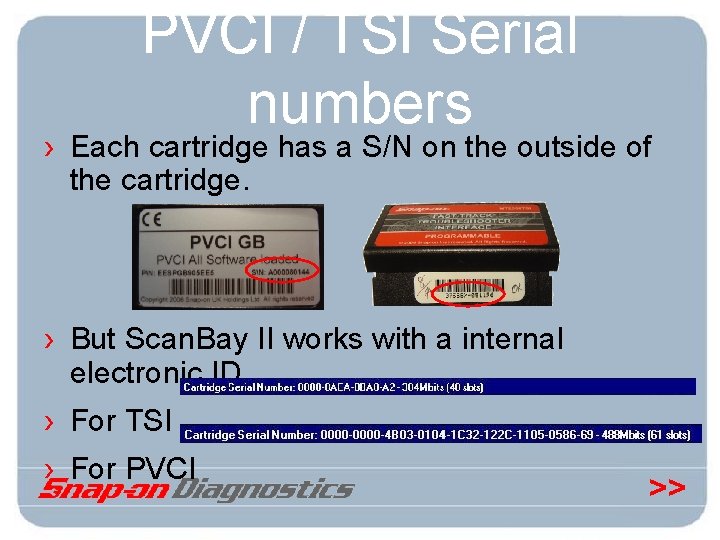
PVCI / TSI Serial numbers › Each cartridge has a S/N on the outside of the cartridge. › But Scan. Bay II works with a internal electronic ID › For TSI › For PVCI >>
PVCI ALL MAKES PRELOADED › “Empty” PVCI’s are available from the factory pre-programmed with all modules, in a single language › These modules are disabled. So they are not visible in the Scanner. * › These PVCI’s are used for the repair procedure *When no module is activated on the PVCI the scanner gives error “ini file missing or corrupt!” >>
Scan. Bay II system requirements › Windows 1998, 2000 or XP › CD-ROM and USB port › Internet explore 5 or higher › Minimum 250 Mb hard drive space › Internet connection from starting the program until purchasing the software. >>
USB Scan. Bay Installation › First install the software. › After the software installation is completed the USB Scan. Bay can be connected to the PC. › Ignore the Windows message new hardware found! >>
Scan. Bay II installation › See also operators manual › The CD is autorun – If not start setup. exe on CD-ROM 1. It will first install Microsoft. net. (This program runs in the background) 2. Scan. Bay II software installation. >>
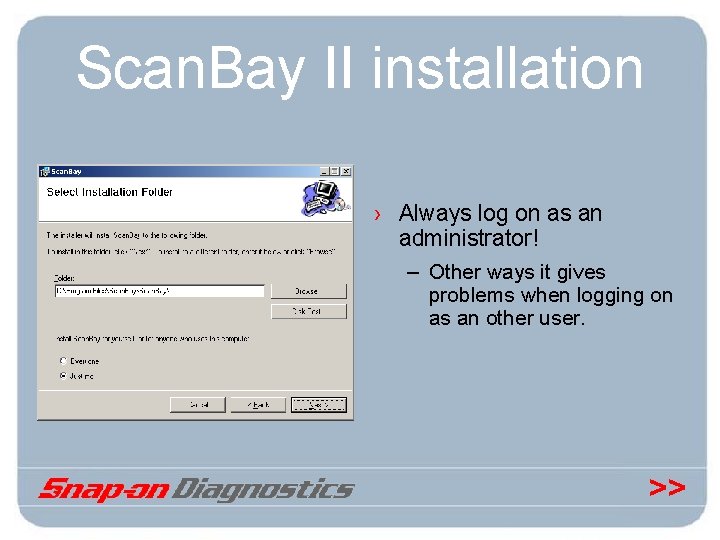
Scan. Bay II installation › Always log on as an administrator! – Other ways it gives problems when logging on as an other user. >>
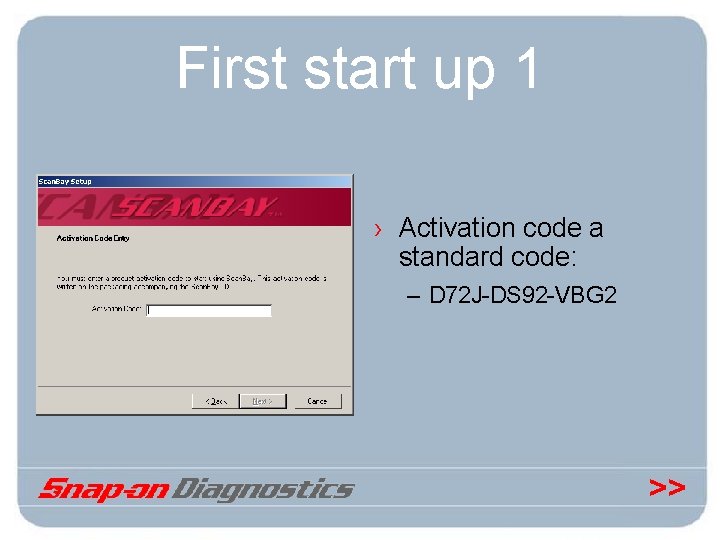
First start up 1 › Activation code a standard code: – D 72 J-DS 92 -VBG 2 >>
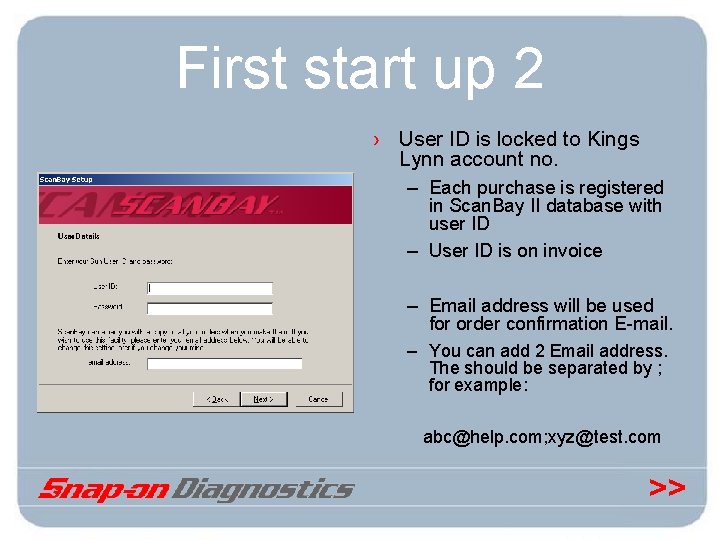
First start up 2 › User ID is locked to Kings Lynn account no. – Each purchase is registered in Scan. Bay II database with user ID – User ID is on invoice – Email address will be used for order confirmation E-mail. – You can add 2 Email address. The should be separated by ; for example: abc@help. com; xyz@test. com >>
Scan. Bay II administrator › Has access to the Scan. Bay II Data bases on the web. › For user accounts administration: – User ID’s with password. › Demo cartridge registration › Order history. › Use: scanbay@sun-diagnostics. com >>
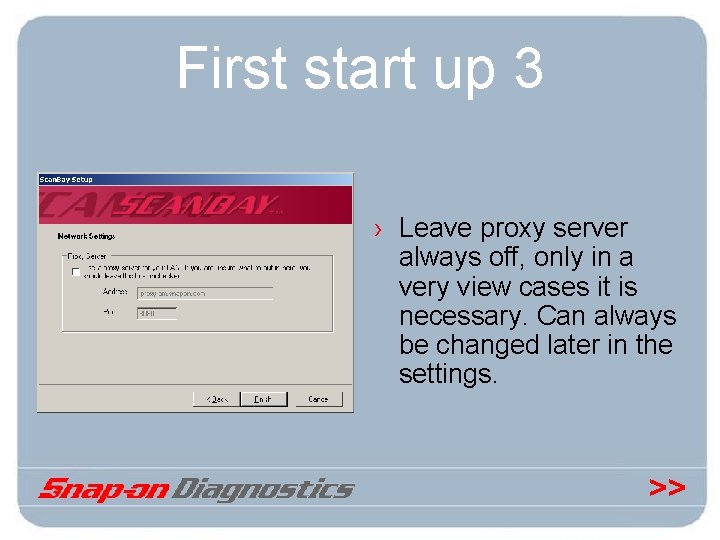
First start up 3 › Leave proxy server always off, only in a very view cases it is necessary. Can always be changed later in the settings. >>
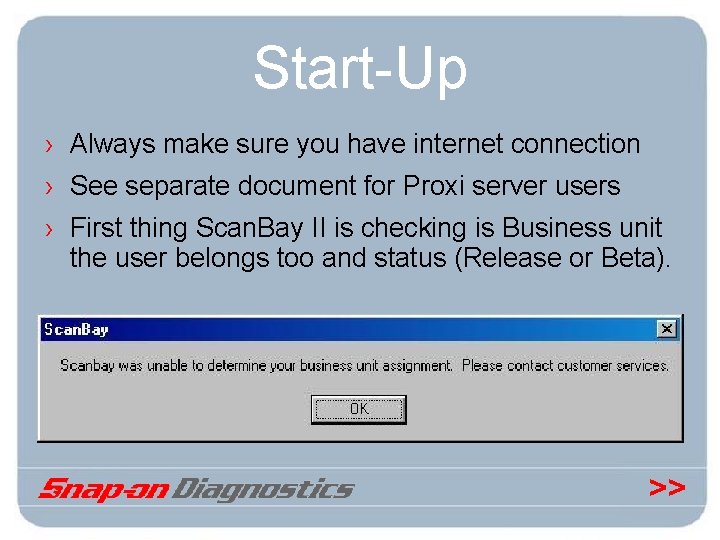
Start-Up › Always make sure you have internet connection › See separate document for Proxi server users › First thing Scan. Bay II is checking is Business unit the user belongs too and status (Release or Beta). >>
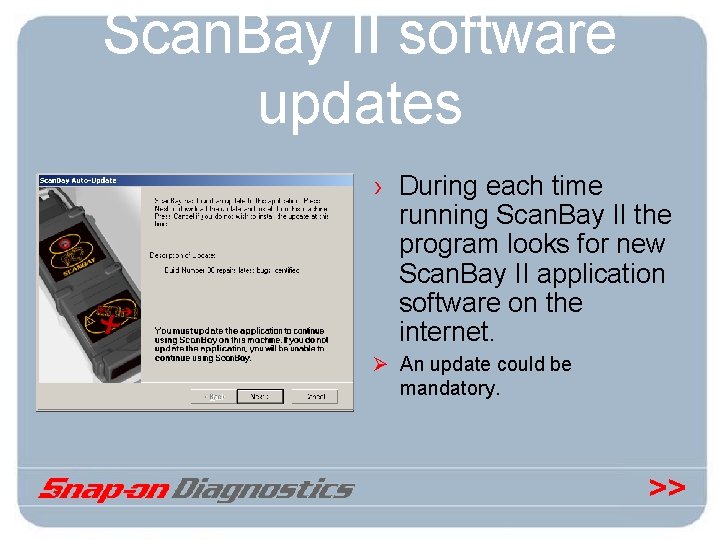
Scan. Bay II software updates › During each time running Scan. Bay II the program looks for new Scan. Bay II application software on the internet. Ø An update could be mandatory. >>
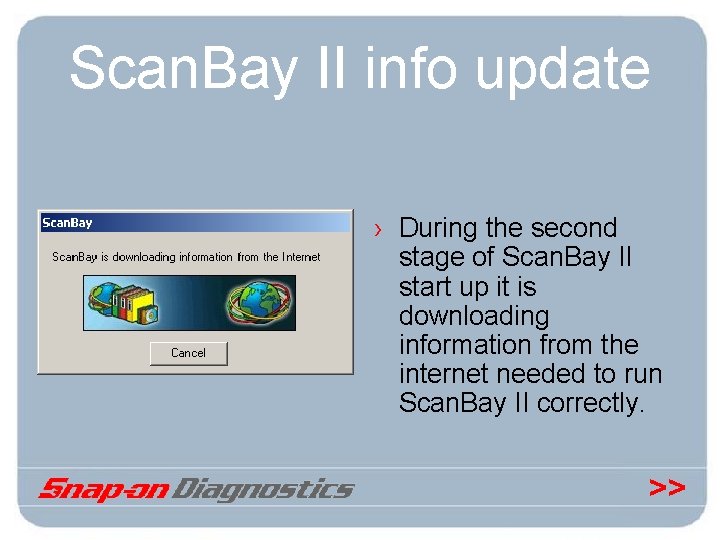
Scan. Bay II info update › During the second stage of Scan. Bay II start up it is downloading information from the internet needed to run Scan. Bay II correctly. >>
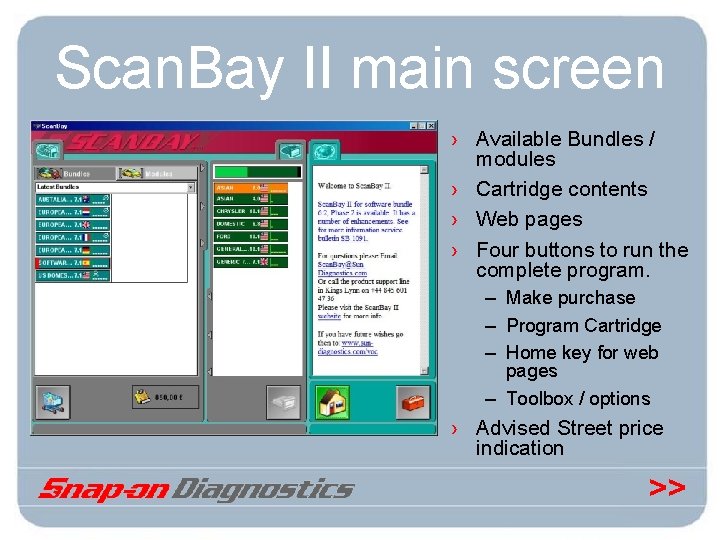
Scan. Bay II main screen › Available Bundles / modules › Cartridge contents › Web pages › Four buttons to run the complete program. – Make purchase – Program Cartridge – Home key for web pages – Toolbox / options › Advised Street price indication >>
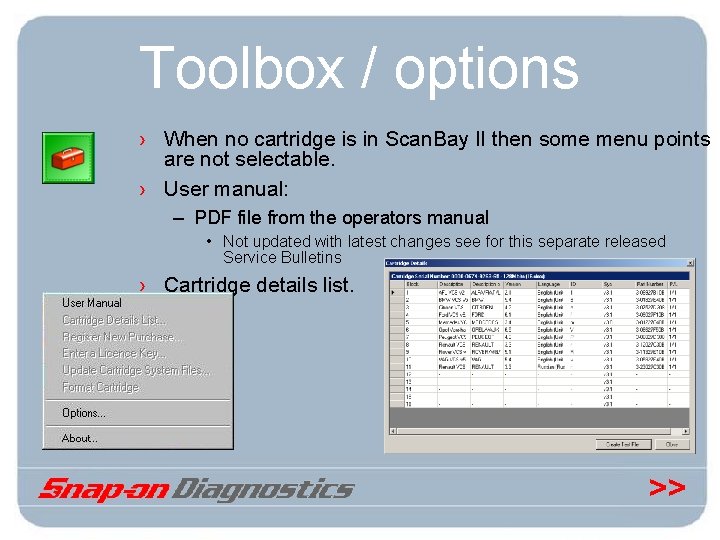
Toolbox / options › When no cartridge is in Scan. Bay II then some menu points are not selectable. › User manual: – PDF file from the operators manual • Not updated with latest changes see for this separate released Service Bulletins › Cartridge details list. >>
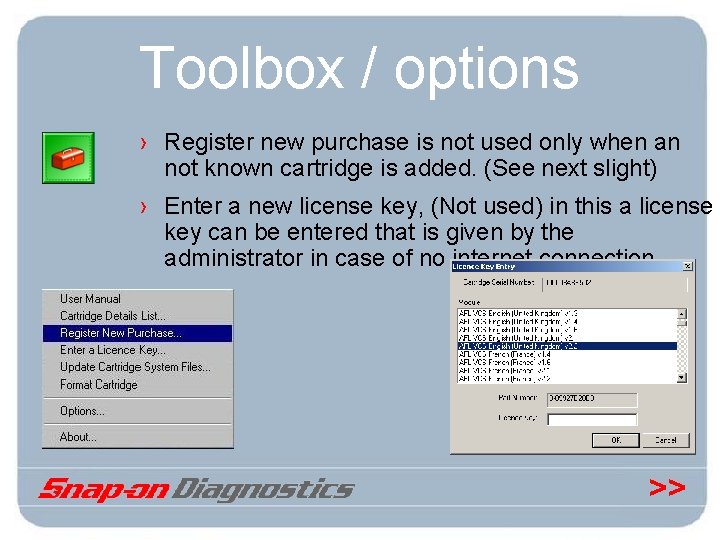
Toolbox / options › Register new purchase is not used only when an not known cartridge is added. (See next slight) › Enter a new license key, (Not used) in this a license key can be entered that is given by the administrator in case of no internet connection. >>
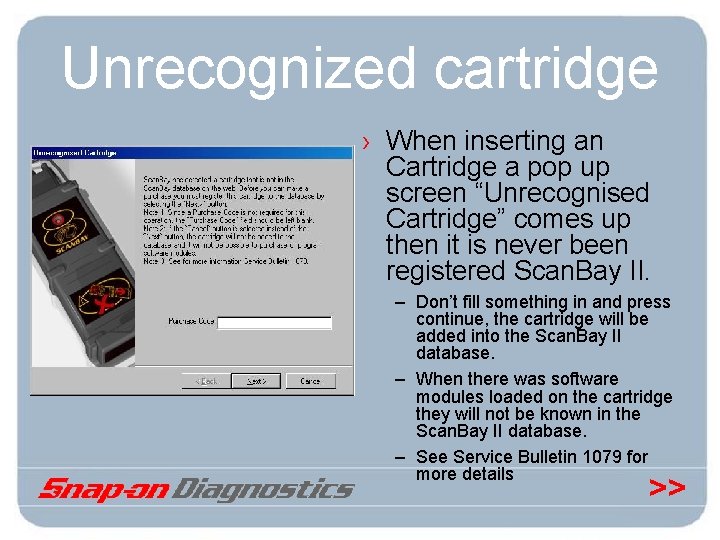
Unrecognized cartridge › When inserting an Cartridge a pop up screen “Unrecognised Cartridge” comes up then it is never been registered Scan. Bay II. – Don’t fill something in and press continue, the cartridge will be added into the Scan. Bay II database. – When there was software modules loaded on the cartridge they will not be known in the Scan. Bay II database. – See Service Bulletin 1079 for more details >>
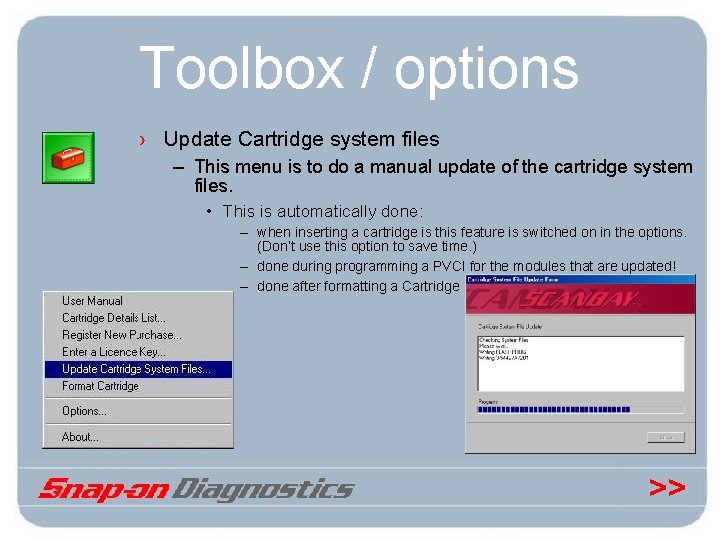
Toolbox / options › Update Cartridge system files – This menu is to do a manual update of the cartridge system files. • This is automatically done: – when inserting a cartridge is this feature is switched on in the options. (Don’t use this option to save time. ) – done during programming a PVCI for the modules that are updated! – done after formatting a Cartridge >>
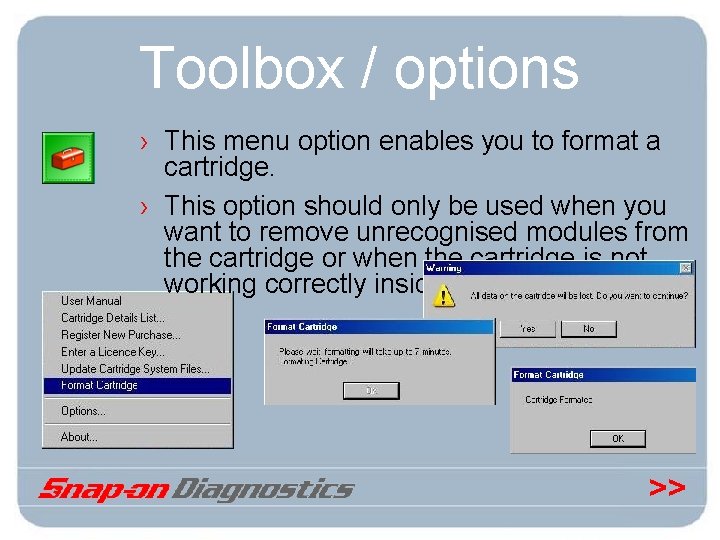
Toolbox / options › This menu option enables you to format a cartridge. › This option should only be used when you want to remove unrecognised modules from the cartridge or when the cartridge is not working correctly inside the Scanner. >>
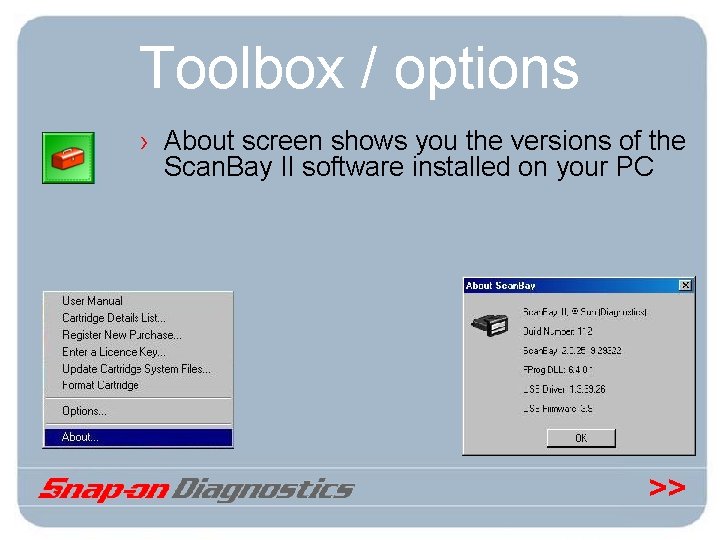
Toolbox / options › About screen shows you the versions of the Scan. Bay II software installed on your PC >>
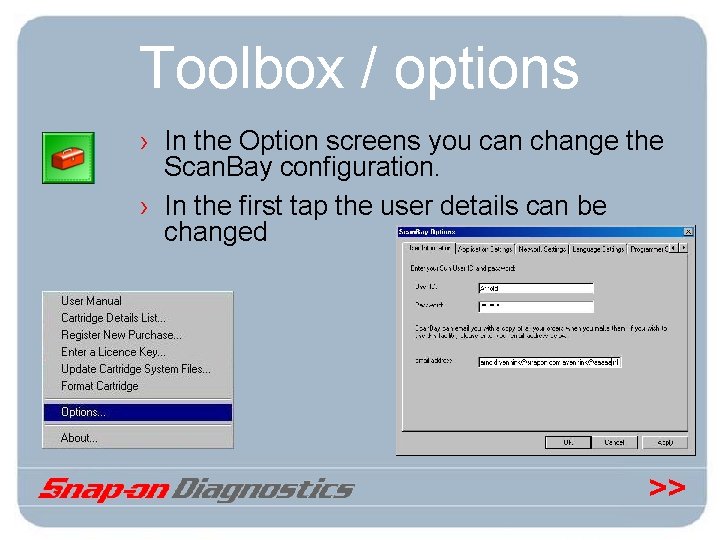
Toolbox / options › In the Option screens you can change the Scan. Bay configuration. › In the first tap the user details can be changed >>
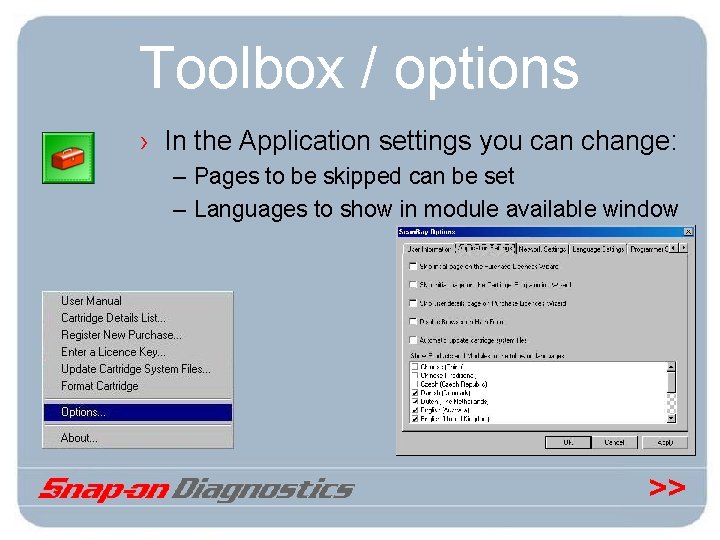
Toolbox / options › In the Application settings you can change: – Pages to be skipped can be set – Languages to show in module available window >>
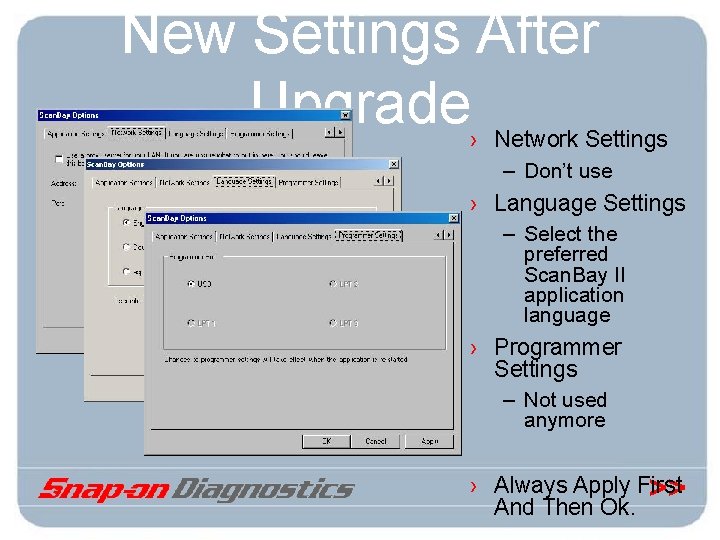
New Settings After Upgrade› Network Settings – Don’t use › Language Settings – Select the preferred Scan. Bay II application language › Programmer Settings – Not used anymore › Always Apply First >> And Then Ok.
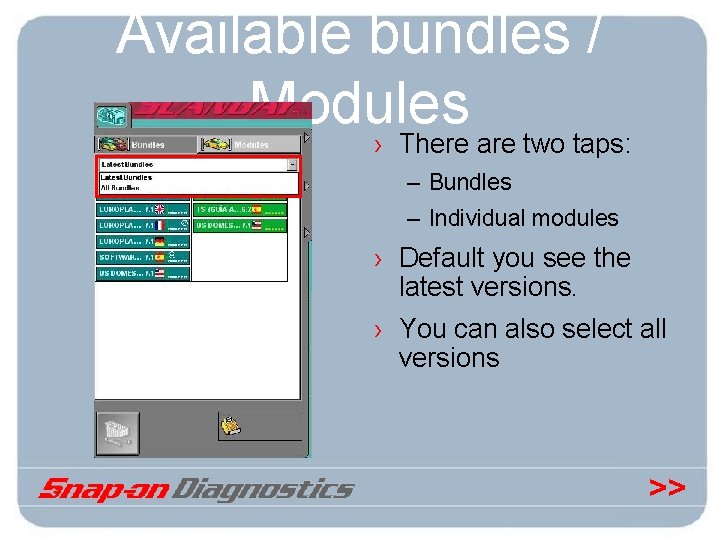
Available bundles / Modules › There are two taps: – Bundles – Individual modules › Default you see the latest versions. › You can also select all versions >>
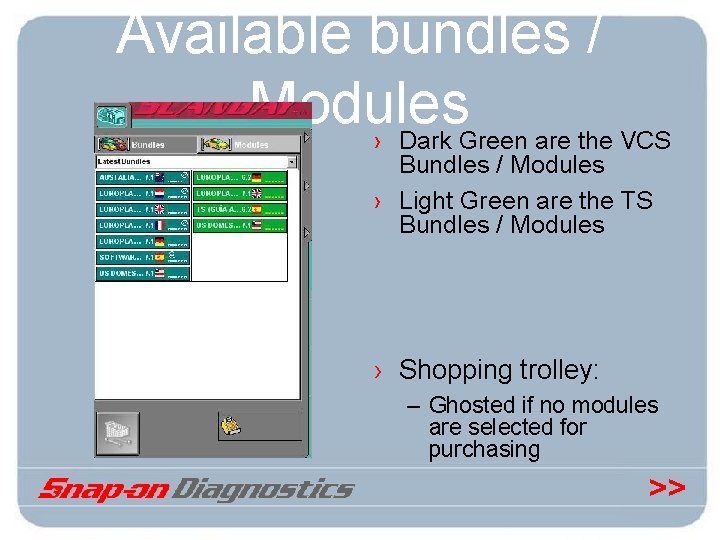
Available bundles / Modules › Dark Green are the VCS Bundles / Modules › Light Green are the TS Bundles / Modules › Shopping trolley: – Ghosted if no modules are selected for purchasing >>
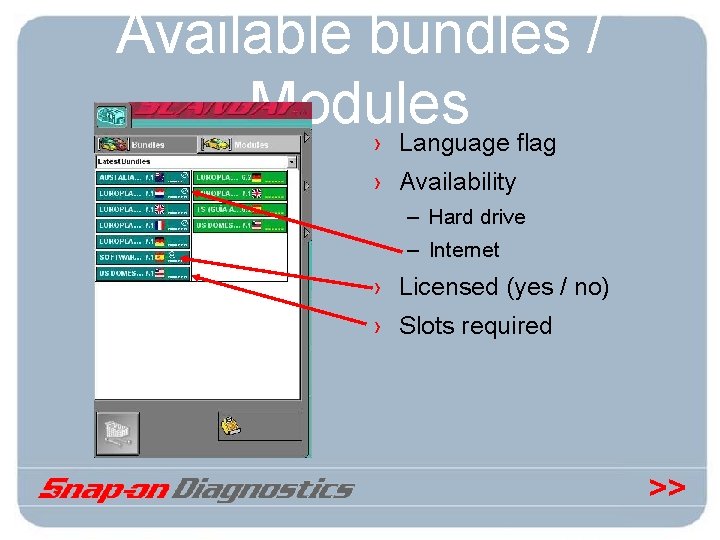
Available bundles / Modules › Language flag › Availability – Hard drive – Internet › Licensed (yes / no) › Slots required >>
Web Database › What is licensed on a cartridge is info from the Web database • Scan. Bay II doesn’t look to what is on the cartridge. • So Upgrades Updates info is done via Web database • When data is lost then Scan. Bay II doesn’t know it anymore. – Factory synchronisation – Lost data from repair centre • See SB-1079 >>
Bundles: › A method of selecting and programming multiple modules at one time is done via the Bundles. › The Bundles tap shows the available bundles. It is the default page shown at start-up. – The Modules tab is the page where the individual modules are displayed. › The purchase criteria for Bundles are the same as for modules and the Bundle will take into account purchased licenses for each individual module. >>
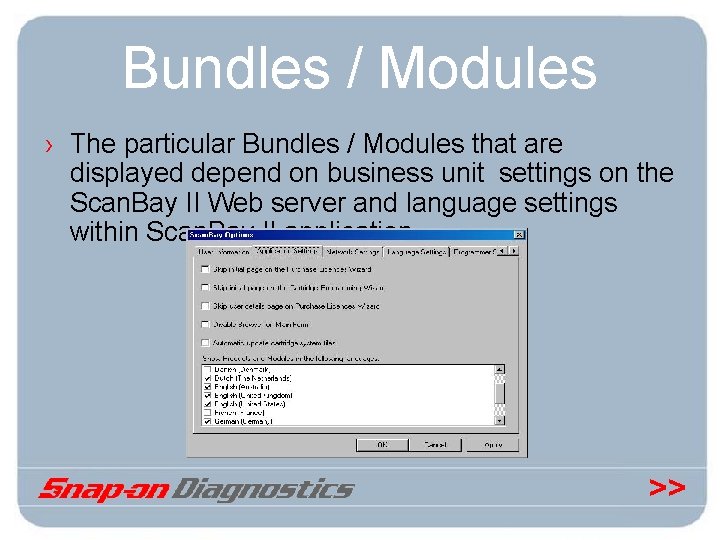
Bundles / Modules › The particular Bundles / Modules that are displayed depend on business unit settings on the Scan. Bay II Web server and language settings within Scan. Bay II application. >>
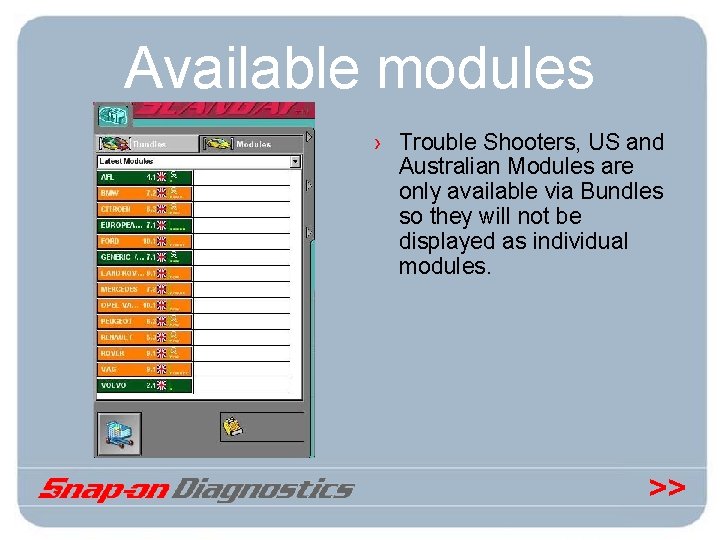
Available modules › Trouble Shooters, US and Australian Modules are only available via Bundles so they will not be displayed as individual modules. >>
Split Modules › Some of the brands are split in model year coverage for example Mercedes: – 1990 - 2003 – 2004 - 2005 This is done because of different program languages. The old model years are programmed in the an old language (Legacy) and the new 2004 - 2005 model years are programmed in a new language (VAT) which will be used in the future. Old modules will be moved to the new programming language so that they will be one file for each brand in the future. >>
Split Modules › Scan. Bay II Application recognizes these brands and handles them accordingly: – Includes the lower version automatically by new purchases – Updates the lower version by upgrading to the new version if applicable – Programs both versions – Purchases of upgrades and new split modules are seen as one module. >>
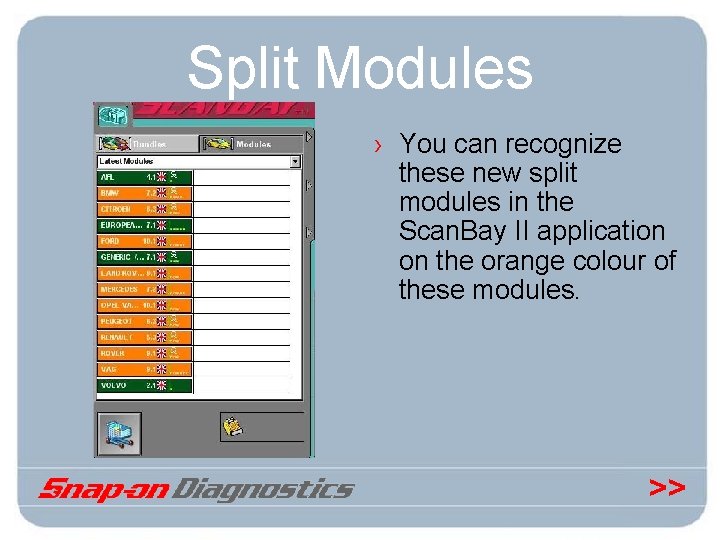
Split Modules › You can recognize these new split modules in the Scan. Bay II application on the orange colour of these modules. >>
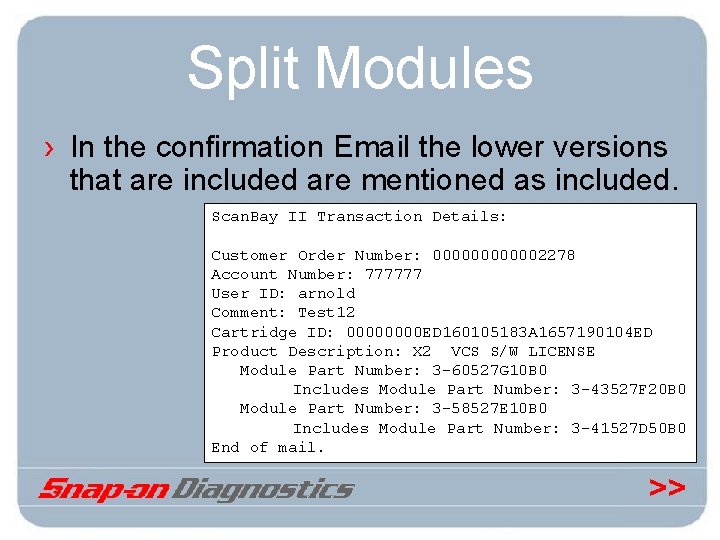
Split Modules › In the confirmation Email the lower versions that are included are mentioned as included. Scan. Bay II Transaction Details: Customer Order Number: 0000002278 Account Number: 777777 User ID: arnold Comment: Test 12 Cartridge ID: 0000 ED 160105183 A 1657190104 ED Product Description: X 2 VCS S/W LICENSE Module Part Number: 3 -60527 G 10 B 0 Includes Module Part Number: 3 -43527 F 20 B 0 Module Part Number: 3 -58527 E 10 B 0 Includes Module Part Number: 3 -41527 D 50 B 0 End of mail. >>
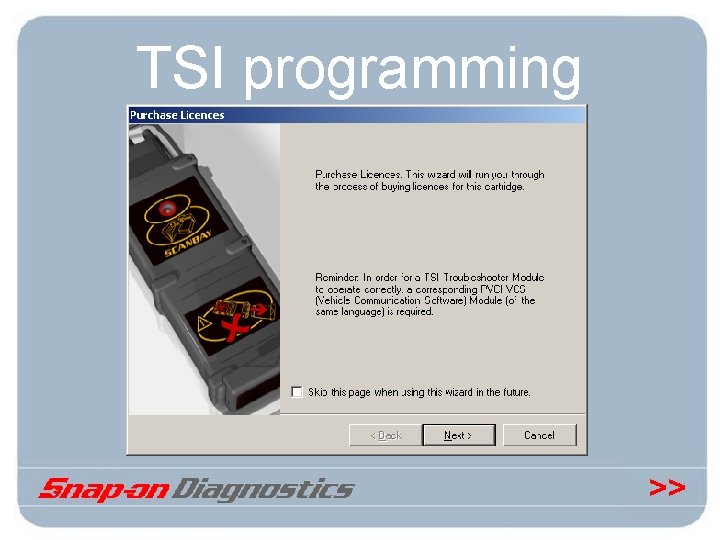
TSI programming › TSI programming : – When programming a TSI you have to read and understand the following warning: In order for a TSI Troubleshooter module to operate correctly , a corresponding VCS(vehicle communication software) module (of the same language) is required. >>
TSI programming >>
TSI programming › Corresponding means: – Same language – Same brand – And the VCS version must be equal or higher in version as the TS version >>
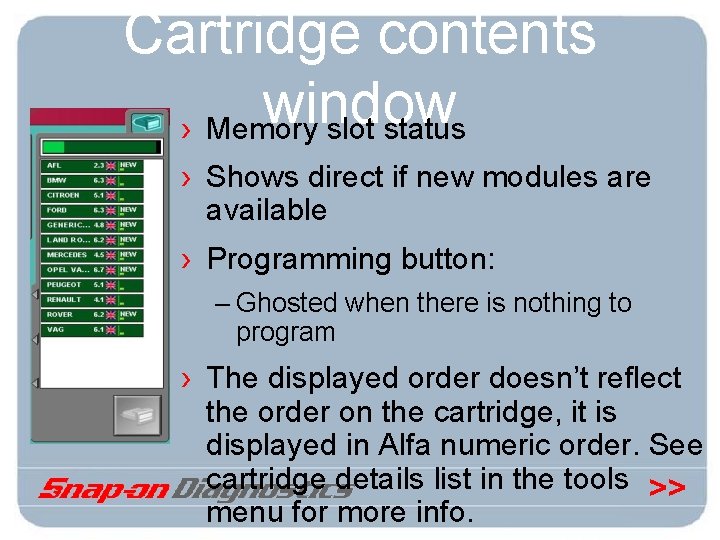
Cartridge contents window › Memory slot status › Shows direct if new modules are available › Programming button: – Ghosted when there is nothing to program › The displayed order doesn’t reflect the order on the cartridge, it is displayed in Alfa numeric order. See cartridge details list in the tools >> menu for more info.
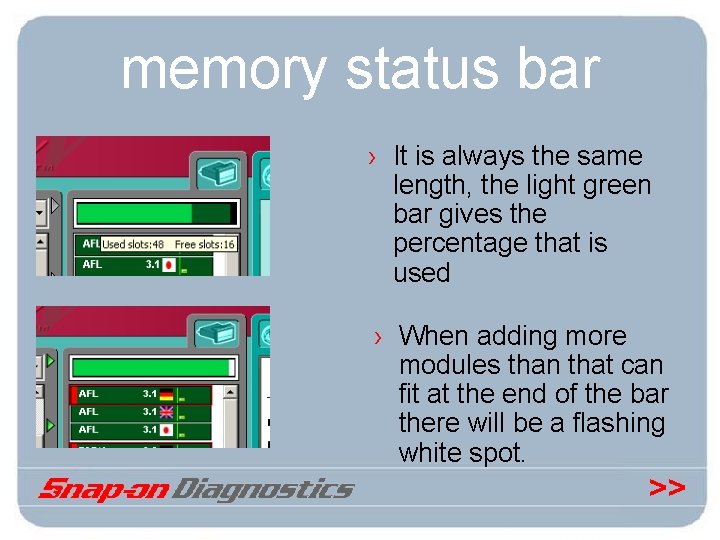
memory status bar › It is always the same length, the light green bar gives the percentage that is used › When adding more modules than that can fit at the end of the bar there will be a flashing white spot. >>
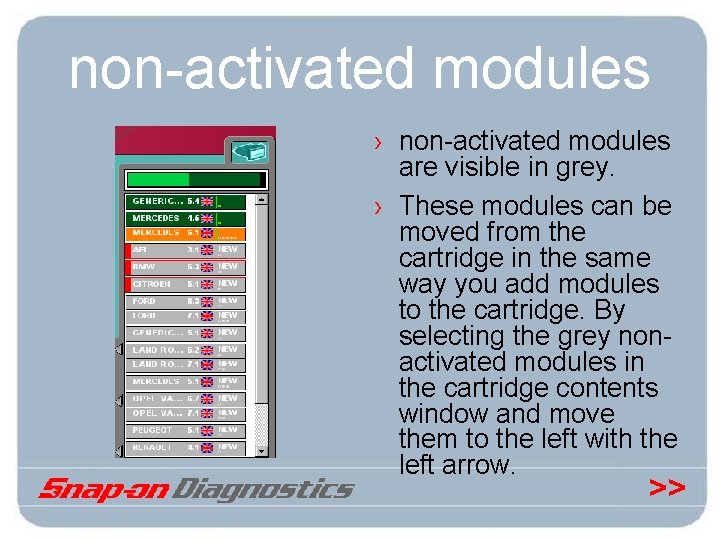
non-activated modules › non-activated modules are visible in grey. › These modules can be moved from the cartridge in the same way you add modules to the cartridge. By selecting the grey nonactivated modules in the cartridge contents window and move them to the left with the left arrow. >>
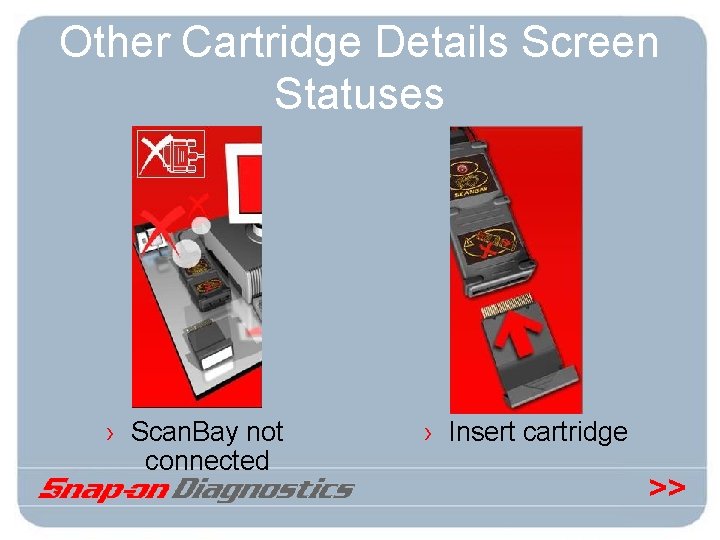
Other Cartridge Details Screen Statuses › Scan. Bay not connected › Insert cartridge >>
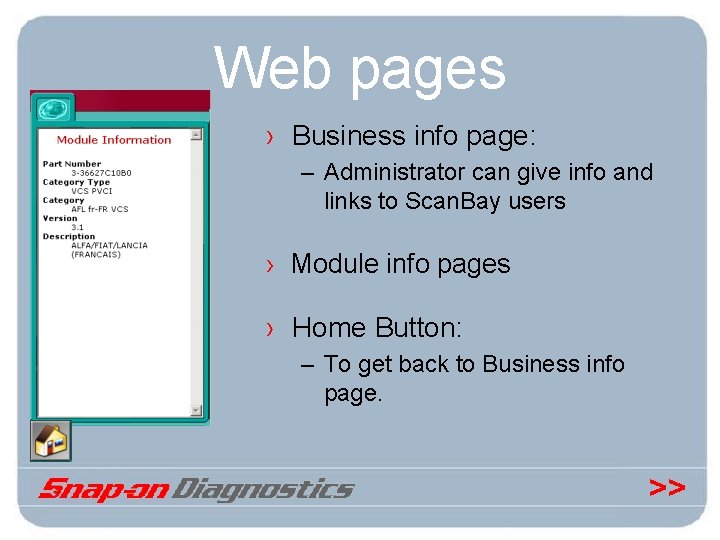
Web pages › Business info page: – Administrator can give info and links to Scan. Bay users › Module info pages › Home Button: – To get back to Business info page. >>
New / Upgrade / Update › Scan. Bay II can recognize the difference: › New: – An new sales is when a module is never purchased before for this Cartridge. New price will be charged › Upgrade: – An Upgrade is when we have added new models or systems. The version numbers changes according to the whole number before the decimal point. E. g. 5. 2 to 6. 1. Upgrade price will be charged. >>
New / Upgrade / Update › Update: An Update is software in which we repaired bugs. The version is recognizable by a change of version number after the decimal point. E. g. 5. 5 to 5. 6. With this new SCANBAY II™ software this is free of charge. Note: US versions number are different and are these rules not applicable >>
Pricing › Scan. Bay II has flexible price structures. Pricing can be defined by business unit and the system has been configured to offer attractive prices when purchasing or upgrading to product bundles. › A number of “price points” have been set up, so if the customer is ordering 3 makes, 5 makes or All Makes, they will get more attractive pricing than if they were ordering singles. The greatest value price is the All Makes Bundle. An upgrade price will be offered even if just one module exists on the cartridge. >>
Inserting a Cartridge › Scan. Bay II will check the cartridge details in the Scan. Bay II server on. – Demo status – Licensed modules › Eventually Available pop up screens – Not recognised Cartridge – Invalid cartridge >>
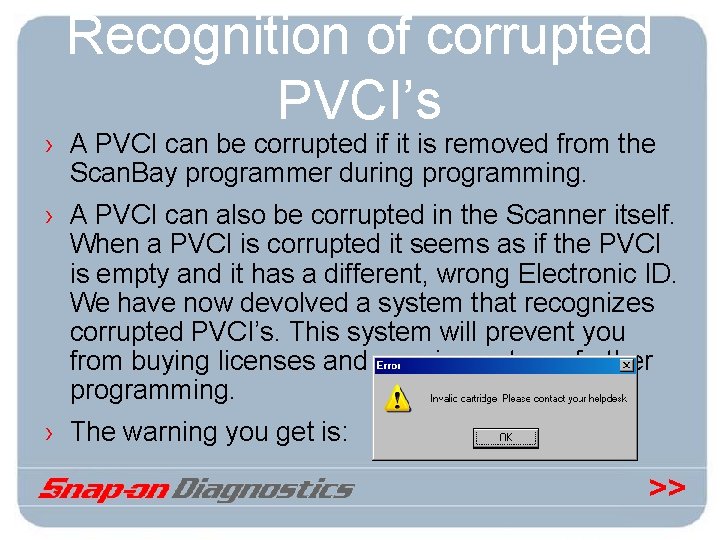
Recognition of corrupted PVCI’s › A PVCI can be corrupted if it is removed from the Scan. Bay programmer during programming. › A PVCI can also be corrupted in the Scanner itself. When a PVCI is corrupted it seems as if the PVCI is empty and it has a different, wrong Electronic ID. We have now devolved a system that recognizes corrupted PVCI’s. This system will prevent you from buying licenses and carrying out any further programming. › The warning you get is: >>
Recognition of corrupted PVCI’s › In some cases you can repair a corrupted PVCI in Scan. Bay II. Select “Update Cartridge System Files” from the toolbox menu. After updating these files you must remove the PVCI from the Scan. Bay programmer and reinsert it again. Wait long enough that Scan. Bay II can recognise that you removed the PVCI. When it is repaired Scan. Bay II will now recognise the cartridge again. It could be that all modules are deactivated, grey. If this is the case, they need to be reprogrammed. The licences should still be there for this PVCI. › If this procedure does not work, then the cartridge needs to be repaired in our repair centre. See Service Bulletin SB 1086 for detailed information about this repair procedure. >>
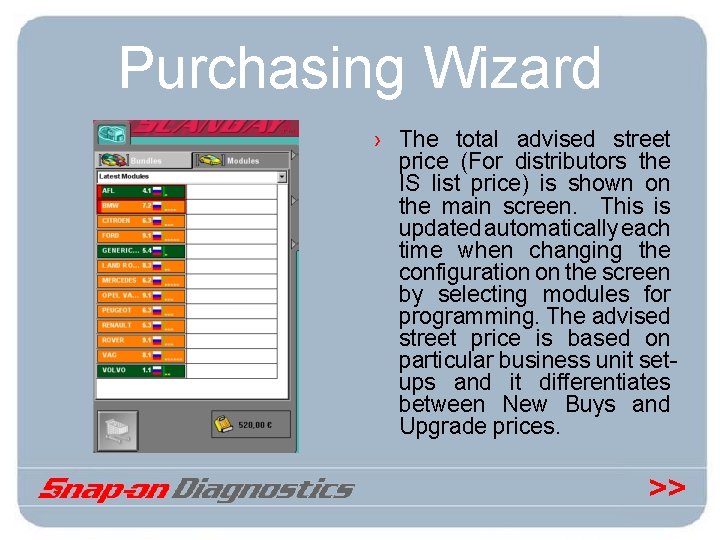
Purchasing Wizard › The total advised street price (For distributors the IS list price) is shown on the main screen. This is updated automatically each time when changing the configuration on the screen by selecting modules for programming. The advised street price is based on particular business unit setups and it differentiates between New Buys and Upgrade prices. >>
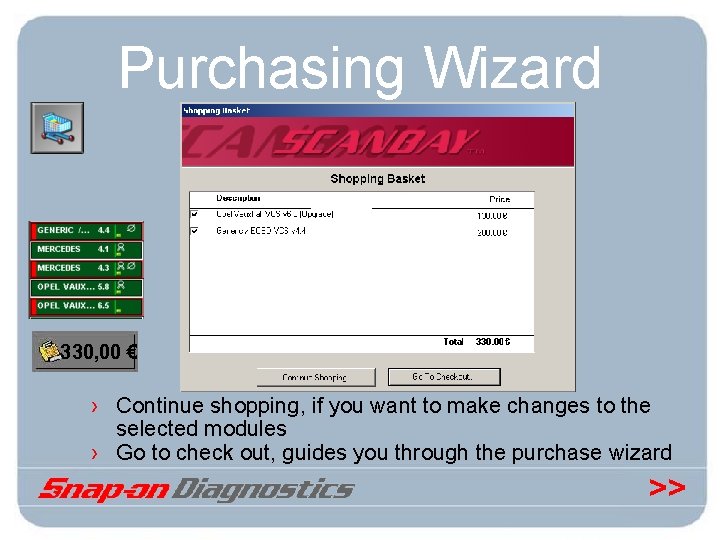
Purchasing Wizard 330, 00 € › Continue shopping, if you want to make changes to the selected modules › Go to check out, guides you through the purchase wizard >>
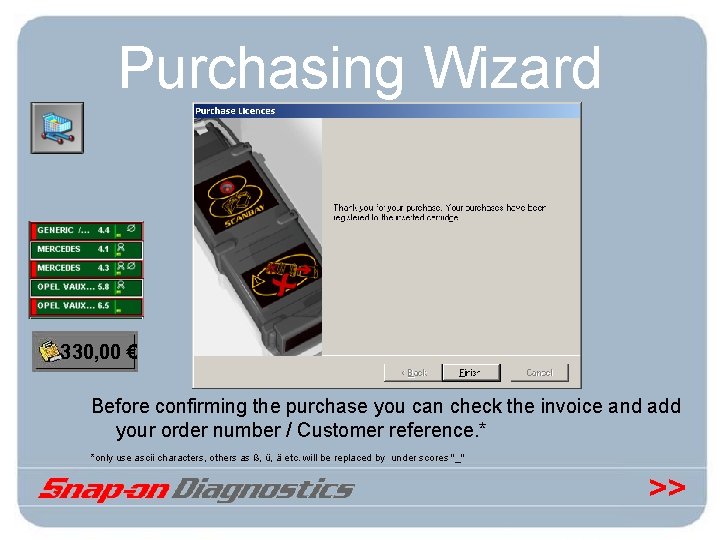
Purchasing Wizard 330, 00 € Before confirming the purchase you can check the invoice and add your order number / Customer reference. * *only use ascii characters, others as ß, ü, ä etc. will be replaced by under scores "_" >>
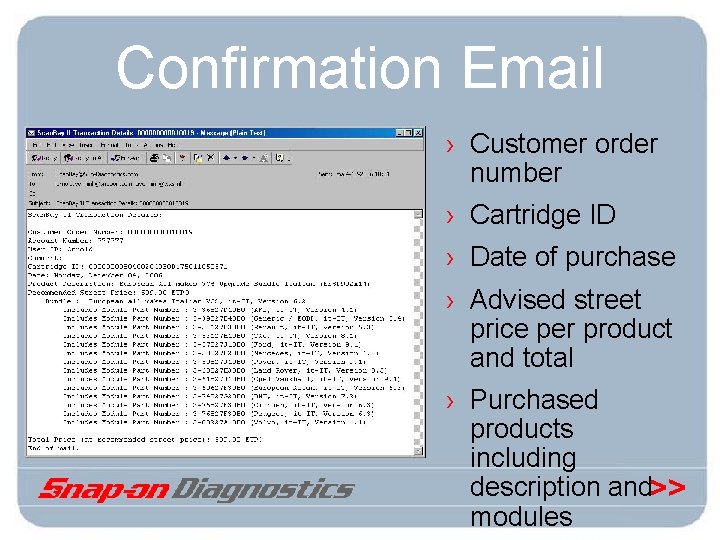
Confirmation Email › Customer order number › Cartridge ID › Date of purchase › Advised street price per product and total › Purchased products including description and>> modules
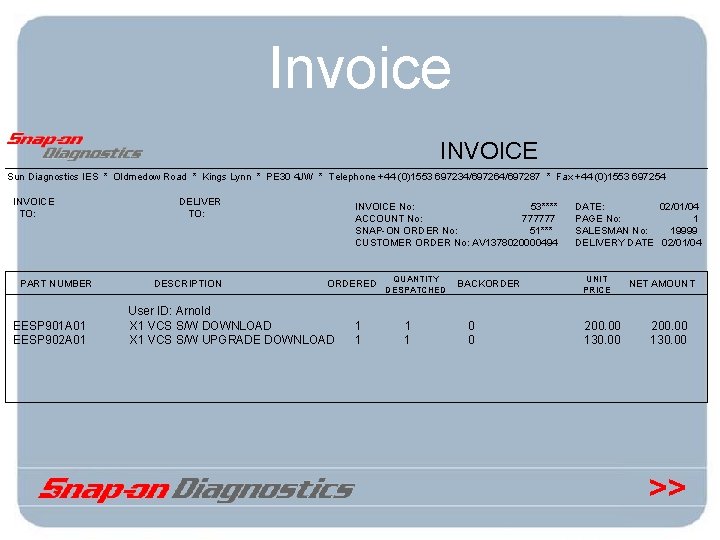
Invoice INVOICE Sun Diagnostics IES * Oldmedow Road * Kings Lynn * PE 30 4 JW * Telephone +44 (0)1553 697234/697264/697287 * Fax +44 (0)1553 697254 INVOICE TO: PART NUMBER EESP 901 A 01 EESP 902 A 01 DELIVER TO: DESCRIPTION INVOICE No: 53**** ACCOUNT No: 777777 SNAP-ON ORDER No: 51*** CUSTOMER ORDER No: AV 1378020000494 ORDERED User ID: Arnold X 1 VCS S/W DOWNLOAD X 1 VCS S/W UPGRADE DOWNLOAD 1 1 QUANTITY DESPATCHED 1 1 BACKORDER 0 0 DATE: 02/01/04 PAGE No: 1 SALESMAN No: 19999 DELIVERY DATE 02/01/04 UNIT PRICE 200. 00 130. 00 NET AMOUNT 200. 00 130. 00 >>
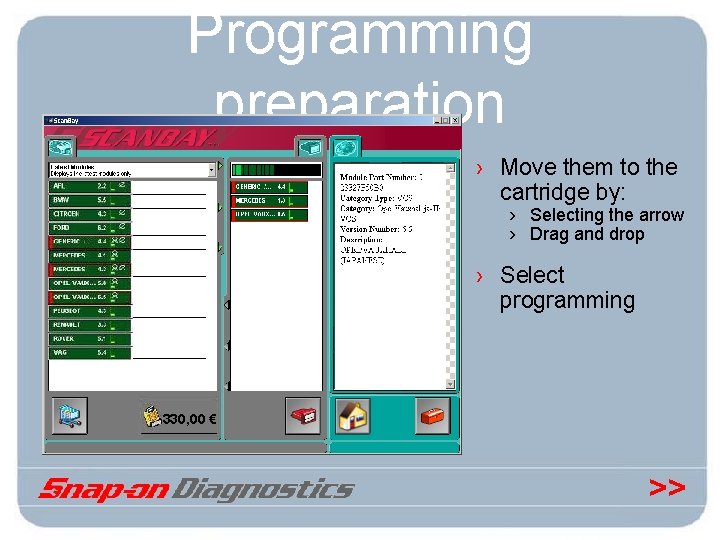
Programming preparation › Move them to the cartridge by: › Selecting the arrow › Drag and drop › Select programming 330, 00 € >>
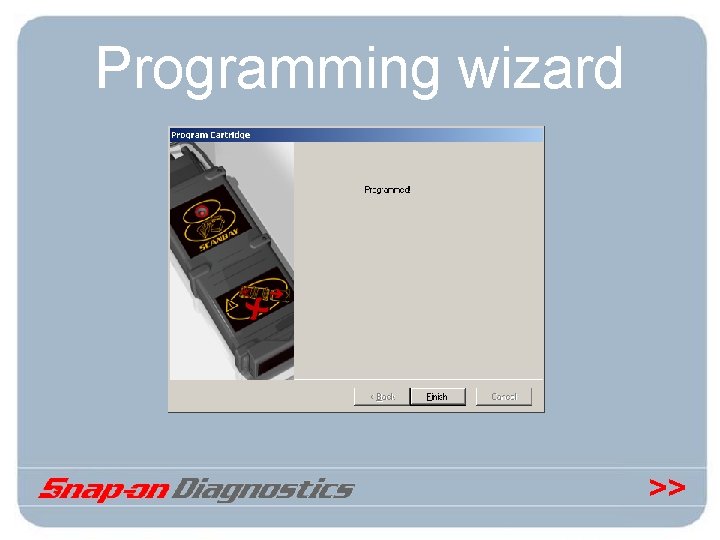
Programming wizard >>
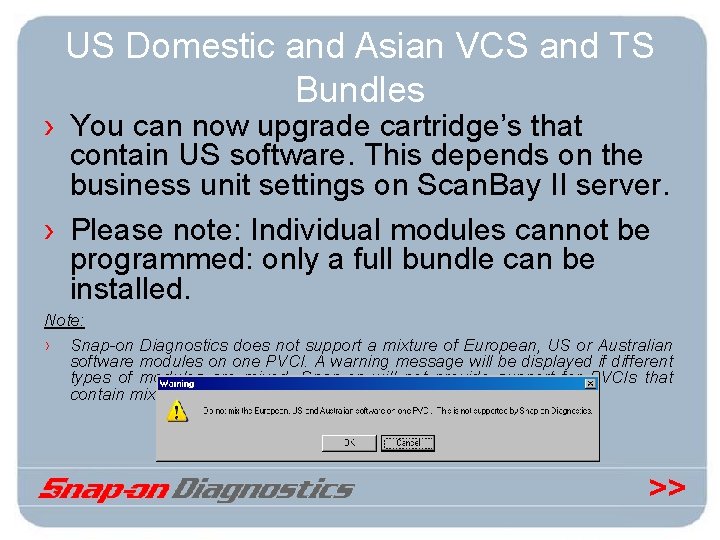
US Domestic and Asian VCS and TS Bundles › You can now upgrade cartridge’s that contain US software. This depends on the business unit settings on Scan. Bay II server. › Please note: Individual modules cannot be programmed: only a full bundle can be installed. Note: › Snap-on Diagnostics does not support a mixture of European, US or Australian software modules on one PVCI. A warning message will be displayed if different types of modules are mixed. Snap-on will not provide support for PVCIs that contain mixed modules. >>
US Domestic and Asian VCS and TS Bundles Note: › If you have older cartridges that have mixed modules on them, you should split them into different cartridges and format this cartridge before continuing. >>
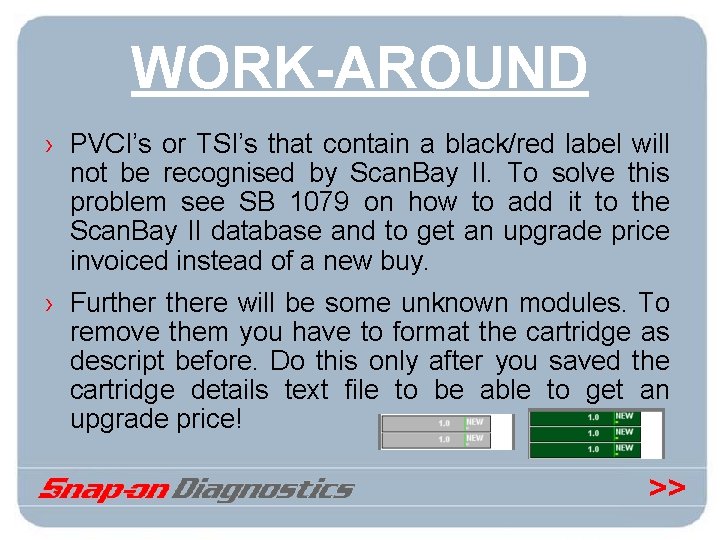
WORK-AROUND › PVCI’s or TSI’s that contain a black/red label will not be recognised by Scan. Bay II. To solve this problem see SB 1079 on how to add it to the Scan. Bay II database and to get an upgrade price invoiced instead of a new buy. › Furthere will be some unknown modules. To remove them you have to format the cartridge as descript before. Do this only after you saved the cartridge details text file to be able to get an upgrade price! >>
Australian Asian VCS Bundle › You can now upgrade cartridge’s that contain Australian Asian software. This depends on the business unit settings on Scan. Bay II server. › Please note: Individual modules cannot be programmed: only a full bundle can be installed. >>
PVCI Defrag › A PVCI Defrag will take automatically place in the Scanner the first time after it is programmed in Scan. Bay II. This can take up to 5 minutes. The defrag will start automatically when: – A legacy module (i. e. EOBD or AFL) is selected for the first time. – After a vehicle is selected in a VAT module. A VAT module shown in orange in Scan. Bay II. › During defrag, it looks that the scanner is locked. There fore we advise that you do this before delivering the PVCI to the customer. Note: › After programming a cartridge, please check that the cartridge contains the software that is programmed on it by removing it from the Scan. Bay programmer and re-inserting it. You should also test it in a Scanner. >>
User Notes 1 › Never remove the Cartridge when the LED on the Scan. Bay is on. – This can hang-up the Scan. Bay application – When inserting a cartridge it can take a few seconds*, depending on the internet connections to the Scan. Bay server. *sometimes this can take longer then a view seconds up to 2 minutes. >>
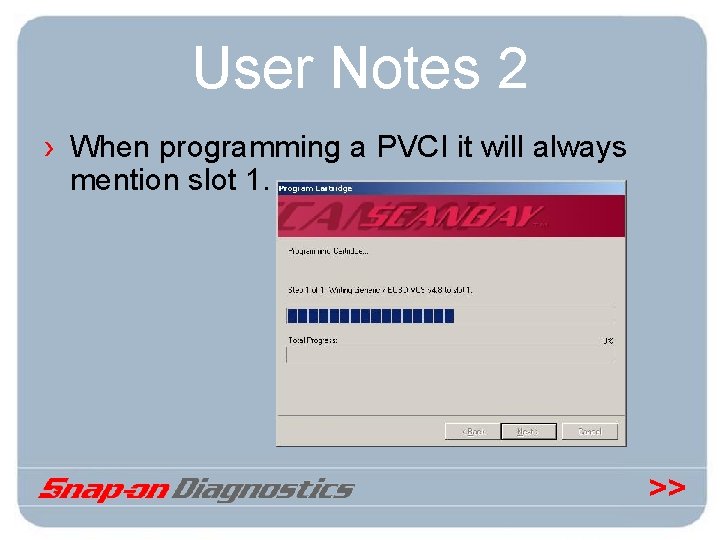
User Notes 2 › When programming a PVCI it will always mention slot 1. >>
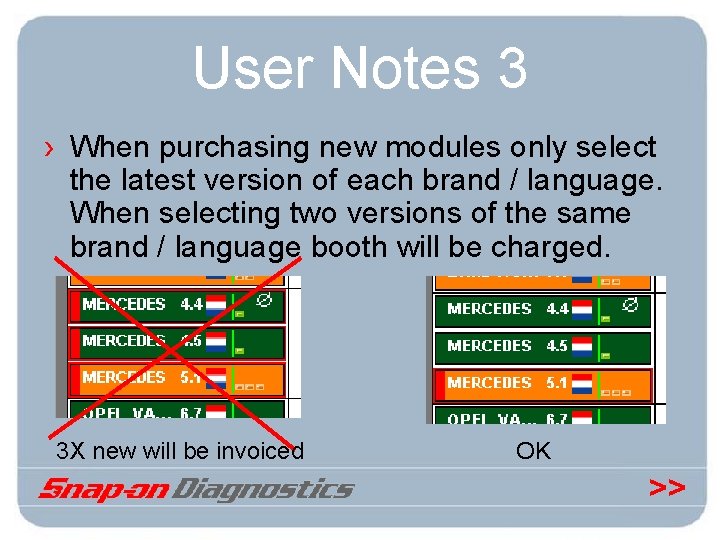
User Notes 3 › When purchasing new modules only select the latest version of each brand / language. When selecting two versions of the same brand / language booth will be charged. 3 X new will be invoiced OK >>
Demo Cartridges › With Scan. Bay II we can register Demo EMB, PVCI, TSI Cartridges › Everything will be the same as normal in Scan. Bay II but purchases will not be invoiced. >>
Demo Cartridge rules › Demo EMB, PVCI, TSI Cartridge’s must not be sold › Demo cartridge must marked as Demo › Demo Cartridges need to be set up in the database by the Scan. Bay administrator. › The Scan. Bay administrator will evaluate the request and inform you with the out come: – Accepted – Not accepted >>
Demo Cartridge request › When you request to set-up a Demo EMB, PVCI or TSI Cartridge you should give the following info by Email scanbay@sundiagnostics. com: – Electronic ID of EMB, PVCI, TSI cartridge – Hardware S/N of EMB, PVCI, TSI cartridge – Distributor / Subsidiary name – Salesman / demonstrator name that is using the EMB, PVCI, TSI Cartridge *PVCI ID is 32 + 2 characters >>
Tips for Mobile use › Use GPRS / UMTS (G 3) on data transport is charged › Load at home the large files as – Scan. Bay application program updates 1. 8 Mb – New software modules VCS 0, 5 Mb TS max 3 Mb › Each time starting up Scan. Bay II 310 Kb is downloaded >>
Scan. Bay II Website › See for more info: http: //www. sun-diagnostics. com/Scan. Bay >>
- Slides: 82