
Scan Barcodes in numerical order 1 6 1
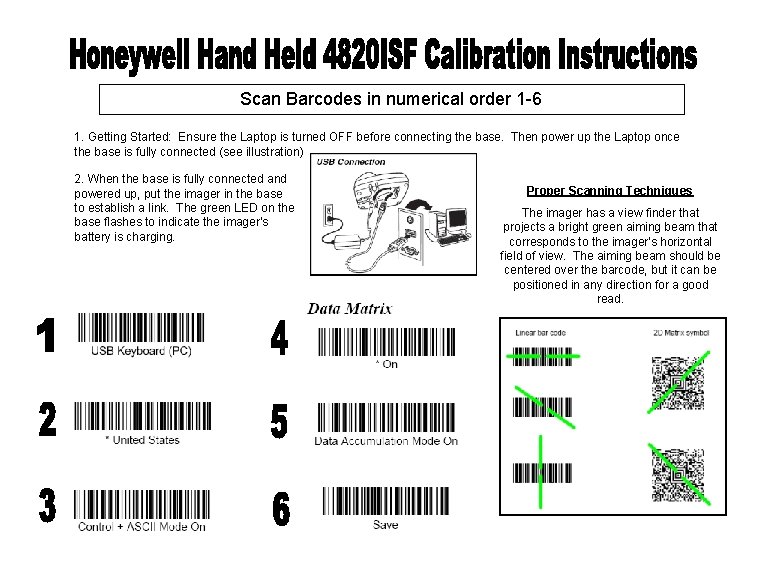
Scan Barcodes in numerical order 1 -6 1. Getting Started: Ensure the Laptop is turned OFF before connecting the base. Then power up the Laptop once the base is fully connected (see illustration) 2. When the base is fully connected and powered up, put the imager in the base to establish a link. The green LED on the base flashes to indicate the imager’s battery is charging. Proper Scanning Techniques The imager has a view finder that projects a bright green aiming beam that corresponds to the imager’s horizontal field of view. The aiming beam should be centered over the barcode, but it can be positioned in any direction for a good read.
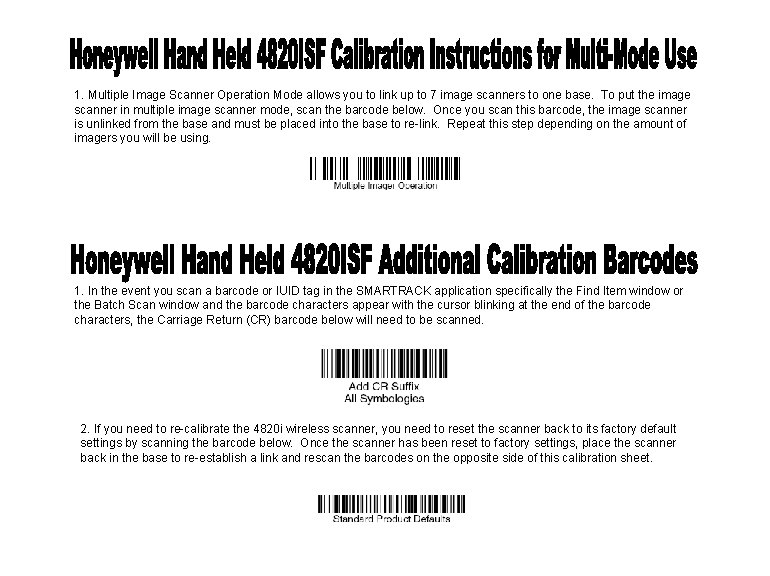
1. Multiple Image Scanner Operation Mode allows you to link up to 7 image scanners to one base. To put the image scanner in multiple image scanner mode, scan the barcode below. Once you scan this barcode, the image scanner is unlinked from the base and must be placed into the base to re-link. Repeat this step depending on the amount of imagers you will be using. 1. In the event you scan a barcode or IUID tag in the SMARTRACK application specifically the Find Item window or the Batch Scan window and the barcode characters appear with the cursor blinking at the end of the barcode characters, the Carriage Return (CR) barcode below will need to be scanned. 2. If you need to re-calibrate the 4820 i wireless scanner, you need to reset the scanner back to its factory default settings by scanning the barcode below. Once the scanner has been reset to factory settings, place the scanner back in the base to re-establish a link and rescan the barcodes on the opposite side of this calibration sheet.
- Slides: 2